Struggling to get Instagram videos to play on your smartphone can be frustrating, but there’s a simple path back to smooth viewing. This guide covers both Android and iPhone users, with quick checks you can do in minutes and deeper fixes if needed.
Common causes show up across devices: a weak internet connection, outdated apps, cluttered storage, and odd app settings. You’ll learn a step by step plan to tackle each one, so you’re back to watching without interruptions.
What you’ll get here is a clear, practical approach. We’ll start with fast wins you can try right away, then move to deeper fixes, and end with guidance on when to seek help. This is a practical, no fluff guide you can follow on your smartphone today.
Quick start checklist
- Check your internet connection and switch networks if needed
- Update Instagram and your phone’s software
- Clear the Instagram cache and free up storage
- Restart the device and re-login to Instagram
- If problems persist, consider reinstalling the app or seeking professional help
Basics that fix most Instagram video playback issues
When a video won’t load on Instagram, it can throw off your whole day. The good news is that most playback problems have simple, fast fixes you can try in minutes. This section breaks down the essential, high-impact steps you can follow across Android and iPhone. Think of this as your first-aid kit for video issues, designed to restore smooth viewing with minimal hassle.
Test your network connection and switch networks if needed
A stable internet connection is the backbone of video streaming. Start by confirming your device is online and able to fetch data without interruptions. On both Android and iPhone, you can perform quick checks that mirror real-world use:
- Open a web page in your browser and see if it loads quickly and steadily. If pages stall or load slowly, the issue is likely network related.
- Try streaming a non Instagram video from another app or service. If that video plays without buffering, your network is probably fine and the problem lies with Instagram or the app itself.
- Switch between Wi Fi and mobile data to compare performance. If one network consistently streams videos while the other does not, you’ve identified a network-specific issue.
- Give the connection a couple of minutes of steady activity, then retest Instagram videos. A short warm-up period helps streaming apps calibrate to your network conditions.
If you’re on a congested or weak network, pause other high-bandwidth activities like large downloads or cloud backups while you test. In some cases a simple router reboot or a momentary disconnect from the network can clear hiccups. For persistent problems, check your device’s data usage settings to ensure Instagram isn’t restricted by a background data limit.
Useful reference on network and app behavior:
- Troubleshooting Instagram connectivity and video playback (official help resources) [https://help.instagram.com/370569449686414]
Update Instagram to the latest version
App updates often fix bugs that block video playback and improve overall performance. Here’s how to ensure you’re on the newest version on both platforms:
- Android: Open the Google Play Store, search for Instagram, and tap “Update” if available. If you don’t see an update, you’re likely up to date.
- iPhone: Open the App Store, tap your profile picture, and pull to refresh. If Instagram appears with an update, install it.
Why keep updates turned on automatically? Auto updates ensure you don’t miss performance improvements or critical bug fixes that could affect video playback. It’s a simple precaution that saves time and frustration.
Helpful resource on updating apps and why it matters:
- Can’t update Instagram app on Android — Google Play Community discussion (context on update issues) [https://support.google.com/googleplay/thread/207437966/can-t-update-instagram-app?hl=en]
Restart the Instagram app and your phone to clear glitches
Software glitches can lock up video playback even when everything else is fine. A clean restart of the app and, if needed, the entire device, often resolves these glitches quickly.
Exact steps to fully close and restart the app:
- Android:
- Open Settings > Apps > Instagram > “Force Stop” to close the app completely.
- Return to the home screen, then reopen Instagram.
- iPhone:
- Double-press the Home button or swipe up from the bottom (depending on model) to view recent apps.
- Swipe Instagram off the screen to close it, then reopen the app from your home screen.
If the issue persists, reboot the device. Turning the phone off for about 30 seconds and then back on resets stuck processes that can block video playback. After the restart, launch Instagram and try playing a video again to confirm whether the glitch is cleared.
Reference on restarting and clearing glitches:
- How to clear cache and restart Instagram on Android and iOS (practical guidance) [https://beebom.com/how-clear-cache-instagram/]
Clear cache on Android or offload the app on iPhone
Clearing temporary data or offloading the app can reclaim space and remove corrupted files that hinder playback. Here’s what to do on each platform:
- Android
- Path: Android Settings > Apps > Instagram > Storage > Clear Cache
- Optional: Clear Data (note this resets the app to its initial state; you’ll need to sign in again)
- Effect: Removes cached media and settings; can fix corruption but will reset some preferences
- iPhone
- Path: Settings > General > iPhone Storage > Instagram > Offload App
- Effect: Reinstalls the app with its data preserved, freeing storage and potentially fixing playback without data loss
When to use these actions:
- Use Clear Cache on Android first if you notice lag or misbehaving media after long use.
- Use Offload App on iPhone when you’re tight on storage but want to keep account data intact. If issues persist, you can reinstall the app to refresh all components.
Helpful context on cache and storage management:
- How to clear Instagram cache on iPhone, Android, and desktop (clear explanations and steps) [https://www.expressvpn.com/blog/how-to-clear-instagram-cache/]
Additional practical notes:
- Clearing cache can often resolve minor playback glitches, but it won’t fix account-specific issues. If you sign in on another device and video playback works, the problem may be tied to your phone’s storage or cache health rather than Instagram itself.
- Offloading the app is a gentle way to reclaim space without losing your account data, a good middle ground before deciding to reinstall.
External resources and deeper dives you might find helpful:
- How to Clear Cache on Instagram (iPhone and Android) and why it matters [https://www.wikihow.com/Instagram-Keeps-Crashing]
- Troubleshooting Instagram on mobile devices (official guidance) [https://help.instagram.com/370569449686414]
To wrap this section, remember: most Instagram video playback issues come down to network health, app version, and cached data. Start with the smallest, quickest fixes—switch networks, update the app, restart the app, and clear cache or offload if needed. If you treat these steps as a routine, you’ll reduce the chances of long outages and keep your feed moving smoothly.
Further reading and a quick toolkit you can bookmark:
- Network troubleshooting basics for mobile apps [https://www.google.com/search?q=troubleshooting+mobile+network+connection]
- Official Instagram Guidance on Troubleshooting [https://help.instagram.com/370569449686414]
Free up space and optimize the device for video playback
When video playback stalls on Instagram, storage and memory are often the culprits. Reclaiming space and giving your device a breath of fresh air can dramatically improve performance. This section walks you through practical steps to free up space, reduce memory pressure, and keep video streaming smooth on both Android and iPhone.
Check storage and free up space
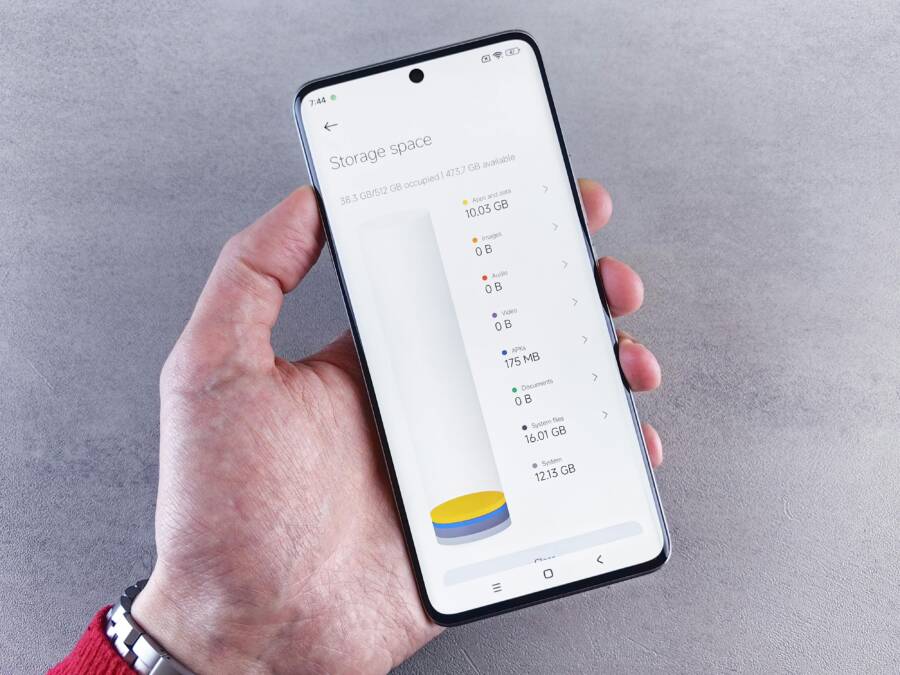
Before chasing other fixes, verify how much free space you actually have and prune heavy culprits. Start by checking storage on the phone itself and on the apps you use most. Look for large apps, old videos, unused media, and downloads that have piled up over time.
- On iPhone: Settings > General > iPhone Storage shows a breakdown by app and recommended cleanups. Tap any app to review its data and options like offloading or deleting. Photo and video libraries can take up a lot of space, so consider moving them to the cloud or a computer.
- On Android: Settings > Storage or Settings > Apps > Instagram > Storage reveals cache and data usage. Clearing cache often frees space without affecting your account login.
Quick wins to reclaim space:
- Delete old videos and photos you don’t need.
- Move media to cloud storage or your computer.
- Clear downloads you no longer need.
- Offload apps you don’t use frequently or uninstall large, rarely used games.
A practical tip: transferring photos and videos to a computer can usually free several gigabytes in minutes. If you want a hands-off approach, cloud backups from services you trust can keep your library safe while clearing local space.
For deeper guidance on managing storage, see resources like Apple’s guide on checking and optimizing storage on iPhone and iPad, and other practical tutorials. How to check the storage on your iPhone and iPad How to Free Up Storage on Your iPhone or Android
 Photo by Andrey Matveev
Instagram often caches media for faster loading, but a clogged cache can actually slow things down. If you notice lag after weeks of use, clearing cache on Android or offloading the app on iPhone can help without a full reinstall.
- Android: Settings > Apps > Instagram > Storage > Clear Cache
- iPhone: Settings > General > iPhone Storage > Instagram > Offload App
If space is tight, consider a full reinstall after backing up. Reinstalling the app can refresh all components and clear lingering cache that cra wls through playback. In most cases, clearing space and cache resolves the majority of playback hiccups.
Helpful reference on cache and storage management:
- How to clear Instagram cache on iPhone, Android, and desktop
External resources for deeper tactics:
- How to Free Up Storage on Your iPhone or Android
- Free Up Space: Essential Tips for Clearing Phone Storage
Close background apps and restart
Background processes can quietly chew memory, leaving Instagram with less headroom for video playback. Closing apps helps reduce memory pressure and gives Instagram a clean slate to work with.
How to close background apps:
- Android: Open the recent apps screen, swipe away Instagram and other apps you’re not using. You can also go to Settings > Apps > Instagram and Force Stop if needed.
- iPhone: Double press the Home button or swipe up from the bottom to reveal the app switcher. Swipe Instagram off the screen to close it.
After closing, restart the device if you still notice issues. A fresh start stops lingering processes and often resolves minor stalls. Once the device boots up again, reopen Instagram and test a video to confirm improvement.
For background activity basics, see guidance on turning off background refresh and related tips. How to turn off background apps on your iPhone and Android
 Photo by Vlada Karpovi
Manage memory and RAM for smoother playback
Memory management is about keeping the right amount of headroom for the tasks you care about. If you run too many heavy apps at once, you’ll feel stutters during video playback on Instagram. Here are practical, easy-to-follow steps to reduce memory load.
- Avoid running multiple heavy apps while you’re watching videos. Pause or close games, navigation maps, or large editing apps before you press play.
- Keep the operating system updated. OS updates often include performance and memory management improvements.
- Schedule heavy tasks away from video viewing times. If you plan a binge watch, do large file downloads, backups, or syncing before or after your session.
A simple rule of thumb: give the phone some breathing room. When you anticipate watching Instagram videos, try to limit simultaneous tasks to conserve RAM and ensure smooth playback.
Additional guidance on memory usage across platforms:
- How to Reduce Memory Usage on Android and iPhones
- Optimize memory usage: Android development resources
If you want a deeper dive into RAM optimization, you can explore tutorials and videos that demonstrate RAM management techniques on Android and iOS devices. A practical example can be found in RAM management guides and video tutorials.
External resources for RAM and memory optimization:
- Optimize memory usage on Android
- How to speed up Android devices
To keep your streaming experience steady, pair these steps with a stable network. If the problem persists after freeing space and trimming memory, reinstall the app or seek professional help.
Images and further reading:
- A quick reference on reducing memory usage and improving device performance
- Official Android memory optimization guidance
By following these steps in this section, you’ll reduce the chance of Instagram video hiccups. Start with freeing space, then trim background activity, and finally manage RAM for smoother playback. If you treat these fixes as a routine, you’ll keep Instagram videos flowing even when you’re under a tight data plan or juggling several apps.
External links for quick reference:
- Reduce Memory Usage on Android and iPhones
- Optimize memory usage on Android
- How to speed up Android devices
Note: Use images sparingly and where they fit naturally within the flow of the article. Images should support the content, not overwhelm it.
Tweak app settings and permissions to unlock video playback
When videos still refuse to play on Instagram after the quick wins, adjusting app settings and permissions can make a big difference. This section walks you through practical tweaks that target the root causes: how the app uses network access, battery life, and stored data. You’ll learn how to test changes safely and revert them if needed.
Turn off power saving and background data restrictions
Battery saver modes and background data limits can throttle Instagram just when you need it most. If the app is restricted from running in the background or using data in the background, videos may fail to load or pause mid playback. Here’s how to test this quickly:
- Temporarily disable battery saver or power saving mode. On Android, swipe down the quick settings panel and turn off Power Saver; on iPhone, go to Settings > Battery and disable Low Power Mode.
- Remove any background data restrictions for Instagram. On Android, go to Settings > Apps > Instagram > Data usage and ensure Background data is allowed. On iPhone, confirm that Background App Refresh is enabled for Instagram in Settings > Instagram.
- Reopen Instagram and try playing a video again. If playback improves, you’ve identified a restriction to adjust during usage windows and testing.
If you want a deeper dive on how these features interact with apps, see the official Instagram help resources for connectivity and video playback guidance: https://help.instagram.com/370569449686414
Reset network settings on Android and iPhone
A reset can clear quirky network configurations that block video streaming. It also flushes cached network paths that might have become misconfigured over time. Note that this step resets saved networks and Bluetooth pairings, so you’ll need to rejoin Wi Fi networks and re pair devices afterward.
- Android:
- Settings > System > Reset options > Reset Wi Fi, mobile & Bluetooth settings.
- Confirm the reset and let the device reboot.
- Reconnect to your Wi Fi and test Instagram video playback.
- iPhone:
- Settings > General > Transfer or Reset iPhone > Reset > Reset Network Settings.
- Enter your passcode if prompted and allow the phone to restart.
- Rejoin your networks and test playback again.
Resetting network settings can fix stubborn connectivity quirks that block video streaming. If you’d like a broader look at troubleshooting Instagram videos not playing, this guide offers actionable steps: https://www.recoveryfix.com/blog/fix-instagram-videos-not-playing-issue/
Review app permissions and data usage
Permissions control whether Instagram can access the data and features it needs to stream videos smoothly. The key areas to check are storage, network access, and background activity. Here’s how to audit these permissions quickly:
- Android:
- Settings > Apps > Instagram > Permissions. Ensure Storage and Location (if used by features) are enabled, and that Data usage permits background data if you rely on mobile networks.
- If you’re unsure, toggle these permissions off and on again to reset the grant flow.
- iPhone:
- Settings > Instagram. Make sure Mobile Data is allowed, Background App Refresh is on, and Local Network access is enabled if prompted.
- You can also review Photos or Media access if the app asks to read your media library for stories or video editing features.
Why these permissions matter: without storage access Instagram may fail to cache video chunks, and without background data or refresh, the app might not fetch the next segment of a video once you start playback. A quick permissions review can stop dozens of small issues before they become a bigger problem. For broader guidance on permissions and how they affect apps, you can consult general troubleshooting resources like these: https://help.instagram.com/370569449686414
If you prefer a consolidated troubleshooting guide with practical tips, this resource can help: https://discussions.apple.com/thread/255564345
Take these permissions checks as a routine part of testing. When you grant the right rights that your device asks for, you reduce the chances of sudden playback stalls. You’ll feel the difference in how responsive the app becomes, especially when switching between Wi Fi and mobile data.
Key takeaways for this section
- Power saving and background data limits can block video playback.
- A quick disable-and-test approach helps isolate the issue.
- Network resets clear stubborn connection problems and user data is reset.
- Permissions determine whether the app can load and cache video data, and run in the background.
For deeper context on permissions and app behavior across platforms, you can explore these practical guides and discussions: https://www.recoveryfix.com/blog/fix-instagram-videos-not-playing-issue/
Reinstall, test content, and verify issues are fixed
If you still can’t get Instagram videos to play after trying the quick wins, a targeted reinstall and content verification can clean up stubborn issues. This section walks you through a safe reinstall on both Android and iPhone, how to test different content to confirm playback is fixed, and how to confirm the problem is truly resolved. Treat this as a final, decisive step before you escalate to official support.
Reinstall Instagram on Android and iPhone
A clean reinstall replaces corrupted app files and resets internal caches that may block playback. It also ensures you’re running a fresh, unblemished version of Instagram. Here’s how to do it on each platform.
- Android
- Uninstall the Instagram app: Settings > Apps > Instagram > Uninstall.
- Reboot your phone (optional but helpful for a clean start).
- Reinstall from the Google Play Store: search for Instagram and tap Install.
- Open the app and log back in. If you use two factor authentication, have your codes handy.
- iPhone
- Press and hold the Instagram icon on the Home screen until the app jiggles, then tap the X to delete. Alternatively, Settings > General > iPhone Storage > Instagram > Offload App to remove the app while keeping data.
- Reboot your iPhone to ensure all processes reset.
- Reinstall from the App Store: search for Instagram and tap Get or the cloud icon.
- Open Instagram and sign in again.
Why this helps: reinstalling replaces any corrupted media files or misbehaving components that can prevent video playback. If the app was accumulating minor glitches over time, a fresh install can restore normal behavior without affecting your account data.
Helpful references for reinstall steps and related troubleshooting:
- Troubleshooting Instagram issues and updating guidance: https://help.instagram.com/370569449686414
Test content across different types and accounts
After reinstalling, run a focused test to confirm playback is working across a range of content. Don’t assume what you saw before is fixed—verify with real-world scenarios.
- Play standard feed videos: pick a few posts from your home feed and watch them from start to finish.
- Test Reels and Stories: switch to Reels and a Story with video content. If either type plays smoothly, it’s a strong sign the core playback pipeline is healthy.
- Try offline or cached content: if you previously saved videos, try playing one of those to rule out streaming hiccups.
- Check varied network conditions: briefly switch between Wi Fi and mobile data and observe if playback quality changes.
- Test on another account: log in with a secondary account on the same device to determine if the issue is account-specific.
If you have access to a different smartphone, perform a quick cross-device test. If video playback works on another device, the problem likely ties to the original device or its configuration rather than Instagram itself.
When content still stumbles, note exactly where it fails: is it a certain type of video, a specific account, or a particular time of day? Details like this help you communicate the issue clearly if you need to seek help.
Direct sources that discuss general troubleshooting steps and account behavior can be useful during testing:
- Troubleshooting guidance and common issues for Instagram: https://help.instagram.com/370569449686414
Verify issues are fixed and decide on next steps
Once you’ve reinstalled and completed content testing, confirm the issue is resolved. A solid verification step is crucial before you move on.
- Confirm consistent playback: watch multiple videos in a row without interruptions on both Wi Fi and mobile data.
- Check for edge cases: ensure that longer videos, high resolution clips, and videos with music or captions all play without stalls.
- Revisit performance benchmarks: if you track your own streaming speed, compare before and after results to quantify the improvement.
- If problems persist, consider deeper device checks: memory usage, background app activity, and storage health may still need attention.
If you still encounter issues after this reinstall and testing cycle, you can use official support channels for further help. Also worth checking is the current service status, because some outages affect playback even when your device is fine.
Useful status check resources:
- Instagram down? Current status and problems: https://downdetector.com/status/instagram/
- Downdetector main outage monitoring: https://downdetector.com/
Additional verification steps and guidance from trusted sources:
- Is Instagram Down? Check current status: https://isdown.app/status/instagram
- Official Instagram Help Center for ongoing guidance: https://help.instagram.com/370569449686414
Final takeaway: a successful reinstall paired with cross-content testing is one of the most reliable ways to confirm you’ve cleared the main culprits behind video playback failures. If the issue remains, it’s time to broaden the scope to service status checks or device-level investigations. You can always document the exact symptoms and times you tested to share with support, which speeds up the path to a solution.
Conclusion
Fixing a phone that won’t play Instagram videos is about a clear, repeatable sequence. Start with the smallest wins—check network, update the app, restart the app and device, then clear cache or offload the app if needed. If problems persist, free up space, trim background activity, and review permissions before a careful reinstall and cross content testing. A quick backup before drastic fixes is essential so you don’t lose photos, videos, or login data.
Keep this three to five step checklist handy for future issues: verify network stability, confirm app and OS versions are current, test across different content types, and document results before escalating to support. If the problem continues after these steps, reach out to Instagram support or service status pages to rule out outages. Thanks for reading, and may your next scroll be smooth and uninterrupted.