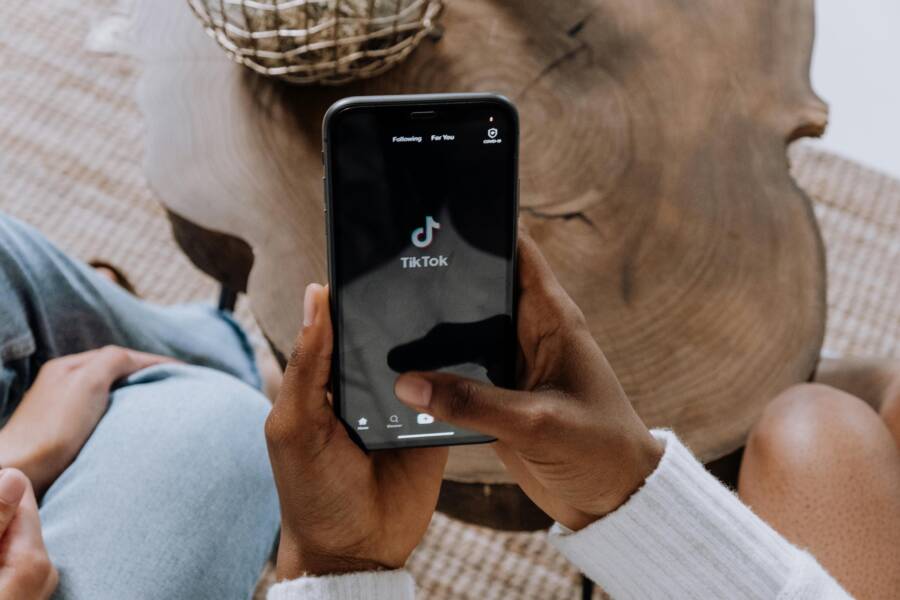
You’re scrolling through TikTok, eager for the next funny clip or viral dance. Then it happens: videos freeze, buffer endlessly, or refuse to load at all. This glitch hits millions on their smartphone, turning fun into frustration.
TikTok videos not loading on your phone is a common issue. It often stems from simple causes like spotty internet, outdated apps, or built-up cache. Don’t worry; most users face this, and fixes are straightforward.
In this guide, we’ll walk you through quick steps to fix TikTok buffering and get videos playing smoothly again. Start by checking your internet connection and switching between Wi-Fi and mobile data. Then update the TikTok app, clear its cache, and restart your phone.
We’ll cover more, like force-closing the app, reinstalling if needed, and tweaks for better performance. These steps work on both iOS and Android. Most take under five minutes, so you’ll be back to scrolling in no time.
Check Your Internet Connection Right Away
When TikTok videos won’t load, your first move should be to check the connection on your smartphone. A quick speed check can reveal whether the issue is a flaky network or something specific to the app. If you confirm solid connectivity, you can move on to more targeted fixes. Below are practical steps you can take right now to verify and optimize your connection, so TikTok streams smoothly again.
Test Your Wi-Fi or Mobile Data Speed
Start with a simple speed test to see how fast your connection really is. Download the Speedtest app, run a test, and read the results.
- How to download: from your phone, search for “Speedtest by Ookla” in the app store. Install the free version.
- How to run the test: open the app and tap the big “Go” button. Let it measure download and upload speeds, plus latency (ping).
- What to aim for: a download speed of at least 5 Mbps for smooth TikTok playback on typical videos. If you’re under this threshold, you’ll likely see buffering or longer load times.
If the result is below 5 Mbps, take these quick actions:
- Restart your router or modem if you’re on Wi‑Fi. Unplug the power for 30 seconds, then plug back in and wait a minute.
- Relocate closer to the router or remove physical obstacles that block the signal.
- If you’re using cellular data, move to an area with better coverage or try a different carrier cell site if available.
Useful links for quick setup and checks:
- Speedtest by Ookla – The Global Broadband Speed Test: https://www.speedtest.net/
- Speedtest for Android: https://www.speedtest.net/apps/android
- Speedtest by Ookla on the App Store: https://apps.apple.com/us/app/speedtest-by-ookla/id300704847
Switch Networks to See If It Helps
If your speed tests aren’t the root of the problem, switching networks can reveal where the bottleneck lies.
- Turn on airplane mode for 15 seconds, then turn it off to refresh the device’s network connections.
- Connect to a different Wi‑Fi network if one is available. This could be a guest network, a mobile hotspot, or a friend’s network.
- If you have mobile data, switch from Wi‑Fi to cellular data to test TikTok on a different network.
After each change, open TikTok and try playing a video. Note whether loading improves or remains the same. If one network consistently loads videos faster, stick with that connection for TikTok until the underlying issue is fixed.
Additional resources on network basics can help diagnose persistent issues:
- What streaming bandwidth do you need and how to calculate it: https://www.broadbandnow.com/guides/streaming-bandwidth
Turn Off VPN or Proxy Settings
VPNs and proxies can interfere with how TikTok connects to its servers. If you use a VPN or a proxy, disable it temporarily to see if performance improves.
- How to disable VPN on most phones: go to Settings, look for VPN or Network settings, and toggle it off. If you use a separate VPN app, open the app and disconnect or quit.
- Why this helps: TikTok servers may block VPN routes or route traffic differently, causing delays or loading errors.
If you disable VPN and TikTok loads normally, you’ll know the VPN was contributing to the problem. You can either switch to a different VPN server, adjust your VPN app’s settings, or use TikTok without the VPN for streaming.
Supporting notes:
- VPN not working for TikTok often comes from server routes that TikTok rejects or throttles. If you need to use a VPN for privacy, test with a local server that TikTok commonly allows.
External references you may find useful:
- VPNs not working for TikTok explained: https://bearvpn.com/blog/vpn-not-working-for-tiktok/
- How to restart your router to fix Wi‑Fi issues: https://www.highspeedinternet.com/resources/how-to-restart-router
By verifying your connection, trying alternate networks, and ruling out VPN interference, you can quickly identify the root cause of TikTok not loading on your phone. If the problem persists after these steps, the next sections will guide you through more advanced fixes without overwhelming you.
Update TikTok App and Phone Software
Keeping both the TikTok app and your phone’s operating system up to date is one of the simplest and most effective ways to prevent videos from stalling or not loading. Updates fix bugs, improve performance, and patch security gaps that can affect streaming. In this section, you’ll learn exactly what to update, how to update, and how to set things to stay current with minimal effort.
Update the TikTok App
Running the latest version of TikTok ensures you have the newest features, performance tweaks, and bug fixes that can resolve loading issues. If you’ve noticed videos buffering or failing to start after a while, a quick app update is a good first step.
- Check for updates in the app store: Open your device’s app store, search for TikTok, and tap Update if the option appears. If you don’t see an update, your app may already be current.
- Enable automatic updates: In iOS, go to Settings > App Store > App Updates and toggle on. In Android, open the Google Play Store, tap your profile icon, select Settings > Network preferences > Auto-update apps, and choose the option you prefer.
- Clear old data within the app if needed: Sometimes a cache within TikTok can cause issues after an update. Use in-app settings to clear cache or storage data if you notice odd behavior after updating.
If you want to verify you’re on the right version, you can compare the version number in the app’s About section with the latest listed in the store. For a quick visual guide, you can also check reputable tutorials that walk you through the exact steps for iPhone and Android updates. Useful reference: how to update TikTok on iPhone, Android, or Samsung. Watch a quick update guide and confirm you’re on the current build.
For more context on updating TikTok and what changes to expect, see the official troubleshooting steps that include ensuring the app and OS are current. First steps to fix TikTok issues emphasize keeping both the app and device software up to date. First steps
Update Your Phone’s Operating System
An outdated phone OS can bottleneck app performance, causing videos to fail to load even when the TikTok app is current. Updating the OS brings security patches, better memory management, and new APIs that apps like TikTok rely on.
- Android: Open Settings > System > Advanced > System update (the path may vary by manufacturer). If an update is available, download and install it. Ensure you’re connected to Wi-Fi and have sufficient battery life.
- iPhone/iPad: Open Settings > General > Software Update. If an update is shown, download and install it. Keep your device plugged in or connected to power during the process.
If your device is older, you may occasionally hit a compatibility ceiling where new OS versions are not available. In that case, keep the device supported for security updates and consider a replacement when feasible. For Android users, Android’s official guidance outlines how to update the OS on most devices. If you’d like a step-by-step, see How to Update Android Phone. Android OS update guide and for iPhone, Apple’s official update instructions. Update your iPhone or iPad
If you’re unsure whether updating the OS will help, a quick check is to compare the app’s performance before and after the OS update. In many cases, OS updates improve battery life, memory allocation, and app stability, all of which can translate to smoother video playback.
Enable Auto Updates and Manage Cache
Automation reduces the chance you’ll run into outdated software. Turn on automatic updates for both apps and the OS when possible, and periodically clear caches to prevent performance drops.
- Auto updates: Enable auto updates for apps and OS, as described above. This keeps TikTok and other apps current without manual checks.
- Clear cache periodically: On Android, you can clear the TikTok cache through Settings > Apps > TikTok > Storage > Clear Cache. On iOS, there isn’t a direct cache purge for TikTok, but reinstalling the app periodically can achieve a similar effect.
- Space management: Free up storage space. A nearly full device can slow down app performance and hinder video loading. Delete unused apps, old videos, or move data to cloud storage.
Keeping your phone tidy and updating automatically reduces the friction between new TikTok features and your device’s capabilities. If you previously turned off auto updates to save data, consider switching back to automatic updates for the apps that matter most.
Reinstall TikTok or Refresh Network When Updates Don’t Help
If updating the app and OS doesn’t fix the problem, a clean reinstall combined with a network refresh can clear stubborn issues.
- Reinstall TikTok: Uninstall the app, restart your phone, then reinstall TikTok from the app store. Sign back in and test video loading.
- Test network after reinstall: After reinstalling, try loading several videos on different networks (Wi-Fi and cellular) to see if the issue persists.
- Clear system cache (Android): Some devices allow clearing system cache or running a fresh boot, which can help with overall app responsiveness.
- Check background activity: Ensure TikTok isn’t restricted by battery optimization or background data settings. On Android, disable battery optimizations for TikTok if needed; on iPhone, ensure background app refresh is enabled for TikTok.
If problems persist, social media or official support channels may provide device-specific guidance. The “First steps” section from TikTok support covers foundational steps that often resolve stubborn issues. First steps
Practical Tips for Long-Term Stability
- Schedule periodic checks: Set a monthly reminder to verify that TikTok and your OS are up to date.
- Prefer reputable sources: When updating, rely on official app stores and device manufacturers to avoid compromised software.
- Keep backups: Regularly back up important videos or data. This reduces disruption if you need to reinstall apps or reset devices.
- Monitor performance after updates: If a new update causes issues, you can often roll back or wait for a fresh patch. Many users find that minor interim updates stabilize within a couple of weeks.
By actively updating both the TikTok app and your phone’s software, you reduce the odds of videos failing to load due to compatibility or performance gaps. If you want a quick reference, official guidance for updating iOS and Android is widely available, and reputable sources offer practical, step-by-step instructions. For OS updates on Android devices, visit Android’s update page, and for iOS devices, Apple’s update page provides current guidance. How to Update Android Phone | Update your iPhone or iPad
Tips from additional resources emphasize keeping both app and OS current as a foundational fix for many TikTok loading problems. For example, the First steps guide from TikTok support highlights updating and restarting as primary remedies. First steps
External references and guides cited in this section provide practical visuals and further steps if you prefer a hands-on walkthrough. They include tutorials for updating the TikTok app across devices and platforms, as well as OS update workflows for Android and iPhone. Update TikTok on iPhone, Android, or Samsung | How to Update Your TikTok App Easily
Clear Cache, Force Close, and Restart TikTok
When videos won’t load on TikTok, you don’t have to panic. A quick sequence of operations can clear the path for smooth playback: force close the app, clear its cache, and restart your device. These steps reset stubborn processes and refresh memory, often solving the hiccup in minutes. Below are practical, step by step actions you can take right away, designed for both Android and iOS devices.
Force Close the TikTok App Completely
Completely closing TikTok can stop background tasks that might be causing buffering or stalled playback. When you force close the app, you give TikTok a clean slate the next time you open it. The process is similar on both major platforms, with small variations in navigation.
- Android: Open the recent apps view, locate TikTok, and swipe the app off the screen to close it. On some devices you may need to swipe it to the bottom or use the “Close all” option.
- iOS: Double-press the Home button (or swipe up from the bottom on newer iPhones) to reveal recent apps. Find TikTok and swipe it up to close. Repeat to ensure it’s fully shut.
Why this helps: background tasks and cached data can linger after you’ve finished watching a video. Force closing stops those processes and prompts TikTok to reload fresh data when you reopen it.
Tip: after you force close, reopen TikTok and try playing a video right away. If the issue was a stuck process, you’ll often see immediate improvement. If not, move on to the next steps.
External references you may find helpful:
- How to force-close apps on iPhone (clear guidance for iOS users): https://www.expressvpn.com/support/troubleshooting/how-to-force-close-apps/
- Android: how to force close an app: https://digital-help.scripps.com/support/solutions/articles/5000871701-android-how-to-force-close-an-app
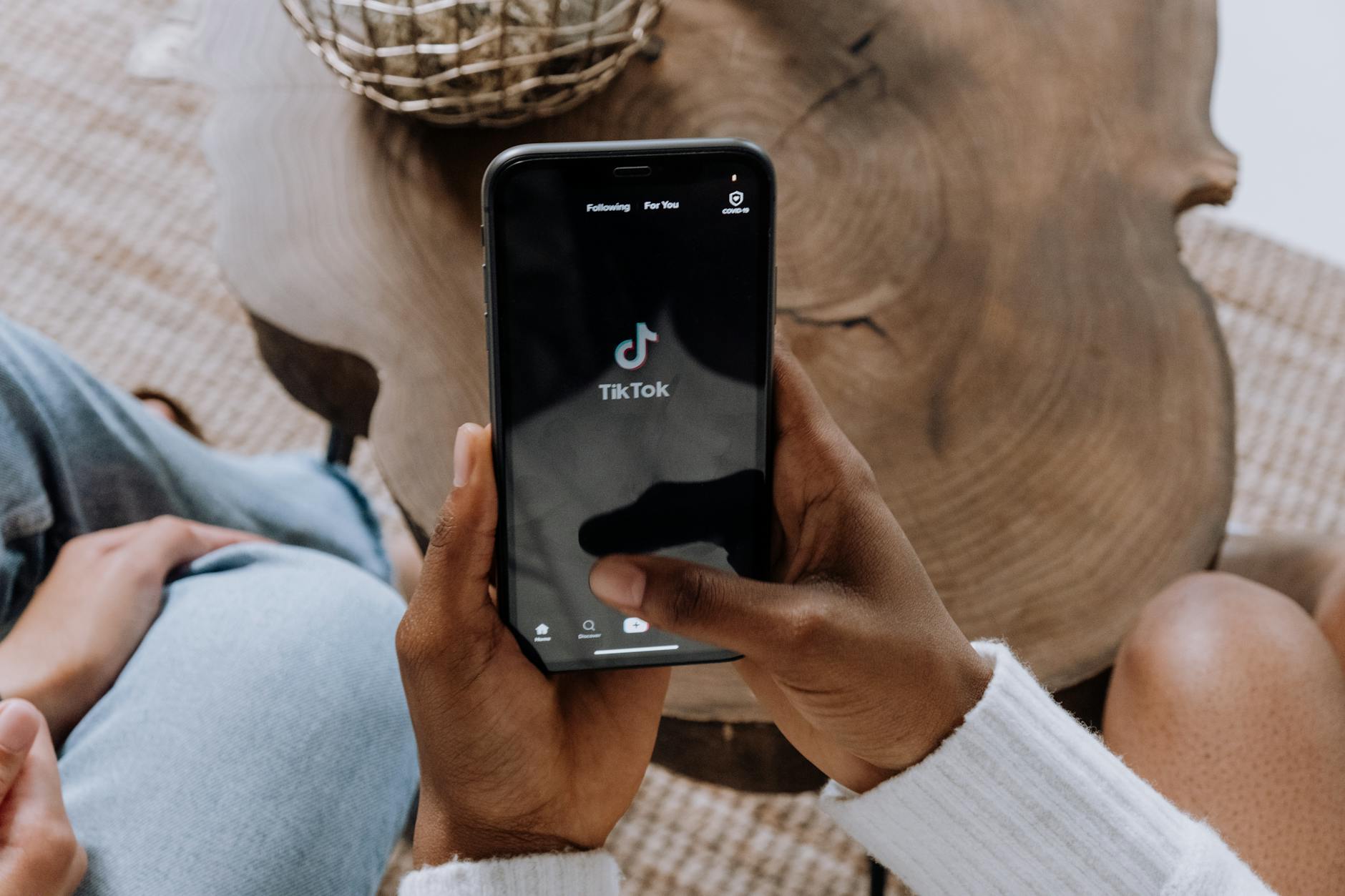 Photo by cottonbro studio
Clear TikTok Cache Storage
Cache helps apps load quickly, but a cluttered cache can become a source of slowdowns and odd video behavior after updates. Clearing TikTok’s cache gives the app a fresh start without deleting your account data or saved videos.
- Android:
- Open Settings.
- Go to Apps or Apps & notifications.
- Find TikTok and open it.
- Tap Storage > Clear Cache.
- iOS:
- iOS doesn’t offer a direct “clear cache” toggle. Open TikTok, go to your profile, then to Settings and privacy.
- Use Clear cache if the option appears, or reinstall TikTok to purge cached data. This achieves a similar effect to clearing cache on Android.
Important difference: Clear Cache removes temporary files that speed up loading, while Clear Data (where available) would reset the app to its original state, removing login data and preferences. On iOS devices, reinstalling the app is the practical equivalent of clearing data.
Strategic reminder: a lean cache helps TikTok load faster and reduces storage pressure on your device.
External references you may find helpful:
- How to clear the TikTok cache on any device: https://www.expressvpn.com/blog/how-to-clear-tiktok-cache/#:~:text=Open%20TikTok%20and%20tap%20Profile
- How to clear your TikTok cache in 3 easy steps: https://us.norton.com/blog/cleaning/clear-tiktok-cache
Restart Your Phone for a Fresh Start
A full reboot refreshes memory, resets network sockets, and ends any processes that might be stuck in the background. It’s a simple but powerful step when other fixes don’t do the trick.
- Power off: Hold the power button until the screen offers the option to Power Off. Wait a few seconds, then turn the device back on.
- Quick reboot (where supported): Many phones support a quick restart from the power menu. If your device offers this, use it to save a moment.
- After restart: Open TikTok and attempt to load a video. If the problem was a temporary glitch, you should notice improved performance right away.
Why it helps: small background glitches can linger after updates or network hiccups. A restart clears those glitches and gives your apps a clean chance to run.
External references you may find helpful:
- TikTok keeps crashing on your phone? Here are the fixes: https://www.carlcare.com/ng/tips-detail/if-tiktok-keeps-crashing-on-your-phone-here-are-best-fixes-to-try/
- How to restart your Android or iPhone to fix glitches: https://repairit.wondershare.com/video-repair/fix-tiktok-not-playing.html
Photo by cottonbro studio on Pexels
External sources for deeper context:
- First steps from TikTok support cover restarting and basic checks: https://support.tiktok.com/en/log-in-troubleshoot/troubleshooting/first-steps
- How to restart your Android phone: https://www.android.com/intl/en_in/articles/update-android-phone/
By combining these actions—force closing, clearing cache, and restarting—you cover the most common culprits behind TikTok videos not loading. If you still see issues after trying these steps, the next sections offer more targeted fixes that address network, software, and device-specific quirks.
Manage Storage Space and App Permissions
When TikTok videos won’t load, storage and permissions often play a bigger role than you expect. Freeing up space on your phone and ensuring TikTok has the right access can dramatically improve loading times and playback stability. Below you’ll find practical steps to reclaim storage and set TikTok up with the permissions it needs to run smoothly on both iOS and Android.
 Photo by Andrey Matveev
Free Up Storage on Your Phone
A nearly full device slows down apps and can cause videos to lag or fail to load. Start by freeing up space with a few quick, safe cleanups. You don’t need to wipe your phone clean—just trim the clutter and you’ll often see a noticeable boost in performance.
- Identify large files: Open your device’s storage settings and look for big videos, old photos, and rarely used apps. Delete or offload items you don’t need.
- Move data to the cloud: For photos and videos you don’t access daily, use a cloud backup service. This keeps your library accessible without consuming local space.
- Use a trusted cleaner cautiously: If you install a cleaner app, pick one with solid reviews and avoid apps that push invasive permissions. Use it to remove duplicate files, cache, and remnants from unused apps.
Beyond deleting, consider a lightweight approach to keep space open. Regularly clear out app caches and review downloads from apps you don’t use often. Maintaining ample free space helps TikTok load video data quickly and reduces the chance of stalls mid-scroll.
If you want a quick refresher on cache basics and safe cleanup, see resources like first step guidance from TikTok support and reputable storage tips from well-known security sites. These guides emphasize starting with the simplest fixes and validating improvements right away.
Related reading:
- First steps from TikTok support for common issues and baseline checks
- Clear TikTok cache guidance to reclaim space
Grant TikTok Full Permissions
TikTok relies on several permissions to function well, especially for features like camera use, microphone input, and background data. Ensuring TikTok has the right access reduces the chance of denied resources causing loading delays or partial playback.
- Android path: Settings > Apps > TikTok > Permissions. Toggle on essential permissions such as Camera, Microphone, Storage, and Location as needed. If a permission is off, TikTok may not fetch certain data or update content correctly.
- iPhone path: Settings > TikTok > Allow TikTok to Access (Camera, Microphone, Photos, etc.). In-app prompts should reflect your preferences, but revisiting these settings ensures nothing is blocked inadvertently.
- Background activity: Enable background refresh so TikTok can fetch updates and finish loading tasks even when you’re not actively using the app. This is especially helpful for preloading videos and keeping your feed current.
Why permissions matter: without camera access, you might miss out on quick record options; without storage access, cached data might not load as efficiently; without background refresh, new videos may not appear promptly in your feed. Permissions should align with how you use the app—grant only what you’re comfortable with and adjust if you notice odd behavior.
Practical tip: after adjusting permissions, close and reopen TikTok. This ensures the new settings take effect immediately and you’ll likely notice an improved loading experience.
External resources you might find useful:
- Step-by-step guide to allow TikTok camera access on iPhone
- Quick overview of managing TikTok permissions on Android devices
- TikTok support page on connecting to third-party apps for safe permission management
By freeing up storage and ensuring TikTok has the right permissions, you remove two common roadblocks to fast, reliable video loading. If the issue persists, the next sections will guide you through more targeted checks for network, app health, and device-specific quirks.
Reinstall TikTok or Try Advanced Steps
If TikTok still won’t load after the basics, a deeper reset can clear stubborn glitches. Reinstalling the app gives you a clean slate, while advanced steps like resetting network settings can reveal hidden conflicts. Follow these focused actions to restore smooth playback without guesswork.
Uninstall and Reinstall TikTok Fresh
A fresh reinstall often resolves issues that linger after updates or cache hiccups. Start by backing up what you need, then remove the app and install it again. Finally, log back in and test a video to confirm the fix.
- Backup your account if needed: save important videos or reminders to your cloud storage or device.
- Delete the app: remove TikTok from your device just like you would any other app.
- Redownload from the official store: install TikTok again from the iOS App Store or Google Play Store.
- Log in and verify: sign back into your account and open several videos to ensure they load normally.
If you want extra guidance, you can watch a step-by-step reinstall guide that covers both major platforms. For a quick walkthrough, see How To Reinstall TikTok (Full Guide 2025). This can help you confirm you’re following the right steps for your device. You can also check the TikTok support page for first steps to fix issues after reinstalling. First steps
Why this matters: a clean install eliminates corrupted app data and conflicting background processes that can block video loading. After reinstall, keep an eye on performance across different networks to rule out a network-only cause.
External references you may find helpful:
- How To Reinstall TikTok (Full Guide 2025): https://www.youtube.com/watch?v=Y_dvlPKb3OA
- How to Reinstall TikTok without Losing All of Your Accounts: https://www.tiktok.com/discover/how-to-reinstall-tiktok-without-losing-all-of-your-accounts?lang=en
Reset Network Settings on Your Phone
Network settings can quietly drift out of tune, especially after software updates or switching carriers. Resetting them can restore reliable connections for streaming apps like TikTok. Note that this will forget saved Wi-Fi passwords and VPNs, so you’ll need to rejoin networks afterward.
- Caution: this reset forgets saved networks and passwords, so have your Wi‑Fi credentials handy before you start.
- iOS steps: Settings > General > Transfer or Reset iPhone > Reset > Reset Network Settings. Enter your passcode if prompted and confirm.
- Android steps: Settings > System > Reset options > Reset Wi‑Fi, mobile & Bluetooth > Reset settings. Confirm and let the device reboot.
After the reset, reconnect to your home network or switch to a different network to test TikTok. If the app loads reliably on one network but not another, you’ve identified the bottleneck and can focus on router settings or carrier issues.
If you want a formal guide, see how to reset network settings on an iPhone and related Android instructions. These sources provide detailed steps and caveats to avoid missteps. Helpful resources:
- How To Reset Network Settings on an iPhone: https://softwarekeep.com/blogs/how-to/how-to-reset-network-settings-on-iphone?srsltid=AfmBOop_B_jtkq04eFMrJ7dl_73QquNygKIgBYw4T1YzNvWtKCiBLqIr
- Reset iPhone settings to their defaults: https://support.apple.com/guide/iphone/reset-iphone-settings-iphea1c2fe48/ios
- How To Reset Network Settings On iPhone (And What Happens When You Do): https://www.msn.com/en-us/news/technology/how-to-reset-network-settings-on-iphone-and-what-happens-when-you-do/ar-BB1qPtQe?ocid=BingNewsVerp
Why this helps: network misconfigurations can block data from TikTok servers or create inconsistent connections. A clean slate often resolves those hidden issues.
External references you may find useful:
- What happens after resetting network settings on iPhone: https://support.apple.com/guide/iphone/reset-iphone-settings-iphea1c2fe48/ios
- General network reset guidance: https://www.msn.com/en-us/news/technology/how-to-reset-network-settings-on-iphone-and-what-happens-when-you-do/ar-BB1qPtQe
If a reset clears the issue, you’re done. If not, the next steps focus on app health and device-specific quirks that can block TikTok from loading properly.
Conclusion
Here’s a quick, practical recap of the top fixes to get TikTok videos loading again. Try them in order and stop when you see improvements.
- Check and improve your internet connection. Test speeds and switch networks if needed.
- Update the TikTok app and your phone OS. Enable auto updates if possible.
- Force close TikTok, clear its cache, then restart your device.
- Free up storage and grant necessary permissions for TikTok.
- Reinstall TikTok or reset network settings if the problem persists.
If you follow these steps, you’ll cover the most common causes of videos not loading. A steady network, current software, and clean app data are the best defenses against glitches. After applying the fixes, monitor performance across different networks to confirm the issue is gone.
To keep things running smoothly, schedule a quick monthly check of app updates and storage space. This simple habit helps prevent slowdowns before they impact your viewing. A light maintenance routine makes a big difference over time.
If you found a fix that worked for you, share it in the comments so others can learn from your experience. And if you want more smartphone tips like this, subscribe for practical guides and quick how-tos. Thanks for reading, and may your next scroll be uninterrupted.