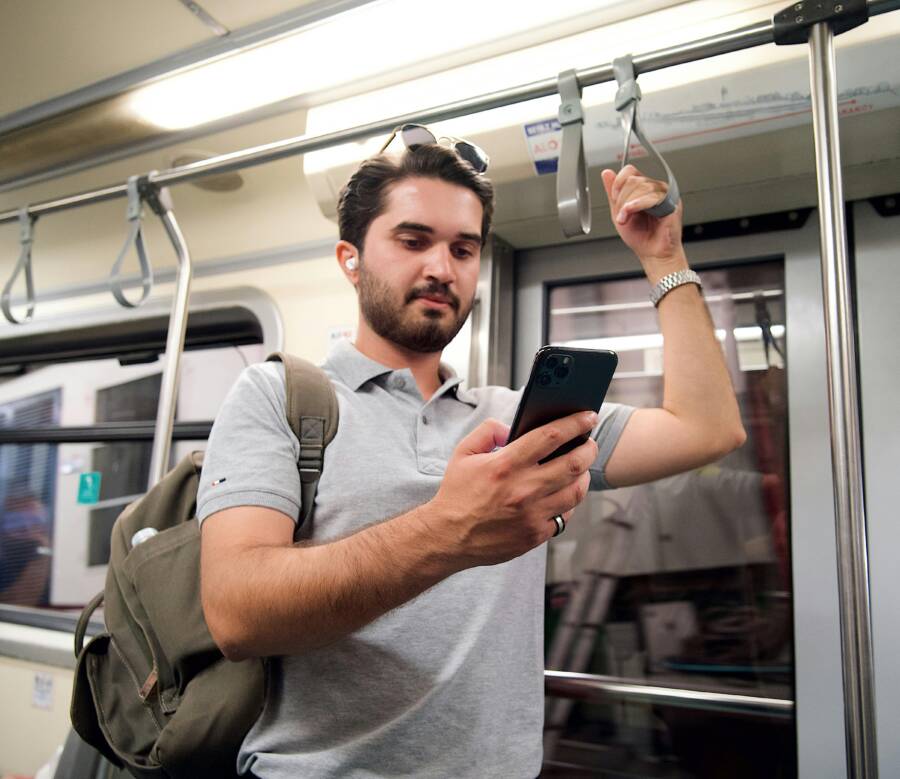
A cluttered smartphone screen makes your daily commute stressful and inefficient. You save time and reduce frustration when you organize your maps, music, and messaging apps into a single, accessible workspace.
Automating your routine allows your device to handle repetitive tasks while you focus on the road or your transit route. Proper app placement ensures you stay safe and connected without constant searching.
Follow these steps to build a more effective commute setup on your smartphone.
Designing Your Ideal Smartphone Commute Dashboard
A well-organized commute dashboard turns your smartphone into a practical tool rather than a distraction. By placing your most useful apps in a thumb-friendly layout, you reduce time spent fumbling with menus while on the move. Your goal is to keep high-frequency tasks accessible with a single tap.
Organizing Apps for Quick Access
You should group your primary commute applications at the bottom of your home screen. This area is the most ergonomic zone for your thumb while holding the device. Consider placing your navigation, transit, and audio tools in the bottom dock or the bottom row of your app grid.
Widgets offer another layer of efficiency by surfacing information without requiring a full app launch. A transit widget displays your next bus or train departure directly on your home screen. Similarly, a music widget shows your current track and provides pause buttons, saving you the extra steps involved in opening a full application interface.
Follow these layout principles to improve your efficiency:
- Place navigation apps like Google Maps or Apple Maps in the bottom corner of your screen.
- Keep audio controls for Spotify or Apple Music adjacent to your navigation tools.
- Use a static folder for secondary messaging tools to keep your main workspace clear of clutter.
- Add live widgets for transit schedules or weather to your secondary home screen page.
Using Focus Modes for Peace of Mind
Notifications often cause unnecessary stress during a commute. You can use built-in features to filter these alerts so your smartphone only displays updates from specific people or work contacts. This allows you to stay informed about important matters without the constant interruption of social media alerts or non-essential emails.
To configure this effectively, create a custom filter for your commute window. You can set the device to allow calls from family members or messages from your boss while muting all other notification banners. If you use a device that supports location-based triggers, you can set the mode to activate automatically as soon as you depart from your home location.
This setup preserves your mental focus while you travel to your destination. You will find that silencing non-essential pings makes your morning journey feel shorter and significantly more productive. Review your notification settings monthly to ensure your filter remains relevant to your current daily schedule.
Optimizing Navigation and Music Integration
Your smartphone acts as a personal control center during your commute. Combining clear navigation instructions with consistent audio creates a predictable rhythm for your day. You save time and reduce mental fatigue when these tools share your screen space efficiently.
Mastering Map Settings for Better Routes
Navigation software is more than a simple map. It is a live tool that adjusts to road conditions in real time. You should check your app settings before starting a trip to confirm that it accounts for current traffic patterns. Most modern platforms offer an option to avoid highways or toll roads, which helps if you prefer quieter streets.
Set your home and work addresses as frequent destinations to trigger one-tap routing. This minimizes the time you spend typing while you are busy preparing to leave. Many apps also allow you to save transit stations or parking lots as favorite stops.
Voice guidance keeps your eyes on the road instead of the device screen. Turn this feature on, and adjust the volume so it sits just above your music level. If you travel through areas with limited data coverage, download offline maps for your entire city or region. This step prevents the app from freezing when your smartphone loses signal in tunnels or remote stretches.
Curating Audio for a Relaxing Trip
Audio choices influence your mood during a long commute. A well-prepared playlist prevents the frustration of skipping through endless tracks. You should create dedicated folders for different states of mind, such as upbeat tracks for morning energy or calm podcasts for the trip home.
You do not need to touch your screen to change your audio. Use the voice assistant on your smartphone to request specific playlists or skip songs. This hands-free approach keeps your attention focused on your surroundings. Most music apps also integrate directly with steering wheel controls or Bluetooth systems in your vehicle.
Ensure your app is set to download high-priority playlists to your device storage. This allows you to listen without interruption even if your cellular network drops. Arrange your media player widget near your map application so you can toggle between them with a single tap if necessary. This small adjustment turns your device into a reliable companion that provides entertainment and information without adding stress to your journey.
Managing Communications Safely While on the Move
Maintaining contact while traveling requires a strategy that keeps your attention on your surroundings. A smartphone offers built-in tools to handle messages and alerts without demanding your eyes on the screen. By utilizing automated replies and voice commands, you stay reachable during your commute without compromising your personal safety.
Automating Responses to Incoming Messages
Automated replies act as a buffer between your phone and those trying to reach you. Most modern devices include driving focus or notification management features that trigger custom responses. When someone sends a text while you are moving, the smartphone detects your status and informs the sender that you are currently busy.
To set this up, navigate to the focus or do-not-disturb settings on your smartphone. Look for the auto-reply option within the driving mode menu. You can customize the message to explain that you are traveling and will reply later. This simple setup manages expectations for your contacts while preventing the urge to check every ping.
Many users find that setting these replies to trigger automatically based on motion or Bluetooth connection is the most reliable method. Once active, your device handles the communication load in the background. You remain available for urgent matters if you adjust your settings to allow calls from specific contacts while keeping standard text notifications suppressed.
Voice Assistants as Your Personal Commute Aide
Voice assistants on your smartphone provide a hands-free way to manage your digital life without manual input. Siri or Google Assistant can process complex requests, such as drafting a text or updating your arrival time for a friend, purely through voice prompts. Using these tools avoids the need to unlock your screen or type while navigating traffic or boarding public transit.
Start by activating the “hey” or “ok” voice command trigger in your device settings. Once active, you can issue commands such as “send a text to John saying I am running ten minutes late” or “what is the current weather at my destination?” The assistant handles the output, reading incoming messages aloud if you choose, which keeps your focus on the environment around you.
Efficiency increases when you rely on these voice commands for frequent tasks:
- Requesting navigation updates to check your ETA.
- Sending quick voice-to-text replies to avoid manual typing.
- Checking weather conditions before you reach your stop.
- Setting reminders to handle non-urgent messages once you arrive.
Sticking to voice-controlled interaction ensures your hands remain free and your eyes stay directed toward the road or station platform. Test your assistant settings at home to confirm it recognizes your voice clearly before relying on it during a busy commute. By treating the voice assistant as your primary interface, you maintain a safer and more organized experience.
Pro Tips for a Hassle-Free Journey
Preparation reduces friction during any commute. Small adjustments to your smartphone settings or physical accessories prevent common frustrations, such as a dead battery or a dropped connection. These habits help you maintain focus on the road or your transit schedule rather than fixing device issues.
Keeping Your Battery Ready
A dead smartphone mid-journey ruins your travel plans. You should avoid this by carrying a small, portable power bank that fits inside your pocket or bag. Always keep a short charging cable tethered to your battery so you never need to hunt for one during a busy morning.
Many smartphones also feature an intelligent battery management mode. You can enable this setting to limit background activity for non-essential apps while you travel. This adjustment keeps more power available for maps and audio players. If your device supports fast charging, try to plug it in at home for 15 minutes before you leave to ensure a full charge for the trip ahead.
Managing Connectivity and Offline Access
Signal gaps often occur in tunnels or rural areas, which causes navigation apps to stall. You can bypass this problem by downloading offline maps for your frequent routes. Most mapping services allow you to select a specific region to store directly on your device storage.
In addition to maps, save your essential documents or tickets to your smartphone wallet or a local files folder. This approach ensures you can access boarding passes or QR codes without waiting for a web page to load. When you travel through areas with known poor coverage, toggle your phone to airplane mode manually. This action stops the device from constantly searching for a signal, which further preserves your battery life.
Physical Comfort and Ergonomics
Holding your phone for a long time causes hand strain, especially on public transit. If you take the bus or train, a ring holder or a pop-style grip attaches to the back of the case and provides a secure hold. You can also use a small, adjustable desk stand if you have a tray table, which allows you to watch your screen at eye level.
When you drive, a magnetic or gravity-based car mount keeps your display steady. Position this mount so the screen remains in your peripheral vision without blocking the windshield. Keeping your device at a comfortable viewing height prevents neck fatigue and helps you check updates with a quick glance. These physical tools complement your digital setup and provide a consistent, comfortable experience every single day.
Conclusion
A productive commute relies on personalization and safety. When you organize your smartphone to match your specific routine, you reduce daily stress and keep your focus where it belongs.
Test these changes one by one during your next few trips. Observe which app layouts feel natural and which notification filters truly help you stay calm. Your perfect setup is not static; it will improve as you adjust it to fit your changing needs.