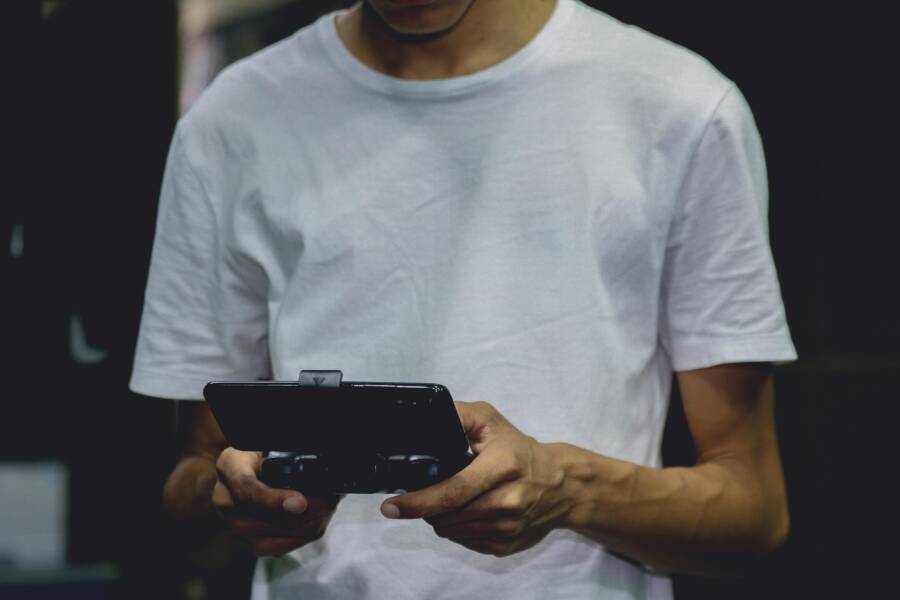
When you’re itching to game on your smartphone, a stubborn controller can turn a quick session into frustration. This guide covers both Android and iOS and explains why your Bluetooth controller might refuse to connect. You’ll get simple, reliable steps that work for most people, from checking battery and pairing mode to clearing cached data and updating software, with clear, hands-on instructions for what to do next.
Start with Basic Checks to Connect Your Controller Quickly
Before diving into deeper troubleshooting, a quick baseline check can save you a lot of time. Both your phone and the controller should be ready for a fresh pairing attempt. Ensure Bluetooth is on, the controller is discoverable, and there’s no lingering interference from other devices. If you can connect once, you’ll have a baseline to compare against after you try more involved steps. This section lays out the simplest checks you can perform in minutes.
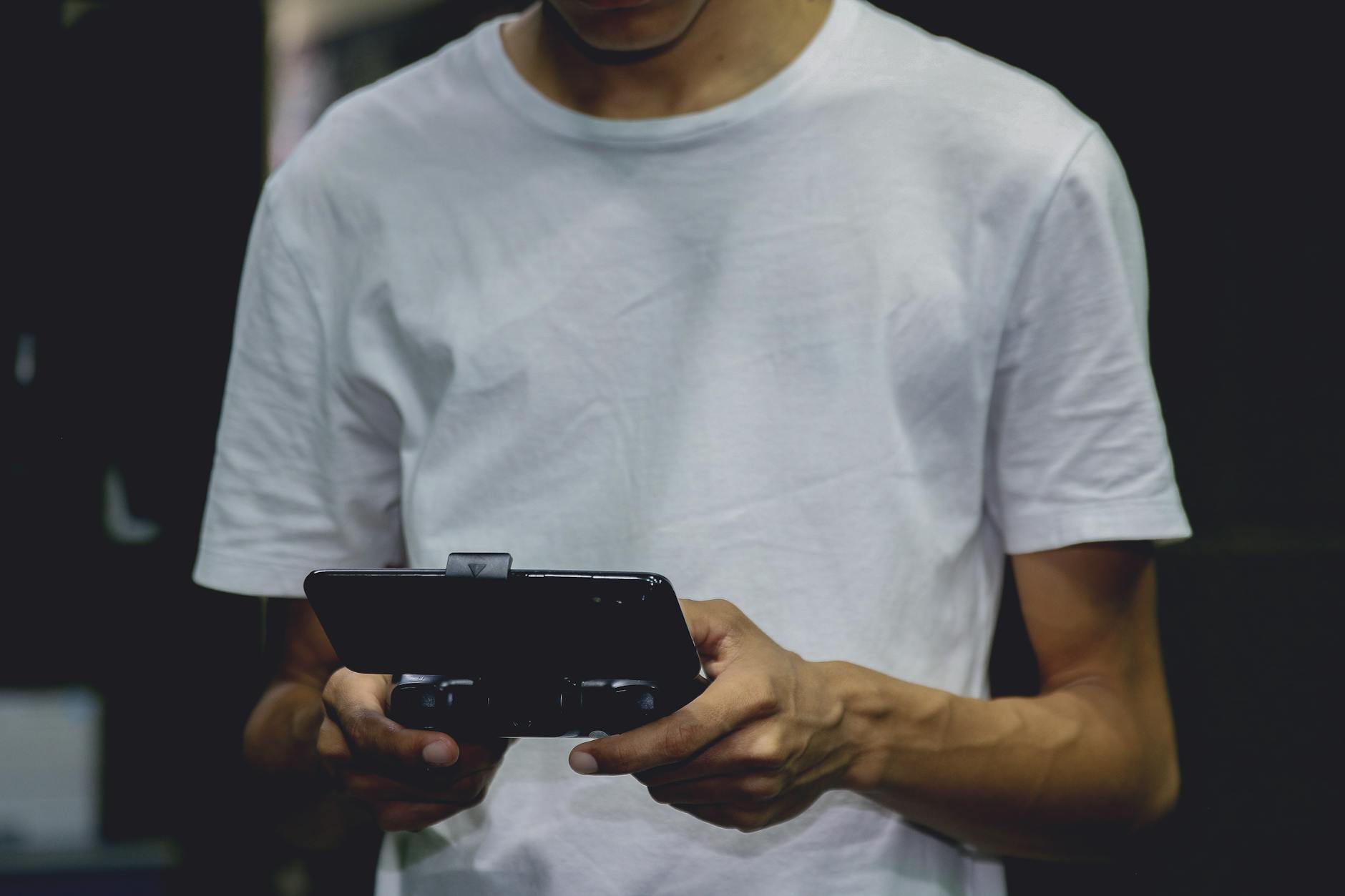 Photo by Nino Souza
Turn On Bluetooth on Your Phone and Controller
Your first move is to confirm both devices are ready to pair. On Android, open Settings, go to Connected devices, then enable Bluetooth. On iPhone or iPad, open Settings and toggle Bluetooth on. With the controller, activate pairing mode. This usually means holding the dedicated pairing button or a combination like the power button plus another button, until the LED begins to blink. Once the controller is in pairing mode, perform a quick test by scanning for devices on your phone and selecting the controller from the list. If the connection succeeds, you’ll often see a confirmation sound or a steady LED. If it fails, reattempt with the controller in pairing mode and the phone’s Bluetooth screen refreshed. For more on common controller pairing flows, you can check practical guidance like Lifehacker’s Android pairing tips. https://lifehacker.com/tech/how-to-connect-any-video-game-controller-to-your-android-phone
Put Controller in Pairing Mode Correctly
Misplacing the pairing step is the most common reason for a failed connection. Controllers from major brands have slightly different methods:
- Xbox controllers typically require you to press and hold the pairing button until the Xbox button flashes.
- PlayStation controllers use the “Share” button together with the power button to enter pairing mode.
- 8BitDo and other third-party controllers often use a dedicated pairing button or a long press on the mode switch.
If you miss this step, your phone will see the controller but will fail to pair. Always double-check the controller’s manual for the exact method, especially if you’re using a non-standard or older model. For reference, the Ultimate Bluetooth Controller FAQ provides a broad overview of pairing steps across devices. https://support.8bitdo.com/faq/ultimate-bluetooth-controller.html
Charge Both Devices Fully First
Low battery can block or disrupt Bluetooth pairing. If either device shows even a hint of a low charge, plug it in and wait a bit. After a full or near-full charge, retry the pairing process. A fresh battery reduces the risk of connection drops during the initial handshake and helps ensure the device remains discoverable long enough to complete pairing. If you’ve been experiencing intermittent failures, a full charge often resolves the issue and gets you back to gaming quickly. If you want a quick read on how battery levels can influence Bluetooth behavior, you can explore general guidance online. https://www.quora.com/Is-the-Bluetooth-range-impacted-by-the-remaining-battery-on-my-smartphone-as-a-scale-or-ratio
If you’d like more hands-on steps or want to tailor this to a specific controller model, I can expand these sections with model-specific tips and quick-check checklists.
Restart and Reset Connections for Instant Results
When a phone won’t connect to a game controller, the quickest path to relief is often restarting both devices and resetting the most common connection hiccups. This approach clears temporary glitches, refreshes Bluetooth stacks, and sets the stage for a clean pairing. Use these steps as a fast, first-line remedy before diving into deeper fixes. Both Android and iOS users can apply the same core ideas, with small device-specific tweaks. If you’re short on time, this routine usually yields near-instant results.
 Photo by Emmanuel Jason Eliphalet
Restart Your Phone and Game Controller
A quick restart can do more than you expect. Powering off your phone completely and turning it back on clears out memory pockets that might trap Bluetooth handshakes. Do the same with the controller: hold the power button for 10 to 30 seconds to force a full reset, then turn it back on. After both devices boot up, re-enter pairing mode and try again. This reset eliminates many transient issues and helps the devices negotiate a clean link. If you want a quick reference for common restart steps, check this practical guide to unforgetting Bluetooth devices on iPhone or Android. https://www.asurion.com/connect/tech-tips/unforget-bluetooth-device-iphone-android/#:~:text=How%20do%20I%20reset%20Bluetooth,device%20and%20establish%20a%20connection.
Forget the Controller in Your Phone’s Bluetooth List
If the pairing still fails after a restart, removing the controller from the memorized devices list often fixes the issue. On Android, go to Settings > Bluetooth, find the controller in the list, and choose “Forget.” On iPhone or iPad, open Settings > Bluetooth, tap the controller, and select “Forget This Device.” Then re-pair as if it’s a brand-new connection. Screenshots can be very helpful here, especially if you’re switching between different models. After you forget the device, perform a fresh scan and pair. This approach resets the pairing handshake and clears old, corrupt data that can block a new connection. For a broader overview of how to reestablish Bluetooth connections across devices, consult guidance like the one from 8BitDo’s support page. https://support.8bitdo.com/faq/ultimate-bluetooth-controller.html
If you’d like more tailored tips for a specific controller model, I can add model-specific steps and quick-check checklists to this section.
Quick Troubleshooting Checklist: When the Link Still Fails
- Ensure both devices are in close proximity and free from interference.
- Confirm the controller is in pairing mode and that the LED indicator is steady.
- Charge both devices fully before retrying; low power can disrupt the initial handshake.
- Check for app-specific settings that might block or hijack the connection.
For a broader look at how to reconnect Bluetooth devices after removal, you can reference guides like How to reconnect Bluetooth devices on Android or iPhone. https://gamingbelle.com/unforget-bluetooth-device/
Images and practical tips help readers move fast. If you want to expand this section with device-specific crash courses or a printable one-page checklist, I can tailor it to popular controller models and phone brands.
Update Software to Fix Compatibility Problems
When a phone won’t connect to a game controller, updating your software can be the simplest, most effective fix. Software updates patch known Bluetooth issues, improve device stability, and sometimes expand compatibility with newer controllers. This section covers two practical update paths you should perform before diving into deeper troubleshooting. Think of it as the maintenance check that keeps your gaming setup running smoothly on both iOS and Android.
Update Your Phone’s Android or iOS Software
Keeping your phone current is essential for reliable Bluetooth pairing. On Android devices, head to Settings > System > Updates and install any available updates. On iOS devices, go to Settings > General > Software Update and apply the latest version. After the update finishes, restart your phone to refresh the system and Bluetooth stack. This simple reset helps the phone recognize the controller anew and can resolve stubborn pairing issues. If you’re unsure whether an update is available, a quick check will confirm. Regular updates also bolster battery efficiency and security, which indirectly support steadier wireless connections. For further guidance, see resources like Apple’s update instructions and Android Help articles.
- Android: Settings > System > Updates
- iOS: Settings > General > Software Update
- Post-update: restart the phone
External references:
- Update Android version: https://support.google.com/android/answer/7680439?hl=en
- Update iPhone or iPad: https://support.apple.com/en-us/118575
Update Your Controller’s Firmware
Controller firmware updates fix known pairing quirks and improve compatibility with newer phones and operating system versions. Start by identifying your controller model and checking the manufacturer’s app or official site for available updates. For Xbox controllers, you can update via the Xbox Accessories app on Windows or the console, then reconnect to your phone. PlayStation controllers often update through connected devices or the companion app, if supported. Third party brands like 8BitDo provide their own updater tools or firmware packages; follow their step-by-step prompts to install the latest firmware. After updating, re-pair the controller with your phone, ensuring it’s in pairing mode and nearby. Firmware updates can also unlock bug fixes that prevent disconnects or improve response times, especially with Android devices and newer Bluetooth stacks. If you want a quick reference for common steps, explore official support pages and trusted guides.
- Xbox controllers: Update via Xbox Accessories app or console
- PlayStation controllers: Update through supported companion apps or firmware tools
- Third-party controllers: Use manufacturer updater tools or firmware packages
External references:
- Update Xbox Wireless Controller: https://support.xbox.com/en-US/help/hardware-network/controller/update-xbox-wireless-controller
- How to update Xbox controller firmware from Windows: https://wpguru.co.uk/2023/12/how-to-update-your-xbox-controller-firmware-from-windows
- Controllers support: https://www.playstation.com/en-us/support/hardware/accessories/
Handle Interference and Advanced Fixes on Android
When a phone won’t connect to a game controller, it often isn’t the controller itself. Hidden interference, cached data, or outdated software can derail a clean pairing. This section dives into practical, advanced fixes you can apply on Android devices to minimize Bluetooth noise, clear stubborn caches, and reset stubborn connections. Follow these steps in order, and you’ll likely regain a stable link without unnecessary hassle.
Reduce Bluetooth Interference Around You
Bluetooth operates in a crowded spectrum. A crowded environment can push your controller to the edge, causing delays or dropouts. Start by eliminating obvious sources of interference. Turn off other Bluetooth devices you don’t need right now. Move away from Wi‑Fi routers and dense electronics that share the same airwaves. If you’re in a kitchen or living room with multiple wireless gadgets, try a quieter spot for pairing. Test the connection in a calm area with a clear line of sight between your phone and the controller. This simple adjustment often resolves stubborn pairing issues and stabilizes the link for gaming sessions. For additional context on reducing interference from nearby devices, see broader guidance on Bluetooth etiquette and setup. https://www.androidpolice.com/ways-to-reduce-bluetooth-lag/
Clear Bluetooth Cache on Android Phones
Over time, the Bluetooth cache can become outdated or corrupted, leading to pairing failures or random disconnects. Clearing it forces the system to rebuild fresh data, which can fix stubborn problems. On most Android devices, you’ll find this option under Settings > Apps > See all > Bluetooth > Storage > Clear cache and Clear data. After you clear the data, restart your phone to ensure the stack restarts cleanly. Note that iOS devices don’t have this cache to clear, so the step applies only to Android. If you’ve tried everything else and the issue persists, clearing the Bluetooth cache is a reliable next step. For a step-by-step guide, you can refer to a general Android Bluetooth cache article. https://techcult.com/how-to-clear-bluetooth-cache-on-android/
Reinstall Controller Apps or Try Without Them
Some controllers rely on companion apps for extra features or pairing modes. If you’re facing persistent issues, try connecting natively through Android’s built‑in Bluetooth settings without any controller apps. Delete the official app from your phone, then attempt to pair the controller directly from Settings > Bluetooth. If the connection works this way, you can reinstall the app and test again. If issues resurface, you’ll know the root cause is the app not the hardware. This approach is especially useful when troubleshooting newer controllers or firmware updates that alter app behavior. For background guidance on connecting controllers to Android devices, consult vendor and developer resources. https://rmconnection.com/connecting-a-bluetooth-gaming-controller-to-an-android-device/
Test Compatibility and Know When to Get Help
If your phone won’t connect to a game controller, you’re not out of luck. First, confirm basic compatibility and pairing steps, then decide whether you need to contact support or consider a newer controller. This section helps you quickly verify that your setup is supported and understand when it’s time to escalate.
Check if Your Controller Works with Your Phone Model
Several controllers reliably pair with both Android and iOS devices, but compatibility can vary by model and OS version. Start with widely supported options:
- Xbox Wireless Controller: solid Android and iOS support, especially when paired via Bluetooth. Check the official Xbox accessories page for pairing basics and compatibility notes.
- PlayStation DualSense and DualShock 4: widely supported on modern iPhones and many Androids with Bluetooth. Apple and PlayStation support pages offer pairing steps and device compatibility specifics.
- 8BitDo and other third parties: strong cross‑platform compatibility with a growing roster of mobile devices. Look for models labeled “Bluetooth” with clear mobile support.
- Backbone One and Razer Kishi: purpose-built for phones, often providing smoother pairing and in‑app features.
If you’re unsure about your model, consult the manufacturer’s support pages or trusted guides to confirm whether it’s officially supported on your OS version. When you confirm compatibility, you’ll have a solid baseline before you troubleshoot deeper issues. For reference on general controller compatibility, you can review guides like The best mobile controllers for 2025 and Android-friendly picks. https://www.gamesradar.com/best-mobile-controller/ https://www.androidcentral.com/best-game-controllers-android
If you’re using a controller that relies on a companion app, try connecting directly through your phone’s Bluetooth settings first. Some apps can interfere with detection or pairing, so a native connection is a good initial test. If you notice wheels of uncertainty, test with a wired alternative when possible. A quick wired connection can confirm the controller itself isn’t the issue.
Consider keeping a small, printable quick-check list handy. It should cover: battery level, pairing mode, proximity, and whether the OS recognizes the device in Bluetooth settings. A clear baseline makes it easier to decide when to seek help or replace a device. If you want model-specific tips, tell me your controller and phone model and I’ll tailor this section.
Helpful references:
- Xbox Wireless Controller: https://www.xbox.com/en-US/accessories/controllers/xbox-wireless-controller
- PlayStation DualSense and DualShock 4: https://www.playstation.com/en-us/support/hardware/pair-dualsense-controller-bluetooth/ and https://support.apple.com/en-us/HT204091
- 8BitDo Ultimate Mobile Gaming Controller: https://www.8bitdo.com/ultimate-mobile-gaming-controller/
- Best mobile controllers overview: https://www.gamesradar.com/best-mobile-controller/
Contact Support or Buy a Compatible Controller
If you’ve confirmed compatibility but still can’t pair reliably, it’s time to reach out for help or consider a replacement. Start with the basics: check for firmware updates on both your phone and the controller. If the issue persists, reach out to the manufacturer for guidance, warranty coverage, or a swap if you’re within the return window. Manufacturer pages often include step-by-step troubleshooting, common issue checklists, and direct support chat or email options. When replacement becomes the most sensible option, weigh the model’s update cycle, device compatibility, and user reviews to pick a durable, well-supported choice. For direct resources, check official support pages from Xbox, PlayStation, and Apple, or trusted hardware guides for controller firmware updates. If you suspect a hardware fault, a quick check with customer support can save time and money. Relevant links:
- Xbox Wireless Controller: https://www.xbox.com/en-US/accessories/controllers/xbox-wireless-controller
- Xbox support overview: https://www.xbox.com/en-US/accessories/controllers
- PlayStation pairing and device support: https://www.playstation.com/en-us/support/hardware/pair-dualsense-controller-bluetooth/
- Apple Bluetooth controller connectivity: https://support.apple.com/en-us/HT204091
- 8BitDo official support: https://support.8bitdo.com/faq/ultimate-bluetooth-controller.html
If you’d like, I can tailor this section to your exact controller model and phone type and add a compact decision checklist to decide whether to replace or continue troubleshooting.
Conclusion
Fixing a phone that won’t connect to a game controller is usually a step by step process. Start with the simplest checks and move toward the more involved fixes one at a time. Battery levels, pairing mode, proximity, and fresh Bluetooth attempts often solve the problem without touching apps or firmware.
If basic checks fail, restart both devices and forget the controller in Bluetooth settings before trying again. A clean pairing handshake clears stale data that can block a new connection. Then verify you have the latest phone and controller firmware, since updates fix known compatibility issues.
Interference and cached data can throw a wrench in the works. On Android phones, clear Bluetooth cache if the steps apply, and reduce nearby wireless noise by turning off other devices or moving to a calmer area. If a companion app is involved, test a direct Bluetooth pairing first to rule out app quirks.
Test compatibility and alternatives as you go. Confirm the controller model is officially supported on your OS version and by the game you want to play. If you still can’t connect after trying these steps in order, test with another phone if possible to isolate whether the issue is hardware or software related.
If you find a solid fix or a model that works reliably, share your experience in the comments. Your tips can help others navigate the same challenge with confidence.