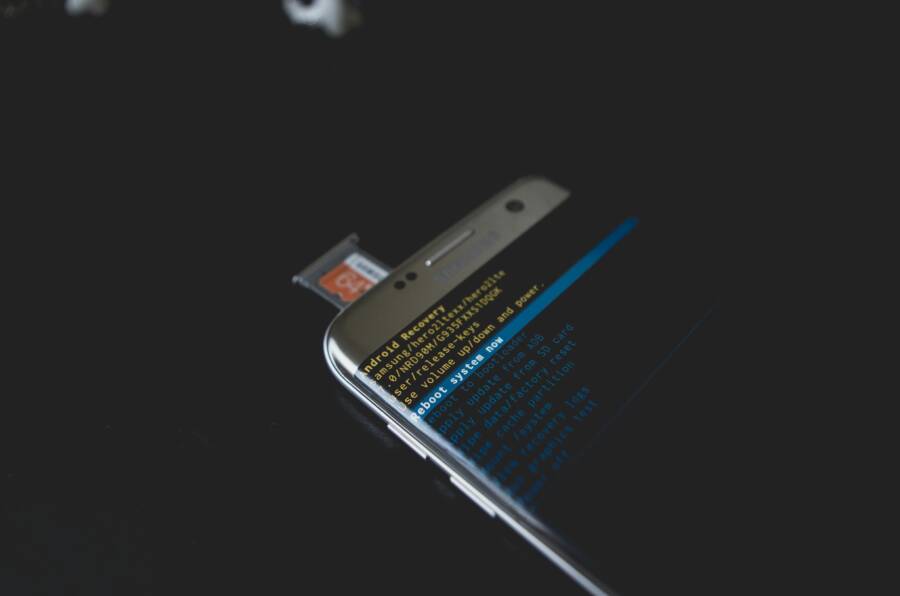
Rolling back updates on your phone is sometimes possible, but it isn’t a guarantee and it can come with real risks. If you’re considering a downgrade, back up your data first because a rollback often requires a factory reset or bootloader changes.
In this guide, you’ll learn when downgrades are feasible on Android and iOS, what the main paths look like, and the practical alternatives you can consider. You’ll also get clear safety tips to protect your data and your device, plus what to expect from app level downgrades versus system level rollbacks.
Can you roll back updates on Android phones? A practical guide
Downgrading updates on an Android phone is possible in some cases, but it is not a guaranteed option for every device or every component. The process carries real risks, including data loss and potential instability. This section breaks down practical paths you can take, from app level downgrades to full OS rollbacks, and explains when each method makes sense. You’ll also get safety tips to protect your data and your device.
Downgrading apps to older versions
When an app update causes issues, you might want to go back to a previous version. Here’s a straightforward, steps-focused guide you can follow.
- Back up data first. This protects your chats, settings, saved progress, and any local files associated with the app.
- Uninstall the current app. Remove the newer version to clear the path for the older one.
- Download a trusted older APK. Use reputable sources and verify the file to avoid malware. If you’re unsure, skip this step and seek alternatives within the app’s ecosystem.
- Install the older version. Enable unknown sources as needed, then install the APK.
- Turn off auto updates. In Google Play, disable auto updates for the specific app to prevent automatic reversion to the newer build.
- Test thoroughly. Check core features, data integrity, and any account logins to ensure stability.
Common limitations and risks:
- Server-side restrictions. Some apps require a version that’s no longer supported by the server, which can limit features or cause crashes.
- Play Protect warnings. Installing older APKs may trigger security warnings; proceed with caution and ensure the source is trustworthy.
- Security considerations. Older versions may miss important security patches, making devices more vulnerable.
When considering this route, weigh the benefits of a known-working version against the security and compatibility costs. If the app handles sensitive data or financial services, staying on the latest trusted version is often wiser. For further context, see guides on rolling back app versions from Android-focused outlets and communities. How to roll back to an older version of an Android app provides a broad overview of the practical steps and caveats. Photo by Kelvin Valerio on Pexels

- Photo by Kelvin Valerio
Rolling back system apps and Google Play system updates
You can revert some preinstalled system apps by uninstalling updates where the feature is supported. However, not every system app allows this, and some core services are designed to stay on the latest version. Also note that Google Play System Updates (Mainline modules) are different from normal apps and have their own constraints.
- Uninstall updates for preinstalled system apps. If the app supports it, you’ll find an option to “Uninstall updates” in the app’s page in Settings or in the Google Play entry for the app. This reverts the app to its factory version without touching the entire OS.
- Core Google Play services may not downgrade. Some critical services are tightly bound to the current build and cannot be rolled back in the same way as consumer apps.
- Google Play System Updates can sometimes be rolled back on-device. In some devices, you can revert to the last installed Play System Update, but not to very old builds. This capability varies by device and software version.
- Safety and instability. Downgrading system components can trigger compatibility issues with apps, services, and security patches. Back up data before you start, and be prepared to revert again if problems arise.
Practical tips:
- Check your device’s manufacturer guidance for any official downgrade paths. Pixel devices, for example, often have targeted methods for rolling back using factory images or official tools. For broader approaches and brand-specific steps, consult trusted sources like Android-focused guides and official support pages. How to downgrade from Android 15 back to Android 14 on Google Pixel offers a detailed walk-through.
- If you rely on Play services for banking or DRM apps, expect hiccups after a downgrade; integrity checks may block certain features until you update again.
- Use reputable sources when uninstalling updates or obtaining any rollback files. On-device rollback options are being rolled out gradually, so availability is device dependent.
- Consider a staged approach: test on a non-primary device first if possible, or create a full backup before attempting changes.
Downgrading the full Android OS (with Pixel and other brands)
Full OS downgrades are the most drastic option. They require careful planning, a compatible device, and a willingness to accept data loss in some cases. Here’s how to approach it by brand, along with general precautions.
- Pixel devices
- The supported path is usually flashing official factory images to reinstall a previous Android version. This is the most reliable path for Pixel, but it erases all data unless you’ve backed up first.
- Steps typically involve downloading the correct factory image, disabling certain security features temporarily if required, and flashing via a computer using official tools. Expect the process to wipe user data.
- Caution: not every update is reversible, and Google may limit downgrades to specific builds. Always verify the exact flashing steps from official Pixel support resources or trusted guides. For examples, see Pixel downgrade guides from credible Android outlets.
- Samsung, OnePlus, and Xiaomi
- General approach: unlock the bootloader, download the official older firmware, and flash it with brand-specific tools.
- Brand tools to know:
- Samsung: Odin
- OnePlus: Fastboot commands (and sometimes vendor tools)
- Xiaomi: Mi Flash Tool
- Common requirements:
- Back up your device completely, as the process typically erases data.
- You may affect your warranty; downgrades can also trigger device protection measures.
- Wrong firmware can brick the device. Double-check model numbers, region codes, and firmware revision before flashing.
- Important note: some models block downgrades or re-locking bootloaders after the process, which can complicate future updates or repairs.
- Safety and risk awareness
- The potential for data loss is real, so backup is essential.
- Incorrect flashing can render a device unusable. Follow official guides step by step.
- Downgrading can remove newer security patches, increasing exposure to known vulnerabilities until you update again.
- Some brands may void warranties if the device is damaged during flashing.
When to consider a full OS rollback:
- You’re experiencing persistent bugs after a specific OTA update that blocks essential features.
- A beta or preview build is unstable and the next official update won’t arrive soon enough.
- You have a compatible device and time to perform a careful, step-by-step rollback with a known-good image.
If you want a practical, brand-aware overview of OS downgrade options and tools, credible sources detail each brand’s process. For example, Pixel users can explore official factory images and related steps, while Samsung and Xiaomi guides discuss flashing tools and precautions. How to downgrade Pixel devices via Android Flash Tool provides a focused Pixel method, and How to Downgrade from Android 15 to Android 14 covers the general approach for major OS updates.
Key takeaways:
- Full OS downgrades are feasible on some devices but carry higher risk.
- Always back up, verify model and region, and use official or highly trusted sources.
- Be prepared for data loss and potential warranty implications.
Want to see how these methods compare in practice? A quick comparison shows the typical flow: unlock bootloader, flash older ROM, and re-lock if needed. Each brand has its own toolset and caveats, but the core idea remains the same: you replace the current OS with an older, official image and start from there. The results vary from smoother performance to unexpected instability, so proceed with caution and always prioritize data security.
Images included in this section illustrate the general concept of rollback and the careful preparation required. Photo credits: Kelvin Valerio. Photo by Kelvin Valerio
- For Pixel, Samsung, OnePlus, and Xiaomi guidance, see credible sources that outline the brand-specific steps, risks, and expectations.
- If you’re curious about the latest on Google Play System updates and on-device rollback options, Android Authority and other trusted tech outlets offer timely coverage. Uninstalling Google Play System updates is finally possible on-device gives current context about on-device rollback capabilities.
What this means for you
- Rollbacks can be a lifeline when updates break key functions, but they require careful preparation and acceptance of possible downsides.
- For most everyday users, sticking with the latest stable version and using supported app updates is safer than attempting a full OS downgrade.
- If you decide to pursue a downgrade, use official resources first, keep backups ready, and monitor device behavior closely after the change.
If you want more brand-specific steps or want to weigh the pros and cons for your exact model, I can tailor a step-by-step plan based on your device.
Can you roll back iOS? What you should know
Downgrading iOS is not a guaranteed option for every device or every version. Apple signs only certain iOS builds for a limited time, and once a version is unsigned,Downgrades to that version are not officially supported. This section covers what you need to know about official downgrades, the risks of unofficial methods, and what to do if a downgrade is still possible.
Official downgrades and signing windows
Apple maintains a signing window for each iOS version. If the target version is signed, you can restore to it using a clean IPSW file and a computer. If the target is unsigned, Apple will not verify the installation, and the downgrade path closes. In practical terms, December over a year ago showed signed iOS versions typically limited to the latest stable builds and a handful of older signed versions. In 2025, unsigned downgrades from newer iOS versions are not supported officially. Always verify the current signing status before attempting any downgrade.
If a downgrade is possible, here are the high level steps you would follow:
- Verify the target version is signed for your device model.
- Download the appropriate IPSW file from a trusted source.
- Connect your iPhone to Finder (macOS) or iTunes (Windows) and initiate a manual restore to the target version.
- After the downgrade completes, re-enable Find My iPhone and restore data from a backup that matches the downgraded version.
Keep in mind that this path is rare. It should be pursued only when the exact target version is clearly signed for your device and you are prepared for potential data loss or compatibility issues with apps and services. For real-time status, you can check trusted signing trackers and official resources like Apple’s IPSW signing pages. See, for example, general guidance on iOS signing status and IPSW downloads Check iOS Beta Signing Status / Beta IPSW Downloads and related resources that track which versions are currently signed. If you want a broader view, another good reference is the iOS signing status tools maintained by various communities iOS Signing Status Tool.
For readers who want a quick snapshot, the latest practical reality is this: you can only roll back to versions Apple currently signs, and those signs can change quickly after a new release. If you’re unsure, hold off and consult official support before touching the device.
What this means for your device
- Your window to downgrade is narrow and version specific.
- Always back up before attempting any downgrade.
- If the target version isn’t signed, there is no official downgrade path.
- If you’re considering an official downgrade, use trusted sources for IPSW files and follow official restore steps precisely.
If you want a brand by brand look at official downgrade options, start with official guidance from the manufacturer or trusted tech outlets that outline the supported paths for your model. For context, Pixel and other Android devices follow different downgrading logic, but the same principle applies: you must rely on signed, official images when available.
Unofficial methods and their risks
Unofficial routes include jailbreaking or using unapproved tools to downgrade. Tools like Checkra1n have historic relevance for certain older devices, but their viability on newer iPhones is limited. In 2025 Checkra1n remains useful only for older iPhones with A9 chips or older running iOS 12 to 14.8.1. It does not support devices at iOS 15 and above, because Apple strengthened security with newer hardware and firmware. Other tools have emerged for downgrading some devices, but these methods carry significant risk.
- Jailbreaking and related processes can erase data, brick the device, or cause instability.
- These methods often do not work on newer iPhones and may void warranties.
- They require a high level of technical competence and comfort with risk, including potential activation issues after installation.
If you’re considering unofficial routes, weigh the risks carefully. A failed attempt can leave the device unusable or in a boot loop. For readers curious about the current landscape, credible sources summarize the security and practical risks of jailbreaking and unofficial downgrades. For example, articles outlining the broad risks of jailbreaking and corporate security concerns offer a grounded perspective. See discussions on the risks of jailbreaking and its impact on device integrity from reputable security outlets and expert analyses. These sources emphasize that casual users should avoid unofficial methods unless they have substantial technical experience and a clear recovery plan.
A quick reality check:
- Unofficial methods can wipe data and compromise security.
- They may not support newer iPhone models or recent iOS versions.
- If you’re not highly experienced, skip these routes and focus on official options or safe workarounds.
If you do decide to explore unofficial options, proceed only after a full backup, understand how to recover from a failed attempt, and be prepared for potential device bricking. You can consult reliable discussions and analyses on jailbreaking risks to inform your decision.
What this means for you
- Unofficial routes are a last resort, not a standard path.
- They come with data loss, instability, and warranty concerns.
- If your device is current and under warranty, official channels are the safer path.
- For most users, downgrades should be avoided unless you have a compelling and well understood reason.
If you want the latest status on tools like Checkra1n and its alternatives, real-time overviews from credible tech outlets provide a balanced view. For example, recent coverage notes Checkra1n’s continued viability only for very old devices and the emergence of other tools for constrained downgrades. You can also review security-focused analyses that outline why unofficial routes present elevated risk.
What this means for you
- Downgrade confidence relies on reliable, signed builds.
- Unofficial routes are high risk and not recommended for everyday users.
- If you choose to pursue them, go in with a plan, full backups, and a clear rollback path.
If you want brand-specific insights or want to assess how an unofficial downgrade would affect your exact model, I can tailor guidance based on your device.
What to do if you must downgrade (official route only)
If the official downgrade is still possible for your device, follow these conservative steps to minimize risk:
- Back up all data first. Use iCloud or a full local backup to preserve photos, messages, app data, and settings.
- Verify the target iOS version is signed for your device model. Check signing status using trusted trackers to avoid wasting time on unsigned builds.
- Download the correct IPSW file from a reputable source. Confirm the build, device model, and region match your device.
- Use Finder or iTunes to perform a manual restore to the signed target version. Follow on-screen prompts carefully and avoid interrupting the process.
- After the downgrade completes, re-enable Find My iPhone, set up the device, and restore data from a backup that matches the downgraded version.
- Test essential functions and apps to confirm stability before returning to regular use.
Key reminders
- Only attempt this path if the target version is signed for your device.
- Always maintain a recent, clean backup.
- Expect some apps to require updates to function correctly after a downgrade.
- If issues appear, you may need to reconsider and revert to a newer signed version when possible.
For readers seeking brand-specific steps, credible guides detail the official downgrade process for various iPhone models and iOS versions. For example, trusted resources explain how to restore an older iOS version using IPSW and Finder or iTunes, and they emphasize checking signing status before proceeding. You can review reliable sources on official downgrade processes and IPSW restoration to build confidence before taking action. Additionally, Apple’s own support resources offer guidance on recovery mode, restoring from a backup, and re-enabling security features after a downgrade. If you plan to pursue this route, prepare by verifying the signed status and collecting the correct IPSW file in advance.
What to expect next
- Official downgrades are rare and time-sensitive.
- If possible, this route can restore stability when a newer build causes problems compatible with your device.
- For most users, staying on the latest signed version and applying app updates is safer.
If you want a tailored step-by-step plan for your specific model, tell me your exact iPhone model and current iOS version, and I’ll map out the official downgrade path and the verification steps you should follow. For quick reference, you can also explore trusted sources that track signed iOS versions and provide direct IPSW download links. This helps ensure you only attempt downgrades that Apple still supports on your device.
Alternatives to downgrading: fix issues without rolling back
When updates cause friction, downgrading often seems like the quick fix. But you can tackle most issues by applying practical, non-destructive methods. These alternatives focus on stability, compatibility, and performance without risking data loss or voided warranties. Think of it as giving your smartphone a tune-up rather than rolling back to a version that might be insecure or unsupported. Below you’ll find straightforward, actionable steps you can take on both Android and iOS.
Update apps and system fixes
Keeping software current is one of the strongest moves you can make to improve reliability. App and system updates include bug fixes, security patches, and performance tweaks that address the exact issues you may be seeing after a major update. Here’s how to approach this effectively.
- Update all apps first. Developers release patches to fix crashes, UI glitches, and compatibility problems with new OS versions. Open your app store, review available updates, and install them. This is often the fastest way to restore smooth operation on a smartphone.
- Apply the latest system updates. System updates fix core OS bugs and add stability improvements. Check for pending updates in Android Settings > System > Software Update or iOS Settings > General > Software Update. Install any available patches.
- Prioritize security patches. Even if a feature you dislike is present, security updates protect your data. Don’t skip patches that come with bug fixes or performance improvements.
- Restart after updates. A quick reboot after installation helps the changes settle and can clear minor hiccups.
- Test essential functions. After updates, run through calls, messaging, and key apps to confirm stability. If problems persist, move to targeted fixes described below.
For quick reference, trusted guides show practical steps to fix update problems without downgrading Android devices, including how to check for and apply updates correctly. See guidance like “Proven Fix for Android Update Problems” for common pitfalls and remedies. Proven Fix for Android Update Problems
- If you’re on iOS, verify that the latest iOS update is fully compatible with your essential apps. Apple’s support articles often emphasize how to troubleshoot update failures and restore data after updates. For a comprehensive overview, you can explore resources such as iOS update solutions and fixes. All About iOS Update Issues and Solutions
- Regular maintenance matters. Space, memory, and background processes all influence stability after a big update. If you’re running low on storage, clean up unused apps and media to improve performance.
Adjust settings and disable new features
Updates frequently bring new features that can feel intrusive or heavy on resources. If you don’t want to roll back, adjust the settings or disable those features to regain control and comfort. This approach keeps the OS intact while eliminating the sources of frustration.
- Review new features and opt out where possible. Many updates add background processes or UI changes. Look in Settings for sections like Privacy, Notifications, and Battery to identify new items tied to the update. If you see toggles you don’t need, turn them off.
- Use feature flags or experimental options cautiously. Some builds include hidden or semi-hidden settings. On Android, developers sometimes expose flags under Developer Options or hidden menus. On iOS, certain features may be tied to specific settings in the Accessibility or Siri & Search sections. Disable or reset these where available to restore prior behavior.
- Revert individual features, not the whole OS. If a particular function (like a new notification style or a background app refresh setting) is causing trouble, switch it off first. This avoids broader changes and preserves security updates.
- Disable automatic updates for specific apps. If a single app is unstable after an update, you can turn off auto-updates for that app via the Play Store or App Store. This keeps the app at a known good version while you investigate other fixes.
- Return to a familiar workflow. If a new feature disrupts a daily routine, try to mimic the previous setup. For example, rearrange home screens, adjust quick settings, or revert to the old notification style.
If you want a brand-specific walkthrough, many outlets publish step-by-step guides for disabling updates or feature toggles on Android and iOS. For instance, common tips include how to prevent iPhone from auto installing updates and how to turn off automatic Android updates. Prevent iPhone Automatically Installing Software Updates
- On Android, you can often limit how and when updates happen by adjusting Play Services or Play Store settings. This can reduce the risk of new features triggering instability while you monitor how the update behaves.
- On iOS, you might disable certain background tasks or analytics features that are bundled with new releases. A careful cleanup of background refresh options and location services can help restore responsiveness.
- When you disable or adjust features, document what you changed. If problems reappear after a future update, you’ll have a clear baseline to compare against.
Clear caches, reset network, and targeted resets
If your device feels sluggish, has connectivity issues, or shows inconsistent app behavior after an update, targeted resets can fix many symptoms without a full rollback.
- Clear app caches and data where appropriate. Some apps collect cache data aggressively after an update, which can cause crashes or slowdowns. Clearing caches for problematic apps can quickly restore stability without affecting other data.
- Reset network settings. This action fixes Wi-Fi, Bluetooth, and cellular connectivity problems by restoring network configurations to their defaults. It does not erase personal data, but it does reset saved networks and passwords, so have those handy.
- Free up storage space. Low storage can trigger update-related issues, from app crashes to slow indexing. Delete or offload unused apps and large files to improve performance.
- Use official repair tools when needed. If you still see issues after the above steps, consider official repair utilities. On iOS, software repair tools or iTunes can repair the OS without data loss in many scenarios. On Android, monthly security patches and targeted fixes from the device maker can resolve lingering bugs.
- Factory reset as a last resort. If you exhaust all non-destructive options and still face fundamental problems, a factory reset may be warranted. Always back up first, then perform the reset and restore from a clean backup.
Concrete steps you can take now:
- Clear the cache for apps that crash repeatedly or behave oddly after an update.
- Go to Settings > General > Reset or equivalent to reset network settings on iOS and Android.
- Check device storage and remove items you can re-download later.
- Reboot and test core features before returning to normal use.
For a practical guide on resetting networks and devices, including Android and iOS steps, you can consult a detailed tutorial that walks through the process and explains what each reset does. How to reset your Android or iOS network settings
- If you’re dealing with stubborn issues after a big update, consider professional help. Official support can guide you through safe options that minimize risk to your data.
- A well-timed reset can fix a surprising number of glitches. In many cases, it feels like a fresh start without the downtime of a downgrade.
- Always back up before you reset. If data loss or misconfiguration occurs, you’ll recover quickly from a known point.
If you want a tailored plan for your exact device model, share your phone’s make, model, and current OS version. I’ll map out the cleanest non-destructive path to regain stability.
In practice, these three approaches—update everything, adjust settings, and perform targeted resets—cover the vast majority of update-related issues. They keep your phone secure and functional while avoiding the risks that can come with downgrading. If you’re exploring alternative fixes, I can help you weigh the best option for your device and situation.
Safety, risks, and best practices
Downgrading a phone update is not a guaranteed option and it carries real risks. This section helps you weigh safety concerns, understand potential downsides, and adopt best practices that protect your data and device. You’ll learn how to approach backups, security considerations, and practical steps if rollback isn’t possible. The guidance here is designed to be actionable for both Android and iOS users, with a focus on responsible decision making and minimizing disruption to your daily workflow with a smartphone.
Backups and data safety
Before attempting any rollback, thorough backups are essential. Without a solid backup, a downgrade can become a data loss event. Aim to protect photos, messages, app data, and settings across both local and cloud options.
- Local backups you can rely on
- Android: Use your device’s native backup feature to copy data to a local computer or external storage where available. Some devices offer a local backup option within the Settings app that captures app data, settings, and system configurations.
- iOS: Create an encrypted local backup via Finder (macOS) or iTunes (Windows) to preserve messages, photos, app data, and settings. This provides a restore point if something goes wrong during a downgrade.
- Cloud backups you should consider
- Android: Back up to your Google account so you can restore contacts, calendar events, app data, and settings when moving to a compatible version.
- iOS: Use iCloud backups for a broad safety net. Ensure Photos, Messages, and app data are included in the backup. This makes data restoration smoother after a downgrade attempt.
- Data you must safeguard
- Photos and videos from the camera roll
- Messages, chats, and attachments
- App data, progress in games, and offline documents
- Device settings and preferences
- Practical backup checklist
- Verify each backup completed successfully.
- Confirm that essential data is included (photos, messages, app data).
- Keep at least two separate backups on different platforms (local plus cloud).
- Test restore on a secondary device or emulated environment when possible.
- Important caveats
- Some apps encrypt data or store information only on the device. A robust backup ensures you can recover those items after a rollback.
- If you rely on sensitive apps (banking, enterprise, or DRM content), consider additional, app-specific export or export-friendly options.
Useful resources for backups and setup
- Back up and restore data on your Android device. This official guidance covers how backups work and how to restore backups when needed. https://support.google.com/android/answer/7680439
- Back up and restore iPhone and iPad devices in Apple Configurator for more control over the restore process. https://support.apple.com/guide/apple-configurator-mac/back-up-and-restore-devices-cadbf9b61c/2.16/mac
- A general phone backup guide that covers both iPhone and Android workflows. https://www.hp.com/us-en/shop/tech-takes/how-to-backup-iphone-android
Real-world takeaway: backups are your safety net. If a rollback is off the table or the process stalls, you’ll have a reliable way to recover. For a quick, practical read on keeping data safe during downgrades, consider looking at how-to guides from reputable outlets that focus on data preservation and recovery.
Security and stability considerations
Older versions can present stronger security risks because they miss patches and new protections. When you consider a rollback, balance the desire for stability with the consequences of running an unsupported or outdated build.
- Why older versions can be riskier
- Missed security patches leaves devices exposed to known vulnerabilities.
- Some apps rely on newer OS services that aren’t present in older builds, causing compatibility issues.
- Downgrades may disable certain security features that were added in later updates.
- How to mitigate risk while exploring rollback options
- Stay within supported versions whenever possible. Check with the device maker for official downgrade windows or supported builds.
- Keep essential security protections active. Enable device encryption, strong passcodes, and biometric locks.
- Limit what you install and run on older builds. Avoid banking, password managers, or DRM-heavy apps on unsupported versions where possible.
- Regularly monitor for updates even if you downgrade. When you’re not downgrading, apply updates promptly to close security gaps.
- Practical steps to maintain protection
- Maintain strong device hygiene: updated apps, minimal background permissions, and timely security patches on current supported versions.
- Use reputable sources for any downgrade files or tools. Verify the integrity of files before proceeding.
- Consider storing sensitive data in encrypted spaces or secure cloud backups that remain accessible regardless of OS version.
- When to stay on the latest supported version
- If you don’t have a compelling reason to downgrade, staying current is generally safer. Official updates address newly discovered vulnerabilities and provide stability improvements.
- Brand-specific notes
- Pixel devices often provide official downgrade paths through factory images or tools, but these paths vary by build and may erase data. Always follow official guidance for your model.
- For iPhone users, Apple signs only certain iOS builds for a limited period. If the target version isn’t signed, you cannot downgrade through official channels.
- Quick reference resources
- Official Android downgrade paths and brand-specific notes can be found through credible Android outlets and support pages.
- For iOS, signing status checkers help determine whether a downgrade is possible on your device. https://ipsw.dev/signing/ and https://idevicecentral.com/ios-signing-status/
Key takeaways: older builds can expose your smartphone to security gaps. If downgrading is not essential, keep your device on the latest secure version. If you pursue a downgrade, use official channels, verify the signed status, and prepare for potential app compatibility issues.
What to do if rollback isn’t possible
When a rollback isn’t feasible, take concrete steps to fix issues without going backward. This approach protects data and keeps you on the most secure path available.
- Contact official support first
- Reach out to the device maker or carrier support to report the issue and get model-specific guidance. They may offer fixes or a planned update that resolves the problem without downgrading.
- Wait for a new update that addresses the issue
- Software teams often release targeted updates to fix the exact bugs you’re seeing. Keeping an eye on official channels helps you plan for a safe update path rather than a risky downgrade.
- Use safe workarounds or app level fixes
- Update problematic apps to the latest version, clear caches, and reset specific app settings.
- Disable problematic features or background services that cause instability.
- Reinstall the problematic app if it’s the root cause, after backing up its data.
- Consider non-destructive resets
- Clear caches and data for sticky apps to fix crashes without affecting other data.
- Reset network settings to fix connectivity issues stemming from updated software.
- Free up storage space, as insufficient space can cause stability problems after updates.
- Factory reset only as a last resort
- A factory reset wipes all data and brings the device to factory conditions. Only consider this after exhausting non-destructive options and after thorough backups.
- Practical plan to implement this approach
- Identify the exact symptoms and affected apps.
- Update all apps and core OS to the latest signed version.
- Try targeted fixes such as cache clear, data resets for problematic apps, or network resets.
- If issues persist, contact official support and explore safe workarounds.
- Only perform a factory reset after confirming alternatives have failed.
- When to escalate the issue
- If the problem blocks essential tasks and there is no clear path to a fix, involve official support and document every step you take.
- Quick references
- For iOS downgrades, credible outlets discuss the limited window for signed versions and official restoration paths. https://ipsw.dev/signing/ and https://idevicecentral.com/ios-signing-status/
- For Android alternatives and official guidance, you can consult sources that explain how to roll back to older Android versions and what to expect. https://www.xda-developers.com/how-reverse-ios-update/ and https://www.androidpolice.com/reset-network-settings-android-ios/
- Real-world takeaway: when rollback isn’t possible, you still have a path to stability. Focus on updating apps, adjusting settings, and targeted resets. If needed, seek official support to work through the issue without risking data loss.
If you want a tailored plan for your device model or a checklist you can follow step by step, share your device make, model, and current OS version. I’ll map out a practical path that prioritizes data safety and device stability.
Conclusion
Downgrading a phone update is not always possible and it carries real risks, so backups and careful planning are essential. For most users, safer routes like updating apps, applying targeted fixes, or adjusting settings will restore stability without risking data loss. Keep your data protected with regular backups to cloud and local storage, and proceed only through official or trusted channels. If a downgrade is truly necessary, map out a brand specific plan and test on a non-critical device first to avoid unnecessary downtime for your smartphone. If you’re unsure, start with fixes and reassess your need for a rollback before taking any drastic steps.