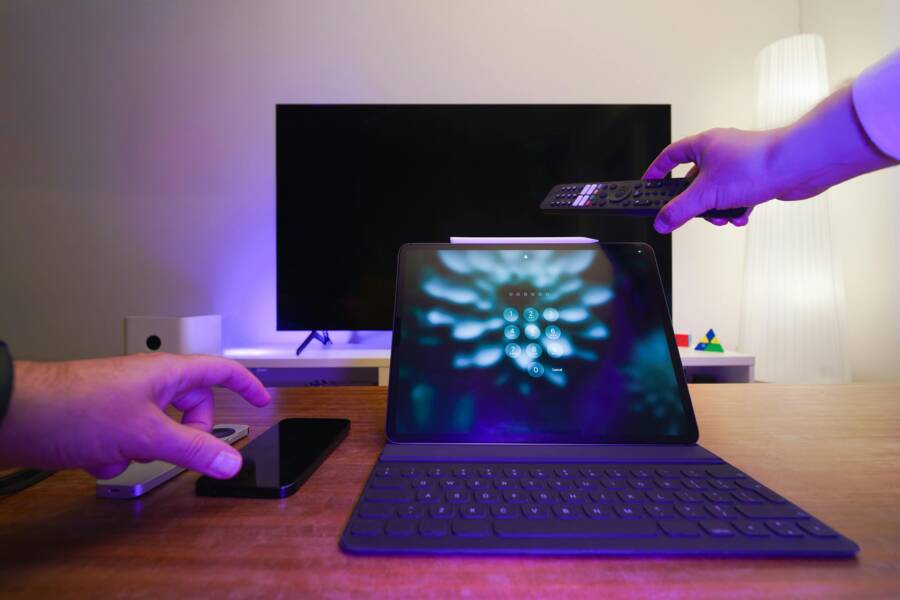
Picture this: you want to share a favorite video from your phone to the big screen, but the screen casting just won’t cooperate. You’re not alone. This guide breaks down why your phone might refuse to cast to a smart TV and gives you a straightforward path back to smooth, big screen viewing.
Screen casting means mirroring your phone’s display to the TV so you can watch content with family and friends. The fix is usually simple: make sure both devices are on the same WiFi network, check that casting is enabled on the TV, and update apps and firmware. Below you’ll find quick, practical steps that cover Android and iPhone, and they work for most smart TVs including Samsung, LG, and Roku.
Think of this as a quick diagnostic that you can run in minutes. Common culprits include network glitches, disabled casting features, and outdated software. By following the step by step fixes for Android and iPhone, you’ll get back to streaming fast. A few small tweaks can make the difference between a stuck connection and a reliable, high quality cast. If you’re short on time, start with the simplest checks and move through the list; you’ll likely restore the connection without any tech drama.
Common Reasons Your Phone Won’t Cast to a Smart TV
Casting should feel like magic when it works: a quick tap and the screen appears on the big display. When it doesn’t, it’s usually a handful of concrete issues that are easy to fix. This section highlights the most common culprits and how to address them, so you can get back to enjoying content on the larger screen without friction.
Devices on Different Wi-Fi Networks
If your phone and TV aren’t on the same Wi‑Fi network, casting often fails right away. Start with a quick network check and a simple switch.
- Verify the phone is connected to your home Wi‑Fi network. If you’re using a guest network, switch to your primary network. Guest networks are notorious for blocking device-to-device communication, which blocks casting.
- Check the TV’s network status. On most Samsung, LG, Roku, and other smart TVs, you can find the network settings in the TV’s setup menu and confirm the name of the connected network.
- Reconnect both devices. On your phone, forget the current network, then reconnect to the home network. On the TV, disconnect and reconnect to the same network.
- If you’re using a mesh Wi‑Fi system, ensure that the phone and TV are not isolated by guest or client isolation features. Some routers isolate devices on guest networks, which prevents discovery and casting.
- Quick test: move the phone closer to the router and try again. A stronger signal reduces cast dropouts and latency.
If you’ve tried these steps and there’s still a disconnect, consider temporarily turning off guest networks or enabling a dedicated same‑network guest if you must use one. For deeper guidance on Google Cast related network issues, see Google’s troubleshooting resources.
- Supporting guidance: Google Cast help and setup steps
- Additional reading on guest networks and casting
Images often speak louder than words here. The right network setup makes the rest of the process effortless.
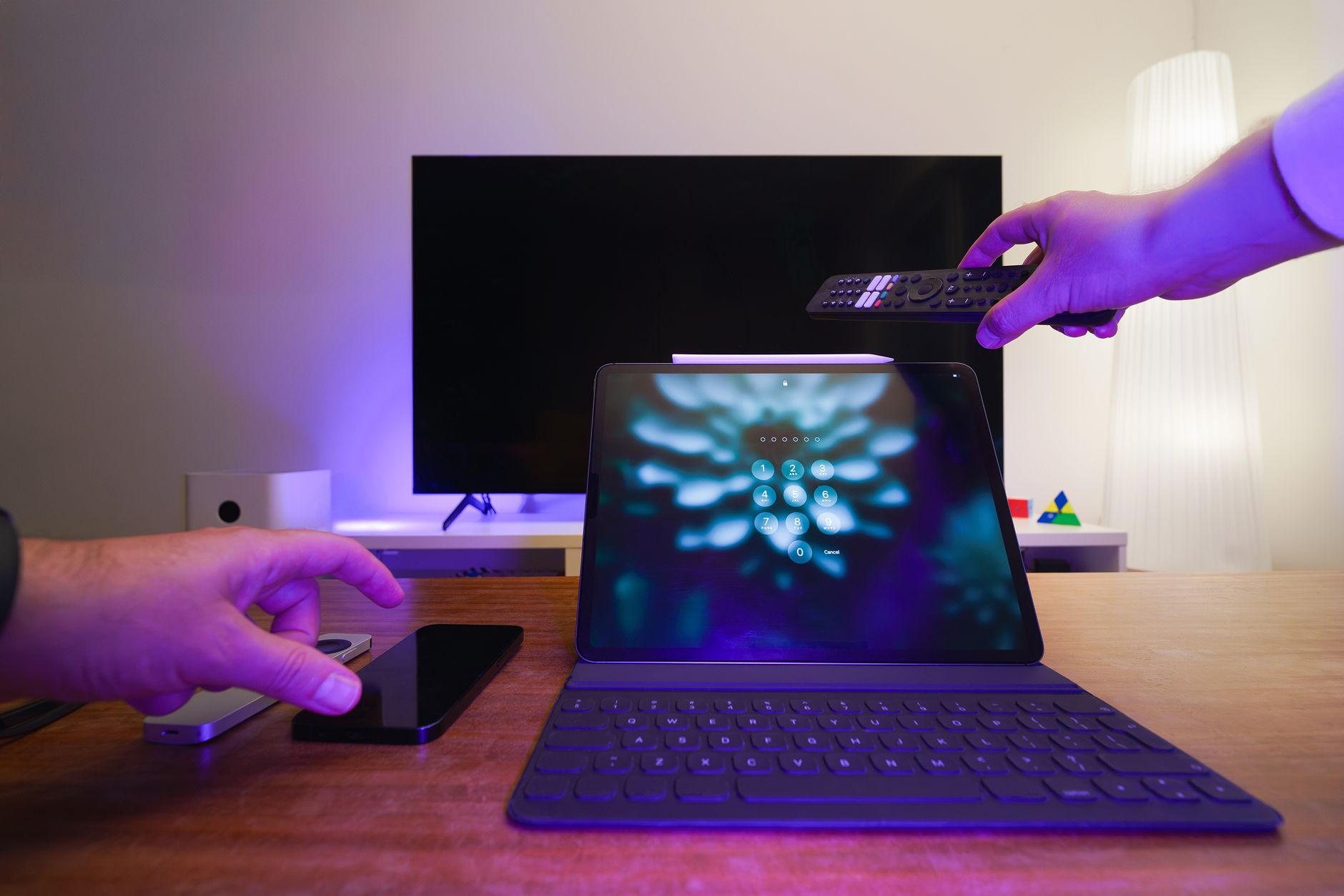 Photo by Jakub Zerdzicki
Screen Mirroring Disabled on TV
If your phone can see the TV but your attempt to cast fails, the feature might be disabled on the TV itself. Here’s how to enable it on common brands and interfaces.
- Samsung TVs: Look for Smart View in the Quick Menu or Settings. On many models, you’ll find it under Connections or Screen Mirroring. Enable the feature, then try casting again from your phone.
- LG TVs: Use Screen Share or Mirroring. Open the TV’s Home menu, navigate to Screen Share, and turn it on. Your phone should appear as a casting option once the TV is ready.
- Roku devices and Roku TVs: Use the Screen Mirroring option in the Settings menu. Set the mode to Prompt or Always Allow to accept casting requests from your phone.
- Other brands: Many use a dedicated feature named Screen Share, Miracast, or Cast. If you’re unsure, check the TV’s user manual or the support page for your exact model.
Once the feature is enabled, restart the casting app on your phone and attempt the cast again. If it still doesn’t appear, confirm that the app on your phone has the necessary permissions to access local networks and display content to external devices. Some apps require local network access to discover and connect to TVs.
If you frequently switch devices or guests, consider saving the TV as a trusted device within the casting app or the TV’s settings to streamline future attempts.
- Helpful reference: Google Cast troubleshooting steps
- Brand-specific guides: Samsung Smart View, LG Screen Share, Roku Screen Mirroring
Tips to improve reliability:
- Keep the TV firmware and casting app up to date.
- Close other apps that may drain bandwidth or cause conflicts.
- Reboot both devices if the connection seems stuck or flaky.
For a quick refresher on troubleshooting app-based casting issues, Google’s support articles offer a practical self-help flow that covers common culprits.
- Google Cast troubleshooting article
If you’re curious about how different devices handle casting, you can explore broader guides on screen mirroring across platforms. For example, you can read up on how to mirror to a Roku device and related steps on their official support pages.
- Roku support on screen mirroring
- Samsung and LG guidance on screen sharing
This section helps you quickly identify whether the issue lies with network setup or with the TV’s mirroring feature. The next steps will guide you through the most frequent fixes for Android and iPhone users, aiming to restore smooth, big‑screen viewing without a long troubleshooting session. For more context on how guests and networks interact with casting, you can review related discussions about guest networks and casting visibility.
- Can’t establish a connection due to network restrictions on casting devices
Quick First Steps to Try Right Now
When your phone won’t cast to the TV, the fastest path back to big screen viewing is a small, repeatable checklist you can run in minutes. These quick first steps target the most common friction points: network consistency, device visibility, and up-to-date software. Think of them as the warm-up before you dig into deeper fixes. You can perform these steps on both Android and iPhone without special tools. If a step doesn’t apply to your setup, skip it and move on.
Restart All Devices
A simple restart often clears hiccups that block casting. It resets temporary settings and clears memory that may be bogging things down.
- Power cycle the TV: unplug from the wall for about 30 seconds, then plug back in and allow it to boot completely.
- Restart your phone: shut it down, wait a few seconds, and turn it back on.
- If you use a home router, do a quick router reboot as well. Unplug it for 30 seconds before plugging it back in.
Executing these steps freshens the communication path between your devices. After the restart, try the cast again. If it still doesn’t appear, move to the next step. For context on common network issues and quick fixes, this Chromecast support page offers a clear overview of how firmware and app updates play into stability: Chromecast & Google TV firmware updates.
Tip: if you’re sharing with guests, note that some guest or mesh networks can block device discovery. If you suspect this, temporarily place your TV and phone on the main network and test again.
[Photo: A sleek home technology setup featuring a router, glass decoration, and television.]
Photo by Jaycee300s
Update Your Phone and TV Software
Software updates fix bugs, improve compatibility, and patch security gaps that can prevent casting from working smoothly. The quickest route is to update both the phone and the TV, then test casting again.
- On Android phones, go to Settings > System > Advanced > System Update (or similar path depending on your device). If an update is available, install it. Reboot after the update.
- On iPhone, check Settings > General > Software Update. If an update is available, install it, and then restart the iPhone. If AirPlay or screen mirroring isn’t working, confirm both devices are on the same Wi-Fi network and that AirPlay receiving is enabled on the TV.
- On the TV, navigate to Settings > Support > Software Update. Choose “Check for updates” and install if available. If your TV supports a USB update, that can be an alternative path when Wi‑Fi is unstable.
Software synchronization matters because newer firmware often expands compatibility with the latest casting protocols. If you want a deeper look at updating a Google TV device, this guide explains how firmware versions are handled and how to verify your current version: Chromecast & Google TV firmware versions and release notes. For iPhone users, Apple’s AirPlay guidance covers common setup and update steps: If screen mirroring or streaming isn’t working on your AirPlay-compatible device.
If your setup uses a smart TV brand like Samsung, LG, or Roku, you can also check the official update paths:
- Samsung: update software on Samsung smart TV
- LG: update an LG Smart TV
- Roku: update the Roku streaming device
Keeping both devices up to date is the best baseline practice. It reduces the odds of compatibility issues when you cast from a phone to a TV.
[Photo: A clean, modern desk with a smartphone and TV in the background.]
Photo by Jaycee300s
Additional quick checks you can perform while updating:
- Confirm the casting app on your phone has permission to access local networks.
- Close other bandwidth-heavy apps that could cause buffering or delays.
- If using a guest network, consider testing on the main network to rule out isolation features.
Useful references for updates:
- LG TV software update: update an LG Smart TV
- Samsung TV software update: Update the software on your Samsung smart TV or monitor
- Roku device software: How to update the software on your Roku streaming device
External resources on updating devices and improving compatibility
If you’re troubleshooting an Android to TV cast, you may also want to verify the Android version path for device compatibility. A solid starting point is the Android TV update guide: How to Update Android TV Version. For iPhone users, Apple’s AirPlay support article provides concrete steps to reestablish the connection after an update: If screen mirroring or streaming isn’t working on your AirPlay-compatible device.
Closing this step with a test is wise. Open a video or photo and attempt to cast again. If the cast still fails, the next section will cover brand-specific checks that fix most stubborn cases.
Remember, these updates aren’t just about new features. They fix bugs that can block casting and improve how devices talk to each other on the network. If you’d like to see more on improving streaming reliability, you can review Roku’s and Samsung’s guidance on screen sharing and updates:
- Roku support: How to update the software on your Roku streaming device
- Samsung support: Update the software on your Samsung smart TV or monitor
By keeping both devices current, you minimize the chances of a clash between apps and firmware that prevents casting from working on your home network.
How to Cast Screen from Android Phones to Smart TV
Casting your Android phone to a TV should feel effortless. When it works, you can share photos, videos, and apps on a bigger canvas in seconds. When it doesn’t, a few targeted steps quickly restore the connection. This section covers practical, no-nonsense guidance to get you back to big-screen viewing, with Android devices in mind and a focus on common brands like Samsung, LG, and Roku.
Enable Smart View on Your Android
Turning on Smart View is usually the first step when you want to mirror your screen. It’s a fast toggle that invites your TV to be the display for your phone’s content. Here’s how to get it up and running quickly.
- Swipe down from the top of your Android screen to open the Quick Settings panel.
- Look for the Smart View (or Cast) icon. If you don’t see it, swipe left or tap the Edit button to add it to your panel.
- Tap Smart View, then choose your TV from the list. You may be prompted to allow permissions on both devices.
- Once connected, you can start casting photos, videos, or apps. If you want to stop casting, open the notification shade and tap Disconnect.
If your TV isn’t appearing, check that both devices are on the same Wi-Fi network and that your TV’s casting feature is enabled. Some TVs require you to enable Screen Mirroring or Miracast from the TV’s Settings before you can see the Android device on the list. Also verify that the casting app on your phone has permission to access local networks.
- For Samsung devices, the process is called Smart View and often lives in the Quick Menu or Settings under Connections or Screen Mirroring. If you’re using a Galaxy phone, you’re already halfway there.
- If your TV supports Google Cast, you can also cast content directly from apps that expose the Cast icon, such as streaming apps and Chrome. Keep in mind that some apps require local network access to discover and connect to TVs.
- If you frequently switch devices, consider saving the TV as a trusted device within the casting app or TV settings to streamline future attempts.
Helpful resources:
- Screen mirroring to your Samsung TV
- How to connect mobile device and TV with Smart View
Image suggestion:
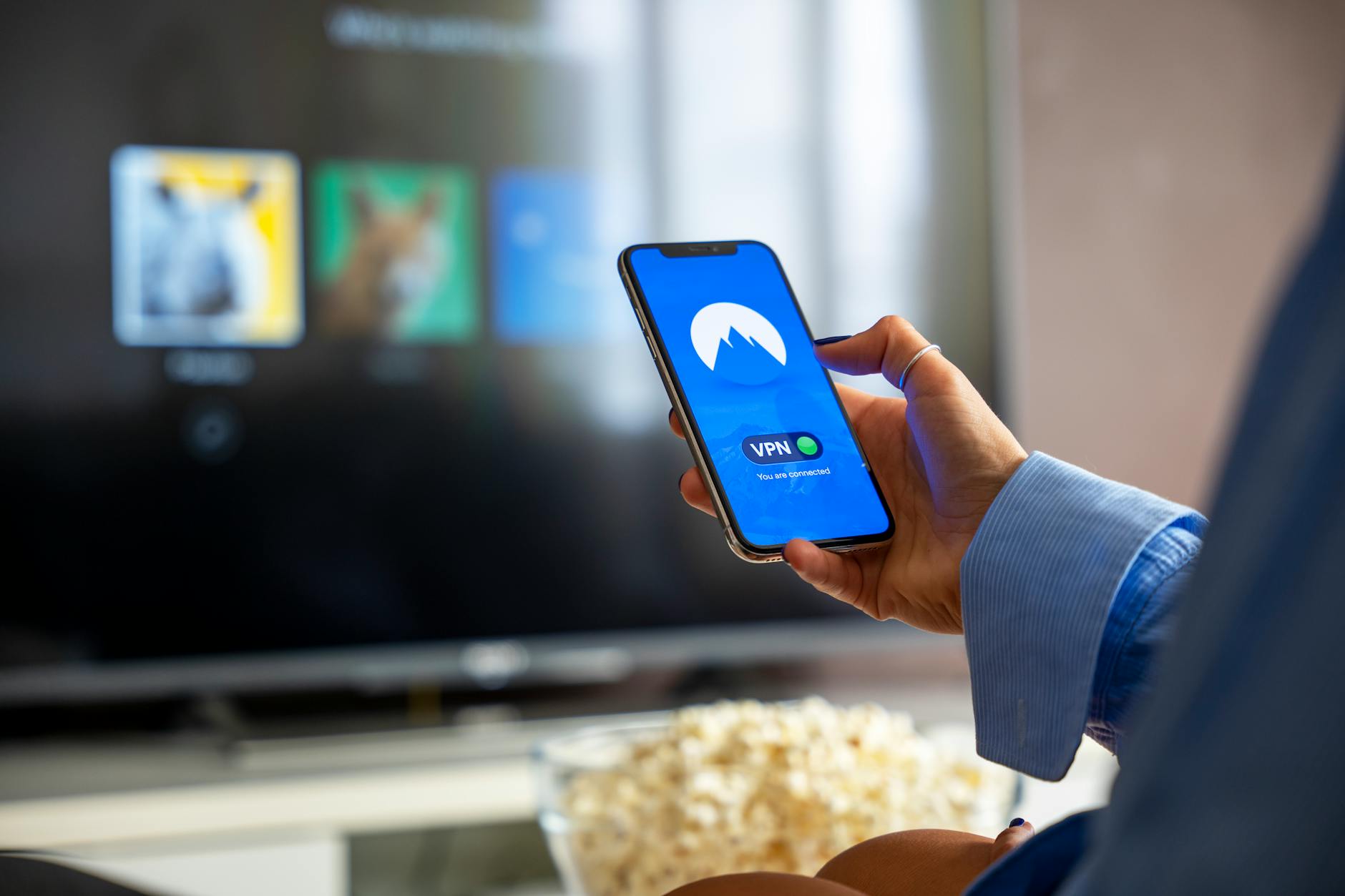 Photo by Stefan Coders
Fix If Your TV Doesn’t Show Up
If your phone sees the TV but won’t connect, the issue is usually in the TV settings, network, or app permissions. Tackle this in a simple sequence to locate the blockage and remove it.
- Disable VPN on your phone. A VPN can route traffic in ways that hide devices on the local network, making discovery fail.
- Check display settings on both devices. Make sure the TV is set to the correct input or screen mirroring option and that the Android device is allowed to share its screen.
- Clear the casting app cache on your phone. A corrupted cache can block discovery or cause flaky connections.
- Restart both devices after applying these changes. A fresh start often resolves lingering discovery issues.
- If you’re using a mesh network, ensure there’s no client isolation that keeps devices from seeing each other. If necessary, run a quick test on the main network.
If the TV still doesn’t appear after these steps, consult the official support paths for your TV brand. For example, Google Cast troubleshooting provides a practical self-help flow that covers common problems and steps to reestablish a connection. You can also review brand-specific guidance for Samsung, LG, and Roku on screen mirroring and updates.
- Google Cast troubleshooting article
- Samsung Smart View and LG Screen Share guides
- Roku Screen Mirroring help
When in doubt, a clean restart often fixes stubborn issues. Reboot the TV, phone, and router, then retry the cast from your Android device. Keeping firmware and apps up to date reduces the chance of this problem returning.
Image suggestion: Optional: If you’re showing the practical steps in a guide, a simple diagram or photo set can help readers visualize the sequence. Consider a diagram that maps the path from phone to TV through Wi-Fi.
Tip: If you’re troubleshooting, limit variables one at a time. For example, confirm both devices are on the same network, then test with a single app that supports Cast. This method helps you pinpoint whether the issue is network-based, device-based, or app-based.
Related reading:
- Improve your Android screen casting experience
- How to update the software on your TV and phone to improve compatibility
External references and further reading:
- Chromecast & Google TV firmware updates
- How to update Samsung, LG, and Roku devices
By following these steps, most Android-to-TV casting issues resolve quickly. If the problem persists, the next section dives into device-specific checks that fix the most stubborn cases, ensuring you can cast from your phone with confidence.
Step-by-Step Screen Mirroring for iPhones to Smart TV
When you want to share content from your iPhone to the TV, screen mirroring should feel seamless. This section walks you through a clear, practical path to mirror your iPhone to a smart TV, with emphasis on using the Control Center for quick starts and a focused set of iPhone–specific trouble checks. You’ll find brand-agnostic steps that apply to most AirPlay 2 compatible TVs and devices, with quick links to official guidance if you need deeper details.
Open Screen Mirroring in Control Center
Opening Screen Mirroring from Control Center is the fastest way to start casting. Here’s how to access it on different iPhone models and get your iPhone screen on the big screen in seconds.
- For newer iPhones (with the dynamic iOS Control Center): swipe down from the top-right corner to reveal Control Center, then look for the Screen Mirroring icon. Tap it to view available devices.
- For older iPhones (with a home button): swipe up from the bottom edge to open Control Center, then find Screen Mirroring and select your TV or AirPlay 2 device from the list.
If you don’t see the Screen Mirroring option, customize Control Center to add it. Go to Settings > Control Center > Customize Controls, then add Screen Mirroring. Once added, repeat the steps above to connect.
- Choose your TV or AirPlay-compatible device from the list.
- If prompted, enter an AirPlay passcode shown on the TV. This keeps your cast secure.
- After connection, the iPhone screen appears on the TV. To stop, open Control Center and tap Stop Mirroring or use the on-screen notification that appears when you begin casting.
Practical tips to improve reliability when using Control Center:
- Make sure both devices are on the same Wi‑Fi network.
- Ensure AirPlay is enabled on the TV or streaming device.
- Keep the iPhone and TV within strong Wi‑Fi range to minimize latency.
For quick reference, Apple’s AirPlay guides cover controlling and customizing screen mirroring from Control Center and ensuring devices are ready for mirroring. See the official overview here: https://support.apple.com/en-us/102661.
If you want step-by-step visuals or a quick how-to video, consider trusted tutorials that show the exact gesture sequences for iOS 17 and later. Apple’s support pages remain the most reliable source for current flow and control options: use AirPlay to stream or mirror from iPhone to TV, with clear steps on connecting and selecting your device.
External references:
- Use AirPlay to stream video or mirror the screen of your iPhone or iPad
In practice, Control Center is your fastest lane to mirroring. It’s the same entry point used by iPhone owners across the US to share photos, videos, or apps on a larger display. If a connection isn’t visible, verify network settings and enable the necessary permissions on your iPhone for local network access.
Troubleshoot iPhone Connection Issues
If your iPhone can see the TV but won’t cast, the problem usually sits in how devices communicate over the network, the AirPlay settings, or recent software changes. Let’s run through a focused checklist to identify the blocker and remove it quickly.
- Restart both devices. A quick reboot can clear temporary glitches that block discovery or streaming.
- Update software. Keeping iOS and the TV firmware current reduces compatibility issues and fixes known bugs that can block mirroring.
- Verify permissions. Ensure the casting app on your iPhone has access to the local network and screen recording when required.
- Check the network. Both devices should be on the same Wi‑Fi network. If you’re using a guest network, temporarily switch to your main network to test.
- Confirm AirPlay is allowed. On the iPhone, go to Settings > General > AirPlay & Handoff and ensure AirPlay receiving is enabled if you’re using an Apple TV or AirPlay 2 capable TV.
- Resolve VPN or firewall interference. If you have a VPN or strict firewall on your network, temporarily disable it to rule out network routing issues.
If you still can’t cast after these checks, consult official support paths for device-specific guidance. Apple’s AirPlay help pages provide structured steps to reestablish connections after updates or changes in network conditions: https://support.apple.com/en-us/102587. They outline a practical sequence: ensure devices are near each other, confirm latest software, allow AirPlay on the iPhone and the TV, and restart both devices.
Brand-specific considerations to keep in mind:
- Apple TV and AirPlay 2-compatible TVs generally provide the smoothest mirroring experience on iPhone.
- Some non-Apple TVs require enabling a Screen Mirroring or Cast feature in the TV menu, and sometimes a separate app is needed to manage connections.
- If you’re using a Roku or similar streaming device, ensure screen mirroring is enabled and set to a permissive mode to accept connections from your iPhone.
If the TV still doesn’t appear, a quick test helps isolate the issue: try mirroring a different iPhone or a different app that uses AirPlay to see if the problem is device-specific or app-specific. In many cases, updating the TV’s software and rechecking the network resolves the problem.
Key reliable resources to keep handy:
- If screen mirroring or streaming isn’t working on your AirPlay-compatible device
- Use and customize Control Center on iPhone for quick access to Screen Mirroring
- Stream video and mirror the screen to Apple TV or AirPlay-enabled TVs
By following these steps, you’ll typically uncover whether the issue lies with device visibility, network setup, or software compatibility. The next sections zoom in on common brand-specific checks, then move into a streamlined Android-to-TV guide for readers who share a household with mixed devices. If you’re curious about the latest behavior of iPhone mirroring on iOS 17, you can review the real-time updates and common issues reported by readers and support communities: Apple AirPlay support and community discussions.
Advanced Fixes When Basic Steps Fail
When the obvious fixes don’t restore casting, it’s time to tackle the problem with deeper diagnostics. This section covers concrete, NO-NUFFS approaches that address stubborn issues on both Android and iPhone. Think of these as the high‑confidence fixes you apply after you’ve ruled out the basics. They’re practical, repeatable, and designed to get you back to big‑screen viewing without wasted time.
Check for VPNs, Firewalls, and Network Security
VPNs and strict firewalls can block device discovery and casting traffic on your home network. If your phone or TV uses a VPN or if your router enforces high security, turn off VPNs momentarily and test the cast again. If the cast works with VPN off, you’ve identified the culprit and can reconfigure VPN split tunneling or firewall rules to allow local network traffic for your casting devices.
- On Android, disable VPNs from the quick settings or the VPN app, then retry.
- On iPhone, check Settings > General > VPN & Device Management, and pause active VPNs during testing.
- If you’re using a mesh network, ensure client isolation is off so devices can see each other.
If you must keep VPNs on for privacy, consider a split-tunnel approach that keeps streaming traffic on the local network open for discovery. For reference on how VPNs can interfere with screen mirroring, see practical guidance on screen mirroring disconnects after VPN connected.
Useful resources:
- How to fix screen mirroring disconnects after VPN connected
When a VPN isn’t the issue, you may still need to adjust firewall settings on your router. Some routers block device discovery between clients on the same network. Access your router’s admin page and search for terms like “AP isolation,” “client isolation,” or “LAN isolation.” Disable those features temporarily to test casting.
Confirm TV Voice Assistants and Casting Features Don’t Interfere
Some TVs ship with voice assistants or companion apps that manage casting in parallel with your phone. When these services misbehave, they can block or confuse the casting process. Disable or sign out of any secondary casting pathways temporarily to see if your primary casting method (Smart View, Screen Mirroring, AirPlay) becomes available again.
- Disable any TV app that manages screen sharing as a separate service.
- Turn off any voice assistant on the TV while testing casting.
- Ensure the TV is discoverable by other devices; sometimes a secondary service hogs the network.
If the issue clears after disabling a secondary service, re-enable the service one by one to identify the exact conflict. This can save hours of troubleshooting if the culprit is a background process you forgot about.
Use an Alternate Casting Protocol on Android
If your TV supports multiple casting paths, switching protocols can bypass the problem. For instance, use a Cast-enabled app to cast from your phone instead of mirroring the entire screen. Some devices will cast content via Cast while the OS screen mirroring is still flaky. This approach is especially useful when you see the app’s Cast icon but the system-wide mirroring remains unreliable.
- Open a Cast-enabled app on Android, tap the Cast icon, and select your TV.
- If the TV supports Miracast, you can try casting using a Miracast option from the Quick Settings panel.
- On Samsung devices, Smart View can sometimes fail while the standard Cast path works, so try both.
This dual-path strategy often fixes stubborn cases without requiring a factory reset.
Clear Cache and Data From Casting-Related Apps and Services
A corrupted cache can derail discovery and streaming. Clearing the cache of the casting app, and if needed the system cache for the Android device, can restore normal operation.
- On Android, go to Settings > Apps > [Casting App] > Storage > Clear Cache. If issues persist, also choose Clear Data (note that this resets the app to its initial state).
- On iPhone, you can clear app data by offloading or reinstalling the app. For some apps, clearing cache isn’t exposed in iOS; reinstalling remains the most reliable option.
- After clearing, restart both devices and attempt casting again.
If you’re dealing with a stubborn cache issue, a clean reinstall often resolves it quickly and resets permissions cleanly.
External guidance:
- Clear cache and cookies on iPhone
Update Firmware and Apps via a Back-to-Basics Route
When basic updates don’t help, a structured refresh can. Update both the casting app and the TV firmware, but also verify the underlying streaming protocol support. Some TVs rely on Google Cast, some on AirPlay, and others on Miracast. Confirm you’re aligned with the TV’s preferred ecosystem and apply updates accordingly.
- Android: Settings > System > Advanced > System Update, then reboot.
- iPhone: Settings > General > Software Update, then restart.
- TV: Settings > Software Update, then install if available.
After updating, perform a quick test: open a video in a Cast-enabled app and try to cast again. If the TV supports different inputs or modes, test both to determine which path is most reliable.
Reference points:
- Chromecast & Google TV firmware updates
- If screen mirroring or streaming isn’t working on your AirPlay-compatible device
Consider a Dedicated Casting App or Casting Hub
If your home has mixed devices, a casting hub can simplify setup. A dedicated app or device can manage discovery and pairing more reliably across platforms. This approach reduces the friction of switching between Android and iPhone ecosystems and can provide a consistent routing path for content to the TV.
- Research reputable casting hubs or apps that support multiple protocols.
- Ensure the hub is updated and on the same network as both your phone and TV.
- Use the hub as the primary discovery point, then cast directly from apps to the hub.
When to Do a Factory Reset as a Last Resort
If all else fails, a factory reset can clear stubborn misconfigurations. This is a last resort because it erases saved networks, preferences, and apps. Before you reset, make a quick note of your most-used settings and have your login details ready for a fresh setup.
- Factory reset the TV through Settings > General > Reset. Follow the on-screen prompts to restore to factory defaults.
- Reconnect devices to your home network and reconfigure the casting setup from scratch.
- Reinstall essential apps and reauthorize any accounts.
This option restores the TV to the state it was in when you first bought it. It’s rarely needed, but it can cure issues that software updates or app clears can’t fix.
Additional trusted resources:
- LG TV software update: update an LG Smart TV
- Samsung TV software update: Update the software on your Samsung smart TV or monitor
If you find yourself here, move carefully. Rebuild your network layout during the setup to ensure all devices see each other again. A calm, methodical approach often saves time and avoids repeating the same troubleshooting steps.
In the next section, you’ll find a concise Android guide that consolidates the most reliable fixes into a single, repeatable flow. This keeps the path short while still covering the most stubborn edge cases. If you’re curious about the latest behavior of casting on different brands, you can explore official support pages for ongoing guidance.
Conclusion
If your phone will not cast to a smart TV, walk the steps in order and test with a quick video after each fix. Restarting all devices first clears the path, then update both phone and TV software to restore compatibility and stability. Recheck the network so both devices share the same Wi‑Fi, and verify the TV’s casting feature is enabled before you try again.
Next, confirm the casting app and permissions are in good shape, and that any VPNs or firewalls aren’t blocking discovery. If the issue persists, try an alternate casting path such as a Cast-enabled app or a Miracast option, and keep your focus on the simplest, most reliable route for your setup. These small, deliberate checks are how a smartphone routine becomes dependable big screen entertainment.
Test with a short video to gauge responsiveness and latency, then move on to brand specific tweaks if needed. Share your experience in the comments so others can learn from what works in your home setup. With patience and a methodical approach, easy home entertainment is within reach for most households.