Struggling with a phone that keeps losing signal is more common than you think, and the fix is usually simpler than it seems. This guide walks you through quick checks you can do at home, then step by step troubleshooting for stubborn drops, and finally simple tips to prevent future outages. By the end, you’ll know how to stabilize your cell signal, minimize dropped calls, and keep your smartphone connected when you need it most.
Why your phone keeps losing signal
Signal drops can be frustrating, but most causes fall into a few clear categories. By understanding what pushes your signal down, you can move faster from guesswork to solid fixes. In this section, we’ll break down the common culprits and show practical checks you can do right away. You’ll learn to tell a carrier problem from a device issue, how to verify outages, and what simple steps to take when the issue isn’t obvious.
Carrier issues and outages
Carrier problems are a frequent cause of sudden signal drops. When a network is congested, too many people try to use the same cell sites at once. Think about city centers during rush hour or a big event when everyone’s on their phones at once. Even if your phone looks fine, the network can struggle behind the scenes, and you’ll notice slower data, weaker calls, or dropped connections.
Cell towers also undergo maintenance or upgrades. A tower might be temporarily out of service for software updates, hardware fixes, or routine checks. This can reduce coverage in nearby areas for hours or days. And sometimes there’s nothing you can do but wait for the operator to complete the work and restore normal service.
Outages are another common reason. A broader problem can take a region offline for minutes or hours. If you’re the only person affected, it might be a problem with your phone’s setup. If many people report the same issue, it’s almost certainly a carrier outage.
How to recognize a carrier problem versus a device issue:
- Carrier problem signals: widespread complaints from friends or a known outage page showing a current incident; no change after rebooting; the problem occurs across multiple apps and services.
- Device issue signals: the problem follows your phone, not your neighborhood; a reboot often fixes it; slow data or weak signal improves when you move to a different location.
Quick checks you can do now:
- Visit your carrier’s outage page or status checker to see if a known issue affects your area. For AT&T, Verizon, and T-Mobile there are dedicated outage resources you can consult.
- Check social feeds or third party status sites for live updates in your area.
- If there’s an outage, you may just need to wait for the carrier to fix it. In many cases, updates are posted within a few hours.
For practical guidance you can reference during outages, check the following carrier resources:
- T-Mobile signal issues and troubleshooting: https://www.t-mobile.com/support/devices/device-troubleshooting/signal-issues–no-service-troubleshooting
- AT&T outage information and staying connected: https://www.att.com/outages/
- Verizon network status checker: https://www.verizon.com/support/check-network-status/
- Real-time status pages for outages in your area: https://downdetector.com/status/t-mobile/
If you confirm a carrier outage, your best moves are to stay connected on Wi-Fi where possible, enable Wi-Fi Calling if your phone supports it, and keep an eye on the carrier status page for updates.
Software bugs and outdated settings
Software problems can turn a smooth phone into a jittery one. A bad bug from a recent update can cause the radio to misbehave, and it can show up as dropped calls, inconsistent data, or no service in areas that used to work fine. Old operating system versions may also miss compatibility fixes that affect signal handling or network registration.
Common scenarios you might recognize:
- A post-update drop: after an OS update you notice more frequent signal loss or longer times to reconnect to the network.
- Carrier settings drift: sometimes the phone drifts away from the correct carrier configuration after updates, leading to weak reception or dropped connections.
- Data-only stalls: the phone shows bars but data doesn’t move, or voice calls fail intermittently even with a strong signal.
Important checks you can perform:
- Run an OS update if one is available. New updates often include bug fixes that restore stable signal handling.
- Check for and install any carrier settings updates. These can adjust the phone’s connection parameters to match the network.
- Consider a settings reset if unusual behavior persists after updates. A reset clears nonessential tweaks while preserving your data.
- Review the software version and know the difference between major OS updates and minor patches. Sometimes waiting a few days for a patch is wise.
Key terms to understand here are software, OS update, carrier settings, and settings reset. If you notice a pattern of drops right after an update, that’s a strong signal to check for a bug fix or rollback option in the next release.
Practical steps to take:
- Go to your phone’s Settings and look for System updates, Software Update, or General > Software Update.
- Check Carrier settings updates in the same menu or under Cellular settings.
- If issues persist after updates, perform a plain reset of network settings to reestablish fresh links to the carrier network.
- After any reset, re-enter known Wi-Fi networks and reconfigure VPNs or other network profiles as needed.
Useful resources you can consult:
- Discussions around iPhone signal issues after updates and potential fixes: https://discussions.apple.com/thread/255513737
- Community guidance about resetting carrier settings and network preferences after OS changes: https://www.reddit.com/r/ios/comments/1krs7jn/no_service_after_ios_update/
Hardware problems and SIM card faults
Hardware quality matters for signal reception. A damaged antenna, a loose SIM card, or aging components can all weaken reception. If your phone has been dropped or exposed to heat, moisture, or dust, the antenna or internal connectors could be affected. A degraded headset jack or eSIM issues can also indirectly impact how the phone handles network signals.
SIM card health is a frequent culprit. A worn or dirty SIM can fail to register with the network reliably, leading to intermittent signal drops or no service. In some cases, the SIM tray may not seat the card properly, causing a loose connection.
What to check and how to test:
- Inspect the SIM: remove and reinsert it carefully, ensure it sits flat in the tray, and look for any visible damage or wear.
- Try a different SIM in your phone if you have one available. If the problem moves with the SIM, the card is likely the culprit.
- If you have an eSIM, verify the profile is active and that there are no conflicts with the physical SIM.
- Test the antenna by trying a simple call test in multiple locations or using different network modes (2G/3G/4G/5G) if available. A consistently strong signal in some modes but not others can hint at hardware issues.
If you suspect hardware problems but aren’t sure, a quick replacement path is to visit your carrier store or contact customer support to try another SIM or confirm whether your device model has known hardware issues. In many cases, replacing the SIM or performing a factory reset to rule out software interference can reveal whether the hardware is the root cause.
Helpful notes on SIM health and replacement:
- SIM cards are inexpensive to replace and often faster than repairing internal components.
- An aging SIM can degrade gradually; renewals every few years are a good habit.
- When testing, keep the original SIM in a known-good condition to compare results.
Read more about SIM health considerations and when to replace:
- Replacing a SIM or resetting network settings for continued reliability: https://www.verizon.com/support/check-network-status/
Environmental factors and building materials
The environment around you can play a big role in signal quality. Dense walls, metal structures, and large buildings act like barriers that reflect or absorb radio waves. This is especially noticeable in urban settings with glass-and-metal offices, apartment complexes with thick concrete walls, or cafes inside metal-framed storefronts.
Everyday scenarios to relate to:
- At home with thick concrete walls, your phone might show one or two bars even though you’re close to a window.
- In an office with metal partitions, you could see weak data and frequent drops during peak usage times.
- In a basement or parking garage, signals often fade quickly due to limited line of sight to outside towers.
Practical tips to improve reception in tough environments:
- Move closer to a window or step outside for a quick signal test. You’ll often notice a meaningful improvement in a few seconds.
- Try placing the phone higher up on a table or near a corner with fewer obstructions.
- When possible, use a dual-band network approach by enabling Wi-Fi Calling for voice calls when cellular signals are weak.
- If you’re in a cafe or building with a strong outside wall, a small signal booster can help in some settings; check local rules and the device’s compatibility with your carrier.
In many cases, a simple change in location is enough to regain stable service. If you consistently lose signal in the same spots, it could be worth discussing a signal booster or different carrier coverage in your area with your provider.
For more context on staying connected in varying environments, you can consult carrier guidance on staying connected during network outages:
- AT&T guidance on staying connected during outages: https://www.att.com/wireless/stay-connected-during-network-outages
If you’re combining these steps with a steady routine of keeping your device software current and replacing aging hardware when needed, you’ll reduce the chance of persistent signal issues. The key is to test methodically, noting where and when the signal drops occur, and then applying the simplest fix that solves the problem.
Simple at home checks to fix signal loss
If your phone keeps losing signal, you don’t have to rush to a repair shop. Some fixes are quick, easy, and can be done with items you already have at home. Below are practical checks you can run in a few minutes. Start with the simplest step and work your way through. A little patience often restores a stable connection.
Restart and airplane mode tricks
Restarting your phone can clear minor glitches that affect how it connects to the network. Airplane mode resets all radios, which can help reestablish a clean handshake with the cell tower.
How to do it:
- Turn the phone off, wait a few seconds, then turn it back on. A short pause helps the system reset.
- If you prefer, toggle Airplane Mode on for about 10 seconds, then turn it off. This effectively refreshes all wireless radios without affecting your data.
Why this helps: these simple resets clear temporary software hiccups that can block or slow the radio’s ability to register with your carrier. You won’t lose data because these steps only reset the radios, not your files.
Tip: If you’re near a window or outdoors, run this test there. You might notice a quick improvement after the reboot or mode toggle. For extra guidance on quick resets, see common tips from major carriers and device makers.
External reference for additional quick checks:
- https://www.t-mobile.com/support/devices/device-troubleshooting/signal-issues–no-service-troubleshooting
Update software and carrier settings
Software updates often include fixes that improve signal handling and network registration. Carrier settings updates fine tune how your device talks to the network, which can fix a mismatch that causes dropped connections.
What to check on iPhone and Android:
- Android: Settings > System > Advanced > System update. Also look for any “Carrier settings” updates under Settings > Network & Internet or Cellular.
- iPhone: Settings > General > About. If an update is available, you’ll see a prompt to install it. Carrier settings updates may appear here as well.
Before you update: back up important data. Updates can fix bugs but it’s wise to have a copy of your essentials in case something goes awry.
Why this matters: fresh software and carrier data help your phone connect to the right towers and switch networks more reliably during movement or when you travel between areas.
Useful resources you can consult:
- https://support.apple.com/en-us/109324
- https://help.boostmobile.com/docs/update-carrier-settings
- https://www.cnet.com/tech/mobile/how-to-boost-your-phone-signal-for-better-reception-this-holiday-season/
Check SIM card and test with another phone
A bad or poorly seated SIM is a common cause of intermittent signal. Inspect the card, reseat it, and if possible, try another phone to confirm whether the issue follows the SIM or the device.
Steps to test:
- Power off the phone. Remove the SIM card, inspect for obvious damage or dirt, then reseat it firmly in the tray.
- If you have another phone available, insert the SIM there and test calls or data. If the problem moves with the SIM, replace it with a fresh one from your carrier.
- If you use an eSIM, verify that the profile is active and there are no conflicts with any physical SIM.
What to watch for:
- Signs of a bad SIM include frequent “no SIM” errors, inability to register on the network, or inconsistent data despite bars showing.
- A new SIM is inexpensive and often fixes the issue without hardware repair.
If you suspect a hardware or SIM problem but aren’t sure, visit a store or contact customer support. They can test with a different SIM or confirm known device issues for your model.
Helpful notes on SIM health and replacement:
- SIM replacement is typically quick and inexpensive.
- An aging SIM can degrade gradually; renewals every few years are a good habit.
- When testing, keep the original SIM in a known-good condition to compare results.
Read more about SIM health considerations:
- https://www.verizon.com/support/check-network-status/
Move to a better location and reduce interference
Location matters for signal. Thick walls, metal, and other electronics can weaken reception. Small changes can make a big difference.
Practical ideas to try:
- Stay near a window or step outside to test the signal. You’ll often see a clear improvement in seconds.
- Move the phone higher up on a table or away from metal surfaces that can block signals.
- If possible, enable Wi-Fi Calling so you can use a data connection for voice calls when cellular signal is weak.
- In tricky spaces like basements or dense offices, a portable signal booster may help. Check with your carrier about compatibility and rules.
If you notice consistent drop-offs in the same spots, it may be worth checking carrier coverage maps or asking about a booster for your address.
Carrier guidance for staying connected in outages:
- https://www.att.com/wireless/stay-connected-during-network-outages
Putting these steps into practice can dramatically improve stability. Combine careful testing with regular software updates and, when needed, a simple SIM swap or booster to stay reliably connected. You can keep your smartphone connected when it matters most by following these checks in sequence and documenting where drops occur so you know what to tackle next.
Step-by-step troubleshooting for persistent drops
When calls drop often or data seems slow, a systematic approach helps you pinpoint the cause and fix it faster. This section walks you through practical steps that address common culprits without turning into a tech puzzle. Follow each step in order, and keep notes on your results so you can spot what actually improves the signal.
Reset network settings and test again
Resetting network settings can clear misconfigurations that block a clean connection to the carrier. This step wipes saved networks and related preferences, so you’ll need to rejoin known WiFi networks after the reset.
What to do:
- On iPhone: Settings > General > Transfer or Reset iPhone > Reset > Reset Network Settings. On Android: Settings > System > Reset options > Reset Wi-Fi, mobile & Bluetooth.
- After the reset, test cellular signal in a few places. Compare these results with your original test to gauge improvement.
- Keep a simple note of where you tested and the before/after results. If one location shows a clear lift, that helps confirm the change.
Notes and cautions:
- Resetting will erase saved WiFi passwords and VPNs. You’ll reconnect to networks as needed, so have those passwords handy.
- If you’re unsure whether the issue is carrier-related, this reset often reveals whether the problem was a software hiccup or a deeper hardware fault. For quick reference, carrier outage pages can confirm if a broader issue is at play here.
Useful resources:
- How to reset network settings on devices and what to expect: https://www.verizon.com/support/troubleshooter/network-settings/
Close background apps and adjust power settings
Background processes can wake the radio or keep data channels busy, which may mimic weak signal behavior. Power saving modes can throttle radios, reducing how aggressively the phone scans for networks.
What to do:
- On both iOS and Android, close apps you’re not using. On iPhone, double press the home or swipe up and swipe away apps; on Android, use the recent apps button to close or “force stop” if needed.
- Disable aggressive battery saver or power optimization while testing. Keep it off for a few hours or until you complete the signal test.
- Check which apps run in the background, especially those using location or data in the background. Temporarily restrict or pause those apps during the test.
Why this helps:
- Fewer background tasks let the phone allocate radio resources to maintaining a stable connection, especially in marginal signal areas.
Tips:
- If you’re unsure which apps push data in the background, look for settings like “Background data,” “Location access,” or “Adaptive battery” and disable them temporarily during testing.
Further reading:
- Guidance on how background apps can affect performance and battery life: https://trickedoutonline.com/background-apps-battery/
Enable WiFi calling and LTE features
WiFi calling and LTE voice can dramatically improve call reliability in weak cellular zones. The feature routes voice calls over a WiFi network or uses advanced LTE modes when available.
What to do:
- Enable WiFi Calling on your device if the carrier supports it. On iPhone, go to Settings > Phone > Wi-Fi Calling. On many Android phones, Settings > Network & Internet > Cellular > Wi-Fi calling.
- Ensure VoLTE is active if your carrier supports it. This keeps voice calls on the LTE network for better quality and faster handoffs.
- Test in a weak-signal area after enabling these features to see if calls stay intact or improve.
Caveats:
- Availability varies by carrier and device. Some regions and plans may not support WiFi Calling or VoLTE, or require an updated plan.
- Check that you’re connected to a trusted WiFi network before relying on WiFi Calling to avoid dropped calls when the WiFi signal falters.
Helpful resources:
- What WiFi Calling is and how to enable it on iPhone and Android: https://www.usmobile.com/blog/what-is-wifi-calling/?srsltid=AfmBOopvvbghyKII9jMuAh9yMGvUWUSUoOs4JuU4LI5c3vw6pux1fWAZ
- Apple guide to making calls using Wi-Fi: https://support.apple.com/guide/iphone/make-calls-using-wi-fi-iph78f4697ca/ios
Test at different times and locations
Signal can vary with time and place due to network congestion, weather, and local interference. A robust test captures these patterns, not just a single moment.
What to do:
- Schedule tests at different times of day and on different days. Include morning, afternoon, and evening sessions.
- Move through a few locations: home, office, a nearby park, and a street outdoors. Note any consistent differences.
- Keep a simple log: time, location, approximate signal level, and whether calls or data behaved normally.
What to look for:
- Repeating patterns indicate a stable improvement from a fix (like a software update or SIM swap) or a persistent local issue (like a building’s layout).
- A short outage or temporary interference will show as a spike in problems during a particular window, followed by a return to normal.
Practical tip:
- If you notice improvements after moving near a window or stepping outside, the issue may be environmental. A portable signal booster can help in repeat trouble spots when allowed by local rules and your carrier.
External context:
- Real-world guidance on testing signal strength and identifying interference: https://www.hiboost.com/blogs/news/how-to-test-cell-phone-signal-strength-the-right-way?srsltid=AfmBOop-R_2ys-QvlX3RZvgfMcTMcIEQwl-TOdHRnB3frvEyWRHmS6p
Closing thought for this section:
- A methodical approach beats guesswork. Combine these steps, document what changes, and you’ll quickly narrow down the root cause. For many users, a mix of a network reset, a SIM check, and enabling WiFi Calling provides a reliable baseline, especially when you live in an area with variable coverage. If the problem persists, you’ll have a clear trail to share with your carrier or a technician.
When to seek professional help and long-term fixes
When signal drop persists after you’ve tried the quick home fixes, it’s time to consider professional help and longer-term solutions. This section covers when to visit an authorized service center, how technicians approach hardware and plan-based fixes, and reliable long-term options like certified signal boosters. You’ll get practical guidance to decide who to trust and what to expect, so you can protect your investment and restore stable connectivity.
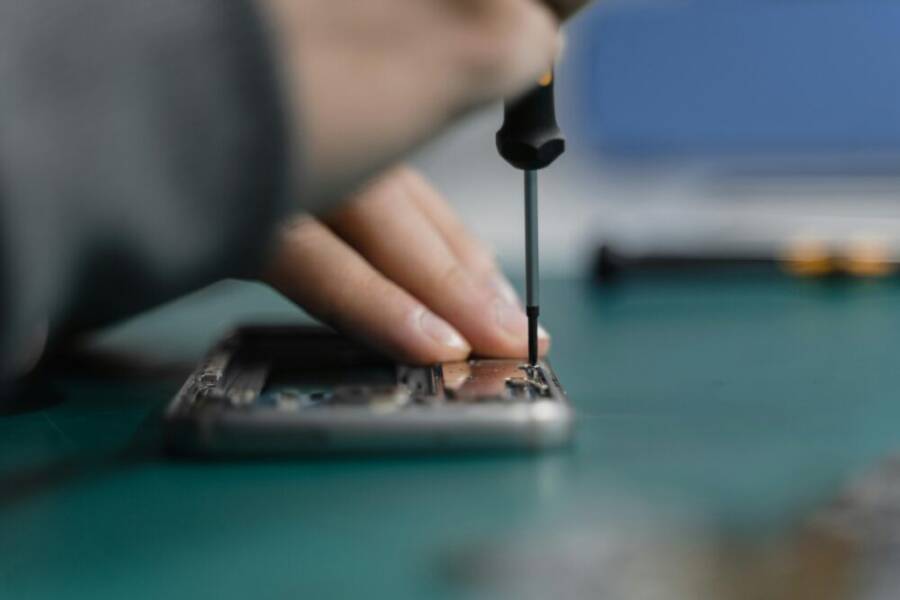
 Photo by Tima Miroshnichenko
Hardware repair and official service
Visit an authorized service center or your carrier store when you notice signs that point to hardware issues rather than a network problem. A trained technician will inspect the components most crucial to reception, including the antenna, radio frequency circuitry, and internal connections. They’ll check for loose cables, damaged shielding, and signs of water exposure or impact damage that can affect signal path integrity. If your phone is still under warranty, many of these hardware checks and replacements may be covered, depending on the fault and the terms of the warranty.
What a technician typically looks at:
- Antenna system and connectors
- RF front-end circuitry and filter components
- Internal wiring, shielding, and board integrity
- SIM tray seating and eSIM profile compatibility
- External damage from drops, moisture, or dust
Warranty considerations matter here. If the device is within the manufacturer’s or carrier’s warranty window, hardware faults are usually addressed at little or no out-of-pocket cost. If you’ve caused damage through a drop or liquid exposure, the repair cost may fall outside the warranty. It’s wise to confirm coverage before any repair work begins.
If you’re in the United States and need to locate an authorized option, most major carriers offer official service centers or partner repair shops. You can also check with the manufacturer’s official support site for authorized repair locations. For context on hardware repair versus third-party services, these resources can help you gauge the right path for your device model:
- Why cell service can drop due to hardware issues and how an antenna repair might help
- Authorized service and repair centers for smartphones
External links:
- https://www.wilsonamplifiers.com/blog/reasons-why-cell-service-suddenly-go-bad/
- https://www.asurion.com/repairs/tech/smartphones/wifi-bluetooth-repair/
Signal boosters and plan options
For homes, offices, or spaces with stubborn weak coverage, certified signal boosters offer a long-term remedy. These devices amplify the existing outdoor signal and rebroadcast it inside, improving voice and data reliability without changing the carrier. When selecting a booster, make sure it is FCC certified and compatible with your carrier bands. Installation is usually straightforward: the outside antenna captures the strongest available signal, the booster amplifies it, and an inside antenna distributes it where you need it.
How to choose a booster:
- Check compatibility with your carrier and bands (most boosters support common US bands such as 2, 4, 5, 12, 13, 17, and 66)
- Determine the coverage area you need and the square footage you want to improve
- Verify the device is FCC certified and approved by your carrier to avoid regulatory issues
- Plan for placement: locate the external antenna where it has the best line of sight to a nearby tower, and place the indoor antenna high and away from interference
How boosters work with the nearest cell tower:
- They do not create a new signal; they extensionally push the existing signal into a building
- A booster uses an outside antenna to pick up the strongest available signal, then boosts it to improve indoor reception
- The system will not amplify a signal that is absent or extremely weak outside
Talking with the carrier about coverage and plan changes can help in two ways:
- If your location has historically poor coverage, the carrier can verify if current plans or towers are affected and suggest alternatives
- Some carriers offer enhanced roaming or supplementary coverage options for difficult areas, which can be more cost-effective than a booster in the long run
If you’re considering boosters, you can review these guides for practical comparisons and selection tips:
- The Best Cell Phone Boosters We’ve Tested for 2025
- Cell Phone Signal Boosters: The Definitive Guide
- Cell Phone Boosters for Homes Up To 10K Sq. Ft.
External links:
- https://www.pcmag.com/picks/best-cell-phone-signal-boosters
- https://www.waveform.com/pages/cell-phone-signal-booster-guide
- https://www.hiboost.com/blogs/news/cell-phone-signal-booster-ultimate-guide-2025-edition
- https://www.signalboosters.com/home/
Preventive habits to keep signal steady
Long-term stability comes from simple routines that keep the network connection clean and predictable. Focus on regular software maintenance, SIM health, and practical living with your device in real-world environments. A consistent approach reduces the odds of sudden drops and makes it easier to spot new issues early.
Key habits to adopt:
- Regular software updates: keep your OS and carrier settings current to ensure your device uses the latest network optimizations
- SIM health checks: reseat the SIM periodically and replace aging SIMs to avoid registration glitches
- Timed testing: test at different times and in different locations to spot patterns
- Keep the device in a good position: stay within range of a stable network when you can, and use Wi-Fi Calling when cellular is weak
If you notice repeated issues in the same locations, document the pattern and discuss it with your carrier. A booster or a plan tweak may be the right step. For more on preventing signal issues, these resources offer practical tips:
- How to boost your phone signal for better reception
- Quick fixes for weak signal in day-to-day life
- SIM health considerations and replacement timing
External links:
- https://www.cnet.com/tech/mobile/how-to-boost-your-phone-signal-for-better-reception-this-holiday-season/
- https://www.zdnet.com/article/my-phone-struggled-to-get-signal-these-5-quick-fixes-instantly-improved-its-reception/
- https://www.myamplifiers.com/articles/why-your-smartphone-keeps-losing-signal-and-how-to-overcome-it-338/
Photo by Tima Miroshnichenko
This section has laid out actionable, professional pathways for serious signal issues. Below, you’ll find step-by-step troubleshooting designed to confirm whether the problem is hardware, plan related, or location driven. Use them in sequence to build a clear case for the next best move.
Conclusion
Most signal drops are fixable with a mix of quick checks and careful troubleshooting. Start with simple steps like restarting, updating software, and reseating the SIM, then test again to confirm what helps. If needed, enable WiFi Calling or consider a signal booster after you verify the pattern. Remember to back up data before major resets and keep a simple log of your results so you can share a clear path with your carrier or a tech pro. If you have questions or want to share your experience, feel free to leave a comment or pass this guide along to someone who could use it, and happy connecting with your smartphone.