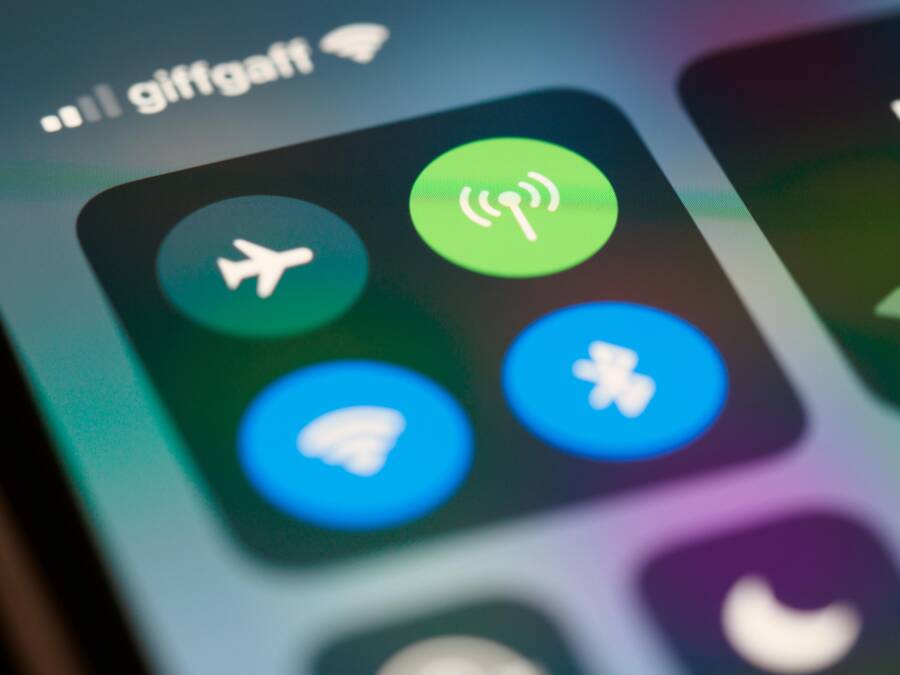
Struggling with a phone that keeps disconnecting from Bluetooth can be frustrating, especially when you rely on wireless earbuds, car systems, or speakers every day. You’re not alone, and this guide shows a practical path from quick fixes to deeper troubleshooting.
Bluetooth dropouts usually come from simple hiccups, outdated software, or crowded wireless airways. This introduction explains why the connection fails and what you’ll gain from the steps ahead. We’ll cover quick checks you can do right away, then dive into settings and device specifics so you can pinpoint the culprit.
Think of this as a step by step approach you can follow on any day. We’ll start with fast, user friendly fixes that don’t require tools, then move to more detailed checks if the problem persists. By the end, you’ll know how to stabilize a Bluetooth link and keep your phone in sync with headphones, speakers, or a car system without repeated drops. This guide stays practical, plain spoken, and focused on real world results for your smartphone.
Understand the common causes of Bluetooth drops
Bluetooth drops are rarely one big problem. More often, several everyday factors line up to push a connection past its comfort zone. By recognizing the typical culprits and testing a few quick fixes, you can usually restore a stable link without diving deep into settings. Think of this as a quick audit of what can knock Bluetooth offline and how to address it in real time.
 Photo by Brett Jordan
Distance, obstacles, and interference
Being too far from the device or having walls and furniture in the way can turn a smooth Bluetooth link into a skipped beat. Obstacles absorb or reflect the radio signal, and that weakens the connection. In crowded environments, other devices garble the airwaves and the odds of a drop rise.
To test and fix this quickly:
- Move closer to the phone or the connected device.
- Create a clear line of sight if possible; keep the path free of thick walls or metal furniture.
- Reduce nearby devices that use the same frequency, such as WiFi routers, other Bluetooth speakers, or wireless cameras.
- When testing, cut sources of obvious interference like microwaves or other active high-power electronics.
If you’re still seeing drops, check the distance guideline for the specific device. Many Bluetooth devices work best within about 30 feet (9 meters) in open space, but walls cut this in half or more. For a long test, try moving the phone to another room and see if the connection holds. If it does, you’ve pinpointed interference or range as the primary issue.
External reference: Some devices outline the four main culprits for drops as distance, interference, obstructions, and battery charge, which aligns with how smartphone Bluetooth behaves in real world use. For practical tips, Sony’s Bluetooth support notes common causes and provides a clear framework you can apply. https://www.sony.ie/electronics/support/wireless-headphones-bluetooth-headphones/wf-1000xm5/articles/00294247
Battery health and device status
Low power drains create a cascade of performance issues. When the battery of the phone or the connected device dips, Bluetooth adapters can enter power saving modes or throttling, which leads to audio gaps or dropped links. This is especially noticeable during longer listening sessions or when streaming from a device with a marginal battery.
What to do:
- Check battery levels on both ends and charge as needed.
- If possible, test with a fully charged alternative device to confirm whether a low battery is the trigger.
- Quick tip: avoid testing while the phone or device is in low power or battery saver mode. If connectivity worsens in that mode, disable it temporarily during testing to get a clearer view of the fault.
If you find that drops stop once both devices are fully charged, keep a habit of charging before long sessions. A routine charge can prevent the issue from reappearing during travel or commutes.
External reference: Some troubleshooting guides emphasize battery charge as a primary driver of disconnects and offer stepwise checks for battery-related issues. https://discussions.apple.com/thread/256114444
Software and compatibility issues
Outdated software, firmware, or apps can create mismatches that cause disconnects. Bluetooth features are layered, and newer devices may require updated profiles to stay in sync with older ones. Conversely, a recent update on the phone or the connected device can alter how profiles negotiate and pair.
What to verify:
- Ensure the phone has the latest system update installed.
- Check for firmware updates on the connected device, if available.
- Confirm that the connected device supports the necessary Bluetooth profiles (for example, A2DP for stereo audio, HFP for hands-free calling). Some devices only expose a subset of profiles, which can limit stability.
- If issues persist after updates, re-pairing the devices can sometimes reestablish a clean negotiation path.
For a quick starting point, review the manufacturer’s support pages for both devices to confirm compatibility and required profiles. If you’re dealing with a car system or a specific headset, checking their latest firmware and compatibility notes can save a lot of trial and error. For further reading on common Bluetooth compatibility concerns, you can read guidance from device manufacturers and audio experts. https://www.sony.ie/electronics/support/wireless-headphones-bluetooth-headphones/wf-1000xm5/articles/00294247
Images and visuals can help you visualize these causes. If you adjust the distance, clear lines of sight, and verify power and software, you’ll often gain a stable connection without specialized tools. For smartphone users who rely on Bluetooth daily, these quick checks are the fastest route back to reliable wireless audio and hands-free performance.
Fast fixes you can try right now
When Bluetooth keeps dropping, you want quick moves that don’t require a deep dive into settings. These “fast fixes” cover the most common culprits and work for most smartphones. Try them in order, and see if the connection stabilizes. If you’re already frustrated, think of these steps as a calm, methodical tune up for your wireless audio and car systems.
Toggle Bluetooth and restart devices
Restarting the basics often clears a hiccup in the connection. Here’s a simple, no-nonsense approach.
- Turn Bluetooth off, then back on immediately on your phone.
- If the issue persists, power off both devices. Wait 15 seconds, then turn them on again.
- For Android devices: restart the phone after you toggle Bluetooth off and on.
- For iPhone users: a quick reboot can help if Bluetooth still misbehaves after a toggle.
Pro tip: if one device is a wearable or car system, restart that device too. A fresh boot clears stuck Bluetooth states and re-establishes a clean connection path. If you’re curious about how this plays out on Android, Google’s Bluetooth guide covers the basics and why a reset helps. https://support.google.com/android/answer/9769184?hl=en
Forget and re-pair the Bluetooth device
If the pairing path has become corrupted, removing and then re-establishing the connection can restore stability.
- On your phone, go to Bluetooth settings and find the device in question.
- Choose “Forget this device” (Android) or “Forget This Device” (iPhone), then confirm.
- Reboot both devices if you can, then start the pairing process from scratch.
- On your phone, put the accessory back into pairing mode and select it from the list to pair.
What data is removed: you’ll lose only the saved pairing. You won’t lose music, contacts, or app data. You’ll need to re-enter any preferences or custom settings the first time you reconnect. Quick pairing tips: keep the devices close, ensure they’re not connected to other accessories, and confirm the correct device appears in the list before pairing. If you want a practical read on the process from a community perspective, this Apple discussion thread shares real-world experiences with Bluetooth pairing on iPhone devices. https://discussions.apple.com/thread/255765254
Check for updates to firmware and apps
Software updates fix bugs, improve compatibility, and often restore stability. Check both your phone and the connected device.
- On the phone: update the OS to the latest version available.
- Android: Settings > System > Software update (or similar path depending on manufacturer).
- iPhone: Settings > General > Software Update.
- On the connected device: look for firmware updates in its companion app or settings menu. If you’re using wireless headphones, earbuds, or a car system, check the manufacturer’s support site or app for the latest firmware and reset instructions.
- After updating, restart both devices and test the connection.
Why updates matter: new Bluetooth profiles and bug fixes can eliminate instability caused by older firmware. For a practical Android reference on updating Bluetooth and related settings, you can review Google’s official guidance. https://support.google.com/android/answer/9769184?hl=en
If you want a broader perspective on keeping firmware current across devices, the landscape of third-party guidance often highlights how updated drivers and firmware reduce dropouts in real-world use. For example, updated firmware on wireless headphones and car systems commonly yields measurable gains in stability and battery efficiency. A quick look at the latest from device makers can save you hours of troubleshooting. https://www.airdroid.com/file-transfer/fix-bluetooth-not-working-android-problem/
Tip: after applying updates, try a short, controlled test. Move away from potential interference sources and listen for any improvement before proceeding with deeper troubleshooting. A single, clear test run confirms whether updates did the heavy lifting.
If you want to expand this section with more depth or tailor it to Android vs iPhone specifics for your audience, I can add platform-specific checklists or troubleshoot common car system quirks as a follow-up.
Deeper fixes for stubborn disconnects
When the basics don’t hold, it’s time to go deeper. Some Bluetooth dropouts stubbornly persist because the issue hides in the weeds—firmware quirks, subtle power management, or a gnarly pairing history. In this section we explore solid, practical steps that address less obvious culprits without turning your life into a tech scavenger hunt. The goal is to restore a reliable link across everyday scenarios, from workouts to road trips.
Reset Bluetooth settings on the phone
A full reset clears out lingering quirks that can accumulate over time. It’s more than a fresh start for Bluetooth; it can also nudge other connected services back into harmony.
- Android path:
- Open Settings > System > Reset options (path can vary by manufacturer; you may see “Reset network settings” or “Reset Wi-Fi, mobile & Bluetooth”). Choose Reset Bluetooth or Reset settings depending on your device.
- If you don’t see a direct Bluetooth reset, use Reset network settings as a broader measure. This removes saved Bluetooth devices, saved Wi-Fi networks, and VPNs, then resets network settings to defaults.
- After the reset, re-pair your Bluetooth devices from scratch.
- Note: This clears saved devices and networks, so you’ll need to reconnect and reconfigure any preferences. It’s a strong option when you suspect corrupted pairing data or stubborn interferences.
- iPhone path:
- Go to Settings > General > Reset > Reset Network Settings (or Reset All Settings if you want a broader reset without erasing data). On iOS, a direct “Reset Bluetooth” option isn’t available; the network reset clears Bluetooth pairings and network data.
- After the reset, re-pair your devices and re-establish any custom settings.
- Note: A network reset forgets saved Wi‑Fi networks and VPN settings in addition to Bluetooth pairings, but it preserves your data and apps.
Why this matters: resetting clears out old or corrupted pairing data that can keep devices from negotiating a stable link. If you’ve tried toggling Bluetooth and re-pairing without relief, a reset often resolves residual state conflicts. For Android users, Google’s guidance covers baseline steps to address Bluetooth problems, including when to reset. https://support.google.com/android/answer/9769184?hl=en
If you’re on a newer iPhone and suspect a broader misalignment between Bluetooth and other wireless services, resetting network settings can unblock stubborn issues. Apple’s support articles outline what gets erased and how to proceed with re-pairing after the reset. https://support.apple.com/guide/iphone/reset-iphone-settings-iphea1c2fe48/ios
Pro tip: plan to test after the reset with a simple pairing scenario first. Don’t jump into a long listening session until you confirm the basic link is stable.
Clear Bluetooth cache and reset network settings if needed
In some cases the data stash that Bluetooth stores becomes a drag rather than a help. Clearing the Bluetooth cache and, if needed, resetting network settings can eliminate a host of soft issues that lead to dropouts.
- Android steps to clear Bluetooth cache:
- Open Settings > Apps > show system apps > find and select Bluetooth > Storage > Clear cache (and, if available, Clear data). This removes cached Bluetooth data that might be causing mishandling of connections.
- After clearing, restart the phone and re-pair devices.
- iPhone equivalent:
- iOS does not expose a dedicated Bluetooth cache you can clear. The closest equivalent is resetting network settings, which clears Bluetooth pairings and other network data. If you must, perform a network reset as described above.
Potential side effects:
- You will lose saved Bluetooth pairings and preferences. Re-pairing can fix misstatements in the device list but requires re-entering any device-specific settings.
- You may need to reconfigure Wi‑Fi networks and VPNs if you perform a network reset.
Reconfiguration after the reset:
- Bring devices back into pairing mode and re-establish a fresh link.
- Reinstall or re-enable any companion apps that manage the device, such as a wireless headset app or car system app.
- Rebuild favorite settings, like auto-pause on disconnect or preferred audio profiles.
Where to look for guidance:
- Android users have publicly documented steps to clear Bluetooth cache and why it helps. https://support.golittlebird.com/support/solutions/articles/61000306177-how-to-clear-your-android-phone-s-bluetooth-cache-android-12-or-older
- For a broad how-to on clearing the Bluetooth cache on phones and tablets, see Business Insider’s practical guide. https://www.businessinsider.com/reference/how-to-clear-bluetooth-cache
Be mindful of the trade-offs. Clearing cache and resetting networks wipes some convenience from your setup, but it eliminates a large class of intermittent issues. If you find yourself repeatedly clearing cache, it may indicate a deeper problem with a device’s firmware or with the environment.
Test with multiple devices to identify the culprit
If you still see drops after the deeper resets, the problem might not be the phone. Isolating the issue requires a simple, structured test across several devices. This helps you answer a crucial question: is the problem with a single accessory, or with the phone itself?
What to test:
- Pair a known-good headset, a wireless speaker, and a car system (three distinct device types).
- Use each device for a set period (e.g., 10 minutes of steady playback or a hands-free call) and note any drops.
- Track conditions during each test (distance, line of sight, presence of interference).
A straightforward isolation checklist:
- Ensure all devices are on the latest firmware or app version.
- Pair one device at a time, starting with the one most prone to problems.
- Test in the same environment with similar distance and obstacles.
- If a particular device never drops, the issue likely lies with other gear or environmental factors.
- If all devices show similar drops, focus on the phone or the network environment.
Why this helps: it removes guesswork. If the problem is device-specific, you’ll save time by targeting that device’s firmware, drivers, or compatibility notes. If the problem shows across devices, you’ll revisit environmental factors like interference and power states.
Practical next steps after testing:
- If a single device is flaky, consult the manufacturer for firmware updates or known issues with your phone’s Bluetooth version.
- If all devices drop in certain conditions, test in a different location to rule out local interference from WiFi routers or other dense wireless activity.
- Consider using a Bluetooth adapter or a different headset profile if the other devices support it.
Helpful references on testing and isolating Bluetooth issues across devices:
- A guide about common car Bluetooth issues and fixes that often come down to pairing mode and outdated software. https://mobileaudioconcepts.com.au/seven-common-causes-of-bluetooth-audio-connection-issues-and-how-to-fix-them/
- A concise reference on steps to troubleshoot Bluetooth connections and how to approach the problem with a methodical plan. https://www.linkedin.com/advice/1/what-steps-should-you-take-your-bluetooth-device-droxc
If the culprit remains elusive after these tests, it’s time to consider more granular, device-specific tweaks or professional diagnostics. But in most real-world cases, methodical testing with several devices, combined with targeted resets and cache clears, will reveal the source of the problem and restore stable Bluetooth behavior.
Device specific tips: Android, iPhone, and car systems
When Bluetooth keeps dropping, the solution isn’t one size fits all. Different devices behave differently, and the car system can add its own quirks. In this section, we’ll cover device-specific tips for Android and iPhone, plus practical steps for car systems. You’ll learn how to diagnose where the fault lies and what to try first, next, and last.
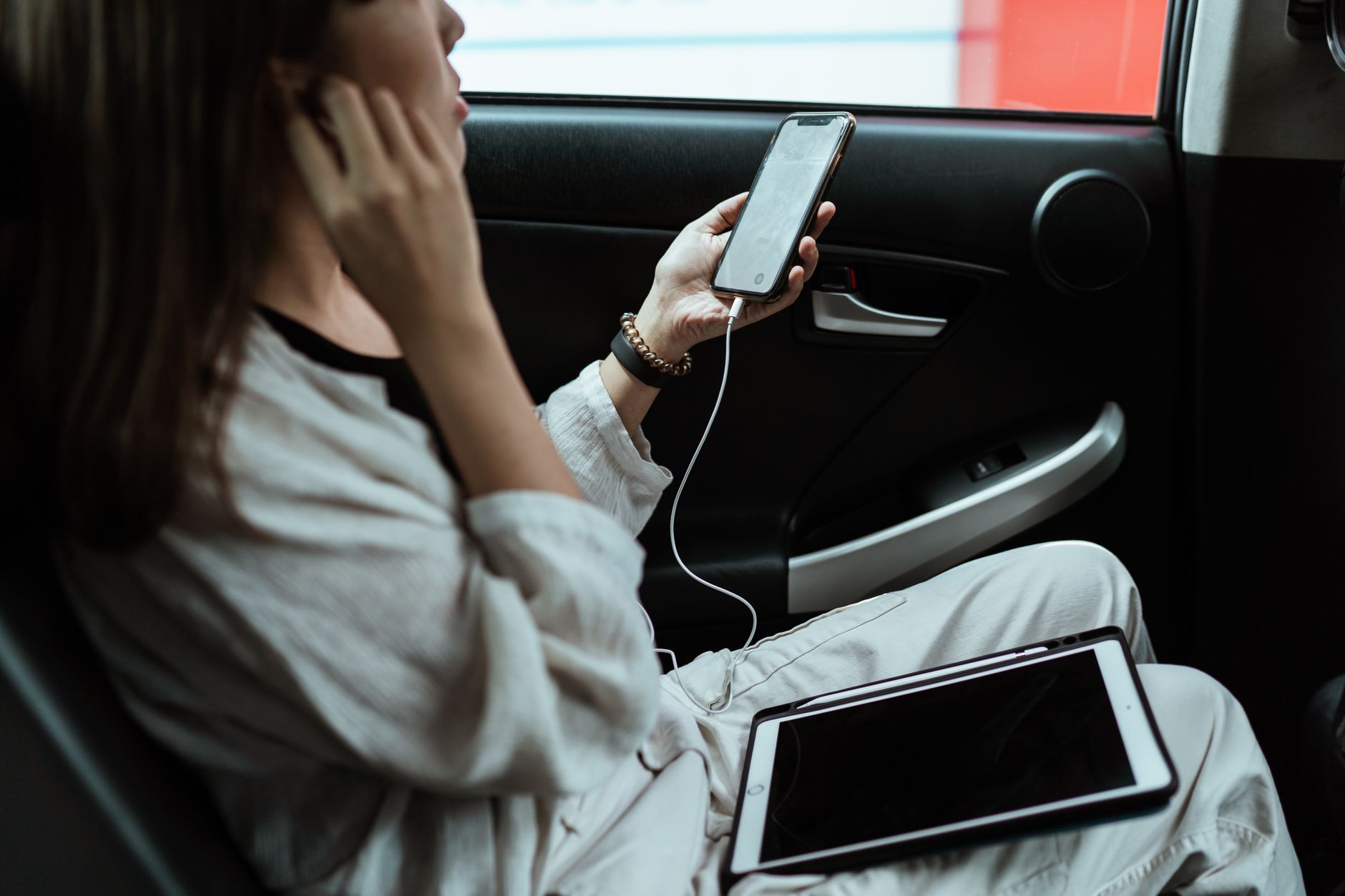 Photo by Ketut Subiyanto
Car Bluetooth keeps dropping connections
Car audio and hands-free systems can be the trickiest part of the chain because they combine vehicle hardware, infotainment software, and your phone. Start with the car’s reset options and then verify pairing from both sides. If the car supports re-pairing from the console, walk through those steps as well. A clean reset can clear phantom pairing data that often triggers drops.
What to check first
- Car system reset: Access the infotainment menu and look for a reset or restore option. Many systems offer a “Reset device” or “Factory reset” that won’t erase your phone data but will reset car settings and saved Bluetooth devices.
- Re-pair from the car console: Put the car in pairing mode and initiate pairing on the phone from its Bluetooth settings. Confirm the exact device name appears in the car’s list and select it.
- Firmware updates: Check for updates to the car’s infotainment system. If your car supports over-the-air updates, apply any available firmware to improve stability and compatibility.
- Device compatibility: Ensure the car’s head unit supports the required Bluetooth profiles for hands-free calling and stereo playback (HFP and A2DP). Some older systems may have limited profile support, which can cause intermittent drops.
Practical pairing steps
- Clear existing car pairings on both devices if possible. In the car, remove the phone from the saved devices list; on the phone, forget the car’s Bluetooth entry.
- Reboot both devices. In cars, a brief engine restart can refresh the infotainment module.
- Re-enter pairing mode. Start the pairing process on the phone, then initiate the car’s pairing sequence. Confirm any prompts on both sides.
When to consider updates
- If the car’s system has firmware updates available, apply them. Updates can fix driver compatibility issues and improve handling of multiple Bluetooth devices.
- After updating, perform a fresh pairing by removing old entries and pairing anew.
Real-world tips
- If multiple phones pair to the same car, re-pair only the one you use most often. A stale shared list can confuse the system.
- If you rely on car CarPlay or Android Auto, keep those apps updated as well. Some dropouts trace back to the car’s wireless CarPlay/Android Auto bridge rather than the audio path itself.
- If the issue persists in specific environments (high traffic areas, tunnels, or near busy Wi-Fi networks), test in a different environment to rule out local interference.
External references useful for car-specific troubleshooting:
- Wireless CarPlay and Android Auto disconnects explained and how to fix them. https://mobileaudioconcepts.com.au/seven-common-causes-of-bluetooth-audio-connection-issues-and-how-to-fix-them/
- A practical guide to car Bluetooth issues and fixes that highlights pairing mode and outdated software. https://www.atotodirect.com/en-au/blogs/guides/wireless-carplay-android-auto-disconnects-explained-and-how-to-fix-them
If the car system and the phone both look healthy, the issue is often environmental. Try moving to a different location, or test with a different car if you have access. A successful re-pair after a clean reset is usually enough to restore stable hands-free calling and music streaming in most daily driving scenarios.
Headphones, speakers, and wearables
Bluetooth audio devices like headphones, earbuds, speakers, and wearables can behave oddly even when the rest of your devices are working fine. Firmware updates, battery health, and how you seat the device in your ears or on your body all influence stability. Use these targeted checks to guide your troubleshooting.
Key areas to inspect
- Firmware updates for the accessory: Check the manufacturer’s app or website for the latest firmware. A small update can fix dropouts and improve power management.
- Battery life and power state: Low battery can trigger power saving modes that throttle Bluetooth performance. Charge devices fully and test again.
- Re-seat and re-charge wearables: For true wireless earbuds, reseat the buds in the charging case and re-pair after a full charge. For wearable devices with Bluetooth, ensure the battery is healthy and the device isn’t physically loose.
Practical steps for accessories
- Update firmware via the companion app or the device’s settings.
- Verify battery indicators and charge to full before testing stability.
- If you use multiple audio devices, re-pair one device at a time to identify the culprit.
- For earbud cases, clean the charging contacts and ensure the case battery is healthy.
Platform distinctions
- Android devices often expose Bluetooth devices and settings in more granular terms; use the system’s Bluetooth settings to remove and re-pair the accessory if you notice repeated drops.
- iPhone users might find rebooting both the iPhone and the accessory helps reduce interference, especially after firmware updates.
Consider battery and interference as a duo. A device with low power draws more from the phone’s Bluetooth module, creating a feedback loop of instability. Also, keep in mind that crowded airwaves from other Bluetooth devices can cause devices to compete for bandwidth. If you’re in a gym or office with many Bluetooth devices nearby, you may see more drops. A simple test is to pair the accessory in a quiet room and then in a crowded area to compare results.
External references worth a look for audio device troubleshooting:
- Why Bluetooth headphones keep cutting out and how to fix it. https://www.soundcore.com/blogs/headphones/why-do-my-bluetooth-headphones-keep-cutting-out
- Troubleshooting TWS earbuds and headphones: expert tips. https://cleeraudio.com/troubleshooting-tws-earbuds-and-headphones-expert-tips
- A practical Wi red guide to Bluetooth headphone troubleshooting tips. https://www.wired.com/story/bluetooth-headphone-troubleshooting-tips/
If you still experience drops after these checks, it might be time to look at the bigger picture. A misbehaving accessory can drag down the entire chain, but isolating the device that’s acting up usually brings clarity. In many cases you’ll find a firmware fix or a simple battery swap resolves the issue.
Images and visuals can help you visualize these causes. If you adjust the distance, clear lines of sight, and verify power and software, you’ll often gain a stable connection without specialized tools. For smartphone users who rely on Bluetooth daily, these quick checks are the fastest route back to reliable wireless audio and hands-free performance.
External links:
- How to fix Bluetooth issues on Android and iPhone. https://www.wired.com/story/bluetooth-headphone-troubleshooting-tips/
- Car Bluetooth problems and fixes. https://mobileaudioconcepts.com.au/seven-common-causes-of-bluetooth-audio-connection-issues-and-how-to-fix-them/
If you want to tailor this section further to your audience, I can add platform-specific checklists for Android vs iPhone, plus car system quirks. This keeps the guidance precise and actionable while staying aligned with real world usage.
When to seek help and what to tell support
If you’re asking for help, having the right details on hand makes the process faster and more precise. Below is a focused guide on what to collect before you reach out to support, whether you’re contacting your phone maker, the accessory manufacturer, or a service through a carrier. Being prepared helps you avoid back-and-forth questions and gets you back to listening quickly.
What to collect before asking for help
- Phone model and carrier: Note the exact device name and the OS version. This sets the baseline for troubleshooting steps and compatibility notes.
- OS version and build number: Include major version (Android or iOS) and any recent build identifiers if available.
- Bluetooth device model and firmware version: List the accessory that keeps dropping the connection, its model name, and the current firmware or app version if shown.
- Firmware version for the car system or speaker: If you’re using a car’s infotainment system or a wireless speaker, capture its software version or firmware from its settings or companion app.
- Steps to reproduce the issue: Write a simple sequence that consistently leads to a drop. For example, “playback starts, after 2 minutes audio stutters, then disconnects.”
- Distance and environment at the time of drops: Note how far you were from the device, whether you were indoors or outdoors, and if there were obstacles like walls or metal furniture.
- Battery levels and power state: Record the charge level on both the phone and the Bluetooth device. Mention if either was in battery saver mode.
- Other devices affected: Confirm whether other Bluetooth devices work reliably with your phone or if multiple accessories experience drops.
- Recent changes: List any firmware updates, OS updates, or new apps you installed just before the problem began.
- Re-pair history: Indicate whether you recently re-paired the device or performed a reset on either side.
- Environment notes for cars: If you use a car system, note whether the issue happens in multiple vehicles or only in one.
- Logs or screenshots: If possible, capture screenshots of Bluetooth settings, pairing lists, or any error messages. These visuals can speed up diagnosis.
Tip: Linked guidance from manufacturers often emphasizes checking basics first and confirming profiles. For Android users, a quick review of Bluetooth basics helps set expectations before diving deeper. https://support.google.com/android/answer/9769184?hl=en
If you’re dealing with car systems or wearables, include notes about any updates you applied recently. Updated firmware or infotainment software can drastically alter how devices pair and stay connected, and many manufacturers publish precise steps for re-pairing after an update. For broader Bluetooth troubleshooting guidance, you can reference vehicle or accessory manufacturer support pages. https://www.airdroid.com/file-transfer/fix-bluetooth-not-working-android-problem/
When you share these details, frame them concisely as a quick quick-reference list you can paste into a chat or email. A well-structured report reduces the time responders spend asking for clarifications and increases the chance of a faster resolution. For context, Google’s own Android Bluetooth guide reinforces starting with the basics and moving to device-specific checks. https://support.google.com/android/answer/9769184?hl=en
If you’re collecting information for a forum post or a community thread, keep the tone neutral and add a short summary of what you’ve tried already. This helps others avoid suggesting the same steps and speeds up candid, practical advice. For further in-depth perspectives on Bluetooth troubleshooting, see industry discussions and guides from reputable sources. https://www.wired.com/story/bluetooth-headphone-troubleshooting-tips/
Conclusion and next steps
You’ve worked through quick fixes, deeper resets, and device specific tips. By now you should have a clearer view of what’s most often causing Bluetooth dropouts and how to address them without endless guessing. The goal is a stable, reliable connection that lasts through calls, playlists, and car journeys. If you’ve followed the steps, you’ll know what to do next when the issue returns and how to prevent new drops from sneaking back in.
Quick recap of the most effective moves
- Start with fast fixes: toggle Bluetooth, restart devices, and re-pair if needed. These steps solve many hiccups in minutes.
- Tackle battery and interference: keep both ends charged and minimize nearby 2.4 GHz traffic. A simple distance test can reveal if range or isolation is the culprit.
- Use firmware and software updates: keeping the phone and accessories current reduces the chance of protocol mismatches.
- When things get stubborn, reset strategically: a Bluetooth or network reset on the phone can clear stubborn state issues that simple toggles miss.
If you want a quick refresher on the basics, Google’s guide to fixing Bluetooth problems on Android provides a solid baseline for steps you can trust. https://support.google.com/android/answer/9769184?hl=en
When to push for deeper help
Sometimes the root cause sits outside your control. If you still experience drops after trying the recommended steps, consider these signs that it’s time to escalate:
- The issue affects multiple accessories across different brands or models.
- Drops happen in specific environments that you’ve already ruled out as interference hotspots.
- A recent software or firmware update coincides with the start of the problem and no local fix helps.
Contact the device maker or carrier support with a concise report. Use the checklist below to share exactly what they need to know.
- Device model, OS version, and Bluetooth device firmware
- Steps to reproduce and timing of drops
- Battery states, charging status, and power saver mode
- Recent updates and re-pair history
- Environment notes and any logs or screenshots you captured
A practical, ongoing maintenance plan
- Keep devices updated: schedule regular checks for OS and accessory firmware.
- Limit interference: in busy areas, test with fewer active Bluetooth devices around.
- Have a quick pairing routine: learn to re-pair a device in under a minute so you’re never stuck waiting.
- Maintain backups: if you rely on a single headset or car system, consider having a spare ready to swap in when problems arise.
Trusted sources to stay in the loop
- Android Bluetooth basics and fixes: a reliable starting point for ongoing maintenance. https://support.google.com/android/answer/9769184?hl=en
- Car and wearable Bluetooth troubleshooting with practical steps for real world use. https://www.airdroid.com/file-transfer/fix-bluetooth-not-working-android-problem/
- A concise guide to Bluetooth headphone troubleshooting that covers common headache points. https://www.wired.com/story/bluetooth-headphone-troubleshooting-tips/
Next steps you can take today
- Do a 10-minute multi-device test in a nearby area with one device at a time.
- Update the phone and all accessories to the latest firmware.
- If problems persist, perform a network or Bluetooth reset as a last resort after saving any important pairings.
- Save a short, repeatable report of your tests to share with support if needed.
If you’d like, I can tailor this conclusion to emphasize Android vs iPhone workflows or add a car system troubleshooting checklist so your readers have a precise, platform-specific action plan.
Conclusion
Most Bluetooth disconnects are fixable with a few simple steps. Start with quick fixes on your smartphone, then move to deeper checks if needed. A stable link often returns after a battery refresh, a clean pairing, or a software update.
If you’ve tried the basics and still see drops, you’re not out of luck. System resets, multi-device testing, and targeted firmware updates usually clear the issue. A reliable Bluetooth connection is within reach with calm, methodical steps.
Share your experience in the comments or ask for a platform specific checklist. Subscribe for more practical tips on smartphone troubleshooting and everyday connectivity. Together we can keep your wireless gear in sync and ready for calls, music, and car journeys.