Ever get a storage warning right after you snap a batch of memories? It happens when your phone fills up with photos, then you’re forced to pick and choose what to keep. This guide shows you how to safely free up space after you’ve backed up your photos so your memories stay safe and your device stays responsive.
First, confirm your backups are complete before you delete anything. Whether you use iPhone or Android, a solid backup means you can remove local copies and reclaim space without worrying about losing precious pics. After confirming, start by removing original files you don’t need on device storage. Then use smart options like high quality or compressed backs for future captures to save a lot of room without noticeably reducing quality.
Next, trim the obvious culprits. Large videos and burst shots can take up most space, so review those folders and delete duplicates or unwanted clips. Many phones offer auto optimize features that keep thumbnails while removing full size files you rarely open. Offloading apps you don’t use and clearing app caches also adds breathing room.
Finally, keep space under control with a simple routine. Regularly scan for large files, enable cloud backups, and set up automatic backups to your preferred service. When you pair a clean on device with reliable cloud storage, you’ll reclaim gigabytes quickly and safely while keeping your photos accessible on any device. This approach works for both iPhone and Android users, making storage management straightforward and stress free.
Confirm Your Photos Are Backed Up Before Deleting
Before you start deleting local copies, double check that your photos are safely stored in the cloud or on another device. A quick verification step can save you from losing a moment you thought you saved. Think of it as a final safety checkpoint after you’ve backed up with your chosen method. In this section, you’ll learn how to confirm backups on iPhone, Android, and through other backup methods so you can delete with confidence.
Check iCloud Backup on iPhone
If you use iCloud, start by confirming that Photos are backing up and that the backup includes the latest pics. Here’s how to verify quickly:
- Open Settings and tap your name at the top, then choose iCloud and select Photos.
- Make sure iCloud Photos is on. This ensures new photos and edits sync across devices.
- Review how much iCloud storage is used for photos and videos to gauge if you’re nearing your limit.
- Test access on a different device. Open the Photos app on another iPhone, iPad, or a Mac logged into the same Apple ID and verify that recent photos appear.
- Note differences between iCloud Photos and full device backups. iCloud Photos keeps your images in the cloud and syncs across devices, while a full iPhone backup captures more than photos alone.
Helpful links:
- View and manage iCloud device backups: https://support.apple.com/guide/icloud/view-and-manage-backups-mm122d3ef202/icloud
- Back up and sync your photos and videos with iCloud: https://support.apple.com/guide/iphone/sync-photos-videos-icloud-iph961b96c4d/ios
- Check your iCloud storage on any device: https://support.apple.com/guide/icloud/check-your-icloud-storage-on-any-device-mm039c13d410/icloud
Verify Google Photos Backup on Android
Android users often rely on Google Photos for seamless backups. To ensure your library is safe, confirm the backup status and run a quick check:
- Open the Google Photos app and tap your profile avatar.
- Go to Photos settings and select Backup.
- Confirm the status shows Backup complete. If you see a warning, follow the suggested fixes.
- Check the backup size to get a sense of what’s stored in the cloud.
- Test access by viewing photos on another device or via the web at photos.google.com to verify everything you expect is there.
Helpful links:
- Back up photos & videos – Android: https://support.google.com/photos/answer/6193313?hl=en&co=GENIE.Platform%3DAndroid
- Stuck on getting ready for backup: https://support.google.com/photos/thread/235096732/stuck-on-getting-ready-for-backup?hl=en
Test Other Backup Methods
Beyond cloud photo services, you may have backups on your computer or other cloud apps. A quick test helps confirm everything is in place:
- Computer backups via USB or external drives: connect the drive, open the backup folder, and verify recent files appear. If you use a backup app, check its history or progress to ensure the latest batch copied successfully.
- Cloud storage apps like Dropbox or OneDrive: open the app and navigate to the photos folder. Confirm that the most recent photos are present and that files aren’t stuck in transfer queues.
- Verify file integrity: a quick scan of a few recent photos to ensure they open correctly can save headaches later.
Helpful links:
- How to manage Dropbox Backup: https://help.dropbox.com/organize/how-to-manage-dropbox-backup
- Dropbox Backup FAQs: https://help.dropbox.com/organize/dropbox-backup-faq
Pro tip: After you confirm backups, keep a short log. Note the date and the method used, plus any anomalies you encountered. This makes future cleanups smoother and faster. If you rely on a portable smartphone like a smartphone, a simple checklist can become a reliable guardrail for your storage routine.
Delete Photos from Your Phone Gallery Safely
Backing up your memories is only half the job. Once you’ve confirmed your photos are safely stored, you can reclaim storage by removing local copies without worrying about losing what matters. Below are practical, repeatable methods to bulk delete on iPhone and Android, plus tips to keep your library tidy over time. These steps are designed to be straightforward, so you can free space quickly and resume shooting with confidence.
Bulk Delete on iPhone Photos App
If you’re managing a large batch of images, the iPhone Photos app offers a fast way to clear space without sifting through every photo one by one. The key is to use the Select feature to grab thousands of pictures at once and then remove them in a single action. After you delete, don’t forget to empty the Recently Deleted album, which is where items go first.
To bulk delete efficiently, follow these steps:
- Open the Photos app and tap Select in the top right corner.
- Drag your finger across the screen to quickly highlight many photos, or tap individual images to choose them.
- Tap the trash can icon and confirm by selecting Delete.
- Head to the Recently Deleted folder and either empty it immediately or wait the 30 day window to pass. If you’re sure you want to reclaim space now, remove them from Recently Deleted.
Tip: If you use iCloud Photos, deleting on one device removes the copies on all devices signed into the same Apple ID. This helps keep your library consistent across your iPhone, iPad, and Mac. For more guidance, you can consult Apple’s official instructions on deleting photos and managing storage.
Helpful links:
- Delete photos on your iPhone or iPad: https://support.apple.com/en-us/104967
For readers who prefer video walk-throughs, a quick visual guide can be helpful. Consider checking a reputable tutorial that walks through bulk selecting and permanent deletion to reinforce the steps above.
What to watch for during bulk deletions on iPhone
- Make sure you’ve backed up the precise set of photos you want to keep. A misstep here means you may lose a moment you intended to preserve.
- If you don’t want to delete everything at once, you can create an album first to isolate the photos you plan to remove later. It’s easier to review fewer items inside a single album.
When in doubt, pause and verify. A quick check against your backup library confirms you’re good to delete and won’t regret the move later.
Clear Photos on Android Gallery or Google Photos
On Android, you’ve got two reliable pathways to reclaim space: Google Photos for cloud backed storage and your device’s Gallery app for local cleanup. The goal is to remove unneeded items from the phone while ensuring your cloud backup remains intact and accessible. After you delete, remember to empty the trash or bin so the space is actually freed.
Follow these steps for a clean sweep:
- In Google Photos, open the app and select the photos you want to delete. Use the checkmarks to pick multiple items, then tap the trash icon and confirm Delete.
- If you’re using the device Gallery app, perform a similar bulk selection. Look for options like Select or a long-press to begin multi-select, then delete.
- Always empty the trash or bin after deletion. In Google Photos, you’ll find a Trash folder where items sit for a grace period before permanent deletion. Empty that folder to free space immediately.
- Be mindful of backup settings. If you back up to Google Photos in “High quality” or “Storage saver” modes, you may want to review how those backups are organized and how long items stay in the trash.
Note about backups post-deletion: some Android setups offer auto-delete options after backup completes. Check your backup preferences so you know how long deleted items stay recoverable in the cloud, and configure auto-delete if appropriate to prevent space from creeping back up.
Helpful links:
- Back up photos and videos – Android (Google Photos help): https://support.google.com/photos/answer/6193313?hl=en&co=GENIE.Platform%3DAndroid
- How to empty trash in Google Photos on Android: https://maxdalton.how/tutorial/how-to-empty-trash-in-google-photos-on-android
- How to delete photos on Android and manage storage: https://techbriefly.com/2025/03/07/empty-trash-android-guide/
Practical tips for Android users
- Start with large items. Videos and bursts can dominate storage, so target them first.
- After bulk deletion, review the Trash in Google Photos to ensure nothing you want to keep remains stuck in limbo.
- If you rely on several cloud apps, schedule periodic cleanups. A short weekly routine beats a big end-of-month purge.
How to keep your phone lean over time
- Set up automatic backups that don’t flood your device with duplicates.
- Use cloud storage as the primary library and keep only the most recent or essential photos on your phone.
- Periodically scan for large files and videos you can remove or compress.
By following these steps and keeping an eye on how you back up, you’ll maintain a healthy balance between accessibility and storage. Your phone will feel faster, and you’ll still have all the moments you treasure, wherever you view them. For iPhone users, see the official guidance on storage management and photo deletion for a smooth, worry-free process. For Android users, combining Google Photos with the device Gallery app provides a robust workflow to keep space in check while preserving access to your entire library.
Clear Cache, Downloads, and Other Storage Hogs
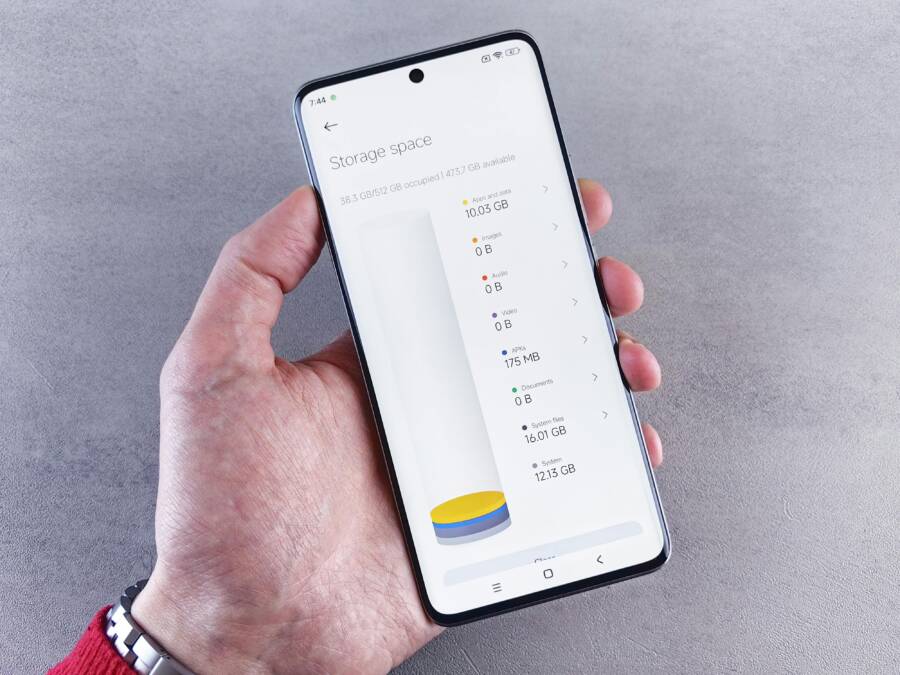
After backing up your photos, the next step is reclaiming space by removing the storage hogs that quietly creep onto your device. This section highlights practical, non-destructive ways to trim caches, downloaded files, and other large culprits. You’ll learn how to use built-in tools, avoid losing essential data, and keep your phone running smoothly. Smart planning now means fewer storage headaches later.
 Photo by Andrey Matveev
Use Built-in Storage Managers
Both iPhone and Android ships with clear, straightforward storage managers that show exactly what’s taking up space and offer concrete actions.
- iPhone: Settings > General > iPhone Storage. Here you’ll see a color-coded breakdown and suggestions to offload unused apps, review large attachments, and manage photo storage.
- Android: Settings > Storage. You’ll find a breakdown by apps, media, and cached data, plus options like “Free up space” and offloading suggestions.
How to use these tools effectively:
- Start with the biggest offenders. Look for large apps you don’t use often and offload them if available.
- Review media-heavy sections. The storage manager will reveal large videos or saved WhatsApp/Messenger attachments that can be cleared or moved.
- Enable helpful options. Offloading apps on iPhone preserves data locally in a way that makes reinstallation quick if you need to reclaim space later. On Android, use the “Free up space” suggestions to remove unnecessary files while leaving essential data intact.
- Consider cloud-first storage. If the manager shows many items kept for quick access, switch to cloud storage for those moments you want to revisit later.
Helpful links:
- Manage storage on iPhone
- How to free up space on your iPhone or iPad (video guide)
- See how to free up storage on iPhone and iPad (general tips)
Delete Downloads and App Cache
Downloads and cache files pile up quickly. Clearing them can free space without touching your precious photos or app data. Focus on large, nonessential items first.
- Delete downloads you no longer need. This includes movies, music, podcasts, and offline maps that you’ve already consumed.
- Clear app caches where possible. On Android, you can often clear a specific app’s cache from Settings > Apps > [App] > Storage > Clear Cache. On iPhone, iOS manages caches behind the scenes, but you can take targeted steps like clearing Safari cache or clearing cache within apps that expose it.
- Beware of data you still need. If you’re unsure whether a file is worth keeping, move it to cloud storage or a computer before deleting.
Step-by-step approach:
- Open your downloads folder or the Files app on iPhone and Android. 2) Sort by size to find the biggest files. 3) Delete or move nonessential items. 4) In Android, go to each app’s storage section and clear cache if the option exists. 5) Empty any trash or recently deleted folders to finalize the space reclaim.
When you’re done, recheck your remaining storage to confirm you’ve gained usable space. If you hit a wall, re-evaluate large downloads and caches you may have overlooked.
Helpful links:
- How to delete downloads on Android
- How to delete downloads on Android (Honor)
- How to delete downloads on Android (video guide)
Practical tip: after clearing caches, run a quick app check to ensure performance improves. If you notice any slowdown, a targeted cache clean and a device restart often resolves it.
Keep an Eye on Large Files and Duplicates
Large videos and duplicate images are the usual storage thieves. A proactive routine helps you stay ahead.
- Identify large files. Use the built-in storage tools to filter by size and remove or compress large videos you don’t need in full quality.
- Remove duplicates. Duplicates creep in from multiple backups or sharing. Use a duplicate finder app or manual review to avoid accidentally deleting something you meant to keep.
- Compress where possible. For videos you don’t need in original quality, choose lower resolution exports or convert to more space-efficient formats when exporting.
Ways to streamline:
- Regularly review media folders labeled by date or event. This makes it easier to spot videos you can trim or delete.
- Save a smaller version to your phone if you must retain a memory, and archive the original full version in the cloud or on your computer.
- Keep a monthly check. A quick pass through large files every 4 weeks can prevent space from sneaking back up.
Helpful links:
- Free up space tips for Android and iPhone (general)
- Free up phone storage (Asurion guidance)
Image idea: A screenshot-like visual showing a storage breakdown with clear color segments, paired with a caption like “Identify and trim the biggest culprits first for fastest space gains.” Photo by Andrey Matveev.
By using these built-in tools and practical cleanup steps, you keep your storage under control without sacrificing access to the moments you care about. Regular maintenance, smart offload practices, and a light cloud backup strategy together create a lean, responsive phone you can rely on for daily life, travel, and everything in between. For iPhone users, the official storage management guide is a solid reference; for Android users, a combination of Google Photos and local cleanups provides a reliable workflow.
Set Up Auto-Backup and Smart Storage Habits
Backing up your photos is only half the job. The real win comes from setting up automatic backups and adopting storage habits that keep your device lean without sacrificing access to your memories. This section gives you practical, repeatable steps you can follow today to protect your photos and reclaim space for the moments that matter.
Enable Free Up Space in Google Photos
Google Photos includes a handy feature that frees up space on your device by removing photos that are already safely backed up in the cloud. This is a smart first step after you’ve confirmed your backups, especially on devices with limited storage.
- Ensure your backups are complete before using Free Up Space. Open Google Photos, tap your profile picture, and verify that the backup status shows as complete. This reduces the risk of deleting locally stored copies that aren’t yet safely stored elsewhere.
- Turn on Free Up Space. In Google Photos, the feature scans your device for photos that have been backed up and removes the local copies while keeping them accessible in the cloud. If you later need a photo, you can redownload from Google Photos at any time.
- Manage the threshold and expectations. Free Up Space works best when you’ve chosen reliable backup settings and understand that some copies may remain locally for a short period depending on how you access items.
- Consider the long term. For many users, this feature frees up a meaningful amount of space quickly, especially on phones that routinely capture high-resolution photos and videos.
Practical tip: after enabling Free Up Space, periodically recheck Google Photos to confirm the local copies have been removed and that you can still access all backed-up images from any device. For a quick refresher on how the feature works, see Google Photos’ official guidance and support articles.
Helpful links:
- Free up space on your device – Android – Google Photos: https://support.google.com/photos/answer/6128843?hl=en&co=GENIE.Platform%3DAndroid
- Free up space in Google Photos via Android storage saver guidance: https://guidebooks.google.com/storage/manage-storage-with-google-photos/free-up-storage-space-with-google-photos
Why this matters for smartphone users
- It streamlines daily use by freeing room for new shots without fiddling with files one by one.
- It reduces the temptation to raid your gallery for old, unneeded files, since the cloud serves as the primary library.
- It keeps your library accessible across devices, so you can shoot on the go and still have room for moments that happen later.
Optimize iPhone Storage with iCloud
iPhone users get a similar boost from optimizing storage with iCloud. The key is to keep thumbnails and viewing fast while keeping full-resolution originals in the cloud.
- Enable Optimize iPhone Storage. This setting stores smaller, device-friendly thumbnails locally and keeps full-resolution originals in iCloud. When you need a photo, the device fetches the high-quality version from the cloud automatically.
- Check your iCloud Photos settings. Make sure iCloud Photos is on, and review how much space your photos and videos occupy in iCloud. If you’re nearing your limit, consider upgrading storage or adjusting what gets backed up.
- Distinguish between iCloud Photos and full device backups. iCloud Photos syncs across devices and stores originals in the cloud, while a full iPhone backup captures more than photos alone. Both can be valuable, but they serve different needs.
- Test accessibility on another device. Open the Photos app on a different iPhone, iPad, or a Mac signed into the same Apple ID to verify that recent photos appear as expected.
Helpful links:
- Manage storage on iPhone: https://support.apple.com/guide/iphone/manage-storage-on-iphone-iph47c931112/ios
- Back up and sync your photos and videos with iCloud: https://support.apple.com/guide/iphone/sync-photos-videos-icloud-iph961b96c4d/ios
- Check your iCloud storage on any device: https://support.apple.com/guide/icloud/check-your-icloud-storage-on-any-device-mm039c13d410/icloud
Why this matters for smartphone users
- It minimizes local storage usage while keeping your memory collection crisp and accessible.
- It helps maintain fast performance by reducing the footprint of your photo library on the device.
- It provides a straightforward, Apple-wide workflow that works across iPhone, iPad, and Mac without losing sync fidelity.
Daily Habits to Save Space
Small, consistent actions add up to big gains. Incorporate these daily habits to keep your storage under control without sacrificing your photo library.
- Review weekly. Set aside 10–15 minutes each week to scan for large files, unneeded videos, and bursts that aren’t essential. Clearing these regularly stops buildup before it starts.
- Shoot in lower quality when it’s reasonable. For everyday moments, consider High Quality or similar settings that compress files with minimal noticeable impact on viewing. Save RAW or high-resolution captures for scenes where detail matters.
- Use cloud first. When possible, back up to cloud storage first and keep only a recent or essential subset on your device. This dramatically reduces the space you use locally.
- Set up automatic backups to your preferred service. Rely on scheduled backups to a cloud service so your memory is protected even if you forget to back up manually.
- Practice a mini-clean before trips. Before you travel, run a quick cleanup of large videos and old screenshots to minimize travel space needs.
In practice, this routine keeps your phone lean while ensuring you never lose access to your memories. It also makes it easier to switch to a new device because your cloud library is ready to restore.
Helpful links:
- Google’s backup and storage basics for Android: https://support.google.com/photos/answer/6193313?hl=en&co=GENIE.Platform%3DAndroid
- Google Photos compression and storage saver guidance: https://multcloud.com/explore/how-to-compress-google-photos-2223-ac.html
- Android authority tips for controlling Google Photos storage: https://www.androidauthority.com/control-clean-google-photos-storage-3525116/
Smartphone maintenance tip
- Set up a monthly “storage health check” reminder. It’s a quick, 15-minute review of what’s eating space and what can be moved to the cloud or compressed. Over time, this becomes second nature.
Putting it all together
- Start with solid backups and enable auto-free up space options. This creates a safety net and eliminates a big chunk of manual cleanup.
- Use storage managers on your device to identify the biggest culprits. Offload, delete, or compress as needed.
- Maintain a cloud-forward mindset. Let the cloud do the heavy lifting for long-term storage while you keep the phone responsive for day-to-day use.
- Keep a simple record of backups and cleanup actions. A short log helps you stay organized and makes future migrations smooth.
By adopting these practices, you protect your memories and keep your phone running smoothly. You’ll enjoy faster performance, more room for new shots, and peace of mind knowing your photos are securely stored in the cloud. For additional guidance, review the official storage management resources for iPhone and Android, and tailor the workflow to fit how you use your device every day.
Conclusion
Freeing up space after backing up your photos is a practical way to keep your smartphone fast and ready for new moments. Start by confirming that backups are complete, then clear local copies you no longer need. Use cloud storage as the main library and keep only the essentials on the device to stay responsive.
Recap the key steps: verify backups across iPhone and Android, offload or delete large items, and enable smart backup options that reduce on device clutter. Turn on features like Free Up Space in Google Photos or Optimize iPhone Storage so the cloud takes on the heavy lifting. Regular checks help you catch space hogs before they slow you down.
Act now to reclaim speed and capacity. A quick 15 minute cleanup today prevents a bigger purge tomorrow. After you finish, recheck your available storage to confirm the gains and to verify you can still reach every memory you treasure. Keeping a cloud-first mindset means you can shoot more freely while the phone stays nimble.
Smartphone habits also matter. Schedule a monthly storage health check and a weekly review of large files, duplicates, and old videos. When you compress where possible and move older items to the cloud, performance stays solid and backups stay current. This approach works for both iPhone and Android and makes it easy to switch to a new device later without losing access to your library.
If you found this guide helpful, share your own tips in the comments. Your practical ideas can help others move faster with their smartphone and keep memories safe.