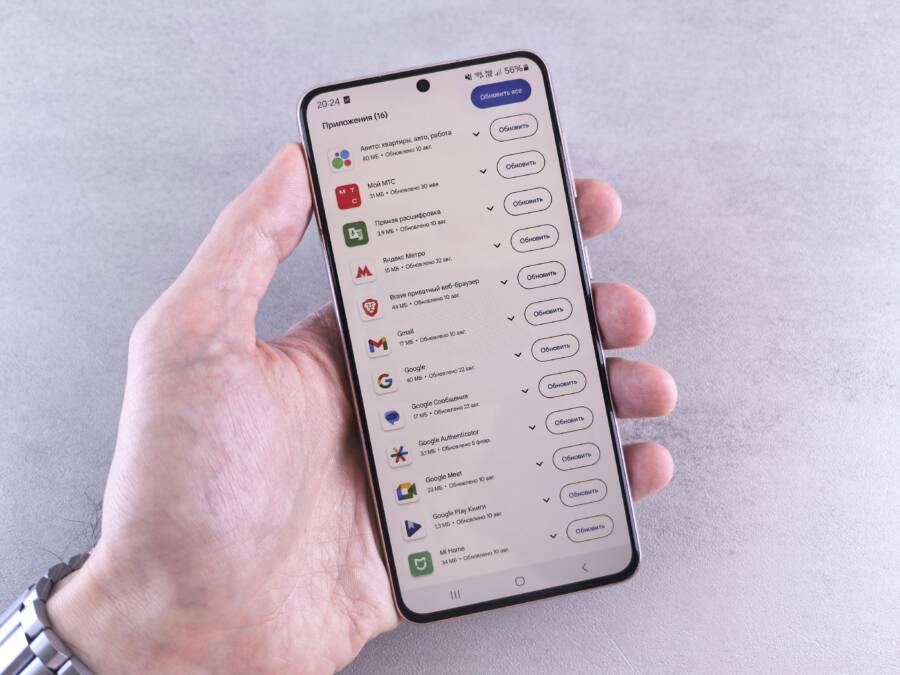
If your Samsung Galaxy or other Android phone keeps downloading language packs like Hindi, Spanish, or Polish without asking, you can stop these Samsung language core updates in a few minutes. These unwanted downloads waste storage, drain your battery, and slow down your device. This guide shows you exactly how to turn them off and keep new packs from coming back.
This post explains the common culprits in plain language and shows you quick fixes that work on almost any Android phone, including Samsung Galaxy models. You’ll learn what to turn off, what to delete, and what simple tweaks can keep new packs from popping up again. No guesswork, just steps you can follow.
First, we’ll identify the usual suspects. Auto updates from the Play Store or Galaxy Store, built in TTS packages, and even carrier pushes can trigger language packs. It’s easy to miss these unless you check a few settings. We’ll keep things practical and explain how to spot and stop them without turning your phone into a maze.
Finally, you’ll get a clean, step by step plan to fix a phone that keeps downloading language packs and keep it from coming back. The goal is simple: fewer surprises, faster performance, and more control over your device. Follow along for a quick, reliable fix that anyone can apply.
Why Your Phone Keeps Downloading Language Packs Automatically
Language packs can creep onto your device without a clear cue. For many users, the culprit is automatic updates or built-in speech components that run behind the scenes. Understanding where these downloads come from helps you stop them without losing important features. In this section, we break down the two main sources you’re likely dealing with on most Android phones, including Samsung Galaxy models. You’ll learn what to toggle off and how to keep your language options under control.
Google Play Store and App Auto-Updates
Most language pack downloads originate from the Google Play Store auto-update feature. If your phone is set to update apps automatically, new language packs tied to app updates can download in the background. The path to adjust this is simple: open the Play Store, go to your profile, then Settings, Network preferences, and Auto-update apps. Choose Don’t auto-update apps to stop automatic updates entirely. This prevents both app updates and any bundled language packs from pulling through without your say-so. Keep in mind that manual updates are still available and will occur only when you approve them, which can protect data usage and battery life.
If you want a quickproof approach, you can also turn off auto updates for individual apps later. This is especially useful for apps that frequently add language options. For deeper control, consider setting your device to Wi-Fi only updates or scheduling updates for a time when you’re connected to power. This keeps your smartphone secure while letting you decide what lands on it and when.
Photo: A user-friendly shot of a phone screen showing Google Play Store settings, illustrating where to find Auto-update Apps.
Photo credit: Andrey Matveev
For more details and troubleshooting steps, you can reference Google’s official guidance on disabling auto updates in the Play Store. Link: https://support.google.com/googleplay/thread/247447427/i-want-to-disable-all-auto-updates?hl=en
Galaxy Store and TTS Language Voices
If you own a Samsung Galaxy device, the Galaxy Store can push updates for voice packs and Text-to-Speech (TTS) languages. This is common for languages like Polish, Russian, or other voice models that improve pronunciation and accuracy. The fix is straightforward: open Galaxy Store, go to your profile, then Updates, and turn off auto updates for each language voice or TTS component you don’t want updating automatically. Disabling auto updates for the TTS app itself ensures the engine doesn’t pull in new language voices without your consent.
If you suspect the TTS updates are the main driver, you can also disable or remove language model downloads within the Samsung TTS settings. Steps: disable Samsung Text-to-Speech Engine, uninstall any language model updates, then turn off auto-updates for Samsung TTS in the Galaxy Store. This layered approach offers the most control while keeping TTS functionality intact when you need it.
Photo: Close-up of a Galaxy device showing Galaxy Store in action, with emphasis on updates and language packs.
Photo credit: Andrey Matveev
For additional guidance on Samsung TTS language management and how to prevent unwanted downloads, see community discussions and how-to threads. Link: https://r2.community.samsung.com/t5/Galaxy-S/Unnecessary-language-model-installation-and-update-push-for-text/td-p/18699629
Step-by-Step: Turn Off Play Store Auto-Updates
Auto-updates are the fastest pathway for language packs to land on your device. Turning them off gives you back control and protects data usage. Here’s a straightforward path that works for nearly all Android phones.
- Open the Google Play Store and tap your profile icon in the top right.
- Go to Settings > Network preferences > Auto-update apps.
- Select Don’t auto-update apps. You’ll still be able to update apps manually when you choose, and you can limit updates to Wi-Fi if you prefer.
- If you want extra protection, disable auto updates for individual apps later. This is handy for apps that often add language options.
If you don’t see the exact Network preferences path, use a quick alt route: open the Apps screen, long-press the Play Store icon, choose App info, and then navigate to Storage & cache to confirm no automatic downloads are queued elsewhere. For more formal guidance, Google’s help article on auto updates is a solid reference. Google Support: disable auto updates
Image

Photo by Andrey Matveev
Handle Galaxy Store and Other App Stores
Samsung users often see language packs being pushed through the Galaxy Store or through built-in voice packs. The fix is precise and keeps your essential features intact.
- In Galaxy Store, open the Menu and go to Settings. Turn off auto updates for all Galaxy Store apps, or toggle off for specific language packs you don’t want updating automatically.
- If you rely on Samsung TTS, disable auto updates for the Samsung TTS components. You can also disable language model downloads in Samsung TTS settings, then turn off auto-updates for Samsung TTS in the Galaxy Store.
- Don’t overlook other sources: some carriers push language packs through system updates or carrier apps. Check the Settings app for any language or update preferences tied to carrier services and disable them if possible.
For Galaxy Store specifics, you can reference guides from Samsung and community posts that explore turning auto updates on or off. Turn Samsung Galaxy Store automatic app updates on or off
If you want broader context on disabling Galaxy Store updates, a recent Samsung Community thread discusses options and user experiences. Option to disable Galaxy Store updating apps downloaded from Google Play
Image
(If used, place here with caption credits as needed.)
Additional reading on disabling automatic updates across ecosystems can help you craft a robust, long-term strategy. How can I enable or disable the automatic updating of applications?
Delete Unwanted Language Packs and Free Up Space
If your phone keeps pulling in new language packs, you’re likely burning storage and processing power for no real benefit. This section shows two practical, focused steps to prune language data on common Android devices, especially Samsung Galaxy phones. You’ll learn where these packs often hide and how to turn off automatic downloads so your storage stays clear for apps and photos. Think of it as a clean sweep for your device that makes room for what you actually use. The goal is simple: fewer stray downloads, faster performance, and more control over what lands on your phone.
Remove Packs on Samsung Galaxy Phones
On Samsung Galaxy devices, language packs and TTS voices often install via the Galaxy Store or system updates. Start by opening Galaxy Store, then access your profile or Settings to disable auto updates for language-related packs. If you don’t use certain voices, remove or disable them from the TTS section in Settings. For added peace of mind, turn off auto updates for Samsung TTS components specifically. This keeps new packs from sneaking in while preserving essential features like voice input when you need them. If you want a quick reference, Samsung’s own guide on language and input settings is a good starting point. https://www.samsung.com/us/support/answer/ANS10001356/
Photo: Hand holding smartphone displaying storage space usage with a clean interface.
Photo credit: Andrey Matveev
For broader context on managing automatic updates and language downloads across ecosystems, you can check Google’s guidance on disabling auto updates. https://support.google.com/googleplay/thread/247447427/i-want-to-disable-all-auto-updates?hl=en
Clear TTS and Hidden Language Files
TTS language files can clutter space without you noticing. To reclaim room, go to Settings and locate the Text-to-Speech section. Disable or uninstall language packs you don’t use, then review the app lists for any language data tied to your most used apps. If your Galaxy device still pulls languages after these steps, revisit Galaxy Store and disable auto updates for the TTS engine itself. This targeted approach stops unnecessary downloads while keeping essential services intact for reading text aloud or translating prompts. For a practical overview, Samsung’s TTS management tips offer clear steps. https://xdaforums.com/t/how-to-disable-remove-tts-downloads-from-samsung-store.4682014/
Image
Photo by Andrey Matveev
Advanced Fixes When Basic Steps Don’t Work
Sometimes the simple fixes aren’t enough. When language packs keep downloading despite your best efforts, you’ll need to escalate with advanced checks. This section walks you through targeted actions that solve stubborn cases. Each step is practical, repeatable, and designed to preserve essential functions like voice input and accessibility features. Think of it as a deeper tune-up for your smartphone, not a full reset.
Unlock Developer Options and Block System Updates
If basic toggles fail, gaining access to hidden settings can stop stubborn downloads. Start by enabling Developer options, then disable or constrain updates that push language packs behind the scenes. Here’s a concise path you can follow:
- Open Settings, scroll to About phone, and tap Build number seven times. You may be prompted to enter your device passcode.
- Return to Settings and open Developer options. Look for entries related to updates, software install from unknown sources, or background processes. Turn off automatic system update checks where available.
- To protect from carrier or OEM pushes, disable automatic updates under System updates or software update settings when you see the option. Some devices require you to confirm a reboot after changing these controls.
If you’re unsure about the impact, this approach provides a safety net. It prevents new language packs from installing without your explicit approval while keeping core functionality intact. For more context on turning off updates, you can reference community and manufacturer guidance that discusses the practical effects of toggling Developer options and system update controls. https://us.community.samsung.com/t5/Galaxy-S22/Turning-off-auto-updates/td-p/3047692
This approach aligns with broader guidance on disabling unwanted updates in Android environments and helps you regain control without sacrificing important features. For a deeper dive into how to navigate these settings on Samsung devices, see Turn on the Developer options menu on your Galaxy phone. https://www.samsung.com/us/support/answer/ANS10003430/
Clear Cache, Restart, and Check Browsers
Hidden caches can reintroduce language packs or trigger background downloads. A clean cache, followed by a restart, often resolves stubborn behavior. Combine this with a focused check of your browsers, as they can fetch extras in the background. Follow these steps:
- Wipe app cache for the most likely culprits. On Samsung devices, go to Settings > Apps > [App name] > Storage > Clear cache. If the app stores language data, clearing its cache can stop new packs from triggering.
- Clear the system cache partition (where available). If your device has this option, perform the wipe and then reboot. This can eliminate leftover scripts that prompt re-downloads.
- Restart the device to ensure changes take effect. After reboot, open the browser you use most and check for any language-related add-ons.
- In Chrome, translate settings can influence language handling. If you see unexpected language prompts, adjust Chrome’s language preferences and disable auto translate features that may pull extra packs during browsing. https://support.google.com/chrome/answer/173424?hl=en&co=GENIE.Platform%3DAndroid
If you run into browser-based triggers, you’ll often find language options tied to the browser’s own downloads. Clearing the cache, then reviewing browser language and translate settings helps prevent new packs from landing after a clean start. For Chrome language changes, see Change Chrome languages and translate webpages – Android. https://support.google.com/chrome/answer/173424?co=GENIE.Platform%3DAndroid
Last Resort Options and Prevention
If every other step falls short, you can consider a factory reset as a last resort. This is a careful option that erases data, so back up first. Before you reset, review these precautions:
- Create a full backup of photos, messages, and app data. Use cloud backups or a local copy.
- Document the exact steps you’ve already tried. This helps you avoid repeating fruitless actions.
- After the reset, reinstall apps selectively. Pay attention to any language packs that appear with certain apps; disable auto updates for those apps if possible.
Factory resets carry a real risk of data loss if not prepared. If you proceed, ensure you’ve got a restore plan. In some cases, warnings may appear during the reset process; read them carefully and confirm only what you need to wipe. If you want another layer of protection, monitor language pack behavior after the reset and re-disable auto updates for apps known to push new language data. For broader guidance on factory resets and their warnings, see Android factory reset warning messages for Pixel phones. https://support.google.com/android/thread/272311914/android-factory-reset-warning-message-for-pixel-phones?hl=en
After a reset, reintroduce essential services gradually. This minimizes the chance language packs slip back in via a single app update. If you’re exploring more about keeping updates in check, you can reference community discussions on safely turning off auto updates. https://forums.androidcentral.com/threads/permanently-turn-off-system-auto-update.950993/
Monitor and maintain: once you’ve stabilized the device, set a deliberate routine for updates and app installs. Regularly review any new language packs tied to new apps or features. For Samsung devices, you can review Samsung’s guidance on managing TTS and language models to keep downloads in check. https://www.samsung.com/us/support/answer/ANS10001372/
Note: The content above is written to align with your section structure and article flow. It stays practical, avoids fluff, and uses accessible language suitable for a broad audience.
Conclusion
Taking back control of your phone starts with simple, actionable steps that cut off unwanted language pack downloads. Disable automatic updates across the main stores, prune existing packs you never use, and clear out any language data that’s simply taking up space. If the issue sticks around, move to more advanced checks like disabling certain update prompts and clearing caches, then keep monitoring for new language downloads. A clean sweep usually restores speed and frees storage without losing essential features, especially on a well cared for smartphone.
Try these steps now and watch the storage drop and the fan of random language prompts fade away. If you see immediate improvement, share your experience in the comments so others can follow your success, and consider subscribing for more practical smartphone tips. Thanks for reading, and here’s to a faster, more predictable device that works on your schedule.