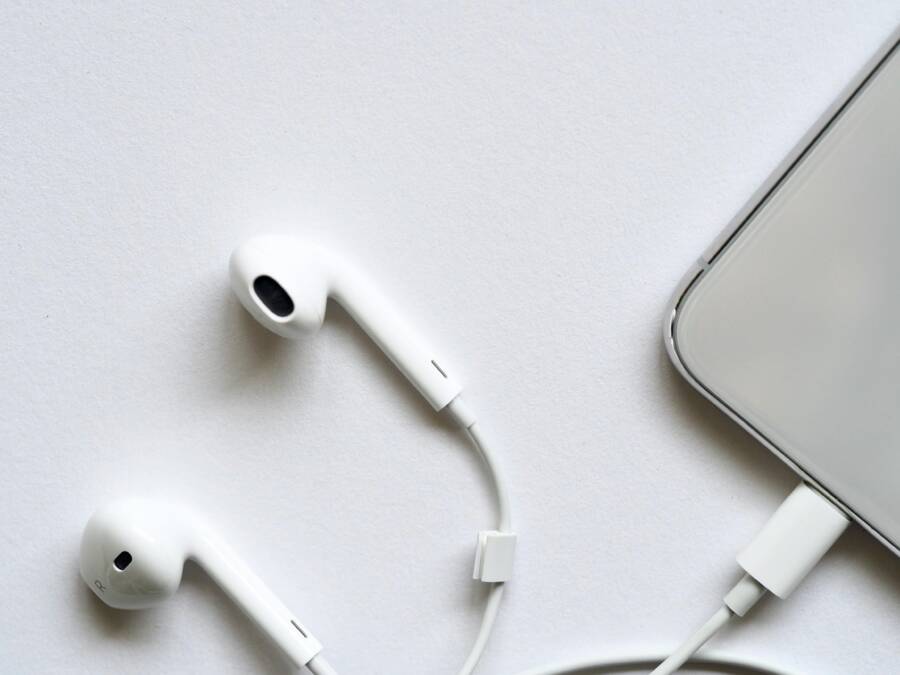
A wired microphone should feel simple to connect and use. When your phone refuses to recognize it, the result can be frustrating, especially if you rely on clear audio for a meeting, a podcast, or a recording session. The fix often lies in a few practical checks rather than a full replacement. This guide walks you through reliable steps to identify the problem and get your mic working again.
If you’ve tried plugging in a mic and nothing happens, don’t panic. Start with the basics and move toward more involved checks. In most cases, the issue is a small mismatch or a dirty port rather than a faulty device. And yes, a modern smartphone can handle a wide range of mics with the right adapter or settings.
Quick hardware checks
Start with the simplest possibilities first. A lot of times the culprit is something you can see or hear right away.
- Confirm the right type of mic for your port. Some phones use a 3.5 mm jack, others rely on USB-C or Lightning connections. If you need an adapter, ensure it matches your microphone’s plug and your phone’s input standard.
- Check for visible damage. Look at the plug, cable, and any connectors. A frayed wire, loose jack, or cracked casing can stop a mic from being detected.
- Test with a known good mic. If you have another wired mic, try it on the same phone. If the second mic works, the first mic is likely defective. If neither mic works, move to port and software checks.
- Try a different accessory setup as a quick sanity check. A headset with a built in mic can help confirm the port is functioning.
Smartphone users often overlook dirt and moisture. A quick look inside the port can reveal lint, dust, or pocket debris blocking the contact pins. A clean connection helps the phone recognize the microphone.
Inspect the port and clean it carefully
A dirty or damaged port is a common reason for non detection. Cleaning needs to be gentle but thorough.
- Inspect with a bright light. Look for lint, metal shavings, or moisture. Don’t poke hard with metal objects.
- Gently remove debris. Use a dry, soft brush or a blast of compressed air from a canister held at a slight angle. Do not twist the mic plug into the port if resistance is strong.
- Let it dry if you suspect moisture. If the port feels damp, give it time to air out before testing again. Powering the device with moisture inside can cause short circuits.
If you see obvious damage to the port, it’s time to consider professional service or replacement. A bent pin or loose port often needs a hardware repair rather than a software fix.
Evaluate cables and adapters for wear
Even a healthy port can fail to detect a mic if the cable or adapter is compromised. Check every link in the chain.
- Tug test the cable. If you feel any stiffness, kinks, or a loose connection, the cable could be the problem.
- Examine adapters carefully. If you are using a USB-C or Lightning adapter, switch to a different adapter if possible. Some cheap adapters don’t carry full audio signals.
- Try a direct connection if allowed. If your mic uses an adapter, see if your phone supports a direct connection with the mic model. For example, a USB microphone might work natively on a newer phone with the right USB-C to USB-C cable.
- Verify compatibility with the mic type. Some mics need power from the port. If the mic relies on “bus power” and the phone doesn’t provide enough current, the mic may not be detected.
A poor adapter or a damaged cable is a frequent cause. Replacing the suspect part often solves the problem without touching settings.
Check permissions and app settings
Sometimes the mic works, but the app blocks it. Permissions matter, especially if you rely on a specific app for recording or calls.
For iPhone users
- Settings > Privacy > Microphone. Ensure the apps you want to use have microphone access enabled.
- In apps like Voice Memos or a video conferencing tool, verify the mic is selected as the input within the app. Some apps remember the last used input and won’t switch automatically.
- If you’re testing with a third party app, temporarily switch to a native app to isolate the issue.
For Android users
- Settings > Apps > [App] > Permissions > Microphone. Grant access if it’s been denied.
- Some devices offer an Audio Source option in camera or recording apps. Make sure it’s set to the external mic if that option exists.
- If you’re using a Bluetooth or USB accessory in parallel, check if the system prioritizes another input.
Apps can override device settings or switch inputs during a call or recording. A quick test with a stock app can reveal whether the problem is app specific or system wide.
Update software and drivers
Software updates often fix compatibility issues with peripherals. Even though drivers on a phone are not the same as desktop drivers, firmware or OS updates can improve accessory support.
- Check for a system update. Install any available updates and reboot.
- Update the mic’s companion app if you use one. Some mics have control apps that handle power, gain, and port negotiation.
- Update the app you’re using for recording or calls. A newer version may include a fix for microphone input.
Software issues are less common but they do occur. A fresh update can restore proper detection without fiddling with hardware.
Try safe mode or reset options
If the problem started after installing a new app or update, testing in a clean state helps confirm the cause.
- Android safe mode: Reboot into Safe Mode to disable third party apps. If the mic works in Safe Mode, a recently installed app is the likely culprit.
- iPhone reset options: You can reset all settings if you suspect a configuration error. This won’t erase your data, but you will need to reconfigure WiFi and preferences.
- If all else fails, a factory reset is an option but last resort. Back up data first.
Hardware limitations and alternative routes
Some combinations simply aren’t friendly. A few practical options can keep you productive even when the original mic won’t connect.
- Use a different connection method. If your mic is USB-C and your phone supports USB-C audio class devices, you might get it to work with a different cable or adapter. If not, a dedicated mobile USB microphone designed for smartphones can be a better fit.
- Consider a powered adapter. Some mic setups need extra power. A powered USB hub or a microphone that comes with its own battery can help.
- Switch to wireless. If a wired mic stubbornly refuses to work, a Bluetooth mic with a compatible app can be a solid fallback. It won’t be identical to a wired mic, but it can deliver clear audio.
Troubleshooting flow you can follow
- Step 1: Confirm the port type and adapter are correct for your phone.
- Step 2: Clean the port and inspect the plug and cable for damage.
- Step 3: Test with a different mic and a different device to rule out the mic.
- Step 4: Check app and system microphone permissions.
- Step 5: Update software and test again.
- Step 6: If needed, try Safe Mode or reset options.
- Step 7: If none of the above works, look at hardware alternatives or professional help.
When to seek professional help
If the issue persists after all tests, the problem is most likely hardware related. Port damage, a faulty audio IC, or a damaged cable can require a repair or replacement. If you rely on your phone for work, it can be worth visiting a repair shop or the device’s official service center. A tech pro can confirm whether a port is loose or needs a connector replacement. In some cases, a professional fix is more cost effective than buying a new device.
A practical checklist you can print
- Inspect mic plug and cable for wear.
- Test with another mic and another device.
- Clean the port carefully, then test again.
- Verify permissions for the apps you use.
- Try a different adapter or direct connection.
- Update OS and apps.
- Consider a different mic or a wireless option.
A quick example to illustrate the process
Let’s say you have a USB microphone and a modern smartphone. You plug in the mic using a USB-C adapter. The phone makes no sound and the mic does not show up in any app. You test the mic with a laptop and it works, so the mic is fine. You try another adapter and a direct USB-C cable, and suddenly the mic is detected. The issue was a low-quality adapter that didn’t carry audio data reliably. With the right adapter, your setup is back to full speed.
Keeping things simple in daily life
A wired microphone should feel like a plug and play accessory. When it doesn’t, start with the basics. A clean port, a healthy cable, and correct permissions cover most cases. If those steps don’t help, you can still keep your workflow intact with a different mic or a wireless solution. The key is to test methodically, not guess.
Conclusion
A phone that won’t detect a wired microphone can slow you down, but the fix is usually practical and affordable. Start with hardware checks, then move through port cleaning, cable testing, and adapter swaps. If software is involved, verify permissions and update everything. When all else fails, know when to seek a professional opinion or switch to an alternative approach.
By following these steps, you’ll gain confidence in identifying the root cause and restoring reliable audio for your next recording session or meeting. If you consistently work with external mics, keep a small toolkit handy—extra adapters, a lint-free cloth, and a portable power solution can save precious time. Your smartphone deserves dependable audio gear, and with a calm, structured approach you can keep conversations and recordings crisp and clear.