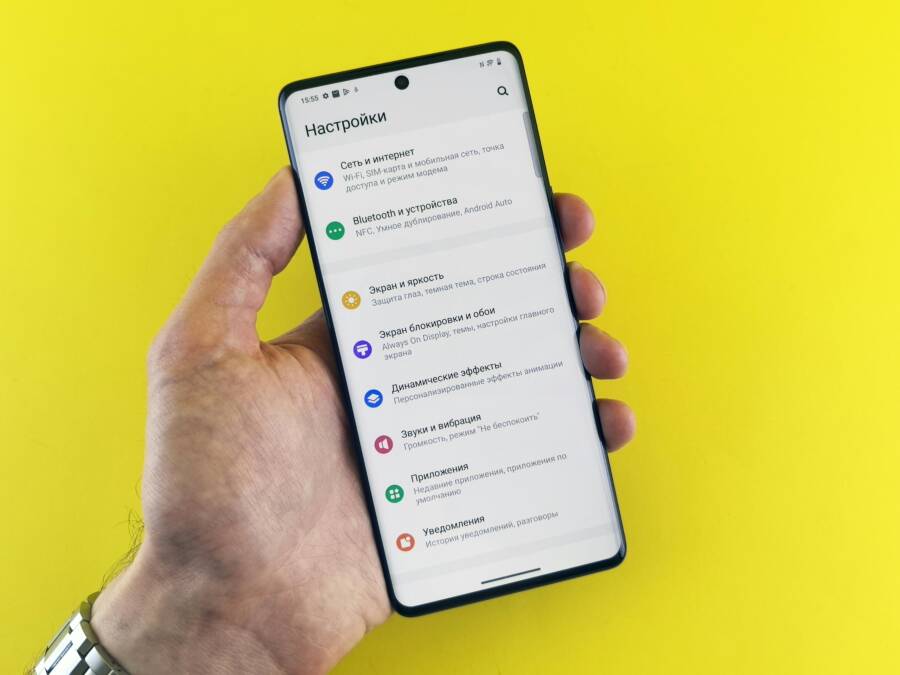
Ever tried to switch carriers or pop in a new SIM only to find your phone locked on one network? The frustration is real, especially when you expect a quick change and nothing happens. This intro side steps the jargon and explains what you’re up against in plain language.
Most cases boil down to a few simple causes. A carrier lock can keep a phone tied to its original network, while glitches or outdated settings can also cause this stubborn behavior. The good news is that most fixes you can try at home, with gear you already own, will move you toward freedom.
This guide walks you through steps from easy to advanced. You’ll learn how to check the lock status, request unlock from your carrier, and reset network settings without losing data. Each move is designed to be quick, practical, and doable for a typical smartphone user.
By the end, you’ll have a clear path to fix stuck network problems and regain the flexibility to use any SIM. We’ll keep the steps simple, with practical tips you can apply today. If you follow them in order, you’ll avoid wasted time and confusion. Ready to take back control of your phone’s network access and stop dealing with lockouts? Let’s start with the basics and move up step by step.
What Causes a Phone to Get Stuck on One Network?
When your phone refuses to switch networks, it can feel like you’re trapped in one carrier’s playground. The root causes vary, but most fall into a few clear categories. Carriers may tie a device to their network through a lock or restriction, while SIM card or APN misconfigurations can block data or signal. Software issues after an update or lingering storage problems can also create network hiccups. Understanding these causes helps you pick the right fix and get back to using any SIM you prefer.
Carrier Locks and Restrictions
Many phones sold under contract or with carrier financing are locked to that provider. This means the device will only work with that carrier’s SIM until the lock is removed. Paid-off phones can unlock, either officially through the carrier or via an authorized service after meeting eligibility. Signs include no signal or limited service when you insert a different carrier’s SIM, or prompts asking for an unlock code. To check lock status in settings, look for carrier information under Settings > General > About on iPhone, or Settings > System > SIM Status on many Androids. If the phone is locked, contact the original carrier for the unlock process or visit their support page for eligibility rules. For more context on APN and lock issues, see this guide on unlocking APN settings and carrier locks.
- Quick check: insert a different carrier SIM and restart your phone.
- If you’re prompted for a network unlock or the SIM isn’t recognized, the device is likely locked.
Carrier unlock guidance provides practical steps to verify and request unlocks.
SIM Card or APN Problems
A damaged or dirty SIM can prevent the phone from accessing any network, while a wrong APN (Access Point Name) setting can block data or MMS. Common signs include error messages like “SIM not recognized,” “No SIM card,” or persistent data connectivity issues even with a strong signal. You can perform quick checks without tools: inspect the SIM for scratches, wipe the contact surface gently with a microfiber cloth, and re-seat the card. In APN terms, verify you’re using the correct APN for your carrier and ensure the APN settings aren’t greyed out or locked by a carrier profile. If issues persist, try another known-good SIM to rule out the card itself.
- Clean and re-seat the SIM tray.
- Navigate to APN settings to confirm you have the right carrier profile.
- If APN options are inaccessible, you might be facing an account or carrier restriction.
For further guidance on unlocking APN settings and verifying APN configurations, read this practical guide:
How to Unlock APN Settings on Android in 5 Ways
Software Glitches and Outdated Firmware
Bugs after a software update can disrupt how the phone connects to networks. Outdated firmware or a recent change in radio firmware can cause cellular hangs or frequent drops. Signs include intermittent connection, long loading screens when checking signal, or the device sticking on a single network logo for extended periods. A quick reset of network settings can clear misconfigurations without erasing personal data. If problems continue, check for a fresh firmware release or perform a system update, ensuring you have a stable Wi-Fi connection during the process. Sometimes storage constraints amplify these glitches, so free up space if needed.
- Reset network settings to restore defaults.
- Check for the latest system or radio updates from the manufacturer.
- Ensure there is adequate free storage to run updates smoothly.
If you run into APN or network setting constraints, a handy reference on greyed-out APN options and fixes can help, such as APN settings guides and unlocks. For more context on APN related issues, consider this resource:
APN Settings Greyed Out (easy) Causes & Fixes
These sections cover the most common reasons a phone sticks to one network. Start with the simplest check—whether the device is carrier-locked—and move through SIM, APN, and software angles. If you follow these steps in order, you’ll pinpoint the cause faster and apply the right fix.
Quick Fixes to Try Right Now
If your phone sticks on one network, you don’t have to dive into deep diagnostics. These quick, practical fixes can reset the moment and get you back to using any SIM. Think of them as restart hands you can act on in minutes. Each step is designed to be simple, with real results you can test right away. As you work through them, keep an eye on whether your smartphone starts recognizing other networks again. If one fix doesn’t help, move to the next; you’re likely to see improvement with minimal hassle.
Restart Your Phone and Toggle Airplane Mode
Power off completely, then power back on. If you’re in a hurry, a quick restart by holding the power button and choosing restart is enough. After the reboot, toggle Airplane mode on for about 30 seconds, then turn it off. This simple move clears temporary glitches that can freeze the network picker. After the toggle, test by reinserting a different SIM or rechecking network status. If the issue was a minor glitch, you should notice the device scanning for carriers normally again. For a refresher on Airplane mode quirks, see related guidance here: https://tenorshare.com/samsung/how-to-fix-airplane-mode-stuck-after-updating-samsung.html
- Quick test: insert a different carrier SIM and restart the phone.
- If you’re prompted for an unlock code or the SIM isn’t recognized, the device may be locked or hardware needs attention.
- Remember to re-test normal network usage after the steps.
If you want a broader look at Airplane mode fixes, see this practical guide: https://en.androidsis.com/airplane-mode-won%27t-turn-off-what-to-do
Remove and Clean Your SIM Card
Eject the SIM tray safely, then remove the SIM card. Inspect the contacts for dirt or scratches. Clean the contact area gently with a microfiber cloth and reinsert the SIM carefully. A damaged or dirty SIM can keep the phone from recognizing a new network. If possible, try another SIM to rule out the card itself. Avoid bending or forcing the tray; damage here creates more problems. After reinstallation, restart or reset the network connection to test. If you still see issues, you may need a replacement SIM or a repair check. For more on cleaning and re-seating a SIM, you can refer to this guide: https://yohomobile.com/how-to-clean-a-sim-card
- Inspect for visible damage before reinserting.
- Clean the contacts and reseat the SIM tray.
- Test with a known-good SIM if you have one.
If you’d like a quick walkthrough on safe SIM cleaning, this article offers clear steps: https://simify.com/blogs/travel/how-to-clean-a-sim-card-a-travelers-guide-to-uninterrupted-connectivity
Forget Networks and Reconnect
Go to your device’s network settings and forget saved Wi‑Fi networks and mobile networks if applicable. On most phones, you can forget the current network by going to Settings > Wi‑Fi, then tapping Forget This Network. Do the same for any saved mobile networks or carrier profiles. After forgetting, scan for networks again and reconnect. Android and iOS handle this a bit differently, but the goal is the same: force a fresh connection with clean credentials. This quick reset often resolves stuck network behavior by clearing cached settings. If you want a concise guide to resetting network connections on both platforms, check this resource: https://support.apple.com/en-us/102480
- Android and iOS differences are minor but real; follow the device prompts to rejoin networks.
- After rejoining, test calls and data to confirm the fix.
Note: If you still experience issues after these quick fixes, a more in-depth check of APN settings or carrier restrictions may be needed. For a focused look at APN related problems, consult this guide: https://hello-apn.com/fixing/apn-settings-greyed-out-causes-fixes
Reset Network Settings and Update Software
If you’re tackling a phone that won’t move off one network, the fixes below help reset the machinery behind how your device connects. This section covers a practical, low-risk path: reset network settings, keep an eye on system and carrier updates, and know when a full factory reset is warranted. Think of it as a stepwise tune-up for your smartphone that avoids data loss and gets you back to clean, reliable connectivity.
 Photo by Andrey Matveev
How to Reset Network Settings Step by Step
Resetting network settings is a safe first move when network quirks linger after changes in SIM or carrier. This action restores Wi-Fi, Bluetooth, and cellular configurations to their defaults without touching your personal data or apps. Here’s how to do it in a straightforward way.
- On iPhone: open Settings > General > Transfer or Reset iPhone > Reset > Reset Network Settings. You may need to enter your passcode. A restart follows automatically on some models.
- On Android: open Settings > System > Reset > Reset network settings. If you don’t see these exact labels, look for similar terms like Reset Wi-Fi, mobile data, and Bluetooth in the reset menu.
What to expect after the reset:
- Your saved networks and Bluetooth devices will be forgotten, so you’ll reconnect to networks and re-pair devices.
- Data packets and APN configurations return to default, which can clear misconfigurations that blocked switching carriers.
- You’ll need to rejoin your preferred Wi-Fi networks and reconfigure any VPNs or hot spots.
After the reset, test by inserting a different SIM and scanning for networks. If you still see issues, a quick check for OS updates or carrier settings may help. For iPhone users, you can also explore related settings under Settings > General > About to confirm carrier details. If you want a deeper dive on why this works, here is a practical guide on resetting network settings for Android and iOS: How to reset your Android or iOS network settings to fix …
Check for System and Carrier Updates
Keeping the phone up to date is a simple habit with big payoff. System updates fix bugs, improve security, and often include improvements to how devices handle network connections. Carrier settings updates fine tune your phone for the latest network features from your provider.
How to check and install updates:
- iPhone: go to Settings > General > Software Update. If a carrier settings update appears, you’ll see a prompt to install it. Complete the update and reboot if required.
- Android: open Settings > System > Software Update (or About phone > Check for updates on some devices). If a carrier update is available, you’ll be prompted to install it as well.
Why this matters: carrier settings updates can unlock new features and improve network performance, especially after changes like a new SIM or a switch in plans. Keeping your OS and carrier profiles current reduces the chance of stubborn network issues.
If you want a quick, authoritative walkthrough for iPhone carrier updates, check this Apple resource: Manually update your carrier settings on your iPhone or iPad. For Android users, Google’s Android version checks offer a solid baseline: Check & update your Android version.
Factory Reset as Last Home Resort
If all else fails, a full factory reset can clear deep system faults that block network switching. This is a drastic step, so back up everything first. A factory reset erases apps, data, and settings, returning the device to its original state.
Backup essentials:
- Photos, messages, and app data should be saved to cloud storage or a computer.
- Confirm you’ve saved offline copies of important files and credentials.
Steps and warnings:
- iPhone: Settings > General > Transfer or Reset iPhone > Erase All Content and Settings. This will wipe the device. After the reset, restore from a backup during setup.
- Android: factory reset paths vary by maker, but commonly Settings > System > Reset > Factory data reset. Follow on-screen prompts and sign back in to restore your data from backups.
Only proceed if other methods don’t resolve the issue. A factory reset should restore network behavior, but it also resets preferences and removes installed apps. If you’re unsure, consult a service pro or your device maker’s support page for device-specific steps.
If you’d like a comprehensive, device-agnostic guide to factory resets, this resource provides a solid overview: Start Fresh: How to Factory Reset an iPhone or Android …
Images and further visuals can help you navigate these steps. If you’re curious about safety and best practices before a reset, Apple’s official reset guide offers a clear checklist: How to factory reset your iPhone, iPad, or iPod touch
Note: A factory reset is a last resort. If you have any doubt, consider a local support visit or a chat with your carrier to ensure you’ve exhausted safer, less destructive options first.
Unlock Your Phone or Get Pro Help
If your phone is stubbornly stuck on one network, you have options beyond stubborn patience. You can unlock it yourself through official channels, use trusted services with care, or seek professional help for hardware or warranty concerns. Each path has its own steps, risks, and expected timelines. This section offers clear, practical guidance so you can choose the route that fits your situation and move forward with confidence.
Contact Your Carrier for Unlock
Your first step is to determine if your device is eligible for an unlock and what the process looks like with your original carrier. In most cases, phones that are fully paid off or out of contract can be unlocked, sometimes at no cost. Start by confirming eligibility with a quick check: confirm that the phone has no outstanding payments and is not tied to a financing plan. Then call customer support or use the carrier’s online tools to request an unlock code or official unlock. Have your IMEI handy; the IMEI is a unique identifier for your device and is often required to verify ownership and status. After you submit the request, follow the carrier’s instructions carefully. If you’re unsure about eligibility, you can use reputable services to perform an official check before you proceed. For a reliable start, see guides from major carriers and trusted unlock verification resources. If you want a quick path through the basics, T-Mobile’s unlock guidelines offer a solid overview of what to expect when you’re ready to unlock your device. Consumer Reports also explains the unlock process and why you should consider it before buying a used phone.
- Quick check: confirm your device is paid off and out of contract.
- Have your IMEI ready and verify your original carrier status.
- If approved, you’ll receive official steps or an unlock code to complete the process.
- If you encounter roadblocks, explore carrier support articles and verified third-party verification tools.
For a reliable eligibility check before you proceed, you can start with resources such as DoctorSIM’s unlock eligibility checks, which help confirm whether a device can be unlocked and which carrier holds the key. Also consider Consumer Reports’ practical guide on unlocking a phone from any major carrier to understand your rights and the typical timeline.
Use Unlock Codes or Apps Safely
If you choose a third-party route, stick to reputable, well-known services and follow their steps meticulously. You’ll typically need the phone’s IMEI, which you obtain by dialing *#06# or checking in the device settings. Purchase a code from a trusted site only after you’ve confirmed your device is eligible and not blacklisted. Enter the code exactly as instructed, usually after inserting a SIM from a different carrier and rebooting the phone. Be mindful of scams that promise fast results for low prices; if a deal feels too good to be true, it probably is. Rely on official or well-reviewed sources to minimize risk. To understand safe options, review findmyimei’s step-by-step guide on using your IMEI to unlock a phone for any carrier, and consider checking a trusted unlock code provider for legitimacy. For a broad snapshot of the process and safety considerations, you can also consult Consumer Reports’ overview on unlocking with IMEI numbers.
- Verify device eligibility with a trusted source before paying.
- Use only reputable unlock services and protect your IMEI from exposure.
- Double-check instructions and back up data in case something goes wrong.
- If a provider asks for unusual personal data or installation of software from unknown sources, stop and reassess.
Smartphone users should be especially cautious with online unlocks. Safe, well-known options typically present clear terms and refund policies. If you’re unsure, start with official carrier unlock processes or widely recognized consumer guides, then move to more advanced routes only if necessary.
Visit a Repair Shop or Use Warranty
If the issue isn’t purely software, a hardware fault could keep the device locked to one network. A damaged antenna, faulty SIM reader, or other internal component can mimic a lock or interfere with network switching. Signs include poor signal, dropped connections, or intermittent data even after SIM changes. A repair shop can diagnose antenna or radio issues with diagnostic tools and test the device on multiple networks to confirm the root cause. When you visit a shop, ask for a written check list and an estimated price before any repair work begins. A warranty or protection plan may cover certain failures, so check your coverage first. If you have a warranty, contact the maker or carrier to file a claim and follow their guided steps. To help prevent future issues, consider a sturdy case and a screen protector to reduce drops that damage internal components.
- Signs of hardware problems: weak or inconsistent signal, frequent network drops.
- Ask for a diagnostic checklist and a quoted repair price.
- If under warranty, start there to avoid extra costs.
- Use a rugged case to minimize future damage and preserve antenna integrity.
If you’re evaluating repair options, consider reputable repair resources that outline common antenna issues and repair pathways. In addition, many carriers and manufacturers provide warranty and repair guidance that can save time and money. For a deeper look at hardware failures and when a warranty is worth it, you can review trusted industry analyses.
Images help you navigate repairs with confidence. Photo by Tima Miroshnichenko
Photo by Photo credits: Tima Miroshnichenko
Conclusion
Most phones stuck on one network can be repaired with simple, at-home steps. Start with the easy checks and move to deeper options only if needed. This approach keeps you in control and minimizes downtime for your smartphone.
A concise checklist to guide you:
- Confirm if the device is carrier locked and request an official unlock if eligible.
- Clean, re-seat, and test a different SIM to rule out bad cards.
- Reset network settings and apply any available system or carrier updates.
- If problems persist, consider a factory reset only after backing up data.
- When hardware signs appear, visit a repair shop or check warranty options.
The good news is most fixes don’t require tools or expert help. A reset or a fresh APN setup can often restore network flexibility in minutes. If you do need outside help, start with your carrier for unlocks or a trusted repair service to avoid wasteful steps.
To avoid future issues, keep your phone and carrier profiles updated, store backups, and handle SIM cards with care. Regularly check for updates after a switch in plans or SIMs. If you try these steps now, you’ll regain freedom to use any SIM quickly. Share your experience and the fix that worked for you so others can move faster.