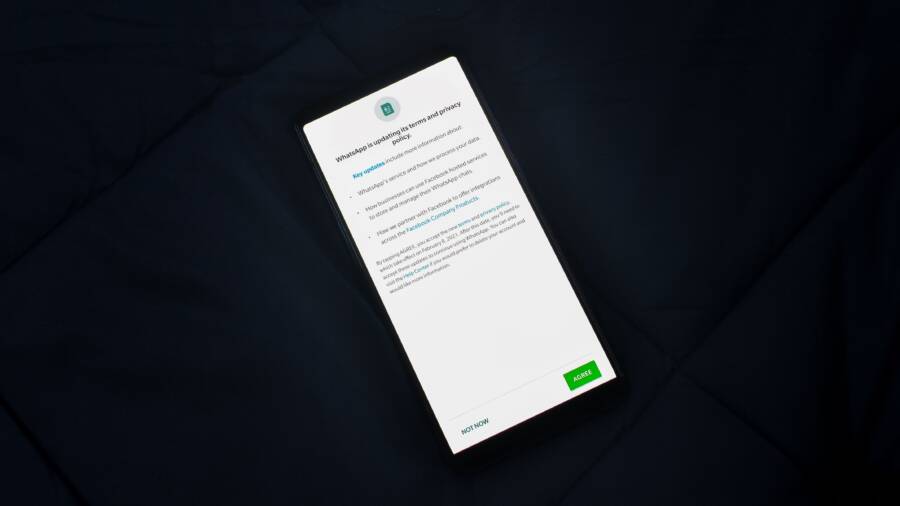
A frozen screen after you unlock your smartphone is usually caused by a software conflict or a temporary memory bottleneck. When the operating system struggles to launch the home screen processes, the display stops responding to your touch.
You can fix this issue by performing a forced restart. This action clears the temporary memory and stops background tasks without deleting your data.
Immediate Steps to Unfreeze Your Smartphone Screen
When your smartphone stops responding immediately after you unlock it, the device is likely stuck in a temporary software loop. This happens because the system struggles to load the home screen interface or a background process demands too much memory at once. You do not need to panic or assume your phone is broken. Most of the time, a simple reset solves the problem by clearing the temporary cache and forcing the processor to stop the cycle.
Performing a Hard Restart for Instant Relief
A hard restart is the most effective way to regain control when your screen becomes unresponsive. This process cuts the power to the processor for a split second to reset the system. You should know that this action only clears the active memory and stops background tasks. It does not delete your personal photos, contacts, or app data.
The button combinations vary depending on the model of your smartphone, but they follow a similar logic across major brands:
For most modern iPhones, quickly press and release the volume up button, quickly press and release the volume down button, and then hold the side power button until the Apple logo appears.
Many Samsung and Android devices require you to hold the power button and the volume down button simultaneously for ten to fifteen seconds.
Some older devices might require you to hold the home button and the power button together until the screen turns black and reboots.
If you are unsure of your specific model, try holding the power button for at least twenty seconds. This often triggers a safety reset on nearly any smartphone that remains powered on but frozen. Once the device restarts, it should load the operating system from a clean state.
Checking for Recent App Conflicts
If your screen freezes consistently after unlocking, a rogue application could be the root cause. Some apps attempt to run unauthorized tasks the moment you reach the home screen. When these processes conflict with the operating system, the interface stalls. Identifying these apps is easier when you isolate the software environment.
Safe Mode is the best tool for this situation because it disables all third-party applications and runs only the factory software. To enter Safe Mode on most Android smartphones, hold the power button until the menu appears, then long-press the power-off icon until the Safe Mode prompt surfaces. On an iPhone, there is no direct Safe Mode, but you can achieve a similar result by deleting recently installed apps that you suspect are causing the crashes.
If your phone functions normally while in Safe Mode, you have confirmed that a third-party application is the culprit. You should then remove the most recent apps you installed before the freezing started. Often, an update to an existing app or a newly downloaded utility creates the instability. Once you uninstall the conflicting software, your smartphone should return to its normal, responsive state.
Digging Deeper Into Software and Storage Issues
Frozen screens often stem from hidden conflicts between your operating system and the files stored on your device. When your smartphone runs low on available capacity, the processor struggles to manage background tasks effectively. This performance gap prevents the interface from loading properly after you enter your passcode. Addressing these storage and software bottlenecks helps restore the stability of your mobile experience.
Clearing Space to Restore System Performance
Your smartphone requires a buffer of free space to perform routine operations. Without this space, the system cannot create temporary files needed to launch the home screen. A common rule is to keep at least 10 percent of your total storage capacity empty at all times. This ensures the processor has enough room to handle background processes without stuttering.
You can identify the files consuming the most space by checking your device settings:
Open the Settings app and look for the storage or device maintenance menu.
Review the list of apps sorted by size.
Uninstall applications that you no longer use or that occupy excessive memory.
Delete large video files or cached media from messaging apps to reclaim significant space.
Photos and videos are often the biggest contributors to a crowded drive. Transfer these items to a cloud storage service or an external hard drive to clear internal space. Once you delete unnecessary content, restart the phone to allow the system to reorganize its files. A cleaner drive allows your smartphone to manage data flow more efficiently, which often resolves freezing issues after unlocking.
Updating Software to Patch Hidden Glitches
System software updates contain critical patches that fix bugs identified after the original release. Sometimes, a known error in the operating system causes the display to hang during the transition from the lock screen to the home screen. Developers release these updates to address such instabilities and improve overall device performance. Ignoring these prompts can leave your smartphone vulnerable to avoidable technical errors.
Checking for available software updates takes only a few moments:
On an iPhone, navigate to Settings, select General, and tap Software Update.
On Android devices, open Settings, scroll to System or Software Update, and tap Check for updates.
If an update is available, connect your phone to a charger and a stable Wi-Fi network before starting the installation. This prevents the device from powering off during the process, which could corrupt your system files. After the installation completes, the phone reboots and applies the new code to all internal components. Frequent updates keep your software environment stable and prevent recurring freezes. Always prioritize these patches to keep your smartphone running smoothly.
Advanced Solutions When Simple Fixes Fail
Sometimes your smartphone remains frozen even after you attempt a forced restart or clear storage space. These persistent issues often point to deep system errors or corrupted firmware files that standard troubleshooting cannot reach. When basic recovery steps provide no relief, you may need more intrusive methods to restore functionality. These processes are more complex and carry a higher risk of data loss. Proceed with these options only after you confirm that your device is not suffering from a simple hardware obstruction, like a stuck power button or a damaged display connector.
Is a Factory Reset Necessary?
A factory reset returns your smartphone to the same software state it occupied the day you purchased it. This process wipes every byte of personal data, including photos, saved messages, app settings, and downloaded files. Because this action is irreversible, it must be the final resort for a frozen device. You should only initiate a reset if you have exhausted all other diagnostic attempts.
Before you begin, verify that you have a current backup of your essential information. Most modern devices sync data to cloud services such as iCloud or Google Drive automatically. Log in to these services from a computer or another device to ensure your recent content is secure. If you have not backed up your data recently, you will lose everything currently stored on the internal memory.
To perform a factory reset on a device that you cannot access via the settings menu, you must use the recovery mode:
Turn off your smartphone completely.
Press and hold the specific button combination for your model to enter the recovery menu. This is usually the power button combined with a volume key.
Use the volume buttons to navigate the menu options and select Wipe Data or Factory Reset.
Confirm your choice with the power button and wait for the system to clear the storage.
The phone will restart and present the initial setup screen once the process finishes. If the freezing persists even after a fresh install, the problem is likely a hardware failure in the motherboard or the flash storage chip. In that case, you should contact the manufacturer or a professional repair service for an inspection.
Preventing Future Screen Freezes on Your Smartphone
You can stop your screen from freezing again by maintaining your system health and managing how your apps interact with the hardware. Most persistent freezes occur when the operating system encounters a conflict or runs out of resources. You build a more stable experience by adopting a few preventative habits. These actions keep your software lean and ensure the processor stays responsive.
Managing Background App Activity
Apps that run in the background often trigger unexpected freezes after you unlock your device. Many programs continue to fetch data, sync files, or monitor your location even when you aren’t using them. When too many of these processes fight for the same memory, your smartphone interface stalls. You can regain control by adjusting how these apps behave when they aren’t on your screen.
Review your app permissions and background refresh settings to identify potential trouble. On an iPhone, go to your General settings and select Background App Refresh to toggle off unnecessary services. For Android users, the Battery or Apps menu allows you to restrict background usage for specific programs. By limiting these activities, you reduce the load on your processor during the sensitive unlock phase. Focus on disabling background access for social media apps or games, as these often consume the most system resources.
Staying Ahead of Hardware Wear and Battery Health
A degraded battery often causes system instability that manifests as a frozen screen. As a battery ages, it struggles to provide a steady flow of power during peak usage. This inconsistency causes the smartphone processor to throttle or crash during simple tasks like displaying the home screen. Checking your battery health helps you determine if the power supply is the underlying cause of your frustration.
Modern devices provide built-in tools to monitor battery condition. You should look for a battery health menu in your device settings to view the maximum capacity percentage. If this number falls below 80 percent, the battery no longer delivers the consistent power your smartphone needs for top performance. Replacing an aged battery often resolves erratic freezing patterns that software updates cannot fix. Keeping your device within a safe operating temperature range also preserves battery life and protects the internal components from heat-induced slowdowns.
Establishing a Regular Maintenance Routine
Routine maintenance acts as a safeguard against long-term performance decay. You do not need to perform complex technical tasks daily, but consistent checkups keep the operating system in peak condition. Simple actions like restarting your device once a week clear temporary memory caches that build up over time. This minor habit prevents memory bottlenecks that lead to those dreaded lock-screen freezes.
Consider this checklist for a healthy device:
Restart your smartphone at least once every seven days to flush the temporary cache.
Audit your installed apps monthly and remove anything you have not used in weeks.
Clear your browser cache and messaging app attachments to prevent storage clutter.
Verify that you have at least 10 percent of your storage capacity free at all times.
These small steps prevent the accumulation of junk data that disrupts the smooth operation of your interface. When you keep your storage clear and your processes managed, your smartphone stays fast and responsive. A clean software environment creates the foundation for a reliable device that handles every unlock without interruption.
Conclusion
Most frozen screen issues on your smartphone arise from software conflicts or temporary memory bottlenecks that a simple restart usually resolves. You can typically restore full functionality by clearing storage space, auditing third-party apps, or installing pending system updates.
If your screen remains unresponsive after these attempts, check for physical signs of damage or extreme battery degradation. Hardware issues often require professional repair or replacement, especially if the device cannot maintain a stable power supply during operation.
Keep your device software current and your storage clean to prevent these lock-screen freezes from returning. You now have the necessary tools to identify whether your problem is a minor software glitch or a deeper hardware failure.