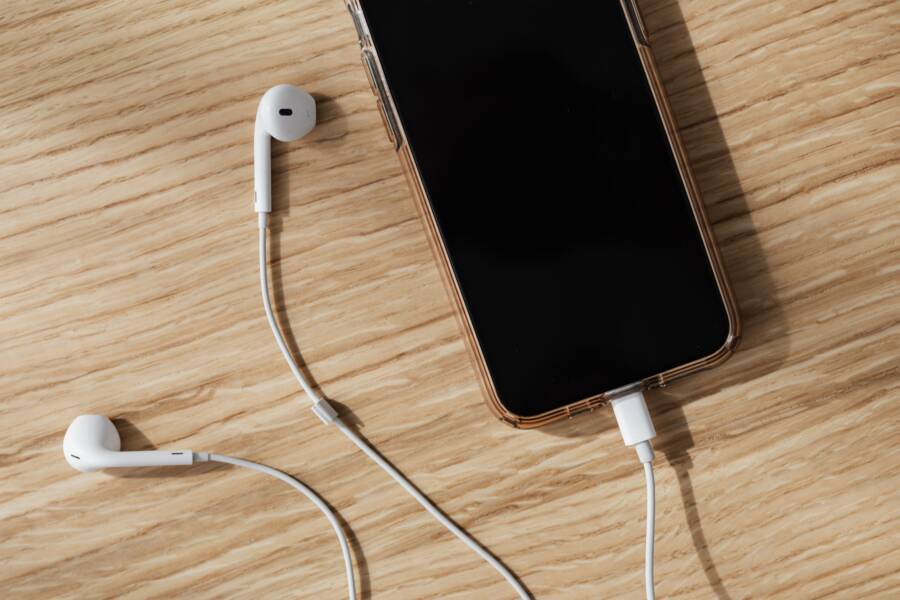
An unresponsive screen after charging is usually a minor software glitch caused by power fluctuations. You do not have permanent hardware damage, and you can typically resolve this issue with a simple restart.
Modern smartphone models often experience screen freezes when the charging cycle triggers a firmware conflict. These temporary errors stop the device from registering touch input even though the internal system remains active.
Try the following steps to refresh your smartphone and restore screen functionality. These solutions address power management bugs without deleting your personal data.
Immediate Steps to Fix an Unresponsive Screen
When your smartphone screen stops responding after a charging session, the first priority is to clear the temporary software hang. A frozen display often masks a fully functioning system that is simply stuck in a loop. You can interrupt this cycle and force the device to reload its operating system without losing your stored data. These recovery methods safely bypass the standard touch commands that currently fail to register.
Performing a Forced Restart
A forced restart acts as a hard break for your smartphone processor. Unlike a standard power-off sequence, which requires screen interaction, this method uses physical buttons to trigger an instant hardware reset.
For iPhone users, the sequence depends on your specific model:
Press and quickly release the volume up button.
Press and quickly release the volume down button.
Press and hold the side button until the Apple logo appears on the screen.
If you use an Android smartphone, the combination is usually more consistent across brands. You should press and hold the power button and the volume down button simultaneously. Keep holding these buttons for about 10 to 15 seconds. The screen will typically flicker or go black, and the device will restart automatically. If the phone vibrates but the screen remains dark, continue holding the buttons until you see the manufacturer logo.
Checking Your Charger and Cable
Your charging accessories might cause more issues than just a failure to power up the device. Faulty cables or incompatible power bricks often introduce electrical noise or static interference. This interference can disrupt the digitizer, which is the layer responsible for interpreting your touch commands on the smartphone screen.
If the touch interface is erratic or completely frozen, inspect your charging setup for the following problems:
Frayed insulation or bent pins on the charging cable can create unstable voltage.
A third-party power adapter that does not meet the output requirements of your smartphone often triggers erratic behavior.
Using a damaged wall outlet may lead to ground loops, which physically interfere with the sensitive electronics inside your display.
Disconnect your phone from the charger immediately. Wait one minute for the static charge to dissipate from the screen capacitors. Attempt to use the device while it is unplugged to determine if the hardware behaves normally without external power. If the touch input returns after removing the charger, replace your cable or adapter with a certified version to prevent the problem from recurring.
Solving Persistent Software Glitches
When basic restarts and cable checks fail to resolve an unresponsive screen, your smartphone might have a deeper software conflict. Persistent glitches often stem from corrupted system caches or background tasks that refuse to close. These issues require more advanced intervention to clear the memory and restore touch input functionality.
Entering Recovery Mode Safely
Recovery mode is a dedicated diagnostic partition on your smartphone. It operates independently of the main operating system, which allows you to perform low-level repairs when the standard interface is locked. You should use this mode only when the screen remains completely frozen despite multiple forced restarts.
Accessing this mode requires specific hardware button combinations that vary by manufacturer. Once inside, you can clear the system cache partition to remove temporary files that trigger freezes. This process does not delete your photos, contacts, or apps. Follow these steps to enter the menu:
Turn off your device completely if the screen allows.
Hold the power button and volume down button simultaneously until a menu appears.
Use the volume buttons to navigate the menu and the power button to select an option.
Select the option labeled Wipe Cache Partition or similar.
Reboot the device once the process finishes.
If your model uses a unique key sequence, consult the manufacturer website to identify the correct buttons. Always choose the wipe cache option rather than a full factory reset to keep your personal data intact.
Checking for Recent App Conflicts
Background applications sometimes consume excessive system resources while the phone charges. This heavy workload creates a processing bottleneck that locks up the touchscreen controller. If a specific app hangs during the charging phase, the display might stop responding until you force that process to quit.
You can identify problematic apps by tracking which programs were active before the freeze occurred. If you notice the issue happens every time a specific game or utility runs while plugged in, that app likely has a memory leak. Consider the following signs that an app conflict is affecting your smartphone:
The phone feels physically hot near the battery or processor while charging.
The screen freezes only when a specific high-performance app stays open in the background.
System animations stutter or lag shortly before the total touch failure.
If you suspect a third-party app is the culprit, start your phone in Safe Mode to verify this theory. Safe Mode disables all user-installed applications, allowing the system to run on factory software alone. If the touchscreen works perfectly in this mode, uninstall your most recently added applications one by one. This process isolates the conflicting software without the need for a full device wipe.
When to Consider Hardware or Power Issues
Sometimes a frozen screen points toward physical trouble rather than a simple software bug. If you have already tried force-restarting your smartphone and cleaning your ports without success, the problem might exist within the power delivery system. Your device relies on a steady flow of electricity to keep the digitizer and processor running smoothly. When hardware components degrade or sustain physical damage, they often fail to communicate with the operating system, which results in a persistent frozen display.
Identifying Battery Overheating Signs
Heat is the primary enemy of lithium-ion batteries. While it is normal for a smartphone to feel slightly warm during rapid charging, excessive heat indicates a deeper problem. High temperatures can cause the internal thermal protection system to throttle the processor, which often leads to screen stuttering or complete unresponsiveness.
If your device feels hot to the touch while charging, follow these guidelines to prevent permanent damage:
Disconnect the charger immediately to stop the heat buildup.
Place the device on a cool, hard surface to help dissipate the heat faster.
Avoid putting the smartphone in direct sunlight or enclosed spaces while it recovers.
Keep the screen off for at least 15 minutes before attempting to power it on again.
Excessive heat can cause the battery to swell slightly. If you notice the screen lifting or a bulge forming on the back panel, stop using the device and contact a professional repair service. These physical changes indicate a failing battery that requires an immediate replacement to maintain safety and screen sensitivity.
The Impact of Damaged Charging Ports
The charging port on your smartphone is a delicate connection point. Even minor debris or moisture inside this opening can create a short circuit. When electricity flows through a damaged or dirty port, it often results in power surges that fluctuate unpredictably. These surges interfere with the sensitive touch controller located behind your display, causing the screen to stop responding to your input.
Inspect the charging port closely using a flashlight to check for these signs of trouble:
Small lint, dust, or metal particles stuck inside the port prevent a solid connection.
A loose or wobbling cable connection suggests the pins inside the port are bent or broken.
Corrosion or a green tint on the connector points indicates water damage.
Use a non-conductive tool like a wooden toothpick to gently remove any debris. Avoid using metal needles, which could cause a permanent short circuit or permanently damage the copper pins. If the charging port appears loose or visibly damaged, a local repair shop should replace the module to ensure consistent power delivery. A stable power supply remains essential for the touchscreen to process your commands without freezing.
Preventing Future Screen Unresponsiveness
You can minimize the risk of your smartphone screen freezing again by changing how you manage power and daily habits. Most screen issues result from unstable voltage or internal heat, both of which are preventable. By following specific charging protocols, you keep your device stable and responsive.
Using Official Accessories Only
Cheap third-party chargers frequently fail to provide the consistent voltage your smartphone requires. These budget accessories often lack the necessary shielding to prevent electrical noise. This noise disrupts the digitizer, which is the component responsible for reading your touch input on the screen.
When you use an uncertified cable or power adapter, you risk sending fluctuating power to your device. This instability confuses the touch controller and often causes the screen to stop reacting. Always stick to the manufacturer original charger or certified alternatives that carry a safety seal from the brand.
High-quality accessories provide stable power delivery that protects the sensitive electronics inside your display. If you cannot find an original replacement, buy a product from a reputable brand that explicitly lists compatibility with your specific smartphone model. Investing in quality gear now saves you from troubleshooting unresponsive screens in the future.
Managing Background Processes While Charging
Running intensive tasks while your smartphone remains plugged in creates significant stress on the processor. Heavy gaming, video editing, or high-definition streaming generates heat as the battery charges. This combined temperature buildup often forces the system to slow down or lock up to protect internal components.
You should avoid demanding tasks while the battery replenishes. The phone handles heat dissipation much better when it is idle or performing light tasks during a charge cycle. Follow these tips to keep your device stable:
Close all background apps before you connect the charger.
Avoid playing graphic-intensive games that push the processor to its thermal limits.
Keep your phone in a well-ventilated area so heat can escape easily.
Remove thick protective cases during charging if you notice the back of the device becoming hot.
If you must use your smartphone while it charges, stick to simple tasks like checking emails or reading documents. This light workload prevents the thermal throttling that often leads to a frozen or unresponsive display. Giving the device a break while it charges ensures the software remains smooth and ready for your touch inputs.
Conclusion
Most unresponsive screens after charging result from simple software freezes or minor power fluctuations. A forced restart usually clears the cache and restores your smartphone functionality without affecting your personal data.
Check your charging cables and adapters for physical damage if the problem repeats. Damaged accessories often send unstable voltage to the device and disrupt the touch controller.
Professional repair services become necessary if the screen remains unresponsive after you attempt these software fixes. You should also contact a technician if the device feels abnormally hot or shows signs of battery swelling. These physical symptoms require expert handling to keep your smartphone safe and operational.