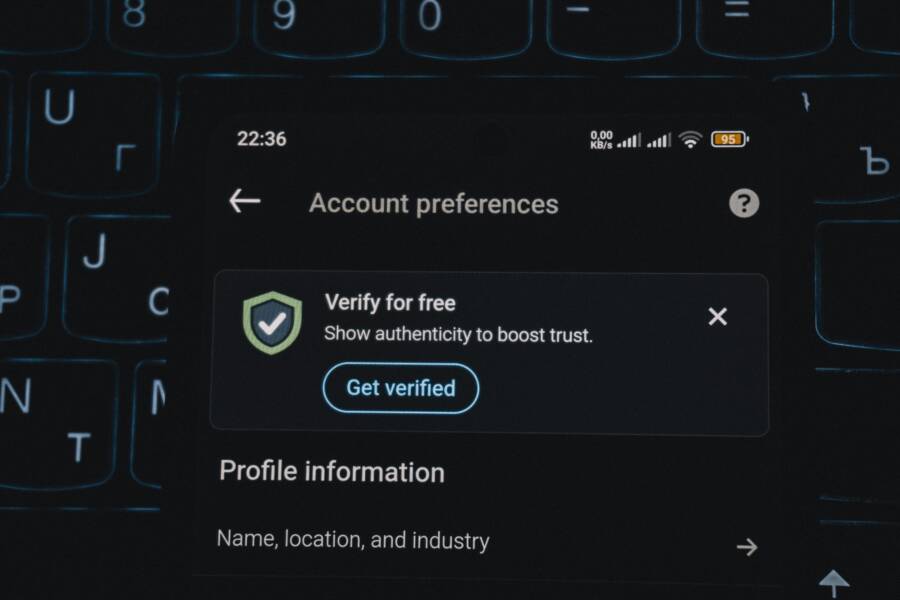
Two-factor authentication, or 2FA, adds a second proof of identity to your phone login. It makes it harder for someone to break in if your password is leaked or guessed. On smartphones, this usually means a temporary code sent by text, a code from an authenticator app, or a biometric check like a fingerprint or face scan. Using 2FA lets you keep your accounts safer even if someone finds your password.
This post gives simple, step-by-step instructions for both iPhone and Android. You’ll learn how to turn on 2FA and choose a method that fits your habits, whether you prefer codes from an app or a quick biometric unlock. You’ll also get practical tips on staying safer online, from keeping your phone secure to updating trusted devices and numbers. If you already use 2FA, you’ll find guidance on optimizing it and adding extra safeguards.
For iPhone users, enabling 2FA is often a matter of going to Settings, tapping your Apple ID, selecting Sign-In & Security, and turning on Two-Factor Authentication. You’ll add a trusted phone number and verify it. For Android users, the path usually runs through Settings, Google or your account provider, Security, and 2-Step Verification. You can choose to receive codes by text, use an authenticator app, or set up a security key if available.
By the end, you’ll know how to activate 2FA on your phone, pick reliable methods, and troubleshoot common issues. You’ll gain peace of mind knowing your smartphone acts as a stronger shield for your online life. Remember, adding this second proof of identity is a smart move for everyday safety.
Why enable two-factor security on your phone
Two-factor security adds a second line of defense for every account you access on your phone. Even if someone guesses or steals your password, a second form of verification stops most attackers in their tracks. Think of it as a second key that fits only your door. With 2FA, your accounts become far harder to breach, giving you peace of mind in a world where threats are increasingly common.
 Photo by Zulfugar Karimov
Strong protection against breaches
- The majority of breaches involve compromised passwords. When you add a second factor, even stolen credentials often fail. In real terms, surveys and reports show that 2FA stops a large share of threats that would succeed with a password alone. This is especially true for automated attacks that run quietly in the background.
- Microsoft and other security researchers have documented that when 2FA is enabled, a vast majority of automated or credential-stuffing attempts are blocked. That means your device and accounts stay safer with minimal added friction.
- In many cases, 2FA reduces the likelihood of a breach by orders of magnitude. If a password is leaked, a second factor still stands between you and unauthorized access.
For businesses and individuals alike, the practical takeaway is simple: 2FA dramatically lowers risk at a tiny cost. If you’re serious about protecting personal data, this is one of the most effective steps you can take. You can explore the broader impact of 2FA in industry reports and security guides like those from reputable providers and security researchers.
Flexible methods that fit mobile life
- SMS codes: Quick and familiar, but not the strongest if your phone number is compromised.
- Authenticator apps: TOTP apps generate codes offline, offering strong protection with no network dependency.
- Biometric verification: Fingerprint or facial recognition adds a seamless, fast second factor for everyday use.
- Hardware security keys: USB-C or Bluetooth keys provide a physical second factor for higher security needs.
On most smartphones, you can mix and match these methods. Start with an authenticator app as your baseline, then add SMS backup or a biometric option for convenience. The right combination depends on how you use your phone and which accounts you value most.
Easy steps to enable it on your phone
- Open your phone’s security settings and locate the two-factor or 2-Step Verification option.
- Choose your primary second-factor method. For most readers, an authenticator app is the best balance of security and ease.
- Add a backup method, such as SMS verification or a hardware security key if your devices support it.
- Verify the setup with the test code the system provides, and keep recovery codes in a safe place.
If you rely on Google services or your device maker’s ecosystem, you’ll find the 2FA setup tucked into Settings under Security or Sign-In options. It’s worth spending a few minutes now to save hours of worry later.
Practical tips to keep 2FA effective
- Keep your recovery options up to date. Update trusted devices and numbers whenever you change phones or carriers.
- Store backup codes securely. Use a password manager or a dedicated secure vault rather than a notepad.
- Review connected devices regularly. Remove access for devices you no longer own or use.
- Consider a hardware security key for high-value accounts. These keys stay with you, not in a phone, reducing risk from SIM swaps and phishing.
Why this matters for everyday life
A strong 2FA setup on your phone protects personal accounts, banking apps, and work-related services. It reduces the chance of impersonation and fraud, preserving your finances and reputation. If you ever wonder whether 2FA is worth it, the answer is a clear yes. It’s a straightforward, low-cost shield that makes your digital life safer.
For further reading on 2FA effectiveness and adoption, you can review trusted industry analyses and security guides:
- The importance of two-factor authentication to security. https://www.mcafee.com/learn/the-importance-of-two-factor-authentication-to-your-security/
- Two-factor authentication statistics and adoption rates. https://withpersona.com/blog/two-factor-authentication-statistics/
- The role of two-factor authentication in preventing data breaches. https://databreachclassaction.io/blog/the-role-of-two-factor-authentication-in-preventing-data-breaches
By enabling two-factor security on your phone, you add a crucial hurdle that protects you from most common attack methods. It’s a practical, low-effort step with outsized benefits for your daily online life. If you haven’t turned it on yet, consider doing it today and start building a habit that pays off tomorrow.
Turn on two-factor authentication for Apple ID on iPhone
Turning on two-factor authentication (2FA) for your Apple ID on your iPhone adds a crucial extra layer of security. When you sign in from a new device or browser, you’ll need a six-digit verification code in addition to your password. This makes it much harder for someone who has your password to access your account. Below is a concise, practical guide to enable 2FA on your iPhone, plus tips to keep the setup effective over time.
What 2FA does for your Apple ID on iPhone
Two-factor authentication protects your Apple ID by requiring a second form of verification. Even if someone knows your password, they still need the verification code shown on your trusted devices or sent to a trusted phone number. This reduces the risk of unauthorized purchases, data access, and personal information exposure.
- It adds a second key that only you possess.
- Verification codes are shown on your trusted devices or delivered to your trusted number.
- The process is designed to be straightforward while significantly boosting security.
For more detail on how 2FA works with Apple IDs, see Apple’s official overview: Two-factor authentication for Apple Account.
Quick setup guide for iPhone
- Open the Settings app and tap your name at the top to access Apple ID settings.
- Tap Password & Security.
- Choose Turn On Two-Factor Authentication and follow the on-screen instructions to set up your trusted phone number.
- Verify the number with the code sent to that device or number. You may also be asked to answer security questions as an additional recovery option.
- Save the verification codes Apple provides in a secure place, like a password manager.
If you want a deeper walkthrough, Apple’s step-by-step guide covers the exact iOS screens you’ll see: Use two-factor authentication for your Apple Account on iPhone. You’ll find this at Apple Support: https://support.apple.com/guide/iphone/use-two-factor-authentication-iphd709a3c46/ios.
Verifying trusted devices and numbers
After you enable 2FA, it’s important to confirm all trusted devices and numbers are current. A trusted device can display verification codes automatically, while a trusted phone number receives codes via text or phone call. Regularly review these entries to ensure you can receive codes even if you don’t have your primary device with you.
- Confirm that your current iPhone, iPad, Mac, or other Apple devices you own appear as trusted devices.
- Ensure the phone numbers listed as trusted are active and accessible.
- If a device is lost or sold, remove it from your trusted list to prevent future sign-ins without your knowledge.
Apple explains how to obtain a verification code and sign in with 2FA on new devices here: https://support.apple.com/en-us/102606.
Optional: extra protections you can add
Beyond the core 2FA setup, you can tighten security further by adding recovery options and reviewing account access:
- Use a strong, unique password for your Apple ID and update it periodically.
- Keep a set of recovery codes in a secure place in case you lose access to trusted devices.
- Consider enabling two-factor authentication across other services you use with your Apple ID, if available.
For guidance on broader 2FA management, Apple offers resources on managing your Apple ID security: https://support.apple.com/guide/apple-vision-pro/manage-factor-authentication-apple-account-tan9757ade3/visionos.
Common issues and quick fixes
- If you don’t receive a verification code: check network connectivity, confirm the trusted phone number is correct, and verify there are no outages affecting Apple’s services.
- If a trusted device is missing: sign in again on a known device to refresh the trusted list, then remove any devices you no longer own.
- If you lose access to all trusted devices: use recovery options or contact Apple Support for account recovery steps.
Apple’s official help page on getting a verification code and signing in with 2FA is a reliable troubleshooting resource: https://support.apple.com/en-us/102606.
Why this matters for everyday use
Enabling 2FA on your iPhone keeps personal data safer, from iCloud backups to purchases and app data. It reduces the chance that a stolen password leads to unauthorized access. The setup is simple, and the payoff is noticeable in your daily digital life.
- It’s a small step that yields big protection.
- It works quietly in the background, adding a second proof of identity.
- It fits naturally into the way you use your iPhone and other Apple devices.
To recap, turning on 2FA for your Apple ID on iPhone is quick, and it pays off with stronger defense against common attack methods. If you haven’t enabled it yet, take a few minutes now to set it up. Your smartphone, and your accounts, will thank you.
External resources for deeper understanding:
- Two-factor authentication for Apple Account
- Use two-factor authentication for your Apple Account on iPhone
- Get a verification code and sign in with two-factor authentication
Smartphone security doesn’t have to be complicated. With 2FA enabled, you gain a reliable shield that helps protect your digital life across devices and services.
Turn on two-factor authentication for Google account on Android
Enabling two-factor authentication (2FA) for your Google account on an Android phone adds a critical shield. Even if someone learns your password, they’ll still need a second form of verification to sign in. This section walks you through a practical setup, the best methods for everyday use, and common issues you might run into.
What 2FA protects on Android
Two-factor authentication protects your Google account across Gmail, Drive, youTube, and many other Google services. With 2FA enabled, you’ll need a second proof of identity in addition to your password. That second proof can be a code from an authenticator app, a text message, a security key, or a biometric check when supported. The result is a dramatic drop in unauthorized access, especially against password theft and phishing attempts.
- A second factor remains with you and is harder to multiplex.
- It works even if your password is leaked.
- It reduces risk from stolen devices when you keep your verification options up to date.
For a quick official overview, see Google’s guidance on turning on 2-Step Verification for Android: Turn on 2-Step Verification – Android.
Quick setup guide for Android
Setting up 2FA on Android is straightforward and aligns with how you use your phone daily. Here’s a concise, step-by-step path that fits most users:
- Open your Google Account settings on the device. You can reach this via the Google app or by going to Settings > Google > Manage your account.
- Navigate to the Security tab and find the 2-Step Verification section.
- Choose your primary second-factor method. Google recommends an authenticator app for strongest security, but you can also use SMS codes or a security key where supported.
- Add a backup method. This helps you regain access if your primary method is unavailable.
- Complete verification by entering the code you receive or generate with your authenticator app.
If you want a hands-on walkthrough, Google’s Android-specific page breaks the steps into screens you’ll see on your device: Turn on 2-Step Verification – Android.
Primary methods you can use on Android
- Authenticator apps (TOTP): Generate time-based codes offline. This is the strongest and most reliable option for day-to-day use.
- SMS codes: Easy to set up, but less secure if your SIM is swapped or your phone is compromised.
- Security keys: A physical key (USB-C or Bluetooth) adds a robust layer for high-risk accounts.
A practical approach is to use an authenticator app as your main method, add SMS as a backup, and reserve a security key for accounts with elite risk or high value.
Get verification codes with Google Authenticator
If you choose an authenticator app, Google Authenticator is a common choice. It works offline and synchronizes with your Google account across devices when you sign in. You can learn more about this option and how to set it up here: Get verification codes with Google Authenticator – Android.
Troubleshooting common issues
- I don’t receive my codes: check network access and confirm the correct phone number is linked to your account. If you’ve recently changed carriers, update the backup options as well.
- My trusted device isn’t showing codes: sign in on a different trusted device to refresh the list, then re-link your current device.
- I lost access to all verification methods: use the recovery options Google provides and follow the steps to regain access to your account.
For detailed help, Google provides a dedicated article on fixing 2FA issues and sign-in challenges: Fix common issues with 2-Step Verification.
Best practices to keep 2FA effective on Android
- Keep your backup codes in a secure vault, not a casual note.
- Regularly review connected devices and remove ones you no longer own.
- Use a strong, unique password in addition to 2FA.
- If you handle sensitive accounts, consider a hardware security key as an extra layer.
For broader context on security keys and advanced protections, Google’s guidance on security keys for 2-Step Verification is a good reference: Use a security key for 2-Step Verification – Android.
Why enable 2FA on Android matters for everyday life
A 2FA setup protects your Gmail, Google Drive, photos, and apps linked to your Google account. It prevents common scams that rely on stolen passwords and keeps your digital life safer when you’re on the go. The steps are simple, and the payoff is meaningful every day.
- It protects your most used Google services with a second line of defense.
- It works smoothly with your smartphone, blending security with convenience.
- It scales from casual use to high-stakes accounts with optional security keys.
If you haven’t turned on 2FA yet on your Android phone, take a few minutes now. Your accounts, and your peace of mind, will thank you.
External resources for deeper understanding:
- Turn on 2-Step Verification – Android: https://support.google.com/accounts/answer/185839?hl=en&co=GENIE.Platform%3DAndroid
- Get verification codes with Google Authenticator – Android: https://support.google.com/accounts/answer/1066447
- Fix common issues with 2-Step Verification: https://support.google.com/accounts/answer/185834?hl=en
By enabling 2FA on your Google account from your Android device, you add a reliable safeguard that compounds your everyday security. It’s a small step with big benefits for your smartphone and your online life.
Best practices and troubleshooting for 2FA on your phone
Two-factor authentication on your phone is a powerful safeguard, but it works best when you follow solid practices and know how to fix common issues. This section gives practical guidelines you can apply today, plus quick-debug tips to keep your 2FA running smoothly across iPhone and Android devices. Think of it as your pocket security playbook for everyday life.
Photo by Zulfugar Karimov
Key 2FA best practices for mobile security
- Use an authenticator app as your primary second factor. Apps like Google Authenticator, Authy, or Microsoft Authenticator generate codes offline and work across devices.
- Add a backup method. Keep a secondary option such as SMS codes or a hardware security key for high-risk accounts.
- Store recovery codes securely. A password manager or encrypted vault is far safer than sticky notes or plain text files.
- Regularly review trusted devices and numbers. Remove anything you no longer own to prevent unauthorized access.
- Enable biometric unlock where available. A fingerprint or face unlock can speed up sign-ins while still keeping a strong second factor.
- Consider hardware keys for high-value accounts. Physical keys resist SIM swaps and phishing more effectively than mobile codes alone.
To support these practices, see guidance from security-focused sources on MFA effectiveness and adoption: 10 best practices for MFA and Troubleshooting 2FA issues.
How to set up a reliable mix of methods
- Primary: Authenticator app. This is your strongest baseline for daily use.
- Backup: SMS or biometric verification. Use SMS only as a fallback if you must.
- High-risk accounts: Add a hardware security key if supported.
Mixing methods gives you resilience. If one method is offline or lost, another can still protect your access. For a deeper read on method choices, explore Google’s guidance on 2-Step Verification options and Android setup: Turn on 2-Step Verification – Android.
Troubleshooting: fast fixes for common 2FA snags
- I don’t receive a verification code: verify network connectivity, confirm the correct phone number is linked, and check for service outages. If you recently changed carriers, update backup methods too.
- I can’t access a trusted device: sign in on another trusted device to refresh the list, then re-link the current device.
- A particular code never works: ensure you’re entering the code from the correct time window in the authenticator app; re-sync if needed.
- Sign-in keeps failing across apps: try using a backup method for that account, then revisit your primary method afterward.
For structured, platform-specific help, see troubleshooting resources such as GitHub’s guide to 2FA issues and Dropbox’s 2FA troubleshooting articles. These can guide you through method-specific quirks: Troubleshooting two-factor authentication issues and How to troubleshoot 2-factor authentication issues.
Recovery and backup planning you can implement now
- Create a dedicated recovery plan. Know how to regain access if you lose your device or forget your codes.
- Keep backup codes in a secure vault. Do not store them in plain text files or email drafts.
- Maintain multiple trusted devices. Having a second device you control reduces the risk of complete lockout.
- Use a password manager for credentials and codes. A reputable manager can keep everything organized and encrypted.
If you ever need a deeper dive into how to recover accounts with 2FA, Coinbase and related services provide concrete steps for getting back in when access is blocked: Update or troubleshoot your 2-step verification.
Security keys: when to use them and how they fit mobile life
- Security keys are small hardware devices that plug into your phone or laptop. They provide a strong, phishing-resistant second factor.
- Use them for high-stakes accounts or when you frequently travel or work from public networks.
- Ensure your phone and wallet support the key type (USB-C, Lightning, or Bluetooth) you plan to use.
Google’s guidance on security keys for 2-Step Verification offers practical context for Android users: Use a security key for 2-Step Verification – Android.
Everyday tips to keep 2FA running smoothly on your device
- Update the device OS and apps regularly. Security patches reduce exposure to known flaws.
- Keep your preferred authenticator app up to date and backed up. Some apps offer cloud backups; use them if you trust the provider.
- Limit the spread of sensitive recovery information. Avoid posting recovery data where it could be seen by others.
- Be mindful of phishing attempts. Be wary of prompts that ask for verification codes via email or text when you didn’t initiate a sign-in.
For broader background on 2FA effectiveness and adoption, consider reading industry analyses and security guides, such as resources from reputable providers and researchers: The importance of two-factor authentication to security and Two-factor authentication statistics and adoption rates.
Quick reference checklist for your 2FA setup
- Primary factor: authenticator app or security key.
- Backups: at least one secondary method, like SMS or biometrics.
- Recovery: secure storage for backup codes and a plan for device loss.
- Review: monthly check of trusted devices and numbers.
- Security: keep a strong passcode on your phone and enable device encryption.
Why this matters for your daily life
A solid 2FA setup on your smartphone protects your social accounts, banking apps, and work services. It slows down attackers who rely on stolen passwords and phishing. The payoff is clear: better protection with minimal extra friction in daily use.
External resources for deeper understanding:
- Turn on 2-Step Verification – Android: https://support.google.com/accounts/answer/185839?hl=en&co=GENIE.Platform%3DAndroid
- Get verification codes with Google Authenticator – Android: https://support.google.com/accounts/answer/1066447
- Fix common issues with 2-Step Verification: https://support.google.com/accounts/answer/185834?hl=en
Photo by Pixabay and others provide useful visuals that illustrate the concept of 2FA, but the core guidance here focuses on actionable steps you can take today. If you haven’t set up 2FA yet, this section lays out a clear path to stronger protection that fits into your smartphone routine.
Conclusion
Enabling two factor authentication on your phone provides lasting protection with a one time setup. Once you activate the second verification step, you gain ongoing defense across your apps and services on that device. Use an authenticator app as your main method and save your backup codes in a secure vault. Start today and keep your recovery options up to date so a lost device doesn’t lock you out. This small step makes your smartphone a stronger shield for your personal data.