Protecting your money starts with protecting your phone. As more people bank from their devices, online threats have become more common and clever. The goal of this post is simple: give you real world steps you can apply today to make your phone safer for online banking.
Mobile banking is incredibly convenient, but that convenience can invite risk. Scammers use fake calls, text messages, and apps to steal credentials or push money transfers. With many users now relying on banking apps every day, staying alert and choosing strong safeguards matters more than ever.
This guide focuses on practical, quick wins you can implement now. From tightening app permissions to enabling multi factor authentication, these steps are designed for real people with real devices. You’ll learn how to reduce risk without slowing down your daily routines.
By the end, you’ll have a clear action plan that fits real life. Expect simple, actionable steps that make your phone a tougher target for fraud while keeping online banking fast and easy. If you’re ready to take control, this introduction leads you straight to the protections that work.
Know the risks facing your phone when you bank online
Banking on your phone is convenient, but it comes with real risks. Criminals want access to your accounts, and they use a mix of tricks to get you to hand over credentials or transfer money. By understanding the main threats and how to spot them, you can stay safer without slowing down your day. Below are the most common risks and practical ways to avoid them.
Common threats to mobile banking
Mobile banking threats come in several forms, from disguised apps to clever scams. Here are the main ones you should know, along with quick tips to spot or dodge them.
- Banking trojans tied to fake or bundled apps. These are disguised as legitimate banking tools or come packaged with other apps. Quick tip: download apps only from trusted stores and check the developer name before installing.
- Getting suspicious? Look for unusual permissions or overlays that request login data. If it seems off, don’t proceed. Learn more about the landscape of mobile banking threats here: https://inoxoft.com/blog/mobile-banking-app-security/
- Phishing attempts that mimic banks or messages. You might receive messages or calls that pretend to be your bank asking for codes or login details. Quick tip: never share codes or passwords in response to an unexpected message. When in doubt, open your bank app directly from a saved bookmark rather than tapping a link in a message. For broader insights on threats and protection, see this overview: https://licelus.com/insights/mobile-banking-security-threats
- SIM or eSIM swap attacks that bypass SMS codes. Attackers try to move your phone number to a new SIM, letting them receive 2FA codes and reset accounts. Quick tip: add a separate, non-SMS 2FA method and contact your carrier to lock your number to your account. Explore in-depth coverage on SIM swap risks: https://www.aba.com/advocacy/community-programs/consumer-resources/protect-your-money/sim-swapping-scams
- Man in the middle risks on public networks. When you use public Wi-Fi, data can be intercepted if you’re not on a secure connection. Quick tip: use a VPN on public networks and verify the app’s connection is encrypted (look for https in the URL and a lock icon).
- Unpatched software vulnerabilities. Outdated operating systems or apps can have holes criminals exploit. Quick tip: enable automatic updates and install them as soon as they’re available. For related reading on emerging threats, see this security brief: https://foresiet.com/blog/top-5-mobile-banking-threats-how-to-stay-protected/
- Rapid-fire fraud via fast payment channels. Apps and wallets enable near-instant transfers, which criminals exploit when users fall for scams. Quick tip: slow down before sending money, especially to new or unfamiliar recipients.
- A note on broader risk trends. In the U.S., threats are rising across account takeover, SIM swap, and app-based fraud. Keeping software current, using strong authentication, and staying vigilant at every step are key defenses. For the latest context, you can read a practical risk roundup here: https://www.fdic.gov/bank-examinations/mobile-banking-rewards-and-risks
Why smartphones are a prime target
Smartphones are a focal point for attackers because they carry every banking tool you use in one place. A single device holds your apps, messages, and payment data, all in a compact form. They also collect rich data from your daily life, which scammers can abuse for social engineering. In some situations, people may not have the strongest physical security on their devices, making it easier for a thief to grab a phone. Fake apps can slip into app stores or appear as updates, fooling users into installing something malicious. Practical checks you can perform daily:
- Confirm app sources before installing. When in doubt, visit the bank’s official site to get the exact app store listing.
- Review app permissions regularly. Revoke any that aren’t essential for the app’s function.
- Enable multi-factor authentication (MFA) beyond SMS, such as a authenticator app or hardware key.
This risk landscape is well documented in industry analyses and security briefs. See one summarized discussion here: https://www.fdic.gov/bank-examinations/mobile-banking-rewards-and-risks
Recognizing signs of a compromise
Knowing the early warning signs can stop a breach before it grows. Keep an eye out for these symptoms on your device and in your banking apps, and take swift action if you notice them.
- Unfamiliar or newly installed apps on the device.
- Sudden, unexpected battery drain or device heat, even with light use.
- Strange pop ups, overlays, or request prompts during banking sessions.
- Slower-than-usual performance, freezes, or apps that crash frequently.
- Unexpected login prompts or password changes you didn’t initiate.
- Odd activity in your bank account, such as transfers you didn’t authorize.
If you spot a sign, take immediate steps. Start by changing your passwords from a trusted device, review recent account activity, and contact your bank to verify legitimate transactions. For a practical read on signs of compromise and what to do next, see this guide: https://us.norton.com/blog/malware/is-my-phone-hacked
Images that illustrate safer banking practices can reinforce these points. A relevant, safe-choice image shows a person using a secure banking app on a smartphone, underscoring the importance of data protection in daily banking.

Photo by Dan Nelson
Key takeaways from this section:
- Always verify app sources and developer names before installing.
- Use non-SMS 2FA whenever possible to reduce SIM swap risk.
- Treat unfamiliar device behavior as a red flag and act quickly.
- Keep your software updated to close known vulnerabilities.
For ongoing protection, stay informed about evolving threats and adjust your safeguards as needed. If you want a deeper dive into recent threat trends and practical defenses, explore industry briefs and security blogs linked above.
Secure your apps and device first
Before you worry about complex steps, start with the basics you use every day. Your smartphone is the portal to your money, messages, and personal data. Lock it down by choosing safe banking apps, then guard permissions and keep everything up to date. A small, consistent routine now saves you headaches later.
Choose safe banking apps and stores
Your first line of defense is where you download and what you install. Stick to official app stores and verify who published the app before you tap Install. When in doubt, open the bank’s site and use the store link they provide rather than wandering through a search results page. This helps you avoid fake or bundled apps that look legitimate but are designed to steal credentials.
- Check the app publisher and developer name. A well-known bank or a trusted financial brand is a good sign, but don’t stop there.
- Look for regular updates. Banks tend to update apps to patch security holes and add protections. If an app hasn’t been updated in a long time, skip it.
- Read reviews quickly. A quick scan can reveal red flags like unusual permission requests or a high rate of negative reports from other users.
- Be wary of third party installers. Sideloaded apps are a common trap that bypass official vetting processes. Avoid them.
Verifying app permissions is a practical habit. If an app asks for access you can’t imagine using for banking, question it. For Android users, the privacy dashboard is a helpful tool to see what each app can access and when. On iPhone, control access to information directly within the app settings. These checks are simple but powerful practices that reduce exposure without slowing you down. For more on managing permissions, see guides from reputable sources like Google and Apple, and trusted security resources such as the U.S. government and major protection blogs.
If you want a deeper read on the broader threat landscape and how it shapes banking apps, you’ll find reliable overviews here: https://www.fdic.gov/bank-examinations/mobile-banking-rewards-and-risks
For practical steps on permission management specific to Android and iPhone, check these resources:
- Manage permissions from the privacy dashboard: https://support.google.com/android/answer/13530434?hl=en
- Control access to information in apps on iPhone: https://support.apple.com/guide/iphone/control-access-to-information-in-apps-iph251e92810/ios
A quick reminder: when you’re in a store, double‑check the app’s publisher and look for official branding. If a bank offers a custom app, use that one rather than a generic financial tool. Keeping this habit saves you time and money in the long run.
Limit permissions and monitor app behavior
Permissions exist for a reason, but your banking apps only need a narrow slice of data to work. Granting more than necessary opens doors to misuse, especially if a future update introduces new features you didn’t anticipate.
- Grant only what the app truly needs to function. If a banking app asks for background location or camera access and it isn’t essential for a feature you use, say no.
- Review permissions on a regular cadence. Set a monthly reminder to check what each banking app can access, and after every app update.
- Use built in privacy controls to block access that isn’t needed. For example, disable camera and location access unless the bank feature you’re using requires them.
A simple monthly routine helps you stay ahead:
- Open the privacy settings on your device and review the list of apps with sensitive permissions.
- For each banking app, confirm the permissions align with what you actually use.
- Revoke anything you can do without. If you’re unsure, leave it off and test the app’s function after updates.
On Android devices, the privacy dashboard provides a clear view of which apps access what data. On iPhone, you can control permissions at the app level in Settings. If you ever notice a new permission pop up that doesn’t align with your banking needs, revoke it and monitor the app’s behavior. For a broader look at how people manage app permissions, credible sources offer step‑by‑step guidance and checklists: https://www.cisa.gov/resources-tools/training/manage-application-permissions-privacy-and-security
Staying vigilant also means recognizing unusual app behavior. If a banking app suddenly behaves oddly after an update, consider restoring a clean backup, checking for suspicious overlays, and verifying that your device isn’t rooted or jailbroken. This approach reduces exposure and keeps your smartphone more secure for everyday banking.
Keep your phone and apps updated
Software updates are not optional maintenance. They fix holes, strengthen defenses, and often add protections that stop new attack methods in their tracks. Enabling automatic updates for both your operating system and your banking apps is one of the simplest, most effective protections you can choose.
- Turn on automatic OS updates so you’re never stuck with an out of date system.
- Enable automatic updates for your banking apps. This ensures you get security patches as soon as they’re released.
- Back up your data before major updates when possible. A quick backup gives you a safety net if something goes wrong during an update.
Updates also bring improvements that help you bank more securely. When you install a new version, you’re closing known vulnerabilities and often improving defenses against fraud tactics. If you want a broader perspective on why timely updates matter, you can read security briefs and banking protection guidance from reputable institutions: https://www.fdic.gov/bank-examinations/mobile-banking-rewards-and-risks
A practical reminder for keeping things tidy: maintain a small, organized set of trusted apps. Remove any banking tools you no longer use and keep the rest up to date. This reduces the surface area for potential issues and makes monitoring easier.
If you’re looking for guidance on best practices for updating apps and devices, these resources offer straightforward steps:
- How to update apps on your phone and why it matters: https://www.techpals.org/blog/whats-the-best-way-to-update-your-phones-apps
- Android privacy settings and permissions overview: https://www.android.com/intl/en_us/safety/privacy/
Key takeaways from this section:
- Download banking apps only from official stores and verify the publisher.
- Limit app permissions to what is truly needed and review them monthly.
- Enable automatic updates for OS and apps, and back up before major upgrades.
By starting with safe app choices and tight control over what each app can access, you reduce risk at the very core. The steps above build a sturdy foundation for safer online banking on your smartphone and set you up for the more advanced protections you’ll read about next. If you’d like, I can add a quick printable checklist to accompany this section for readers who prefer a hands-on quick-start guide.
Make authentication strong and convenient
Strong authentication should protect your money without slowing you down. In this section, you’ll learn practical, easy-to-follow ways to lock down access to your banking apps while keeping the login flow smooth. By combining robust methods with thoughtful convenience, you get safer banking that fits real life.
 Photo by I’m Zion
Use strong passwords and multi factor authentication
Creating long, unique passwords is still worth your time. Think of a pattern you can remember but that others can’t guess. A strong pattern might look like this: a phrase you know, mixed with numbers and symbols, and split across different parts of the password. For example, something like: Sunset42!Blue$River93*Garden%Leap. The goal is length and unpredictability rather than cleverness.
Pair passwords with multi factor authentication (MFA) for banking apps. MFA adds a second proof of identity, so even if someone learns your password, they still can’t get in. Prefer app-based codes or hardware keys over SMS codes whenever possible. A practical approach is to enable MFA in the banking app settings and use an authenticator app for the codes. If a hardware key option is available, consider using it for add-on security during logins.
- Use a password manager to create and store long, unique passwords for every account. This keeps you from reusing the same password across sites.
- When setting MFA, prefer time-based one-time passwords (TOTP) from an authenticator app or a hardware security key.
- Keep a simple password pattern you can recreate if you need to log in on a new device, but avoid obvious patterns that others could guess.
If you want deeper guidance, reputable resources outline strong password habits and MFA best practices. For example, the guidance from security authorities emphasizes avoiding weak passwords and moving away from SMS-based MFA for higher-risk accounts. See how to start here: Use Strong Passwords. Also, explore practical password tips from campus security resources: Password Best Practices – Security – UCSB IT. For more on phishing-resistant MFA options like passkeys, check PSD2 and passkey discussions: How can passkeys be integrated into mobile banking apps?.
Key takeaway: design a password strategy you can manage with a password manager, and move to MFA with an authenticator app or hardware key to stop most credential theft.
Biometrics plus passcodes and device binding
Biometrics add a quick layer of protection. A fingerprint or facial scan can unlock a banking app in seconds, but pairing biometrics with a passcode makes the protection stronger. If someone steals your phone, they still need the passcode to access the critical parts of the app, especially after the biometric check.
Don’t rely on biometrics alone. A short, separate passcode acts as a backup if the biometric sensor is compromised or malfunctioning. This two step approach reduces risk while keeping access fast on busy days.
Device binding takes protection a step further. It cryptographically links your account to a specific device so that login attempts from unknown devices are blocked or flagged. In practice, this means even stolen credentials won’t grant access from an unrecognized phone or tablet. Banks and fintech providers are increasingly adopting device binding as part of a layered defense, especially when combined with biometrics and strong MFA.
- Turn on biometrics in the banking app settings and keep your device’s security measures active (screen lock, encryption, etc.).
- Set a robust passcode that isn’t easy to guess and avoids common patterns.
- Enable device binding if your bank supports it, and monitor account sign-ins for unusual activity.
- Regularly verify which devices have trusted access in your banking app’s security settings.
For deeper context on SIM binding and device level protections, see practical analyses on SIM binding as a defense layer in financial apps: Defending Against Digital Frauds: SIM Binding is one of the Trusted Shields. For a view on integrating passkeys and mobile banking, explore: How can passkeys be integrated into mobile banking apps?.
Ditch SMS codes for app based or hardware tokens
SMS codes are convenient but increasingly unreliable. SIM swap attacks let criminals hijack your number and capture the codes meant to prove your identity. That weakness has pushed many banks to adopt app based authenticators and hardware tokens as the preferred MFA method.
An easy transition flow works like this:
- In your banking app, turn on MFA and choose an app-based authenticator (or a hardware token if offered).
- When prompted for a code, open the authenticator app and enter the generated code.
- If a hardware token is available, plug it in or tap it to complete the login or transaction.
App based authenticators generate time sensitive codes on your phone, offline and without SMS. Hardware tokens provide another layer of assurance, especially for high value transactions. The switch reduces your exposure to SMS based risks and SIM swaps.
- Avoid SMS 2FA for banking whenever you can. NIST and security guides increasingly recommend app based or hardware options as the default.
- If you still rely on SMS for some accounts, consider replacing it as soon as possible and ensure your phone line is locked with your carrier.
For additional context, consider these resources on why many security experts advise against SMS based 2FA for banking: Why I don’t use SMS 2FA for banking and Two Hands Technology on OTP apps vs SMS. For a broader look at SIM swap risks and how to stay safe: SIM swapping exposed: What is it and how to stay safe?.
Key takeaway: move away from SMS based codes and embrace app based or hardware tokens to harden authentication without adding friction.
To strengthen your approach, pair app based MFA with device binding and biometrics. This combination creates a multi layered shield that is hard for attackers to defeat while remaining quick for you to use every day.
As you implement these steps, you’ll notice a smoother login flow that still keeps your money safe. If you’d like, I can add a printable quick-start checklist to help readers implement these practices today.
Protect your network and data on the go
When you bank on the move, your risk profile changes. A few careful habits can protect your money without bogging you down. This section lays out practical network safety actions you can apply today, from choosing trusted networks to using a VPN and a straightforward data versus Wi Fi decision tree.
Smart network habits when you bank away from home
Your smartphone is your bank in your pocket. Treat networks with the same caution you use for physical cash. Here’s how to stay safe while you’re away from home:
- Use trusted networks whenever possible. Only join networks you recognize, such as your home or a vetted workplace network. If you’re not sure, skip the login or transaction until you’re on a secure connection.
- Avoid logging in or transacting on public Wi Fi. Public networks are easy prey for attackers who sniff traffic or hijack sessions.
- Turn on a VPN when you need to use public or unfamiliar networks. A VPN encrypts traffic, making it harder for someone on the same network to see your banking activity.
- When in doubt, default to cellular data for login and transactions. If you’re on a shaky connection, pause sensitive actions and complete them later on a trusted network.
- Simple data vs Wi Fi decision tree:
- Step 1: Are you on a known, trusted network (home or work)? Yes -> If it’s private and secure, you can continue with standard banking tasks. No -> Step 2.
- Step 2: Is a VPN available and functioning on your device? Yes -> Connect to VPN, then proceed with login or transactions. No -> Use cellular data if possible, or wait until you’re on a trusted network.
- Step 3: If cellular data is weak, switch to a trusted Wi Fi only after confirming the network is secure and the page uses HTTPS with a padlock symbol.
For additional context on public network risks and protection strategies, see resources like guidance on unsecured Wi Fi and safe online banking practices. You’ll find practical context and examples in reputable summaries and consumer guides.
External reading:
- The Dangers of Unsecured Wi Fi and Why You Shouldn’t Bank on Public Networks: https://inoxoft.com/blog/mobile-banking-app-security/
- Public Wi Fi safety overview: https://www.ftc.gov/
Public Wi Fi risks and safe workarounds
Public networks can expose traffic to sniffers and rogue access points. A fake network can mimic a real cafe or airport Wi Fi so your device connects automatically. The safest approach is to avoid logging into financial apps over public Wi Fi and to use a reputable VPN if you must connect. Always verify that the banking app uses secure connections before you enter credentials.
- Sniffing and rogue networks are real threats on public spots. When you’re unsure, switch to cellular data.
- If you must use public Wi Fi, enable a trusted VPN and ensure the banking app communicates over HTTPS with a visible lock icon.
- Verify the app’s connection status before entering sensitive information. If the page isn’t secure, pause and retry on a trusted network.
To deepen your understanding, consult practical guides and threat briefings that cover public Wi Fi risks and protective steps. These resources offer concrete, user‑friendly tips you can apply in minutes.
External reading:
- How to safely access online banking on public Wi Fi: https://www.wizcase.com/blog/safe-online-banking-on-public-wifi/
- Best VPNs for public Wi Fi hotspots: https://www.comparitech.com/blog/vpn-privacy/vpn-public-wifi/
Home and mobile network hardening
Strengthen the door at the source by hardening both your home network and your phone’s connectivity. A few solid steps can dramatically reduce exposure.
- Secure home Wi Fi with a strong password and WPA3 if available. Update router firmware regularly and disable WPS to reduce attack vectors.
- Use a reputable router security guide to tune settings for banking safety, including disabling remote administration and enabling guest networks for visitors.
- Turn off Bluetooth when not in use. Leaving Bluetooth on can expose your device to nearby threats and increase the chance of unauthorized connections.
- Keep devices and apps updated. Automatic updates for both the OS and banking apps close known vulnerabilities and improve defenses.
- Manage connected devices. Regularly review what is on your network and remove unfamiliar devices.
When you switch between home and mobile networks, apply the same discipline. A smartphone connected securely to a protected home Wi Fi should still be treated with care when moving to public spaces. If you use a VPN at home, continue it when you’re on the road if the network’s trust level is uncertain.
External reading:
- Recommended settings for Wi Fi routers and access points: https://support.apple.com/en-us/102766
- Module 5: Securing Your Home Wi Fi: https://consumer.ftc.gov/node/78375
- How to Secure Your Router & Protect Your Network: https://www.netgear.com/hub/network/security/secure-your-router/
Key takeaways:
- Use WPA3 whenever available and keep router firmware up to date.
- Disable unnecessary features like WPS and remote admin.
- Turn off Bluetooth when not in use to limit exposure.
- Maintain automatic updates for your OS and banking apps to close gaps.
This approach builds a sturdy baseline for safer online banking on the go and complements the authentication and app hygiene discussed in other sections. For readers who prefer a quick, printable checklist, I can provide one to accompany this section.
Ongoing safety habits and monitoring
Safe online banking is not a one-time setup. It requires a steady, repeatable routine that fits into daily life. This section lays out practical habits you can maintain weekly and beyond to keep your smartphone, banking apps, and data protected. Think of it as a health check for your digital money. Real-time alerts, routine permission audits, and a simple, repeatable review process become second nature with a small, consistent commitment.
Real time alerts and review routines
Real time alerts are your first line of defense. They notify you the moment money moves or unusual activity happens, so you can act fast. Combine alerts with a weekly habit to stay on top of things without feeling overwhelmed.
- Enable real-time transaction alerts for every critical activity: new logins, large transfers, or changes to payment methods. This keeps you informed and helps you spot fraud quickly.
- Do a monthly permission audit. Review app permissions across banking and fintech apps. Revoke anything unnecessary and keep only what the app truly needs to function.
- Check login activity weekly. Look for unfamiliar devices or locations and sign out of any sessions you don’t recognize.
- Weekly habit: block 5 minutes on a chosen day to skim alerts, confirm recent activity, and scan for anything out of the ordinary. If you notice something odd, investigate immediately rather than waiting.
Images can reinforce these ideas by showing a user reviewing alerts on a phone.
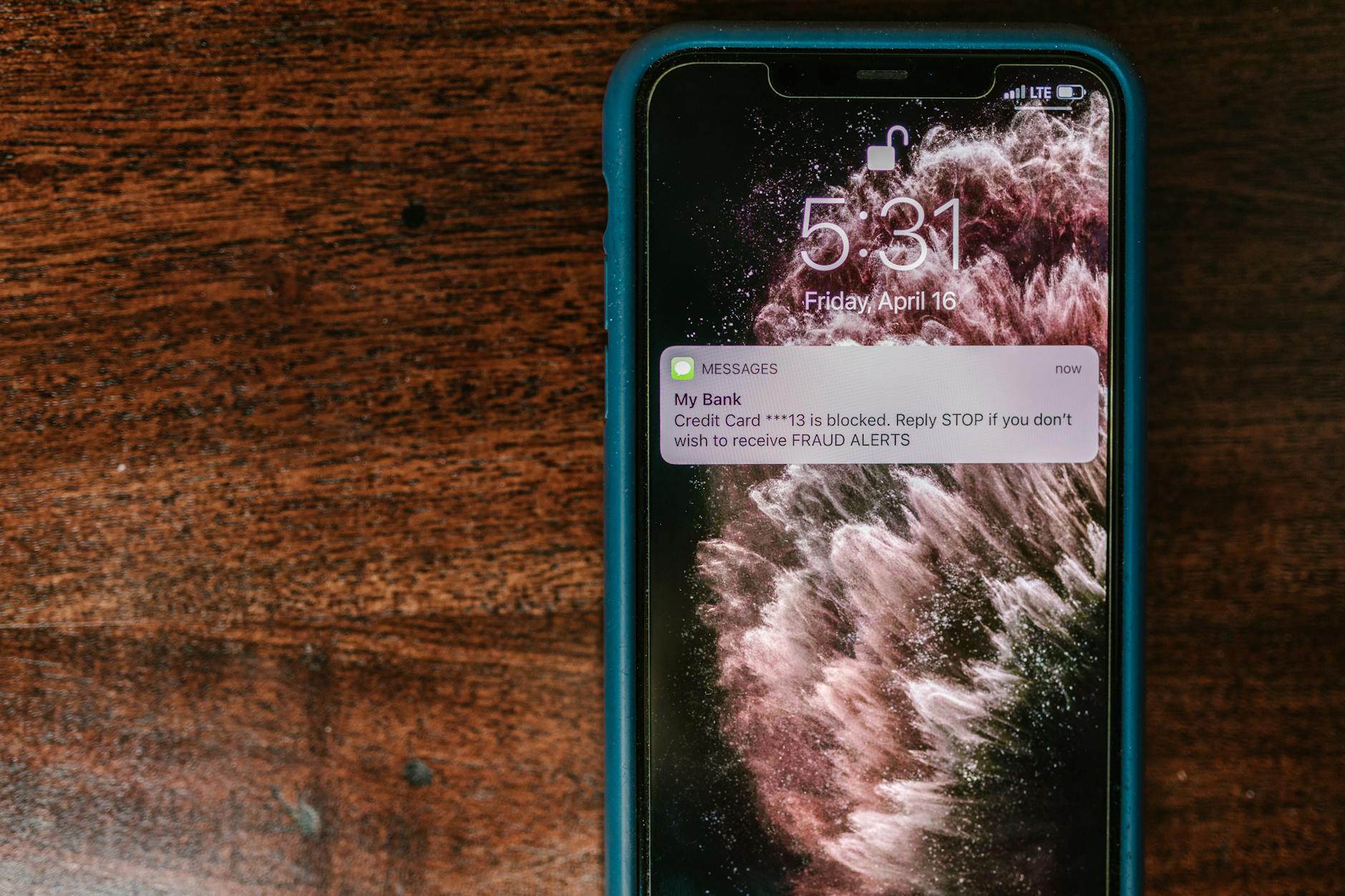 Photo by RDNE Stock project
Key takeaway: Real-time alerts are powerful because they shorten the window criminals have to act. Pair them with a short, weekly review to keep your finger on the pulse of your finances.
For more on alert setups in different banks, you can explore resources like how to enable alerts in digital banking apps and how they are designed to deter fraud:
- Real-Time Alerts Quick Reference Guide
- How to set account activity alerts with the Mobile Banking app
- 9 Important Mobile Banking Alerts to Set Up Today
What to do if you suspect a breach
If you sense something is off, act quickly. A calm, structured plan minimizes damage and speeds recovery.
- Stop using the device for banking. Switch to a trusted device if possible and avoid making new transactions.
- Change passwords from a trusted device. Use a different, strong password and ensure MFA is enabled.
- Contact your bank immediately. Report the suspected breach and follow their guidance for freezing or monitoring accounts.
- Enable a freeze if your bank offers it. A security freeze can prevent new credit or loan openings while you sort things out.
- Run a malware scan on the device. Use reputable security software to check for threats and remove any found malware.
If you want a practical, step-by-step reference, this guide offers a clear action plan you can print or save for quick use:
- How to tell if your smartphone has been hacked
- What to do if your phone has been hacked
- What to do when you get hacked, step-by-step
Images can help readers grasp the impulse to act.
Photo by Dan Nelson
Takeaway: A breach response is a sequence, not a sprint. Follow the steps in order to reduce risk quickly and restore safe banking.
Create a simple security checklist you can reuse
A reusable checklist keeps your safety routine consistent and easy to follow. It also scales as your devices and apps evolve.
- Update routine: Set a monthly reminder to check for OS and app updates and apply them promptly.
- Permission audits: Review all banking app permissions each month and revoke nonessential ones.
- MFA status: Confirm MFA is enabled across all banking apps, favoring authenticator apps or hardware keys over SMS.
- Alert settings: Verify that critical alerts are active and delivered to a trusted device.
- Incident response steps: Have a basic playbook ready for suspected issues (see breach response steps above) and know who to contact.
- Data backups: Keep recent backups of important data in a secure location in case you need to restore after an incident.
A practical, reader-friendly printable checklist can be a helpful companion to this section. If you’d like, I can include a ready-to-print version.
External resources to reinforce this approach:
- The Ultimate Mobile Banking Security Checklist
- Cybersecurity basics for mobile banking on smartphones
- CISA mobile device cybersecurity checklist for consumers
Images can illustrate a tidy, organized checklist.
Photo by RDNE Stock project
Key takeaways:
- Build a repeatable monthly and weekly routine that fits your lifestyle.
- Use a simple, trusted checklist to cover updates, permissions, MFA, and alerts.
- Keep an incident response plan at the ready so you can move fast when needed.
For ongoing protection, pair your checklist with the latest threat briefings and practical defenses. If you want, I can publish a printable version that readers can save and print.
Images and links cited above reference practical guidance and industry context. Readers can explore specific alerts and security best practices from trusted sources as they implement these habits.
If you’re curious about current trends in mobile banking security monitoring, the latest guidance notes that AI-driven detection and real-time analytics are being deployed to catch fraud as it happens. Keeping pace with these developments means maintaining up-to-date alerts and a living checklist that reflects new risks.
Note: This section aligns with practical, scenario-based guidance for daily life. It keeps the focus on steps readers can apply today, without slowing them down.
Photo credits and imagery are included to reinforce safe banking practices and the value of proactive monitoring.
Conclusion
Small, steady steps add up to strong safety for online banking on your phone. Prioritize safe app sources, tighten permissions, and enable strong authentication to shield your money without slowing you down. Keeping your device updated and using a VPN on public networks closes many entry points for attackers.
Quick-start checklist
- Download banking apps only from official stores and verify the publisher.
- Enable MFA with an authenticator app or hardware key, and move away from SMS codes.
- Review app permissions monthly and revoke anything unnecessary.
- Turn on automatic OS and app updates, and back up important data regularly.
- Use a trusted network or cellular data when signing in or transferring money.
If you have hands-on tips that work for you, share them in the comments. Your practical ideas can help others tighten their safeguards quickly.