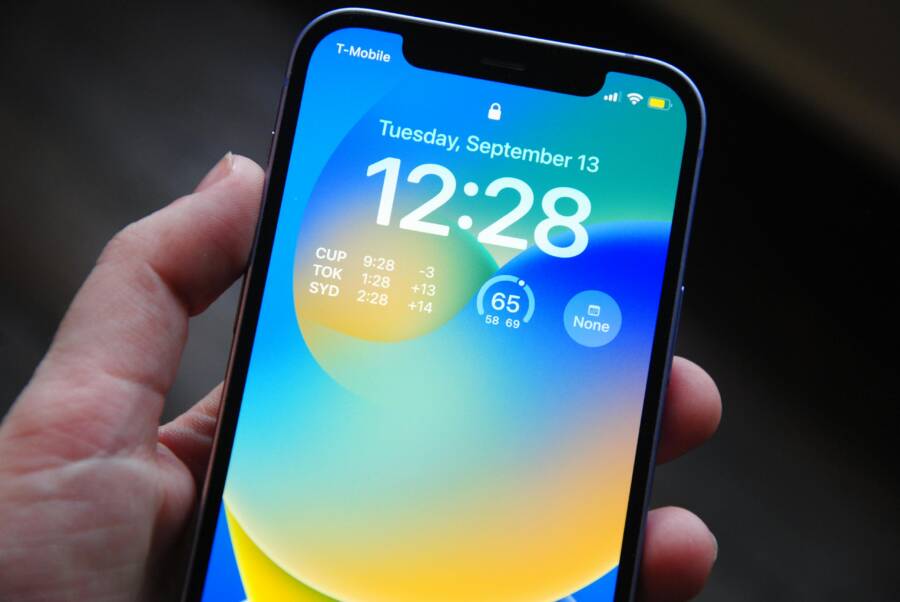
Worried about someone peeking at your phone and seeing private messages or sensitive details? It’s a common concern these days, and the good news is you can control what appears on your lock screen on both Android and iPhone. This post walks you through practical steps to protect your privacy without sacrificing usability.
You’ll learn why lock screen privacy matters, plus exact actions you can take today. For example, you can decide whether messaging previews show up, tone down banking alerts, or hide details from social apps. You’ll also find per app controls so you only reveal what you’re comfortable with.
By the end, you’ll have a clear setup that keeps important notifications visible for quick access, while keeping private content under wraps. We’ll cover Android notification settings, iPhone notification privacy, and easy tips to balance privacy with everyday use.
Why hide lock screen notifications
Lock screen notifications can be a mixed bag. They offer quick access to messages and calendar reminders, but they can also reveal sensitive details to anyone who glances at your phone. In this section, you’ll learn what information typically appears on the lock screen, why it matters, and how to tailor visibility so you keep what you need at a glance without exposing private data.
What information is visible on the lock screen
Lock screen previews vary by platform, but the idea is the same: a quick glimpse of alerts before you unlock. Here’s what often shows up across major devices and apps:
- Message previews: Short text of incoming messages, or at least the sender’s name and a snippet of the message.
- Calendar invites: Upcoming event titles and times can appear, which might reveal your schedule at a glance.
- App icons and notification badges: Some devices display just the app icon, while others show a tiny badge with the count of unread notifications.
- Sensitive vs non-sensitive content: Some platforms blur or hide content for sensitive apps (banking, email, health, notes), while others may show more detail if you haven’t configured privacy settings.
- Granularity by app and setting: You can often control this per app. Some apps honor system-wide privacy choices, while others offer independent controls.
The big takeaway is control. You can decide exactly what shows up, and where. By adjusting per-app settings and your device-wide privacy preferences, you determine what you see at a glance and what stays hidden until you unlock. For a quick reference, Apple’s documentation explains how to manage what information appears on the iPhone lock screen, including previews and sensitive content controls. For Android, Google’s Android Help center outlines how to manage notification previews and lock screen visibility across devices. See: Control access to information on the iPhone Lock Screen and Control notifications on Android. More insights on how these settings work in practice can be found in guides like How to Hide Sensitive Content From Android And Iphone Lock Screen. And if you’re curious about the broader privacy implications of push notifications, Wired and Lifehacker cover the risks and practical steps to mitigate them.
- Apple: https://support.apple.com/guide/iphone/control-access-information-lock-screen-iph9a2a69136/16.0/ios/16.0
- Google Android Help: https://support.google.com/android/answer/9079661?hl=en
- How to Hide Sensitive Content From Android And Iphone Lock Screen: https://guidingtechag.pages.dev/posts/how-to-hide-sensitive-content-from-android-and-iphone-lock-screen
- The Privacy Danger Lurking in Push Notifications: https://www.wired.com/story/push-notification-privacy-security-roundup/
What this means for you in practice
- If you work in a public place, you’ll likely want to minimize what’s visible. A quick glance should not reveal personal data to a passerby.
- If you share a device with a family member, you may prefer to keep work or sensitive messages private while still showing non-sensitive alerts.
- Some apps are more private by default; others may reveal more content unless you tighten controls.
A practical approach is to audit your lock screen content by app. After auditing, you can tailor settings so each app aligns with your comfort level. If you want a hands-on example, see how to control lock screen previews on Android and iPhone in the linked guides and pick the combination that fits your daily rhythm.
Privacy risks in everyday situations
Privacy on the lock screen isn’t just about how it looks; it’s about real-world scenarios. Small lapses can expose more than you intend. Think about how you use your phone in everyday life and how prying eyes might interpret what they see. Here are common situations where lock screen previews can pose a risk, and how privacy controls help:
- In a cafe or coworking space: A quick peek at your phone might reveal private messages or sensitive details from banking or email apps. If previews are enabled for these apps, a stranger or even a casual observer could glean information. Practical tip: disable detailed previews for sensitive apps, or switch to icons only so a passerby can’t read the content at a distance.
- On public transport: A crowded train or bus means people are close enough to notice what’s on your screen. Your calendar invites and message previews could hint at your daily plans or personal commitments. Practical tip: enable restrictions that show only app icons or nothing at all for certain apps during commutes.
- At work or meetings: A phone left on a desk can reveal conference details, schedule changes, or private messages. Practical tip: use per-app privacy settings to hide content from lock screen while keeping non-sensitive notifications visible for quick awareness.
- Sharing a device with family members: Kids or relatives may see messages or emails when you forget to lock the screen. Practical tip: lock screen previews for messaging apps or enable a guest mode with restricted notifications.
A quick privacy checkup every few weeks helps keep your settings aligned with your needs. Start with the apps you use most for private conversations or sensitive information, then expand to other apps as needed. The goal is a balance: keep the essentials fast and accessible while protecting what matters most.
What to check during a quick privacy audit
- Which apps show message content on the lock screen? If it’s nonessential or sensitive, switch to icons or hide content.
- Do calendar events reveal details you’d rather keep private? Consider hiding previews for calendar apps or enabling icon-only notifications.
- Are you comfortable with the number of visible notification badges? If not, adjust per-app badge visibility or mute certain apps on the lock screen.
- Are there apps whose content you’re unsure about? Look for per-app privacy options and disable lock screen previews if needed.
For further guidance on protecting lock screen content, consult reputable resources that explain per-app controls and system-wide privacy settings on both iOS and Android. See Apple’s official guide for controlling lock screen information and Google’s instructions for Android notification controls. If you want to explore broader privacy considerations around push notifications, well-regarded tech outlets discuss risks and best practices that complement these settings.
External resources to help you tailor lock screen privacy
- iPhone lock screen controls: https://support.apple.com/guide/iphone/control-access-information-lock-screen-iph9a2a69136/16.0/ios/16.0
- Android notification controls: https://support.google.com/android/answer/9079661?hl=en
- How to hide sensitive content from Android and iPhone lock screen: https://guidingtechag.pages.dev/posts/how-to-hide-sensitive-content-from-android-and-iphone-lock-screen
- The privacy danger in push notifications: https://www.wired.com/story/push-notification-privacy-security-roundup
Remember, the goal is to keep your day-to-day use smooth while ensuring private information stays private. A thoughtful setup lets you see what you need at a glance without exposing content you’d rather keep out of sight. If you want, I can tailor a step-by-step per-app checklist for your specific device model and apps.
Android: hide lock screen notifications
Lock screen privacy on Android is rare if you value both convenience and discretion. This section lays out a practical, step by step approach to controlling what shows up on your lock screen. You’ll learn how to manage system-wide privacy settings, balance visibility with quick access, and apply per app rules so your most sensitive information stays hidden while still giving you a quick heads up on important alerts.
Global lock screen notification settings
Accessing the main controls is the first step toward predictable lock screen behavior. On most Android devices, you’ll find these options under Settings > Notifications > Lock screen notifications. Names can vary a bit by manufacturer, but the path is roughly the same.
- Don’t show notifications on the lock screen: This is the strictest setting. It hides all previews and details from every app until you unlock.
- Show conversations only: A middle ground that hints at activity without exposing full message content. You’ll see that something happened, but not the details.
- Hide sensitive content: Keeps private data out of sight for apps like banking, email, or health. Apps may still display a banner or icon, but the message content stays hidden.
- Show all content: The most open option. Previews, sender names, and message details appear on the lock screen.
A key nuance: Don’t show or Hide sensitive content affects all apps globally. Show conversations only still reveals that there is a notification, but it won’t disclose the full content. If you want to learn more about how these settings work on different devices, check trusted guides from Apple and Google that cover lock screen privacy and notification previews. For a quick reference, you can review these sources:
- Apple’s guide to controlling lock screen information
- Google’s Android Help on notification previews and lock screen visibility
In practice, start with a broad setting that fits your lifestyle, then tighten or loosen per app as needed. A quick privacy audit helps you decide where to start. For example, if you commute in busy places, you may prefer to hide sensitive content and use icons only for most apps. If you’re at home and want a faster glance at what happened, Show conversations could be enough.
When you finish, you’ll have a baseline that keeps private data private while preserving the speed of seeing that something happened. If you want, you can use a per app approach to fine tune your setup even further.
External resources to help you tailor the global settings:
- How to hide lock screen content on Android: https://www.digitalcitizen.life/how-hide-contents-sensitive-notifications-android/
- Android lock screen notification controls: https://support.google.com/android/answer/9079661?hl=en
Image idea
- A photo showing a smartphone with notification icons on a dim lock screen. Photo by Noah Erickson (Pexels)
Photo by Noah Erickson
Show sensitive content vs hide details
The choice between showing content and showing only icons or previews is the core of lock screen privacy. Here’s how to think about each option and when to use it.
- Show sensitive content (full previews): Use this when speed matters. You want to know exactly what happened at a glance—without unlocking. This is convenient for work or family devices where you rarely handle highly sensitive information.
- Hide details (icons or minimal previews): Use this when privacy is the priority. You’ll get a quick sense of activity without exposing the message body or sensitive data. It’s ideal if you often have visitors or share your device in public or semi public spaces.
A quick comparison in prose:
- If privacy is the top priority, choose Hide sensitive content. You’ll prevent content from showing on the lock screen.
- If you still want a clue at a glance, choose Show conversations only. You’ll know there’s something to check, without revealing the actual content.
- If you want to keep things simple, Show icons or previews with limited info strikes a balance between awareness and privacy.
Think of it as a dashboard: full content is like opening the door, while icons or minimal previews are like a tactile signal that something happened. For many users, Hide sensitive content is the default, then Show conversations only is used for less sensitive alerts.
For further reading, these resources explain the differences and offer practical tips:
- Pixel and Android 16 changes to lock screen content: https://9to5google.com/switch-lock-screen-notification-view-pixel-android-16/
- How to manage lock screen previews on Android: https://www.lifewire.com/hide-lock-screen-notifications-android-11685378
- How to hide content on Android lock screen: https://d2z8fvypt29s4a.cloudfront.net/t5/Fold-Flip-Phones/Hide-content-on-Lock-screen-notifications/m-p/3192792
In practice, reserve sensitive content hiding for highly personal apps like banking, email, and health services. Use icon only or limited previews for less sensitive apps to stay informed without exposing sensitive details.
Image idea
- A close up of a phone showing different notification icons on the lock screen. Photo by Noah Erickson (Pexels)
Photo by Noah Erickson
App level controls for individual apps
Fine tuning at the app level gives you precise control over what each app can show on the lock screen. The typical path is:
Settings > Apps & notifications > [App Name] > Notifications > Lock screen
Within this area you’ll usually see options like:
- Allow on lock screen: The app can display its content on the lock screen.
- Hide on lock screen: The app’s content is hidden, but the app can still notify you with a minimal banner or icon.
- Show sensitive content: The app can reveal content on the lock screen.
Practical approach:
- Disable lock screen previews for messaging apps such as SMS or chat apps. This keeps private conversations hidden while still letting you see that a message arrived.
- Disable previews for banking or password managers. If you need alerts at a glance, keep only a minimal indication (like a notification dot) or a simple banner.
- Leave less sensitive apps (like news apps) with normal previews if you want a quick sense of activity.
Checklist to decide which apps get restricted access on the lock screen:
- Is the content highly personal or sensitive? If yes, set to Hide on lock screen or Show icons only.
- Do you use the app often for urgent alerts? If yes, consider Allow on lock screen with limited content.
- Does the app reveal your schedule or private information? Hide or show only a brief hint to avoid sensitive exposure.
- Does the app support per-app privacy options? If yes, use those settings to tailor content to the app’s nature.
If you want a quick start, audit your top three most used apps first. Then move outward to other apps as needed. For reference, per-app controls are well covered in Android support and third-party guides:
- Control notifications on Android for per-app settings: https://support.google.com/android/answer/9079661?hl=en
Image idea
- A hand holding a phone with app icons lined up, emphasizing per-app privacy controls. Photo by Noah Erickson (Pexels)
Photo by Noah Erickson
Device specific tips for Samsung and Pixel
Some brands offer unique options that can affect what you see on the lock screen. Here are practical tips for two popular lines.
Samsung devices
- Lock screen notifications options: You can usually choose between dots or full cards. Dots keep things minimal, while full cards reveal more detail.
- Disable lock screen headlines if available: Some models let you suppress the title line to further reduce what’s visible at a glance.
- Per-app tweaks: Samsung’s One UI provides strong per-app controls that let you decide precisely how each app displays on the lock screen.
Pixel devices
- The standard path remains Settings > Apps & notifications > Notifications and lock screen options.
- Do Not Disturb integration: You can use Do Not Disturb to further tighten lock screen behavior during focused times. For example, you can allow only priority notifications on the lock screen.
- New views in Android updates may affect visibility: Some Pixel devices and Android versions offer “compact” vs “full” views for lock screen notifications, so pick the option that matches your privacy needs.
- Always-on display and notification history: Some devices include features like notification history or AOD behavior that influence what is visible even if the screen is off.
Extra note: Some devices ship with additional privacy features like “Silent mode” or “Lock screen history” that can help you review what appeared on the lock screen after the fact. If you’re exploring a new model, check the user guide for device-specific paths and features.
Helpful links for Samsung and Pixel users:
- Control notifications on Android (Pixel focus): https://support.google.com/pixelphone/answer/6111294?hl=en
- Pixel lock screen changes and tips: https://9to5google.com/switch-lock-screen-notification-view-pixel-android-16/
- Samsung community tips on hiding lock screen content: https://d2z8fvypt29s4a.cloudfront.net/t5/Fold-Flip-Phones/Hide-content-on-Lock-screen-notifications/m-p/3192792
Image idea
- A person using a Samsung phone with lock screen notification settings visible in the settings menu. Photo by Noah Erickson (Pexels)
Photo by Noah Erickson
Bringing it together
- Start with a global setting that aligns with your privacy comfort.
- Layer in per-app controls for the most privacy without losing essential visibility.
- Use device specific features to fine tune, especially on Samsung and Pixel.
- Do a quick privacy audit every few weeks to keep things aligned with your routine.
If you’d like, I can tailor a step-by-step per-app checklist for your exact device model and the apps you rely on most.
External resources to help you tailor lock screen privacy
- iPhone lock screen controls: https://support.apple.com/guide/iphone/control-access-information-lock-screen-iph9a2a69136/16.0/ios/16.0
- Android notification controls: https://support.google.com/android/answer/9079661?hl=en
- How to hide sensitive content from Android and iPhone lock screen: https://guidingtechag.pages.dev/posts/how-to-hide-sensitive-content-from-android-and-iphone-lock-screen
- The privacy danger in push notifications: https://www.wired.com/story/push-notification-privacy-security-roundup
Tip for readers
- A short, periodic privacy checkup helps keep your settings aligned with how you actually use your phone. Start with the apps you use most for private conversations and expand from there. If you want, I can draft a personalized two-week plan to implement these changes across your devices.
iPhone: hide lock screen notifications
Protecting your privacy on the lock screen starts with clear, actionable steps. This section walks you through system level previews, per app controls, and privacy-focused features like Focus to keep sensitive info out of sight while still staying informed. Use these guidelines to tailor what appears when your iPhone is locked, so you get fast access without exposing private details.
System level previews and lock screen settings
Global previews shape what the lock screen shows before you unlock. On iPhone, you can adjust this directly in Settings, and the wording may shift slightly between iOS versions, but the core choices stay the same: you decide how much preview content is allowed on the lock screen.
- Always: Previews appear on the lock screen regardless of device state.
- When Unlocked: Previews show only when you’ve unlocked the device at least once recently.
- Never: No previews appear on the lock screen, keeping content hidden until you unlock.
These options influence all apps, but some apps honor system privacy settings more strictly than others. If you want to keep things private while still getting a quick sense that something has happened, “When Unlocked” strikes a balance. In iOS 16 and later, Apple occasionally rewords or reorganizes these controls, but the function remains the same.
- For reference on how to manage lock screen content on iPhone, see Apple’s guide: Change notification settings on iPhone. https://support.apple.com/guide/iphone/change-notification-settings-iph7c3d96bab/ios
- For general guidance on viewing and managing notifications, see Use notifications on your iPhone or iPad. https://support.apple.com/en-us/108781
Practical snapshot: If you often use your phone in public, set previews to Never for sensitive apps like banking or email. If you’re at your desk and want a quick heads-up, When Unlocked can give you a glance without exposing details to others.
Image
 Photo by Sarah Blocksidge
Per app notification controls on iOS
Fine-tuned per app controls let you decide exactly what each app can reveal on the lock screen. The typical path is:
Settings > Notifications > [App] > Lock Screen
Within this area you’ll usually see options like:
- Allow Notifications on Lock Screen: The app can display content on the lock screen.
- Show previews: Choose Always, When Unlocked, or Never for that app specifically.
- Alerts style: Choose between banners, badges, or none.
- Sounds and badges: Decide whether you want an audible alert or a badge on the app icon when locked.
A simple decision guide helps you pick wisely:
- Messaging apps (SMS, iMessage, chat apps): If privacy is critical, set Lock Screen to Hide content or Show only icons. If your environment is private and you need fast confirmation of a new message, Allow on Lock Screen with limited previews can work.
- Banking and finance apps: Prefer Never or Show icons only to keep sensitive data from appearing, while still signaling an alert with a badge.
- Social media: For family or work accounts, consider Show previews only When Unlocked or Hide content to prevent sensitive details from spilling onto the screen.
- Utilities and non-sensitive apps: If the information is not sensitive, you can leave previews at Always or When Unlocked to stay informed quickly.
Apple’s official guidance on per-app settings can be found here: Change notification settings on iPhone. https://support.apple.com/guide/iphone/change-notification-settings-iph7c3d96bab/ios
Image
-
Photo by Sarah Blocksidge
Using Focus and Do Not Disturb for privacy
Focus modes add a dedicated privacy layer. They let you limit which notifications break through on the lock screen and can automate when these rules apply.
- How to enable a Focus mode: Open Settings > Focus and choose a preset (Driving, Do Not Disturb or a custom Focus). You can also schedule Focus times.
- Customize allowed notifications: Pick which people and apps can send alerts during Focus. You can allow calls from favorites or specific groups, and you can allow notifications from certain apps.
- Set automatic rules: Create time-based triggers, location-based rules, or activity-based triggers. For example, you can enable a Focus during work hours, at locations like home, or when you start a specific app.
Focus modes help when you share a device or when reading sensitive information. They reduce lock screen clutter and prevent visible alerts while you’re focused. They also support quick setup for privacy without turning notifications off entirely.
Apple’s guidance on Focus includes how to allow or silence notifications for a Focus. https://support.apple.com/guide/iphone/allow-or-silence-notifications-for-a-focus-iph21d43af5b/ios
Image
-
Photo by Sarah Blocksidge
Bringing it together
- Start with a Focus mode to limit visibility during sensitive periods.
- Apply per-app controls for the apps that carry private data.
- Use system previews to tune how much you reveal on the lock screen.
- Schedule regular privacy checks to keep behavior aligned with how you use your iPhone daily.
External resources to help you tailor lock screen privacy
- Change notification settings on iPhone: https://support.apple.com/guide/iphone/change-notification-settings-iph7c3d96bab/ios
- Use notifications on your iPhone or iPad: https://support.apple.com/en-us/108781
- Allow or silence notifications for a Focus on iPhone: https://support.apple.com/guide/iphone/allow-or-silence-notifications-for-a-focus-iph21d43af5b/ios
Tip for readers
- A quick privacy audit every few weeks can keep your settings in sync with how you use your device. If you want, I can tailor a two-week plan to implement these changes across your iPhone and apps.
External resources to help you tailor lock screen privacy
- Access features from the iPhone Lock Screen: https://support.apple.com/guide/iphone/access-features-from-the-lock-screen-iphcd5c65ccf/ios
- Turn on Lock Screen features on iPhone: https://support.apple.com/guide/iphone/turn-on-lock-screen-features-iph9a2a69136/ios
Image
-
Photo by Sarah Blocksidge
Balancing privacy with usability
Balancing privacy on your lock screen with the need to stay productive is not a one size fits all task. This section helps you weigh the trade-offs and tune your settings so you get fast access to what matters without exposing sensitive details. You’ll find practical criteria, concrete app checks, and quick audits you can perform to keep the right information visible at the right times.
When to hide versus when to show
Deciding when to hide previews vs show them comes down to context, risk, and how you use your devices in daily life. Use these concrete criteria as a simple decision helper you can copy to your notes.
- Location and environment
- Public spaces (cafes, airports, transit): Hide detailed previews for sensitive apps and lean toward icons or no content for most apps.
- Private home or office: You can relax a bit and show more activity previews if it saves time and you’re comfortable with others around you.
- Device usage and ownership
- Shared device (family, roommates): Favor stronger privacy for messages and banking, and consider per-app controls so personal data stays private.
- Personal device in a private setting: You can permit a bit more visibility for non-sensitive apps while keeping critical data protected.
- Data sensitivity
- High sensitivity (banking, health records, work alerts): Hide content on the lock screen entirely or show only minimal cues like banners or icons.
- Moderate sensitivity (calendar invites, non-private messages): Show limited previews or icons only to preserve quick awareness.
- Quick decision helper (copy this)
- If any of the following apply, choose stronger privacy: you’re in a public space, you share the device, or the app handles highly sensitive data.
- If none apply and you crave speed, selective previews can be acceptable for less sensitive apps.
For quick orientation, consider this practice: audit your most-used apps first. Start with the apps where privacy matters most, then extend to others as needed. If you want a hands-on example, use the per-app controls to match each app’s sensitivity with your daily workflow.
External guidance you can consult for deeper context on platform behavior:
- Apple’s guide to controlling what information appears on the iPhone lock screen
- Google’s Android Help on managing notification previews and lock screen visibility
External resources you may find helpful:
- iPhone lock screen controls: https://support.apple.com/guide/iphone/control-access-information-lock-screen-iph9a2a69136/16.0/ios/16.0
- Android notification controls: https://support.google.com/android/answer/9079661?hl=en
What this means for you in practice
- In public settings, keep previews minimal or hidden for highly sensitive apps.
- On a shared device, use per-app privacy options to prevent cross-exposure.
- For everyday use, a mix of icons and brief hints can keep you informed without leaking details.
A quick privacy audit you can perform now
- List your top five most-used apps and note whether their lock screen previews reveal content.
- For each app, decide if previews should be hidden, icons only, or allowed with limited content.
- Check calendar apps for sensitive event details and adjust previews if needed.
- Review app badges on the lock screen to ensure they don’t imply private information.
External resources to help you tailor your approach
- How to hide lock screen content on Android
- How to manage lock screen previews on Android
- How to tame notifications on iOS
Best practices for messaging and banking apps
Some apps demand extra discipline when it comes to lock screen visibility. Here are hard-wired guidelines you can apply right away, plus a compact audit checklist you can run for rapid privacy validation.
Concrete tips
- Messaging apps
- Prefer no content on the lock screen or only icons. If you must see something, limit previews to “messages from contacts only” or use a simple banner without text.
- For highly sensitive chats, disable previews completely and rely on the app badge and a sound alert to cue new messages.
- Banking and finance apps
- Hide all lock screen details. Show only a badge or a short alert, never the message body or account details.
- If the app supports it, use a dedicated lock screen access control that requires biometric authentication to reveal information.
- Other sensitive categories (email, health, notes)
- Treat as sensitive data. Use icon-only previews or disable content entirely on the lock screen.
Quick checks for per-app privacy audits
- Messaging apps: Do you see message text on the lock screen? If yes, switch to icons only or hide content.
- Banking apps: Are any body texts visible on the lock screen? If yes, set to show no content.
- Email and health apps: Do previews reveal sensitive information? If so, tighten the per-app setting.
Real-world use-case snippets
- If you frequently rely on quick cues at a glance, you might allow limited previews for non-sensitive topics while keeping banking alerts fully private.
- If you often work in public spaces, a stricter approach helps prevent accidental data exposure.
External resources to deepen the practice
- Per-app notification controls and best practices for Android
- iPhone per-app notification controls and privacy guidance
Sharing devices and family considerations
When a device serves a household, privacy becomes a collective concern. The goal is to prevent private data from slipping when someone else uses the device, while keeping enough visibility for everyday functionality.
Guidance for shared devices
- Separate profiles or user accounts if your device supports them
- This is the most robust option on platforms that offer multiple users. It keeps private data isolated to your profile.
- Per-app controls as a practical alternative
- If you cannot set up separate profiles, restrict lock screen previews per app. Lock down messaging and banking, but allow less sensitive apps to show basic notifications.
- Teaching family members to respect privacy settings
- Explain why some apps hide content and how it helps everyone. Keep instructions simple, and provide a quick reference card with steps for your family to implement.
Practical steps to balance privacy and usability
- Create a family privacy baseline
- Decide which apps should always hide content on the lock screen.
- Establish a simple rule like “banking and messaging never reveal content on the lock screen.”
- Set up a per-app privacy routine
- Review the top five apps used by each family member and adjust settings together to avoid confusion.
- Communicate changes with a quick guide
- A one-page sheet explaining how to view alerts without exposing content helps avoid friction.
Tips for teaching in a family setting
- Use a calm, non-technical explanation of why privacy matters.
- Demonstrate the exact steps on your device and invite questions.
- Keep a simple, printed checklist that people can reference.
External resources to support family privacy
- Parental controls and Family Sharing options
- Parental control guides for iPhone and Android
Bringing it together
- Start with a family privacy baseline and refine per user.
- Use separate profiles when possible to lock down data.
- Teach family members how to respect privacy settings with a short, practical guide.
External resources to help you tailor lock screen privacy
- Family sharing and parental controls on iPhone
- Parental controls and family safety on Android
Tip for readers
- A quick, periodic privacy checkup keeps your settings aligned with how your family uses devices. If you want, I can tailor a two-week plan to apply these changes across your devices.
External links and references
- iPhone lock screen controls: https://support.apple.com/guide/iphone/control-access-information-lock-screen-iph9a2a69136/16.0/ios/16.0
- Android notification controls: https://support.google.com/android/answer/9079661?hl=en
- How to hide sensitive content from Android and iPhone lock screen: https://guidingtechag.pages.dev/posts/how-to-hide-sensitive-content-from-android-and-iphone-lock-screen
- The privacy danger in push notifications: https://www.wired.com/story/push-notification-privacy-security-roundup
Note: If you’d like, I can tailor a step-by-step per-app checklist for your exact device model and the apps you rely on most.
Troubleshooting, tips, and common issues
This section gathers practical fixes, quick checks, and common stumbling blocks you may encounter while hiding lock screen notifications on both Android and iPhone. Whether you’re dealing with misapplied changes, per-app quirks, or privacy audits that don’t quite fit your day-to-day life, you’ll find clear steps to get back to a reliable, privacy-friendly setup. Think of it as your fast lane to a more private but still usable smartphone experience.
What to do if changes do not apply
If you’ve adjusted settings but the lock screen still shows content, treats the problem like a stubborn notification that won’t quit. Start with a simple, repeatable checklist to isolate the issue and bring changes into effect.
- Double check the exact path in Settings
- On Android, confirm you’re adjusting the right toggle under Settings > Notifications > Lock screen notifications. On iPhone, review Settings > Notifications and then per-app settings. Minor path differences due to device skin can trip you up.
- Restart the device
- A quick reboot can clear temporary glitches that prevent new privacy rules from taking hold. It’s a fast way to reset the system’s interpretation of your choices.
- Test by locking the screen
- After applying changes, lock the device and wait a moment. Then wake the screen or push the power button to check what appears. If you still see content, you likely need to tighten controls or adjust per-app settings.
- Confirm per-app settings override global ones
- Global settings set a baseline, but many apps have their own lock screen controls. If an app still displays previews, locate that app in Settings and review its specific Lock screen options.
- Consider software updates that may reset notification behavior
- Major OS updates can reset or alter notification handling. Check for any pending updates and read release notes to see if privacy behavior changed. After updating, revisit both global and per-app settings to reapply your choices.
If changes still don’t apply after these steps, it can help to consult focused guides for your exact device model. For quick reference, you can review reputable sources that explain how to manage lock screen information on iPhone and Android, plus how per-app controls behave in practice. For example, official guidance on iPhone lock screen previews and Android notification controls can be invaluable as you troubleshoot. You can read more here:
- Apple: https://support.apple.com/guide/iphone/control-access-information-lock-screen-iph9a2a69136/16.0/ios/16.0
- Google Android Help: https://support.google.com/android/answer/9079661?hl=en
If you want, I can tailor a device-specific, step-by-step plan based on your exact model and the apps you rely on most.
Quick privacy audits you can do today
A fast, repeatable audit keeps your lock screen privacy aligned with how you actually use your phone. The goal is to strike a balance between visibility for quick awareness and privacy for sensitive content. Use this straightforward checklist to run a review in under 10 minutes.
- Global lock screen settings
- Review your default stance: Do you prefer minimal previews or full content? If you’re often in public, err on the side of privacy. If you mostly work alone, a lighter approach can save time without sacrificing privacy.
- Test the baseline: Lock your screen and observe what appears. If sensitive content is showing, tighten the global setting and move to per-app adjustments.
- Per-app controls
- For your most sensitive apps (messaging, banking, email, notes), confirm that previews are hidden or icons only on the lock screen. For less sensitive apps (news, weather, games), you can allow more visibility if it helps you stay informed.
- Check each app’s specific setting: Some apps honor only system-wide choices, others offer independent controls. If an app still shows content, disable lock screen previews for that app or switch to a minimal alert mode.
- Focus mode or Do Not Disturb status
- Look at any active Focus or Do Not Disturb rules. These modes can suppress or permit certain notifications on the lock screen. Make sure the modes align with your current privacy needs.
- Sensitive data with shared devices
- If you share a device, review whether guests can see anything private. Tighten per-app controls and consider a simple guest mode if your device supports it.
- Review all apps with sensitive data
- Scan for apps that handle banking, health, or personal communications. Confirm they’re set to protect content on the lock screen. If you’re unsure about an app’s behavior, review its permissions and privacy notes.
A small, repeatable privacy checkup works wonders. Do it every few weeks or whenever you add or remove apps with sensitive data. For hands-on guidance, you can explore additional resources that explain per-app controls and system-wide privacy settings on iPhone and Android. See, for example, the official iPhone guidance on changing notification settings and the Android help center on notification previews:
- iPhone: Change notification settings on iPhone
- Android: Control notifications on Android
If you’d like a tailored, two-week plan to implement these changes across your devices, I can prepare it based on your app lineup and daily routines.
External resources you may find helpful
- iPhone lock screen controls: https://support.apple.com/guide/iphone/control-access-information-lock-screen-iph9a2a69136/16.0/ios
- Android notification controls: https://support.google.com/android/answer/9079661?hl=en
- How to hide sensitive content from Android and iPhone lock screen: https://guidingtechag.pages.dev/posts/how-to-hide-sensitive-content-from-android-and-iphone-lock-screen
These quick checks keep you in control without slowing you down. A smart smartphone setup should feel invisible yet reliable, like a quiet guardian that only steps in when you need it.
External links and references
- iPhone lock screen controls: https://support.apple.com/guide/iphone/control-access-information-lock-screen-iph9a2a69136/16.0/ios
- Android notification controls: https://support.google.com/android/answer/9079661?hl=en
- How to hide sensitive content from Android and iPhone lock screen: https://guidingtechag.pages.dev/posts/how-to-hide-sensitive-content-from-android-and-iphone-lock-screen
End note: If you want, I can assemble a personalized per-app checklist tailored to your exact device model and apps, so you can implement changes with confidence.
Conclusion
Controlling lock screen notifications gives you decisive protection with minimal friction for daily use on both Android and iPhone. For Android, start with a global setting that fits your privacy needs, then apply per app controls so sensitive apps stay private while non essential alerts stay visible. On iPhone, adjust system previews and use per app settings along with Focus to keep private data away from prying eyes.
Key steps to recap: choose a conservative global option, fine tune per app, and add Focus or Do Not Disturb when you need extra privacy. Revisit these settings after major software updates and whenever you add new apps. Bookmark this guide as a quick reference for ongoing privacy tweaks to your smartphone.
If you’d like, I can tailor a simple, device specific checklist to implement these changes across your apps and daily workflows.