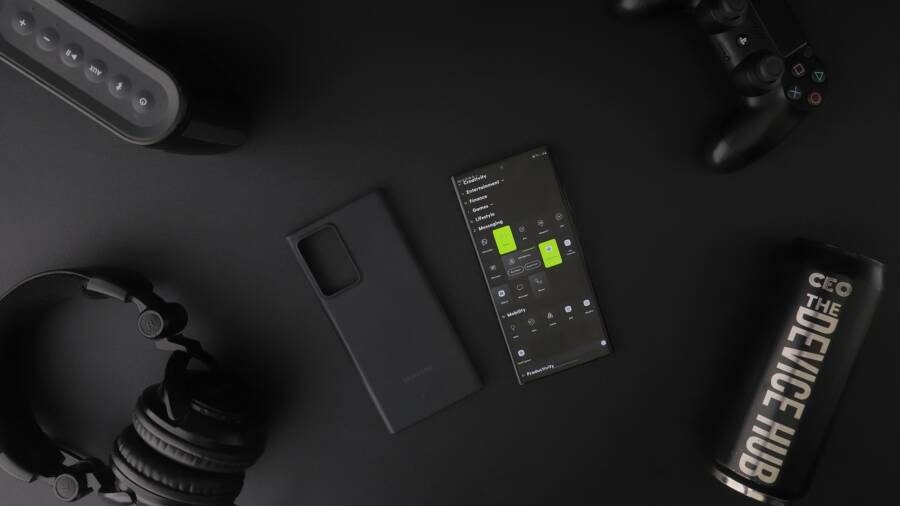
Quick settings shortcuts are the most underutilized tool on your smartphone. Most people ignore this menu, but it exists to save you time by reducing the taps required for daily tasks.
By organizing these tiles, you stop digging through menus for Wi-Fi, battery settings, or screen brightness. This guide explains how to customize your Android or iPhone device to boost your efficiency today.
Why Customizing Quick Settings Saves You Valuable Time
You likely unlock your smartphone dozens of times each day to adjust basic settings. Most users rely on the default layout provided by the manufacturer, but this setup rarely matches your actual habits. By rearranging your Quick Settings panel, you remove unnecessary friction from your daily interactions. A personalized menu acts as a central control station, turning a cluttered interface into a high-speed launcher for your essential tasks.
Identifying Your Most Used Smartphone Features
Start your optimization process by tracking your behavior for one full day. Pay attention to how many times you swipe down to toggle Wi-Fi, adjust screen brightness, or switch your audio output. Note exactly which features you reach for when you are in a hurry or working in specific environments. You might notice that you constantly toggle your flashlight in the evening or that you enable Do Not Disturb mode during afternoon meetings.
Organize your findings into three main categories to help prioritize your tile placement:
- Connectivity: These include Wi-Fi, Bluetooth, mobile data, and hotspot toggles. Keep these at the top if you switch between networks or devices frequently.
- Display and Audio: These encompass brightness sliders, Dark Mode, auto-rotate, and volume controls. Prioritize these if you move between indoors and outdoors or use your phone in varying light levels.
- Productivity and Utility: These involve tools like screen recording, focus modes, calculator, or QR code scanners. Place these in the secondary rows for quick access during focused work sessions.
If you find yourself opening the full Settings app to change a specific preference, move that toggle into your active view. Your goal is to keep the most common functions within the first swipe of your thumb.
The Impact of Personalization on Daily Efficiency
A customized layout directly reduces the mental load of navigating your device. When you know exactly where a toggle sits, you stop scanning the screen and start acting instinctively. This minor change prevents the common distraction of seeing other icons, notifications, or apps while you search for a setting. Your smartphone becomes a more capable tool when it conforms to your workflow instead of forcing you to adapt to its defaults.
Consistency across your menu structure allows for muscle memory to take over. You will eventually find yourself tapping the correct spot without looking at the screen. This level of familiarity creates a faster interaction speed, which compounds over hundreds of sessions every week.
Efficiency gains from a tailored setup include:
- Reduced search time: You stop hunting through nested menus for buried features.
- Fewer accidental taps: Your fingers land on familiar icons instead of guessing locations.
- Immediate environment adaptation: You adjust screen brightness or silent modes the moment your surroundings change.
Your phone interface is a workspace. Just like a physical desk, keeping the most useful tools within arm’s reach helps you focus on your task rather than the tool itself. Treat your Quick Settings as the primary dashboard for your digital life, and you will shave precious seconds off every interaction throughout the day.
How to Customize Quick Settings Shortcuts on Android
Customizing your smartphone Quick Settings gives you total control over the functions you use most often. Most modern Android devices allow you to reorder, add, or remove tiles to match your personal workflow. By adjusting this menu, you stop wasting time on deep menu dives and keep essential tools a single swipe away.
Steps to Edit Your Android Notification Shade
The process to modify your layout involves a specific menu hidden behind a secondary swipe. This ensures you do not accidentally move icons during normal use.
First, swipe down from the top of your screen to reveal the initial row of icons and your notifications. Swipe down a second time to expand the full view of your Quick Settings. Look for a pencil icon or a button labeled Edit at the bottom or corner of the screen. Tapping this button opens the full customization grid.
Inside the edit menu, you will see your active tiles at the top and a list of available inactive tiles below. You can organize these by following these actions:
- To remove a tile, drag it from the top grid into the inactive area below.
- To add a new shortcut, hold your finger on an icon in the lower section and drag it up to your active grid.
- To change the order of your tools, hold down any icon and slide it to your preferred position.
Once you finish, tap the back button or the checkmark icon to save your new layout. Your smartphone updates the shade instantly, reflecting your changes the next time you swipe down.
Using Tiles from Third-Party Apps
The default options on your device are helpful, but third-party applications often provide even more utility. Some apps include custom tiles designed to sit right inside your Quick Settings menu. This allows you to launch specific features without opening the app itself.
Note-taking apps frequently offer a tile to create a new text or voice note instantly. If you use smart home controllers, you might find tiles that toggle your living room lights or adjust your thermostat temperature without unlocking your phone. Other common additions include screen recorders, QR code scanners, or shortcut toggles for specific work profiles.
To add these, open the edit menu as described above and look for extra tiles listed under the third-party app names. Drag them into your active area just like you would with system settings. If you don’t see any third-party options, check the settings menu inside those specific apps, as some require you to enable the Quick Settings feature manually before the tile becomes available.
Mastering Control Center Shortcuts on iPhone
The Control Center on your iPhone acts as a command console for your most frequent tasks. While the default layout works for many, you gain speed by tailoring it to your own habits. You save time by placing tools you reach for daily right at your fingertips.
Rearranging Your iPhone Control Center
You can modify your Control Center layout directly through the system settings. This process allows you to remove unwanted icons and add utilities that you actually use.
Follow these steps to customize your view:
- Open the Settings app on your smartphone.
- Tap the Control Center menu option.
- Scroll down to the list labeled More Controls to see available tools.
- Tap the green plus icon next to any feature, such as Wallet, Alarm, or Camera, to add it to your active view.
- Use the three horizontal lines on the right side of any active item to drag it into your preferred position.
Once you finish, these changes take effect immediately. You now access your chosen apps or settings with a single swipe down from the top-right corner of your screen. Keeping your most important tools in the top rows ensures they are easy to reach even when you use your phone with one hand.
Hidden Power of Long-Press Gestures
Many icons inside the Control Center offer more than one function. You unlock deeper settings for these tools by using a long-press gesture. This hidden feature removes the need to open full apps for minor adjustments.
For example, try long-pressing the following tiles to reveal expanded options:
- Flashlight: You see a slider that lets you adjust the brightness level. This helps you choose a dim glow instead of full intensity when you don’t want to disturb others.
- Camera: A menu pops up allowing you to choose specific modes like taking a selfie, recording video, or scanning a QR code instantly.
- Home: Long-pressing this tile shows a list of your linked smart home devices, letting you toggle lights or locks without searching for the Home app.
- Timer: You can drag your finger up or down on the screen to set a quick timer for one, five, or ten minutes.
These expanded menus act as shortcuts within a shortcut. By learning which tiles react to a firm press, you turn a simple toggle into a multi-purpose tool. You spend less time navigating your smartphone menus and more time completing your tasks.
Best Practices for a Clutter-Free Command Center
Your Quick Settings menu functions best when it mimics your natural workflow. A messy interface forces you to search for buttons, which wastes time every time you use your smartphone. By applying a logical layout, you turn this space into a fast control panel. Use these strategies to maintain an efficient setup that stays out of your way.
Grouping Shortcuts by Task Categories
You can reduce visual noise by organizing your tiles into thematic groups. When related functions sit together, your brain recognizes the zone for specific tasks instantly. You should position connectivity toggles in one area, while media and focus controls belong elsewhere. This simple separation stops you from scanning the entire grid to find a specific button.
Try arranging your grid based on these common usage themes:
- Connectivity zone: Place Wi-Fi, Bluetooth, mobile data, and hotspot toggles at the top. This area becomes your go-to spot when you arrive at a new location or switch between networks.
- Media and sound zone: Group volume controls, media playback buttons, and audio output selection in a secondary block. This makes it easier to adjust your environment without pausing what you are doing.
- Focus and utility zone: Keep features like Do Not Disturb, silent mode, screen recording, or flashlight tools in a final section. These functions often relate to work or specific needs, so keeping them separate prevents accidental taps.
If your device supports rows, put your most critical connectivity toggles in the first row. Move utility tools like the flashlight or QR scanner to the lower half. This hierarchy keeps your smartphone interface clean and ensures your most active tools are always under your thumb.
Reviewing Your Setup Periodically
Your needs change as you add new apps or modify your daily habits. A layout that works perfectly today might feel bloated or outdated in three months. Set a recurring reminder to evaluate your Quick Settings menu once a season. This prevents the gradual buildup of unused tiles that distract you from the features you actually need.
Check your current configuration against these questions:
- Did I use this tile in the last week? If the answer is no, move it to the inactive list.
- Are there new app features I use daily? Check if your favorite productivity or smart home apps added custom tiles that you can now integrate.
- Does the current placement still feel fast? If you find yourself reaching for a button in the wrong corner, move it to a more natural position.
Updates to your operating system often bring new tile options or layout changes. Take a moment after every major software update to verify that your most important shortcuts are still accessible. A quick audit keeps your smartphone workspace as effective as the day you first optimized it. Consistent maintenance prevents the clutter from returning and keeps your interaction speed high.
Conclusion
Quick settings are not merely a collection of buttons. They act as a personal command center that helps you reclaim your time throughout the day. By moving your most frequent tasks to the top of your menu, you eliminate unnecessary friction and manual searching on your smartphone.
Spend five minutes right now to audit your current shortcuts. Remove the tiles you never touch and swap them for the tools you use every hour. Small adjustments to your interface create a much smoother experience every time you reach for your device.