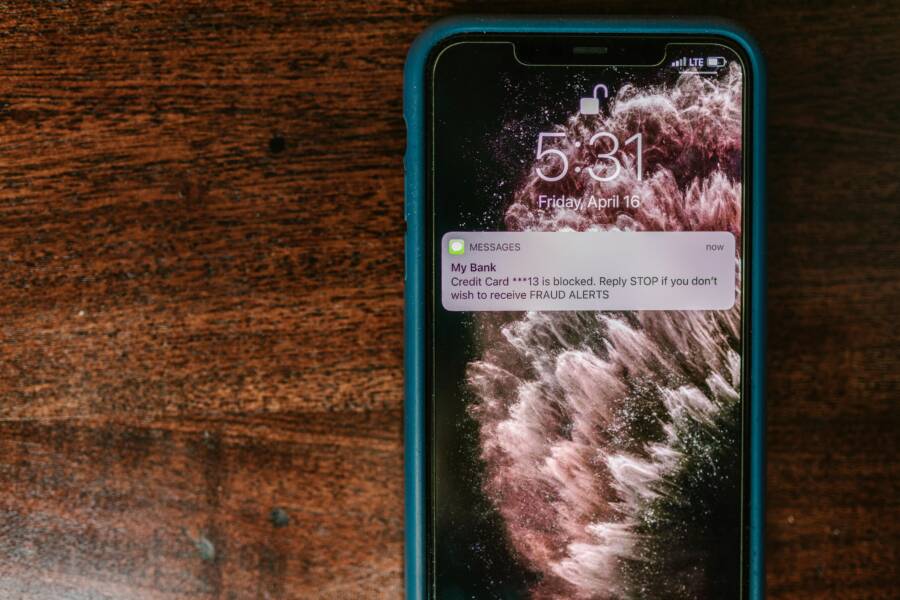
Picture this. You tap open your bank’s site or a trusted news page on your smartphone. A red warning flashes: “Your connection is not private” or “Not secure.” Your heart skips a beat.
Don’t panic. These alerts pop up on safe sites all the time. They stem from simple glitches on your phone, like wrong date settings, full browser cache, or spotty networks. No hackers involved.
You’ve come to the right place to clear security warnings for safe sites on your phone. This guide walks you through the causes first. Then quick fixes anyone can try.
Next, follow our step-by-step Android instructions. They fix most issues in minutes. We’ll cover iPhone steps too, with clear screenshots in mind.
Finally, learn prevention tips to stop these warnings for good. You’ll browse worry-free again. Let’s get started.
Top Causes of Security Warnings on Trusted Sites
Seeing a security warning on a site you trust can be jarring. The moment you tap a link on your smartphone, a warning like “Your connection is not private” or “Not secure” can pop up even on legitimate websites. Most times the issue isn’t the site itself but the connection or device settings. Below are the common culprits and quick ways to verify them. If you fix these, you’ll reclaim a smooth, confident browsing experience on your phone.
SSL certificate problems
SSL certificates authenticate a site and encrypt data between your device and the server. When something goes wrong with the certificate, browsers display a warning. Common scenarios include an expired certificate, a certificate that doesn’t match the site’s domain, or a certificate issued by an untrusted authority. In many cases, the site itself is fine, but your connection flags the problem because the certificate chain can’t be verified. For a clear explanation of what these messages mean, see this overview from Cloudflare: https://www.cloudflare.com/learning/ssl/connection-not-private-explained/. If you’re on a trusted site and still see the warning, it’s typically a local issue on your device or network rather than a breach on the site.
- What to check on your phone: confirm the date and time are correct, because an incorrect clock can make valid certificates look expired. Restart the browser after clearing cache to ensure you’re loading fresh resources. If the warning persists on multiple sites, the certificate issue might be with your network.
- Quick fixes: refresh the page, update your browser, and try a different network. If the warning stays on a trusted site, avoid proceeding and try later; report the issue to the site owner so they can reissue or update their certificate if needed.
Mixed content and insecure elements
Even on HTTPS pages, some resources can load over HTTP. This mixed content can trigger warnings because the page is partly unencrypted. Modern browsers block or warn about mixed content to protect your data, especially on mobile networks. This is a frequent source of alerts on otherwise safe sites.
- Where it shows up: images, scripts, or iframes loaded from non-secure origins. The browser flags these as a risk to your data because part of the page isn’t encrypted.
- How to address it: ensure the site uses HTTPS for all assets. If you’re the site owner, update all links and third-party resources to HTTPS. If you’re a user, you can’t fix the site, but you can report the issue to the site’s support team or try again later after the site completes the update.
- Real-world context: many guides cover how mixed content leads to warnings and what owners can do to resolve it, including steps to audit assets and update references. For a deeper dive, you can explore resources like the SSL and HTTPS explanation from Cloudflare.
Incorrect date, time, or device settings
A misconfigured clock on your phone can cause certificate validation to fail. SSL/TLS relies on accurate time to verify that certificates are within their valid date ranges. If your device clock is wrong, even valid certificates appear expired or not yet valid.
- Quick checks: compare your phone’s date and time with the network-provided time, enable automatic time zone and time sync, and ensure the device isn’t in a far-off time zone.
- Practical tip: if you’ve been traveling or using a VPN, your device time may drift. Re-sync and reload the page. If the problem recurs on multiple sites, the issue is unlikely to be the site’s cert.
Browser cache and cookies
Stored data can conflict with updated site security settings. A stale cache might present an old certificate chain or insecure resources, prompting warnings even on safe sites. Clearing cache and cookies often resolves the issue quickly.
- How to proceed: in your browser settings, clear cached images and files along with cookies for the site in question. Then reload the page. If you use multiple browsers on your phone, repeat the step in each one.
- Why it helps: you’re forcing the browser to fetch fresh security data and resources from the server, reducing the chance of old, invalid, or mismatched certificates triggering warnings.
Network factors: Wi‑Fi, carrier networks, and captive portals
Public or poorly secured networks can trigger warnings. A captive portal, DNS hijacking, or a misconfigured proxy can interfere with certificate validation and resource loading. This is common on free Wi‑Fi at cafes, airports, or hotels.
- What to look for: if the warning appears on all sites while connected to a particular network but disappears on cellular data, the network is likely at fault.
- How to test: switch to a different network or disable VPNs and proxies briefly to see if the warning clears. If you must use public networks, consider a reputable VPN service to encrypt your traffic and reduce exposure.
- Extra context: network issues are a frequent cause of warnings across devices. You can read more about what these messages mean and how to interpret them in authoritative guides such as the Cloudflare article linked above.
Outdated TLS or weak ciphers
Older devices and browsers may support outdated security protocols. When a site requires a modern TLS version or stronger ciphers, older clients may fail, resulting in warnings. Keeping your browser and OS up to date helps you stay compatible with current security standards.
- What to do: install the latest browser updates and consider upgrading your device if it no longer supports modern TLS. This improves compatibility with safe sites and reduces warnings.
- Prevention tip: enable automatic updates for apps and the system so you don’t miss important security improvements.
Misleading certificates due to domain changes or site configuration
Sometimes a site changes its hosting or uses a new certificate without the old chain properly installed. In those cases, even trusted sites may show a warning until the configuration is corrected. This is more common after an infrastructure update or a move to a new CDN.
- How you can spot it: a certificate mismatch error or warnings that mention mismatched domain names. If this happens, the site owner should fix the certificate installation and ensure the domain is correctly covered.
- What to do as a user: avoid proceeding with the warning. Contact the site support team and report the issue, especially if you see the warning across multiple devices.
A few trusted resources can help you understand and fix these issues quickly. For a solid explanation of what these warnings mean and how to address them, see Cloudflare’s overview of “What does ‘Your connection is not private’ mean?” You’ll also find practical fixes from security-focused sites like Kinsta and Hostinger that outline steps for common browser and certificate problems. These references provide actionable steps you can take without waiting for the site owner to respond. You can start with this link: https://www.cloudflare.com/learning/ssl/connection-not-private-explained/ and expand from there.
Quick Fixes That Work on Any Phone
When a security warning pops up on a site you trust, the fix is usually simple and fast. These quick tweaks work across most phones, whether you’re on Android or iPhone. Use them in order and test the site after each step. The goal is to restore calm browsing without lengthy troubleshooting. Keep in mind that a few steps involve changing network behavior or software settings, so you’ll want to re-enable anything you turned off after confirming the site loads securely.
Set Your Date and Time Automatically
A wrong clock can make valid SSL certificates look expired. Your phone uses the current date and time to verify certificates, so a drift can trigger warnings even on safe sites. On Android, open Settings, then System, Date and time, and turn on Use network time. On iPhone, go to Settings, General, Date and Time, and toggle Set Automatically. After adjusting, reload the site to see if the warning clears. If the message remains, restart the browser and try again. For a deeper read on how time affects SSL, see Cloudflare’s explanation of connection not private errors.
- Quick test: reopen the site after the clock snaps to network time.
- Extra tip: if you’re traveling, re-sync when you arrive at a new locale.
Relevant reading: Cloudflare’s overview on what “Your connection is not private” means.
Switch Networks and Restart Your Connection
Network quirks often trigger warnings on otherwise safe pages. If you’re on a crowded public Wi‑Fi, switch to cellular data and reload the site. Conversely, if you’re on mobile data, try a solid Wi‑Fi connection. If issues persist, unplug your router for about 30 seconds and reconnect. Public networks can cause DNS hiccups or captive portals that complicate certificate validation. After switching networks, restart the browser and load the site again. This simple move clarifies whether the problem is network related or something specific to the device.
- Simple test: compare loading a trusted site on both networks.
- If the warning follows the device, move to the next step.
External context: switching networks is a common first check for SSL warnings and is often the quickest route to a fix.
Relevant reading: general guidance on switching networks and resolving not secure errors.
Disable VPN and Security Apps Temporarily
VPNs and security suites can block or alter network traffic in ways that trigger warnings on safe sites. Temporarily disable any active VPN and security apps, then reload the site to test. If the warning disappears, you’ll know either the VPN or the security layer was interfering. Don’t leave these protections off long; re-enable them after your test and consider adjusting settings or choosing a different provider. If the site loads with VPN off, try a different VPN server and test again. If not, move to other fixes.
- Quick reminder: only disable one protection at a time to identify the culprit.
- After testing, re-enable protections to maintain safety.
External reading: guidance on how VPNs can affect SSL connections and quick fixes.
Relevant reading: article on how to fix not private errors and related SSL concerns.
Fix Security Warnings in Chrome on Android Phones
When your Android phone shows a security warning on a site you trust, it can be alarming. The good news is that most warnings are fixable with quick checks. This section focuses on practical, phone-friendly steps you can take right away. You’ll learn how to clear stale data, manage extensions, and ensure your browser and device are up to date. Throughout, keep your smartphone in mind as you apply these fixes. Each sub-section provides a concise, action-oriented path so you can get back to browsing safely and confidently.
Clear Cache and Cookies in Chrome
Exact steps: Chrome Settings Privacy and security Clear browsing data select Cached images files and Cookies time range All time Clear data. Restart app. Why it works. Clearing cached images, files, and cookies forces Chrome to fetch fresh security data from servers. This eliminates old certificate chains or outdated resources that can trigger not secure messages on otherwise safe sites. After clearing, reopen the site and check whether the warning returns. If it does, try a different network or update Chrome. For guidance on what these data types do, see Google Chrome Help on clearing browsing data. https://www.google.com/url?q=https://support.google.com/chrome/answer/2392709?hl=en-GB&co=GENIE.Platform%3DAndroid
Manage and Disable Extensions
Chrome menu Extensions Manage extensions toggle off reload site test one by one. If you rely on extensions, this method helps identify a culprit that interferes with secure connections. Disable all extensions first, then reload the page. If the warning disappears, enable extensions individually while reloading the site each time to pinpoint the offender. Once identified, you can remove it or adjust its permissions. This process is quick and practical for most Android users and can restore trust in sites that previously loaded with warnings. Learn more about Chrome extension management via the official Chrome Help pages. https://www.google.com/url?q=https://support.google.com/chrome/answer/6098869?hl=en-GB
Update Chrome and Reset Settings
Help About Google Chrome updates auto. Then System Reset settings Restore defaults keeps data. Keeping Chrome up to date fixes many known issues with certificates and TLS. After updating, you can consider resetting browser settings to default if warnings persist. A reset can clear misconfigurations without wiping your data in most cases, making it a safe next step. Reopen Chrome and test the site again to confirm the warning is gone. For more on troubleshooting, see Google Chrome Help on fixing connection and loading errors. https://www.google.com/url?q=https://support.google.com/chrome/answer/95647?hl=en-gb&co=GENIE.Platform%3DAndroid
Clear Warnings in Safari on iPhone
When you see a warning in Safari on your iPhone, it can feel alarming even on sites you trust. The good news is most warnings come from local issues like date settings, cached data, or network quirks. This section provides a concise, practical approach to clearing those warnings so you can browse with confidence. We’ll cover three focused actions that address the most common causes. For deeper context, you can consult trusted resources from Apple and Cloudflare.
Photo by RDNE Stock project
Clear Safari History and Website Data
Clear history and website data to remove potentially corrupted files that cause false security warnings. This action resets cached certificates and resources for Safari, which helps load fresh security data from trusted servers. Start by opening Settings, then Safari, and choose Clear History and Website Data. Confirm the prompt. After the reset, reopen the site to see if the warning returns. If you still notice issues, try again on a different network or as a cross-check, the problem may involve your current connection. For a deeper read, see Apple’s guide on clearing Safari data.
- Quick tip: clearing data won’t erase bookmarks or saved passwords stored in iCloud Keychain, but it will remove site data on the device.
- If you want to keep some browsing history, you can remove data for individual sites later.
Useful reference: Apple Support explains how to delete Safari history and website data on iPhone.
Update iOS and Check for Profiles
Keeping iOS up to date reduces compatibility problems that trigger warnings on safe sites. Install the latest software update, and review any installed profiles or device management settings. VPNs or configuration profiles can affect how Safari validates certificates. If you see warnings after an update, remove unnecessary profiles or VPN tools that could interfere with secure connections. After updating and trimming extras, test the site again. For official guidance, Apple’s iPhone update and profile management resources provide clear steps to follow.
- Quick steps: Settings > General > Software Update; if available, install. Then Settings > General > Profiles & Device Management to remove unwanted items.
- If you suspect a misconfiguration, temporarily disable VPNs or security profiles to confirm whether they’re the source of the warning.
Further reading: Apple guidance on installing or removing configuration profiles and VPN device management settings.
Test in Private Browsing Mode
Private browsing isolates your activity and can reveal whether a warning is tied to normal Safari data. In Private Browsing, Safari uses a fresh session with no cached certificates from prior visits, which helps verify if the issue is site-specific or tied to stored data. To test, tap the tabs icon and switch to Private, then load the the same site. If the warning disappears, the problem likely stems from cached data or extensions in your standard session. If the warning persists, the issue is more likely network or site-related.
- Quick test: after testing, exit Private Browsing and reload the site in normal mode.
- If it fails in Private Browsing too, try a different network or reset network settings as a final check.
For more on Safari behavior and not secure warnings, see Apple’s guide and related resources.
What to Do If Fixes Fail and Prevention Tips
If you’ve tried the quick fixes and the warning on a trusted site still lingers, don’t panic. Some problems are stubborn or stubbornly network related. This section gives you a practical, step by step approach to confirm the issue, work around it, and prevent it from returning. You’ll leave with a clear plan to stay safe and browse confidently on your smartphone.
Confirm the warning isn’t your device or network
Before diving deeper, verify the issue is not tied to your phone or a single network. Start by testing the same site on another network (for example, switch from your mobile data to a different Wi‑Fi, or use a friend’s hotspot) and on another device if possible. If the warning only appears on one network or one device, the fault is likely local to that network or device rather than the site itself. If the warning persists across networks and devices, the site might be misconfigured or you’re facing a more persistent security flag. In either case, proceed with caution and avoid entering sensitive information.
- Quick check: load a known safe site like your bank’s homepage and see if the warning repeats.
- If it does, note the exact error message; it helps when you search for a solution.
For deeper context on how these warnings work and why they appear, Cloudflare offers a clear explanation of what a “Your connection is not private” message means and how to approach it. This resource helps you separate site issues from device or network problems. https://www.cloudflare.com/learning/ssl/connection-not-private-explained/
Prioritize trusted sources and avoid risky workarounds
When a warning shows up, you might be tempted to bypass it. Do not proceed with a site that prompts a certificate warning, especially if you’re asked to enter login details or payment information. Proceeding can expose your data to interception. If the site is truly legitimate but its certificate is temporarily misconfigured, contact the site owner or support team and report the issue. They may need to reissue or renew their certificate. In the meantime, use a trusted alternative for any sensitive tasks.
- Quick action: bookmark the site and come back later after the site has fixed the certificate.
- If you must continue, do so only on a different trusted network and after the site has updated its security.
For guidance on common reasons certificates fail and reliable steps to take, Kinsta’s guide on fixing “Your Connection is Not Private” covers many scenarios and safeguards. https://kinsta.com/blog/your-connection-is-not-private/
Deep dive troubleshooting for Android and iPhone
If the warning persists across multiple sites or the issue seems to be tied to your device, move to deeper checks that don’t require professional help. These steps address root causes that are common across Android and iPhone devices.
- Update your software: Keep both the browser and the operating system current. Outdated TLS support can trigger warnings on newer sites.
- Reset network settings: This can clear misconfigurations that block certificate validation.
- Check date and time: A wrong clock can invalidate otherwise valid certificates. Ensure automatic date and time are enabled.
- Temporarily disable extensions or VPNs: A single add-on or tunnel can interfere with certificate validation. Re-enable them one by one to identify the culprit.
If you’re looking for more formal guidance on common browser and certificate problems, Mozilla’s support resources cover a range of secure web troubleshooting steps that apply across platforms. https://support.mozilla.org/en-US/kb/error-codes-secure-websites
When to involve the site owner or your provider
If the warning appears on multiple trusted sites or recurs after fixes, it’s time to escalate. Contact the website’s support team and tell them what you saw, when it happened, and which devices and networks you used. If the issue is network wide, reach out to your internet service provider or your corporate IT department if you’re on a managed device.
- Provide details: device model, OS version, browser version, and the exact error message.
- Share the steps you took to reproduce the issue. This helps the site owner or network admin pinpoint the problem faster.
You can also review general guidance on how to interpret and fix “Your connection is not private” errors from reputable security-focused sources like Norton. https://us.norton.com/blog/how-to/your-connection-is-not-private
Prevention tips to reduce future warnings
Prevention is better than constant troubleshooting. Implement these everyday habits to reduce the chances of seeing security warnings on safe sites again.
- Keep software up to date: Enable automatic updates for OS, apps, and browsers. Modern TLS versions and fixed certificate handling require current software.
- Use trusted networks: Avoid anonymous or poorly secured public networks for sensitive activities. If you must use them, pair with a reputable VPN that you trust.
- Regular browser maintenance: Clear cache and cookies periodically and review extensions that might affect security.
- Monitor certificates: If you’re running a small site or a family network, schedule regular checks on TLS certificates and verify that all assets load via HTTPS.
- Use reputable security tools: A reliable security app can help monitor phishing or man-in-the-middle attempts without blocking legitimate sites.
For readers who want to go deeper into preventing these issues, Hostinger offers practical guidance on common errors and how to fix them, including the not private error and related certificate problems. https://www.hostinger.com/tutorials/how-to-fix-your-connection-is-not-private-error
A quick checklist you can print or save
- Confirm the issue across networks and devices.
- Do not proceed on sites with certificate warnings.
- Update browser and OS, then test again.
- Clear caches and cookies if the problem seems browser related.
- Disable VPNs or security extensions briefly to test.
- Report persistent issues to the site owner or your provider.
- Review TLS support and consider upgrading outdated devices if necessary.
Keeping this checklist handy helps you stay calm and methodical when a warning pops up.
Real-world tip for frequent travelers
Travel often means hopping between networks with different security settings. Always verify the clock when you land in a new country, re-synchronize time, and avoid entering sensitive information on unfamiliar networks. If you must connect on the go, use a trusted VPN and keep your device updated. A well‑tended smartphone makes this easier and safer.
For more on how time affects SSL and why a clock mismatch matters, Cloudflare’s explanation is a reliable starting point. https://www.cloudflare.com/learning/ssl/connection-not-private-explained/
By following these steps, you’ll minimize scary false alarms and keep your browsing experience steady. When a warning does appear, you’ll know exactly how to respond, what to check, and when it’s time to involve an expert.
Conclusion
Date and time accuracy plus quick fixes set the stage for a calm, practical fix. If the warning pops up on a trusted site, start by syncing your clock and trying a quick page reload. Switch networks and test again to rule out a local hiccup.
Next, shift to browser level steps. Clear cache and cookies, update the app, or try a different browser for a fresh look at the site. If you use extensions or security apps, disable them one by one to spot the culprit. These moves resolve most not private messages on safe pages.
If the problem persists, apply the deeper checks in this guide. Update your device and browser, reset network settings if needed, and confirm the site’s certificate status with a trusted source. Avoid proceeding on any site that prompts for sensitive data unless you confirm the connection is secure.
By following these steps, you’ll reduce false alarms and keep your browsing smooth on your smartphone. The goal is confident, private browsing without repeated interruptions.
Try the steps now on your phone and share what worked in the comments. Tell us your model, the exact warning, and which browser you used. Your experience helps others solve the same issue fast. Enjoy smooth secure browsing.