There Is a Frequency That the Wealthiest Families Have Used for Generations and Most People Will Never Know It Exists
>>> Open the Door <<<

How to Fix Phone Browser Blocking Payment Pages (Android & iOS)
You’ve just found the perfect deal online. You grab your smartphone to check out fast. But the payment page blocks and won’t load.
This frustration hits everyone. It stems from built-in privacy tools or tweaks in mobile browsers like Chrome, Safari, Firefox, and Samsung Internet. These apps aim to keep you safe from scams.
Common culprits include pop-ups, cookies, ad blockers, and VPNs. They stop shady redirects or extra checks during checkout. Your bank might add hurdles too.
Good news: you can fix it quick. Follow simple steps for Android and iOS. Most take just minutes, no tech skills needed.
He Was Drowning in Bills and Burnout Until a Simple Daily Ritual Rewired His Brain for Wealth in Less Than a Week
>>> Start Your Shift Today <<<

Get quick wins like toggling settings or clearing cache. Plus browser-specific tips to pay smooth every time. Stick around; your next buy waits.
Why Phone Browsers Block Payment Pages
When you try to pay from a phone browser, you may see the payment page blocked or loading oddly. This isn’t a random glitch. It’s usually the browser’s privacy and security tools kicking in, designed to protect you from fraud, phishing, and data leaks. Understanding what triggers these blocks helps you navigate checkout without losing speed or security. Below you’ll find focused explanations of the main culprits, plus quick, practical fixes you can apply on Android and iOS. Think of this as a map to keep your purchases flowing smoothly from your smartphone.
Pop-ups and Redirects That Get Stopped
Many payment experiences rely on new windows or pop-ups to handle bank verification, OTP prompts, or secure checkout steps. On mobile, browsers often block these automatically, especially if they come from third-party domains or appear as unexpected redirects. Shopping sites sometimes trigger a sequence of redirects to verify your identity or present bank prompts for 3D Secure checks. If a pop-up is blocked, you’ll see a warning icon in the address bar or a notification that a pop-up was blocked. In practice, you might see a merchant asking you to open a new window to complete payment, or you’ll notice bank verification pages failing to load. To troubleshoot, check for a shield or pop-up warning in the URL bar and consider temporarily allowing pop-ups for the merchant site. These hints often save a lot of time during checkout. For further context, see how Chrome and Safari handle pop-ups on mobile and the steps to allow them when needed.
- iOS users often see a blocked pop-up message in Safari. You may need to turn off Block Pop-ups in Settings > Safari to complete the payment flow.
- Android users can find the option in Chrome under Site settings > Pop-ups and redirects; allow for the merchant site only to keep other sites protected.
- If a redirect is essential, some banks require you to visit a dedicated banking page rather than a pop-up. In this case, look for a direct link from the merchant or your bank’s app instead of a browser pop-up.
- When in doubt, try a different browser on the same device or switch networks to rule out a blocking rule tied to a particular environment.
External reference: Block or allow pop-ups in Chrome – Android and Block pop-up ads and windows in Safari provide practical steps if you need a quick fix on the fly. Also, reviewing how to stop redirects helps clean up your browsing experience across browsers. Learn more about general redirect management at Adblock guidance for mobile.
For broader context on how third-party cookies and payment flows interact with mobile checkout, this overview is helpful: Payment Request API.
Cookies and Tracking Protections
Payment forms and issuer pages often depend on cookies to maintain session state and verify authentication without re-entering data. On iPhone and iPad, Safari’s privacy features can block third-party cookies and cross-site tracking, which disrupts the payment flow. The result is pages that load incompletely or fail to submit. On Android, Chrome’s privacy settings or built-in tracking prevention can similarly interfere with payment iframes, OTP verifications, or bank redirects rely on cross-site data. In both ecosystems, a blocked cookie or tracking script can halt a checkout at the moment you press Pay.
- Third-party cookies are commonly used by payment portals to confirm your session across the merchant site and the payment issuer. When blocked, you may see the form not submitting or fields failing to validate.
- If you see a payment page that asks you to re-enter information repeatedly, cookie blocks could be the culprit. Allowing cookies from the merchant site usually resolves it.
- Tracking protections can also block legitimate features like 3D Secure prompts that banks show during checkout. If prompts don’t appear, try enabling cross-site or trusted site tracking for the merchant.
- To stay current with how these blocks affect payments, check resources on cookies and identity management in the Privacy Sandbox discussions and developer guides.
External references that explain cookie implications and identity management in mobile payments include Google’s Privacy Sandbox cookies guides and Safari’s cookie handling notes. See: Third-party cookie restrictions and Under what circumstances does Safari block third-party cookies.
Ad Blockers, VPNs, and Other Interference
Ad blockers and VPNs can unintentionally block payment pages or the scripts that verify your identity. Some blockers filter out tracking scripts used by fraud checks, OTP verifications, or bank risk assessments. VPNs, while protecting privacy, can make a site appear suspicious to the payment gateway and trigger additional checks or outright block the flow. Content blockers that strip scripts can cut essential payment steps, such as 3D Secure prompts or iframe-based payment widgets.
- Turn off ad blockers or whitelist the merchant site for a smoother checkout.
- If you’re using a VPN, try disabling it temporarily to complete the payment, then re-enable for normal browsing.
- Some blockers interfere with inline payment widgets. In these cases, loading the payment page in a private/incognito window can help.
- When multiple blockers are in play, a quick test on a different network can reveal whether the interference is network-based or software-based.
Industry guides note that ad blockers and VPNs can both hinder payment flows, and providers often offer guidance on whitelisting trusted domains. If you want a quick confirmation, you can review a practical overview of ad blockers and VPN interactions with checkout experiences. For more details, see resources like Wisepops’ troubleshooting guide and Ghostery’s explanation of VPNs versus ad blockers. Examples and how-to steps are available here: Troubleshooting: Dealing with Ad Blockers and VPNs and Do VPNs Block Ads?.
Quick Fixes to Try First on Your Phone
When a payment page won’t load on your smartphone, the fastest path to a smooth checkout is a small set of targeted tests. These fixes are low friction and don’t require technical skills. Start with these quick wins to restore a reliable payment flow without jumping into deeper troubleshooting.
Check your network and refresh the page
A weak or spotty connection can cause payment pages to stall or fail to load scripts correctly. Before you dig into settings, cycle the connection to a stronger network. If you’re on cellular, try switching to a stable Wi Fi network, or vice versa. Then pull down to refresh the page and attempt the payment again.
- If you’re using a corporate or public Wi Fi, consider switching networks to rule out a local issue.
- A brief restart of the browser can also clear transient connectivity hiccups that block loading.
For extra guidance on network related checks, see how to manage mobile connections and troubleshoot flaky networks on iOS and Android.
More on network troubleshooting for mobile devices (Apple) | Android network troubleshooting basics
Clear cache and cookies on your browser
Cached data and cookies can interfere with how a payment form renders or submits. Clearing them resets the session and often clears up stuck payment widgets. Do a quick purge, then reopen the merchant page and try again.
- On iPhone and iPad, Safari user data can be cleared from Settings > Safari > Clear History and Website Data.
- On Android devices, you can clear cache and cookies from Chrome settings under Privacy or Site settings.
If you’d like a guided authority reference, see Apple’s instructions for clearing history and data in Safari and Chrome’s guidance on managing payment info.
Delete history, cache, and cookies on iPhone
Fix payment info issues in Chrome – iPhone & iPad
Review and adjust pop-ups and redirects
Payment flows often rely on new windows or redirects for bank prompts or 3D Secure checks. Mobile browsers may block these by default, especially if they come from third parties. If a payment step fails to open in a pop-up or new tab, check the site’s prompts and consider whitelisting the merchant if you trust it.
- On iOS, you may need to allow pop-ups in Settings > Safari.
- On Android, adjust Site settings > Pop-ups and redirects for the merchant site only.
If a redirect is essential for verification, look for a direct link from the merchant or your bank’s app instead of a browser pop-up. For more context, you can explore how Chrome and Safari handle pop-ups on mobile.
Block pop-up ads and windows in Safari
Block or allow pop-ups in Chrome – Android
Temporarily disable ad blockers and VPNs
Ad blockers and VPNs can inadvertently block payment pages or the scripts that verify your identity. If you use them, switch them off for the checkout, then re enable after you complete the purchase.
- Disable ad blockers for the merchant site or add it to your whitelist.
- If you use a VPN, toggle it off during checkout and re enable afterward.
- Some blockers break inline payment widgets; try loading the page in a private or incognito window.
If you want quick confirmation on how these tools interact with checkout, see practical guides from Wisepops and Ghostery.
Troubleshooting: Dealing with Ad Blockers and VPNs
Do VPNs Block Ads?
Update and manage saved payment information in your browser
Sometimes the problem is how payment details are stored or presented in the browser. Updating or removing old saved methods can unblock the flow. If you rely on autofill, make sure the merchant site can access the correct payment method when you hit Pay.
- On iOS and Chrome for iOS, you may review payment options under browser settings and Google Pay integration.
- On Android, you can adjust saved payment methods and ensure autofill is configured for the merchant site.
For concrete steps, refer to the Chrome help articles on managing payment info and saved passwords on mobile.
Manage payment info in Chrome – iPhone & iPad
Manage payment info in Chrome – Android
Try a different browser or use private browsing mode
If the payment page still blocks, different browsers handle scripts and cookies a bit differently. A switch can bypass the problematic combination of extensions or browser quirks.
- On your phone, install or open another browser (for example, Chrome, Safari, Firefox, or Samsung Internet) and attempt checkout again.
- If you prefer a minimal setup, open an incognito or private browsing window to disable extensions and cached data for that session.
External references offer practical steps for switching browsers and using private mode to test checkout behavior across devices.
Fix payment info issues in Chrome – Computer
Delete your Safari history, cache, and cookies on iPhone
When to proceed with deeper checks
If these quick fixes don’t resolve the issue, it’s time to look at broader factors. Some payment gateways require specific security prompts, and banks may impose additional checks from certain networks or locations. Document when the problem occurs, the exact merchant, and any error messages. That information helps you or a support rep identify a root cause quickly.
- Check your device date and time. An incorrect clock can disrupt token verification.
- Make sure your browser is updated to the latest version.
- Consider temporarily disabling any experimental settings or beta features in your browser to rule out instability.
If you want a deeper primer on how cookies and tracking protections interact with mobile checkout, the Payment Request API overview is a good resource to consult.
Payment Request API
挨拶:若你正在以中文撰寫本篇文章,以上英文資訊也可作為參考,方便你在內容上做跨語言整合與本地化。
若需要,我可以幫你把這些段落轉寫成更符合繁體中文讀者的版本,同時保留原始的實用性與可操作性。
Browser-Specific Fixes for Chrome, Safari, Firefox, and Samsung Internet
When a payment page won’t load on your phone, the culprit is usually browser settings or built-in protections. Different browsers on Android and iOS handle pop-ups, cookies, trackers, and content blockers in unique ways. Below are focused, practical fixes tailored to Chrome, Safari, Firefox, and Samsung Internet. Each subsection gives you concrete steps you can apply in minutes to restore a smooth checkout experience. Think of this as a fast, field-tested toolkit you can pull out any time you shop from a smartphone.
Chrome Steps to Allow Payment Pages
On Android and iOS, Chrome balances privacy with functionality. If a payment page stalls, start by loosening a couple of controls for the merchant site only. First, enable the basics: allow pop-ups and redirects for the payment page, and ensure cookies aren’t blocked for the site. Clear site data if the page still misbehaves, then retry the payment.
- Android: go to Chrome > Site settings > Pop-ups and redirects; toggle on for the merchant site only. If cookies are blocked, visit Chrome > Privacy and security > Cookies and site data and add an exception for the merchant.
- iOS: open Chrome > Settings > Privacy; ensure cookies are allowed for the site and that cross-site data can be shared if the merchant requires it.
- If you still hit a block, reset the session by clearing cached data for the merchant page and try again. This often resolves redirects that stall the checkout.
For deeper guidance, see how to block or allow pop-ups in Chrome for Android and manage cookies in Chrome on Android. You can also review general cookie implications for mobile payments in Chrome’s help center.
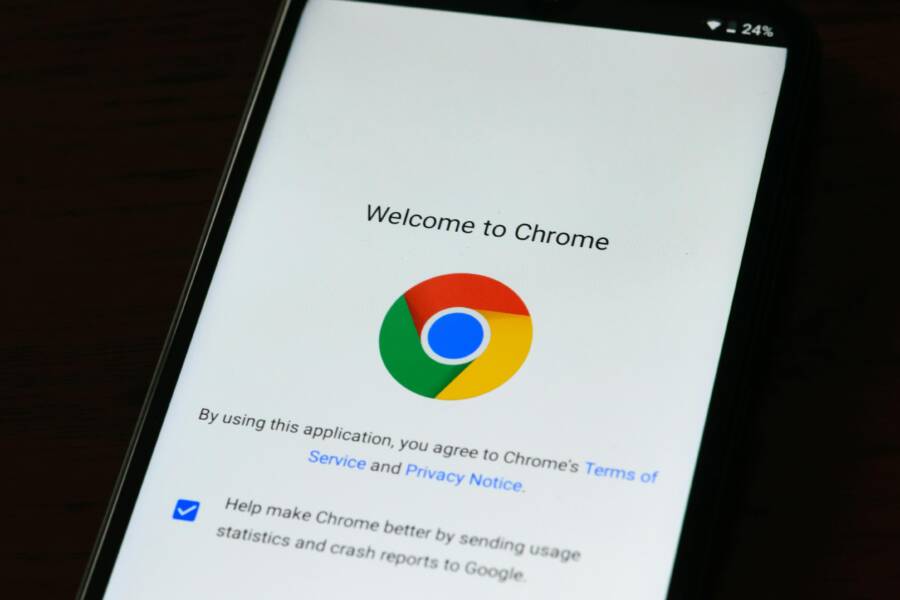
Photos:  Photo by AS Photography
External references:
- Block or allow pop-ups in Chrome – Android: https://support.google.com/chrome/answer/95472?hl=en&co=GENIE.Platform%3DAndroid
- Delete, allow, and manage cookies in Chrome – Android: https://support.google.com/chrome/answer/95647?hl=en&co=GENIE.Platform%3DAndroid
Safari Fixes on iPhone
Safari on iPhone often blocks cross-site trackers and certain payment prompts. A quick sequence of checks makes payment pages behave again. Start by turning off content blockers for the checkout page. Then allow cross-site tracking in Settings to ensure 3D Secure prompts and issuer pages load correctly. If needed, test in a private window to confirm whether blockers are the root cause.
- Turn off content blockers: tap the AA icon in the address bar when on the payment page, then disable blockers for that site.
- Enable cross-site tracking: Settings > Safari > Privacy & Security > Prevent Cross-Site Tracking (toggle off) for the merchant.
- Private window tests: open a new private tab and retry checkout to see if the payment loads without extensions or cached data.
- Finally, confirm Safari privacy settings stay aligned with your security preferences while you complete the purchase.
If you want a reference on private browsing and content blockers in Safari, review Apple’s guidance on private web usage and Safari privacy practices. For ongoing privacy controls, Safari’s privacy data and data handling notes provide helpful context.
Photos: Optional image usage can illustrate Safari’s content blockers in action.
What If the Only Thing Between You and the Life You Deserve Is a Hidden Wealth Code Waiting to Be Activated
>>> Open the Door <<<

External references:
- Browse the web privately in Safari on iPhone: https://support.apple.com/guide/iphone/browse-the-web-privately-iphb01fc3c85/ios
- Disable content blockers for a website in Safari on iOS: https://www.macrumors.com/how-to/disable-content-blockers-safari-ios/
Firefox Tracking Protection Adjustments
Firefox offers strong built-in tracking protections that can affect payment pages. If a checkout stalls, switch protection levels to standard or disable Enhanced Tracking Protection temporarily. Also consider disabling add-ons that interfere with scripts, and clear data to reset any corrupted session state.
- Android and iOS: tap the shield icon in the address bar to adjust Enhanced Tracking Protection to standard or off for the merchant site.
- Disable add-ons or extensions that might block scripts used by the payment widget.
- Clear browser data for the merchant page if the form refuses to submit after you press Pay.
- After checkout, re-enable strong protections to maintain safety.
For more context, Mozilla’s guidance on Enhanced Tracking Protection and Firefox support articles explain how these settings impact payments on mobile devices.
External references:
- Enhanced Tracking Protection in Firefox for iOS: https://support.mozilla.org/en-US/kb/enhanced-tracking-protection-firefox-ios
- Mozilla Firefox: Disabling Enhanced Tracking Protection: https://help.clipmyhorse.tv/hc/en-us/articles/360005775000-Mozilla-Firefox-Disabling-Enhanced-Tracking-Protection
Samsung Internet Quick Tweaks
Samsung Internet users have solid controls for pop-ups and content blockers. If a payment page blocks by default, adjust the pop-up settings and reduce smart protection for the checkout window. Clearing data can also help kick the page back into a normal flow.
- Allow pop-ups: Samsung Internet > Menu > Settings > Privacy and security > Block pop-ups toggle off, or specifically allow on the merchant site.
- Turn off smart protection or content blockers temporarily during checkout to ensure the payment widget loads.
- Clear data for the browser if the payment page still misbehaves, then retry the checkout.
- After purchase, restore your preferred protection settings.
For quick reference on Samsung Internet pop-up handling and privacy controls, see Samsung’s official guidance and reputable how-to resources on pop-up management.
External references:
- Manage pop-up ads on your Galaxy phone: https://www.samsung.com/us/support/answer/ANS10003384/
- How to Enable or Disable Pop-up Blockers on Samsung Internet: https://browserhow.com/how-to-allow-or-disable-pop-up-blockers-in-samsung-internet/
Images
- Image used in Chrome subsection: Photo by AS Photography, https://www.pexels.com/@asphotography
Note: All links are provided as practical references to help you apply these fixes quickly. If you’d like, I can tailor these steps further to your specific device model or carrier environment for even tighter results.
What to Do If Your Browser Still Blocks Payments
If you’ve tried the quick fixes and the payment page still won’t load, you’re not out of luck. A stubborn block usually means one or two deeper settings are at play. Below is a concise, practical plan to break through without diving into technical weeds. Think of this as a reliable checklist you can run on your smartphone, whether you’re on the go or at home.
Revisit core browser permissions and data handling
Even after clearing caches or adjusting pop-ups, a lingering permission issue can stop a payment form from submitting. Recheck the essential controls that govern how the site talks to the browser.
- Ensure cookies are allowed for the merchant site. Third-party cookies can be blocked by default on both iOS and Android, but payment flows often rely on cross-site data to verify your session.
- Confirm cross-site data sharing is enabled if the merchant requires it. Some banks and payment gateways need this to present prompts like 3D Secure checks.
- Keep payment-related data accessible only to trusted sites. If you’ve set strict privacy rules, temporarily loosen them just for the checkout, then restore them after you complete the purchase.
For concrete steps, see how to manage cookies and site data in Chrome for Android and Chrome for iOS, and how Safari handles cross-site tracking. These guides help you tailor permissions without compromising overall security.
- Chrome Android: Blocked cookies and site data can be added as an exception for the merchant.
- Chrome iOS: Allow cross-site data if the merchant requires it.
- Safari: Adjust cross-site tracking in Settings > Safari > Privacy & Security.
External references for further reading include Chrome’s guide on cookies and site data and Safari’s cross-site tracking notes.
Verify provider prompts and bank verification paths
Payment pages often use bank prompts or 3D Secure windows that open in new tabs or pop-ups. If your browser blocks these, the flow stalls at the verification step.
- Look for any shield or pop-up warnings in the address bar. If you see a block, consider whitelisting the merchant site for the checkout duration.
- When a bank prompt should appear in a separate window, try to proceed via a direct link from the merchant or the bank app instead of a browser pop-up.
- If you consistently rely on a single payment method, make sure that method is enabled in the browser’s payment settings.
Chrome and Safari provide specific guidance on allowing or blocking pop-ups and managing these prompts on mobile. This helps you balance security with a frictionless checkout.
- Android: Chrome > Site settings > Pop-ups and redirects; allow for the merchant site only.
- iOS: Safari > Settings > Privacy; you may need to permit cross-site prompts for the merchant.
Image: Chrome on phone showing a payment page
Photo by AS Photography
https://images.pexels.com/photos/5494323/pexels-photo-5494323.jpeg?auto=compress&cs=tinysrgb&dpr=2&h=650&w=940
External references: Block or allow pop-ups in Chrome – Android, Block pop-up ads and windows in Safari.
Review security software and network environment
Sometimes the combination of antivirus shields, VPNs, or private browsing modes makes a payment page act oddly. A quick reset of your network and software can remove the last bit of friction.
- Temporarily disable any ad blocking or privacy extensions for the merchant site. Then retry the checkout.
- If you’re using a VPN, switch it off for the duration of the payment. Some gateways flag VPN traffic as suspicious.
- Try a private or incognito session to rule out cached data or extensions interfering with the payment widget.
These steps align with guidance from browser security providers on how ad blockers and VPNs interact with checkout experiences. If you need a quick reference, view the troubleshooting guides from Wisepops and Ghostery.
- Ad Blockers and VPNs: Troubleshooting tips
- Do VPNs Block Ads?
External references: Wisepops troubleshooting guide, Ghostery article on VPNs and ads.
Update saved payment information and autofill data
Outdated payment data stored in the browser can cause submission failures or mismatches during verification. Refreshing this data keeps the flow clean.
- Review saved payment methods in the browser and remove anything outdated.
- Re-enter your payment details on the merchant page rather than relying on autofill if you suspect mismatches.
- Ensure autofill is enabled for the merchant site only, to avoid leaking data to unintended sites.
Chrome help articles cover managing payment info and saved passwords on mobile, which can be especially helpful if you use Google Pay or related integrations.
- Manage payment info in Chrome – iPhone & iPad
- Manage payment info in Chrome – Android
External references: Chrome help on payment info management.
Try a different browser or a private browsing session
If one browser stubbornly blocks the page, switching to another can bypass the trouble spot. Different engines render scripts and cookies differently, which can unblock the checkout without losing security.
- Open a different browser installed on your device and attempt the checkout again.
- Use a private browsing window to disable extensions and clear session data for that payment attempt.
Guidance and examples from browser support sites explain how to test checkout behavior across browsers and sessions.
She Pressed Play on a Strange Audio Track and Within Days Her Financial Reality Started Shifting in Ways She Could Not Explain
>>> See How It Works <<<

- Chrome help articles on cross-browser checks
- Safari private browsing guidance
External references: Chrome and Safari support resources.
When to reach out for help and what to report
If the issue persists after the above steps, you’re likely facing a more complex interaction between the merchant, the payment gateway, and your device. Collect details to speed up support.
- Note the exact merchant, the device and OS versions, and the browser name and version.
- Capture any error messages or codes displayed during checkout.
- Record when the problem occurs (time of day, network type, and location).
- Include screenshots of the payment page and any blocked prompts, if possible.
Sharing this information with the merchant or your bank’s support team helps pinpoint the root cause quickly. In many cases, the issue is tied to network or banking prompts rather than your device settings.
External references for broader context on troubleshooting and payment flows: Payment Request API overview and Chrome/Apple guidance on payments.
Photo credits and usage notes: This section may include images sourced from Pexels to illustrate steps. If an image is used, credit the photographer as shown above.
Links and resources (selected):
- Fix payment info issues in Chrome – Android: https://support.google.com/chrome/answer/16598463?hl=en&co=GENIE.Platform%3DAndroid
- Fix payment info issues in Chrome – iPhone & iPad: https://support.google.com/chrome/answer/16598463?hl=en&co=GENIE.Platform%3DiOS
- Block pop-ups and windows in Safari: https://support.apple.com/en-us/102524
- Payment Request API overview: https://www.w3.org/TR/payment-request/
If you’d like, I can tailor these steps further to your device model or carrier environment for even tighter results.
Conclusion
These steps fix most blocks on phone browsers and get you back to a smooth checkout fast. Start with quick checks and then move to browser tweaks, keeping your moves simple and repeatable so you can bookmark this guide for next time. A reliable payment flow on a smartphone means less time hunting for a card and more time sealing the deal.
Bookmark this guide so you can follow the quick wins in minutes. If you run into a stubborn block, revisit core permissions, then test with a different browser or in private mode. These checks apply whether you’re shopping on a daily deal or a rare find, so they’re worth saving.
If a fix works for you, drop a line in the comments to help others. Share which tip saved you the most time, and consider subscribing for more practical smartphone tips. The goal is to give you a confident, repeatable way to complete purchases on the go.
Remember, these steps cover the majority of cases. When you still see blocks, you’ve got a clear path: verify prompts and bank paths, review your network, and update saved payment data. With that combo, you can move quickly while staying secure.
She Pressed Play on a Strange Audio Track and Within Days Her Financial Reality Started Shifting in Ways She Could Not Explain
>>> See How It Works <<<