What If the Only Thing Between You and the Life You Deserve Is a Hidden Wealth Code Waiting to Be Activated
>>> Open the Door <<<

You pull an old phone from the drawer and wonder if it’s still safe to use.
Safety matters for security, privacy, and hardware health, so this guide keeps things simple and practical. A smartphone’s age can show gaps in updates and protections, and that’s why checking software, battery, hardware, and performance matters.
Use the quick checklist to decide whether to keep using it, repurpose it, or retire it. You’ll get clear steps you can complete in minutes and a solid sense of what’s worth keeping and what isn’t.
Does Your Old Phone Still Get Security Updates?
Old devices can still be useful, but they require careful checks to keep you safe. This section helps you quickly evaluate whether your handset continues to receive essential security updates and what that means for everyday use. It covers how to verify patch levels, how to test app compatibility, and how to spot signs that a device is slipping into unsupported territory. Stay practical and focused on concrete steps you can take today.
Thousands of People Were Struggling With Money Until They Discovered This One Ancient Secret Hidden in Sound
>>> Unlock It Now <<<

Check OS and Security Patch Status
Knowing the current patch status is the quickest way to gauge risk. For Android users, start by opening Settings, go to About phone, and check the Android version and the security patch level. A fresh patch level means you’re protected against the latest vulnerabilities, while a stale patch level signals risk. For iPhone owners, navigate to Settings > General > About and verify the software version. If a newer iOS update is available and your device can install it, you should proceed. If not, note the last patch date and compare it to official Apple advisories. In practice, look for recent months on Android patches or the latest iOS version listed by Apple Support. If you find your device hasn’t received updates in years, that’s a red flag and you should consider stepping away from sensitive tasks. For reliable guidance, see Android Security Bulletins and Apple support articles on updating software.
- Android patch status reference: Android Security Bulletin and Support pages
- iPhone patch status reference: Update iOS on iPhone and Find the software version on your iPhone
Update Apps and Test Compatibility
Even with a current OS, old apps can expose you to risk. Start by updating all installed apps. On Android devices, open the Google Play Store, tap your profile icon, and choose Manage apps & device then Updates available. On iOS devices, open the App Store, tap your profile picture, and select Update All. After updating, launch your most-used apps and perform everyday tasks to check stability. Look for crashes, frozen screens, or odd prompts. If critical apps no longer run well, it might be time to reassess the device. Be mindful of abandoned apps that no longer receive updates; they can become security holes or fail to work with new services. If you run into compatibility issues, use the extended guidance from official app store resources linked here.
- Android app update guidance: Check & update your Android version
- iPhone app update guidance: Find the software version on your iPhone, iPad, or iPod touch
- Additional note: Some apps may no longer be maintained; prefer up-to-date alternatives when possible
Spot Signs of Unsupported Software
A lack of updates is the clearest red flag. If you see no option to update, or you encounter persistent error messages about compatibility, the device is likely no longer supported. Other tells include the absence of new security patches in the latest Android or iOS advisories, or notices from official forums about end-of-support for specific models. When you notice these signs, plan your next move. If security updates have stopped, prioritize data safety: back up important information, enable strong screen lock, and limit sensitive activity to devices that receive ongoing protections. In many cases, this is the moment to consider upgrading or repurposing the phone for nonessential tasks. For real-world discussions and added context, review user discussions about unsupported devices and recent security update research. You can also read outlets discussing models that will no longer receive updates to gauge potential timelines and risks.
How to Test Battery Health and Safety
Testing your device’s battery health is a quick and practical step to ensure your old phone remains safe to use. This section walks you through simple checks you can perform at home, without specialized tools. By understanding what the numbers mean and recognizing warning signs, you can decide whether to keep, repurpose, or retire the device. A healthy battery helps your phone run longer between charges and reduces the risk of unexpected shuts or heat.
Use Phone’s Built-in Battery Tools
Most smartphones include a built-in way to gauge battery health. On iPhone, go to Settings > Battery > Battery Health. You’ll see the maximum capacity and whether your battery is optimizing performance. A maximum capacity over about 80 percent is generally fine for everyday use, though you may notice shorter all-day reliability as the battery ages. On Android, the path varies by maker, but you can usually find battery health readings under Settings > Battery > Usage, or by dialing specific codes that reveal hardware diagnostics. If your device shows recent patch levels and stable performance, it’s a good sign, but a very low capacity or rapid drain warrants further testing or replacement. For a helpful overview of how battery aging affects iPhone performance, see Apple’s battery and performance guide. You can also review general guidance on updating Android devices from official support channels. iPhone battery and performance and Android update resources linked in official pages.
- For iPhone users, a battery health reading near or above 80% indicates the phone is still capable for daily tasks.
- If the health number declines rapidly with little use, consider a replacement or repurposing for basic tasks.
- When in doubt, compare your readings with official guidance from Apple and your device maker.
Watch for Common Battery Warning Signs
Even a healthy-looking readout can miss real trouble. Be alert for signs that point to aging, swelling, or unsafe charging. Common warning signs include swelling, which can cause the screen to lift from the case; rapid or unusual heating during charging or use; drastic drops in battery life despite light usage; and the phone shutting down unexpectedly even when the gauge shows remaining power. These symptoms can indicate a degraded cell or a failing protection circuit. If you notice any of them, stop using the phone for risky activities and seek professional assessment or replacement. Early action helps prevent damage to the phone and reduces the chance of a safety incident. For readers curious about signs and safety, sources discuss swelling and other indicators to watch for as batteries age.
- Swelling or bent chassis: stop using the device and seek service.
- Excess heat during charging: unplug and inspect charging accessories for damage.
- Quick battery drains or random shutdowns: test with a known-good charger and rule out apps, then consider replacement if behavior persists.
Try Third-Party Battery Apps
Free battery health apps can provide deeper insights, such as charge cycles, real-time capacity, and temperature. Apps like AccuBattery for Android give a practical read on battery wear and actual usage versus rated capacity. On iPhone, you’ll find apps that monitor energy use and charging history, though Apple limits some data access. When using third-party tools, stick to reputable developers and read reviews before installing. Always download apps from the official store and avoid sideloading or untrusted sources. These tools are excellent for a clear, at-a-glance view of battery wear and charging patterns, helping you decide if a renewal is worthwhile. For trusted app options and how to use them, check free battery health resources from reputable outlets.
- Recommended free options include well-known battery health apps on Android and iPhone ecosystem resources that discuss monitoring and safe usage.
- When installing, verify the app has good reviews, clear permissions, and an official store listing.
- Use cycle count, wear level, and temperature data to decide whether to replace the battery or continue using the device for non-critical tasks.
Links to authoritative guides and reliable apps can be helpful as you assess options. For further reading on battery health testing across platforms, see Apple’s battery health overview and Android battery health discussions. iPhone battery and performance | 2 Ways To Check The Battery Health On Your Android Phone | Best Battery Health Apps For Android & iPhone
Inspect Hardware for Hidden Dangers
Hardware health is about more than function. It guards your safety, protects your data, and helps your old phone stay reliable for everyday tasks. In this section, you’ll learn practical checks that surface hidden issues like water exposure, loose connections, or failing sensors. Think of it as a quick physical audit you can perform in minutes. A careful inspection now saves headaches later and helps you decide whether to keep, repurpose, or retire the device. As you move through these checks, remember to keep a smartphone nearby to compare behavior and calibration as you go.
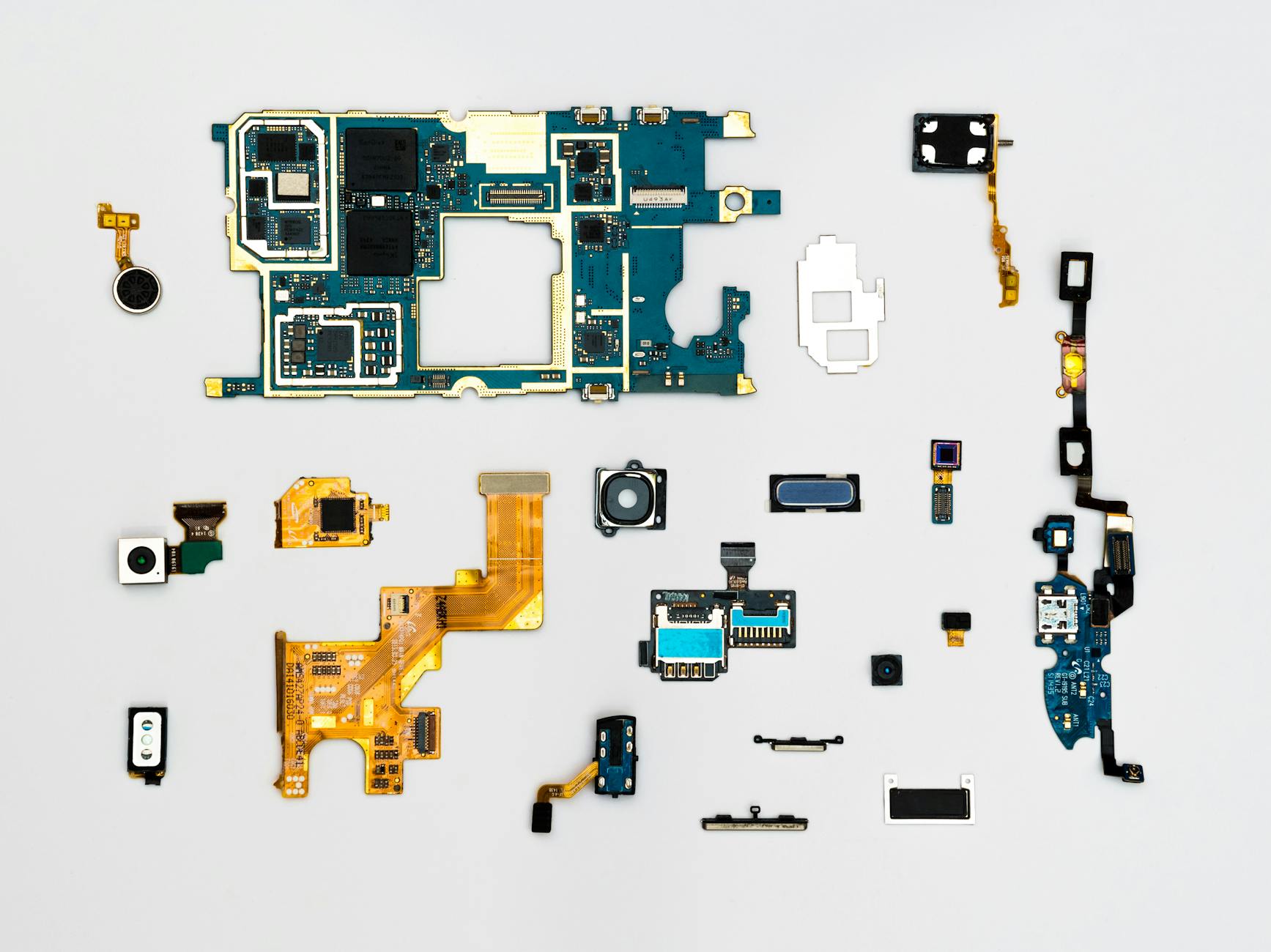 Photo by Dan Cristian Pădureț, https://www.pexels.com/@paduret
Check Screen Body and Water Exposure
Start with a careful visual inspection. Look for cracks, dents, or corrosion around ports and the screen perimeters. A tiny crack can let moisture creep in and cause long-term issues. Run your finger across the screen to feel for unresponsive zones or dead spots; a healthy display should respond smoothly to touch across the whole surface. Check near the camera module and around the edges for any discoloration or moisture hints. If the device has any telltale signs of water exposure, power it down and dry it thoroughly before further testing. Water damage can manifest as screen discoloration, fogginess, or erratic touch.
Be sure to test touch response in multiple areas, including corners and near the bezels. Open a simple task like scrolling a webpage or typing a short note to verify that input remains precise and consistent. If you notice sluggish response, screens that don’t register taps, or ghost touches, the display system or digitizer might be compromised. For a quick, practical reference, compare these observations against official guidance on physical device checks. If water exposure is suspected, consult professional repair before continuing with regular use. For a quick overview of how to detect physical damage, see Check for physical damage on your mobile device. https://www.samsung.com/ph/support/mobile-devices/check-for-physical-damage/
- Cracks or dents in the display or frame can signal structural weakness.
- Corrosion around ports means higher risk of short circuits.
- Faulty touch or discoloration may indicate internal panel or sensor issues.
If you want deeper context on water exposure signs and safe handling, review guides on water damage and display safety. For practical steps after exposure, consider the water damage resources from trusted outlets like Asurion. https://www.asurion.com/connect/tech-tips/8-steps-save-phone-water-damage/
Test Buttons Ports and Sensors
Now focus on the control surfaces. Plug in a charger and observe whether the device shows a charging indicator, which helps confirm the charging circuit is intact. Test volume, power, and any dedicated hardware buttons by pressing them firmly and noting consistency in feedback. A good device should respond promptly without sticking or failing to register presses. Inspect the charging port for debris, bent pins, or loose fit with the charger. Try different cables and power adapters to rule out accessory issues masquerading as port problems. Also test the microphone, speakers, and haptic feedback by making a quick call, playing audio, and tapping the vibration motor. If any button or port feels loose or intermittent, this could foreshadow bigger hardware problems.
For a broader reliability check, you can use diagnostic tools from reputable sources. A popular option for Android users is the Phone Tester app on Google Play, which helps assess hardware components and sensors. On iPhone devices, built-in diagnostics and third-party tools can offer similar insights. When testing, look for consistent results across multiple tests and avoid devices that show partial faults. If you suspect serious hardware issues after testing, consult a professional or consider safe repurposing. See Phone Tester – Device Info on Google Play for a practical starting point. https://play.google.com/store/apps/details?id=com.Device.tester.software&hl=en_US
What If the Only Thing Between You and the Life You Deserve Is a Hidden Wealth Code Waiting to Be Activated
>>> Open the Door <<<
- Ensure charging works with multiple cables.
- Confirm all physical buttons reliably register presses.
- Check audio output from speakers and microphone clarity.
If you want an external reference on hardware diagnostics, hardware diagnostic tests for mobile phones provide a broader framework you can adapt to your device. https://nsysgroup.com/blog/diagnostic-best-way/
In case a component shows stubborn faults, remember that not all problems require a full replacement. Some issues can be resolved with cleaning, re-seat of connectors, or a professional repair. Always back up data first and avoid using the phone for sensitive tasks if safety is uncertain. For a practical scenario of testing a used device before buying, see How to Properly Test a Used Phone Before Buying. https://www.richtel-mobifix.com/news/how-to-properly-test-a-used-phone-before-buying
Images credit: Photo by Dan Cristian Pădureț — https://www.pexels.com/@paduret
Run Performance Tests for Everyday Safety
When you’re deciding whether an old phone is still safe to use, practical performance checks matter just as much as security. This section focuses on quick, repeatable tests you can perform at home to gauge how well the device handles everyday tasks. You’ll learn how to benchmark speed, monitor heat, and verify that the phone remains responsive under typical workloads. Treat these tests like a health check for your handheld computer, not a deep tech audit. The goal is to spot red flags early so you can decide whether to keep, repurpose, or retire the device.
Benchmark Speed and Multitasking
A fast, responsive phone feels instant and confident. Start with simple multitasking tests: open several apps at once, switch between them, and check for smooth transitions. Run a quick speed test to get a baseline you can compare later. On Android, apps like 3DMark provide GPU and CPU insights, while iPhone users can rely on PerformanceTest Mobile to quantify task speed and memory handling. Compare results to the device’s expected range for its age and model. If you notice frequent freezes, long load times, or crashes during typical tasks, that’s a clear signal the device may be past its prime for everyday use. Use these benchmarks to decide if you should retire the phone or keep it for lighter errands. For a practical benchmark start, see 3DMark and PerformanceTest Mobile in their respective stores.
Photo by RDNE Stock project on Pexels Photo by RDNE Stock project Credit: Photo by RDNE Stock project
Monitor Heat Storage and Basic Features
Heat is a quiet killer of long-term safety. During a light session, monitor how the phone feels in your hand and how long it stays cool. Check free storage space, test cameras by taking quick photos, verify GPS accuracy, and connect to WiFi to ensure stable performance. Overheating during normal tasks is a warning sign that the device may have battery or thermal issues. If the handset gets uncomfortably warm or the battery drains unusually fast, consider limiting usage to non-critical tasks or repurposing the device. For guidance on heat management and safety, use reputable resources that discuss overheating signs and fixes. See resources on phone temperature checks and overheating remedies to stay informed.
- Look for sustained warmth, not just a brief spike.
- Confirm WiFi and GPS work reliably in real-world conditions.
- A phone that overheats during simple tasks should be sidelined for safety.
Photo by Dan Cristian Pădureț on Pexels Photo by Dan Cristian Pădureț Credit: Photo by Dan Cristian Pădureț
Clear Junk and Optimize
Storage pressure often slows older devices more than expected. Start by freeing up space and optimizing performance. Remove unnecessary files and clear app caches to reclaim available storage. Update the OS and apps where possible, then restart the phone and re-test typical tasks. You should notice quicker app launches, smoother scrolling, and fewer hiccups. If performance improves after a cleanup, it’s a good sign the device can continue handling everyday tasks with reasonable reliability. Use built-in tools and trusted guides to perform a safe cleanup, then reassess the device’s responsiveness. For practical steps to free space, follow trusted guides on clearing caches and optimizing storage.
He Was Drowning in Bills and Burnout Until a Simple Daily Ritual Rewired His Brain for Wealth in Less Than a Week
>>> Start Your Shift Today <<<

- Clear cache and temporary files to regain speed.
- Update apps and the OS when possible.
- Restart after cleanup to apply changes and test performance again.
 Photo by RDNE Stock project, https://www.pexels.com/@rdne
Decide If Your Old Phone Is Safe Enough
When you pull an old phone out of a drawer, you want a straight answer: is it still safe to use for daily tasks, or is it time to retire it? This section cuts through the guesswork with practical checks you can perform in minutes. Think of it as a safety and usability quick pass that helps you decide whether to keep, repurpose, or retire the device. A smartphone that passes these tests gives you peace of mind and keeps your data protected.
Verify Security Update Status
Regular security patches are the first line of defense. If the phone is no longer receiving updates, it’s more vulnerable to new threats. For Android devices, check Settings > About phone to see the Android version and the security patch level. A recent patch level means protection is current, while a stale one signals risk. For iPhones, go to Settings > General > About and confirm whether your device can install the latest iOS update. If no newer update is available, note the last patch date and compare it with official advisories. If a device hasn’t been updated in years, treat it as risky for using sensitive apps or online banking. For reliable guidance, review resources like Android Security Bulletins and Apple support articles on updating software.
- Android patch status reference: Android Security Bulletin and Support pages
- iPhone patch status reference: Update iOS on iPhone and Find the software version on your iPhone
Update Apps and Test Compatibility
An OS that’s still in patch with a handful of old apps can create a weak point. Start by updating all installed apps. On Android, open the Google Play Store, tap your profile, and choose Updates available. On iOS, open the App Store, tap your profile, and select Update All. After updating, open your most-used apps and run through typical tasks. Look for crashes, freezing, or unusual prompts. If critical apps no longer run well, the device may not be suitable for everyday use. Abandoned apps can become security holes or fail with new services. If you encounter compatibility issues, consult official app store resources linked here for the latest guidance.
- Android app update guidance: Check & update your Android version
- iPhone app update guidance: Find the software version on your iPhone, iPad, or iPod touch
Watch for Signs of Unsupported Software
A device that no longer receives security updates is a red flag. If there’s no option to update, or you see persistent compatibility errors, the phone is likely unsupported. Other indicators include the absence of new security patches in official advisories or forum notices about end-of-support models. When you spot these signs, back up important data, enable a strong screen lock, and limit sensitive activity to devices with ongoing protections. This is often the moment to upgrade or repurpose for noncritical tasks. For broader context, review discussions about unsupported devices and timelines for security updates from reputable outlets.
- Read about when devices stop receiving updates (general guidance)
- Consumer guidance on upgrading and data protection before trade-in
Assess Battery Health and Safety
A healthy battery helps your phone run reliably and safely. Start with the built-in battery tools to gauge health. On iPhone, Settings > Battery > Battery Health shows maximum capacity and performance management. A capacity around 80 percent or higher is usually fine for everyday use, though you may notice shorter battery life. On Android, battery health readings live in Settings > Battery or via device-specific diagnostics. A rapidly dropping capacity or signs of swelling merit further testing or replacement. If you see abnormal wear, plan for a battery replacement or repurpose the device for less demanding tasks.
- For iPhone users, a battery health reading near or above 80% indicates the phone can handle daily tasks.
- If health declines quickly with light use, consider a replacement or repurposing.
- Compare readings with official guidance from Apple and your device maker.
Inspect for Battery and Charging Safety
Beyond the readout, look for warning signs that a battery is aging or unsafe. Swelling is the most serious red flag, as it can push the screen away from the chassis or cause other mechanical failures. Heat during charging or use, especially if the device gets uncomfortably warm, is another warning sign. Rapid, unexplained battery drains or unexpected shutdowns also point to battery or power-management issues. If you notice any of these, stop using the phone for sensitive tasks and seek professional help or consider a safe retirement of the device.
- Swelling or bent chassis: stop using the device and seek service.
- Excess heat during charging: unplug and inspect charging accessories for damage.
- Quick drains or random shutdowns: test with a known-good charger and rule out apps.
Consider Third-Party Battery Diagnostics
If you want a deeper look, third-party battery apps can reveal cycle counts, wear, and temperature trends. Apps like AccuBattery (Android) provide a practical read on wear and actual capacity versus rated capacity. For iPhone, some apps offer similar insights, though Apple limits data access in places. When using third-party tools, choose reputable developers, read reviews, and install from official stores. Use battery data like cycle count, wear level, and temperature to decide whether a replacement makes sense or if you should keep the device for noncritical tasks.
- Examples include well-known battery health apps for Android and iPhone ecosystem resources discussing monitoring and safe usage.
- Always verify permissions and store listings before installation.
Links to trusted guides and apps can help you compare readings with official guidance. For further reading on battery health across platforms, see Apple’s battery health overview and Android battery health discussions.
- iPhone battery and performance
- 2 Ways To Check The Battery Health On Your Android Phone
- Best Battery Health Apps For Android & iPhone
Inspect Hardware for Hidden Dangers
Hardware health goes beyond whether the phone calls well. It guards your safety, protects your data, and keeps the device reliable for daily tasks. Perform a quick physical audit to spot issues like water exposure, loose connectors, or failing sensors. A careful check now saves headaches later and helps you decide whether to keep, repurpose, or retire the device.
Check Screen, Body, and Water Exposure
Visual inspection first. Look for cracks, dents, or corrosion around ports and the screen edges. Tiny cracks can let moisture creep in and cause long-term trouble. Run your finger across the screen to ensure smooth touch response across the whole surface. Check the camera module and edges for discoloration or moisture hints. If water exposure is suspected, power down and dry the phone thoroughly before further testing. Water damage can show up as discoloration, fogginess, or erratic touch.
Test touch response in multiple areas, including corners and near bezels. Open a simple task like scrolling a page or typing a note to verify input accuracy. If you notice sluggish response or ghost touches, the display system or digitizer may be compromised. Compare observations with official guidance on physical device checks. If water exposure is likely, consult a professional before continuing with regular use.
- Cracks or dents signal structural weakness.
- Corrosion around ports increases short-circuit risk.
- Faulty touch or discoloration may indicate internal panel or sensor issues.
If you want deeper context on water exposure signs and safe handling, review guides on water damage and display safety. See water damage resources from trusted outlets like Asurion for practical steps after exposure.
Test Buttons, Ports, and Sensors
Next, test the control surfaces. Connect a charger and see if the device shows a charging indicator to confirm the charging circuit. Press volume, power, and any hardware buttons to ensure consistent feedback. Inspect the charging port for debris, bent pins, or a loose fit with the charger. Try different cables and adapters to rule out accessory issues. Test the microphone, speakers, and vibration feedback by making a quick call and playing audio. If any control or port feels loose or intermittent, it could signal bigger hardware problems.
For a broader reliability check, use diagnostic tools from reputable sources. A popular Android option is the Phone Tester app on Google Play. On iPhone, built-in diagnostics and third-party tools offer similar insights. Look for consistent results across tests and avoid devices with partial faults. If serious hardware issues show up, consult a professional or consider safe repurposing.
- Ensure charging works with multiple cables.
- Confirm all physical buttons reliably register presses.
- Check audio output from speakers and microphone clarity.
External references on hardware diagnostics can provide a broader framework you can adapt to your device. If a component shows stubborn faults, remember not every problem requires a full replacement. Some issues can be addressed with cleaning, reseating connectors, or a professional repair. Always back up data first and avoid using the phone for sensitive tasks if safety is uncertain.
Run Performance Tests for Everyday Safety
Performance checks matter as much as security. Run quick, repeatable tests to gauge how well the device handles everyday tasks. Treat these as a health check for your handheld computer, not a deep tech audit. The aim is to spot red flags early so you can decide whether to keep, repurpose, or retire the device.
Benchmark Speed and Multitasking
A fast, responsive phone feels confident. Do light multitasking tests by opening several apps at once and switching between them to gauge smoothness. Run a basic speed test to establish a baseline for future comparisons. On Android, consider tools like 3DMark for GPU and CPU insights. On iPhone, PerformanceTest Mobile can quantify task speed and memory handling. If you notice frequent freezes, long load times, or crashes during typical tasks, treat the phone as borderline for everyday use. Use the benchmarks to decide whether to retire the device or keep it for lighter tasks.
- Look for consistent performance across common actions.
- Compare results to the device’s age and model expectations.
Monitor Temperature and Real-World Use
Heat quietly wears hardware. During light use, feel how the phone stays in your hand and how long it remains cool. Check available storage space and test the camera, GPS, and WiFi in real-world conditions. Overheating during normal tasks is a warning sign that the battery or thermal design is failing. If the device warms up unusually or the battery drains quickly, limit usage to noncritical tasks or repurpose.
- Watch for sustained warmth rather than a brief spike.
- Verify reliable WiFi and GPS performance.
Clear Junk and Optimize
Storage pressure slows older devices. Free up space, clear caches, and update the OS and apps where possible. Reboot, then re-test typical tasks. If you notice a noticeable speed improvement, the device can handle everyday chores with reasonable reliability. Use trusted guides and built-in tools to perform a safe cleanup, then reassess the device’s responsiveness.
- Clear cache and temporary files to regain speed.
- Update apps and the OS when possible.
- Restart after cleanup to apply changes and test performance again.
Images and visuals can make this section easier to follow. If you’re adding visuals, ensure captions clearly reflect what readers should look for during checks.
External links can provide extra context for readers who want deeper dives into specific steps. For example, you can link to reliable guides on battery health, official help pages for security updates, and practical tutorials on repurposing old devices.
- Apple battery health overview
- 2 Ways To Check The Battery Health On Your Android Phone
- How to Safely Get Rid of Your Old Phone or Tablet
By treating safety as a multi-step check, you get a clear view of whether your old phone is still a trustworthy device for daily life, needs careful limits, or should be retired. If you want this section tuned to a particular audience, say more focus on privacy tasks or sharing data securely, I can adjust the emphasis while keeping the same practical steps.
Conclusion
If you pulled an old phone from the drawer, you already have a practical test plan in hand. Run through the core checks: confirm security updates, verify app compatibility, assess battery health, and inspect hardware for hidden dangers. A phone that passes these tests shows it can still handle everyday tasks with reasonable safety.
The key is to act now. Update apps, check the latest OS patch, and run quick hardware and performance tests. If you see persistent issues or a stale patch level, treat the device as limited for sensitive tasks and ready for repurposing or retirement. A safe smartphone is one that you can use with confidence, not one that hides risks behind a smooth interface.
These checks create peace of mind and a clear plan. You’ll know whether to keep using the device for light duties, repurpose it for backup tasks, or upgrade to a newer model. Remember to back up data before making changes and use strong screen locks to protect your information. A simple routine today lowers risk tomorrow.
Share your results and tips with readers and consider upgrading paths you’d recommend. Are you leaning toward repurposing, selling, or retiring your old phone after testing? If you have a handy checklist or a favorite battery tool, drop a note in the comments. Your experiences help others make smarter, safer choices with their phones.
He Was Drowning in Bills and Burnout Until a Simple Daily Ritual Rewired His Brain for Wealth in Less Than a Week
>>> Start Your Shift Today <<<