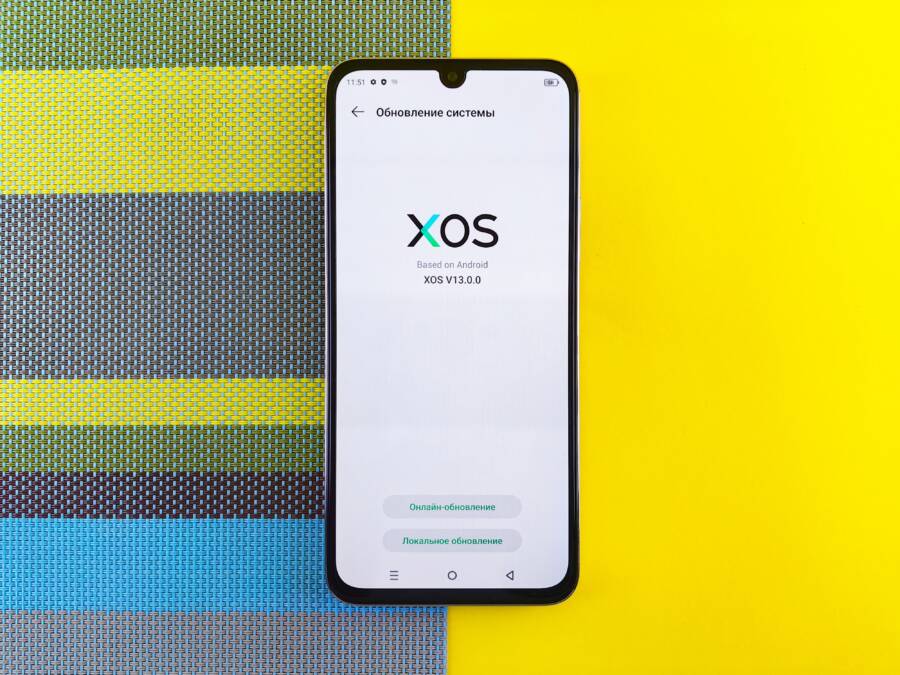
If your smartphone stops receiving software updates, the culprit is often insufficient storage, a weak network connection, or an older device model that no longer supports new OS versions. These simple fixes can often resolve the error and restore your update path immediately.
Check these common areas first to see if your phone is ready to download the latest system files. Following these steps helps you clear the path for a successful installation on your device.
Quick Checks to Resolve Update Issues
Before you contact technical support or reset your device, you can perform a few basic checks to fix most update problems. These simple maintenance tasks often address the most common reasons why a smartphone refuses to install new software. Many times, the phone lacks the necessary resources or connection stability required to complete the process. By addressing storage, power, and network connectivity, you can resolve the issue yourself in just a few minutes.
Clear Out Space for New Software
Insufficient storage remains the most frequent reason a smartphone fails to update. Your phone requires extra memory to download the installer package, decompress the files, and move them into the system directory. When the internal memory is nearly full, the system cancels the installation to prevent potential data loss or crashes.
You can reclaim space by following these practical steps:
- Uninstall apps you haven’t opened in months. Games and streaming services often occupy massive amounts of space.
- Back up your photos and videos to a cloud service like Google Photos or iCloud. Once the files are safely in the cloud, you can delete them from the device.
- Clear temporary cache files. Many phones have a built-in storage manager that can identify and remove junk files or redundant system data with one tap.
Moving your media files to external storage or cloud accounts helps ensure the system has enough breathing room. Aim to keep at least 5 to 10 gigabytes of free space to allow for a smooth update installation.
Verify Your Wi-Fi and Battery Status
Updates often involve large data transfers that demand consistent power and a stable internet connection. Most manufacturers design their software to block installations if the battery level is below 50 percent. This safety protocol prevents the phone from shutting down in the middle of a delicate system upgrade, which could corrupt your software.
Always plug your smartphone into a wall charger during the entire update process to maintain a steady flow of power. In addition to battery health, your network connection matters significantly. Public Wi-Fi networks or weak cellular hotspots often drop packets, leading to a corrupted download file.
Stick to a reliable home or office network whenever possible to maintain a solid, uninterrupted connection. If your internet signal fluctuates, the download might hang or fail repeatedly. A wired connection is not possible for most mobile devices, so ensuring your router is close by can make a measurable difference in download stability and speed.
Troubleshooting Specific OS Update Failures
Sometimes a smartphone faces unique barriers that prevent a standard software update from finishing. When the usual checks like battery life and storage space pass without incident, you might deal with a stalled background process or a mismatch between your device and the manufacturer servers. Identifying the specific source of these failures helps you recover your device and keep it current without unnecessary frustration.
Fixing Stuck Updates on iPhone
When an iPhone appears to freeze during an update, a corrupted installation file is the most likely cause. Your device might have downloaded a partial update package that contains errors, preventing it from finishing the installation process. You can remove this problematic file to trigger a fresh download attempt.
- Open the Settings app on your iPhone.
- Tap General and select iPhone Storage.
- Scroll through the list of apps until you find the iOS update entry.
- Tap that entry and select Delete Update to remove the file from your phone.
- Restart your device, then return to General and Software Update to start the process again.
Before you restart the update, check the official Apple System Status page through a web browser. Apple servers occasionally undergo maintenance or experience outages that block download requests. If the status page shows an issue with the System Updates service, wait until the indicator turns green before you try the update again.
Solving Android Update Problems
Android updates depend on a complex relationship between hardware manufacturers and mobile carriers. If your update fails to appear, your device might be tied to a carrier-locked version of the software. Carriers often modify the base Android OS to include their own apps or network settings, which delays the rollout of new updates to these specific models.
Unlocked devices usually receive updates directly from the manufacturer, so they are not subject to these carrier-driven delays. You can check the current status of your model by visiting the support page on your manufacturer website. This page lists the most recent software versions released for specific regions and hardware versions.
If your manufacturer confirms that an update exists but your smartphone shows no new software available, your regional release might still be pending. You can try these troubleshooting steps to verify your device status:
- Check your Settings menu under About Phone to see your current baseband version and build number.
- Compare these numbers against official release notes provided by your manufacturer for your specific region.
- Use a official desktop management tool from the manufacturer, such as Samsung Smart Switch, to check for updates that the phone might miss over a wireless connection.
If the desktop tool also shows your software as current, the update is likely still moving through the approval process for your specific device configuration. Waiting for the automatic notification is the safest path, as manually forcing updates on carrier-specific models can lead to stability issues.
When Your Hardware No Longer Supports New Updates
Every smartphone eventually hits a point where the manufacturer stops releasing software updates. This typically happens when the internal hardware, specifically the processor or memory, cannot handle the demands of the latest operating system. While it feels frustrating to see your device fall behind, understanding the limitations of older hardware helps you decide if it is time to upgrade or continue using your current phone.
Identifying Hardware Obsolescence
Manufacturers usually support their devices with software updates for three to five years after the initial release. Once this window closes, your phone will stay on its current operating system version indefinitely. You might notice this happens when your device no longer appears on the official list of supported models for the newest update.
You can verify your status by visiting the support section of your manufacturer website. Simply search for your specific model to see the last released version of the software. If your phone runs that version, it has likely reached its final update milestone.
Risks of Running Older Software
Using an outdated smartphone does not mean your device will stop functioning tomorrow, but it does introduce new security realities. Software updates often include security patches that protect your data from vulnerabilities discovered after the initial release. Without these patches, your device remains exposed to potential threats that newer phones have already fixed.
Consider these factors when you decide to keep an older device:
- App compatibility starts to fade as developers focus on newer versions of Android or iOS.
- Banking and finance applications often require the latest security protocols to function correctly.
- Battery performance may decline over time, and software updates can no longer optimize the power usage as effectively as they do for modern hardware.
Maximizing the Life of Your Current Device
If your smartphone no longer receives official updates, you can still extend its useful life with a few careful habits. Focus on securing your data and removing unnecessary apps that demand high system resources. Even without the latest features, a well-maintained older phone remains a capable tool for daily tasks like calling, texting, and browsing.
Be selective about the applications you install from the app store. Newer apps often require recent system files to run, so check the minimum requirements before downloading large games or complex tools. Keep your existing apps updated to their latest possible versions, as these developers often include their own security enhancements even if your base operating system remains unchanged.
If your primary concern is long-term security, consider moving sensitive tasks like mobile banking to a more recent device. You can then use your older phone for basic tasks, effectively isolating your most important information from potential risks. This strategy allows you to get the most value from your hardware while maintaining a safe environment for your financial and personal data.
Advanced Steps for Persistent Errors
When basic maintenance fails, you must approach the software update problem with more rigorous methods. These steps resolve deep system conflicts that block your smartphone from applying new firmware. You should perform these actions in order to verify your device environment is truly ready for a system change.
Boot Into Recovery Mode
Recovery mode is a specialized environment that exists outside your main operating system. It allows you to perform low-level maintenance, such as wiping the system cache partition, which often clears out corrupt files that interrupt standard updates. You can enter this mode using a specific hardware key combination, such as holding the volume and power buttons simultaneously while your device turns on.
Once inside the recovery menu, use the volume keys to navigate and the power button to select. Look for the option labeled Wipe Cache Partition. This action removes temporary system files that might be interfering with your update process. Your personal data remains safe during this operation, as it only targets temporary files used by the system.
Perform a Factory Data Reset
If errors persist, the current installation of your operating system might have become too unstable to accept patches. A factory reset returns your device to its original out-of-the-box state. You must back up all your photos, contacts, and messages before you start, because this process erases everything on your internal storage.
After you secure your data, go to the reset menu within your settings. Choose the option to erase all data and confirm the action. Once the device restarts, you can set it up as if it were new. Attempt the software update immediately after the initial setup process completes to confirm that a clean operating system allows the patch to install successfully.
Reinstall the OS via Desktop Software
Sometimes the wireless update mechanism experiences a permanent glitch that prevents it from communicating with the manufacturer servers. Desktop management tools provide a more robust connection for installing system software. These programs download the entire operating system image from the source, which bypasses potential issues with smaller, partial update files.
Connect your smartphone to a computer using a high-quality USB cable. Open the manufacturer official support software, such as iTunes for Apple devices or specialized recovery tools for Android, to initiate a repair or update. The desktop software will identify your device, verify the firmware version, and overwrite the existing software with a fresh, complete installation. This method provides the most reliable path to fixing deep-seated software update errors.
Conclusion
Keeping your smartphone updated is the primary defense against security threats and software bugs. Consistent updates ensure your device runs efficiently while protecting your personal data from evolving online risks.
Start by checking your storage, battery, and network connection if an update fails to install. These simple steps fix most common issues without needing complex repairs.
If these basic fixes do not work, consider a factory reset or desktop recovery tools to force the update. You might eventually reach a point where your device hardware no longer supports the latest software. At that stage, upgrading your phone is the most reliable way to maintain full security and app compatibility.