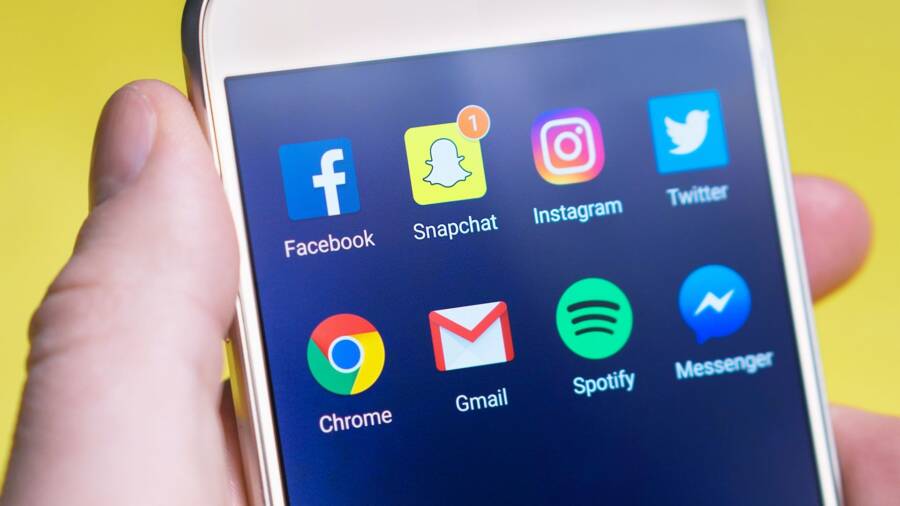
Missing audio on social media videos is usually the result of a simple software glitch or a hidden setting. You can fix this issue quickly on your smartphone by checking your volume levels, app permissions, and cache settings.
Most sound problems occur because the app is muted or a background process is conflicting with your audio output. These minor technical hiccups are common, but they rarely indicate a serious hardware failure.
Follow these steps to restore audio on your favorite apps. You will have your sound working again in just a few minutes.
Check Your Physical and System Volume Settings
Before you troubleshoot advanced software issues, verify that your hardware and system audio levels are set correctly. A smartphone often has multiple volume channels that act independently. If your physical buttons are set low or your system output is routed incorrectly, you will not hear audio from Instagram or TikTok despite the apps appearing to function normally.
Why Your Smartphone Might Be Connected to Hidden Bluetooth Devices
Your smartphone may route audio to a Bluetooth device you are not currently using. This happens often if your device automatically pairs with headphones, a speaker, or a car stereo left in another room or a gym bag. Even if you are not wearing the headphones, your phone continues to send audio signals to them.
Follow these steps to check for active connections:
- Open the Settings app on your smartphone.
- Select the Bluetooth or Connected Devices menu.
- Review the list under Active or Connected Devices.
- Toggle the Bluetooth switch to the off position to disconnect all paired items instantly.
If sound returns to your phone speakers after you turn off Bluetooth, you know the culprit was an external device. You can then toggle Bluetooth back on and manually disconnect or unpair the specific accessory causing the conflict.
Distinguishing Between Ringer and Media Volume Levels
Most people assume that pushing the volume buttons on the side of their smartphone adjusts the audio for everything at once. However, modern operating systems maintain separate volume sliders for different functions. If you only adjust the ringer or notification volume, the sound inside apps like TikTok or Instagram remains silent.
When you press the volume buttons, watch the on-screen slider that appears. This slider represents the media volume, which controls music, video playback, and game sounds. If you see a speaker icon with a line through it, or if the bar is all the way down, you must slide it up to enable audio.
Sometimes, the buttons default to the ringer volume while you are on your home screen. To ensure you change the correct setting, follow these tips:
- Open an Instagram or TikTok video first, then press the volume buttons while the video plays. This forces the slider to control the media channel.
- Visit your sound settings menu to see individual sliders for media, notifications, and system sounds.
- Adjust the media slider manually to its maximum level to rule out simple volume restrictions.
Understanding this distinction prevents frustration when you mistakenly turn up your ringtone while expecting your video feed to get louder. By focusing on the media volume channel, you ensure your device sends audio directly to the built-in speakers of your smartphone. Check these settings whenever you lose sound, as apps often reset their volume behavior after a system update or a forced restart.
Troubleshooting App Specific Audio Glitches
When your smartphone displays video content correctly but fails to produce sound, the fault often lies within the application data or software version. These glitches occur because temporary files become corrupted or the app version installed on your device is no longer compatible with current system protocols. You can resolve most audio failures by resetting the application state or ensuring your software is fully up to date.
How to Clear App Cache to Resolve Performance Issues
Temporary data stored on your device, known as cache, helps apps load faster. However, old or corrupted cache files often trigger unexpected behavior, such as missing audio or frozen playback. On Android devices, you can refresh this data without removing your personal settings or account information.
Follow these steps to clear the cache on an Android smartphone:
- Open the Settings app and navigate to the Apps or Application Manager section.
- Find Instagram or TikTok in your list of installed programs.
- Tap on Storage or Storage and Cache.
- Select the button labeled Clear Cache.
Do not select Clear Storage or Clear Data, as this will log you out and delete your saved preferences. If you use an iPhone, the operating system manages cache files automatically. iOS does not provide a manual option to clear individual app cache. If you suspect corrupted files are causing your audio issues on an iPhone, you must uninstall the app and reinstall it from the App Store. This process forces the device to download fresh files and clears any broken data lingering in the background.
Updating Instagram and TikTok to the Latest Version
Software updates contain essential fixes for known bugs, including audio routing errors and playback failures. When you run an outdated version of an app, it may struggle to communicate with the hardware speakers of your smartphone. Developers release patches regularly to ensure their services keep pace with system updates from Apple and Google.
Check for available updates by visiting your device application store:
- Open the Google Play Store or Apple App Store on your smartphone.
- Search for the app name or visit your profile page to view pending updates.
- If an Update button appears next to the icon, tap it immediately.
- Wait for the installation to finish before reopening the app to test your audio.
Keeping your applications current prevents recurring performance issues and provides access to the latest stability improvements. If you notice persistent audio trouble even after updating, verify that your device operating system is also running the most recent version. System-level updates often include drivers that bridge the gap between your hardware and media applications. Always prioritize these updates to maintain consistent functionality during daily use.
Advanced Software Fixes for Persistent Sound Problems
Sometimes standard troubleshooting steps fail to resolve audio issues on your smartphone. When simple volume adjustments and cache clearing do not bring back your sound, you must look deeper into the system configuration. Incorrect software settings often block audio output for specific apps while leaving other phone functions working perfectly.
Managing App Permissions for Media Playback
Privacy settings on your smartphone control which hardware components an app can access. If Instagram or TikTok lacks the necessary permissions, the app cannot initialize the audio output correctly. This conflict happens if a previous update reset your settings or if a security prompt was accidentally ignored during installation.
To check these permissions, follow these steps:
- Open the Settings app and find the list of installed applications.
- Select Instagram or TikTok from the list.
- Tap on the Permissions or App Info menu.
- Verify that the microphone and media permissions are set to Allowed.
Granting microphone access is particularly important because video apps require it to process audio tracks correctly. Even if you are not recording video, the app needs this link to synchronize playback with your speakers. If the switch is currently off, toggle it to the on position and restart the application to apply the changes.
In rare cases, a conflict between third-party security software and your operating system causes these permissions to hang. If your settings appear correct but you still have no sound, try toggling the permissions off and then back on. This simple cycle forces the operating system to re-establish the connection between the app and your hardware. After you verify these settings, your media should play without further interruption.
Common Questions About Video Audio Issues
People often run into audio trouble while scrolling through social media. You may wonder if your hardware is broken or if a simple setting change fixes the problem. Most users find that their smartphone hardware is perfectly healthy, even when silence persists during playback.
Can a low battery cause sound problems on my smartphone?
Yes, sometimes your battery saver mode restricts background processes. Some operating systems intentionally limit media performance to conserve power when the charge drops below a certain threshold. Check your battery settings to see if power-saving mode is active. Turning this off often restores full audio capability immediately.
Will a restart fix temporary audio bugs?
A quick restart is the best way to clear up minor software conflicts. When you reboot your device, it closes all background tasks and refreshes the memory. This process eliminates temporary glitches that might block sound output within specific applications. Many users find that a simple restart solves issues that seemed complicated at first.
Why does audio work in other apps but not TikTok?
Each application manages its own media playback settings independently. If sound works in your web browser or music player, the issue is likely specific to the app configuration. Check if the app has permission to access your microphone or if you accidentally muted the in-app video player. These individual app settings often override your system volume.
How do I know if my speakers are physically damaged?
You can test your speakers by playing a sound from a different source, such as a saved video file or a music app. If sound plays clearly through the speakers from these sources, your hardware is fine. The issue remains isolated to your social media applications. If you hear no sound anywhere, you might need to check your headphone jack or speaker grille for debris that could be muffling the output.
Should I reinstall the app if sound is missing?
Reinstalling the app is an effective way to resolve persistent bugs. This action deletes corrupted files that standard cache clearing might miss. It also ensures you have the latest version of the app installed on your smartphone. Follow these steps to perform a clean install:
- Locate the app icon on your home screen or app drawer.
- Long-press the icon and select Uninstall or Remove.
- Visit your app store and download the application again.
- Log back into your account to verify if the audio issue is resolved.
Refreshing your app data this way fixes most software-related silent video errors. Always remember to back up your personal settings if the app requires it before you uninstall.
Conclusion
Most sound issues on social media apps arise from simple software glitches or temporary setting conflicts. You can typically restore audio by checking your media volume, toggling Bluetooth, or clearing your app cache. These troubleshooting steps resolve the vast majority of silent video problems on any modern smartphone.
If your audio remains unresponsive after you adjust these settings, perform a quick restart of your device to refresh all system processes. A clean reinstall of the app often acts as the final fix for persistent bugs. Your phone hardware is likely healthy, and a few minutes of configuration will usually get your sound back to normal.