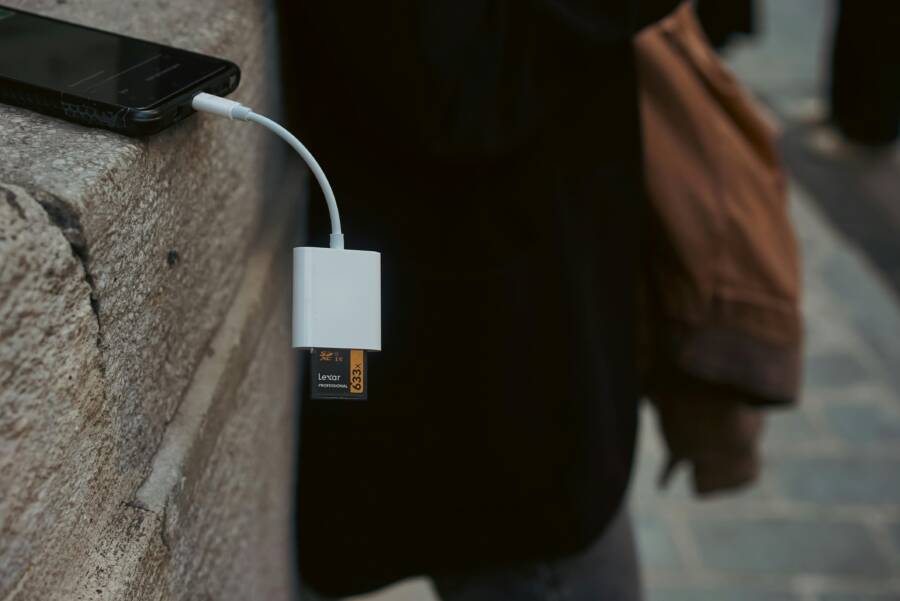
Moving to a new phone should feel exciting, not overwhelming. If you’re wondering how to move all media from an old phone to a new one, you’re in the right place. This guide covers built in tools, cross platform options, wired and wireless methods, so you can move photos, videos, music, and files with confidence.
You’ll learn practical steps to transfer media from two popular ecosystems and across devices, no matter if you’re switching brands or staying with one. We’ll break down the best ways to do a complete backup and then restore it on your new device. By the end, you’ll have a clear plan to get your memories and important files safely moved.
We keep things simple for everyday users, with easy to follow steps and real world tips. If you want to move photos and more fast, you’ll find reusable methods that work whether you’re at home, at the office, or on the go. Let’s get you from old phone to new phone with less fuss and more peace of mind.
Plan your move: what to transfer and how long it might take
Moving memories and files from an old phone to a new one can feel like a puzzle. The key is to plan what to transfer and know roughly how long it will take. This section breaks down the media you likely have on your device, the backup safety nets you should use, the transfer order that keeps things neat, and realistic timelines so you can pace the process without surprises.
Take stock of your media types
Before you start, identify the main categories you want to move. Most people end up transferring:
- Photos and videos: Personal memories, screenshots, and recorded clips. These often live in your device’s gallery or in cloud-backed libraries.
- Music and audio files: Local song downloads, ringtones, voice memos, and podcasts saved on the device.
- Documents and downloads: PDFs, slides, presentations, and work files saved in your device storage or a download folder.
- App data: Settings, saved games, messages, and offline data that apps store on the device. Some apps keep this in the cloud, which means you might not need a direct transfer for every item.
It’s common for some items to live in cloud services, like iCloud, Google Photos, or Google Drive. If a media type is already safely stored in the cloud and syncs across devices, you may not need to move it manually. For example, photos may be available in Google Photos or iCloud Photos, and music may be stored in a streaming service. Focus your effort on local files and app data that aren’t covered by cloud storage.
- Practical tip: run a quick check of your cloud libraries first. If you can access everything from the new phone after signing in, you’ll save time on the transfer itself.
For more on cloud-backed libraries, see guidance from Apple and Google on moving photos and data between devices. [Move data to a new iPhone or iPad from Android] and [Transfer iCloud Photos to Google Photos]. These guides help you decide what truly needs a local transfer versus what can stay in the cloud.
Back up before you move
Backups are your safety net. Do both a device backup and a cloud backup whenever possible. This redundancy protects you if something goes wrong during the transfer.
- Device backup: Use the old phone’s built-in backup tool. This creates a snapshot of settings, app data, messages, and more. If you’re switching from Android to iPhone or vice versa, you’ll often find tailored backup options during the setup flow. Apple provides clear steps for transferring data from a previous iOS or iPadOS device to a new device, including ensuring you have a backup on hand. [Transfer data from your previous iOS or iPadOS device to your new iPhone or iPad].
- Cloud backup: Ensure photos, videos, documents, and app data are mirrored in cloud storage. Google Photos, iCloud, and similar services offer automated backups and syncing. This adds a second line of defense and can simplify the restoration on the new phone.
- Practical tip: don’t wait until the last minute to back up. Do it now, and verify you can access the backup from another device or computer.
For official backup guidance, Apple’s and Google’s support pages are solid references. See Apple’s step-by-step for moving data from one iOS device to another, and Google’s instructions for transferring apps and data between Android devices. [Transfer data from your previous iOS or iPadOS device to your new iPhone or iPad], [Copy apps & data from an Android to a new Android device].
Decide transfer order and method
Plan the sequence you’ll transfer items in. A sensible order keeps your new phone usable during the process and reduces chances of errors.
- Suggested order: start with photos, then videos, followed by music and documents. Finally, restore or sync app data and settings.
- Wired vs wireless: wired transfers are typically faster and more reliable, especially for large libraries. Wireless transfers work well when you’re near Wi-Fi and don’t mind a bit more time or variability.
- Check storage on the new phone: before you begin, verify that there is enough free space for everything you plan to move. This avoids midway pauses and partial transfers.
- What to use when:
- Use a wired connection for big chunks, such as hundreds of gigabytes of photos and videos. USB-C or USB 3.x cables can push data quickly and reduce dropouts.
- Use wireless options when you’re short on cables or when devices are in the same room, and network speed is strong.
- Practical tip: if you’re moving between ecosystems, you may find mixed results depending on the devices involved. For example, Apple’s Move to iOS app can help when moving from Android to iPhone, and Google’s Switch to Android tools work well for iPhone to Android transfers.
To get a sense of the typical path, look at real-world guidance on wired versus wireless data transfers and the kinds of results you can expect from each method. For a practical comparison, you can review articles comparing wired and wireless transfer speeds and the factors that influence timing. [Wired vs Wireless: Which Connectivity Wins?], [Copy apps & data from an iPhone to a new Android device].
- Quick example: plan to move your photo library first using a wired connection if possible. Once that chunk is complete, you can safely start streaming music or opening files on the new device while you finish the rest.
Time and readiness: plan for a slow transfer
Media transfers can take longer than you expect, especially with large libraries. A realistic timeline helps you stay calm and organized.
- Large libraries take longer: if you’re moving around 100 GB of photos and videos, expect longer windows for completion, especially when using wireless transfers or older devices.
- Battery matters: start the transfer with a full battery or keep the devices plugged in. Interruptions due to dying batteries are common culprits for failed transfers.
- Watch for network variability: Wi-Fi and cellular networks can fluctuate, which affects wireless speeds. If you have a fast and stable local Wi-Fi or a strong cellular 5G signal, you’ll see better results.
Here’s a quick snapshot of what typical timelines look like in real-world scenarios:
- Wired transfer (USB-C/USB 3.x): usually 2 to 5 minutes for substantial chunks, but real-world speeds depend on cable quality and device capabilities.
- Wireless transfer (Wi-Fi 6 or strong 5G): commonly 10 to 30 minutes for large libraries, with variability based on network health.
- Cellular transfers over 5G: can range from 30 minutes to several hours depending on coverage and traffic.
- Practical takeaway: choose wired when you can. It’s the most predictable path for big moves. If you need to transfer while away from a cable, ensure you’re on a solid Wi-Fi network and keep devices near the router.
- Real-world reference: if you want to understand how long backing up or transferring data can take in practice, examine guides that compare transfer speeds and timelines for different setups, including iPhone to Android and Android to Android paths. [Transfer Your Data to Your New Android], [Copy apps & data from an Android to a new Android device].
- Quick tip: keep a small window open for potential issues. If something stalls, pause briefly, check connections, and resume. A calm, step-by-step approach prevents frustration and accidental data loss.
- If you’re curious about cloud transfer timing and how long it may take when moving cloud-backed media, consider sources that discuss cloud-to-cloud transfers and the typical duration for iCloud to Google Photos moves, as well as the time estimates Apple assigns for moving iCloud Photos to another service. [Transfer iCloud Photos to Google Photos], [Transfer a copy of your iCloud Photos collection to another service].
- Practical example: you might start with wired transfer for 100 GB of photos, monitor the progress, then switch to wireless for the rest of your media while you attend to apps and documents. By planning in phases, you keep the process manageable and predictable.
- Final note: the exact times will vary by device model, cable quality, network conditions, and current device performance. Use the estimates above as your baseline, then adjust as you go.
External resources for planning and timing:
- Apple support for moving data between iOS devices: https://support.apple.com/en-us/119967
- Google support on copying data between Android devices: https://support.google.com/android/answer/13761358
- General transfer guidance for Android to Android: https://www.android.com/transfer-data-android-to-android/
- If you want deeper reading on cloud backup strategies and how to pick between iCloud and Google Drive, you can explore guidance like: https://tomsguide.com/computing/cloud-storage/you-need-a-backup-plan-for-your-phone-heres-how-to-pick-between-icloud-and-google-drive and comparison posts like Google Photos vs iCloud. [Google Photos vs iCloud – Which is Better in 2025], [You need a backup plan for your phone — here’s how to pick between iCloud and Google Drive].
By planning what to move, backing up first, choosing a practical transfer order, and setting realistic time expectations, you’ll complete the migration with minimal fuss. With the right steps, your new phone will feel familiar from the moment you start using it, and you’ll be ready to enjoy your media and apps without missing a beat.
Pick the right transfer method by OS
Moving media between devices starts with understanding the OS you’re leaving and the one you’re entering. The best method depends on whether you’re staying in the same ecosystem or switching to a new one. Below you’ll find clear, step by step guidance for each common scenario, with practical tips to keep your timing realistic and your data intact.
 Photo by Eyüpcan Timur
iPhone to iPhone
When you buy a new iPhone, Apple makes the transition feel familiar. The Quick Start option and iCloud Photos are the two pillars here. Quick Start uses your current iPhone to set up the new one with a near identical configuration, including many settings and app data. If you have a recent iPhone, this wireless setup is typically seamless and fast; just bring the two devices close and follow the prompts. Additionally, iCloud Photos syncs your image library across devices automatically after you sign in with the same Apple ID.
- Quick Start: Start the setup on the new iPhone, bring it near your old device, and follow the on-screen steps. It handles most media, app data, and many device settings.
- iCloud Photos: Ensure your photos and videos are backed up to iCloud, then sign in on the new iPhone to access your library without moving files manually.
- Wired or wireless options: If you have the right cable, a wired transfer can shave minutes off the process; otherwise, wireless setup via Quick Start is the default. Apple’s guidance covers both paths and clarifies what gets moved. For detailed steps, see Apple’s official Quick Start and iCloud transfer guides. Use Quick Start to transfer data to a new iPhone or iPad Use iCloud to transfer data from your previous iOS or … to your new iPhone or iPad
Practical takeaway: expect a smooth move from photos to messages. Apple tends to migrate most data types, including a lot of messaging history, during a device-to-device transfer. If you rely heavily on cloud libraries, you may find some items already present on the new device when you sign in.
Android to Android
Staying in the Android world still offers excellent backup and restore options. Samsung Smart Switch stands out as a comprehensive solution for Galaxy devices, while Google Backup and Restore provides broad support across many Android models. Both wired and wireless transfers are supported, but the data you can move depends on the method.
- Samsung Smart Switch: This is your strongest option if you’re moving to a Galaxy device. It transfers contacts, messages, photos, videos, music, calendars, and more. The app can handle large libraries and even helps with app recommendations on the new device. Transfer content with Samsung Smart Switch
- Google Backup and Restore: Great for Pixel and many other Android phones. It can move settings, app data, call history, and more, especially when you use an initial device setup. Wired transfers via USB or a Wi-Fi transfer are both supported depending on the device.
- Wired vs Wi-Fi: Use wired for large data moves to reduce time and interruptions. Use Wi-Fi when a cable isn’t handy or you’re near the router with strong network performance.
- Data types by method: Smart Switch covers a broad set of items including photos, videos, contacts, messages, and settings. Google’s backup focuses on app data and settings, with cloud-based restoration.
Useful references for setup and options:
- Copy apps and data from an Android to a new Android device. Google Support
- Samsung Smart Switch Mobile app details. Google Play Listing
Practical takeaway: if you’re upgrading within the same brand family, use the brand’s official transfer tool for the smoothest experience. If you’re mixing devices later, Google’s and Samsung’s options provide reliable fallbacks.
iPhone to Android
Cross platform transfers require a bridge. You have solid options like Samsung Smart Switch and Google Data Transfer Tool. Both support moving many core types of data, but not every item transfers perfectly.
- Samsung Smart Switch: Works when moving to a Galaxy device. It handles contacts, photos, videos, calendars, and more. It also helps you locate compatible apps to install on the new device. Transfer content with Samsung Smart Switch
- Google Data Transfer Tool (Switch to Android): A convenient method for moving data from iPhone to Android in many cases, especially for photos, contacts, and calendars. Copy apps and data from an iPhone to a new Android device
- App reinstallation: Some apps may not carry over their data. You’ll typically need to reinstall apps and re-download media as needed after the move.
Practical takeaway: plan on re-downloading apps and re-establishing some media libraries. Cloud-synced items will reappear once you sign in on the Android device, but local app data may require a fresh start for certain apps.
Android to iPhone
Moving from Android to iPhone is common for users upgrading to iOS. Apple provides Move to iOS to simplify this switch, but there are limits. Move to iOS does a solid job bringing over contacts, photos, and some other media; it can also help with basic messages and calendars, though some content may require you to re-download or reconfigure items on the iPhone.
- Move to iOS: This app helps migrate content from Android to a new iPhone or iPad. It supports contacts, photos, videos, and more, but keep in mind DRM protected music, some apps, and certain app data may not transfer. Move from Android to iPhone or iPad
- Wired option: If you can physically connect the devices with a USB-C cable, the transfer can be faster and more reliable.
- Post-move steps: You’ll likely need to reinstall apps on the iPhone and re-acquire some content that isn’t transferable due to licensing or platform restrictions.
- Link to official Move to iOS guidance: Move to iOS – Apps on Google Play
Practical takeaway: Move to iOS is a strong starter path for a direct Android to iPhone transition, but expect some items to require re-download or manual setup on the iPhone.
Images and external resources cited in this section provide practical steps and official guidance to ensure you choose the transfer path that fits your hardware and data. For more detail, see the official support articles linked above and explore related Google and Samsung support pages.
- Apple support for iPhone to iPhone transfers: Use Quick Start to transfer data to a new iPhone or iPad
- Apple support for iCloud-based transfer: Use iCloud to transfer data from your previous iOS or iPadOS device to your new iPhone or iPad
- Google support for iPhone to Android data transfer: Copy apps and data from an iPhone to a new Android device
- Samsung Smart Switch overview: Transfer content with Samsung Smart Switch
Would you like me to expand any subsection with a quick-start checklist or a side-by-side comparison table of wired vs wireless transfer timing and data types for quick reference?
Move media by type
When you migrate to a new phone, organizing the transfer by media type helps you stay focused and reduce downtime. This section breaks down each major category you’re likely carrying over, with practical tips for preserving originals, using cloud backups, and keeping things tidy on the new device. You’ll find quick verdicts on image formats, video quality, music ownership, and file access across platforms.
Photos and videos
Your photo and video library is usually the largest chunk of memory on a phone. The goal is to preserve originals and keep a clean, navigable library on the new device.
- Preserve the originals: If you shoot in HEIC on iPhone, you still have the option to keep the high-efficiency files or convert to JPEG during transfer for broader compatibility. For most daily use, keeping HEIC is fine on Apple devices, but if you plan to share with non-Apple platforms, you might want a JPEG fallback. If you shoot 4K video, expect large file sizes; plan storage accordingly and consider keeping original 4K files in the cloud when possible.
- Cloud backups for safety and access: Cloud libraries reduce the amount you must move manually. iCloud Photos and Google Photos automatically sync across devices when you sign in. This means you can access your full library on the new phone just by logging in, with the option to download individual items later. If you’re switching ecosystems, evaluate which cloud service best aligns with your workflow. For cross-service transfers, you can move content between iCloud and Google Photos, which helps you avoid duplicating files on the device. See guidance on moving photos between services like iCloud and Google Photos for a smoother transition.
- Organizing during the move: Create a few smart albums on the old phone before starting. A simple structure like “Favorites,” “Recent,” and “Work” helps you quickly validate that you’ve migrated the right set of memories. On the new device, mirror that organization and let cloud libraries fill in the rest as you sign in.
- Handling 4K video across devices: If your new phone compresses or downscales video differently, you’ll want to keep the original 4K files in the cloud or on a local drive when possible. When streaming or editing on the go, you can choose lower resolutions to save bandwidth, then switch back to 4K for final exports. If you’re moving from iPhone to Android, there can be minor compatibility quirks; plan to re-encode or re-download high-res files as needed after the move.
- Quick-start approach: Move your photo library first via a wired connection if you can. This establishes a stable base on the new device, so you can begin using the phone for other tasks while the rest of the media finishes transferring.
Helpful references for photos and cloud moves:
- Transfer iCloud photos to Google Photos to preserve your library across ecosystems.
Music and audio
Music files and audio libraries present a different challenge because many tracks may be DRM protected or tied to specific stores or apps. The move is usually less about a literal file transfer and more about re-establishing access after the switch.
- DRM music versus downloaded files: Songs purchased from a music store or tied to a streaming service may not transfer as direct files. DRM-protected tracks often require re-authentication or re-download from the original store. Local downloads you own as files can be moved, but you might need to re-authorize on the new device.
- Moving local music files: If you have MP3s or other locally stored audio, you can copy these files to the new phone via a cloud drive, computer, or direct USB connection. Apps that manage offline music can pull these files from their libraries once you reconnect your account.
- Rely on streaming for the move: If most of your listening life lives in a streaming service, your best bet is to install the service on the new phone and sign in. Your playlists, follows, and saved albums usually reappear automatically. Depending on the service, you may need to re-download specific tracks for offline listening.
- Re-downloading after the move: For purchased music from a different store, you may need to re-purchase or re-authenticate on the new device. Keep receipts or account information handy for a smooth re-download process.
- Cross-service considerations: If you’re moving between stores (for example, from Apple Music to a different platform), expect some friction in moving local music files. A practical approach is to preserve a local copy of essential tracks and rely on streaming libraries for the rest.
Practical tip: If you want your music library to travel with you, consider exporting a local copy of critical tracks to a cloud folder that you can access from the new phone. This keeps your favorites available during setup while you re-download or re-activate streaming catalogs.
Documents and files
Documents, PDFs, slides, and other work files often live in multiple places. The goal is to ensure you can pick up right where you left off on the new device.
- Cloud backups for documents: Google Drive and iCloud Drive cover a wide range of document types and work across platforms. If a file is already stored in the cloud, you can access it on the new device without a manual transfer. Use cloud folders that mirror your typical project structure to reduce confusion.
- Local transfers for quick access: Some files stay on local storage for quick access or due to size. A fast approach is to copy these files to a cloud service first, then access them from the new phone. For large files, connecting the old phone to a computer and moving files directly can save time.
- Efficient transfer options: If you use Google Drive or Files by Google, you can bulk select documents for transfer and keep a consistent folder structure. This makes it easier to locate work materials when you’re on the new device.
- Access on the new phone: After the transfer, ensure the new phone has the necessary apps to open specific file types. For example, a PDF reader, slide viewer, or spreadsheet app should be installed and ready to go.
- Best practices: Create a small, dedicated “To Review” folder for documents you want to audit after the move. It helps you confirm that all critical files arrived and are accessible.
External references for document transfer and cloud workflows:
- Move data to Pixel and other Android devices via cloud or direct transfer, then access the files you need on the new phone.
Messages and apps data
Messages and app data are the glue that keeps your digital life intact after a device swap. Most modern transfer flows account for messages, chat histories, and app settings, but some items may require a quick re-login or re-download.
- Messages typically travel with the OS move: When you set up a new device, iOS or Android often includes an option to restore messages from a backup. If you’re moving across ecosystems, you may have access to messages and calendars through the setup flow, with some limitations.
- Apps may require re-login or re-download: While many apps restore settings and data from cloud backups, some apps keep local data that doesn’t transfer automatically. You’ll often need to re-login or re-download content for a clean start.
- Check chat backups: If you rely heavily on chats for work or personal life, verify that chat backups are enabled on the old device before the move. For services like WhatsApp, you can typically back up chats to cloud storage and restore on the new device.
- Cross-platform considerations: Moving from iPhone to Android or vice versa often involves a combination of built-in migration tools and manual steps. Some messages or media attachments may not migrate perfectly due to platform differences or licensing restrictions.
- Practical validation: After completing the setup on the new device, run a quick check of critical conversations and app data. Confirm you can log in to essential apps, restore chats, and access key documents or media.
Practical tip: keep your messaging apps up to date and verify backup status before the move. A little preparation saves a lot of re-entry work on the new device.
Where to turn for guidance and official steps
- If you’re moving between iOS devices, Apple’s setup guides cover messages and app data restoration in the context of device-to-device transfers.
- For Android users, Google’s data copy instructions explain how to move apps and data when setting up a new device. They often include steps for Pixel devices and broader Android models.
- If you’re switching ecosystems, cross-platform tools like Move to iOS or Google’s data transfer tool can help you move core items, though some app data and formats may require manual steps afterward.
Ready to tailor your transfer plan
- Start with photos and videos to establish a solid base on the new device.
- Reinstall essential apps and sign in to streaming services to restore access to music and media libraries.
- Move documents and files next to ensure work materials are ready for use.
- Finish with messages and app data, confirming sign-ins and backups are in place.
External links for quick reference and deeper guidance
- Move content manually from Android to iPhone or iPad for a step-by-step approach on Apple Support.
- Copy apps and data from an Android to a new Android device for a cross-device setup guide.
- Transfer data from your previous device to a Pixel phone for Android users embracing Google’s ecosystem.
- Move from Android to iPhone or iPad to start the cross-platform journey with official steps.
- Transfer iCloud photos and videos to Google Photos if you’re consolidating cloud libraries.
If you’d like, I can add quick-start checklists or a side-by-side comparison of wired vs wireless transfer timing and data types to this section, so readers have an at-a-glance reference during setup.
Speed up the transfer and troubleshoot
Transferring media from an old phone to a new one can feel slow or fragile at times. The key is to combine practical techniques with quick fixes that prevent interruptions. In this section you’ll learn how to accelerate the process, keep everything stable, and handle common hiccups without panicking. A calm, methodical approach saves time and preserves your memories.
Use wired transfers when possible
Cables almost always beat wireless in speed and reliability for large libraries. A direct connection minimizes interference, reduces retry attempts, and keeps data streaming steadily from start to finish. If your devices support it, a wired transfer also helps ensure the most complete migration of photos, videos, and app data.
Common cables and adapters that cover most setups:
- USB-C to USB-C for recent Android-to-Android or Android-to-Pixel scenarios.
- USB-C to Lightning for newer iPhones with USB-C ports on the device you’re moving to.
- USB-C to USB-C with an appropriate adapter can bridge several brands when a direct cable isn’t available.
- USB-A to USB-C or Lightning adapters as a fallback when you’re using older computers or hubs.
When you go wired, plan to move large chunks first. This creates a solid base on the new device, so you can finish the rest while you keep using the phone. If you’re switching ecosystems, wired transfers often deliver noticeably quicker results than starting with a cloud-first approach. For a deeper look at wired versus wireless performance, see trusted comparisons and official guidance on cable connections and data speeds. Use a wired connection to transfer data to a new iPhone or iPad
Keep devices charged and ready
Power is your quiet ally during a move. Start with full batteries or keep both devices plugged in for the entire transfer. A dying device can pause or corrupt the transfer, leaving you with partial files and frustrated reattempts.
Tips to stay powered and stable:
- Use a wall charger for the duration of the transfer, not just a portable battery.
- If you must move at a desk, keep both devices connected to power and on a stable surface.
- Avoid leaving the transfer running overnight on battery if you can help it; interruptions are more likely with low power.
A predictable power setup reduces the chance of mid-transfer failures and helps you plan a realistic timeline. If you’re moving between ecosystems, the setup flow may prompt you to resume after a short pause, but keeping devices charged minimizes those hiccups. For practical considerations on battery life and transfer reliability, you can check broader guidance on charging during data moves. Phone Backup Guide: How to Backup Your Phone (2024)
Use cloud backups as a safety net
Cloud backups act as a safety net in case something goes wrong during the transfer. They also speed up post-move setup because you can restore or re-download items as needed rather than carrying every file locally.
How to use cloud backups effectively:
- Ensure photos and documents are synced with iCloud, Google Drive, Google Photos, or similar services before starting the move.
- Sign in on the new device and verify access to your cloud libraries; you can download or stream items as needed.
- Maintain parallel backups: keep a device backup and a cloud backup. If one path stalls, you can finish the move via the other.
Cloud backups shine when you’re moving between brands or when you want to cut down on on-device transfer load. They also help recover content if a file goes missing or a transfer fails midway. For official guidance on cloud-based moves and cross-service transfers, explore Apple and Google’s transfer resources. Move data to a new iPhone or iPad from Android Copy apps & data from an Android to a new Android device
Common transfer problems and fixes
Even with careful planning, hiccups happen. Here are the most frequent issues and straightforward fixes to get you back on track quickly.
- Slow or stalled transfer
- Restart both devices and reattempt. If you’re using a wired path, recheck the cable and adapters.
- Pause to test network conditions if you’re leaning on wireless transfers; switch to a stronger Wi-Fi channel or a more stable network.
- Failed connections
- Update the operating system on both devices to the latest version.
- Reconnect the devices, use a fresh cable, or switch to a different transfer method (wired if possible, otherwise a cloud-based approach).
- Missing files or incomplete transfer
- Break the transfer into smaller batches. Move essential items first, then the rest.
- Verify that cloud backups include the items you expect; if not, re-upload or re-sync after the move.
- Apps not transferring data
- Reinstall apps on the new device and sign in again. Some app data remains in the cloud; others stay on the old device and must be re-synced.
- For chat histories, check if the service offers a cloud backup option and restore from there on the new device.
If you want a quick, practical checklist to troubleshoot during the move, you can start with a simple sequence: reboot, verify software updates, test the cable, and retry in smaller steps. When problems persist, official support pages for your devices provide targeted steps and status checks. Fix issues with data transfer on a new Pixel phone Move from Android to iPhone or iPad
External resources for quick troubleshooting and backup strategies:
- For reliable backup practices on both iPhone and Android, see guides from reputable providers and manufacturer support pages. Phone Backup Guide: How to Backup Your Phone (2024) How to back up your iPhone and Android phone
Ready to tailor your plan? If you’d like, I can add a compact, at-a-glance checklist or a side-by-side comparison table of wired vs wireless transfer timing and data types to this section for quick reference during setup.
Final checklist and next steps
After you finish moving media and setting up your new device, a concise final sweep helps ensure nothing falls through the cracks. This section lays out practical, action-oriented steps to confirm everything is in place, reestablish access to apps, and secure a solid backup for the road ahead. Think of it as the last mile of your smartphone migration, where small checks prevent big headaches later.
Confirm media moved and test
Take a moment to verify that photos, videos, and files are accessible on the new phone. Open the gallery or Photos app and skim recent captures to confirm they arrived intact. Check a few video files to ensure playback is smooth and the resolution matches your expectations. Then test by opening a few files from apps that store media, such as messaging or note-taking apps, to confirm they can access their attached media without errors.
- Review key folders: Favorites, Recent, and Work. This quick check helps you confirm the structure you relied on during the move is preserved.
- Validate cloud backups: sign into your cloud libraries on the new device and confirm you can view items that were stored there. If something is missing, you can usually re-sync or re-download without starting over.
- Cross-app verification: open at least two apps that depend on media storage, such as a photo editor or a streaming app, and verify you can access your media there. If any item is missing, trace it back to its original location (local storage vs cloud) and re-sync.
Why this matters: a quick pass confirms you’re not waiting for a missing file to surface later. If you see gaps, you can pull the exact items from cloud libraries or re-transfer small batches immediately.
For a thorough cross-check, Apple and Google provide official steps for confirming data transfer integrity on iOS and Android. See guidance like Move from Android to iPhone or iPad and Copy apps & data from an iPhone to a new Android device for scenarios you might encounter during cross-platform moves.
- Move from Android to iPhone or iPad
- Copy apps & data from an iPhone to a new Android device
If you want a simple post-m migration checklist to print or save, I can tailor one that fits your exact device models and cloud services.
Reinstall apps and sign in
Many apps require a fresh sign-in after a device swap. Start with essential apps you rely on daily, such as messaging, email, banking, and productivity tools. Reinstall any apps that didn’t transfer with their data and sign back in. If an app offers cloud backups, restore from the cloud to recover settings, chats, and preferences where possible.
- Prioritize by importance: sign in to your email, calendar, and messaging apps first. These unlock access to upcoming events and conversations.
- Expect a mix of automatic restores and manual sign-ins: some apps will bring over settings automatically; others will require re-authentication or re-download of media for offline use.
- Check security prompts: after signing in, enable or re-confirm backup options and two-factor authentication where available.
Practical tip: if you’re moving between ecosystems, you’ll likely re-download many apps. Use the opportunity to clean up unused or duplicate apps to keep the home screen tidy and improve performance.
Cross-platform guidance can help you plan this step smoothly. See official guidance for transferring apps and data between iPhone and Android to anticipate any edge cases.
- Move from Android to iPhone or iPad (Move to iOS guidance)
- Copy apps & data from an iPhone to a new Android device (Google support)
If you’re curious about staying signed in across devices, recent reports show Android is rolling out features to preserve login credentials during device transitions. This reduces the friction of signing back into many apps after a move.
- It will soon be easier to stay signed into Android apps on a new phone
Back up the new phone now
With your content moved and apps signed in, the final step is to create a fresh backup on the new device. This protects your newly migrated media, settings, and any new data you add going forward.
- Enable automatic backups: turn on backup options for photos, documents, and app data. Ensure the backup account is the one you’ll continue using.
- Create a manual backup: run a manual backup to capture the exact state of the new phone right after setup. This gives you a reliable restore point if something changes later.
- Verify backup accessibility: make sure you can access the backup from another device or computer. This helps you confirm the backup completed correctly.
Why it matters: a current backup is your safety net. If something goes wrong later, you can restore to the point right after the transfer, reducing downtime and data loss.
Cross-ecosystem guidance points to reliable backup strategies across iPhone and Android. For a quick start, consider the Switch to Android and iCloud/Google Drive backup guidance to align your new backup with your cloud strategy.
If you’d like, I can add a compact quick-start checklist for this final phase or a short side-by-side reference of wired versus wireless backup options tailored to your devices.
Conclusion
Transferring media from an old phone to a new one can be straightforward with the right plan. Start with a solid backup, then move media in logical chunks using the best method for your devices, whether wired, wireless, or cloud based. Expect some cross platform transfer quirks and keep a close eye on storage, app sign-ins, and cloud availability.
A quick recap: plan what to move, back up first, choose a reliable transfer path, and verify everything on the new device. Keeping media organized and backed up regularly makes future moves faster and less stressful. If you’ve got tips from your own experience with moving media between devices, share them to help others master the cross platform transfer.