Thousands of People Were Struggling With Money Until They Discovered This One Ancient Secret Hidden in Sound
>>> Unlock It Now <<<

If your contacts not syncing between your phone and the cloud, you may miss important updates and duplicate entries. This guide helps you get back to a single, up to date list across devices.
You’ll learn how to check the basics, review cloud settings, and fix common data issues that block syncing. It’s written for both iPhone and Android, with clear steps you can follow.
The guide offers practical, step by step actions so you can confirm your accounts are connected, choose the right sync options, and prevent future problems. You’ll finish with a reliable workflow for keeping contacts consistent across devices.
Start with the basics: check connectivity and account status
When contacts refuse to sync between your phone and the cloud, the first checkpoint is reliability. A rock solid internet connection and the right account signed in on every device make most syncing issues disappear. In this section, you’ll verify connectivity on both Wi Fi and mobile data, check service status for your cloud provider, and confirm you’re signed into the same primary account on all devices.
He Was Drowning in Bills and Burnout Until a Simple Daily Ritual Rewired His Brain for Wealth in Less Than a Week
>>> Start Your Shift Today <<<

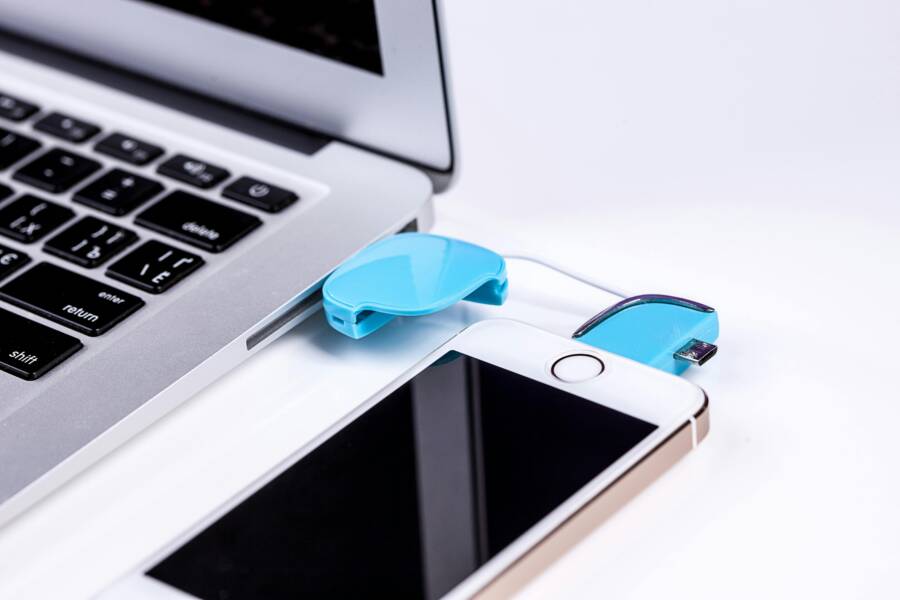
 Photo by Pixabay
Verify internet access and cloud service status
- Check your Wi Fi connection: Make sure the device shows a connected network with a strong signal. If pages load slowly, switch between networks or try a short test by loading a few pages.
- Test mobile data: Turn off Wi Fi and use cellular data. Open a few apps that require the internet to ensure data is flowing.
- Confirm cloud service status: Cloud services can have outages that block syncing. Check these status pages or outage monitors:
- Google Contacts status and Google Workspace Status Dashboard for Android and Google accounts
- Apple iCloud status pages for iPhone
- Downdetector or IsDown style monitors for real time user reports
- Quick outage checklist:
- Is the cloud service showing any current incident?
- Have you tested both Wi Fi and mobile data?
- Do multiple devices report the same problem?
- Is there a known service outage in your region?
External references you can consult for status:
- Google Workspace Status Dashboard
- Google Contacts status and outages on Downdetector
- iCloud live status on Downdetector
- Apple System Status page
Confirm the same account is signed in on both devices
- Android and iPhone use different primary accounts for syncing contacts. On Android, it’s usually a Google account. On iPhone, it’s typically an Apple ID, though you can also sync Google Contacts to iPhone.
- Verify on each device:
- Android: Open Settings > Accounts and backup > Accounts. Confirm the primary Google account shown is the one you expect.
- iPhone: Open Settings > [your name] to see the signed in Apple ID.
- Verify in the cloud service app:
- Google Contacts or Google app on Android and iPhone should reflect the same Google account.
- iCloud on iPhone should show the same Apple ID as other devices using iCloud for contacts.
- If you use a mixed setup (Google on Android, iCloud on iPhone), ensure both services point to the same master contact source in your workflow or enable cross‑sync where available.
If you’re unsure which account is driving syncing, you can review signed‑in devices:
- Google: See devices signed into your Google account at Your devices or My Account > Security.
- Apple: Check Apple ID account page and System Status to confirm authorized devices.
External links for reference:
- Google Workspace Status Dashboard
- Google account device activity
- Apple Support System Status
Enable and verify contact syncing on the device and in apps
- On the device level:
- Android: Settings > Accounts > Add account > Google. Enable Contacts for sync.
- iPhone: Settings > Contacts > Accounts. Ensure Contacts is toggled on for the relevant account (iCloud or Google, depending on your setup).
- In the cloud service app:
- Google Contacts app or Google account settings: Ensure Contacts sync is ON and set to sync automatically.
- iCloud: Ensure Contacts are enabled in iCloud settings and that iCloud Drive is active if your workflow uses it.
- Be mindful of background data usage and battery saver modes. If background data is restricted or battery saver is enabled, syncing can pause.
- Quick test to confirm syncing:
- Create a new contact on one device.
- Wait a few minutes, then check the other device. If it doesn’t appear, try a manual refresh in the respective app or re‑open the Contacts app.
- If you still don’t see it, force‑sync from the cloud app’s settings, then recheck.
External links you might find helpful:
- Sync Google Contacts with your iPhone or iPad (Google support)
- How to enable iCloud Contacts on iPhone
- IsDown status pages for quick outage checks
Check date, time, and regional settings
- Syncing can fail if the clocks on your devices drift too far apart. Ensure automatic date and time is enabled.
- Android: Settings > System > Date & time > Use network-provided time.
- iPhone: Settings > General > Date & Time > Set Automatically.
- Verify the correct time zone on each device. A wrong zone can cause timestamp mismatches that prevent sync from updating in real time.
- Regional settings matter for data formatting and display, but they rarely block core syncing. If you’ve recently changed your region, recheck account settings and app preferences to ensure they reflect the correct locale.
- After adjusting time settings, perform a quick test by adding a contact on one device and confirming it appears on the other within a few minutes.
If you want a broader reference while you work through these steps, you can review the official status pages for Apple and Google, as well as trusted status aggregators.
External references for time and regional settings:
- Apple Support System Status
- Google Workspace Status Dashboard
Images and further visuals can help readers follow along, especially for settings paths that may differ slightly by device vendor or Android version.
Note: You can also reference the time syncing checks and status resources in your content to provide readers with concrete, authoritative sources without overloading the steps.
Review cloud and device sync settings by platform
Keeping contacts consistent across devices means regularly reviewing how each platform handles sync. In this section, you’ll verify that each system is set up to push contacts where you want them, spot common misconfigurations, and confirm that your master contact list stays in harmony across iPhone and Android. We’ll cover iCloud on Apple devices, Google Contacts on Android devices, and other clouds or work accounts that might be part of your routine. A quick audit now can prevent hours of cleanup later.
iPhone and iCloud: ensure Contacts are enabled and default accounts are correct
Your iPhone relies on iCloud or another service as the primary source of truth for contacts. Start by confirming that Contacts are turned on in iCloud and that iCloud is the default for your contacts when appropriate.
- Turn on Contacts in iCloud:
- On the iPhone, go to Settings > [your name] > iCloud. Ensure the toggle next to Contacts is ON.
- If you’re prompted to Merge, choose Merge to bring local contacts into iCloud so they appear on all devices.
- Confirm iCloud is the primary contact source:
- In Settings, double-check that your Apple ID is the main accounts holder for contacts. If you also use Google Contacts on the iPhone, decide which service should serve as the master list and keep the other as a sync source only.
- Verify Contacts is enabled in iCloud settings:
- Settings > [your name] > iCloud > Contacts should be green. If it isn’t, flip it on and allow time for a sync cycle.
- Check iCloud.com to verify the stored contacts:
- Sign in to iCloud.com and open Contacts. Compare a sample of entries to what appears on your iPhone.
- If you notice discrepancies, it may help to perform a one‑time export of Contacts from iCloud and reimport after cleaning duplicates.
- Quick sanity test:
- Add a new contact on the iPhone, then check iCloud.com after a couple minutes to see if it shows up there and on another Apple device.
Helpful references:
- Set up iCloud for Contacts on all your devices
- Set up and use iCloud Contacts
To ensure continuity, you might also want to review how iCloud synchronizes with other Apple services. This keeps your workflow smooth when you switch between devices or introduce a new one.
External links:
- Set up iCloud for Contacts on all your devices
Android and Google Contacts: verify account sync and backup settings
Google Contacts is the backbone for many Android users. Ensure that you have true two‑way syncing enabled and that Google is actively backing up your contacts.
- Enable Contacts syncing on the device:
- Open Settings > Accounts > Google. Tap your Google account and confirm that Contacts are set to sync.
- If more than one Google account is signed in, ensure the account you want to use as the primary source is the one syncing Contacts.
- Confirm the Google account is set to sync Contacts:
- In the same Google account settings, verify that the toggle for Contacts sync is ON.
- Consider enabling backup to Google One if you want an extra layer of protection for your contacts.
- Check the Google Contacts app for recent activity:
- Open Google Contacts and look for recent changes, new entries, or recently edited items.
- If you see gaps, perform a manual refresh to pull the latest data from the cloud.
- Inspect the current contact list via web tools:
- Google Contacts on the web shows your master list across all devices.
- Google Takeout can export a copy of your contacts if you want a local archive before making changes.
- Quick sanity test:
- Create a new contact on the Android device, then verify it appears in Google Contacts on the web within a few minutes.
External references:
- Sync Google Contacts with your mobile device or computer
- Back up & sync device contacts
To broaden your view, you can also review how Google handles mixed environments with multiple Google Accounts, and how to keep all accounts in sync without duplications.
External links:
- Sync Google Contacts with your mobile device or computer
- Back up & sync device contacts
Other clouds and accounts: check Samsung, Microsoft, or corporate mail sync
Contacts can live in more places than iCloud or Google. If you use a Samsung device, a corporate Exchange account, or another cloud service, verify that Contacts syncing is enabled there as well.
- Samsung Cloud and Galaxy devices:
- Open Settings on your Samsung device, then Accounts and backup. Look for Samsung Cloud and ensure Contacts are set to sync.
- On Samsung devices, you can also use Google Contacts as the master list, but make sure both services stay in sync if you mix ecosystems.
- Microsoft Exchange and Outlook:
- On Android or iPhone, add the Exchange or Outlook account and verify that Contacts sync is enabled for that account.
- In the Outlook app, check Settings > Accounts > [Your Account] > Sync contacts to confirm the switch is ON.
- If you use Outlook on multiple devices, ensure the same account is used everywhere to keep entries aligned.
- Work or school accounts:
- Corporate accounts often rely on Exchange or Microsoft 365. Confirm that the work account is allowed to sync Contacts and that there are no policy blocks.
- Some organizations restrict cross‑device sync; in that case, rely on a centralized directory (like Microsoft 365) and avoid creating duplicates across personal and work accounts.
- Where to find settings in each app:
- Samsung Cloud: Settings > Accounts and backup > Samsung Cloud
- Microsoft Exchange/Outlook: Outlook app > Settings > Accounts > [Account] > Sync
- Corporate mail apps: Settings within the specific app or the device’s Accounts section
External references:
- How to sync your contacts on a Galaxy phone to your Google account
- Sync data across all of your devices using Samsung Cloud
- Access my contacts on Samsung cloud
- Outlook for iOS and Android Help
A practical tip: keep a single master contact source for your everyday workflow. If you must use multiple clouds, set up clear rules for where new entries are created and how edits propagate. This reduces conflicts and keeps every device aligned.
External links:
- How to sync your contacts on a Galaxy phone to your Google account
- Sync data across all of your devices using Samsung Cloud
- Access my contacts on Samsung cloud
- Outlook for iOS and Android Help
In case you’d like extra reassurance, consider periodically reviewing the list of signed‑in devices for each cloud service. Knowing which devices are actively authorized helps you catch unknown sources trying to push changes.
External references for device sign‑in and status checks:
- Google account device activity
- Apple Support System Status
As you work through these checks, remember that a stable internet connection and timely updates are the quiet fuel behind reliable syncing. If you see occasional delays, a quick refresh on each app or a restart of the device often clears the backlog without losing data.
External links for quick outage checks and status pages:
- Google Workspace Status Dashboard
- Apple Support System Status
If you want a broader reference while you work through these steps, you can review the official status pages for Apple and Google, as well as trusted status aggregators. Regular checks help you stay ahead of problems before they affect your contacts.
Diagnose and fix data issues that break syncing
When your contacts stop syncing, the root cause often isn’t a single bad step but a data issue that creates conflicts or blocks updates. This section walks you through common data problems and practical fixes that restore a clean, reliable flow between your smartphone and cloud. You’ll learn how to spot duplicates, manage multiple sources, safely merge data, and verify that your changes stick across devices.
Find duplicates and conflicting data
Duplicates and conflicting entries are the easiest way to confuse syncing. When two versions of the same contact exist, updates may appear on one device but not others, or you may see inconsistent details like different phone numbers or emails. Here’s how to clean things up on both platforms and prevent future duplicates.
- Why duplicates cause problems
- They create competing copies of the same person, which apps may treat as separate records.
- Updates can be applied to one copy but not the other, causing drift across devices.
- Duplicates often carry mismatched fields, which can trigger further sync conflicts.
- How to merge or delete duplicates (iPhone)
- In the Contacts app, look for duplicates by scanning or using the built‑in Merge tool. If you see a pair you know are the same person, use Merge to combine them into one entry.
- When two entries have different data, choose the most complete version as the Primary and delete the extras.
- If you use iCloud, enable Merge when prompted to bring duplicates into the cloud and sync the single, authoritative entry across devices.
- Quick tip: periodically scan for duplicates after major imports or device changes.
- How to merge or delete duplicates (Android)
- Open Google Contacts and use the “Duplicates” or “Suggestions” feature, which highlights possible duplicates.
- Tap Merge all to consolidate groups, or review and merge one by one for precision.
- If you accidentally merge wrong entries, you can undo within a short window on most devices.
- Quick tip: set up a monthly dedup check, especially after importing from multiple sources.
- Quick tips to avoid duplicates from the start
- Pick one primary source for new contacts and stick to it if possible.
- When importing from another service, run a dedup check before finalizing the import.
- Regularly review contacts that show up with multiple sources or labels to spot overlap early.
For extra guidance on managing duplicates on iPhone, you can consult Apple’s official steps to merge or hide duplicate contacts. This helps you align with the latest iOS behavior as you work through cleanup. External reference: Get rid of duplicate contacts on iPhone.
External links:
- https://support.apple.com/guide/iphone/merge-or-hide-duplicate-contacts-iph2ab28320d/ios
Handle multiple sources and accounts for contacts
Many readers juggle several sources, like iCloud, Google, or work accounts. The challenge is to identify where a contact truly lives and how to keep edits synchronized across platforms. A simple approach is to designate a primary source and treat others as secondary, with clear rules for creation and updates.
- Identify the source of each contact
- On iPhone, look at a contact’s details to see which account owns it. You can also view the account tag within the contact’s info.
- On Android, open the Contacts or Google Contacts app and check the account column or contact details to see its source.
- In cloud apps, the source is usually visible in the contact’s metadata or in the account header of the app.
- Merge or hide sources as needed
- If a contact exists in both Google and iCloud, decide which should be the master and set the other as a sync source only.
- Use the cloud service’s export options to consolidate data into one master file, then reimport after cleaning.
- In some setups, you can hide a source temporarily to reduce clutter while you clean the master list.
- A simple way to decide the primary source
- Consider where you add the most new contacts and where you rely on the most current updates.
- If you collaborate with others or rely on a work account for business contacts, use that as the primary source.
- If your personal life dominates your address book, pick your personal cloud as the primary and treat work accounts as synchronized mirrors.
- Practical workflow example
- Step 1: Pick a master source (for example, Google for Android and iCloud for iPhone when you primarily use Apple devices).
- Step 2: Clean the master list first, then gradually align secondary sources by merging duplicates.
- Step 3: Set up periodic audits to ensure new entries follow the chosen primary path.
If you want a broader view on cross‑platform contact management, you can explore multi‑account solutions that help unify sources while preserving master data. A well-regarded option in the ecosystem is a cross‑platform contact manager that syncs across Gmail, Outlook, and your phone. External links for reference: Contacts+ and related cross‑platform tools.
External links:
- https://contactsplus.com/home-page-v2
- https://www.contactsplus.com/
Export, import, and merge contacts when needed
Sometimes a careful export and reimport is the fastest path to a clean, unified contact list. A safe workflow lets you back up before changes, merge duplicates offline, and verify results before returning to normal syncing.
- Safe workflow for merging by export and import
- Step 1: Export your contacts to a file in a widely supported format like vCard (.vcf) from each source you use.
- Step 2: Combine the exported files offline if needed. Tools and services can merge multiple vCard files into a single VCF.
- Step 3: Import the merged file back into the master source, then recheck that all entries appear and are correct.
- Step 4: Verify on all devices that the changes propagated as expected.
- Common formats and best practices
- vCard (.vcf) is the most widely supported format for exchanging contacts.
- CSV can be useful for bulk edits but requires careful mapping of fields to avoid data loss.
- After merging, perform a quick spot check of several entries across devices.
- Cautions to avoid data loss
- Always back up before imports or merges.
- If a platform prompts you to replace local data with cloud data, confirm that you want to keep both copies or merge them.
- Keep a separate backup of the original files in case you need to revert changes.
- Quick verification steps
- Create a test contact on one device, then confirm it appears on others after the next sync cycle.
- Check a few critical fields (name, phone, email) on multiple devices to ensure consistency.
- If a contact looks incomplete after import, return to the source and reimport after adjusting the data.
For deeper guidance on merging vCard files from multiple sources, you can consult a complete how‑to guide. External reference: How to Merge vCard Files from Multiple Sources – A Complete Guide.
External link:
Thousands of People Were Struggling With Money Until They Discovered This One Ancient Secret Hidden in Sound
>>> Unlock It Now <<<
- https://www.iplocation.net/how-to-merge-vcard-files-from-multiple-sources-a-complete-guide
- Quick example workflow
- Export: Save all contacts from Google and iCloud to separate VCF files.
- Merge: Use a local tool to combine the VCFs into one file.
- Import: Import the merged VCF into your preferred master source.
- Verify: Check a sample of entries on both devices and ensure no data is missing.
- Alternative approach: direct transfer tools
- If you want to simplify, there are cross‑platform tools designed to move contacts between Android and iPhone without a manual merge. A well known option can streamline this process, especially when switching devices.
External links:
- https://www.mobikin.com/android-backup/import-export-contacts-from-to-vcf.html
- https://www.wideanglesoftware.com/blog/how-to-transfer-contacts-android-to-iphone.php?srsltid=AfmBOooGBUYq-FU7TDdRp0U_ZKU47RT1WG56IoGZk_wc0vX-47yShg8_
- After the merge, always recheck
- Confirm that the merged master list contains all expected contacts.
- Ensure there are no lingering duplicates and that the primary source updates correctly across devices.
- Do a final cross‑device test by adding a new contact on one device and verifying it appears on the others.
External reference for an additional workflow perspective:
- https://www.mobikin.com/android-backup/import-export-contacts-from-to-vcf.html
Check permissions and background data usage
Even the most solid data plan can fail if the app doesn’t have the right permissions or if it’s blocked by background data or power saving. Ensuring the correct permissions and settings keeps syncing quiet and reliable.
- Why permissions matter
- Without Contacts permission, apps cannot read or update your address book.
- Background data lets apps fetch changes even when they aren’t open.
- Battery saver modes can pause background syncing, leading to delays.
- How to grant Contacts permission
- iPhone: Go to Settings > Privacy > Contacts and ensure the relevant apps have access.
- Android: Settings > Apps > [App] > Permissions > Contacts. Make sure the toggle is ON.
- Allow background data
- Android: Settings > Network & Internet > Data usage > Background data. Ensure the main syncing apps are allowed to run in the background.
- iPhone: Most background data controls are automatic, but you should ensure Background App Refresh is enabled for the cloud apps in Settings > General > Background App Refresh.
- Disable battery saver or optimize battery usage for syncing
- Android: Settings > Battery > Battery optimization. Exclude the syncing apps from optimization to prevent periods of paused syncing.
- iPhone: Settings > Battery > Battery Health (and related settings) in some cases; ensure power saving modes don’t suppress background tasks for the cloud apps.
- Quick checks to confirm syncing
- Make a small change to a contact on one device and check another device after a few minutes.
- If changes don’t appear, force a refresh in the cloud app or reopen the Contacts app to trigger a sync cycle.
- Restart devices if you notice persistent delays, as a simple reboot can clear stuck background tasks.
Organizing your permissions and background data rules helps you avoid silent syncing failures. If you need a quick reference, Apple’s System Status and Google’s status dashboards are good places to confirm there isn’t a regional outage affecting permissions or background services. External references for status checks:
- Apple Support System Status
- Google Workspace Status Dashboard
External links:
- https://www.apple.com/support/systemstatus
- https://www.google.com/appsstatus
Stay mindful of how these settings interact with your daily routine. A small tweak now can prevent hours of cleanup later and keep your contacts flowing smoothly across all devices. For smartphone users who juggle several apps, this is especially true, since background tasks are often the quiet engine behind reliable syncing. External link for a broader data usage perspective: Ultimate Guide to Managing and Saving Mobile Data on Android.
External link:
- https://en.androidguias.com/How-to-manage-and-save-mobile-data-on-your-Android-device/
By keeping the data clean, choosing a clear primary source, and ensuring permissions are in place, you’ll enjoy steady, accurate contact syncing across iPhone and Android. If you’re working through a mix of cloud services, a well‑defined workflow and periodic audits will save you from future headaches. And if you want to explore more tools, consider reputable cross‑platform solutions that specialize in syncing and deduplication for busy smartphone users.
Step-by-step troubleshooting if sync still fails
When syncing still fails after trying the basics, a focused step-by-step approach helps you pinpoint the bottleneck. This section walks you through sign out and sign back in, clearing caches, updating software, and knowing when to reach support. Treat this like a checklist: complete each step, verify results, then move on. You’ll gain confidence that every lever driving your contacts is in good shape, and you’ll know exactly what to share if you need help.
Sign out and sign back in, reset network settings
Signing out of cloud accounts on both devices and signing back in is a simple yet powerful reset. Start by disconnecting the primary cloud accounts on each device, then reauthenticate. This often clears stale tokens that block updates.
- On Android:
- Open Settings > Accounts, select the Google account used for contacts, and remove it. Reboot the device, then add the account back and ensure Contacts sync is enabled.
- If you use a Samsung or other vendor account, sign out of that cloud as well and sign back in.
- On iPhone:
- Open Settings > [your name] > iCloud, turn off Contacts, choose Keep on My iPhone, then turn Contacts back on.
- If you rely on Google Contacts on iPhone, go to Settings > Contacts > Accounts, remove the Google account, restart, then add it again and enable Contacts.
- Reboot and test:
- After signing back in, create a new contact on one device and check the other to confirm it appears.
- When to reset network settings:
- If signs in and re-authentication don’t fix the issue, reset network settings as a last resort. On iPhone, Settings > General > Transfer or Reset iPhone > Reset > Reset Network Settings. On Android, Settings > System > Reset options > Reset Wi Fi, mobile & Bluetooth. Note that this will erase saved networks and passwords.
If you want extra guidance on how to sign in and out on specific services, see the Google and Apple support references for sign‑in behavior and status pages:
- Google account device activity and sign‑in options
- Apple System Status pages for iCloud
External links:
- https://support.google.com/accounts/answer/60318
- https://support.apple.com/en-us/HT204215
Clear cache and reset sync on the devices
Cached data can mislead the system about what needs updating. Clearing app cache or data on Android, and resetting sync settings on iOS if needed, can resolve stubborn desyncs. Always back up important data before clearing local app data.
- Android:
- Go to Settings > Apps > Google Contacts (or the contacts app you rely on) > Storage > Clear Cache. If issues persist, you can also Clear Data, but this will remove locally saved contacts and settings for that app, so make sure you’ve backed up first.
- If you use a third‑party contacts app, repeat the steps for that app as well.
- iOS:
- There is no universal “clear cache” for iOS apps, but you can offload or delete and reinstall the Contacts or cloud app to clear cached data.
- If you rely on iCloud, toggle Contacts off and back on after a quick restart to reset the sync state.
- Safe fallback steps to preserve data:
- Before clearing data, export or back up your contacts to a VCF file or your cloud service.
- After clearing, re-sync from the master source to rebuild your local copy.
- Quick checks after cleaning:
- Create a test contact on one device, then verify it appears on the other within a few minutes.
- Related guidance:
- Clear app cache and data on iPhone and Android
External links:
- https://www.asurion.com/connect/tech-tips/clear-app-cache-on-your-phone/
Update OS and apps, then test syncing again
Software updates fix bugs that affect syncing and improve reliability. Ensure both devices have the latest OS and the cloud apps you rely on.
- How to check for updates:
- iPhone: Settings > General > Software Update. Install any available updates.
- Android: Settings > System > System update. Also update Google Play Services and the Contacts app.
- Update apps:
- Open the app store on each device and install any pending updates for Google Contacts, iCloud-related apps, Samsung Cloud, Outlook, or any other service you use for contacts.
- After updating:
- Restart devices, then perform a test by adding a contact on one device and confirming it appears on the other.
- Why updates matter:
- Updates fix bugs that can freeze or delay syncing and improve compatibility across devices.
External references for updates:
- Apple Support: How to update iPhone
- Google Support: Update Google Apps on Android
External links:
- https://support.apple.com/en-us/HT204204
- https://support.google.com/android/answer/7680439
When to contact support and what to share
If syncing still fails after all troubleshooting, it’s time to contact support. A clear, concise report helps agents diagnose faster.
What to share:
- Device model and OS version on each device
- Cloud services involved (iCloud, Google, Samsung Cloud, work accounts)
- A brief description of the issue and steps you’ve already tried
- Screenshots or screen recordings of the problem, if possible
- The time the issue started and whether it affects all contacts or only a subset
Support templates you can use:
- “I have an iPhone 14 Pro (iOS 17.0) and an Android device (Pixel 8, Android 14). My contacts do not sync with iCloud or Google Contacts. I’ve signed out and back in, cleared app data, updated all software, and tested across multiple networks. The problem started on [date].”
- Include a note about checking service status pages for outages on both Apple and Google.
Where to view status pages:
- Apple System Status for iCloud
- Google Workspace Status Dashboard
External links:
- https://www.apple.com/support/systemstatus
- https://www.google.com/appsstatus
If you need a quick reference to what information to provide, use this concise checklist your support team will appreciate.
External links:
What If the Only Thing Between You and the Life You Deserve Is a Hidden Wealth Code Waiting to Be Activated
>>> Open the Door <<<

- https://support.google.com/contacts/answer/2753077?hl=en&co=GENIE.Platform%3DiOS
- https://support.apple.com/en-us/102543
Branding note: keep the language straightforward and practical. Readers want fast, actionable steps they can follow without wading through technical jargon.
Would you like me to tailor these sections further for a specific device mix (e.g., iPhone with Google Contacts as primary on Android) or add a short troubleshooting quick-start box at the top of the section?
Best practices to prevent future sync issues
Keeping contacts in sync over time requires a proactive routine. These best practices focus on reducing conflicts, ensuring a single source of truth, and making future changes smooth and predictable. Think of it as building a reliable workflow for your smartphone life: you set the rules once, then let the system do the work.
Regular backups and archiving
A simple backup routine is your first line of defense against data loss and messy syncs. Treat backups like a safety net that you can fall back on when something goes wrong.
- Create a predictable schedule:
- Monthly: export all contacts from your primary cloud to a local file.
- Yearly: store an offline archive that you can import if you need to revert a large cleanup.
- Archiving old contacts:
- Identify inactive or legacy contacts and move them to an archive folder or separate file. This reduces clutter in your master list and makes syncing faster.
- Use a standard format like vCard (.vcf) for portability. For quick wins, consider exporting from both cloud sources to a consolidated backup.
- Quick export tips:
- For iPhone users, you can export iCloud contacts as a VCF and save it locally or to a trusted cloud drive.
- For Android users, Google Contacts on the web lets you export a VCF of all contacts with a couple of clicks.
- Practical workflow example:
- On the first Sunday of each month, export from your primary cloud to a local VCF file.
- Save a yearly full backup on a separate cloud storage folder labeled “Archive – Yearly Backup.”
- Why this matters:
- With a clean, validated backup, you can restore the master list quickly if duplicates or corruption ever creep back.
Internal note: a steady backup habit makes future dedup and migrations far less painful and gives you confidence when you decide to purge old data.
External references you can consult for backup and export workflows:
- Export Contacts from iPhone – Complete Guide
- How to Export Contacts from iPhone 2025
- How to Export iPhone Contacts to CSV/VCF [2025 Tricks]
Use a single primary cloud for contacts
A single primary cloud reduces conflicts and duplicates. When you point all new data to one source, you gain a clean, auditable trail of changes.
- Choose a master source:
- If you live in the Android ecosystem, Google Contacts often works well as the primary source.
- If you live in the Apple ecosystem, iCloud can be the default, with Google as a secondary sync option only.
- Stop syncing unneeded sources:
- Review every device and disable automatic sync from any secondary cloud that isn’t essential.
- In mixed setups, set a clear rule for where new contacts are created. For example, create in Google, then mirror to iCloud if needed, rather than creating in both simultaneously.
- How to implement:
- On Android, set Google as the primary account for Contacts in Settings > Accounts > Google > [your account] > Contacts sync.
- On iPhone, ensure iCloud is the default for Contacts in Settings > [your name] > iCloud, and limit Google Contacts to a secondary sync only.
- Why this matters:
- A single source of truth eliminates cross-service conflicts and reduces the chance of duplicates popping up after every update.
Useful references for choosing and managing a primary cloud:
- Learn How to Merge Gmail and iCloud Contacts Seamlessly and Fast
- Switch From iPhone to Android Seamlessly
Clean up duplicates and verify data integrity
Regular deduping keeps your list tidy and syncing predictable. A small, periodic pass prevents drift across devices.
- Schedule a dedup check:
- Monthly, run a quick dedup scan in the primary cloud app or web interface.
- If you use multiple accounts, run dedup on each account that contributes contacts.
- Dedup workflow:
- Identify duplicates by comparing names, phone numbers, and emails.
- Choose the most complete record as the Master; merge or delete the rest.
- After merging, verify that the merged entry appears consistently across devices.
- Quick integrity checks:
- Add a new test contact on one device and confirm it propagates to others within a few minutes.
- Spot-check essential fields (name, primary phone, primary email) on multiple devices.
- What to watch for:
- Mismatched fields after a merge (like different job titles or addresses).
- Duplicates that linger after import from another source.
- Ongoing habit:
- Keep a small, monthly log of duplicates found and resolved to track progress over time.
External resources that detail dedup workflows:
- Merge duplicate contacts – Computer (Google Contacts)
- Remove Duplicates in Google Contacts
- How To Deduplicate Mac/iOS Contacts Based on Recency
Plan for device changes and switching
Planning ahead makes switching devices painless. A well-defined process minimizes disruption and keeps your master list intact.
- Create a master transfer checklist:
- Confirm your primary cloud is accessible on the new device.
- Export or prepare a fresh backup before starting the switch.
- Verify that the new device shows all contacts within 24 hours, then perform a targeted check for critical entries (important clients, family, etc.).
- Transfer data in steps:
- Step 1: Sign into the primary cloud on the new device.
- Step 2: Enable Contacts sync and perform a short sync test.
- Step 3: Do a quick manual check of a handful of entries on the new device.
- Verification phase:
- Cross-check a sample of 20 contacts across both devices to ensure consistency.
- Confirm that newly added contacts after the switch appear on all devices.
- Practical tip:
- If you switch from iPhone to Android, or vice versa, use a cross‑platform transfer method to move your master list while keeping the source clean.
External references that discuss cross‑platform transfer and setup:
- 6 Ways: How to Transfer Contacts from iPhone to Android
- Switch From iPhone to Android Seamlessly
- How to switch to Android (general guidance)
Putting these practices into regular use helps you avoid future problems. A clear master source, disciplined backups, and routine cleanups are the backbone of reliable, long-term contact syncing. If you want to tailor these practices to a particular device mix, such as an iPhone with Google as the primary on Android, I can adjust the steps to fit your exact setup.
Conclusion
Keeping contacts synced across your smartphone and the cloud comes down to a simple, repeatable workflow. Start with a clean master source, verify accounts and permissions, and regularly prune duplicates that creep in from multiple clouds. A short routine of backups, periodic audits, and timely updates stops small issues from becoming big problems. When you align your devices to one primary source, syncing stays reliable and you stay in control of your contact list.
Quick reference checklist
- Pick a master source (Google Contacts for Android, iCloud for iPhone)
- Confirm the same master account is signed in on all devices
- Enable Contacts sync in the device and in the cloud app
- Check time and date settings, plus time zone on every device
- Run a quick dedup pass and merge duplicates
- Back up contacts as a VCF file regularly
- Update OS and cloud apps, then test by adding a contact on one device
If you found this guide helpful, share it with friends who juggle multiple clouds. Drop a comment with your own tips or questions and tell us which setup you use for your smartphone.
Thousands of People Were Struggling With Money Until They Discovered This One Ancient Secret Hidden in Sound
>>> Unlock It Now <<<