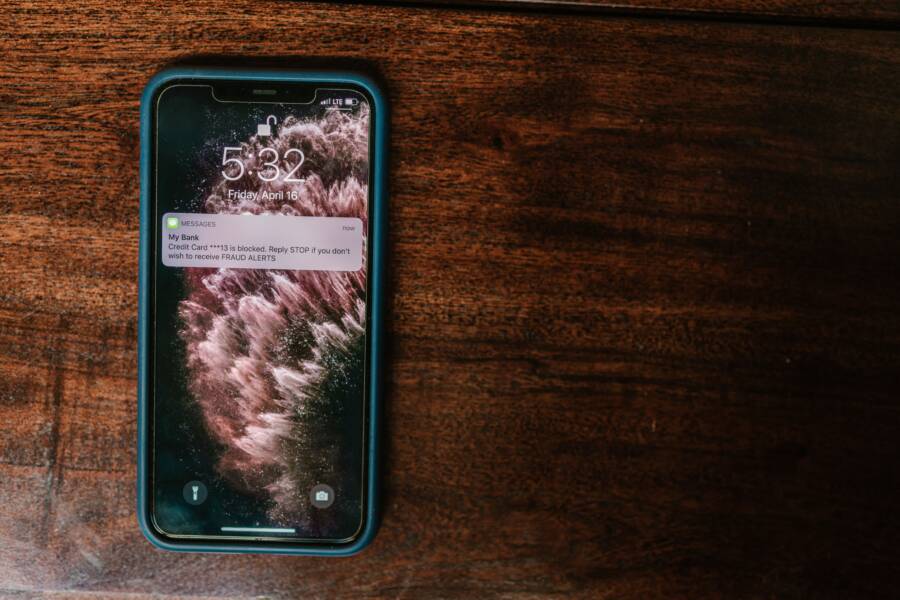
When you miss an important voice message, a lack of notification is often the culprit. This issue usually stems from simple software glitches, outdated carrier settings, or temporary network sync errors. You can typically fix your smartphone and restore these alerts in under five minutes.
Most users resolve this by checking their notification settings or toggling their network connection. If these basic steps don’t work, a quick update to your carrier profile often solves the problem. Keep reading to find the specific fix that gets your voicemail alerts working again.
Checking the Basics Before Trying Advanced Fixes
You often spend time investigating complex software settings when a simple connection error is the actual culprit. Before you reset your entire smartphone, verify that your device maintains a stable link to the cellular network. If your hardware cannot communicate with the carrier server, the system never receives the signal required to trigger a voicemail notification.
Verifying Your Network Signal and Carrier Connection
Your smartphone relies on a constant data handshake with your provider to push alerts to your screen. When you sit in a basement, a dead zone, or a crowded area, that signal drops. Even if your phone displays one or two bars, the data connection might be too weak to receive small packets of information like notification flags.
To confirm your status, look at the signal icon in your status bar. If the bars appear grey or indicate a searching status, your phone is disconnected. A quick method to restore this connection involves the use of Airplane Mode. Follow these steps to perform a manual network refresh:
Swipe down from the top of your screen to open the control panel.
Tap the Airplane Mode icon to enable it.
Wait at least 15 seconds while the device cuts all radio communication.
Tap the icon again to disable Airplane Mode.
Watch the top corner as your phone searches for the carrier signal.
Once the bars return to full strength, wait a moment for the device to sync with the network. Often, this cycle forces the server to re-send any pending notifications that were stuck in transit. If you still see no alerts, your connection is likely stable, and you should move on to check your local device settings.
Reviewing Do Not Disturb and Focus Mode Settings
Modern smartphones include sophisticated software features designed to minimize distractions during your day. Tools such as Do Not Disturb or specialized Focus modes work by silencing or hiding alerts that you designate as non-essential. It is common for users to accidentally leave these modes active, which masks the arrival of new voicemail notifications.
These settings often suppress banners, sounds, and lock screen badges entirely. When you check your notification center, you might find that messages arrived hours ago, but the phone kept them hidden to protect your focus. Review your configuration with these points in mind:
Check your status bar for a small moon or bed icon, which indicates that a quiet mode is currently running.
Open your device settings and locate the notifications or focus menu to see if any schedules are overriding your alerts.
Verify that your phone app permissions allow notifications to appear on the lock screen and in the notification banner.
Ensure that you have not blocked notifications specifically for the phone or voicemail application.
Sometimes, a specific focus profile allows calls from contacts but blocks system alerts from the carrier. Adjust your settings to allow priority notifications from your phone app, or simply disable all focus modes for an hour to see if the missing alerts appear. If your settings look correct, you can confirm that your software is configured to display alerts, and you may look further into account-level issues.
Troubleshooting Software Glitches on Your Device
Temporary software glitches often disrupt how your smartphone handles incoming data. If your network connection is stable and focus modes are inactive, the issue likely resides within the voicemail app itself. Corrupted cache files or outdated operating systems commonly cause these communication gaps. Clearing out old data or installing the latest software updates usually restores the notification system to its proper state.
Clearing Cache and Data for the Voicemail App
Your smartphone stores temporary files to help applications load faster. Over time, these files become corrupted or conflict with recent updates. Clearing this cache forces the app to refresh its connection and rebuild the necessary index for new alerts.
For Android users, follow these steps to reset the application:
Open the Settings app and select Apps or Application Manager.
Find your carrier voicemail app in the list and tap on it.
Select Storage.
Tap Clear Cache first, then tap Clear Data if the issue persists.
Restart your device to finalize the process.
iPhone users experience this differently because iOS manages app data through background processes. Since there is no direct button to clear individual app caches, you must offload or reinstall the app.
Navigate to Settings and tap General.
Select iPhone Storage to view your installed applications.
Find the voicemail or phone app from your carrier.
Tap Offload App, which removes the app while keeping your data.
Tap Reinstall App to refresh the software installation.
After completing these steps, the application will reconnect to the carrier server. This action often triggers a sync that reveals any notifications currently stuck in limbo.
Updating Your Smartphone Operating System
Software incompatibility remains a primary reason for failing voicemail alerts. Carriers frequently update their backend systems to improve security and efficiency. When your smartphone runs an older version of its operating system, it may struggle to interpret these newer signals. This mismatch leaves your device unaware that a new message waits on the server.
Operating system updates include critical patches for the modem firmware and notification framework. These components dictate how your device receives alerts from cellular towers. You should verify your status by checking the system settings.
Go to the Settings menu and look for General or System.
Select Software Update to see if a newer version is available.
Install any pending updates, as these often contain fixes for carrier-specific communication errors.
If your device is already up to date, check for a carrier settings update. These small, background files often arrive automatically but sometimes require manual installation. Navigate to the About section in your settings menu while connected to Wi-Fi. If an update exists for your carrier, a prompt appears on the screen within seconds. Accepting this update aligns your device with current network protocols. A simple restart completes the process, allowing your phone to communicate clearly with the voicemail service.
Solving Carrier-Side and Account Sync Problems
If you have tried software fixes and still do not see voicemail alerts on your smartphone, the issue often hides within the network configuration. Connectivity errors frequently occur when the synchronization between your device and the carrier server stalls. These problems are rarely permanent, but they often require a reset of your local network parameters or a manual refresh of your service profile.
Performing a Network Settings Reset
A network settings reset removes all saved cellular, Wi-Fi, and Bluetooth data from your smartphone. It does not erase personal files, photos, or apps. Instead, it clears custom network configurations, VPN profiles, and saved wireless passwords that might contain corrupted data. This action forces the device to re-establish a clean handshake with the nearest cell towers.
You should consider this step as a final local repair attempt before contacting your provider. If your phone has struggled to maintain a consistent connection or if notification flags have stopped reaching your device entirely, this reset often restores the missing communication path.
Follow these steps to perform the reset:
Open the Settings menu and navigate to General or System.
Select the option labeled Reset or Transfer and Reset.
Choose Reset Network Settings.
Enter your device passcode when prompted to confirm the action.
Allow the phone to restart, then re-enter your saved Wi-Fi passwords to reconnect.
Once the process finishes, your smartphone scans for the carrier network from scratch. This fresh state often triggers the server to resend any pending flags or messages that were blocked by old, incorrect network settings.
Contacting Your Carrier for Server-Side Refreshes
When your device settings are correct but notifications still fail to appear, the problem is likely on the carrier side. Your account might have a stuck flag in the database that prevents the server from sending alerts to your specific smartphone. A simple, often overlooked solution is asking your carrier to perform a remote voicemail service refresh.
Contact your service provider through their official support line, website chat, or an in-store visit. Explain that you are not receiving visual voicemail notifications despite having a stable network signal. Ask the agent to reset your voicemail service, often referred to as a “voice mailbox reset” or “provisioning refresh.”
This action forces the carrier server to disconnect and reconnect your voicemail feature. It clears any hung sessions in their system. Once the agent completes this, restart your smartphone to ensure the change takes effect. Many users find this resolves long-standing issues where local device troubleshooting previously failed. If the representative insists your account is fine, request that they perform a “network profile push” to your device to ensure all your roaming and messaging parameters are current.
Common Questions About Voicemail Notifications
Users often feel frustrated when their smartphone fails to signal a new message. Many people search for quick answers to resolve these gaps in communication. The following information covers frequent concerns regarding how your device handles alerts.
Why does my phone not show a badge for new voicemails?
A missing notification badge often results from a synchronization error between your device and the carrier network. Your smartphone waits for a specific flag from the server to display a badge on the app icon. If the data packet fails to reach your phone, the badge remains hidden. You can try toggling Airplane Mode to force the device to re-sync with the cellular towers.
Software bugs within the phone app also prevent badges from updating correctly. Clearing the cache of your phone app often fixes this visual glitch. If the badge still refuses to appear, check your system settings to ensure notification permissions remain active for the carrier voicemail application.
Can old voicemails block new notifications from appearing?
Your voicemail inbox has a limited capacity for messages. If your mailbox reaches its storage limit, the server stops accepting new messages and might cease sending notification flags to your smartphone. You should call your voicemail number to review and delete old messages. Once you clear space, the server typically resumes sending alerts to your device.
Some carriers also treat unread messages differently than saved ones. If you keep dozens of old messages in your inbox, the system might struggle to prioritize new arrivals. Regular maintenance of your mailbox ensures the server keeps your device updated with the latest alerts.
Does a weak signal permanently disable voicemail alerts?
A weak signal does not permanently disable alerts, but it does interrupt the delivery of notification flags. Your smartphone needs a stable data connection to receive the update from your provider. When you return to an area with strong service, your phone should automatically download any pending notifications.
If alerts do not arrive after moving to a location with better reception, perform a manual network refresh. Restarting your smartphone acts as a simple way to clear out stale connections. This process prompts the device to query the carrier server for any missed information, including pending voicemail flags.
Should I update my phone if notifications are still missing?
Operating system updates contain important fixes for how your device manages background data. If you ignore available updates, your smartphone might run on outdated communication protocols that conflict with current carrier network requirements. You should always install the latest software to keep your device compatible with modern messaging systems.
Check for carrier settings updates as well. These small, targeted updates specifically improve how your phone connects to the provider network. Installing these files often resolves persistent notification issues that regular system updates miss. Always restart your device after applying any update to ensure the new settings take effect.
Conclusion
Fixing voicemail alerts often requires a systematic approach to eliminate minor software or network conflicts. Begin by checking basic connection status and focus settings on your smartphone before moving to app cache or system updates. Test your voicemail after each adjustment to confirm if the notification path is open again.
If these steps fail to restore your alerts, contact your carrier support team. A technician can perform a remote refresh of your account settings, which frequently resolves persistent sync issues. You should now have a reliable way to receive your messages without further interruption.