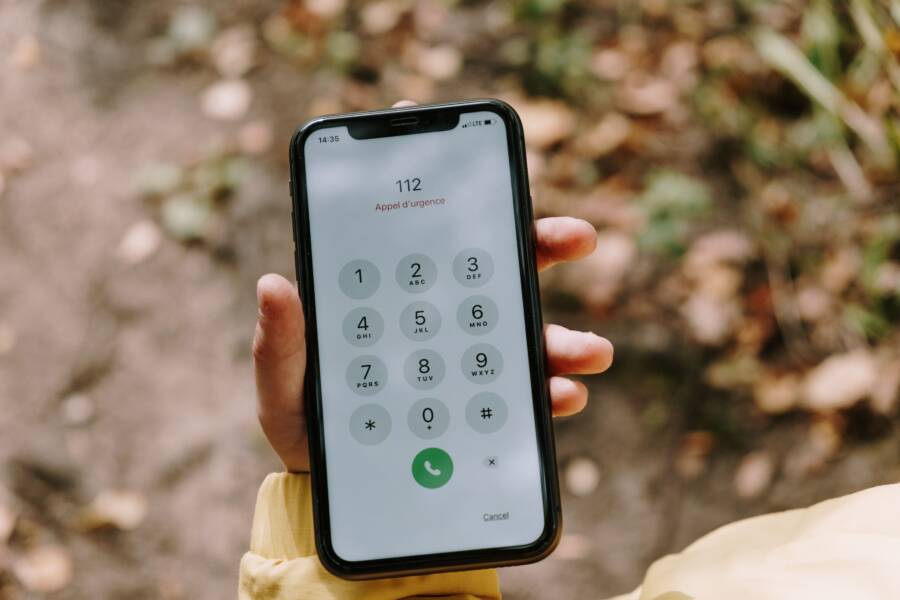
It is incredibly frustrating when you try to place a call, only for your phone to disconnect the moment you hit dial. You might assume the hardware is broken, but this issue often stems from simple software glitches, poor signal strength, or carrier settings. Most of the time, you can resolve the problem yourself without needing to visit a repair shop.
The issue typically indicates a conflict between your smartphone and the network it attempts to access. Whether you have an outdated system update or a misconfigured network setting, these faults often prevent a stable connection from forming.
Checking these settings will help you identify the root cause of the error. Follow the troubleshooting steps below to get your connection back to normal.
Quick Fixes for Common Call Connection Issues
If your calls end the moment you dial, the issue often stems from a poor link between your device and the cellular network. Before you assume the hardware is broken, perform a few checks to rule out temporary signal interference or settings conflicts. Small adjustments to your network configuration frequently resolve these sudden drops without requiring professional intervention.
Testing Your Signal Strength and Network Settings
Environmental factors play a massive role in connection stability. Thick concrete walls, metal structures, or being in a remote basement often block signals, which forces the smartphone to drop active sessions. You should first move toward a window or step outside to see if your signal bars increase. If your bars remain low or show an “X,” your device is likely struggling to maintain a handshake with the nearest tower.
Sometimes, your phone fails to re-acquire a signal after you exit a dead zone. You can force the device to refresh its search by toggling Airplane Mode on for ten seconds and then turning it off. If this fails, you may need to choose a network manually:
Open your phone settings and look for the connections or mobile network menu.
Select the option labeled network operators or mobile networks.
Switch off the automatic selection feature to display a list of available carriers.
Choose your specific provider from the list to force a new registration.
Manual selection helps if your smartphone attempts to roam on an incompatible tower or encounters a glitch during the automatic handshake process. This process resets the handshake and often establishes a stable connection immediately.
Updating System Software to Prevent Call Drops
Outdated software frequently causes modem errors that interfere with basic calling functions. Phone manufacturers release updates that contain patches for communication drivers, which manage how your device interacts with cellular networks. If your system firmware is behind, your modem may struggle to process call requests, resulting in instant disconnects.
Check for pending updates by following these steps:
Navigate to your system settings menu.
Tap on general management or software update.
Select the option to check for updates or download and install.
Allow your device to restart if a new version is available.
Installing these updates often fixes bugs that plague the cellular radio software. Keep in mind that some carrier-specific patches appear separately under network settings. If your phone prompted you to update carrier settings, accept that request immediately. These small files are designed specifically to improve call routing and network authentication. Keeping your smartphone software current ensures the modem uses the latest protocols to hold a reliable connection.
Checking Your SIM Card and Carrier Restrictions
Your smartphone relies on a small chip to identify your account and authenticate you on the cellular network. If this connection fails, your device may terminate calls immediately after they begin. Hardware issues with the card or specific limitations placed by your carrier often cause these abrupt disconnections. Reviewing these factors helps you determine if the problem exists within your device or originates from your service provider.
Signs of a Damaged or Faulty SIM Card
The SIM card is a delicate piece of technology. Over time, the gold contact points on the back of the chip can oxidize or accumulate oil from your fingers. Even minor surface scratches can interfere with the electrical connection between the card and the internal reader of your smartphone. When the connection flickers during the dialing process, the modem loses its authentication and kills the call to protect the network.
You might notice signs of a faulty card by looking for these specific behaviors:
Frequent “No SIM” errors appearing on your screen even when the card is inserted.
Random signal drops that occur while your smartphone sits in one place.
Calls that connect for a fraction of a second before dropping every time.
An inability to send text messages or access mobile data alongside your dropped calls.
If you suspect physical damage, turn off your smartphone and carefully eject the SIM tray. Inspect the gold contact points for visible scratches, discoloration, or signs of bending. If the card appears worn or dirty, gently wipe the contacts with a soft, dry, lint-free cloth. Do not use water or liquid cleaners, as these can corrode the chip further.
The best way to confirm a card fault is by testing it in another unlocked device. If the same problems persist in the second phone, the card is likely defective and requires a replacement from your carrier. Conversely, if your smartphone continues to drop calls with a known working SIM from a different account, the issue probably resides within your phone hardware or software settings. In that case, you should contact your carrier to ensure your line does not have any active call-blocking restrictions or account-level provisioning errors.
Deep Troubleshooting for Persistent Call Problems
When common fixes fail, the issue often hides deep within your system configuration. Persistent call drops indicate that your smartphone has developed conflicting data paths that disrupt communication with cellular towers. These deep-level errors usually require a broader cleanup of your device settings to restore functionality.
Resetting Network Settings Safely
If your smartphone still drops calls after you update your software and inspect the SIM card, you may need to reset your network settings. This process clears away corrupted configuration files that accumulate over time. It effectively forces your device to return to its original factory state regarding connectivity.
It is helpful to understand how this differs from a full factory reset. A factory reset wipes everything, including your photos, apps, and personal documents. A network reset only targets the protocols governing how your phone speaks to the outside world.
When you perform this reset, your device will remove the following data:
All saved Wi-Fi networks and their respective passwords.
Every paired Bluetooth device, including speakers, headphones, and car systems.
Cellular network preferences, such as custom APN settings or manual carrier selections.
Background connection limits or VPN configurations that may interfere with calling.
You can perform this reset by navigating to your settings menu, selecting the system or general management area, and finding the transfer or reset option. Choose the specific command for network settings. Once confirmed, your smartphone will restart automatically.
After the device powers back on, you must reconnect to your home Wi-Fi and pair your Bluetooth accessories again. This clean slate removes hidden software glitches that often cause calls to terminate prematurely. By clearing these old connection caches, you allow your device to re-establish a stable link with your carrier using fresh, error-free protocols. Many users find that this final software step resolves persistent issues that simple toggles or updates could not fix.
When to Contact Your Carrier for Technical Support
You should reach out to your carrier when self-service troubleshooting fails to restore your calling ability. While many connection drops happen because of simple settings or hardware dirt, internal network blocks require professional intervention. Your provider holds the keys to your account status, roaming permissions, and tower access. If you have ruled out physical damage and software errors, your carrier can investigate potential service outages or account restrictions.
Identifying Account-Level Restrictions
Sometimes your calling service stops because of issues tied directly to your billing profile or account status. Even if your smartphone is in perfect condition, an expired payment, a suspended plan, or a faulty account flag can trigger immediate call drops. Carriers occasionally trigger an automated block on outgoing calls if they detect suspicious activity or unpaid balances.
Verify your account status by logging into the carrier mobile app or their official website. If your account shows as active and paid, call customer service to ask if there is a “provisioning error” on your line. A provisioning error means the carrier servers do not recognize your device as authorized to use their voice network. They can perform a “re-provision” command from their side, which pushes a fresh signal to your account and often clears the block instantly.
Inquiring About Localized Network Outages
It is possible that a cellular tower in your area is undergoing maintenance or has suffered a hardware failure. When a tower is down, your smartphone might attempt to connect, receive a handshake signal, and then drop the call because the data link cannot complete. You can determine if this is the issue by checking the carrier outage map online.
Ask the representative these questions to gain clarity on your local signal health:
Are there any reported outages or maintenance projects affecting towers near my specific address?
Is there a widespread issue with voice call routing in my region?
Does my SIM card currently show as “active” and correctly linked to the closest tower?
If the carrier confirms a local outage, your only option is to wait for them to repair the equipment. If they report no local problems, ask them to check if your SIM card is “blacklisted” or if your IMEI number has been accidentally flagged as stolen or incompatible. These administrative errors happen rarely, but they perfectly match the symptoms of a phone that drops calls the moment you start them.
Conclusion
Most call connection errors stem from temporary software glitches or minor signal interference rather than permanent hardware failure. You can resolve the vast majority of these cases by following a logical, step-by-step approach. Start with simple network toggles and software updates, then move toward more thorough resets or SIM card inspections if the problem persists.
If you still encounter issues, contact your carrier to rule out account-level blocks or local tower outages. Taking a systematic approach helps you identify the exact source of the failure on your smartphone quickly.
Patience is your best tool during the troubleshooting process. Most users restore their calling functions within a few minutes by clearing out old network cache files or updating their system firmware.