Ever felt the sting of missing an urgent message because Telegram only pings after you open the app? You’re not alone. On both Android and iOS, notification delays happen when background alerts are blocked by battery saves, app permissions, or quick phone adjustments. This post shows how to fix the issue with simple, proven steps that work for most people.
First, we’ll cover the quick checks you can do in minutes. Start by confirming Telegram has permission to send notifications and run in the background. Then review battery saver modes, Do Not Disturb or Focus settings, and your internet connection. If the problem persists, you’ll know exactly where to look next instead of scrambling through every setting.
Next come practical tweaks you can apply inside the app and at the system level. Enable Telegram in your device’s background activity, adjust alert styles to ensure banners or lock screen alerts appear, and turn on Do Not Disturb exemptions if you need messages to come through. We’ll also walk through common culprits like outdated versions or cached data, plus steps to verify your chat notification preferences are set correctly for private chats, groups, and channels.
If you’re still seeing delays, there are a few deeper steps that resolve stubborn cases. Reinstalling the app, logging out and back in, and performing a clean start after a fresh update can reset behind the scenes blocks. The goal is simple: get timely alerts again so you don’t have to open Telegram first. Follow along for a straightforward, step by step guide that works in late 2025 and beyond.
Why Do Telegram Notifications Delay Until You Launch the App?
If you’ve ever missed a message because Telegram only nudges you after you open the app, you’re not alone. This issue shows up on both Android and iOS and usually comes down to how your phone negotiates background activity, permissions, and network access. In this section, we’ll unpack the main culprits and give you clear, practical steps to restore timely alerts. Think of this as a checklist you can run through quickly, with enough context to understand why each fix matters.
Battery Saver or Low Power Mode Blocks Alerts
Smartphones squeeze every drop of life from a long day, but battery saver or low power modes can blunt Telegram’s ability to ping you in the background. When the system decides an app is consuming power, it often restricts background tasks, including push notifications. The effect is simple: you only see alerts once you open Telegram and wake the app.
Signs you’re in this mode include a visible low battery icon and a notification banner that suddenly stops appearing during the day. This is especially true on travel days or long outings when screens stay on longer and battery saver kicks in more aggressively.
What to do now:
- Check your battery settings and look for any optimization rules tied to Telegram.
- For Android: go to Settings > Battery > App optimization (or Battery optimization) > find Telegram and set to “Don’t optimize” or “Not optimized.” If you see adaptive battery options, disable them for Telegram.
- For iOS: open Settings > Battery and turn off Low Power Mode if you don’t need it. Also confirm Background App Refresh is enabled for Telegram (Settings > General > Background App Refresh) and set it to Wi-Fi & Cellular.
- After making changes, restart Telegram or your phone to apply the new rules.
- If you’re frequently in power saver mode, consider creating a quick toggle in your Quick Settings panel or Control Center so you can disable power saving just for important alerts.
Why this matters: background restrictions are designed to extend battery life, but they can delay or block push notifications. Releasing Telegram from those restrictions keeps alerts arriving in real time, even on long days.
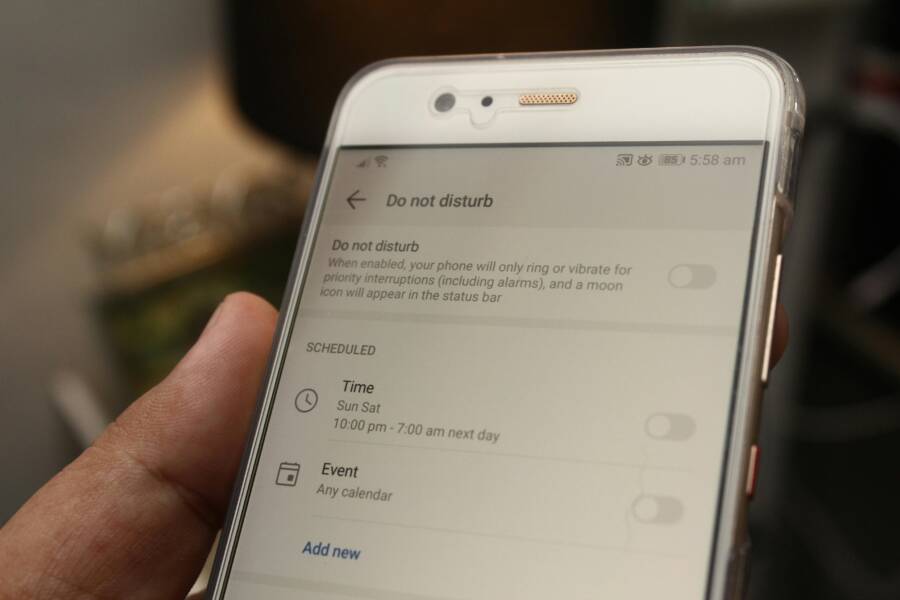
Do Not Disturb or Focus Mode Silences Everything
Do Not Disturb (DND) on Android and Focus modes on iOS are meant to quiet noise, but they can silence Telegram completely if not configured carefully. When these modes are active, only apps or contacts you explicitly allow will send alerts. If Telegram is not whitelisted, you won’t see banners or lock-screen alerts until you turn DND or Focus off or temporarily allow Telegram.
Common signs include a moon icon in the status bar, a dimmed notification center, or the phone staying quiet even when messages arrive. Scheduling DND or Focus can also cause delays if the mode flips on during meetings, commutes, or late-night hours.
What to do now:
- Check if DND or Focus is on. Android: swipe down for Quick Settings and toggle Do Not Disturb off, or go to Settings > Sounds & Vibration > Do Not Disturb and verify allowed apps. iOS: open Control Center and tap Focus to turn off, or go to Settings > Focus and review each mode’s People and Apps allowances.
- Ensure Telegram is allowed when DND or Focus is active. On Android, add Telegram to the list of allowed apps under DND exceptions. On iOS, under Focus you can allow Telegram from the Apps tab or specify who can alert you.
- If you want to keep DND for most of the day, set Telegram as an exception during peak hours or when you expect important messages.
- Consider creating a dedicated focus profile for work hours that still allows Telegram while muting nonessential apps.
Why this matters: DND and Focus are powerful but easy to misconfigure. A quick audit lets Telegram deliver alerts when you actually need them without fully disabling these modes.
Notification Permissions Turned Off by Mistake
Sometimes the problem is as simple as a permission switch being flipped off after a software update or a fresh install. If Telegram is not allowed to send notifications, it cannot alert you in real time, even if the app is running in the background.
Common situations include: a system update resets or changes notification permissions, or Telegram asks for permission again after an update and you skip the prompt. In some cases, app permissions are toggled off during clean installs or by a busy user who misses the prompt.
What to do now:
- For Android: Settings > Apps & notifications > Telegram > Notifications. Ensure alerts are allowed. Also check General permissions to make sure Telegram can use the necessary notification channels.
- For iOS: Settings > Notifications > Telegram. Make sure “Allow Notifications” is on and that the alert style is set to banners or alerts, with sounds enabled. If Telegram doesn’t appear, reinstall the app to re-register permissions.
- Recheck in-app notification settings. Open Telegram > Settings > Notifications and Sounds. Confirm that Private Chats, Groups, and Channels have alerts enabled and the chosen sound is audible.
- If your device has a device-wide notification mute or an app-specific mute, remove it and test with a message from a contact.
Why this matters: even small permission gaps block the delivery path. Ensuring proper permissions is a quick, reliable fix that works across devices and updates.
Spotty Internet Connection Delays Push Notices
Telegram’s push system relies on a stable data connection. If your smartphone can’t maintain a steady link to Telegram’s servers, alerts may delay or fail to arrive until you actively open the app and establish connection again.
Weak Wi-Fi or cellular data is a frequent culprit, especially in transit where networks constantly switch or drop. If you’ve got good signal one minute and a flaky one the next, you’ll feel delays in message delivery.
What to do now:
- Run a quick network test. Open a browser or another messaging app to confirm data flow. If other apps show similar delays, the issue is network-related.
- Switch networks to test. Move between Wi-Fi and cellular data to see if one path delivers faster alerts.
- Restart your router or modem if you’re on a home network. A simple refresh can restore clean routes to Telegram’s servers.
- If you’re on a constrained mobile plan, check if background data limits are in place. Some carriers or devices restrict background activity to save data.
Why this matters: Telegram needs a reliable channel to push notifications. A weak connection becomes a bottleneck, causing the most noticeable delays when you’re away from a stable network.
How to test quickly across sections
- After each change, send a test message to yourself or have a friend text you. If you still see delays, move to the next potential fix.
- Observe whether the phone’s status icons change when you enable or disable a setting. This helps you confirm the setting is actively affecting Telegram.
- Keep a short log for a day or two. Note when alerts arrive relative to changes. It helps identify the pattern and the most effective fix.
What to expect after fixes
- Timely alerts for most users after adjusting battery, DND, permissions, and network settings.
- A small number of edge cases that require deeper steps, such as reinstalling Telegram or resetting app preferences, if the problem persists.
- The benefit of a simpler, more predictable notification experience, especially during busy days when every message matters.
If you still notice delays after trying these steps, the remaining possibilities are more specific to your device or app version. We’ll cover advanced checks and how to approach those in the next section. For now, a quick run-through of the four areas above usually solves the majority of delays.
Quick First Steps to Restore Telegram Notifications on Your Phone
If you rely on Telegram for urgent messages, the moment you notice delays can be frustrating. The quickest path back to timely alerts is a handful of practical checks we can do in minutes. This section walks you through straightforward steps that apply to both Android and iOS. You’ll likely reset several potential blockers in one pass, and you’ll be left with a reliable notification flow that doesn’t depend on opening the app first. Think of it as a fast triage for your phone’s notification system, with a focus on keeping your smartphone responsive to Telegram in real time.
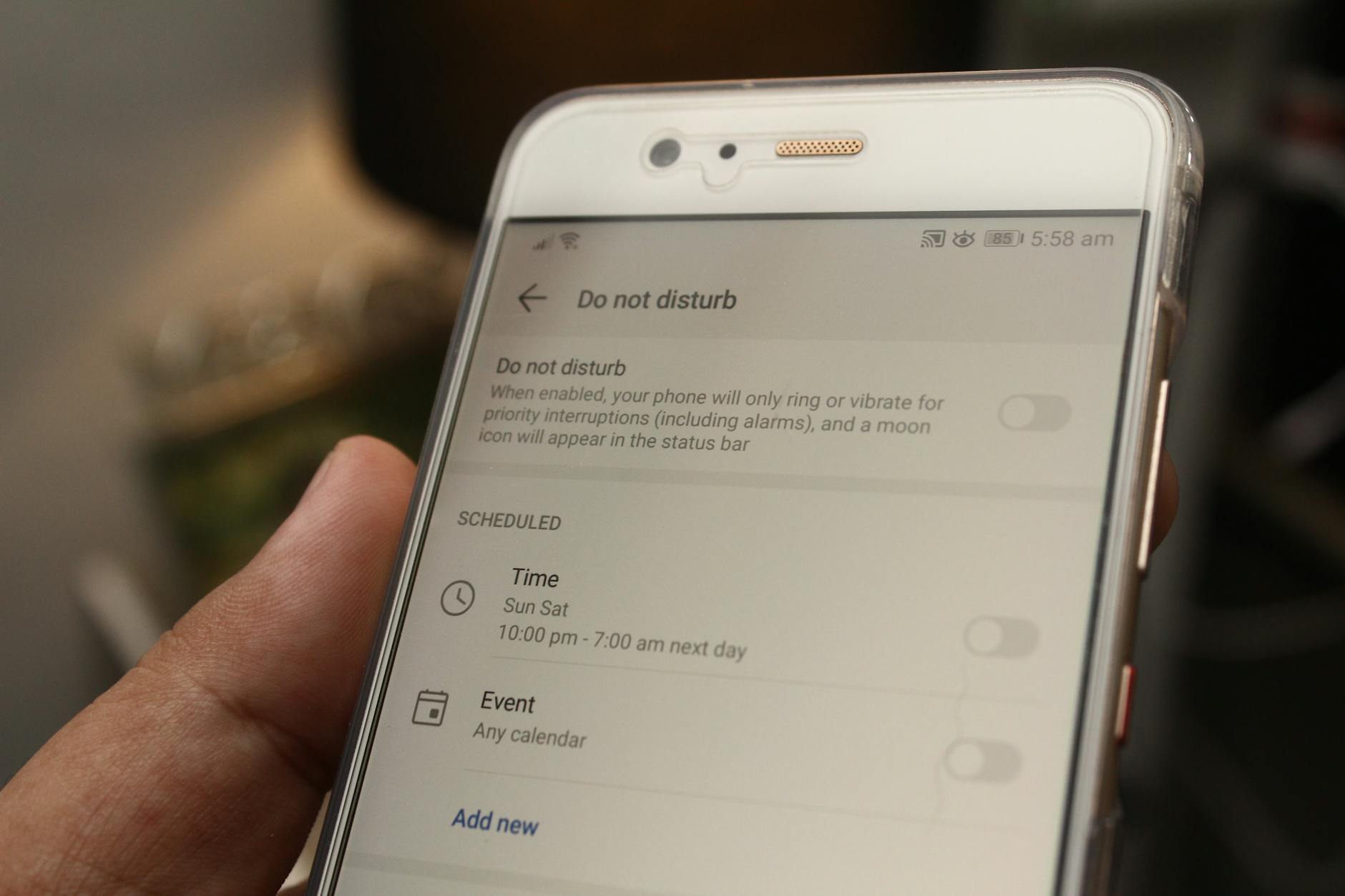 Photo by Daniel Moises Magulado
1) Confirm Telegram has permission to show alerts and run in the background
The most common cause of delayed alerts is missing or changed notification permissions. If Telegram can’t push alerts in the background, you’ll only see messages when you actively open the app. Start with a quick audit of permissions on both platforms.
- On Android: open Settings > Apps & notifications > Telegram > Notifications. Make sure alerts are allowed. Then go to Permissions and confirm Telegram can use essential rights such as background activity.
- On iOS: open Settings > Notifications > Telegram. Ensure Allow Notifications is on and the alert style is banners or alerts with sounds. If Telegram isn’t listed, reinstall the app to re-register permissions.
- In-app verification: Telegram > Settings > Notifications and Sounds. Confirm Private Chats, Groups, and Channels have alerts enabled and a sound chosen.
Why it helps: this confirms a direct path from Telegram to your device’s notification system. If even one link is broken, you’ll see delays or nothing at all.
2) Allow background activity and data for Telegram
Background activity ensures Telegram can check for messages even when you aren’t actively using the app. If this is blocked, you’ll miss pushes until you open the app.
- Android: Settings > Apps > Telegram > Battery > set to “Unrestricted” or similar. Then check Data usage > Telegram and ensure you don’t have a background data restriction.
- iOS: Settings > General > Background App Refresh > enable for Telegram. If you’re on a limited data plan, you can leave it on Wi-Fi and Cellular, but keep it enabled.
What to expect: with background data allowed, Telegram can fetch new messages as they arrive. You should see fewer delays when you’re away from the app.
3) Review Do Not Disturb and Focus configurations
DND and Focus modes are designed to filter noise, but they can block Telegram if not set up properly. A common scenario is Telegram not being allowed during certain Focus profiles.
- Android: Quick Settings or Settings > Sounds & Vibration > Do Not Disturb. Check Allowed apps and ensure Telegram is allowed to send notifications even when DND is on.
- iOS: Control Center > Focus to turn off Focus temporarily, or Settings > Focus. In each Focus profile, confirm Telegram is allowed under Apps or People, depending on how you’ve set it up.
Practical tip: if you need quiet hours, create a dedicated Focus profile that still lets Telegram alert you during important times. This keeps you productive without missing messages.
4) Check your network and data usage
A stable connection is the backbone of instant pushes. If your device is bouncing between networks, Telegram may fall behind.
- Test the connection: open a browser and load a page to confirm data works. If other apps show delays, the issue isn’t Telegram but your network.
- Try different networks: switch from Wi-Fi to cellular data and back to see if alerts improve.
- Restart networking gear if you’re at home: a quick router reboot can clear stubborn routes to Telegram’s servers.
- Inspect data restrictions: some devices or carriers limit background data. Make sure Telegram has unrestricted background data access if such limits exist on your plan.
Why it matters: a shaky network creates a silent window where your phone can’t deliver alerts right away.
5) Do a quick test routine to confirm changes
After you adjust settings, verify results with a real test. This keeps you from guessing and helps you pinpoint which change matters.
- Send a test message to yourself or have a friend message you.
- Watch for the status bar icons when you toggle a setting, which helps confirm the change is active.
- Keep a short log for 24 hours. Note when alerts arrive and compare it to when you made adjustments. It reveals the pattern and the most effective fix.
What you should expect: most users will notice timelier alerts after these quick checks. If a delay still appears, you’re ready to move to the next level of troubleshooting in the article.
6) When to reset or reinstall as a last resort
If the problem persists after the quick checks, there are deeper steps that can clear stubborn issues. These aren’t routine maintenance, but they’re safe and straightforward.
- Logout and back in: Telegram Settings > Log Out, then sign back in and re-enable notifications.
- Reinstall completely: uninstall the app, restart the phone, reinstall Telegram, and log in again. This re-registers permissions and can clear hidden blocks.
- Test across networks again: verify behavior on both Wi-Fi and cellular data to rule out network-specific interference.
Why this step matters: sometimes a fresh start after a software update is all that’s needed to restore normal push behavior.
7) A quick wrap before you proceed
The combination of permissions, background activity, Focus settings, and network stability covers the vast majority of cases. For most users, these steps restore timely alerts without needing deep work or expensive tools. If you still see delays, you’re not alone. The next sections will explore more advanced checks and device-specific quirks to help you finish this troubleshooting journey. And yes, you’ll be able to rely on Telegram alerts again on your everyday smartphone routines.
Fix Phone Settings for Telegram on Android and iOS
If Telegram missed your alert until you opened the app, your phone’s settings are likely blocking or delaying background notifications. This section walks you through clear, device specific steps to restore timely alerts. The aim is simple: every message should reach you as soon as it arrives, not after you launch Telegram. Follow these steps in order and test after each change to pinpoint what helps most.
Step-by-Step Android Notification Setup
On Android devices, the path to a reliable Telegram alert often comes down to two things: allowing Telegram to push notifications in the background and preventing battery optimizations from throttling it. Use the exact menu paths below to avoid guesswork.
- Settings > Apps > Telegram > Notifications > Allow
- Turn on the main notifications toggle.
- Enable categories such as Private chats, Groups, and Channels.
- Set sounds, banners, and any preferred alert style to ensure visibility.
- Settings > Battery > Background activity
- Ensure Telegram is allowed to run in the background. If you see options like “Unrestricted” or “No restrictions,” select them for Telegram.
- Settings > Battery > Background restrictions or Background usage limits
- If present, add Telegram to Never sleeping apps or remove Telegram from any limited list.
- Settings > Data usage or Mobile data & Wi-Fi
- Enable Background data for Telegram so alerts can arrive without you opening the app.
- Optional: Quick access toggle
- Create a quick toggle in Quick Settings to disable battery optimization temporarily when you expect important messages.
Inside Telegram itself, confirm in-app notification preferences:
- Menu (three lines) > Settings > Notifications and Sounds
- Ensure alerts are enabled for Private Chats, Groups, and Channels.
- Choose a distinctive sound to catch your attention.
Why this helps: Android can pause background tasks to save power. Removing that pause for Telegram keeps alerts arriving in real time, even when the screen is off.
Easy iOS Notification Fixes for Telegram
iPhone users often see delays due to how iOS handles background processes and focus filters. The steps below ensure Telegram can push notifications reliably while you stay in control of quiet hours.
- Settings > Notifications > Telegram
- Turn on Allow Notifications.
- Enable Banners, Sounds, and Badges.
- Ensure Lock Screen alerts are visible.
- Settings > General > Background App Refresh
- Turn on Background App Refresh for Telegram.
- If you see a data option, set it to Wi-Fi & Cellular so Telegram can fetch messages anywhere.
- In-app checks: Telegram > Settings > Notifications and Sounds
- Verify Private Chats, Groups, and Channels have notifications enabled.
- Do Not Disturb or Focus
- If DND or Focus is active, make sure Telegram is allowed in the allowed apps or people list.
- Consider a Focus profile that still allows Telegram during work hours.
Why this helps: iOS builds strict rules around background activity. Allowing Telegram to refresh in the background and whitelisting it in Focus ensures you don’t miss urgent messages.
Quick Testing and Validation
After you complete the Android and iOS steps, run a quick test to confirm the changes took effect.
- Send a test message to yourself or ask a contact to ping you.
- Observe the notification behavior right away: banners appear, sounds play, and the alert shows on the lock screen if configured.
- If you still don’t see a prompt, repeat the steps for the other platform or try a short device restart.
Tips for smooth testing:
- Keep your smartphone nearby during testing so you can catch any delayed banners.
- Note whether the notification appears when the screen is on versus off; this helps identify if the issue is screen state related.
- If you frequently switch networks, test on both Wi-Fi and cellular to rule out connectivity as the culprit.
What to expect after applying these fixes
- You should see timely Telegram alerts on most days, without needing to open the app first.
- Some edge cases may still require deeper actions, such as a clean reinstall of Telegram or a full device reset, but those are rare.
- The result is a clearer, more reliable notification flow, especially for time-sensitive messages.
If delays persist after these steps, the next sections cover more advanced checks and device specific quirks to finish the troubleshooting journey. You’ll have a solid foundation for real-time alerts across Android and iOS.
Adjust Telegram App Settings for Instant Alerts
If Telegram misses a message until you open the app, the cause is often buried in settings that block background alerts. This section gives you a practical, device‑by‑device game plan to ensure every ping arrives the moment a message lands. You’ll learn where to adjust permission, background activity, network, and in‑app preferences so alerts feel instant again, not like a delayed afterthought.
Quick checks you can perform
Start with a fast triage to rule out the basics. These checks apply to both Android and iOS and take only a few minutes.
- Confirm Telegram can show notifications and run in the background.
- Verify there are no global Do Not Disturb or Focus profiles quietly silencing alerts.
- Test your internet connection to ensure Telegram can reach its servers without hiccups.
- Open Telegram and check in-app notification settings for Private Chats, Groups, and Channels.
Why this matters: a small misstep in permissions or a quiet mode can block pushes at their source. A quick audit often clears the bulk of delays.
Enable background activity and proper permissions
Background activity lets Telegram fetch new messages even when you’re not actively using the app. Without it, you’ll see alerts only after opening Telegram.
- Android
- Settings > Apps > Telegram > Notifications > Allow.
- Settings > Battery > Background activity. Set Telegram to Unrestricted or similar. If you see Background restrictions, remove Telegram from any block list.
- Optional: add a quick toggle in Quick Settings to disable battery optimization when you expect important messages.
- Inside Telegram: Menu > Settings > Notifications and Sounds. Ensure Private Chats, Groups, and Channels have alerts enabled, with distinct sounds if you want them to stand out.
- iOS
- Settings > Telegram > Notifications. Turn on Allow Notifications, with Banners or Alerts and Lock Screen visibility.
- Settings > General > Background App Refresh. Enable for Telegram and allow on Wi-Fi & Cellular.
- In Telegram > Settings > Notifications and Sounds, confirm alerts are enabled for Private Chats, Groups, and Channels.
- If you notice delays after updating iOS, a quick device restart can help apply the new rules.
Why this matters: background restrictions are a common blocker. Allowing Telegram to run in the background keeps alerts real time, even when the screen is off.
Configure Do Not Disturb and Focus properly
DND and Focus modes silence alerts by default. The goal is to let Telegram through when you need it, without turning off quiet hours entirely.
- Android
- Quick Settings or Settings > Sounds & Vibration > Do Not Disturb. Check Allowed apps and ensure Telegram is allowed to notify even when DND is on.
- iOS
- Control Center > Focus to disable Focus temporarily, or Settings > Focus. In each Focus profile, confirm Telegram is allowed under Apps or People as you prefer.
- If you want quiet hours but still need urgent messages, create a Focus profile that allows Telegram during those times.
Why this matters: a misconfigured Focus profile can mute Telegram when you actually want it on. A targeted exception keeps you in control.
Ensure robust network and data usage
Push notifications depend on a stable link to Telegram servers. A flaky connection can create noticeable delays.
- Test connectivity: open a web page or another app to confirm data is flowing.
- Switch networks: toggle between Wi‑Fi and cellular data to see if one path improves alerts.
- Home networks: restart your router if you notice a pattern of delays on a fixed connection.
- Data restrictions: check if background data is limited by your device or carrier. Ensure Telegram has unrestricted background data access when possible.
Why this matters: a reliable network is the silent backbone of instant alerts. When the connection wobbles, notifications lag.
In‑app notification preferences by chat type
Telegram lets you tailor alerts for different chat types. Fine tune these to reduce missed messages.
- Private Chats: keep banners or alerts audible. Choose a distinctive sound if you tend to mute other apps.
- Groups: decide if you want channel‑like alerts or quieter notifications for busy conversations.
- Channels: set your preferred alert style so posts from your favorite channels reach you without delay.
- Per chat tweaks: open a chat, tap the chat name, and adjust Mute (turn off if you want alerts) or customize sounds for that chat.
Why this matters: when a few chats are muted or set to low priority, you might miss important messages from a specific source. Clear per‑chat settings keep the important alerts bright.
Quick testing routine to confirm changes
After you adjust things, run a quick test to validate results.
- Send a test message to yourself or ask a friend to ping you.
- Watch the status bar and notification banners as you toggle settings. This confirms the change is active.
- Keep a simple log for a day or two. Note when alerts arrive relative to changes. This helps identify which tweaks helped most.
Why this matters: testing reveals which setting moves the needle for your specific device and usage pattern.
When to reset or reinstall as a last resort
If delays persist after all the quick fixes, a deeper refresh can clear hidden blocks.
- Logout and back in: Telegram > Settings > Log Out, then sign back in and re‑enable notifications.
- Reinstall: uninstall Telegram, restart the phone, reinstall the app, and log in again. This re registers permissions and can clear stubborn issues.
- Cross‑check networks: test on both Wi‑Fi and cellular to rule out network quirks.
Why this step matters: sometimes a fresh start after an update is all that’s needed to restore normal push behavior.
A quick wrap before you proceed
Permissions, background activity, Focus settings, and network stability cover the vast majority of cases. For most users, these steps restore timely alerts without needing to open the app first. If you still see delays, you’re ready for more advanced checks and device‑specific quirks in the next sections. The goal stays the same: reliable Telegram alerts as messages arrive.
In the end, a well‑tuned setup means you won’t miss urgent messages just because the app is closed. A few deliberate tweaks can keep your smartphone responsive to Telegram in real time, no matter where you are or what you’re doing.
Advanced Troubleshooting When Basic Fixes Fail
If the quick fixes don’t restore timely Telegram alerts, it’s time to narrow the search and test deeper possibilities. This section guides you through methodical checks that uncover hard to spot causes. You’ll learn how to verify permissions at the system level, inspect app behavior under real-world usage, and approach targeted reinstalls with confidence. Think of it as a diagnostic playbook you can follow step by step.
Clear Cache and Restart Your Phone
Corrupted cache data or a stuck background process can stall notifications even when everything else looks fine. A clean slate helps Telegram reinitialize its connection to the device and the network.
- Android: Clear Telegram’s cache without losing your chats by navigating to Settings > Apps > Telegram > Storage > Clear Cache. After clearing, restart Telegram or reboot the phone to apply changes.
- iOS: Direct cache clearing isn’t exposed as a toggle. The practical equivalent is offloading or reinstalling the app. Remove Telegram from the device, restart the phone, and reinstall the app. This clears ephemeral data that can block new push messages.
- After the reset, open Telegram and send a test message to yourself. Confirm that banners, sound alerts, and lock screen notices appear as expected.
Why this helps: a stale cache can hide updated permission states or new channel configurations. Fresh data often resolves misrouting of notifications.
Update Telegram and Your Phone OS
Software updates fix bugs, tighten security, and improve how background tasks run. If you’re on an older build, you may be missing critical notification improvements.
- Check for updates on the app store (Android and iOS). Install any available Telegram updates.
- Update the operating system if a newer version is available. System updates often include fixes for background activity and notification channels.
- After updating, reboot the device to ensure the new code is active.
- Test with a quick message to verify that alerts arrive even when Telegram is not open.
Why this matters: updates address known issues and improve compatibility with newer network and power management features.
Log Out, Reinstall, or Check for Bugs
If a clean cache and updates don’t fix the problem, a deeper refresh helps. Reinstalling or reauthenticating can clear stubborn blocks set by hidden preferences or server-side quirks.
- Safe logout and re-login: In Telegram, go to Settings > Log Out, then sign back in. Re-enable notifications and test.
- Reinstall: Uninstall Telegram, reboot the phone, reinstall, and sign in again. This re-registers permissions and clears hidden gaps that updates may not fix.
- On a persistent issue, consult Telegram support or check the official forums for any service-wide notification outages or device-specific bugs.
- After reinstallation, run a pair of tests: send yourself a message and ask a friend to ping you. Confirm that you receive the alert promptly.
Why this works: a clean reinstallation eliminates corrupted app data and resets the notification channel stack, which can become misaligned after long use or multiple updates.
Advanced Cross-Check: Background Data and App Behavior
Background data and how the app behaves when the screen is off matter more than you might expect. A misconfigured setting or a conflicting app can block alerts at their source.
- Background data: ensure Telegram can use data in the background. On Android, check Settings > Data usage > Telegram and allow background data. On iOS, confirm Background App Refresh is enabled for Telegram.
- App behavior in the background: some devices rate-limit or pause background tasks for certain apps during heavy battery usage. If you notice this, temporarily disable any aggressive battery optimizations for Telegram.
- Test across scenarios: leave Telegram closed for a while, then send a message. Move the phone to Airplane mode briefly and back, then test again. This helps verify if network gating or power rules are at play.
- Review other apps: if a second app with similar permissions runs into the same issue, you may be facing a device-wide policy rather than a Telegram-only bug.
Why this matters: it isolates whether the problem lies with Telegram itself or with the phone’s broader handling of background activity and network access.
Investigate Device-Specific Quirks and Logs
Some devices have unique quirks that affect push notifications. A small, model-specific setting can cause big delays.
- Look for brand-specific power features: some manufacturers include aggressive RAM management or app-adaptive battery modes. Disable or tune these for Telegram.
- Check system logs if available: some Android devices offer a hidden log (like EventLog) that captures notification events. If you can access it, look for errors related to Telegram or notification channels.
- On iOS, consider a clean reset of all Focus rules if they feel stuck. Create a new Focus profile and re-add Telegram as an exception with clear timing.
Why this matters: device-specific quirks are often overlooked. A targeted adjustment can restore reliable deliveries without altering your entire setup.
A Structured Testing Plan for Confidence
When you’re troubleshooting at this level, use a disciplined test approach. A little record-keeping makes it easier to pinpoint what works.
- Create a 48 hour test window: apply one change at a time, then test with multiple pings from different contacts.
- Track outcomes: note whether banners appear, sounds play, and if the notification lands on the lock screen.
- Use a simple log: jot down the date, time, setting changed, and result. This helps you identify the most impactful fix.
Why this matters: clear data helps you avoid chasing phantom issues and speeds up the path to stable alerts.
When to Seek Help Without Delay
If nothing so far fixes the issue, you may be facing a rare combination of factors. Don’t hesitate to reach out for support.
- Telegram support: report the device model, OS version, Telegram version, and a concise description of the symptoms.
- Carrier or device manufacturer support: if your data plan or device-level power features may be interfering, they can offer guidance or targeted patches.
- Community forums: other users with the same device model may have found a workaround or a known bug status.
Why this matters: complex problems often require a multi-angle approach. Getting the right experts involved saves time and frustration.
A Quick Wrap Before You Proceed
Advanced troubleshooting combines careful checks of permissions, background activity, and device quirks. A methodical approach helps you identify the real blocker and restore real time alerts. If delays persist after these steps, the upcoming sections will cover more targeted tactics and practical workarounds for stubborn cases. You’ll finish with a reliable notification flow that keeps you connected to Telegram without opening the app first.
Conclusion
Timely Telegram alerts come from a clean path between the app and your phone’s notification system. Start with quick checks to confirm permissions, background activity, and that Do Not Disturb or Focus modes aren’t silently blocking alerts. Then lock in the basics on both platforms by enabling background data, turning off battery optimizations that throttle Telegram, and keeping the app and OS up to date.
Next, fine tune inside the app and at the system level. Verify in‑app notification preferences for Private Chats, Groups, and Channels, and make sure Telegram can refresh in the background. If you still see delays, test across networks and perform a quick reset of notification permissions. In stubborn cases, a careful reinstall or log out and back in often clears hidden blocks.
A disciplined testing routine helps you stay confident. After each change, send a test ping, watch for banners or sounds, and note the result in a simple log. If delays persist, move to deeper checks or device specific quirks. A structured approach saves time and preserves reliable alerts on your smartphone.
To avoid future headaches, keep updates installed, review permissions every few months, and run short tests after any major change. Most smartphone users enjoy a noticeably steadier flow of messages when these steps are routine. You can rely on Telegram alerts arriving the moment a message lands, not after you open the app.
If you’ve found a fix that works for you, share it in the comments or ask others to chime in with their tweaks. Your experience can help someone else keep their smartphone fully responsive to Telegram in real time.