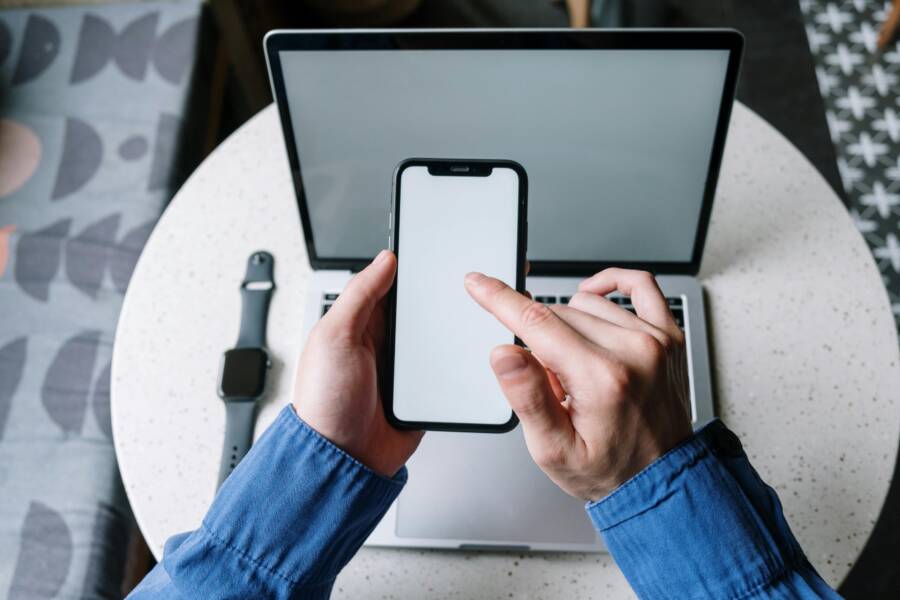
Ever wonder why your watch and smartphone often disagree on steps? The mismatch can make it hard to trust your daily activity and fitness goals.
Step counts matter for workouts, daily activity, and head-to-head health goals. Different sensors, how you wear the devices, and the software behind each count add up to mismatches you can fix.
This guide shows how to calibrate your devices, align data across apps, and keep counts accurate over time. The core idea is simple: wear and set up consistently, then tune the devices so they speak the same language. smartphone in particular plays a big role in data alignment, so you’ll learn practical steps you can apply today.
Why step counts differ between watch and phone: common causes and what to expect
Step counting isn’t perfect, and the discrepancies you see between a wrist worn watch and a phone are usually due to how each device detects movement. The same walk can produce different counts depending on where the motion is measured, how the software interprets signals, and the type of movement you’re doing. Understanding the core reasons helps you set realistic expectations and align your data across devices and apps. Below, we unpack the most common causes and offer practical tips you can use today.
Sensor placement and motion signals
Wrist worn devices primarily detect arm swings. When you walk, your natural arm motion creates distinctive acceleration patterns that the watch translates into steps. If you move with minimal arm swing, such as hurrying with hands tucked in a pocket or swinging less due to a heavy jacket, the watch might miss some steps or misread other motions as no steps at all. On the other hand, a phone relies heavily on pocket or hand movements. If your phone sits still in a pocket with little leg or arm motion, its sensor may undercount steps. If you carry the phone in your hand or wave your arms while talking, the phone can overcount because it interprets extra movement as steps.
Placement is the key. A phone left in a jacket pocket tends to pick up larger signals when you walk with a natural stride and less when you’re standing still or shuffling. A watch, strapped snugly to the wrist, is almost always in motion, catching even subtle wrist and forearm movements. This difference explains why counts can be higher on a watch for the same walk, or lower on a phone in certain situations.
The underlying idea is simple: sensors on different parts of the body capture different motion signals. A wrist device emphasizes wrist motion, while a phone emphasizes whole body movement translated into pocket level signals. To see how this works in practice, you can explore articles that break down the core sensors and how signals are processed, including discussions of accelerometers and the way each device interprets a walking cadence.
- For a deeper dive into how watches and phones count steps, see the overview of the technology behind pedometers and the role of the accelerometer. This helps explain why the same activity can yield different counts on different devices: https://dev.to/grenishrai/how-smartwatches-and-smartphones-count-your-steps-the-technology-behind-pedometers-514p
- If you’re curious about research comparing carrying locations and their impact on accuracy, consider studies on how smartphone carrying location affects step counting: https://journals.lww.com/acsm-msse/fulltext/2017/05001/effect_of_smartphone_carrying_location_on_accuracy.1089.aspx
Different counting algorithms across brands
Every brand tunes its own math to filter noise and determine what counts as a step. The same raw motion signal can end up as a step in one system and be treated as noise in another. Some algorithms are more aggressive and count every subtle motion as a step, while others are more conservative and require a clearer pattern before logging a step. This is why you’ll sometimes see one device register a few more steps and another register a few fewer, even when you’ve done exactly the same activity.
Brand level differences aren’t about one being right and the other wrong; they reflect design choices that favor different goals. For most users, the variance is small and shows up as a few percentage points over the course of a day. If you want a practical takeaway, compare averages over a week rather than fixating on a single number. When you switch devices, give the new device a little time to settle into its own baseline before drawing conclusions.
To get a sense of how brands approach step counting and how accuracy is validated, you can look at independent tests and comparative studies. These sources summarize how different devices perform under typical daily activities and exercise, without getting lost in brand specifics: https://www.androidcentral.com/wearables/step-counting-accuracy-test and https://pmc.ncbi.nlm.nih.gov/articles/PMC5488109/
Activity type and environment matter
Your walking or running cadence changes the way steps are detected and counted. Walking on a flat surface with a steady pace tends to produce clean, repeatable motion signals that both watch and phone can recognize reliably. But when you switch to climbing stairs, light jogging, or a gym circuit with varied movements, the signals become messier. In those cases, some devices may miss steps during rapid transitions or misinterpret fast arm swings as steps.
Outdoors, GPS helps a lot. If you’re hiking or walking a city route, GPS adds distance context and can improve overall activity classification. Indoors, GPS is usually unavailable or limited, so devices rely heavily on motion data from the accelerometer. That’s where the difference in sensing becomes more noticeable. Short bursts, direction changes, or slow, deliberate movements can lead to small counting differences between watch and phone.
When you want to understand how activity type affects accuracy, think about your typical day. Gym workouts with interval work, stair climbers, or heavy traffic city walks each place different demands on motion sensors. A study comparing how wrist worn monitors perform during daily activities and structured exercise shows how accuracy varies by activity type and how it’s measured: https://ncbi.nlm.nih.gov/pmc/articles/PMC5572056/
What this means for your daily numbers
The practical impact of these differences is usually small, but visible. You might notice a few hundred steps difference at the end of the day between devices, or a few percent variance over a week. The important part is to look for consistent trends rather than obsess over a single number. A steady upward trend on both devices, even if the exact counts don’t match exactly, still signals real progress.
A helpful approach is to establish a baseline with your typical daily routine. Track your steps on both devices for a couple of weeks, then compare the averages. If one device consistently runs higher or lower, you can account for that bias in your interpretation of daily totals. The goal is reliability over time, not perfect parity at every moment.
For readers new to tech metrics, think of step counting like measuring rainfall with two different rain gauges. Each gauge has its own calibration. They’ll generally agree on the trend (is it raining more or less), but the exact numbers can differ. Focus on the pattern you see across days and weeks rather than chasing an exact match on any single day.
If you’re interested in the broader science behind measuring steps with consumer devices, you can explore reviews and academic analyses that compare accuracy across devices and activity types: https://pmc.ncbi.nlm.nih.gov/articles/PMC6305876/ and https://www.ncbi.nlm.nih.gov/pmc/articles/PMC5488109/
What to do next
- Calibrate and align: Use built in calibration options in both devices when available. Small adjustments in sensitivity or stride length can reduce drift.
- Track consistently: Wear the watch and carry the phone in the same way each day. For many people, a fixed phone location (like a pocket) yields more predictable results.
- Compare trends, not numbers: Look at averages and week to week changes across devices. If both devices show similar directions, you’re seeing real activity changes.
By understanding sensor placement, algorithm differences, and activity context, you’ll have a clearer view of why counts diverge and how to read them meaningfully. For more practical tips on aligning data across apps and keeping counts stable, you can explore practical guides and research based on how activity monitors perform in real life: https://www.twopct.com/p/how-accurate-is-your-fitness-tracker and https://androidcentral.com/wearables/step-counting-accuracy-test
If you want a quick recap, remember these core ideas:
- Placement matters: watch vs phone captures different motion signals.
- Algorithms differ: each brand tunes its math to balance noise and steps.
- Activity and environment shape accuracy: outdoors with GPS helps; indoors rely on motion data.
- Use trends, not exact counts: aim for steady progress across devices.
Step by step fixes to align step counts on watch and phone
When your wrist device and your phone disagree on steps, it can feel like you’re chasing numbers rather than chasing progress. This section gives you practical, easy-to-implement fixes that help your devices speak a similar language. You’ll learn how to wear and position devices consistently, calibrate accurately, keep software up to date, fine tune important settings, and verify results with a simple test plan. Small, deliberate adjustments add up to more reliable daily totals and clearer trends over time.
Establish consistent wear and carry habits
Consistency is king here. Wear the watch snugly on your non dominant wrist to reduce erratic movement from arm sways or loose fabric. Keep the phone in the same location during your walks, such as a front pocket or a consistent bag section, so its motion signals are comparable from day to day. A quick test can help you see which device aligns more closely with a known distance. For example, walk a short 0.5 to 1 kilometer route at a steady pace and compare counts across devices. If the watch and phone disagree, note which one matches your known distance more accurately and use that as a baseline going forward.
If you’re curious about how location and carry position affect results, you’re not alone. Research highlights that carrying location can shift step counts and influence accuracy across devices. You can explore deeper explanations of sensor placement and motion signals to better understand what you’re measuring when you walk: Apple’s guidance on calibration and watch accuracy provides a solid starting point, and independent studies note how carrying location changes counting results. See Apple’s calibration guidance and related studies for context:
- Apple Watch calibration and accuracy: https://support.apple.com/en-us/105048
- Studies on carrying location and accuracy: https://journals.lww.com/acsm-msse/fulltext/2017/05001/effect_of_smartphone_carrying_location_on_accuracy
A simple practice that pays off is to keep your smartphone in the same pocket or hand during daily strolls. If you prefer to switch between pockets, do so consistently and consider resetting your baseline after a short period of adjustment. The goal is predictable motion signals so your devices can compare apples to apples.
Calibrate devices properly
Calibration teaches sensors your stride and how your arm moves. It enables the systems to learn your typical pace, height, and movement patterns, which improves distance and calorie estimates when GPS is limited or unavailable. Start by performing outdoor GPS walks when possible, then use those walks to refine stride length estimates in the apps. Note that different brands optimize calibration differently, so the exact steps vary.
Here are general calibration ideas followed by brand-specific examples:
- General approach: Do a few longer walks with GPS enabled, ensure Location Services are on, and let the device learn your motion patterns. After calibration, test a familiar route to see how counts align.
- Brand variations: Apple users can run through on-device calibration to improve both distance and pace. Garmin users often fine tune stride distance and wrist position; Fitbit users can benefit from adjusting stride length and daily activity settings.
Practical examples you can check out:
- Apple Watch calibration guidance (steps to improve accuracy for distance and stride): https://support.apple.com/en-us/105048
- General discussions about steps syncing and calibration across platforms: https://steps.app/en/support/pedometer/ios/apple-watch/what-should-i-do-if-the-steps-on-my-phone-are-not-synced-with-the-steps-on-my-watch
- Independent studies comparing device accuracy across activities: https://www.ncbi.nlm.nih.gov/pmc/articles/PMC5572056/
Remember, steps won’t be identical across brands, but calibration helps close the gaps. Treat calibration as a periodic tune-up rather than a one-time fix. If you switch to a new device, give it a grace period to establish its baseline before drawing conclusions from daily totals.
Update firmware and ensure proper syncing
Software updates often fix counting quirks and data duplication issues. Make it a habit to check for updates on both devices and the corresponding health or fitness apps. After updating, confirm that data is syncing across Health, Google Fit, Samsung Health, Fitbit, and any other apps you rely on. If data isn’t flowing smoothly, a quick sign-out and sign-in or re-linking the accounts can resolve the issue.
A simple checklist helps keep things in sync:
- Check for the latest firmware on both watch and phone.
- Confirm the health apps are up to date.
- Ensure the devices are connected properly (Bluetooth, Wi‑Fi as needed) and that syncing is enabled.
- Look for duplicates or gaps and run a test walk to verify improvements.
Updates tend to smooth out counting quirks and reduce data duplication across platforms. If you’re unsure where to start, you can consult device- and platform-specific support pages for precise steps. For broader context on how updates affect step counting and cross-device syncing, see these references:
- Apple Watch calibration and accuracy guidance: https://support.apple.com/en-us/105048
- General guidance on syncing steps between watch and phone: https://steps.app/en/support/pedometer/ios/apple-watch/what-should-i-do-if-the-steps-on-my-phone-are-not-synced-with-the-steps-on-my-watch
- Platform discussions about cross-device step counting and syncing: https://support.google.com/googlepixelwatch/thread/300686003/steps-in-watch-and-fitbit-app-don-t-match?hl=en
After you install updates, run a quick cross-check: a short walk with a known distance, and compare counts across the three main data sources you use. If the numbers converge after updates, you’ve likely eliminated a key source of drift.
Fine tune settings like stride length and auto-detect
Accurate distance and step estimates hinge on correct personal data. Enter height and leg length where the devices require it, so the apps can estimate distance and steps more accurately. In some cases, turning off auto-detect can reduce false steps that come from irregular arm swings or rapid but non-walking movements.
Where to look for these settings:
- Stride length or distance settings: usually found in the health or fitness section of the companion app on your phone or within watch settings.
- Auto-detect features: may be labeled as “auto-ditness detection,” “automatic step detection,” or similar. If you notice spikes or false steps, try turning this off and rely on manual step counting or a stricter cadence threshold.
- Height and leg length input: typically under profile or personal information in the fitness app.
Simple prompts for finding these controls:
- Open the health or fitness app on your phone.
- Navigate to Profile or Settings, then look for Personal Information or Activity Preferences.
- Locate Stride Length or Cadence settings and input your measurements.
- If available, toggle Auto-detect options off to see if counts stabilize.
Adjusting stride length is often the fastest way to improve accuracy. A longer stride length can raise estimates of distance and sometimes tweak step detection because the algorithm aligns with your cadence. If you’re unsure of your exact stride length, start with a conservative estimate based on your height and pace, then refine after a few trial walks.
Test and verify after changes
A structured test helps you confirm that the changes you made actually improve alignment. Use a short walk of 5 to 10 minutes with a known target distance. Count steps on each device and compare the three main sources: the watch, the phone, and any third-party app you use. Look for closer agreement after your adjustments and note any persistent gaps.
Test plan you can adopt:
- Do a 5 to 10 minute walk on a predictable route.
- Count steps manually as a backup reference if you want a third data point.
- Record counts from the watch, the phone, and your preferred app.
- Compare totals and track whether the gap narrows over time.
Weekly checks keep data reliable. A quick weekly test helps you spot drift early and avoid building on faulty data. If you notice a reemergence of discrepancies, revisit calibration and settings, then re-run the test.
Alongside a quick personal test, consider a longer week-long view to judge trends. If both devices show similar directional changes, you’re seeing real movement in activity, even if exact numbers aren’t identical. For readers who want a broader perspective on testing and validation, independent assessments and user forums often share practical testing methodologies and results that you can adapt to your setup:
- Quick test guidance and troubleshooting for device alignment: https://www.twopct.com/p/how-accurate-is-your-fitness-tracker
- General step counting accuracy discussions across wearables: https://androidcentral.com/wearables/step-counting-accuracy-test
A final note on verification: consistency beats precision every day. If you keep the same wear pattern, run periodic tests, and monitor trends, you’ll gain a dependable picture of your activity.
External references and further reading
- Apple Watch calibration and accuracy guidance for improved distance and stride learning: https://support.apple.com/en-us/105048
- How to address steps not syncing between phone and watch: https://steps.app/en/support/pedometer/ios/apple-watch/what-should-i-do-if-the-steps-on-my-phone-are-not-synced-with-the-steps-on-my-watch
- Community discussions on step count alignment across platforms: https://discussions.apple.com/thread/8055100
- Independent assessments of step counting accuracy across wearables: https://pmc.ncbi.nlm.nih.gov/articles/PMC6305876/
Best practices for cross-device accuracy and data you can trust
When you track steps across a watch, a smartphone, and several health apps, you want numbers you can rely on. This section breaks down practical, no-nonsense steps to ensure your data stays consistent, understandable, and ready for real-world use. You’ll learn how to pick a single source of truth, how to let apps talk to each other without doubling counts, and how to keep accuracy sharp with quick checks. Think of it as building a solid data bridge between devices so your progress stays clear.
Choose a primary device for daily steps
Consistency starts with a single, trusted source for your daily totals. Picking one primary device helps you avoid the confusion that comes from juggling multiple numbers. A central hub gives you a stable baseline and makes it easier to notice true changes in activity rather than noise from misaligned data.
- Use a central app as the hub: Apple Health on iPhone or Google Fit on Android can act as the headquarters for your daily step totals. When you designate one source of truth, other apps can feed into it or be treated as secondary references rather than the final word.
- Keep the primary device consistent: if you wear a watch every day, let it be your main source, and let the phone serve as a supplementary input only. If you carry the phone most of the day, you might reverse this, but choose one approach and stay with it.
- Prioritize data quality over number of sources: a clean, well-configured hub reduces drift and makes long-term trends easier to read.
To help set expectations, be aware that some brands or platforms may still log more steps than others due to algorithms or carry habits. The key is to pick a primary source you trust and align other data to that standard. For deeper context on using a health hub and prioritizing data sources, see discussions that explore how users manage data sources in Health apps and the practical steps to set data source priority:
- Apple Health data source priorities: https://discussions.apple.com/thread/252345404
- Prioritize step data between iPhone and Apple Watch: https://www.idownloadblog.com/2018/12/03/prioritize-iphone-apple-watch-health-app-steps/
- A quick guide to syncing health data across platforms: https://www.popsci.com/beginners-guide-google-fit-apple-health/
Key takeaway: designate one primary source for daily steps, and treat other inputs as corroboration rather than the final tally. This reduces confusion and gives you a reliable baseline to monitor progress over weeks and months.
Merge data across apps and avoid double counting
When you rely on multiple apps, you risk counting the same movement more than once. The goal is to create a coherent data flow where each source contributes without inflating totals.
- Let health apps talk to each other: enable step sync in the settings so data moves between platforms without manual exports. In many ecosystems, Apple Health or Google Fit can aggregate inputs from multiple devices and apps, then present a single, unified view.
- Use a common health platform as the viewing hub: when you view totals in one place, you get an honest read on trends rather than juggling separate numbers. This unified view helps you spot drift early.
- Be mindful of duplicates: duplicates often come from the same activity logged by both a wearable and a phone app. Check for and disable automatic duplicates where possible, or set one source to a lower priority in the hub app so it doesn’t double count.
If you want more details on practical setups, these references illustrate common patterns and solutions for syncing step data across devices:
- Steps double counted in iPhone Fitness after using SyncFit to pull data: https://community.fitbit.com/t5/Charge-5/Steps-double-counted-in-iPhone-Fitness-after-using-SyncFit-to-pull-data/td-p/5766836
- How to prioritize which device records steps in Health app: https://discussions.apple.com/thread/252345404
- A beginner’s guide to Google Fit and Apple Health integration: https://www.popsci.com/beginners-guide-google-fit-apple-health/
The upshot is simple: enable cross-app syncing, view totals in a single hub, and keep a watchful eye for double counts. When done right, you’ll see a clearer picture of your activity with less confusion between devices.
Do regular quick accuracy checks
Small, regular checks beat big disappointments later. A quick weekly sanity check helps you catch drift early and keep numbers honest.
- Pick a known distance or a simple step target: for example, walk a short 0.5 to 1 kilometer route at a steady pace and compare the counts from your watch, your phone, and the hub app. This gives you a known reference point to measure drift.
- Keep the checks short and repeatable: 5 to 10 minutes is plenty. Consistency matters more than the exact route.
- Track trends over time: look for consistent movement in the same direction on both devices. If one device shows a steady upward trend while the other lags, you’ve identified a bias to investigate.
- Use manual counting as a backup reference: sometimes counting steps by hand on a short test route helps you sanity-check the automatic logs.
Weekly checks help you spot drift before it becomes a bigger issue. For readers who want to explore testing methodologies or independent reviews of how devices perform in real life, these resources offer practical approaches:
- Quick test guidance for device alignment: https://www.twopct.com/p/how-accurate-is-your-fitness-tracker
- General step counting accuracy discussions across wearables: https://androidcentral.com/wearables/step-counting-accuracy-test
A core insight from regular checks: if both devices move in the same direction over time, you’re watching real activity changes. Exact numbers matter less than reliable trends you can trust for goals and progress.
External references and further reading
- Apple Watch calibration guidance for improved distance and stride learning: https://support.apple.com/en-us/105048
- Steps syncing and cross-device guidance: https://steps.app/en/support/pedometer/ios/apple-watch/what-should-i-do-if-the-steps-on-my-phone-are-not-synced-with-the-steps-on-my-watch
- Independent assessments of step counting accuracy across wearables: https://pmc.ncbi.nlm.nih.gov/articles/PMC6305876/
If you adopt a primary source, keep data in a single hub, and perform quick checks on a regular basis, you’ll maintain trust in your numbers without turning data hygiene into a chore.
What to do next
- Confirm your primary source and ensure it feeds the hub app without duplicates.
- Enable cross-app syncing and verify that you can view all steps in one place.
- Schedule a 5 to 10 minute test route once a week and compare results across devices.
- Use trends to guide your interpretation, not isolated counts.
This approach builds a dependable, easy-to-interpret view of your activity. It makes it far easier to stay motivated and make informed adjustments to your daily routine. If you want deeper dives, there are plenty of guides and studies that examine device accuracy and cross-platform syncing in more detail, with practical tips you can adapt to your setup:
- Apple Watch calibration and accuracy guidance: https://support.apple.com/en-us/105048
- Cross-device step counting and syncing discussions: https://support.google.com/googlepixelwatch/thread/300686003/steps-in-watch-and-fitbit-app-don-t-match?hl=en
- Broader context on cross-platform activity data: https://discussions.apple.com/thread/8055100
Take these steps, and your cross-device data will become a trustworthy ally in your health journey.
Troubleshooting when counts stay off and long term maintenance
When step counts stay out of sync between your watch and your phone, it can feel frustrating. This section outlines a practical, step by step approach to fix lingering mismatches and keep data clean over time. You’ll learn how to recheck calibration, re-pair connections, and review permissions, plus keep the system healthy with a simple long term maintenance plan. Think of it as tuning a small orchestra where every instrument must stay in time.
 Photo by cottonbro studio
Follow escalation steps if one device remains off
If a single device still reads differently after you’ve tried the basics, escalate with a clear, measured plan. Start by rechecking calibration on both devices, then re-pair Bluetooth connections. Finally, review app permissions to ensure data from the devices can be read and logged correctly. Take incremental steps and document results after each change. This keeps you from chasing zeros and helps you see which adjustment actually moves the dial.
- Recheck calibration: confirm stride length, height, and cadence are accurate in each app.
- Re-pair Bluetooth: remove the device from the phone’s Bluetooth list, then re-pair from scratch.
- Review permissions: allow the fitness apps to read motion data, health data, and location as needed.
- Document results: note counts before and after each step to spot what improves alignment.
If you want deeper context on why misalignment can persist, see guides that explore cross-device syncing and step counting behavior. You can explore more here: https://www.twopct.com/p/how-accurate-is-your-fitness-tracker
Factory reset and re pairing as a last resort
Factory resetting should be reserved for stubborn misalignment cases where all other fixes fail. It returns the devices to their baseline state and can clear hidden glitches. Before you reset, back up your data so you don’t lose progress history or personal settings. After the reset, re-pair devices carefully and perform a fresh setup. Then run a short test to confirm counts align better than before.
- Back up first: save health data, app settings, and any custom configurations.
- Factory reset steps: follow the exact manufacturer instructions for your watch and phone.
- Re-pair safely: pair the watch with the phone as if new, then restore from backup where possible.
- Recheck after setup: run a known-distance test to verify counts are reasonable and stable.
If you’re unsure when to reset, this quick rule helps: consider a reset when nothing else fixes the drift and you’ve ruled out wear pattern, calibration, and syncing issues. For guidance on device resets and re pairing, see cross platform how-to resources like Wear OS reset instructions: https://support.google.com/wearos/answer/6056905?hl=en
What to provide when you contact support
If you need professional help, prepare a concise, structured report. Include device models, firmware versions, app versions, recent calibration steps, and a short summary of the issue. Attach test results and a few quick data points that illustrate the mismatch. This helps support reps reproduce the problem and propose targeted fixes quickly.
- Device models and versions: watch model, phone model, OS versions.
- App versions and data sources: Fitness app name and version, Health app if used.
- Calibration history: dates and results of recent calibrations.
- Issue summary: a few sentences that describe when the mismatch happens.
- Test results: counts from each device on a couple of short tests, plus manual counts if you did any.
Helpful reference links for support workflows and common fixes include official support pages and user communities that discuss step count alignment across platforms: https://www.samsung.com/us/support/troubleshooting/TSG01003112/
In addition, including a recent test route description can speed up diagnosis. For context on how to articulate what you’re seeing in a support ticket, you can review guidance on documenting device behavior here: https://steps.app/en/support/pedometer/ios/apple-watch/what-should-i-do-if-steps-on-my-phone-are-not-synced-with-the-steps-on-my-watch
By presenting a clear snapshot of the issue, you increase the chances of a speedy, accurate resolution.
Additional reading and practical references
- Reset and pairing guidance for common platforms and devices: https://support.google.com/wearos/answer/6056905?hl=en
- iPhone and Apple Watch data alignment tips and troubleshooting: https://steps.app/en/support/pedometer/ios/apple-watch/what-should-i-do-if-steps-on-my-phone-are-not-synced-with-the-steps-on-my-watch
- Independent evaluations and user discussions on cross-device accuracy: https://pmc.ncbi.nlm.nih.gov/articles/PMC6305876/
Key takeaways
- When one device lags after basic fixes, escalate with a calm, methodical approach.
- Use a last-resort factory reset only after you’ve backed up data and tried re pairing.
- Collect precise details before contacting support to shorten resolution time.
This approach keeps your data trustworthy and helps you stay focused on your health goals rather than chasing numbers. If you want deeper context, explore dedicated guides and community discussions about device calibration and cross-platform syncing. For hands on steps and common fixes, see: https://www.androidcentral.com/wearables/step-counting-accuracy-test
Images and visuals can often simplify this process. If you find a scenario where a quick diagram helps, you can illustrate steps like “re calibrate, re pair, re test” with arrows showing the data flow between watch, phone, and hub apps.
Conclusion
Fixing step count mismatches between your watch and smartphone comes down to three core habits: wear consistently, calibrate accurately, and merge data carefully. Keep the devices aligned by wearing the watch snug and carrying the smartphone in a consistent place, and run regular calibrations to teach the sensors your cadence. Use a single primary source for daily steps and let other data sources feed in without inflating totals, then check trends over time rather than chasing exact numbers. Start today by setting a short test route, updating both devices, and enabling cross app syncing so your fitness data tells a clear, trustworthy story. If you want to improve confidence further, embrace the process and keep data merging simple for long term tracking with your smartphone as a steady companion.