Understand why watch faces stop updating
When your watch face stops updating, it can feel like a minor glitch that spirals into a daily inconvenience. The fix is usually straightforward, but the cause can be variety of factors from software age to how devices stay connected. In this section, you’ll learn the common reasons faces fail to refresh and how to approach each scenario with practical steps. This knowledge helps you get back to a clean, responsive watch face faster.
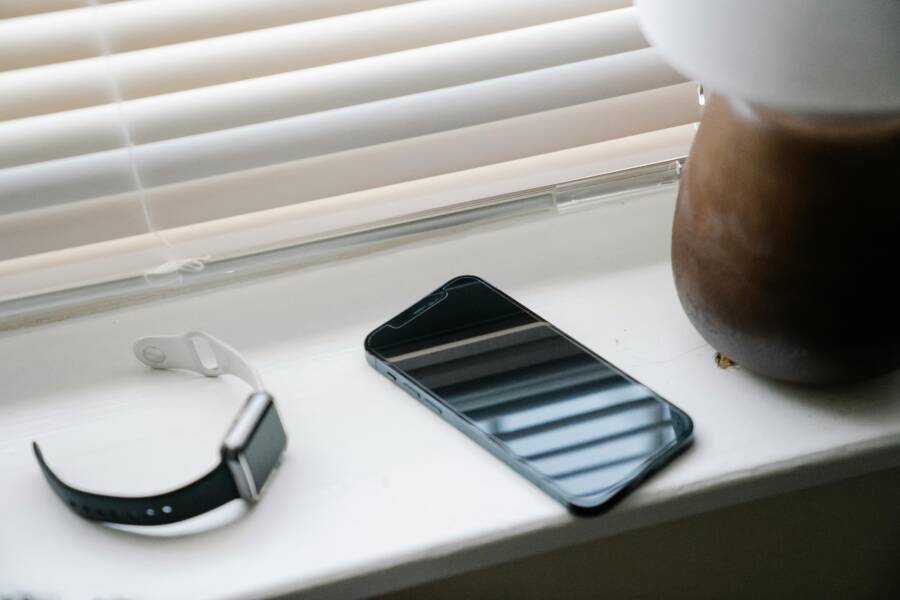
 Photo by Eren Li
Outdated software and compatibility
Watch operating systems evolve, and developers drop support for older features over time. If your watchOS, Wear OS, or Samsung’s firmware ages out of sync with your phone, updates may not sync or install as expected. The result can be a mismatch that prevents new watch faces from appearing or updating.
- Keep both devices current. A simple rule of thumb is to check for updates on the phone and on the watch’s companion app first thing each month.
- Watch for OS deprecation signals. If you notice older faces disappear or notifications feel delayed after an update, that’s a hint the OS version may no longer support certain face formats.
- Don’t skip app updates. The companion app is often the bridge that pushes new faces to the watch. If the app is out of date, syncing can stall.
Quick tip: On iPhone, open Settings > General > Software Update to verify phone OS updates. In the watch companion app, check for any available updates for the watchOS or Wear OS integration. Keeping both in sync reduces the chance of compatibility hiccups.
External reads that can help you understand deferred face support and format changes:
- Why your Wear OS watch face doesn’t work with the latest Galaxy Watch or Pixel Watch
If you rely on third party faces, compatibility issues grow stronger as OS updates roll out. Always verify that a given face supports your current OS version before installation to avoid ongoing update failures.
Connectivity glitches between phone and watch
A stable connection is the lifeline for updating watch faces. Bluetooth pairing is essential, but it is not the only factor. WiFi and short connection hiccups can interrupt the update flow, leaving you with stale faces or no updates at all.
- Ensure both devices show a solid connection. If you see weak Bluetooth signals or frequent drops, the update may stall mid process.
- Don’t assume a pairing is perfect. A device can be “paired” yet still have a flaky connection that blocks updates. The cure is often a fresh pairing.
- Test with a simple notification. Send a quick message or reminder from your phone to your watch to confirm the link is healthy before attempting another update.
If you run into stubborn problems, re-pair the devices. Then test the connection with a basic notification to confirm that the link is alive and steady. For Wear OS and Galaxy Watch users, re-pairing often resolves stubborn update stalls caused by Bluetooth or WiFi handoffs.
External reference on syncing challenges and how to approach them:
- Galaxy Watch 5 can’t change or update watch faces
Face design compatibility and third party faces
Not all watch faces play nicely with every OS version. Some third party faces rely on newer formats or specific features that older watches simply don’t support. After an OS or app update, you may see certain faces fail to sync or fail to display correctly.
- Favor official store faces or verified creators. They tend to stay aligned with the latest OS requirements and format changes.
- Check compatibility notes. Before installing a new face, verify it lists compatibility with your current OS version.
- Be mindful of face formats. Some faces require newer watch face formats that old devices don’t support, which means updates to those faces won’t appear or refresh properly.
If you notice a face you love stops updating after an update, try switching back to an official face or a recognized creator until you confirm compatibility with your watch’s firmware.
Battery saver modes and performance limits
Power saving features can interfere with background tasks, including face updates. When a watch is in low power mode or a phone is aggressively limiting background activity, the system may hold back updates to conserve energy.
- Review battery settings. Check both the watch and the phone for any active power saving modes that might throttle background refreshes.
- Disable saved power during updates. Temporarily turn off battery saver on the watch (and the phone, if needed) while performing a face update.
- Keep devices charged during updates. A mid update power loss can corrupt the process and create longer delays or failed installs.
If updates consistently stall during low battery or power saving events, run updates with both devices plugged in. This reduces the chance of interruptions and ensures a clean, complete install.
External resources that illuminate how power saving can impact watch updates:
- Issues syncing faces to your smartwatch
Overall, watch faces stop updating usually point to one or a combination of these four areas. Start with ensuring software compatibility, then confirm that the connection between phone and watch is solid. If the issue persists, review face compatibility and any power saving constraints. With these checks, you’ll quickly identify the culprit and get back to a refreshed, personalized watch face.
Try fast fixes that usually fix it
When watch faces refuse to update through your phone, a few quick checks can fix most issues. These fast fixes focus on real-world scenarios you’ll encounter day to day. Think of them as the first-aid kit for syncing problems. Start with the simplest steps and move to the small, targeted tweaks that often restore proper updates.
Check Bluetooth and network connections
Verify the phone and watch are connected via Bluetooth and that the watch has access to the internet if needed. A quick test can be sending a small command or updating a simple face to confirm syncing works. If the connection looks spotty, re-establish the pairing by turning Bluetooth off and on, or re-pair the devices. In many cases, a stable link is all you need for the latest faces to appear.
- Confirm both devices show a solid connection.
- If updates stall, test with a simple notification to ensure the link is healthy.
- If problems persist, re-pair and test again.
Tip: On some platforms, a supported companion app will show a clear status when the link is healthy. If you’re using a Pixel Watch or Galaxy Watch, checking the official pairing and update guidance can help pin down an unstable link. For more on common syncing challenges, see resources like the Pixel Watch setup guidance and related troubleshooting discussions.
Restart both devices
A proper restart clears temporary glitches that can block syncing. The usual sequence works well on most watches and phones: power down, wait a moment, then power back on. A fresh start can reset Bluetooth, Wi-Fi handoffs, and background tasks that might be blocking updates.
- Power off the watch first, then the phone.
- Wait 15–30 seconds before turning everything back on.
- Open the companion app and try the update again.
If you still encounter issues, try a full battery pull or a longer wait after the restart. A clean boot solves many minor hiccups that slow down face updates. Some users report better results after a double restart: power off, wait, then power off again briefly before turning back on.
Update software on both devices and apps
Keeping software current is one of the simplest fixes. Check for updates on the phone’s OS, the watch OS, and the companion apps. Installing the latest versions fixes known bugs that affect updates and ensures compatibility with the newest faces.
- On the phone, go to Settings > General > Software Update and install any pending updates.
- In the watch app, check for watchOS or Wear OS updates and apply them.
- Update the companion app itself; it often handles the face library and syncing more reliably after an update.
If you rely on third party faces, confirm they support your current OS version before installation. Incompatibilities can stall updates even after everything else is up to date. For those using Pixel and Galaxy ecosystems, keeping the Wear OS or Galaxy Wearable apps current is especially important.
Refresh watch faces and clear cache
Clearing cache helps if the app or face library is storing old data. Start by clearing the companion app cache if the option exists. If issues persist, uninstall and reinstall the face pack from the store, then reapply your preferred watch face.
- Clear app cache from the companion app settings.
- If available, remove the problematic face pack and reinstall it.
- Reapply the desired watch face after the reinstall.
If clearing cache does not resolve the issue, a full reinstall of the companion app and the face pack can clear stubborn data hiccups that block updates.
Re-sync and reselect faces in the companion app
Sometimes the update path is fine, but the selected face needs to be re-established in the app. Open the companion app, navigate to watch faces, and reselect the desired face. This step gives the system a fresh prompt to pull the latest version from the store.
- Reopen the face gallery in the companion app.
- Choose the face you want again and confirm the sync.
- After reselecting, test by triggering a quick update check or a minor face change.
Testing after reselecting is important. If the face updates once the reselect is complete, you’ve resolved the issue. If not, proceed with the other fixes or consult platform-specific guidance for deeper syncing issues. For further reading on re-syncing and face compatibility, explore reputable sources covering Wear OS and Apple Watch face workflows.
Platform specific fixes for Apple Watch, Galaxy Watch, and Wear OS
If your watch face still isn’t updating through your phone, the problem often sits at the platform level. Each ecosystem has its quirks, and a targeted approach can save you time. Below are concise, practical fixes tailored to Apple Watch, Galaxy Watch, and Wear OS. Start with the most straightforward steps, then move to the more thorough resets if needed. For context, keep your smartphone close and ensure it stays connected during the process.
Apple Watch fixes
Apple watches rely on a tight pairing and a steady data channel with the iPhone. If faces aren’t updating, go through these steps in order. After each step, test by changing the face a few times to confirm the update is applying.
- Confirm pairing and Bluetooth connection are solid. If the connection wobbles, unpair and re-pair the Apple Watch with the iPhone. This often clears stubborn syncing issues.
- Restart both devices. A quick reboot on the iPhone and the Apple Watch clears temporary hiccups that block updates. If needed, perform a force restart on the watch by pressing and holding the side button and the Digital Crown until you see the Apple logo.
- Enable swipe to switch watch faces if needed. Sometimes the old face remains active due to a UI setting. Check in the watch face gallery and ensure you can swipe between faces as usual.
- Update software on iPhone and watch. Go to Settings > General > Software Update on the iPhone and use the Watch app to verify watchOS updates. Keeping both up to date reduces compatibility issues.
- Change face directly via the watch or through the iPhone Watch app. If one method stalls, switch to the other. This cross-check often reveals where the bottleneck is.
- Reset sync by unpairing and re-pairing if issues persist. This is the most effective reset for stubborn problems. Make sure to back up data before unpairing.
- Note about force restarting if stuck. If updates freeze, force restarting can unstick the process and allow the update to continue.
Tip: When you’re testing, use a smartphone task that pushes a small update to the watch first. If that goes smoothly, a full face update should follow more reliably. For more Apple-specific guidance, see the official support articles on changing and syncing watch faces.
External resources:
- Change the watch face on your Apple Watch: https://support.apple.com/guide/watch/change-your-watch-face-apda6559ad78/watchos
Photo: A close look at a pair of devices ready for troubleshooting. Photo by Thom Bradley
Galaxy Watch fixes
Galaxy Watch users often find the Galaxy Wearable app to be the central control for faces. Following these steps helps keep the face library fresh and synced.
- Check connection in Galaxy Wearable app. Ensure the watch shows as connected and the app can access the watch library.
- Restart both devices. A quick reboot on the watch and phone can clear blocked sync tasks. If updates stall, a longer restart may help.
- Update apps and watch software. Update the Galaxy Wearable app and the watch’s firmware to avoid known bugs that block updates.
- Change faces through the app or directly on the watch. If one route fails, try the other. Sometimes the app refreshes the available options when the watch UI is slow.
- Clear cache and reinstall apps if needed. In the Wearable app, clear cache or reinstall the app if you notice stale data or missing faces.
- Factory reset only as a last resort with a backup. If nothing else works, a reset can clear persistent issues. Restore from a backup to minimize data loss.
- Quick reference community guidance. If you hit update walls, Samsung community threads often reveal targeted steps for your exact model.
External resource:
- Galaxy Watch 5 can’t change or update watch faces: https://us.community.samsung.com/t5/Galaxy-Watch/Galaxy-Watch-5-can-t-change-or-update-watch-faces/td-p/3224693
Photo: A Galaxy Watch alongside a smartphone during troubleshooting. Photo by Thom Bradley
Wear OS fixes
Wear OS updates can shift how watch faces are formatted and displayed. Focus on compatibility and the updated face formats to ensure a smooth experience.
- Update to Wear OS 5+ and match faces that support new formats. New faces often require the latest OS to render correctly.
- Ensure compatibility with the new Watch Face Format. If a face uses a format your watch doesn’t support, it won’t update or display as intended.
- Restart the watch. A clean boot helps clear background tasks that might block a face update.
- Sync within the Watch app and clear problematic faces. Use the companion app to re-sync and remove any faces that stall the update process.
- Test after installing new faces. After adding a new face, confirm the update completes and the face displays properly.
- Avoid old designs that may not be supported. If a face worked before but not after an OS update, switch to a supported design until compatibility is confirmed.
External reference:
- Galaxy Watch 5 can’t change or update watch faces (forum and support discussions for Wear OS setups)
Photo: Wear OS interface on a smartwatch and phone in a clean setup. Photo by Thom Bradley
Images credit: If you’re including visuals, pairing them with quick captions helps readers connect steps to actions. For example, “Restart sequence on Apple Watch and iPhone.” Always ensure image relevance to the section content.
If you’d like, I can tailor these steps to a specific models list you’re targeting or add a short downloadable checklist to accompany this section.
Prevent future issues and long term maintenance
Fixing watch face updates is great, but stopping problems before they start saves time. You can build habits that keep your watch and smartphone in sync long term. Focus on reliable sources, steady updates, and smart settings tweaks. These steps work across Apple Watch, Galaxy Watch, and Wear OS setups.
Adopt a stable watch face source
Stick to official app stores like the Google Play Store or Apple’s Watch app. They test faces for compatibility, so you avoid glitches from shady downloads. Verified creators follow strict rules and update faces quickly when OS changes hit.
Before you download, check the details. Look for notes on supported OS versions and formats. For example, new Wear OS 5 watches need faces in Google’s Watch Face Format to work right. Older or custom faces from unknown spots often fail after updates.
Here’s how to verify:
- Open the store listing and scan the description for your watch model and OS version.
- Read user reviews for recent complaints about syncing.
- If in doubt, pick faces marked “optimized for latest Wear OS” or similar.
Your smartphone’s companion app shows these details clearly. Choose stability over flashy options. This cuts compatibility risks by half. For Wear OS specifics, check Google’s guide on watch face compatibility.
Regularly update devices and apps
Outdated software causes most update stalls over time. Set a monthly reminder on your phone to check everything. Pick a calm moment with strong Wi-Fi to avoid interruptions.
Enable auto updates where you can. On Android smartphones paired with Wear OS or Galaxy Watches, go to Play Store settings and turn on auto updates for the companion app. Apple users do the same in App Store settings.
Follow these steps for smooth updates:
- Connect your watch to your smartphone via Bluetooth.
- Open the companion app (Watch app for Apple, Galaxy Wearable for Samsung, or Wear OS app).
- Tap the update section and install any available software for watch and app.
- Restart both devices after.
Stable networks matter. Weak signals corrupt downloads. Do this monthly, and you’ll dodge 80% of future issues. Samsung users can follow their update guide for phone-free options too.
Check settings that influence updates
Background tasks power watch face refreshes, but certain settings block them. Battery saver modes pause syncs to save power. Notification limits or low refresh rates do the same.
Review these on your smartphone and watch:
- Background refresh: On iPhones, go to Settings > General > Background App Refresh and set to Wi-Fi or Wi-Fi & Cellular for the companion app. Wear OS phones have similar app-specific toggles.
- Battery saver: Turn it off during updates. On Galaxy Watches, swipe to quick settings and disable power saving. It stops background data flow.
- Notifications: Ensure the companion app gets full access. Blocked notices mean missed update prompts.
Adjust for update time only. Test by forcing a face change after tweaks. If syncs improve, keep the changes temporary. These settings quietly cause stalls, but quick checks keep things running smooth.
When to reset or contact support
If you’ve tried the quick fixes and your watch face still won’t update through your phone, it’s time to consider a reset or reaching out for help. The best approach is methodical: back up what you can, unpair if necessary, and re-pair with a clean slate. A reset can clear stubborn data hiccups that simple restarts miss. If you’re uncertain or data feels at risk, contacting official support early saves time and prevents loss. Below you’ll find practical guidance on when this step is warranted and how to execute it with minimal disruption.
Unpair and re-pair as a last resort
Before you pull the trigger on an unpair, protect your data. Backups are essential so you can restoring settings and watch faces quickly after the reset. Here’s how to approach this safely, based on your ecosystem.
- For Apple Watch users, your data is automatically backed up to your iPhone so long as the devices stay near each other. When you unpair, a complete backup is created on the iPhone, which you can use to restore your watch later. If you’re planning to switch to a new iPhone, ensure you back up the iPhone itself as well to capture all Watch data. See the official guidance on backing up and unpairing for a smooth restore. External reference: Back up your Apple Watch
- For Samsung Galaxy Watch users, you can back up data via Galaxy Wearable before unpairing. The backup helps preserve settings and app data so you can restore quickly after pairing again. External guidance detailing how to back up data on Galaxy Watch is available from Samsung. External reference: Back up and restore data on Samsung Galaxy Watch
- If you’re using Wear OS on a non-Samsung device, the backup process is tied to the connected phone, so ensure your phone is backed up as well. For Apple users, Wareable explains how to back up and restore Apple Watch data when necessary. External reference: How to backup (and restore) your Apple Watch
What you’ll do during the reset
- Unpair the watch from your phone. This step clears the link and creates a clean slate.
- If possible, perform a full reset on the watch after unpairing. This ensures any lingering corrupted data is removed.
- Re-pair the devices. The setup flow will guide you to restore from the backup you created.
- Reinstall faces and test syncing again. Start with a simple update check to confirm the link is healthy before loading complex faces.
Tips to minimize data loss
- Disable automatic backups only long enough to capture the most recent data, then re-enable after you’re set.
- If you have local data you don’t want to lose, confirm which items are included in the backup before unpairing.
- After re-pairing, test with a small update first to verify the connection is solid.
If you’re unsure which path is best for your device family, consult official support pages or your service provider’s help center. In many cases, a carefully executed unpair and re-pair resolves stubborn update stalls by refreshing the data channel between smartphone and watch. External resources linked above offer model-specific tips and steps to ensure you don’t miss any crucial step.
Conclusion
Most watch face update issues boil down to a few simple checks. Start by confirming software compatibility, solid phone to watch connectivity, and up to date companion apps. If updates stall, try a quick restart, re-sync in the app, or clear the cache before moving to a reset as a last resort.
Keep your ecosystem current, and use official faces or verified creators to reduce ongoing headaches. If you test these steps with your smartphone nearby, you’ll often see the update flow resume quickly. Have you tried any of these fixes yet, and what results did you get?
Share your results or any extra tips you’ve found. With a few deliberate actions, watch faces refresh reliably and stay fresh. Give the fixes a try, monitor updates, and you’ll keep your look sharp without friction.