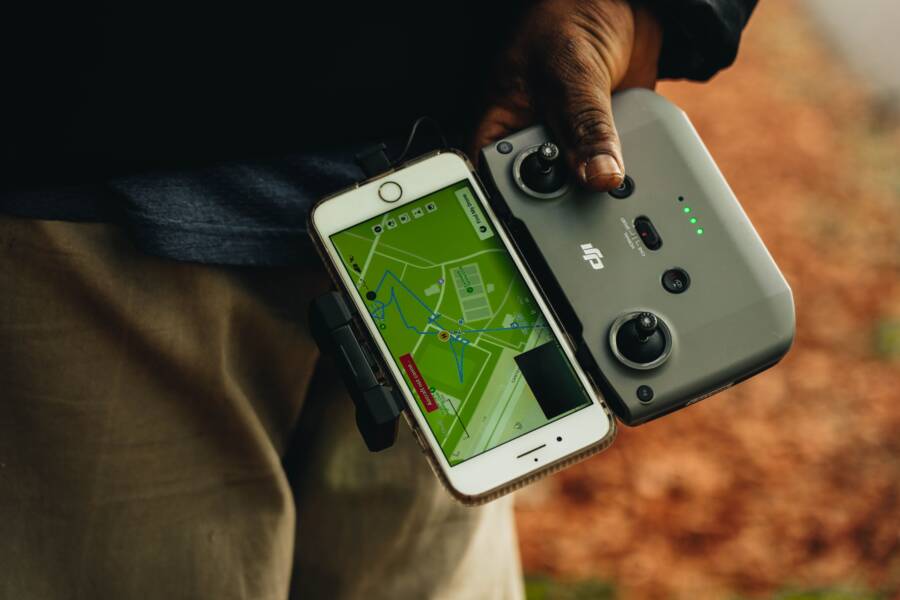
When your smartphone stops tracking your location history, the issue usually stems from incorrect permission settings rather than hardware damage. You likely need to toggle a few switches or update your privacy preferences to restore functionality.
Most users find that their device lacks the necessary authorization to record location data in the background. Because manufacturers prioritize battery life, they often restrict how apps access your GPS.
This guide helps you identify the specific configuration that is preventing your smartphone from logging your movements. By adjusting these settings, you can ensure your activity remains updated and accurate.
Why Your Smartphone Location Data May Stop Updating
Location tracking failure on your smartphone often results from aggressive power management features designed to extend battery life. When the operating system perceives a location-based process as non-essential, it may suspend that service in the background. Understanding the balance between battery efficiency and persistent tracking helps you identify why your device stops logging your history.
Battery Optimization Settings
Most smartphone manufacturers include power-saving modes that automatically throttle background activities. If your device enters a low-power state, it restricts GPS and Wi-Fi scanning to conserve energy. You should check if your battery optimization settings treat your location-dependent apps as background processes that require restriction. Disabling these limitations for specific apps often restores consistent data logging.
Permissions and Privacy Configurations
Your smartphone relies on specific location permissions to maintain accurate history logs. If you recently updated your operating system, the system might have reset these permissions to a default, more restrictive state. You should verify that the tracking app has permission to access your location at all times. Simply granting access only while the app is in use will often cause gaps in your location history.
GPS Signal Interference and Hardware Limitations
Physical obstacles frequently disrupt the signal between your smartphone and satellites. Tall buildings, underground parking structures, and dense foliage block GPS reception, which forces the device to rely on less precise Wi-Fi or cellular triangulation. If your device cannot establish a clear line of sight to enough satellites, it may stop logging coordinates entirely until the signal improves.
Software Glitches and Cache Corruption
Background services occasionally experience errors that prevent them from communicating with location sensors. When the local cache for location services becomes corrupted, the system fails to record new movement data even when settings appear correct. You can often clear this conflict by performing a simple restart of the device or clearing the cache for the primary location services app. If these basic steps fail, ensuring your firmware is up to date remains the best way to patch known tracking bugs.
Fixing Location History Problems on iPhone
Correcting your location history settings on a smartphone often requires verifying individual app permissions. If your device stops logging your movements, the culprit is usually a restrictive setting that prevents the system from accessing your GPS data in the background. You can fix most tracking issues by manually auditing your privacy configurations.
Checking Privacy and Location Services Settings
Your smartphone manages location access through a centralized control panel. If a specific app shows gaps in your history, you must ensure it has permission to track you even when you are not actively using the app.
Open the Settings app on your device.
Scroll down and tap Privacy & Security.
Select Location Services at the very top.
Locate the specific app you want to monitor in the list.
Tap on the app name and verify that Allow Location Access is set to Always.
Setting the permission to Always is necessary for background logging. If you choose While Using, the smartphone will cease tracking as soon as you exit the app or lock your screen. Some apps may show a Precise Location toggle as well. Enabling this ensures the data remains accurate rather than relying on approximate cellular triangulation. If the app does not appear in this list, reinstalling it often forces a prompt that restores the missing permission settings.
Resetting Location and Privacy Data
Sometimes software files become stuck or corrupted, which causes your smartphone to ignore your privacy selections. If you verified the permissions and the tracking still fails, you may need to reset your location and privacy settings to their factory defaults.
This action wipes your existing permission history for every app on your device. It does not delete your photos, contacts, or other personal files. Instead, it resets the location alerts so your apps must request permission again the next time you open them.
To perform this reset:
Navigate to Settings -> General.
Scroll to the bottom and select Transfer or Reset iPhone.
Tap Reset.
Select Reset Location & Privacy from the provided menu.
Enter your passcode to confirm the action.
After the phone restarts, open your tracking apps one by one. Each app will display a new pop-up asking for permission to access your location. Choose Always Allow for the specific apps you want to track your history. This process clears out old background conflicts that often prevent accurate logging. If your history still fails to update after this step, check for a pending iOS update, as manufacturers frequently release patches for underlying sensor communication errors.
Troubleshooting Location Issues on Android Devices
When your smartphone stops logging location data, the internal software settings are often the primary cause. Android systems frequently prioritize battery conservation, which can inadvertently block the background processes your location history requires. By adjusting these power management and system configurations, you can restore full functionality to your device tracking.
Managing Battery Optimization for Location Services
Modern Android operating systems use aggressive battery saving modes to extend your daily usage. When these modes activate, they restrict background activities for most applications, including those that log your location. If your smartphone enters a low-power state, the system freezes background location requests to save energy.
You must set your location-heavy applications to ignore these restrictions for the best results. Follow these steps to ensure your tracking remains active:
Open your device Settings menu.
Select Apps and then tap See all apps.
Find and select the app responsible for tracking your location, such as Google Maps.
Tap Battery or App battery usage.
Choose the Unrestricted setting to allow the app to use battery in the background without interference.
Selecting this option prevents the Android system from shutting down the app during periods of inactivity. Many users find that this simple change resolves most synchronization gaps immediately. Keep in mind that allowing unrestricted usage may slightly increase your battery drain throughout the day.
Clearing App Cache and Updating Google Play Services
Corrupted temporary files often cause location services to hang or stop recording coordinates entirely. Your smartphone stores cache data for apps to speed up loading times, but this data can become outdated or conflict with current settings. Clearing this cache forces the app to rebuild its connections to system sensors and servers.
In addition to clearing app-specific cache, ensure that your core system services remain current. Google Play Services manages the background communication between your hardware and your location history. If this service is outdated, your device may struggle to maintain a reliable GPS lock.
Follow this process to refresh your tracking services:
Go to your main Settings menu and select Apps.
Find Google Maps and tap Storage & cache.
Select Clear cache.
Navigate back to the App list and search for Google Play Services.
Clear the cache for this system service to resolve underlying synchronization errors.
After clearing these files, restart your smartphone to apply the changes. Check the Google Play Store periodically to confirm that both your tracking apps and system services are running the latest versions. Regular updates provide essential patches that fix known bugs affecting background location reporting. If you still encounter issues, verify that your date and time settings are set to Automatic, as incorrect time data can prevent the system from accurately logging your location.
Common Questions About Location Tracking
Users often wonder why their smartphone struggles to keep location records accurate or consistent. These questions cover the most frequent points of confusion regarding how your device monitors your activity and why those logs might vanish.
Does turning off Wi-Fi stop my history from updating?
Turning off Wi-Fi does not stop tracking, but it often makes the data less accurate. Your smartphone uses a combination of GPS, cellular towers, and nearby Wi-Fi networks to triangulate your position. When you disable Wi-Fi, the device loses a major source of signal verification. It then relies solely on GPS, which consumes more power and struggles to penetrate indoor environments. If your location history appears to have gaps, leaving Wi-Fi scanning enabled helps the system maintain a steady fix on your location.
Will high accuracy mode drain my battery?
High accuracy mode enables your device to use all available sensors simultaneously. This setting provides the most precise results for navigation and history logs. However, the trade-off is higher battery usage throughout the day. If you notice your smartphone battery depleting quickly, you might be tempted to disable this feature. Keep in mind that doing so often causes the location history to stop updating because the system restricts sensor access to save energy. Most modern devices balance this automatically, so keeping high accuracy enabled is usually the best way to maintain reliable records.
Can a VPN block my location logs?
Using a VPN creates a virtual tunnel for your internet traffic, which masks your IP address. While this protects your browsing privacy, it does not physically stop your phone sensors from recording your coordinates. Your smartphone records location history based on GPS hardware and local sensor data, not just your network IP. However, some apps may fail to sync their collected data with the cloud if the VPN interferes with their server connection. If you find that your history logs are missing, try disabling your VPN temporarily to see if the synchronization resumes.
Why does my phone show incorrect places in my timeline?
Occasional errors in your timeline occur when the device relies on cellular triangulation instead of satellite GPS. If you are in a building or a dense urban area, the phone might estimate your position based on the closest cell tower rather than your actual spot. This often results in a location being logged a few blocks away from your true destination. Your smartphone is a powerful tool, but it still depends on clear satellite signals for perfect accuracy. If these errors persist, recalibrating your compass or checking for system updates can improve how the device interprets sensor inputs.
Conclusion
Restoring location history on your smartphone is usually a matter of adjusting background permissions. Checking these settings first fixes the vast majority of tracking issues without needing complex software repairs.
Most problems arise when the operating system restricts data access to save battery life. Granting permanent permission to your preferred tracking apps allows the system to log your movements correctly.
Proactive privacy management is a simple way to maintain control over your personal data. By periodically reviewing which apps have access to your sensors, you keep your device records accurate while staying informed about your digital footprint.