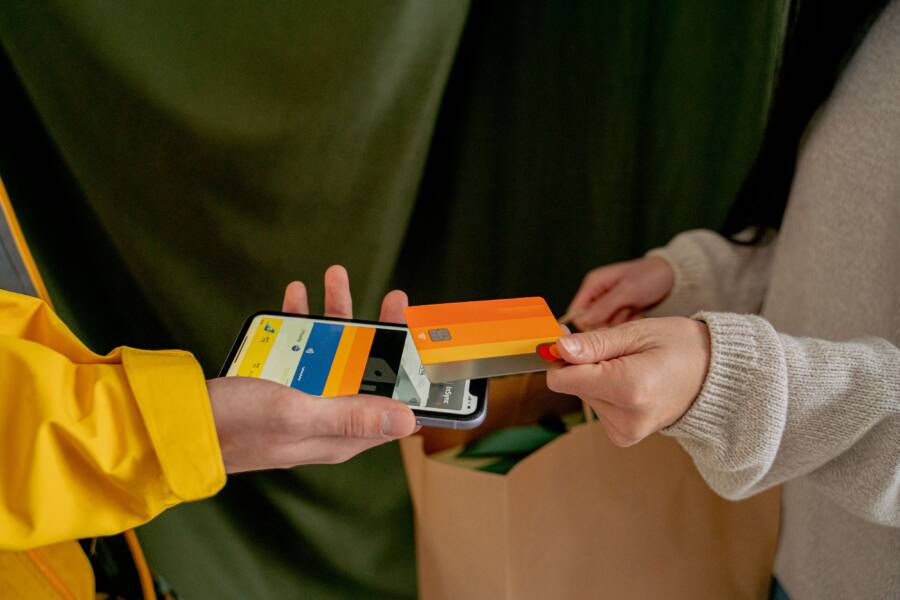
When your smartphone fails to process a payment at the register, it creates immediate stress for you and the people waiting behind you. These interruptions usually happen because of minor NFC errors, outdated software, or incorrect positioning of your device against the reader.
Most of these problems take less than a minute to fix. You can usually get back to your transaction by adjusting how you hold your phone or toggling your wireless settings.
Follow these simple steps to diagnose the connection and complete your purchase.
Quick checks to get your mobile wallet working again
When your payment fails at a checkout terminal, the issue usually stems from simple physical or software alignment problems. You rarely need complex repairs to restore your service. By performing a few quick checks on your smartphone, you can clear most obstacles and complete your transaction.
Correct positioning of your phone at the reader
Most contactless payment failures occur because the phone does not align with the internal antenna of the reader. Every payment terminal includes a small contactless symbol, which looks like a radio wave icon. You must bring your smartphone close to this specific area to establish a signal.
Place the top portion of your device within one or two inches of the reader. Do not touch the screen directly against the glass, as this sometimes interferes with the sensor. You should hold your position for one or two seconds while the NFC signal handshakes with the terminal. Moving the phone away too quickly often interrupts the data transfer, causing the payment to decline or timeout.
If the transaction does not start immediately, shift the phone slightly. The antenna inside your smartphone typically sits near the top edge or camera module. Tilting the top of the device toward the sensor often helps the reader detect the wallet signal more effectively.
Verifying your NFC settings and default wallet
If your device is positioned correctly but still does not respond, verify that your Near Field Communication (NFC) radio is active. On an iPhone, the NFC feature is always active by default and does not require manual toggling. Android users must occasionally check their system settings to ensure the radio is enabled.
You can find these settings by following these steps:
Open the Settings app on your Android smartphone.
Search for Connection or Connected Devices in the menu.
Select Connection Preferences to locate the NFC toggle.
Ensure the switch is set to the On position.
In addition to the main NFC toggle, check your default payment app settings. If you have multiple digital wallets installed, your phone might try to trigger the wrong service. Ensure your preferred app, such as Google Wallet or Samsung Wallet, is selected as the default payment method within the Contactless Payments sub-menu. Setting this correctly ensures the hardware knows exactly which credentials to transmit when you approach a terminal.
Common software and account issues causing payment declines
When your smartphone fails to process a payment, the issue often hides within the background data. Physical alignment is only one piece of the puzzle. If your device settings are out of sync or your banking profile has a restriction, the payment terminal will reject the attempt. These problems are usually simple to resolve once you identify the specific barrier.
Updating your digital wallet and system software
Outdated software creates a security gap between your smartphone and the payment terminal. Modern payment systems rely on secure handshakes that verify your device credentials in milliseconds. If your operating system is behind, it may not support the latest security protocols required by your bank. This version mismatch prevents the terminal from trusting the signal sent from your digital wallet.
Checking for updates on your device takes only a few minutes. If you use an iPhone, go to your settings menu, select the general tab, and tap on software update. Your device will automatically search for the latest version. For Android users, navigate to your system settings and look for a software update or system update option. Always install the latest patches to keep your NFC protocols running correctly. Manufacturers frequently release updates specifically to address compatibility issues with contactless payment readers.
Troubleshooting bank and card specific errors
Sometimes the connection works perfectly, yet the bank blocks the transaction. This often happens if the bank suspects fraudulent activity or if the card itself has expired. You should start by checking your banking app for any pending alerts. Many banks send push notifications when they flag a transaction as suspicious, asking you to confirm that you initiated the purchase.
If the app shows no alerts, removing and re-adding the card often clears underlying sync errors. Follow these steps to reset your payment credentials:
Open your digital wallet app on your smartphone.
Select the card that keeps failing during checkout.
Choose the option to remove the card from the device.
Restart your phone to clear the temporary cache.
Re-add the card by scanning it or entering the details manually.
Re-adding the card forces the digital wallet to download a fresh set of secure tokens from the bank. This refresh eliminates glitches caused by expired security keys or corrupted data. If the problem continues after you re-add the card, contact your bank directly. A representative can see if your account has a specific block that prevents mobile transactions, allowing you to resolve the issue permanently.
How to tell if the problem is the terminal or your device
You can determine the source of a failed payment by isolating the variables involved in your transaction. If your smartphone works at one location but fails at another, the issue usually sits with the shop terminal rather than your hardware. Conversely, if your device fails to trigger a response across multiple different stores, your settings or local cache likely need attention.
Testing your phone at a known working terminal
The most effective way to verify your hardware is to perform a test at a location with high transaction volume. Vending machines, major grocery chains, or modern coffee shops typically maintain updated payment hardware that responds quickly to contactless signals. These terminals prioritize compatibility and receive frequent maintenance.
If your smartphone successfully completes a transaction at one of these high-traffic locations, your device is functioning correctly. You can assume any previous failures were caused by faulty hardware at the specific terminal you encountered earlier. When a terminal fails to react even after you have properly positioned your phone, the error almost certainly lies with the store equipment.
Follow these steps to confirm your hardware status:
Locate a modern payment terminal at a major retail chain or a digital vending machine.
Hold your smartphone near the contactless icon for two full seconds.
Observe whether the terminal screen displays a processing message or triggers an audible beep.
Attempt a small purchase to see if the transaction finishes normally.
If the reader at a large store fails to acknowledge your device, check your NFC settings once more. If the phone still fails after you confirm the NFC is active, perform a quick restart to clear potential software conflicts. A successful payment at a reliable third-party terminal gives you the confidence that your device is ready for use, confirming that local issues elsewhere were outside of your control.
Frequently asked questions about mobile payments
Mobile payments are a standard part of modern commerce, yet occasional hitches can cause confusion. Many users find themselves wondering about security, compatibility, and the best ways to handle common errors on their smartphone. Understanding how these systems interact with your bank and local retailers often solves the issue before you even reach the register.
Is it safe to use my phone for payments at any store?
Yes, paying with your smartphone is secure because it utilizes tokenization. This process replaces your actual card number with a unique, one-time code for every transaction. Even if a store terminal is compromised, your real account details remain protected. Always ensure your device has a secure screen lock, such as a passcode, fingerprint, or facial recognition, to prevent unauthorized access if you lose your handset.
Why does my phone vibrate but the payment fails to process?
A vibration often signals that the reader detected your device but the handshake failed. This happens if you move the phone away too soon or if the terminal does not support the specific type of transaction you initiated. Hold your device steady against the contactless icon for at least two seconds. If the terminal displays a message like “Declined” or “Error,” check your bank app for a push notification that requires your approval for the transaction.
Can I pay with my phone if I do not have a cellular signal?
Most digital wallets do not require an active internet connection to complete a purchase. Your smartphone stores the necessary encrypted tokens locally on a secure chip within the device hardware. As long as your NFC radio is active, the terminal can pull these tokens offline. You may only encounter issues if your bank requires a real-time authentication check for larger transactions, which could trigger a decline without a stable connection.
How do I know if my card is compatible with mobile wallets?
Most major credit and debit cards work with digital wallets, but some smaller local banks or credit unions require specific authorization. You can check the app on your phone to see if your card is supported.
Open your wallet app and tap the add button to start the card registration.
Type in your card number or scan the card using your camera.
Follow the on-screen prompts to verify your identity with your bank.
If the app accepts the card, your bank is compatible and ready for use. If you see an error stating that the card is not supported, you must use a physical card at the terminal instead. Always keep a physical backup in your wallet just in case the digital system encounters a technical hurdle during your checkout experience.
Conclusion
Most payment failures at a checkout terminal happen because of simple alignment errors. You can fix the majority of these problems by repositioning your smartphone or re-adding your card within your digital wallet settings.
These quick adjustments usually restore your connection without further technical intervention. You will find that mobile payments offer a fast and secure experience once your device is properly configured.