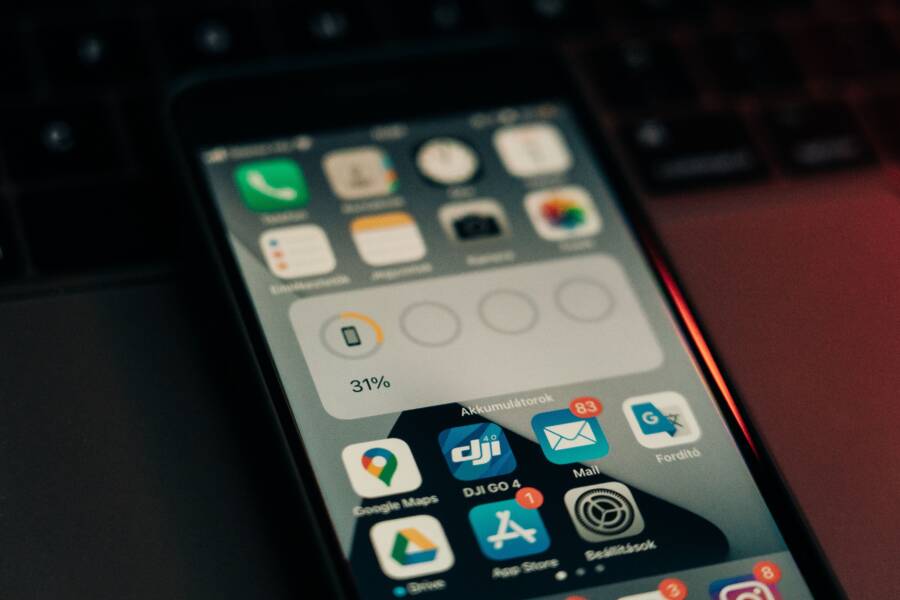
You open your smartphone after a software update expecting things to look familiar, but your carefully organized app list is suddenly a chaotic mess. This frustrating shift happens because the update often resets home screen preferences or forces a conflict within the launcher cache.
You don’t have to spend hours dragging icons back into place manually. This guide shows you how to restore your layout and prevent these unwanted changes from occurring again.
Quick Fixes to Stop Apps from Rearranging
Preventing your app icons from shifting after a software update is easier than you might think. Many modern operating systems include built-in features to protect your layout. By enabling these settings, you keep your icons locked in place regardless of system changes or accidental touches.
Checking Your Home Screen Lock Settings
Both Apple and Google provide native tools to prevent home screen modifications. When these settings are active, you cannot move, add, or remove icons without first disabling the protection.
On an iPhone, Apple uses a feature called Home Screen Layout protection through screen time settings if you manage devices, but the most direct way to keep icons stable is to avoid moving them and ensure your layout is backed up. However, third-party launchers on Android offer the most robust “Lock” feature. If you use a custom launcher on your smartphone, look for these steps:
-
Open your launcher settings by long-pressing an empty space on your home screen.
-
Select Home screen settings or Preferences.
-
Locate the Lock home screen option.
-
Toggle the switch to the On position.
On stock Android or iOS, if the system does not have a dedicated “Lock” button, the best approach is to take a screenshot of your layout. This gives you a clear reference to restore your positions quickly if an update triggers a reset.
Clearing the Launcher Cache on Android
Sometimes, a software update causes the launcher to glitch while trying to refresh your home screen widgets and shortcuts. This creates a messy layout as the app struggles to load your previous configuration. Clearing the launcher cache often forces the system to reload the saved layout properly without deleting your actual apps or personal data.
Follow these steps to clear the cache:
-
Open your smartphone Settings menu.
-
Navigate to Apps or Application Manager.
-
Tap on See all apps and find your default launcher. This is often named Pixel Launcher, Samsung One UI Home, or simply Launcher.
-
Select Storage and cache.
-
Tap Clear cache.
This process resets the temporary display data the system uses to render your icons. It does not uninstall your applications or erase your contacts, photos, or messages. Once the cache is empty, restart your device. The system will rebuild the icon positions based on your last saved preferences, effectively resolving the clutter caused by the update. If the issue persists, you might need to check if your specific launcher version has a pending update in the app store.
Troubleshooting Persistent Software Glitches
When basic cache clearing does not resolve your smartphone issues, deeper system conflicts might remain. These persistent glitches often stem from fragmented data or incompatible settings carried over from the previous version. Addressing these deeper conflicts requires methods that reset how the system interacts with your installed applications without erasing your photos, documents, or personal messages.
Resetting App Preferences
Resetting app preferences is a powerful way to eliminate background conflicts. This process returns your system to its default state regarding how applications communicate, handle notifications, and manage permissions. It does not delete any of your actual data or installed programs. Instead, it clears customized behaviors that might clash with a new software update.
You can perform this reset to fix stubborn issues by following these steps:
-
Open the Settings menu on your smartphone.
-
Select the Apps or Application Manager category.
-
Tap the menu icon, usually represented by three dots in the top corner.
-
Choose the option labeled Reset app preferences.
-
Confirm the action when the system prompts you.
Once you finish this, the smartphone will restore default settings for all your apps. You will need to re-grant permissions, such as camera access or location services, the next time you open each application. This clean slate effectively stops background processes from hanging or misbehaving, as it forces each app to re-establish a stable connection with the operating system.
Checking for Minor System Patches
Sometimes, a software update contains bugs that only the manufacturer can address. If you notice widespread issues across multiple apps after an update, a minor system patch is often on the way. These emergency updates are usually small, focused releases designed specifically to squash bugs that appeared immediately after a major version jump.
You should manually check for these updates even if your device claims it is up to date. Manufacturers frequently push secondary patches to specific regions or carrier versions days after the initial release.
Follow these steps to search for pending patches:
-
Go to your device Settings.
-
Navigate to System or About Phone.
-
Tap on Software Update or System Update.
-
Select Check for updates.
If a patch exists, download and install it immediately. Waiting for these official fixes is the best long-term solution for widespread glitches. While temporary workarounds can mask problems, a system patch addresses the root cause at the code level. This ensures your smartphone runs as the developers intended, providing a stable foundation for your app list and overall device performance. If no update appears, check your manufacturer website or community forums to see if other users are reporting similar issues, which helps confirm whether a fix is currently in development.
When to Consider Third-Party Launchers
If your smartphone system update keeps breaking your home screen layout, a third-party launcher might solve the problem for good. These applications replace the standard interface provided by your phone manufacturer, offering a stable environment that often ignores system-level layout resets. You gain total control over icon grids, font styles, and gesture navigation, which provides a consistent experience even when the underlying software updates frequently.
Pros and Cons of Custom Launchers
Custom launchers offer significant stability because they exist as independent software layers. When your smartphone manufacturer pushes a major update, these launchers often preserve your icon positions by overriding the native grid logic. Many versions also include built-in backup tools that allow you to export your exact home screen setup to a cloud file or local storage. You can restore your entire layout in seconds if a future update manages to wipe your preferences.
However, these benefits come with trade-offs regarding device performance and power efficiency. Because a third-party launcher runs as an additional background process, it can consume more battery life compared to the highly optimized, native interface. The impact depends on your specific model, but users with older hardware might notice slight stuttering during heavy multitasking. You should also consider these points before switching:
-
Increased customization: You can change icon sizes, padding, and labels to suit your personal workflow.
-
Persistent settings: Most launchers keep your layout locked and safe from automatic system changes.
-
Battery overhead: Because the application must run continuously to manage your home screen, it uses more system resources.
-
Software compatibility: While most apps work perfectly, some native widgets from your manufacturer might not function correctly on a non-native interface.
If you decide to try a custom launcher, start by testing a popular, lightweight option like Nova Launcher or Niagara Launcher. These apps are well-known for their efficiency and focus on stability. If you find the battery drain is minimal, you can continue using the custom interface to avoid future layout headaches. If your smartphone feels sluggish or the battery depletes faster than usual, you can always revert to your default launcher by clearing the default settings in your app menu.
Frequently Asked Questions About Home Screen Layouts
Users often wonder why their icon arrangements disappear or shift after a software update on their smartphone. While these changes seem random, they usually result from system-level resets or conflicts between older configuration files and the new operating system architecture. Understanding how your device manages these visuals helps you regain control and keep your apps exactly where you want them.
Why does my app layout reset after an update?
System updates often include changes to the default grid size, icon spacing, or widget support. When the new software version conflicts with your existing settings, the system defaults to a standard layout to prevent errors or empty gaps. If the update introduces a new feature that requires a different amount of screen space, your current arrangement might not fit the new specifications, which forces the smartphone to shuffle your icons automatically.
Can I prevent icons from moving without a third-party app?
Most modern devices offer built-in features to protect your setup. If you use an iPhone, the system automatically saves your home screen layout as part of your iCloud backup. You can often restore these settings by performing a factory reset and choosing the restore from backup option, although this process is time-consuming. On many Android devices, manufacturers include a lock toggle in the home screen settings menu to stop accidental moves. Check your settings for an option labeled “Lock Home Screen” or “Lock Layout” to keep your icons stationary.
Should I clear my cache if the layout looks broken?
Clearing the cache is a safe and effective way to fix a corrupted display without losing personal files. When your launcher cache contains outdated instructions, the system struggles to render the icons correctly. A quick cache wipe forces the smartphone to rebuild the home screen display using your saved data. This step fixes most minor display glitches, such as overlapping icons or missing widgets, without resetting your wallpaper or notification settings.
What happens if my app folders disappear?
An update might occasionally glitch while processing folder structures, which hides the folder but keeps the contents safe in your app drawer. Try restarting your device first, as this often triggers the system to re-index all shortcuts. If the folders remain hidden, enter your app list or search menu to see if the applications still exist. You can then recreate the folders and drag the apps back into place once the system stabilizes after the restart.
Does a custom launcher impact my warranty?
Using a third-party launcher does not void your smartphone warranty, as these applications operate like any other software you download from an app store. They simply act as a different interface layer for your operating system. If you experience performance issues, you can uninstall the launcher or revert to your default interface at any time through the system settings. These tools provide a stable, consistent environment that remains unaffected by the native system updates that often disrupt standard home screen configurations.
Conclusion
Most app icon displacement after an update stems from temporary software glitches rather than hardware failure. You can restore order by clearing your launcher cache, enabling home screen protection, or resetting specific app preferences. These minor hiccups are a normal part of the modern smartphone experience, and they rarely indicate a deeper problem with your device.
Keep your operating system and apps updated to ensure the best performance. While software bugs happen, your layout remains easy to manage with these straightforward maintenance steps.