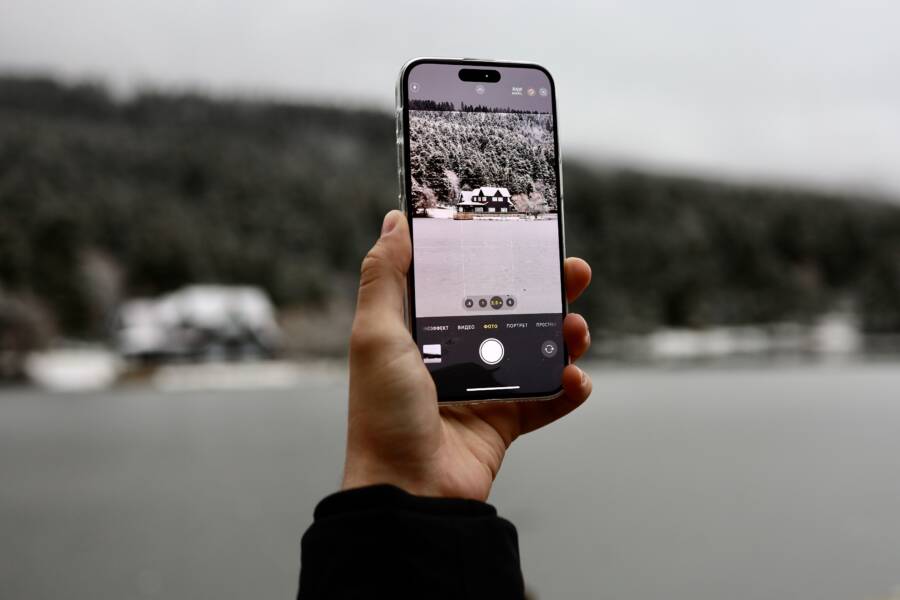
When your smartphone camera freezes during a zoom, it usually stems from software glitches, memory saturation, or conflicting background applications. Missing a perfect shot because your viewfinder locks up is incredibly frustrating, but you can often resolve this without professional help.
Taking a moment to clear these technical hurdles restores your device to normal performance. Follow the steps below to identify the specific cause and stabilize your camera app today.
Quick Fixes to Get Your Camera Moving Again
When your smartphone camera fails to zoom smoothly, the issue often relates to temporary data conflicts. Your device stores small pieces of information in a cache to help apps open quickly. Over time, these files can become corrupted or outdated, creating friction during resource-intensive tasks like optical or digital zooming. Clearing these temporary blocks often restores fluidity to your viewfinder.
Refreshing the Camera App and Clearing Cache
The most effective starting point is a complete restart of the camera software. Since background processes sometimes hang, a clean launch clears these minor errors. You should also clear the cached data for the camera app specifically. This action removes temporary files without touching your actual photos or personal settings.
To refresh your camera app, follow these steps:
-
Open your recent apps view by swiping up from the bottom of your screen or tapping the square navigation button.
-
Locate the camera app and swipe it away to close it completely.
-
Open your phone settings and navigate to the Apps or Application Manager section.
-
Select the camera app from the list.
-
Tap on Storage or Storage and Cache.
-
Choose the option to Clear Cache.
-
Restart your smartphone to verify the zoom function is working properly.
Cache buildup causes lag because the camera hardware struggles to reconcile old data with real-time focus adjustments during a zoom transition. When the processor receives conflicting instructions from outdated cache files, the viewfinder stutters or freezes. Removing these files forces the system to rebuild the necessary data from scratch, which removes the stutter.
Managing System Memory and Storage
Performance issues during zooming often trace back to low system resources. A smartphone requires a specific amount of free space and active memory, also known as RAM, to handle the complex computations needed for image processing and lens movement. When your storage is nearly full or you have too many applications running, the camera app lacks the room it needs to perform.
Background applications silently drain your available RAM, leaving less power for the camera to manage zoom transitions. If your phone has less than 10 percent of its total storage available, the operating system slows down significantly as it struggles to write new data. You can improve camera performance by maintaining a clean digital environment.
-
Remove unused applications that consume memory in the background.
-
Transfer large video files or photo folders to a cloud service or an external drive.
-
Restart your phone once a week to clear active memory and stop background processes that have become unresponsive.
-
Disable high-power features like background refresh for apps that you do not need active at all times.
Checking your storage settings reveals exactly which apps take up the most space. If your internal memory remains packed, the camera may freeze because it cannot create the temporary files required for smooth zoom operations. Cleaning out unnecessary files gives your device the breathing room it needs to switch between lenses or zoom levels without interruption.
Deep Dive into Software and System Updates
When your smartphone camera consistently freezes during zoom operations, the operating system or the camera application itself often contains bugs that require a patch. Manufacturers frequently address these stability issues in newer software releases. Checking for and applying these updates is a logical step before assuming a hardware failure.
Installing the Latest Firmware Updates
Smartphone developers regularly distribute updates to improve camera stability, focus tracking, and overall image processing. These firmware patches resolve known conflicts between the camera hardware and the software driver. You can check for these updates through your device settings menu to ensure your system runs the most current version available.
To check for and install official manufacturer updates:
-
Open the Settings app on your smartphone.
-
Scroll down and select Software Update or System Update.
-
Tap on Check for Updates or Download and Install if an update appears.
-
Follow the on-screen prompts to complete the installation.
-
Restart your device after the process finishes to finalize the changes.
Keeping your system updated provides more than just new features; it ensures that your camera software communicates properly with the lens hardware. If an update recently became available, it might contain the exact fix needed to prevent the camera from locking up during zoom. Once the device reboots, launch the camera app and test the zoom levels to see if the freezing behavior continues.
Troubleshooting Conflicting Background Software
Sometimes the culprit is not the native camera app itself, but a different application fighting for control over the camera hardware. Social media apps with built-in camera filters, third-party editing tools, or even video conferencing software can trigger resource conflicts. These applications often try to access camera drivers in the background, which causes the native camera to hang when you adjust the zoom.
Booting your smartphone into Safe Mode allows you to determine if a third-party app causes the freezing. Safe Mode disables all downloaded applications and runs only the software that shipped with your device.
Follow these steps to enter Safe Mode on most Android devices:
-
Press and hold the power button until the power-off menu appears.
-
Tap and hold the Power Off or Restart icon on the screen until a prompt appears asking to restart in Safe Mode.
-
Select OK to confirm.
-
Once the phone restarts, the words Safe Mode will appear in the corner of the screen.
While in this state, open your camera app and attempt to zoom. If the camera functions perfectly, a third-party app installed on your phone is likely causing the freeze. You should restart your phone normally to exit Safe Mode, then begin uninstalling recently added apps or those that utilize camera functions. Focus on removing social media apps or flashlight tools first, as these often initiate processes that block the camera from zooming properly.
Identifying Hardware Limitations and Damage
Smartphone cameras rely on a delicate balance of sensor data, motor-driven lens elements, and rapid processing power. When you trigger a zoom function, the device must physically shift lens components while simultaneously processing massive amounts of image data. If the camera freezes during this operation, the hardware may be struggling to keep up with these physical or computational demands.
Physical damage to the camera module often manifests as a jittery or unresponsive viewfinder. You might notice the image skipping frames or locking up entirely when you move from wide-angle to telephoto zoom. This occurs because the internal motors responsible for adjusting the lens position encounter mechanical resistance or fail to report their status back to the processor. If you dropped your device recently or subjected it to significant impact, the camera module might require professional repair or replacement.
Is Your Smartphone Overheating During Use?
Heat throttling is a common safety feature integrated into your smartphone to prevent permanent damage to internal components. When the processor or camera sensor reaches a high temperature, the operating system limits the performance of these parts to reduce heat generation. High-zoom usage requires intense computational power and frequent adjustments by the camera motors, which rapidly increases the thermal load on your device.
When your phone enters a thermal throttle state, it prioritize stability over performance. The camera app might freeze the preview window or disable zoom functions entirely because the system cannot manage the simultaneous demands of high-definition processing and lens movement under current heat conditions. If your device feels hot to the touch, this is likely why the camera is unresponsive.
You can cool your smartphone effectively by following these habits:
-
Stop using resource-heavy applications immediately to allow the processor to shed heat.
-
Remove your protective case, as it often traps heat against the chassis and prevents air circulation.
-
Place your phone on a cool, hard surface like a wood or stone table rather than fabric or your lap.
-
Keep the device out of direct sunlight, especially if you are outdoors attempting to take photos.
Avoid putting your smartphone in a refrigerator or freezer. Drastic temperature changes cause condensation to form inside the device, which leads to short circuits and long-term corrosion. You should also avoid using ice packs directly on the screen or back panel. Allow the device to cool down at room temperature for ten to fifteen minutes before attempting to use the camera again. If the freezing persists despite the device being cool, the issue likely points to a deeper software conflict or physical component failure.
Preventative Measures for a Smooth Camera Experience
Maintaining a reliable camera on your smartphone depends on how well you manage your device resources daily. Prevention is far easier than troubleshooting a frozen screen while you are trying to capture a fleeting moment. By keeping your system architecture clean and your software current, you provide the camera hardware with the stable environment it requires for zooming.
Optimizing Device Maintenance Habits
Your smartphone relies on available system resources to process visual information. When you frequently push your device to its limits, the camera app often struggles to keep up with the demands of optical zoom. Establishing simple habits reduces the likelihood of encountering a frozen viewfinder during your next photo session.
-
Close unused applications before opening the camera to ensure maximum RAM availability.
-
Keep at least 15 percent of your total storage empty to allow the processor to write temporary image files without delay.
-
Clean your camera lenses regularly with a microfiber cloth to prevent the autofocus sensor from getting confused by smudges or debris.
-
Avoid recording high-resolution video for extended periods if your battery is low, as the system may throttle performance to save power.
These small actions prevent the processor from juggling too many tasks at once. When the camera software has dedicated access to hardware resources, it handles zoom transitions with much higher accuracy.
Balancing Performance and Thermal Health
Heat is the primary enemy of smooth camera performance. When a smartphone runs hot, the processor reduces its clock speed to prevent component degradation, which directly interferes with the complex calculations required for zooming. If you notice your device warming up, you should immediately pause your photography to avoid a system freeze.
You can proactively manage device temperature by paying attention to your environment and usage patterns. Removing bulky cases during outdoor photo shoots in direct sunlight allows for better heat dissipation. If you plan on taking many photos, consider turning on flight mode or disabling cellular data to lower the internal power draw of the modem.
These adjustments keep the processor cool, which ensures that the camera module remains responsive even during heavy zoom usage. When you treat your device as a precise instrument rather than an infinitely capable tool, the hardware performs reliably over the life of your smartphone.
Conclusion
Most camera freezes during zooming are the result of temporary software glitches rather than permanent hardware failure. You can often restore functionality by clearing the camera cache, managing background processes, or installing the latest system updates on your smartphone.
These home-based fixes successfully resolve the vast majority of performance stutters. Consistency in your maintenance habits keeps your device running smoothly for the long term.