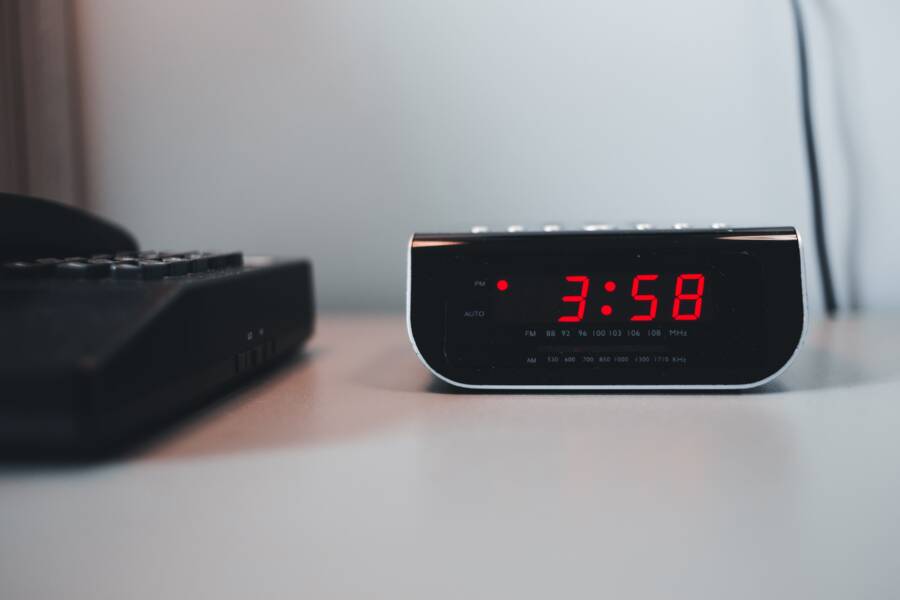
Your smartphone alarm fails on weekends because recurring weekday schedules, hidden sleep modes, and aggressive battery management features override your custom settings. When you set an alarm to ring from Monday to Friday, built-in operating system routines often turn off those notifications automatically once Saturday arrives. Because mobile devices prioritize energy conservation and routine automation, background processes frequently suspend alarm apps during idle weekend hours. You can fix this behavior by adjusting your system permissions, disabling automated sleep profiles, and configuring your clock app to ignore routine schedule shifts. This troubleshooting guide explains why your weekday alarm drops off on weekends and how you can restore reliable notifications every single morning.
Why Your Smartphone Ignores Weekend Alarms
Your smartphone often drops weekend alarms because system routines prioritize standard work week patterns over custom schedules. When you program a time slot, software logic frequently assumes you only need that notification from Monday through Friday. Background optimization features step in once Saturday arrives and suspend routine tasks to conserve battery power.
The Hidden Trap of Once Off Versus Repeating Schedules
Custom day selection gets overridden by default software behaviors because mobile operating systems treat repeating schedules as work week automation. Users often select specific days for an alarm, but the internal clock app defaults to a Monday through Friday template. Operating systems group recurring events into batch processes to save processing power. When Saturday arrives, the system treats the scheduled alert as an exception to the power saving rule and silences it.
How Operating System Updates Reset Your Custom Settings
Background app refreshes and permission changes after software updates frequently revert your clock app to factory defaults. System upgrades rewrite battery optimization profiles and revoke background execution privileges for third-party alarm applications.
Updates clear your custom app permissions and block background tasks.
The operating system forces aggressive battery saving modes onto your clock app.
Automated sleep routines override your manual day selections during system reboots.
The clock utility loses its ability to bypass silent modes on weekend mornings.
How to Fix a Phone That Cannot Keep the Alarm From Failing on Weekends
Your smartphone often drops weekend alerts because software logic assumes you only need that notification from Monday through Friday. Background optimization features step in once Saturday arrives and suspend routine tasks to conserve battery power. You can prevent this failure by checking specific day toggles, modifying your sleep focus settings, and exempting your clock utility from aggressive battery savers.
Adjusting Custom Day Repeat Settings on iOS and Android
Open your clock application and inspect the individual alarm toggles for Saturday and Sunday. Many mobile operating systems default to weekday-only schedules when you create a new notification. Tap on your active alarm and look for a repeat menu or day selection grid. Make sure the individual dots or checkboxes for Saturday and Sunday are highlighted. If you use a built-in assistant to set your morning alerts, check the app afterward because voice commands sometimes drop weekend parameters.
Checking Do Not Disturb and Sleep Focus Profiles
Focus modes on your smartphone frequently mute morning alerts if your weekend routine differs from your weekday schedule. Sleep profiles often link directly to your bedtime habits and automatically silence incoming audio when you sleep in later on Saturday. Open your system settings and locate your focus or do not disturb menu. Review the schedule tied to your sleep profile to ensure it doesn’t block notifications past your usual weekday wake-up time. You can also add your clock application to an exception list so alerts ring through every single focus mode.
Clearing App Cache and Managing Battery Optimization
Aggressive battery savers put clock apps to sleep by restricting background activity during idle weekend hours. Modern mobile operating systems monitor your habits and freeze utilities that appear unused on your days off. Open your device settings, find your application manager, and select your default clock utility. Tap on battery usage and switch the setting from optimized to unrestricted. You should also clear the app cache if your alarms still misbehave after changing these permissions.
Comparing Built In Clock Apps Versus Third Party Alarm Apps
Choosing the right alarm software on a smartphone dictates whether you wake up on time or sleep through your morning routine. Native clock utilities come preinstalled on every device, but third-party alternatives offer specialized features that solve recurring weekend failures.
Pros and Cons of Using Native Smartphone Clocks
Built-in clock apps offer maximum reliability because they integrate directly with the operating system kernel. Apple and Google design these native tools to run efficiently without draining your battery, and they usually bypass strict background restrictions during idle hours. You don’t need to download extra software, and the user interface matches your system theme perfectly.
However, native options lack advanced features for complex schedules.
Native utilities often use rigid weekday templates that require manual overrides for weekend exceptions.
Customization options for ringtones, volume escalation, and snooze limits remain basic.
Integration with third-party home automation systems is usually limited to simple voice commands.
Alternative Apps That Prevent Weekend Failures
Third-party alarm tools solve the rigidity of native software by introducing advanced scheduling logic and robust backup triggers. Applications like Alarmy or Sleep As Android use specialized background services designed to bypass aggressive power-saving modes that typically silence morning alerts.
Alarmy forces users to complete photo missions or math puzzles to dismiss the alarm, which prevents accidental snoozing on weekends.
Sleep As Android tracks sleep cycles and adjusts wake-up windows dynamically while maintaining separate schedules for weekdays and weekends.
I Can’t Wake Up offers multiple task-based dismissals that ensure the user is fully awake before the sound stops.
Troubleshooting Common Questions About Weekend Alarm Glitches
When your smartphone refuses to ring on a Saturday morning, simple fixes often fail to solve deeper software quirks. Users frequently run into confusing audio conflicts and peripheral routing issues that bypass standard sound settings.
What Should I Do If Volume Levels Drop Automatically Over the Weekend?
Media volume and ringtone volume often clash on modern mobile operating systems because device software groups different audio streams together. When you watch a video late on Friday night, you might lower the media slider, which accidentally pulls down system notification channels on certain devices. The operating system sometimes treats weekend schedules as quiet hours and synchronizes your ringer volume with silent media profiles. You can fix this by separating your ringtone and alert volumes in your main sound settings instead of letting the device manage them automatically.
Open your device sound settings and locate the individual sliders for media, alarms, and ringtones.
Turn off the button that links your ringtone volume to your media volume.
Raise the dedicated alarm volume slider to its maximum level before you go to sleep on Friday night.
Why Does My Alarm Ring on My Smart Watch But Not My Phone?
Audio routing conflicts between your smartphone and a connected wearable device often silence your morning alerts. When you pair a smartwatch or wireless earbuds, the operating system frequently redirects notification sounds to the accessory instead of playing them through the phone speaker. If you take off your watch at night and leave it on a bedside table, the alarm audio plays softly on your wrist rather than waking you up.
Open your wearable companion app on your smartphone and check the notification forwarding preferences.
Disable the setting that mirrors phone alerts directly to your watch while you sleep.
Test your morning alarm while your wearable is disconnected to verify that the main smartphone speaker takes over audio playback.
Conclusion
Preventing weekend alarm failures requires you to understand how background automation and battery savers interact with your daily routine. Reliability comes down to checking individual day toggles, loosening restrictions on your clock app, and disabling aggressive sleep profiles.
Here is a quick checklist for a dependable wake-up routine:
Verify that Saturday and Sunday are explicitly selected in your clock app.
Exempt your default alarm utility from automatic battery optimization.
Set your ringtone volume independently from your media slider.
Test your morning alerts while disconnected from Bluetooth wearables.
Take a few minutes today to adjust these settings on your smartphone. You will never have to worry about missing an early morning schedule again.