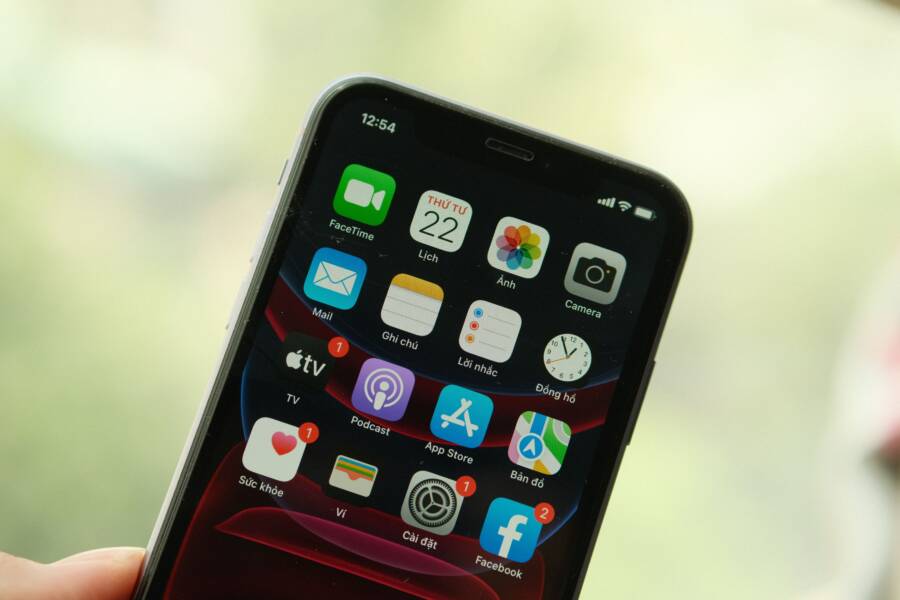
Your smartphone delays notifications because aggressive battery optimization settings suspend background processes to save power. When your operating system puts chat apps and email clients to sleep, incoming alerts sit in a queue until you manually open the application.
Modern mobile devices prioritize battery longevity over constant background connectivity by default. However, you can fix delayed alerts by adjusting system settings, updating app permissions, and disabling power-saving restrictions for specific programs.
How to Fix a Smartphone That Delays Notifications
Your smartphone holds notifications in a queue whenever power management protocols restrict background processing. When your operating system suspends background tasks, messaging clients and email software stop checking for new data until you open them manually. Solving delayed alerts requires changing how your device handles battery consumption and data allowances.
Checking Power Saving Modes
Battery saver settings aggressively throttle your smartphone to extend daily usage time, but this protection often breaks real-time alerts. When you enable a power-saving profile, the operating system restricts background sync routines for all non-essential software. As a result, incoming messages wait until the system wakes up during scheduled maintenance windows.
You can restore normal alert behavior by exempting specific communication apps from these restrictions. Look for battery optimization menus within your system settings, locate your messaging programs, and switch their status to unrestricted. This change allows the software to maintain a constant connection to push notification servers without interference from power-saving features.
Adjusting Background Data Limits
Background data restrictions prevent apps from fetching new information unless you have the application actively open on your screen. Mobile operating systems and network settings often include toggles that limit cellular data usage in the background to lower your monthly data consumption. Unfortunately, this restriction blocks instant messaging services and email clients from receiving push payloads over mobile networks.
Disabling data limits for essential software ensures your smartphone checks for updates continuously. Navigate to your network settings, locate the data usage panel, and verify that background data is permitted for all important applications. If your device includes a data saver mode, add exceptions for your primary communication tools so they retain internet access even when running out of sight.
Deep Dive into System Settings for Android and iOS
Modern operating systems manage resources strictly to extend battery life, but these same safeguards often interfere with timely alerts. Smartphone software relies on complex background tasks to fetch messages, yet power management routines frequently suspend these jobs. You can regain control over your notifications by inspecting the hidden configurations tucked away inside your operating system menus.
Managing Do Not Disturb and Sleep Schedules
Do Not Disturb modes and automated sleep schedules often hold incoming alerts longer than intended because of overlooked automation rules. When your smartphone enters a scheduled downtime window, it silences notifications and queues them for later delivery. Users often set these routines once and forget them, leading to unexpected message delays during daytime hours.
Open your system settings and locate the sound or focus menu to check active schedules.
Review your sleep schedules to confirm they match your actual bedtime and wake-up times.
Check the exception lists to ensure essential messaging apps can bypass silent profiles.
Disable automated bedtime routines if they trigger prematurely during evening work hours.
Unlocking App Permissions and Auto Start
Device manufacturers often add custom power management layers on top of standard mobile operating systems to limit background activity. Software from brands like Samsung or Xiaomi frequently terminates background processes for third-party apps when the screen turns off. This aggressive behavior prevents messaging clients from receiving push payloads in real time.
You must adjust vendor-specific optimization menus to keep your communication apps active. Navigate to your application settings, select your primary messaging tool, and disable battery restrictions. In addition, enable auto-start permissions if your interface includes them so the software launches automatically after a reboot.
Clearing App Cache and Storage
Corrupted temporary files can cause messaging applications to freeze and miss real-time pings from servers. When cache data accumulates or becomes corrupted, the application struggles to process incoming socket connections properly. Clearing these temporary files forces the software to rebuild a clean database and reconnect to notification servers.
Go to your application manager, select the misbehaving app, and tap storage options to clear the cache. Avoid clearing all data unless you have a recent backup, because that action signs you out of your account. Restart your smartphone immediately after clearing the cache to re-establish a fresh connection to the network.
Common Mistakes That Keep Your Alerts Delayed
Hidden configuration errors often prevent your smartphone from delivering messages on time. Even when you set up your preferences correctly, small oversights in system maintenance can break push delivery systems. Correcting these common missteps restores instant notification delivery.
Forgetting to Update Apps and Operating Systems
Outdated software fails to connect properly with push servers because communication protocols change over time. When you skip software updates, your messaging tools rely on old security certificates and deprecated API endpoints that push servers reject. Because of this mismatch, incoming alerts sit in digital limbo until the app forces a manual reconnection.
You can prevent this communication failure by keeping your smartphone software current. Enable automatic updates for your apps through your device app store to maintain stable server handshakes. Software developers patch push notification bugs in nearly every release, so installing these updates quickly fixes persistent alert delays.
Relying on Aggressive Task Killers
Third-party cleaner apps do more harm than good for a smartphone because they forcefully terminate background services required for instant alerts. These cleaner tools mimic efficient resource management, but they actually wipe out the persistent socket connections that messaging services need to receive live updates. When a task killer closes your email client, the push service loses its direct line to your device.
Your smartphone operating system already manages RAM efficiently without outside help. Uninstall third-party memory boosters and let the system handle process lifecycles naturally. Removing these aggressive task killers allows your communication software to run uninterrupted in the background.
Answers to Frequent Questions About Push Alerts
Troubleshooting notification issues on a smartphone often raises multiple technical questions about software behavior and operating system limits. Users frequently wonder why certain programs receive messages instantly while others fail entirely. The following answers address the most common points of confusion regarding delayed alerts and background management.
Why do some apps notify instantly while others are delayed?
Different apps use distinct communication protocols to deliver messages to your device. Popular messaging services maintain a constant open connection to push servers, allowing data to pass through immediately. Other software relies on periodic polling, meaning the app asks the server for new data only at scheduled intervals. When your smartphone enters an idle state, the operating system halts polling for low-priority programs to save battery power.
You can fix this discrepancy by inspecting individual app settings. Operating systems treat applications differently based on usage frequency and permission tiers. If a specific tool misses alerts, it usually lacks unrestricted background status in your system preferences.
Do task killers and antivirus apps cause delayed notifications?
Third-party cleaning tools frequently break notification delivery by terminating background processes without your knowledge. Many users install these applications to save RAM, but modern mobile software already manages memory efficiently on its own. When a task killer closes a background service, it severs the live socket connection required for instant messaging.
You should remove any third-party memory boosters from your smartphone. Allowing the native operating system to control process lifecycles keeps your communication apps connected to the internet at all times.
How does low power mode affect incoming alerts?
Power-saving modes restrict network access and processor wake locks for non-essential software. When you activate these profiles, your smartphone postpones background syncing to extend battery life between charges.
Incoming emails and social media updates wait in a queue until the device wakes up for routine maintenance.
Essential communication apps stop receiving push payloads over cellular data networks.
System notifications appear all at once only when you manually unlock the screen and open the application.
You can bypass these restrictions for specific programs by adjusting your battery optimization menus. Adding your primary messaging tools to the exclusion list ensures they run normally even when power saving is active.
Will restarting my phone fix delayed notifications?
Rebooting your smartphone clears temporary system glitches and re-establishes fresh connections to push notification servers. Sometimes network sockets freeze because of temporary software bugs or unstable Wi-Fi handoffs. A simple restart forces all background services to reload and reconnect to the internet from scratch.
You should combine a reboot with a quick cache clear if problems persist. This maintenance routine resolves most stubborn notification delays without requiring a factory reset.
Conclusion
Fixing delayed notifications on your smartphone usually comes down to managing aggressive power-saving protocols and background data restrictions. When you exempt essential messaging apps from battery optimization and remove restrictive third-party task killers, your device maintains the live socket connections required for instant alerts.
Review your app permissions, keep your system software updated, and verify your sleep schedules to prevent future message delays. Taking these few minutes to adjust your system settings ensures your smartphone delivers every notification right when it arrives.