To fix a smartphone that cannot make voice calls while roaming, you should check your device network settings to ensure data roaming is enabled and perform a manual carrier selection. Most connectivity issues occur because your phone failed to register with a local tower or your carrier has placed a restriction on your account.
When you arrive in a new country, your smartphone may struggle to handshake with local network providers. This failure often stems from outdated network configurations or a missing international roaming add-on on your service plan.
You can resolve most of these glitches without visiting a store. The following steps will guide you through the necessary adjustments to restore your voice service.
Check Your Smartphone Settings for International Roaming
Your smartphone requires specific software permissions to connect to foreign mobile networks. When you cross an international border, the device often disables cellular data roaming by default to protect you from unexpected charges. While this feature prevents high bills, it frequently interferes with your ability to place voice calls. You must verify these settings before troubleshooting hardware or network signal issues.
Verifying Roaming is Enabled in Your Network Preferences
To restore your calling capabilities, you need to toggle the correct switches in your system settings. The location of these settings differs between operating systems, but the goal is the same: permitting your device to handshake with a partner carrier in your current location.
On an iOS device, navigate through these steps:
Open the Settings app from your home screen.
Select Cellular or Mobile Data.
Tap on Cellular Data Options.
Locate the Data Roaming toggle and ensure it is switched to the on position.
For an Android device, the path varies slightly by manufacturer:
Open the Settings app and find Network and Internet or Connections.
Select Mobile Network.
Look for the Roaming option and verify that it is active.
If your model uses dual SIM cards, ensure you select the specific SIM card intended for international use before toggling the setting.
After you update these settings, wait a few moments for the status bar to show a network name. If the device remains disconnected, a restart usually forces the phone to scan for available towers again.
Using Airplane Mode to Force a Network Handshake
Sometimes, your smartphone remains stuck on a domestic network frequency even after you arrive abroad. Cycling your connection through Airplane Mode forces the cellular radio to power down and perform a fresh scan of the environment. This action clears temporary registration errors that prevent voice calls from routing correctly.
Enable Airplane Mode by swiping down to your control center or status tray and tapping the airplane icon. Wait at least 15 seconds to allow the internal modem to fully disconnect from any lingering signals. Disable Airplane Mode, which prompts the device to search for the strongest available local tower.
This process acts as a soft reset for your connection. If the phone fails to register after one attempt, repeat the process. Providing the device with a second chance to negotiate its credentials with the foreign tower often fixes persistent registration failures. If you still cannot make calls after two attempts, the issue likely resides with your carrier account rather than your local device configuration.
Troubleshooting Carrier Restrictions and Account Issues
When your settings appear correct but your smartphone still fails to place calls, the problem often originates with your service plan or account permissions. Wireless carriers apply various barriers that prevent unauthorized or expensive roaming activity, especially if you have not explicitly activated these features before your trip. You should investigate your specific account status to identify if these restrictions block your outbound voice traffic.
Confirming Your International Calling Plan Status
Most standard domestic mobile plans do not include international roaming privileges by default. If your plan lacks an active roaming add-on, the carrier network will deny your request to authenticate locally when you attempt to place a call. You must verify whether your current subscription includes international coverage or if you need to purchase a temporary pass for your destination.
Check for common account-level restrictions:
Plan compatibility: Many budget or prepaid plans restrict all usage outside your home country. Log into your provider website or mobile app to confirm if your current tier allows international roaming.
Spending caps: Carriers often implement automatic spending limits for roaming to prevent bill shock. If you previously hit this limit, the system might have blocked your outbound services to protect your account.
International barring: Some accounts include a security feature that blocks all international activity unless you specifically request an override. This is common for business accounts or accounts with a history of unauthorized usage.
If your provider requires a specific add-on, you can typically purchase it directly through their self-service portal. Most major carriers offer day-pass options that activate instantly upon purchase. Once you verify your eligibility and apply the necessary service, restart your smartphone to ensure the carrier refreshes your account profile and recognizes the new permissions.
Contacting Customer Support When Settings Fail
Persistent connectivity issues that remain after you verify your plan settings often indicate a provisioning error on the carrier side. If you cannot place a call to resolve this, you must find an alternative communication path. Using Wi-Fi is the most reliable method to contact your provider when your cellular radio fails to register.
Most providers offer multiple ways to reach support without needing a cellular connection:
Wi-Fi Calling: If your phone supports this feature and you previously activated it, you can place calls over an available Wi-Fi network as if you were back home.
Live Chat: Use your hotel or cafe Wi-Fi to visit the carrier website. Most support pages feature a chat widget that allows you to talk with a representative in real time.
Email or Support Tickets: If live chat is unavailable, submit a detailed support ticket through your account dashboard. Include your current location and a description of the error message you receive.
Social Media: Many carriers monitor direct messages on platforms like X or Facebook. Sending a private message to their support handles often yields a faster response than traditional email queues.
When you connect with support, clearly state that you are currently abroad and unable to place voice calls despite having roaming enabled on your device. Ask them to check for any provisioning blocks on your account. Representatives can often perform a remote reset of your line, which forces the network to re-authenticate your smartphone and often restores service immediately.
Network Selection and SIM Card Troubleshooting
When your smartphone fails to register on a foreign network, the device often defaults to a restricted state or attempts to connect to an incompatible carrier. While automatic selection usually works well, physical distance from towers and signal interference can cause the phone to ignore the best available option. Taking control of these settings often resolves connection errors that prevent you from making voice calls.
Switching Between Available Local Networks Manually
Automatic network selection works by scanning all available broadcast signals and choosing the provider with the strongest connection to your home carrier. Sometimes, the phone selects a tower that lacks a roaming agreement or suffers from high congestion. Manual selection forces the radio to display every reachable network, allowing you to pick a partner provider that offers reliable service.
Access these settings by following a few steps specific to your operating system:
Open your device settings and locate the Mobile Network or Cellular menu.
Select the option labeled Network Operators or Carrier.
Turn off the automatic selection toggle to initiate a manual scan.
Review the list of available networks that appears after a short wait.
Select a network from the list that is not your home carrier.
If you choose a network that does not have an agreement with your provider, the connection will fail. This is normal, and you can simply select a different option from the list. Test the service by attempting a call after each selection. Note that switching networks frequently consumes battery life, so stick to one stable connection once you regain service.
Soft Resets and Software Updates for Better Compatibility
Connectivity issues often stem from cached network data that becomes obsolete once you cross borders. A simple restart clears this temporary memory, forcing the internal modem to perform a fresh handshake with nearby towers. This refresh cycle frequently resolves bugs where the signal icon appears active, yet voice calls consistently drop or fail to initiate.
Keeping your device software current is equally important for international roaming. Manufacturers and carriers release updates that include updated APN settings and roaming partner databases. If your phone software is several versions behind, it might lack the instructions needed to identify newer or updated local towers.
Use these tactics to maintain a stable connection:
Perform a restart every time you arrive in a new country to clear the previous location’s network cache.
Verify your system software is up to date in the general settings menu before leaving for a trip.
Check if your carrier provides specific software profiles that require a manual download or install.
These maintenance steps ensure your hardware is fully compatible with foreign infrastructure. If you experience persistent failures despite these measures, the hardware may be struggling with specific frequency bands used in your current region. Always keep your OS updated to ensure the device knows exactly how to talk to global network standards.
Alternatives for Making Calls When Your Phone Fails
When your cellular network fails to connect, you are not out of options for placing essential calls. Modern technology provides several ways to route voice traffic through internet-based services. These methods bypass traditional cellular towers, allowing you to reach family or emergency services even when your primary radio connection remains down.
Using Wi-Fi Calling for Seamless Connectivity
Most modern smartphone devices include a native feature called Wi-Fi Calling. This service allows your phone to route voice traffic over any available wireless internet connection instead of relying on a cellular tower. Since the data travels through the internet, your smartphone treats the call as if you were connected to your home network, often avoiding extra roaming charges.
Check your settings menu to verify if your carrier supports this feature. You will typically find a toggle under your mobile network or cellular settings page. Once enabled, keep your device connected to a stable Wi-Fi network at your hotel or a local cafe. Your phone will prioritize this connection for both incoming and outgoing calls, providing a reliable bridge when cellular roaming is restricted.
Communicating Through Messaging Apps
If voice services are unavailable, instant messaging platforms offer a functional alternative for real-time contact. Many applications support high-quality voice and video calls that operate entirely through data packets. As long as you have a stable Wi-Fi connection, these services work regardless of your roaming status.
Consider these options for staying connected:
WhatsApp and Telegram provide encrypted voice calling features that work globally over any internet connection.
Skype allows you to call landline and mobile numbers if you have a small balance in your account.
Facebook Messenger enables free audio calls to other platform users anywhere in the world.
FaceTime is an efficient choice if you are contacting friends or family who also use Apple devices.
These applications are often more reliable than cellular networks in areas with poor infrastructure. Using them allows you to maintain contact without worrying about specific roaming agreements between your provider and local networks.
Exploring Local SIM Cards or eSIM Technology
If you are on an extended trip, the most practical solution is to obtain a local mobile service. Using a local SIM card gives your smartphone a native connection to the regional infrastructure. This method completely removes roaming barriers, as you become a standard customer of the local provider.
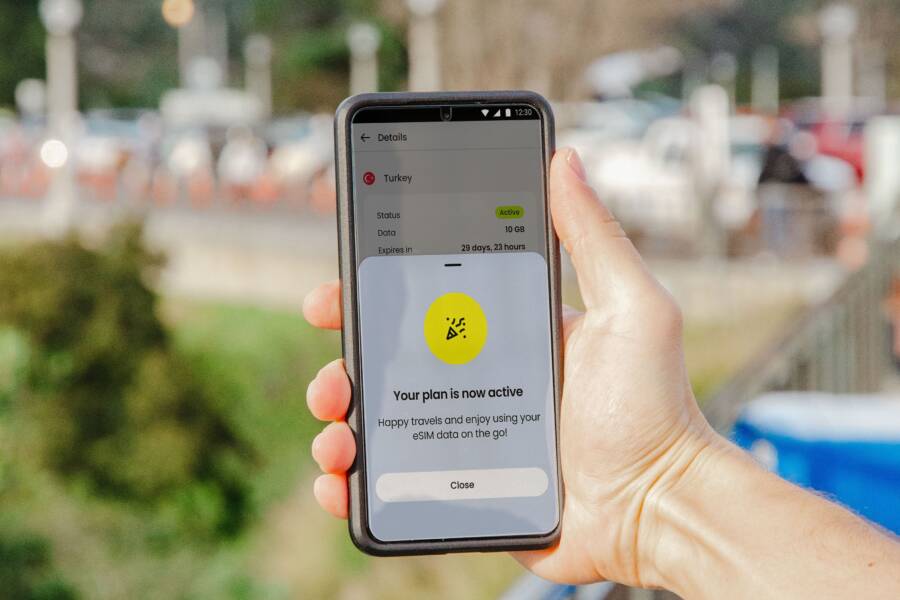
Modern devices often support eSIM technology, which allows you to download a new carrier profile instantly. You do not need to visit a physical store or swap small plastic cards. Simply download a travel eSIM app, purchase a local data plan, and activate the digital SIM in your device settings. This setup grants you a local phone number, which simplifies calling local services and ensures your connectivity remains consistent throughout your stay.
Conclusion
Restoring voice service on your smartphone while traveling involves a predictable sequence of checks. Start by verifying your data roaming settings and toggling your Airplane Mode to force a fresh network handshake. If these simple adjustments don’t work, review your account for roaming restrictions or international plan blocks.
Manual carrier selection provides a reliable backup when your device struggles to identify the strongest local tower. If cellular options remain unavailable, you can switch to Wi-Fi Calling or use messaging applications to stay in touch. Always keep your system software updated to ensure your hardware communicates effectively with foreign network infrastructure.
If your device still refuses to connect after you try these steps, check your carrier website for a specific international support page or live chat portal. Resolving these issues before you rely on your smartphone for critical communication helps you maintain connectivity throughout your trip.