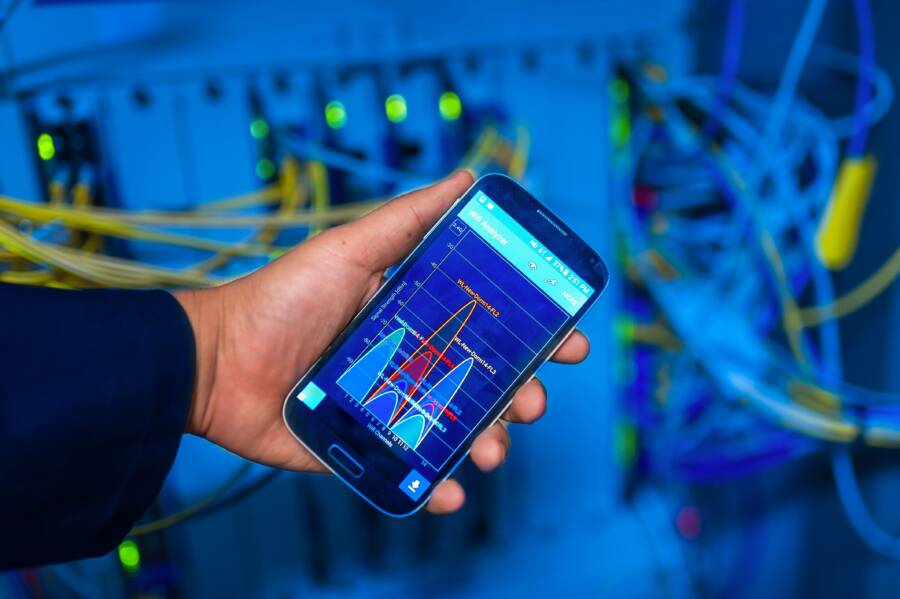
If your smartphone disconnects calls the moment you activate mobile data, you likely have an issue with your network band configuration or missing Voice over LTE (VoLTE) support. When your device cannot bridge the gap between data traffic and voice signals, it defaults to dropping the call to maintain a stable connection.
This conflict happens because older network protocols often require a device to switch frequencies when data is active. Modern networks rely on VoLTE to handle both streams simultaneously, but outdated carrier settings or a disabled toggle can prevent this. Updating your software and refreshing your network configuration settings usually solves the problem.
Why your smartphone struggles with voice and data simultaneously
Modern connectivity relies on your device managing multiple streams of information at once. When your smartphone fails to handle voice calls and data traffic together, the primary cause is often a breakdown in how the hardware communicates with the carrier network. This disconnect occurs when the phone lacks the necessary instructions to keep both channels open, forcing it to choose one or drop the connection entirely.
Understanding the role of VoLTE settings
Voice over LTE, or VoLTE, is the industry standard that allows your smartphone to transmit voice calls over the same data network used for your internet activity. Before this technology, phones had to drop back to older 3G or 2G networks whenever a call started, which effectively cut off your high-speed data connection. VoLTE eliminates this barrier by treating your voice call as just another type of data packet, allowing your phone to maintain a stable internet connection while you speak.
If you disable the VoLTE toggle in your settings menu, your smartphone loses its ability to handle these concurrent streams. Most modern devices default to this setting, but manual changes, carrier updates, or factory resets can sometimes toggle it off without your knowledge. When VoLTE is inactive, your device interprets an incoming or outgoing call as a trigger to disconnect from the 4G or 5G data network.
Checking your status is straightforward:
Open your device settings and look for mobile network or cellular options.
Select the SIM card or cellular plan you currently use.
Search for a toggle labeled VoLTE, HD Voice, or enhanced 4G LTE.
Ensure the switch is set to the on position.
If you do not see these options, your carrier may have restricted the feature for your specific plan or device. Contacting your service provider helps clarify if your account is provisioned for this technology.
Network congestion and coverage impacts
Even with the correct settings, your smartphone might still struggle when the signal strength is weak or the local network is saturated. Mobile networks operate on specific frequencies, and these frequencies provide different levels of coverage and capacity. When your signal drops below a certain threshold, the phone attempts to maintain the call by switching to a more stable but slower network band.
This transition often forces the phone to sacrifice data capabilities to protect the integrity of the voice call. You will notice this behavior most often in crowded areas like stadiums, concert venues, or busy city centers. In these locations, hundreds or thousands of users compete for a limited amount of bandwidth from a single tower.
When the network reaches its capacity, it prioritizes voice traffic over data to ensure emergency calls remain possible. If your smartphone detects that the data connection is preventing a clear voice signal in a congested environment, it kills the data stream. You are left with a functional call but no access to your web browser or messaging apps. Moving to an area with better reception usually restores both functions, as the device finds enough capacity on the primary network band to handle both types of traffic simultaneously.
Step-by-step solutions to fix call issues when data is on
Resetting your network configuration or updating system files often resolves conflicts where voice and data traffic collide. When your smartphone fails to manage these signals simultaneously, the software may be holding onto corrupted temporary settings or obsolete connection protocols. Applying these manual fixes allows your device to establish a fresh handshake with your cellular provider.
Toggling network and roaming settings
If you face frequent call drops, a full network reset clears out stored Wi-Fi passwords, Bluetooth pairings, and cellular configuration errors. This process brings your radio hardware back to factory defaults without erasing your personal apps or photos.
On an Android device:
Open the Settings app.
Tap System or General Management.
Select Reset options.
Choose Reset Wi-Fi, mobile, and Bluetooth.
Tap Reset settings and confirm your choice.
On an iPhone, follow this sequence:
Go to Settings and tap General.
Scroll to the bottom and select Transfer or Reset iPhone.
Tap Reset.
Select Reset Network Settings.
Enter your passcode if prompted and confirm the action.
After your smartphone restarts, you should manually re-enable your roaming settings if you travel frequently. Navigate to your cellular data options and verify that Data Roaming is toggled on if you are outside your home carrier area. Sometimes the phone loses its ability to negotiate voice packets if roaming triggers a conflicting handshake with a partner tower.
Updating software and carrier profiles
Outdated software creates a mismatch between your device hardware and the infrastructure managed by your service provider. Carrier profiles are small files that dictate how your smartphone interacts with specific network bands and voice protocols. If these files are old, your phone might not recognize the proper signaling for simultaneous voice and data usage.
Operating system updates contain important patches that fix radio connectivity bugs. You should always check for pending updates in your settings menu under General or Software Update. Installing the latest version ensures your device has the newest drivers for modem communication.
Carrier settings updates often happen automatically in the background, but you can force a check manually:
On Android, look for Carrier Settings or System Updates within the About Phone section.
On an iPhone, go to Settings, then General, and tap About. If an update is available, a prompt appears on the screen within a few seconds.
These updates bridge the technical gap between your local hardware and the network towers. Without these instructions, your smartphone may struggle to interpret high-speed data streams while maintaining a voice call, which triggers the drop you experience. Keeping both your OS and your carrier profile current is the most reliable way to maintain consistent connectivity.
Troubleshooting persistent connection failures
If software updates and network resets do not resolve your dropped calls, the problem might exist within the physical components of your smartphone. Hardware faults often manifest as intermittent signal loss, where the device struggles to maintain a steady link with the tower despite having correct settings. Identifying whether the issue resides in the SIM card or the internal antenna helps you determine if you need a simple card replacement or a professional hardware repair.
When to consider a hardware or SIM card issue
A faulty SIM card frequently causes connection drops because the chip physically fails to maintain a consistent handshake with your carrier. Over time, the gold contacts on the card can accumulate dust, oil, or oxidation, preventing a clean electrical connection with the reader pins inside your phone. You should first inspect the card for visible scratches, bent corners, or signs of wear. If you have another phone available, try inserting your SIM card into it. If the call drops persist on the second device, your SIM card is likely the culprit and requires a replacement from your carrier.
Internal antenna damage is another possibility if your smartphone has recently suffered a drop, impact, or exposure to moisture. The antennas responsible for cellular reception are delicate components often tucked behind the rear casing or screen assembly. If the antenna has become loose or disconnected, your signal strength will fluctuate wildly, often dipping to zero the moment your phone tries to handle high-demand tasks like data transmission. Signs of a failing antenna include:
Signal bars that drop suddenly when you apply light pressure to the frame of your phone.
Persistent low signal strength in areas where other devices show full bars.
An inability to connect to specific network bands while other phones on the same carrier remain connected.
If you suspect internal damage, a quick diagnostic involves checking your signal behavior across different locations. If your phone consistently struggles to hold a connection while other nearby devices on the same carrier network perform normally, the issue is internal. You should contact a service technician to open the device and verify if the antenna connectors are properly seated. Avoid attempting a DIY repair unless you have the specific tools and experience, as modern smartphones contain fragile ribbons and adhesive seals that break easily during disassembly. Replacing a damaged SIM card is a risk-free starting point, but persistent issues after a card swap almost always point to a hardware fault in the radio module or antenna array.
Quick tips to keep your mobile connection stable
Maintaining a stable connection on your smartphone often depends on how effectively the device manages signal handoffs. When your connection feels erratic, simple environmental adjustments and software tweaks frequently restore performance without needing a technician. These quick habits prevent your hardware from struggling when data and voice streams compete for priority.
Optimize your physical environment for signal strength
Radio waves travel poorly through thick materials like concrete, metal, or dense vegetation. If you experience dropped calls while data is active, move toward a window or step outside to reduce physical interference between your smartphone and the nearest cell tower. High-density areas such as basements, elevators, or the interior of large commercial buildings act as signal blockers that force your modem to work harder.
Try to avoid holding your phone in a way that covers the antenna bands. Most modern devices have internal antennas located along the top or bottom edges of the frame. Placing your hand over these areas creates a small but significant barrier that reduces signal reception during high-demand tasks. Using a thin, non-metallic phone case helps maintain the intended spacing between your hand and the antenna.
Manage background data activity
Sometimes your smartphone loses voice quality because too many background applications consume bandwidth simultaneously. Updates, cloud backups, and social media feeds constantly ping the network for new information. If your connection speed is low, these background processes fight for priority against your active phone call.
You can temporarily restrict these data-hungry processes to give your voice call the necessary bandwidth:
Turn off mobile data for specific apps that sync in the background.
Disable automatic cloud backups while you are on a call.
Switch off personal hotspot features if you have them active elsewhere.
When you limit these background streams, the radio hardware focuses its processing power on maintaining a clear voice signal. This reduction in load decreases the chances of the modem overheating or dropping the connection when the network is under pressure.
Prioritize stable network bands
Your phone automatically selects the best available signal, but it sometimes clings to a weak high-speed band when a stronger, lower-frequency signal is available. In settings, you can manually toggle your preferred network type if the automatic selection causes issues. Switching from a fluctuating 5G signal to a stable 4G connection often prevents the repetitive handoffs that cause calls to drop.
Testing a different frequency helps in areas where towers are far apart or overloaded. If you identify a specific location where your connection consistently fails, force your smartphone to use a specific network mode like LTE or 4G exclusively. Reverting to automatic selection once you reach an area with better coverage ensures you regain the full speed of modern network standards. This manual intervention provides a temporary workaround until your device establishes a more reliable link with the tower.
Conclusion
Fixing a connection where your smartphone drops voice calls while mobile data is active usually requires addressing how your device handles network handoffs. Ensuring that VoLTE is enabled serves as the most effective starting point because it allows your phone to manage voice and data packets on the same frequency. If simple settings updates do not resolve the problem, refreshing your network configuration or checking for carrier profile updates often clears out the outdated protocols causing the conflict.
Hardware issues remain a possibility if these software fixes fail to restore functionality. Inspecting your SIM card for damage or checking if your device suffers from antenna interference provides clarity on whether the fault lies in the hardware. If connectivity issues persist, contacting your carrier is the best next step to confirm your account is correctly provisioned for current network standards.