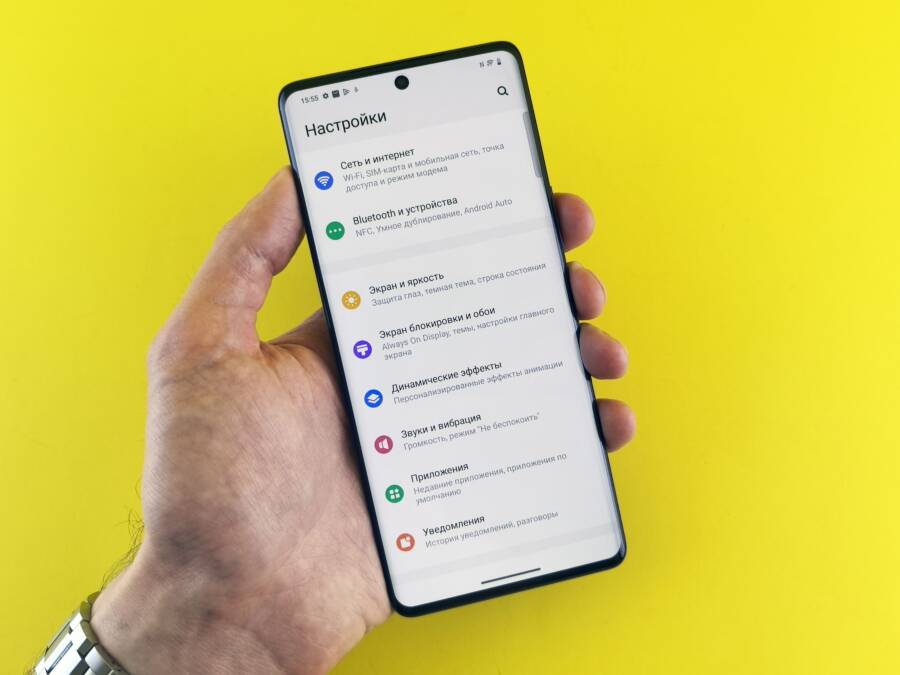
Dealing with a smartphone that refuses to download or update apps on a wireless network is frustrating, but it’s usually fixable with basic network and cache adjustments. When your device gets stuck on a pending download or throws endless connection errors, the root cause is typically a temporary glitch in your local connection settings or a corrupted app store cache.
Why Your Smartphone Struggles with App Downloads on Wireless Networks
Your smartphone needs a steady, uninterrupted data stream to pull heavy app installation files from the cloud. When a download freezes or fails completely on a wireless network, the problem usually stems from hidden environmental interference or communication breakdowns between your device and remote servers.
Checking Local Network Stability and Signal Interference
Physical obstacles between your device and the router often degrade wireless performance. Thick concrete walls, metal framing, and large furniture absorb radio frequencies before they reach your smartphone. Meanwhile, common household appliances like microwave ovens and Bluetooth speakers operate on the same frequency bands as older routers. These devices create local signal noise that disrupts your connection and stops app downloads midstream.
Distance also plays a major role in network reliability. As you move farther away from your wireless router, packet loss increases and data speeds drop significantly.
To diagnose these physical hurdles, try the following steps:
Move closer to your wireless router to see if download speeds improve immediately.
Turn off nearby electronic devices that might cause radio frequency interference.
Switch your smartphone from the congested 2.4 GHz frequency band to the faster 5 GHz band if your router supports it.
The Role of Account Authentication and Server Status
Even with a strong signal, app downloads can stall because of authentication failures behind the scenes. Your smartphone constantly verifies your identity with the Apple App Store or Google Play Store using stored login credentials. If your session token expires or becomes corrupted, the server rejects your download request without warning.
Temporary outages on the server side also freeze installation queues. When millions of users attempt to download a popular update simultaneously, regional servers can become overwhelmed and drop incoming connections.
You can verify these account and server issues by checking status dashboards online or signing out of your app store account and signing back in to refresh your security tokens.
Fixing App Store Connection Failures on Wi-Fi
When your smartphone stalls during app updates or downloads over a wireless network, a few targeted troubleshooting steps usually restore normal function. Minor software bugs, corrupted cache files, or bad network handshakes often block data packets from reaching the app store. Working through these specific fixes clears out temporary errors and gets your downloads moving again.
Toggling Airplane Mode and Restarting Your Device
A quick power cycle clears out temporary glitches holding back your smartphone connection. Temporary software hangs in the network stack often stop downloads without throwing a clear error message. Toggling your radios or performing a full reboot forces the operating system to drop bad sockets and establish a fresh connection to your router.
To reset your connection quickly, you can try these methods:
Turn on airplane mode, wait ten seconds, and turn it off again to force your smartphone to rejoin the wireless network.
Power down your device completely, wait thirty seconds, and turn it back on to clear temporary memory leaks.
Restart your wireless router at the same time if multiple devices struggle to download apps.
Clearing App Store Cache and Temporary System Data
Junk data piling up in system directories causes the store application to freeze or crash during downloads. Over time, corrupted temporary files clog up local storage and interfere with incoming installation packets. Flushing this cache forces the application to rebuild its working directory from scratch.
To clear cached data on Android, open your settings menu, locate the application manager, select the Google Play Store, and choose clear cache and clear data. On iOS, you cannot clear cache manually, but offloading the app store through your storage settings achieves a similar cleanup effect. After clearing this data, restart your smartphone so the application can pull clean files from the server.
Forgetting and Reconnecting to Your Wireless Network
A corrupted network profile prevents your smartphone from communicating properly with your router. When network credentials or IP configurations become corrupt, authentication handshakes fail repeatedly. Removing the wireless network profile entirely forces your phone to create a brand-new connection with clean parameters.
Open your wireless settings, locate the network causing problems, and select the option to forget or delete that network. Turn your Wi-Fi toggle off and back on to refresh available signals in your area. Select your wireless network again, enter your secure password, and wait for your smartphone to authenticate. This fresh handshake repairs broken routing paths and usually lets pending app downloads resume immediately.
Advanced Troubleshooting Methods for Stubborn Connection Errors
Sometimes standard network fixes fail to restore app downloads on your smartphone. When your device rejects basic troubleshooting steps, you need to dig deeper into the underlying protocols and system settings. Changing how your device translates web addresses or wiping away corrupted network configurations usually resolves these persistent blocks.
Switching to Public DNS Servers Like Google or Cloudflare
Your smartphone relies on Domain Name System servers to translate website names into numerical IP addresses. Default carrier or internet provider DNS servers often run slowly or experience frequent downtime, causing app store connection timeouts. Switching to public alternatives like Google or Cloudflare routes your traffic through faster and more reliable resolution paths.
To change your DNS settings on Wi-Fi, open your network properties and switch from automatic IP settings to manual configuration. Enter the primary and secondary server addresses provided by your chosen public network.
Use Google addresses: 8.8.8.8 and 8.8.4.4 for fast and stable resolution.
Use Cloudflare addresses: 1.6.1.1 and 1.0.0.1 for high-speed privacy routing.
After saving these changes, your smartphone connects to content delivery networks much faster. This adjustment bypasses local ISP bottlenecks and stops app installation failures cold.
Resetting Network Settings on Your Mobile Device
Months of connecting to various public hotspots, home routers, and Bluetooth accessories accumulate corrupted configuration files in your system memory. Wiping out these saved wireless profiles gives your smartphone a completely fresh start by restoring all cellular, Wi-Fi, and Bluetooth radios to factory default states.
This process erases remembered passwords and paired accessories, so you must reconnect to your trusted networks afterward. System files responsible for routing app store packets get rewritten during this reset, clearing out invisible bugs that standard reboots miss.
Navigate to your system reset menu, locate the option to restore network configurations, and confirm the action. Your smartphone reboots automatically, clearing out bad routing tables and letting your applications communicate cleanly with the internet again.
Common Questions About App Store Failures on Wireless Networks
Troubleshooting download errors on a smartphone often raises specific technical questions regarding network behavior and security protocols. Users frequently encounter recurring error codes or unusual bottlenecks that standard troubleshooting guides leave unanswered. Knowing the technical reasons behind these connection failures helps prevent future update blocks on your mobile device.
Why do app downloads work over cellular data but fail on wireless networks?
Cellular networks use carrier-managed routing paths that bypass local router configurations completely. When your smartphone downloads apps successfully on mobile data but fails on Wi-Fi, the issue usually points to local router restrictions, DNS translation errors, or local firewall settings. Your home router might block specific ports required by the app store, or your ISP might restrict large download packets during peak hours. Switching networks exposes these local bottlenecks immediately.
What causes pending download queues to freeze indefinitely on a smartphone?
Pending queues freeze when background synchronization processes crash during an active installation request. Your smartphone attempts to download multiple files simultaneously, which overwhelms the local cache directory and creates a deadlock state.
Corrupted login tokens prevent the app store from verifying your account permissions for new downloads.
Low local storage space forces the operating system to pause installation queues without displaying an explicit warning.
Outdated operating system software creates compatibility conflicts with newer app store client versions.
How do security firewalls affect app store connections at home?
Strict firewall rules on modern routers often flag incoming app store update packets as potential security threats. Custom router firmware or enterprise security suites inspect network traffic and block the specific ports that Apple and Google use for large file transfers. Lowering your router security level temporarily or disabling strict parental controls often restores normal app store communication.
Does a weak Wi-Fi signal corrupt app files during download?
Packet loss increases dramatically when your smartphone maintains a weak connection to the wireless router. If data packets drop mid-transfer, the app store receives incomplete files and discards them to prevent system instability. This constant retry loop causes downloads to hang indefinitely at ninety-nine percent completion. Moving closer to the router or switching to the five gigahertz band provides the stable throughput required to finish large installations without data corruption.
Conclusion
Fixing app download failures on wireless networks usually comes down to checking the basics first. Simple adjustments like restarting your smartphone, clearing corrupted cache data, or refreshing your network profile solve the vast majority of connection blocks.
If basic troubleshooting fails, you can move on to advanced steps like switching your DNS servers or resetting network configurations entirely. Your smartphone will download applications reliably once these underlying routing errors clear out.