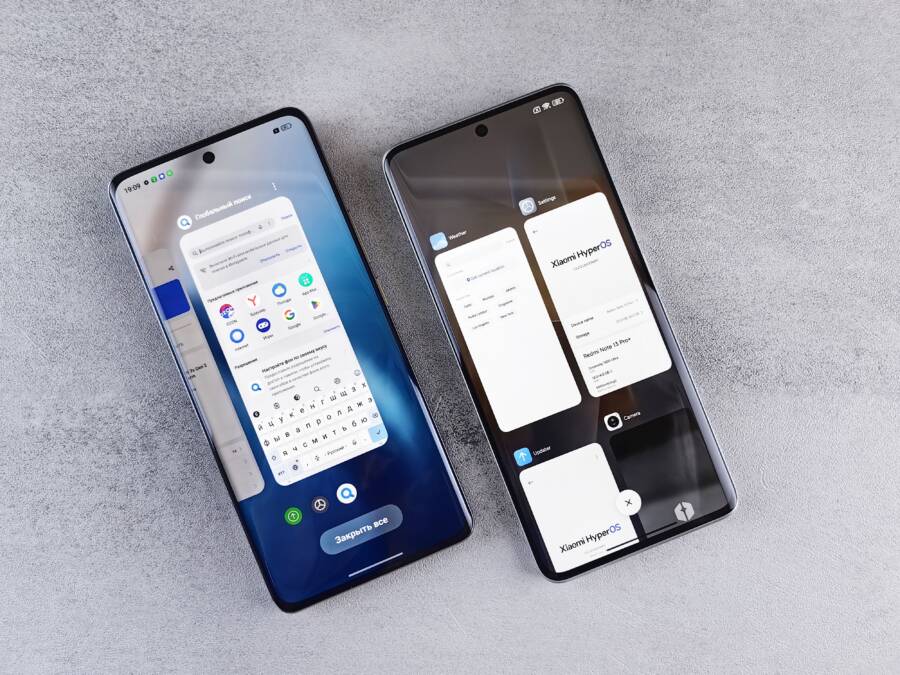
Your phone’s home screen usually keeps changing because the theme also modified the launcher, icon pack, wallpaper, widgets, or default home app. To fix it, switch back to the phone’s default theme and launcher, then clear the theme or launcher app’s cache and reset its home screen settings.
Menu names vary across Samsung Galaxy, Google Pixel, Xiaomi, Motorola, OnePlus, and iPhone devices, so the exact steps may differ. First, identify what changes, restore the default home app, remove unwanted theme components, and check for third-party launchers. If the problem continues, stronger resets may help, but they should come after the simpler fixes.
How to Fix a Phone Home Screen That Keeps Changing After a Theme Install
Start by restoring the default launcher or home screen app, then remove the theme’s wallpaper, icon pack, widgets, and layout settings. A theme can change more than colors, so the home screen may keep returning to the altered layout until each linked component is reset.
Identify What Keeps Changing
Watch the phone after applying the theme again. If only the wallpaper changes, the theme may include an automatic wallpaper rotation. If icons, widgets, folders, or app placement change, the theme probably altered the launcher layout.
The home screen may also switch after you unlock the phone, restart it, or select a different wallpaper. These clues help identify whether the problem comes from the theme app, a third-party launcher, a wallpaper service, or an automation feature.
Check these areas before changing advanced settings:
Launcher: The app that controls the home screen, app drawer, icons, and layout.
Theme app: The service that applies wallpapers, fonts, icons, and visual settings.
Wallpaper service: An app or system feature that rotates backgrounds.
Widgets: Theme-based widgets can reload or reposition themselves.
Automation tools: Modes, routines, and Focus settings can apply different layouts.
If the entire layout changes at once, check the default home app before deleting individual widgets. The launcher is usually controlling the full arrangement.
Switch Back to the Default Home App
A theme installer may select its own launcher as the default home app. When that happens, your phone can continue loading the themed layout even after you remove some visual elements.
On most Android phones, open Settings, select Apps, choose Default apps, and tap Home app or Home application. Select the manufacturer’s launcher, such as One UI Home on Samsung Galaxy phones, Pixel Launcher on Google Pixel devices, or the system launcher listed by Xiaomi, Motorola, or OnePlus.
The wording can vary by software version. You can also search Settings for default home app or home app to find the correct menu faster.
After selecting the original launcher, return to the home screen and restart the phone. If the layout remains stable, the theme’s launcher caused the problem. You can then uninstall the third-party launcher or remove its permission to act as the default home app.
Remove the Theme’s Extra Components
Some theme apps install separate icon packs, wallpaper tools, widgets, or lock screen services. Removing the main theme may not remove those components, so the smartphone can continue restoring parts of the old design.
Open the theme or personalization app and choose an option such as Default, Original, or System default. Then check the phone’s wallpaper, icon, font, widget, and lock screen settings. Replace each themed item with the original system option.
On Android, review Settings > Apps for recently installed launchers, icon packs, wallpaper apps, and theme stores. Uninstall any app you don’t recognize or no longer need, but avoid removing a system app unless the phone identifies it as removable.
If the home screen changes only at certain times, inspect Modes and Routines, Digital Wellbeing, or other automation settings. Disable any rule that applies a wallpaper, launcher, or home screen arrangement.
Clear the Launcher Cache
A launcher can keep an outdated theme layout in its temporary files. Clearing the cache removes those temporary files without deleting your personal data.
Go to Settings > Apps, select the active launcher, tap Storage or Storage and cache, and choose Clear cache. Restart the phone, then check whether the home screen stays in place.
Avoid tapping Clear storage or Clear data during the first attempt. Those options may reset the launcher layout, folders, widgets, and custom settings. Use them only after recording your preferred arrangement and confirming that the default launcher is active.
If clearing the cache doesn’t help, clear the theme app’s cache as well. Then open the theme app, switch to the default theme, and restart the device before installing another theme.
Test the Phone Without the Theme
A clean test can show whether the theme is responsible. Restore the default theme, remove its related launcher or wallpaper service, and use the phone normally for several hours.
If the home screen remains unchanged, reinstall only the theme itself if you still want to use it. Avoid reinstalling every add-on at once. Apply the wallpaper, icons, and widgets separately so you can identify the component that causes the reset.
When the problem returns immediately after installing one item, remove that item and choose another theme source. Themes that require unusual accessibility permissions, device administrator access, or permission to modify system settings deserve extra caution.
Find Out Whether the Theme, Launcher, or Wallpaper Service Is Causing the Reset
A changing home screen usually has one controlling app or setting. Isolate each component instead of resetting the entire smartphone at once. The timing of the change gives you the clearest clue.
Start by restoring the default wallpaper and launcher, then restart the phone. If the layout stays stable, add the theme components back one at a time. This controlled test shows whether the theme itself, its launcher, or a separate wallpaper service is responsible.
Match the Symptoms to the Likely Cause
Different changes point to different parts of the home screen system. Use the pattern as a starting point before removing apps or clearing data.
A wallpaper service normally changes the image, not the position of apps and widgets. When the entire arrangement changes, focus on the launcher first.
Test the Theme Without Its Add-Ons
Open the theme app and apply only its visual theme, if the app provides separate controls. Leave the wallpaper, icon pack, widgets, and launcher set to their system defaults.
Use the phone normally for a while, then check whether the home screen resets. If the problem doesn’t return, reinstall one add-on at a time. Apply the wallpaper first, followed by the icons and widgets. Install a replacement launcher last.
This process turns a confusing problem into a simple comparison. When the reset returns immediately after one installation, remove that component and test the phone again. A theme can be safe while an included wallpaper service or launcher causes the unwanted changes.
A theme package isn’t always a single app. Its wallpaper, icon pack, launcher, and widgets may have separate settings and permissions.
Check Wallpaper Rotation and Automation
If the wallpaper changes while your icons remain in place, inspect the wallpaper service instead of resetting the launcher. Look for options such as Daily wallpaper, Wallpaper rotation, Dynamic wallpaper, or Change wallpaper automatically.
Scheduled phone features can also apply different visual settings. On Samsung Galaxy devices, review Modes and Routines. On an iPhone, check Focus settings because a Focus mode can display a selected Home Screen page and wallpaper. Also inspect any Shortcuts automation that runs when you connect to power, reach a location, or open an app.
The smartphone should remain on one default wallpaper while you test. If the background changes again, disable the rotation or automation feature, then repeat the test before changing launcher data.
Restore a Stable Smartphone Home Screen Without Losing Your Layout
Before resetting launcher data or uninstalling a theme, preserve the home screen arrangement you want to keep. A launcher reset can remove folders, widgets, shortcuts, and custom app placement, even though it won’t delete the apps themselves.
Save Your Current Home Screen Arrangement
Take screenshots of every home screen page, including folders and widget placement. Open each folder before capturing it so you can see which apps belong there. Also record the widget names, since some widgets may need to be added again manually.
If your launcher offers a backup option, use it before making changes. Samsung Galaxy devices may provide home screen backup through Samsung Cloud or related device backup settings. Third-party launchers often include their own backup and restore tools, but the menu names differ by app.
Keep these details available during the repair:
The order of your home screen pages.
The apps inside each folder.
The widgets and their sizes.
The wallpaper and icon settings you want to retain.
The launcher currently set as the default home app.
A screenshot is useful, but it can’t restore an interactive widget or folder automatically. Treat it as a visual guide rather than a complete backup.
Reset Launcher Settings Carefully
If the home screen keeps changing after you switch back to the default theme, the launcher may still hold the unwanted layout. On Android, open Settings > Apps, select the active launcher, choose Storage or Storage and cache, and review the reset options.
Use Clear cache first because it removes temporary files without normally deleting your layout. If the problem continues, Clear storage or Clear data may reset the launcher to its original arrangement. Confirm that the default launcher is active and your preferred layout is backed up before using this option.
After the reset, restart the smartphone and leave the theme app uninstalled during the test. Rebuild the home screen from your screenshots only after the phone remains stable.
Rebuild the Layout Without Reinstalling the Problem Theme
Add your apps, folders, and widgets in small stages. Start with the app icons, then recreate folders, and add widgets last. This makes it easier to identify a widget or customization tool that causes the layout to change again.
Avoid restoring a complete theme backup until the phone works normally. A backup may also restore the setting that caused the problem, especially if it includes launcher preferences or third-party widgets.
On an iPhone, remove unwanted Home Screen pages through Edit Home Screen, then check Settings > Focus for a selected page that appears only during a specific mode. Your app data remains intact, but the visible page can change when Focus settings control the Home Screen.
What to Do When the Home Screen Still Changes After Removing the Theme
If the home screen still changes after removing the theme, the theme may have left behind a launcher setting, automation rule, or companion app. Reset the active launcher, check apps with special permissions, and test the phone in Safe Mode before considering a factory reset.
Reset the Active Launcher
Removing a theme doesn’t always restore the launcher’s original layout. The launcher may still load saved preferences, downloaded icon settings, or a home screen backup created by the theme app.
First, confirm that the manufacturer’s launcher is selected as the default home app. Then open Settings > Apps, select that launcher, and tap Storage or Storage and cache. Choose Clear storage or Clear data only after saving screenshots or a launcher backup.
This reset may remove folders, widgets, shortcuts, and custom app placement. It won’t normally uninstall your apps or erase personal files, but you will need to rebuild the home screen. Restart the smartphone afterward and use the default wallpaper for testing.
Remove Apps With Special Access
A companion app can continue changing the home screen after you uninstall the main theme. Check recently installed apps for launchers, wallpaper services, icon packs, lock screen tools, and customization utilities.
On Android, review Settings > Apps and remove anything you no longer recognize or need. Also search Settings for Special app access, then inspect permissions such as:
Display over other apps, which can allow an app to place controls over the screen.
Modify system settings, which may permit wallpaper or visual changes.
Accessibility, which gives an app broad control over parts of the device.
Device admin apps, which can prevent normal removal or control system behavior.
Revoke unnecessary access before uninstalling the related app. Avoid disabling a system component unless you know its function, because the launcher may depend on it.
Test in Safe Mode and Update the Phone
Safe Mode temporarily disables most downloaded apps. If the home screen remains stable there, a third-party app is still causing the changes. Remove recently installed customization apps one at a time after restarting normally.
If the problem also occurs in Safe Mode, install available system and launcher updates. Manufacturers often fix home screen crashes and layout restoration problems through software updates.
A persistent reset after these steps can indicate corrupted launcher data or a system fault. Back up your photos, contacts, messages, and files before using a factory reset. If the home screen changes even after that reset, contact the phone manufacturer or an authorized repair provider.
Quick Answers About Themes That Keep Changing a Phone’s Home Screen
A theme can keep changing your phone’s home screen when it controls the launcher, wallpaper service, icon pack, or automation settings. Restore the default home app first, then remove the theme’s companion components.
Why does my home screen change after installing a theme?
The theme may have installed or selected a different launcher. It may also include rotating wallpapers, custom widgets, or a saved home screen layout. Check Settings > Apps > Default apps > Home app on Android and select the manufacturer’s launcher.
On an iPhone, check Focus settings. A Focus mode can display a different Home Screen page and wallpaper when it activates.
Why do my icons and widgets keep moving?
Icons, folders, and widgets usually move because the launcher is loading a saved layout. Clear the launcher’s cache first. If that fails, clear its storage only after taking screenshots or creating a launcher backup, because this step can remove your current arrangement.
Can a wallpaper app change the whole home screen?
A wallpaper app normally changes only the background. However, a theme bundle may install a wallpaper service alongside a launcher or widget package. Disable wallpaper rotation, then remove related apps under Settings > Apps.
Should I uninstall the theme?
Uninstall it if the home screen stays stable after removal. If the problem continues, inspect recently installed launchers, icon packs, and customization tools. A smartphone can keep using a companion app even after the main theme disappears.
Will a factory reset fix the problem?
A factory reset can remove corrupted launcher data, but use it last. Back up your photos, contacts, messages, and files first. Most theme-related home screen changes can be fixed by restoring the default launcher and removing the responsible app.
Conclusion
A phone that keeps changing its home screen after a theme install usually has a launcher, wallpaper service, or automation setting controlling the layout. The most reliable fix is to return to the default theme, select the built-in launcher, disable automatic wallpaper or theme changes, clear the relevant cache, and test the smartphone after each step.
Before clearing launcher data, save screenshots or create a layout backup because folders, widgets, and shortcuts may be removed. If the problem continues, test in Safe Mode before considering a factory reset. Once you remove the app or setting that controls the home screen, the phone should remain stable and keep its original arrangement.