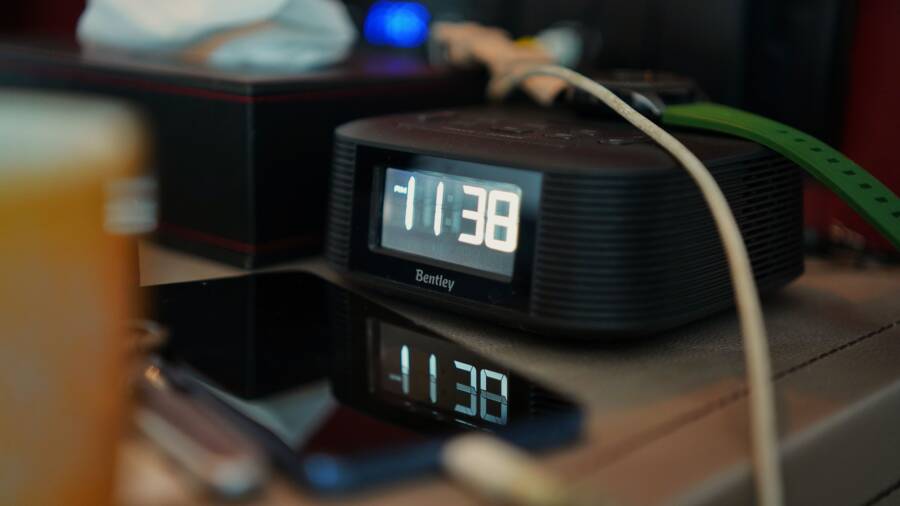
If your phone alarm sounds too quiet, check the dedicated alarm volume first, then disable Bluetooth connections, remove anything covering the speaker, restart the phone, and test the alarm before relying on it. Alarm volume is often separate from media and call volume, so raising the volume for videos or phone calls may not change how loudly the alarm plays.
On an iPhone, review the alarm and ringtone settings in Sounds & Haptics; on Android, check the separate Alarm volume slider in the sound settings. Also inspect the speaker grille for dust, a case, or a screen protector that may block sound. If the alarm is still quiet, another alarm app, Focus or Do Not Disturb setting, system glitch, or failing speaker could be responsible.
This guide covers practical fixes for both iPhone and Android phones, including software settings, blocked speakers, app conflicts, Bluetooth audio routing, and possible hardware failure. Start with the volume and connection checks below before changing advanced settings or seeking repair.
Why Your Phone Alarm Sounds Quiet Even When the Volume Looks High
Your smartphone might display maximum volume levels while barely producing a whisper from the internal speaker. Software bugs, hidden system settings, and physical obstructions often interfere with audio output before sound ever reaches the room. Pinpointing the exact cause requires systematic testing of individual audio components.
Check whether the problem affects one alarm or every sound
Start troubleshooting by creating a short test alarm set for two minutes in the future. Once the test triggers, observe the output, then immediately play a local ringtone, a streaming video, and a voice recording. Comparing these audio sources reveals whether the issue stems from a software glitch or a hardware failure.
If only alarms remain quiet, focus your attention on Clock application settings, sleep schedules, and selected alarm tones.
If every system sound plays at a low volume, shift your focus to speaker obstructions, Bluetooth connections, or volume limiters.
Different audio pipelines operate independently inside your smartphone. A malfunction in one channel does not necessarily impact the others.
Understand which volume control actually changes alarm loudness
Operating systems divide sound output into distinct categories. iPhone alarm volume generally follows the ringer and alerts slider, meaning media volume controls have no effect on morning wake-up sounds. Android phones usually feature a dedicated alarm volume slider located separately from media and call controls. Menu labels vary by manufacturer, including Samsung Galaxy devices, Google Pixel models, and other hardware variants.
Raising media volume while watching a video will not fix a silent alarm. Access the sound settings menu to locate the correct slider. Adjusting the specific alarm level ensures the internal speaker drives enough power to wake you up reliably.
How to fix a phone that cannot keep the speaker from sounding quiet during alarms
Fixing a quiet alarm requires targeted adjustments because your smartphone handles audio channels independently. If your morning wake-up call sounds muffled or faint, adjust the proper system settings, clear physical obstructions from the speaker grille, and disconnect competing audio devices.
Raise the dedicated alarm volume and choose a clear tone
Many users miss their morning alarms because media volume sliders do not control wake-up sounds. On an iPhone, open the settings application, tap sounds and haptics, and locate the ringer and alerts section. Enable the change with buttons feature so the physical volume keys on the side of your smartphone control your alert levels directly. On Android devices, open settings, select sound and vibration, and find the dedicated alarm volume slider because menu labels vary by manufacturer.
Selecting the right alarm sound matters just as much as setting the correct volume level. Choose a built-in tone featuring a strong beginning and enough length to wake you up gradually. Avoid relying on vibration alone because a vibrating smartphone on a soft mattress rarely produces enough noise to alert a sleeping person.
Disconnect Bluetooth and check connected audio devices
Wireless accessories often hijack your smartphone audio routing without your knowledge. Earbuds left in a charging case, smartwatches, car stereos, and Bluetooth speakers can intercept alarm playback and send sound to a remote device instead of the internal speaker. Turn off Bluetooth temporarily for one diagnostic test to see if the alarm volume returns to normal. Check the media output panel on your screen to confirm that audio plays through the built-in speaker. If the issue keeps returning, remove old or unwanted paired devices from your settings menu. Exact alarm behavior varies by phone model and operating system, so testing each connection prevents missed wake-up calls.
Remove speaker blockages and restart the phone
Accumulated dust, lint, a thick protective case, a poorly fitted screen protector, or trapped moisture can severely muffle your smartphone speaker. Remove your phone case, inspect the speaker openings closely, and gently brush away any dry debris using a soft toothbrush. Allow a wet device to dry completely in a well-ventilated area before attempting any more audio tests. Restart your smartphone after clearing the speaker grille to refresh the operating system and clear any lingering software glitches. If your device becomes hot, swells, smells unusual, or suffered severe liquid damage, stop using it immediately and seek professional repair service.
Fix quiet alarms on iPhone and Android with the right settings
Many missed wake-up calls happen because internal operating system settings override user preferences. Fixing a quiet alarm on your smartphone requires adjusting hidden audio sliders, disabling strict automation profiles, and checking third-party app permissions.
iPhone settings that can lower or hide an alarm
Apple devices route wake-up sounds through specific audio channels that operate independently of media playback. Open the settings app, tap sounds and haptics, and locate the ringer and alerts section. Enable the change with buttons option so the physical volume keys on the side of your smartphone control your alert levels directly. Standard volume buttons only adjust media playback unless this specific toggle is active.
Beyond standard sliders, modern iOS features can alter how alerts behave. Face ID models use attention-aware features that lower the volume of certain alerts when the smartphone detects you are looking at the screen. Test this feature by setting a test alarm and looking directly at your device while it rings. If the audio volume drops immediately upon eye contact, disable attention awareness in your Face ID settings. Silent mode and Do Not Disturb modes do not normally block scheduled alarms from sounding, but strange software bugs still make a quick test alarm necessary before you sleep.
Android settings that affect alarm volume and scheduled modes
Android devices separate wake-up sounds from media streams and phone calls. Open your sound settings menu and locate the dedicated alarm volume slider to raise the audio level. The clock application itself often includes individual tone selections and vibration toggles that override global defaults. Some manufacturers include features like gradual volume increases or custom audio levels that might start too softly for heavy sleepers.
Scheduled automation profiles frequently interfere with morning audio output. Check your Do Not Disturb exceptions, Bedtime mode settings, and manufacturer features such as Samsung Modes and Routines. Certain routines automatically mute notifications or lower specific audio streams during sleeping hours. Disable these automation rules temporarily if your morning wake-up calls remain too quiet, then rebuild the routine with a permanent alarm exception if needed.
Check third-party alarm apps and system updates
External software can disrupt the audio focus of your smartphone. Third-party alarm tools, battery-saving utilities, cleaner apps, and security software often restrict background processes or interfere with audio routing. Test the built-in stock clock application first to see if the hardware speaker functions properly. Update both the operating system and your preferred alarm app to patch known bugs affecting audio output.
Review battery optimization permissions if you rely on a third-party alarm utility. Operating systems frequently suspend background apps to save power, which prevents alarms from triggering at full volume. Avoid granting unnecessary permissions or installing multiple alarm apps at once because competing background processes often create conflicts.
When volume settings are not enough, find the real cause
Standard volume adjustments solve most audio issues, but stubborn hardware faults require deeper investigation. If your morning wake-up sound remains barely audible after you raise every software slider, the smartphone likely suffers from a physical blockage or an internal component failure. Systematic isolation tests help you find the exact point of failure before you spend money on professional repairs.
Test the speaker, headphones, and charging accessories separately
Play a known loud recording through the internal speaker to check its maximum output. Make a speakerphone call next, because phone calls often route through a different audio amplifier than media playback. Plug in wired headphones or connect a Bluetooth headset to see if external audio plays normally. Loud sound in headphones combined with a quiet built-in speaker points directly to speaker blockage or internal hardware damage. Quiet audio across every output suggests a broader software or audio hardware failure inside the smartphone. Try another wall charger or remove the phone from a charging dock if the audio problem happens only while the device is plugged into power.
Use safe software fixes before considering a factory reset
Force-close the clock application and reopen it to clear temporary memory glitches. Restart your smartphone next to refresh the operating system and clear stuck audio processes. Install pending system updates because manufacturers frequently release patches for known audio bugs. Reset your sound or network settings if the manufacturer provides that option in the configuration menu. Back up your photos, contacts, and authentication information before you perform any drastic maintenance steps. A factory reset erases personal data completely and should be reserved for persistent software problems after all other troubleshooting steps fail.
Know when a repair shop is the best option
Persistent hardware failure shows up in predictable ways. Watch for quiet audio in every application, crackling sounds, distorted playback, or a speaker that only works when you bend the phone at specific angles. Recent drops or liquid exposure also point directly to physical damage. Take the smartphone to an authorized service provider or a reputable local repair shop if the device still fails a clean software test. Describe the exact diagnostic tests you already completed to help technicians isolate the problem quickly. Repair costs depend on your specific smartphone model, warranty coverage, water damage indicators, and whether technicians need to replace the speaker module or the main logic board.
Common questions about phone alarms that keep getting quiet
Users frequently run into audio inconsistencies with morning wake-up calls. Finding quick answers to frequent smartphone audio problems saves you from missing important meetings or oversleeping.
Does alarm volume use media volume on a smartphone?
Alarm volume and media volume operate on separate audio channels. iPhones use the Ringer and Alerts slider for alarms, meaning media volume controls have no effect on wake-up sounds. Android devices provide a separate Alarm volume slider in the sound settings menu. Confirm your configuration inside the Sound menu instead of relying on external volume buttons. Adjusting the specific alarm level ensures the internal speaker drives enough power to wake you up reliably.
Will Do Not Disturb make an alarm quiet?
Standard Do Not Disturb modes typically allow scheduled alarms to sound normally. Custom schedules, bedtime tools, automated routines, or third-party applications can alter this behavior and suppress audio output. Review your exception settings and run a test alarm with the mode enabled and disabled. Testing your settings beforehand prevents unwanted surprises when your smartphone enters sleep mode.
Why is the alarm quiet only when the phone is face down or in a case?
Soft surfaces, thick protective cases, screen accessories, or blocked speaker grilles absorb and restrict sound output. Place your smartphone on a hard, open surface with the speaker completely unobstructed. Avoid placing the device under a pillow because this traps heat and creates a serious fire risk. Hard surfaces reflect sound waves outward to maximize morning volume.
What should I do if every alarm fix fails?
Persistent audio failures require a structured troubleshooting approach. Test all audio outputs, use the built-in clock application, install pending updates, and restart your smartphone. Back up your data if problems persist, then contact support or visit a repair service. Set a temporary backup alarm on a separate device until your smartphone audio becomes reliable again.
Conclusion
Fixing a quiet alarm on your smartphone usually starts with raising the dedicated alarm volume and choosing a distinct, clear tone. After adjusting those settings, disconnect active Bluetooth accessories, clear any lint or debris from the speaker grille, and check your focus or bedtime profiles. If the audio remains faint, restart the device and apply any pending software updates. Persistent failures mean you should take the smartphone to a repair shop for hardware diagnostics.
Always set a test alarm before depending on your smartphone for work, travel, medication, or an early appointment.