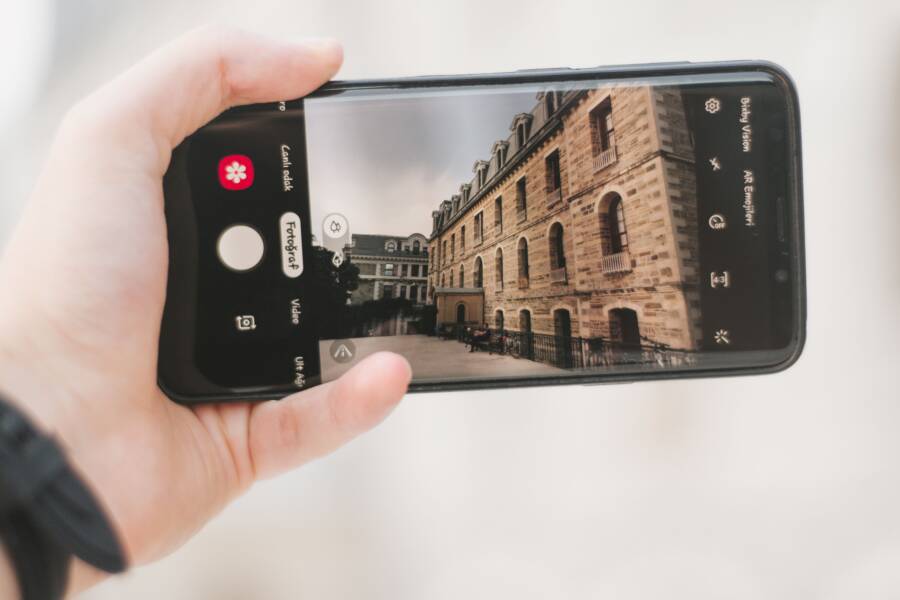
Indoor lighting tricks a smartphone into using a slow shutter speed, which causes blur when hands shake or subjects move. Because indoor environments lack the bright light found outdoors, the camera sensor needs more time to gather enough light for a clear exposure. During this extended capture window, even the slightest movement from your hand or the subject creates visible motion blur.
Fixing this problem starts with understanding how your device handles exposure in low-light settings. By adjusting a few settings or changing how you hold the device, you can stop indoor blur and take sharp photos consistently.
How to fix a smartphone that takes blurry indoor photos
Clean the camera lens for instant clarity
Fingerprint oils and smudges scatter indoor light and trick the autofocus system. When grease coats your glass, stray light bounces across the sensor in unpredictable directions. The smartphone software gets confused by this hazy information, struggling to lock onto a sharp focal point. Indoor rooms already lack strong contrast, making a dirty lens the tipping point for uselessly soft pictures.
Wipe your glass surface with a clean microfiber cloth before shooting. Avoid using abrasive paper towels that leave tiny scratches on the coating. This quick habit restores contrast and gives your autofocus sensor a fighting chance in dim rooms.
Turn on more indoor lights to speed up the shutter
Adding physical light forces the smartphone to use a faster shutter speed, freezing motion naturally. Dim indoor bulbs trick your sensor into keeping the shutter open longer to soak up enough photons. During that extra fraction of a second, any movement ruins the frame.
Switch on overhead lamps, open nearby blinds, or move closer to windows. Brighter rooms let your smartphone shorten exposure times down to fractions of a second, eliminating movement artifacts entirely.
Hold your smartphone with both hands to stop shaking
Tucking your elbows firmly into your sides keeps the device steady in low light. When you shoot with one hand, your arm acts like a long lever that magnifies tiny muscle tremors.
Grip the sides of your smartphone with both hands.
Press your elbows against your torso to create a solid human tripod.
Tap the shutter button gently instead of jabbing the screen downward.
Adjusting Camera Settings for Better Indoor Shots
Software defaults often fail when you step inside a building, leading to blurry frames caused by hidden processing traps. Adjusting your camera settings helps your smartphone handle low light by changing exposure behavior and focus logic.
Turn off the digital zoom to keep images sharp
Using digital zoom in a dim room destroys image quality because the smartphone simply crops into a low-resolution crop and amplifies the noise. When you pinch the screen to zoom indoors, you throw away precious pixels that the sensor worked hard to capture. The software then stretches those remaining pixels, creating a soft, grainy mess that looks completely out of focus.
Moving closer to your subject instead of zooming fixes this problem instantly, though keep in mind that shots taken extremely close have their own focus limits. Physical movement preserves the full resolution of your sensor, giving the processor enough clean data to render crisp edges.
Lock the focus and exposure manually
Automated systems often hunt for contrast in dark rooms, causing the lens to breathe or lock onto the wrong background elements. Tapping your main subject on the screen forces the smartphone to meter the light and lock focus right where you want it.
Open your camera app and point it at the subject.
Tap directly on the most important part of the scene on your screen.
Slide the sun icon up or down to fine-tune the brightness before pressing the shutter.
Use night mode for steady indoor scenes
Modern computational photography relies on night mode to rescue dark indoor environments without cranking up the ISO into noisy territory. This feature captures a rapid burst of multiple frames over a second or two, aligning them automatically to merge details and cancel out random noise.
Staying completely still while the capture finishes ensures the algorithm has sharp reference points to combine. If you move your hands too early, the final image smudges together into an unusable smear.
Advanced Tools and Accessories for Crisp Photos
Stock camera settings only go so far when you shoot indoors. Physical accessories change the physics of low-light photography, letting your smartphone capture sharp details without relying on software tricks.
Use a small tripod or stable surface
Hand shake ruins indoor photos because your smartphone slows down its shutter speed to gather enough light. Even if you hold your breath, microscopic muscle movements shift the lens during exposure. Mounting your smartphone on a tiny tripod removes human movement from the equation entirely.
When the phone stays locked in place, the sensor collects sharp data over a longer period without motion blur. You can also rest the device against a bookshelf, table edge, or coffee cup if you don’t carry a tripod. This simple trick turns a blurry mess into a crisp photograph.
Switch to third-party camera apps for more control
Native camera software often hides manual adjustments behind automated modes that miscalculate indoor scenes. Third-party applications give you direct authority over shutter speed, ISO limits, and focus points.
Manual control apps let you freeze motion by forcing a fast shutter speed while adjusting the ISO to brighten the frame.
Use ProCamera or Adobe Lightroom Mobile on iOS to set exact shutter speeds.
Install Manual Camera or Camera FV-5 on Android to override automatic exposure defaults.
Set a two-second self-timer inside the app to eliminate the physical bump of pressing the shutter button.
Frequently Asked Questions About Indoor Phone Blur
Resolving indoor blur issues on a smartphone often brings up specific technical questions regarding accessories, environmental factors, and subject motion. Clear answers to these common inquiries help troubleshoot stubborn photographic flaws without guesswork.
Does a cracked screen protector cause blurry photos?
A cracked or heavily scratched screen protector directly degrades image quality by scattering light before it reaches the lens. When physical damage sits over the front glass or rear camera cutout, stray light beams refract haphazardly across the optical path. The smartphone autofocus sensor misinterprets this scattered light as low contrast, causing the lens to hunt continuously for a sharp point.
Tiny fractures bend incoming light waves out of alignment, creating hazy flares and soft patches in the final frame. Removing a damaged protector restores optical clarity and lets the sensor read clean data.
Why are only moving pets or kids blurry indoors?
Moving subjects blur indoors because the smartphone lowers its shutter speed to compensate for the dark room. When the shutter stays open longer to gather light, any movement during that exposure registers as a smeared streak. Motion blur occurs when the subject moves faster than the shutter speed can freeze, while camera shake happens when the entire smartphone moves.
Using action modes or sport settings forces a faster shutter speed to freeze motion instantly. Adding physical light to the room achieves the same result by giving the sensor enough photons to shorten the exposure time naturally.
Conclusion
Fixing blurry indoor photos on your smartphone requires a combination of basic habits and deliberate settings adjustments. Because indoor environments lack natural brightness, your device needs extra help to keep shutter speeds fast enough for sharp images.
Always start by wiping the glass clean and turning on additional overhead lamps. When lighting is scarce, hold the device with both hands and tap the screen to lock focus manually before pressing the shutter.
Combining these small adjustments ensures that your smartphone consistently captures sharp, clear pictures indoors. Ready to test these fixes in your own living room, or do you have a stubborn lighting scenario you want to tackle first?