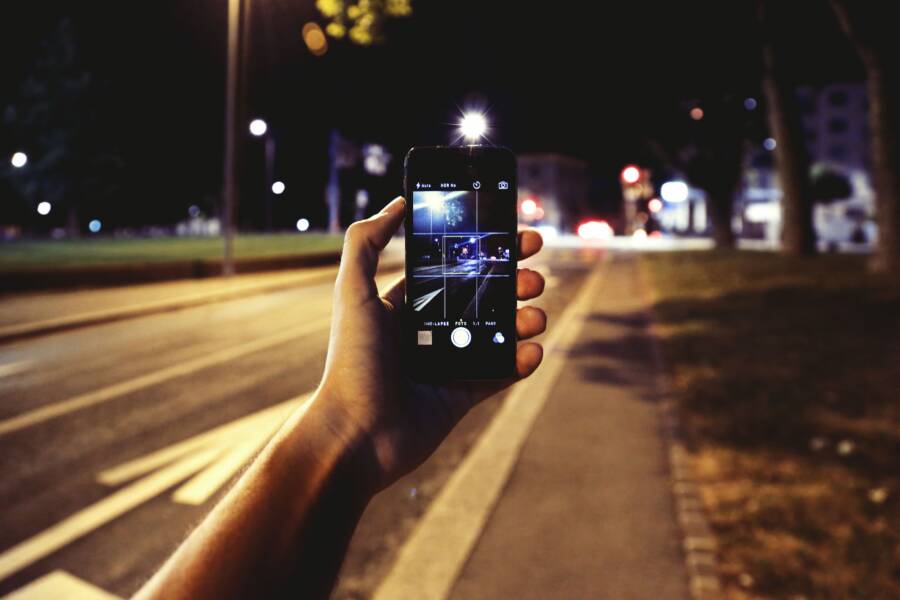
When your camera app quits the moment you snap a photo, it usually points to a software glitch or a lack of available memory on your smartphone. This problem is common and often stems from conflicting background processes, corrupted cache files, or simply running out of internal storage space.
Most users fix this by clearing the app cache or freeing up enough device storage to handle new image files. These quick adjustments solve the vast majority of camera stability issues without needing professional repair.
If you are currently struggling with a camera that closes unexpectedly, the following steps will help you identify the root cause and restore normal function to your device.
Check Your Phone Storage and Memory
Your smartphone relies on internal storage and volatile memory, known as RAM, to handle image processing tasks. When your storage is nearly full or your active memory is saturated, the camera app often crashes because it lacks the space or resources required to save a new file. These components act as the backbone for your device performance, and keeping them clear is the first step toward restoring a functional camera.
Clearing Out Space to Save New Images
When internal storage reaches capacity, the operating system struggles to write new data. High-resolution photos and 4K videos consume gigabytes of space rapidly, leaving little room for the temporary files created during the shutter process. If your storage indicator shows less than 1GB remaining, you must delete unnecessary files to allow the camera to function.
You can regain significant space by reviewing these areas on your smartphone:
Open your file manager or photo gallery to identify large video files that you no longer need.
Review your installed applications and remove unused games or tools that occupy substantial storage.
Empty your trash folder after deleting files, as many systems move items to a temporary bin instead of removing them permanently.
Move older photos and videos to cloud storage services or an external computer, which keeps your memories safe while clearing local space.
Check your device settings menu under the storage section to see a breakdown of what consumes your data. System logs, temporary cache files, and app data often accumulate over time. Clearing the cache for individual apps or performing a general system cleanup can frequently recover hundreds of megabytes without losing personal documents.
Closing Background Apps to Free Up RAM
Active memory allows your smartphone to run multiple programs simultaneously. However, if too many applications remain open, the system may run out of RAM, forcing the camera to close abruptly because it cannot claim the resources it needs to execute a photo capture. Background processes like social media feeds, streaming services, or complex games often consume the most power and memory.
You can manually manage these processes using your device task switcher. On most modern devices, swiping up from the bottom of the screen or tapping the square navigation icon displays all active applications. Swipe each unnecessary app off the screen to terminate its background activity.
If your camera continues to close, a simple restart of the smartphone clears all temporary RAM buffers and ends hidden background processes that you might not see in the task switcher. A fresh boot provides the camera app with a clean slate and full access to system resources. If the problem persists after clearing both storage and memory, the issue might stem from corrupt software configuration rather than physical space limits.
Troubleshooting Software Glitches and App Settings
When your camera app consistently shuts down after you press the shutter button, the issue often stems from corrupted temporary data or outdated system files. These software hiccups interfere with how your smartphone interacts with the camera sensor. Addressing these minor configuration errors usually restores full functionality without impacting your saved photos or personal data.
How to Clear Cache for Your Camera App
The camera app creates temporary files to load settings, filters, and interface elements quickly. Over time, these files become corrupted or conflicting, which triggers a forced closure when the app attempts to access them during a photo capture. Clearing this cache forces the smartphone to generate fresh, error-free versions of these files upon your next launch.
Follow these steps to clear the camera cache on most Android devices:
Open your device Settings menu.
Select the Apps or Application Manager option.
Locate the Camera app in the list of installed programs.
Tap on Storage or Storage and Cache.
Select Clear Cache.
Do not select Clear Storage or Clear Data unless you have already exhausted all other troubleshooting options. Choosing the Clear Data option resets the camera to its factory settings, which might erase custom preferences like grid lines, saved location tags, or specific aspect ratio settings. Once you clear the cache, restart the camera app to verify if the instability is resolved.
Updating Your Operating System for Stability
Smartphone manufacturers release frequent firmware updates to patch bugs that affect core hardware components like the camera sensor. These updates bridge the gap between your physical camera hardware and the software interface. An outdated operating system often struggles to process complex image data, especially after a recent security patch or app update, leading to the app crashes you experience.
Running the latest software version ensures that your camera drivers are compatible with current system demands. If your phone is behind on updates, the camera app might trigger a security shutdown to protect the internal memory from potential conflicts.
Check for available updates by visiting your device Settings, navigating to System or Software Update, and tapping Check for Updates. Installing these patches provides the necessary stability for the camera to execute high-resolution captures without interruption. Keeping your firmware current also improves overall system performance, which helps your smartphone manage background tasks more efficiently during heavy camera usage.
Advanced Fixes for Persistent Camera Issues
If you have tried clearing your cache and managing device storage but your smartphone camera still closes after you take a photo, you are likely dealing with a deeper software conflict. These persistent issues often arise when a third-party application interferes with the camera drivers or system permissions. Testing your device in a restricted software environment is a reliable way to isolate whether a specific app is the culprit behind your camera crashes.
Identifying Faulty Third Party Apps in Safe Mode
Safe mode is a diagnostic tool that loads your operating system without any third-party applications running in the background. If your camera app works perfectly while in safe mode, you know that a recently installed app is causing the instability. This environment disables all user-installed software, allowing the camera to interact directly with the core system hardware.
Follow these steps to boot your smartphone into safe mode:
Press and hold your device power button until the power menu appears on your screen.
Tap and hold the Power Off or Restart option on the screen until a prompt appears asking if you want to reboot to safe mode.
Confirm your choice and wait for the phone to restart; you will see a safe mode indicator in the corner of the display once it finishes.
Open your camera app and attempt to capture several photos.
If the camera functions normally while in safe mode, you should focus on removing applications you installed around the time the crashing started. Common offenders include social media apps that use heavy image filters, third-party photo editors, or utility apps that request access to your camera permissions. Start by uninstalling these tools one by one, then restart your phone normally to check if the issue is resolved.
Should the camera continue to close even in safe mode, the problem likely exists within the system firmware or a hardware-level sensor fault. In such cases, you might need to perform a factory reset to restore your device to its original configuration. Always back up your photos, contacts, and important documents to cloud storage before you reset your phone, as this process erases all personal data from the internal memory. If a full reset does not fix the camera, contact the device manufacturer for further support, as the camera module itself may require a physical repair.
When to Consider Professional Repair or Hardware Issues
Sometimes, the persistent closure of your camera app indicates a physical failure rather than a software error. If you have exhausted all troubleshooting steps, including factory resets, the issue likely resides within the smartphone components themselves. Hardware failures often involve the camera module, the image signal processor, or loose internal connections that prevent the device from successfully completing a capture.
Recognizing Hardware Failure Symptoms
Physical damage usually presents differently than software bugs. You might notice the camera app closing even after you have completely wiped the phone storage. Other physical indicators include a camera lens that fails to focus, a persistent blur, or visible debris inside the lens assembly. If your smartphone has recently suffered a drop, liquid exposure, or significant pressure, these events often trigger immediate hardware malfunctions.
Pay attention to these specific signs that point toward a hardware problem:
The camera app crashes immediately upon opening, even in safe mode.
The screen displays a black image or a solid color instead of a viewfinder feed.
You hear a faint clicking or buzzing sound coming from the lens area when launching the camera.
The phone feels unusually hot near the camera housing during normal operation.
Hardware issues are not limited to external damage. Over time, the camera sensor can degrade or lose its connection to the motherboard due to heat stress or minor vibrations. If the software environment is clean but the physical component remains unresponsive, the hardware is the most probable culprit.
Options for Professional Assessment
If you confirm that your smartphone has a hardware fault, you should avoid attempting internal repairs unless you possess specialized tools and training. Opening a modern device frequently requires heat guns, suction cups, and delicate knowledge of ribbon cables. Most manufacturers design these devices to be sealed, making unauthorized access risky for your warranty and overall device integrity.
Reach out to the manufacturer or an authorized service provider to request a diagnostic test. These centers use proprietary software to communicate directly with the camera module, which helps them confirm if the hardware is drawing power incorrectly. Depending on your warranty status, a professional repair might involve replacing the entire camera module or the logic board. While this requires a waiting period, it is the safest path to restoring your device to factory standards without causing further damage to other internal systems.
Conclusion
Most camera crashes on your smartphone originate from simple software conflicts or insufficient storage space. You can often restore normal operation by clearing the app cache, removing unnecessary files, or closing background tasks that consume your system memory.
If these initial steps fail to stabilize the app, back up your personal data before attempting a factory reset. This process removes deep-seated software errors that simple cleanup tasks cannot reach. If the camera still closes unexpectedly after a reset, the issue likely stems from a hardware fault. In such cases, contact the manufacturer or a certified service provider to inspect the internal components for physical damage.