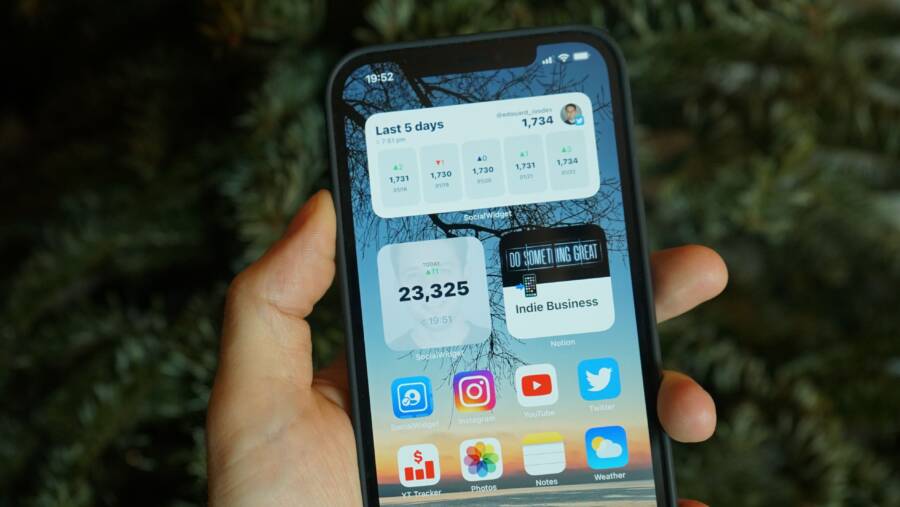
A login loop in the App Store is a common software glitch that prevents you from accessing your apps. It occurs when your smartphone fails to verify your account credentials properly during the authentication process.
You can typically resolve this error by clearing the store cache, checking your network connection, or signing out and back into your account. These quick adjustments often restore functionality without requiring a factory reset.
The following guide outlines the most effective methods to stop these repetitive login prompts so you can get back to managing your apps.
Why Your Smartphone Gets Stuck in an App Store Login Loop
A login loop happens when the software on your smartphone struggles to sync your credentials with the store servers. Instead of granting access, the system repeatedly asks for your password or displays a generic error message, keeping you locked out of your account. This issue often stems from a conflict between your stored local data and the actual server authentication, which creates a cycle the phone cannot break on its own.
Outdated System Software and Cache Conflicts
The most frequent cause involves temporary data files becoming corrupted or outdated. Your smartphone keeps a cache of your login session to speed up the process, but if this data gets garbled, the server will reject your credentials regardless of whether you type the correct password. When your device cannot verify this session, it triggers the authentication prompt again, resulting in the endless loop.
Running an outdated operating system version also contributes to this problem. Manufacturers frequently update the protocols that communicate with the App Store. If your software version is too old, it may use an obsolete handshake method that the servers no longer accept or recognize, forcing the login request to fail and restart.
Network and Authentication Server Issues
Your internet connection plays a larger role in this cycle than many users assume. If your connection is unstable or uses a restrictive firewall, the request to verify your password might time out before the server sends a confirmation back to your smartphone. When the device detects this interrupted handshake, it prompts you to log in once more, unaware that the network is the actual culprit.
In rare cases, the issue sits with the service provider itself. If the App Store servers experience high traffic or maintenance, they may return faulty responses to your device. You can verify this by checking the official system status page for your smartphone manufacturer. If the server is down, no amount of password re-entry will clear the loop, and waiting for the service to recover is the only real solution.
Account Sync and Security Settings
Sometimes, your account security settings create a barrier that prevents the App Store from completing its task. For instance, if you enabled two-factor authentication, the system expects a secondary verification code that your device might not properly prompt for during the loop. If the smartphone fails to initiate this secondary request, the login process stalls and resets to the initial screen.
Additionally, background account synchronization errors can trap you in this state. If your smartphone has pending terms and conditions or a billing issue associated with your payment method, the store will constantly redirect you to the login screen to resolve these agreements. Checking your account settings on a desktop computer or a secondary device often reveals if a hidden alert is responsible for the persistent login prompts.
Quick Fixes for App Store Sign In Errors
When your smartphone refuses to authenticate, the frustration is immediate. You cannot update your apps or download new content while the login prompt cycles. Most of these errors are minor software hiccups rather than permanent account issues. You can often restore access by performing a few basic maintenance tasks.
Force Quitting and Restarting Your Device
The App Store application runs as a persistent background process on your smartphone. When this process encounters a glitch, it keeps your session in an error state even if you enter the correct password. Forcing the application to stop clears this corrupted state entirely.
To resolve this, follow these steps:
Open your app switcher by swiping up from the bottom of your screen or double-tapping the home button.
Locate the App Store preview window in the list of active applications.
Swipe the window upward or off the screen to force it to close.
Perform a soft restart on your smartphone by powering it off completely and turning it back on after thirty seconds.
This process clears the temporary memory used by the App Store. By dumping the cached session data, the device forces the store to open a clean connection upon reboot. If the loop persists after the restart, you know the issue lies elsewhere in your settings or network configuration.
Verifying Your Internet Connection Stability
The communication between your smartphone and the store servers requires a consistent data handshake. If your Wi-Fi or cellular signal fluctuates, the handshake often fails before the server verifies your credentials. The device perceives this as an incomplete login attempt and requests your password again, which causes the loop to repeat.
You can determine if your connection is the source of the problem by checking these areas:
Toggle your Wi-Fi off and use cellular data, or vice versa, to rule out a localized internet failure.
Ensure you are not connected to a public hotspot or a restricted corporate network that blocks authentication traffic.
Check your signal strength icon to confirm you have enough bars for a reliable data transmission.
Disable any active VPN services, as these frequently mask your location and trigger security flags from the App Store.
Weak signals and high latency can create a silent disconnection during the verification process. When your smartphone loses contact with the authentication server, it stalls the request. Providing a stable and direct connection usually allows the server to process your credentials successfully on the first try.
Advanced Troubleshooting Steps When Simple Fixes Fail
If restarting your smartphone and checking your network connection did not stop the login loop, the issue likely resides within your account’s authentication cache or local device settings. These deep-seated errors often require you to force the operating system to re-verify your identity from the ground up. By resetting your session tokens or correcting fundamental system settings, you can clear persistent conflicts that basic reboots cannot reach.
Signing Out and Back Into Your Account
The most effective way to clear a stuck session is to sign out of your account entirely. When you simply close an app, your device keeps your authentication token in its temporary memory to allow for a quick return. If that token becomes corrupted or out of sync with the App Store servers, the app will continue to trigger a login prompt because it cannot validate the broken key.
To perform a complete refresh:
Open the Settings app on your smartphone and navigate to the section labeled for your account or user profile.
Select the option to sign out of your account.
If the phone asks if you want to keep copies of local data, choose to remove them or sign out completely to ensure a clean slate.
Restart your device to clear any remaining cache files from the temporary memory.
Return to the Settings menu and sign back into your account with your credentials.
This sequence forces your device to request a brand-new authentication token from the server. Once the new token arrives, the App Store will recognize your session as valid, which usually breaks the loop and allows you to access your apps again.
Updating Your Device Software and Date Settings
Your smartphone relies on precise time data to maintain secure connections with the App Store. Every time you log in, your device sends a digital handshake, and the server checks this against your current date and time settings to ensure the request is valid. If your phone clock is off by even a few minutes, the server will reject your credentials to prevent potential security breaches. This mismatch creates an SSL certificate error, which manifests as a persistent, unresolvable login loop.
You should verify your settings by following these points:
Ensure that your phone is set to update the time and date automatically based on your network or GPS location.
If your device shows the wrong time, toggle the automatic setting off and back on to force a re-sync with the network.
Check your operating system for any pending updates. Manufacturers frequently release patches that update the security certificates your phone uses to talk to the App Store.
An outdated operating system can cause similar conflicts. Modern security standards evolve, and if your smartphone runs older software, it might lack the updated protocols required to finalize a login. Keeping your device software current ensures that your authentication requests use the latest, most compatible handshake methods recognized by the store.
When to Contact Support and How to Avoid Future Loops
You should contact official support when standard troubleshooting fails to resolve the login issue. If you have already cleared your cache, updated your system, and verified your internet stability without success, the problem likely stems from your account profile or server-side restrictions that only a representative can reset. Reaching out early saves you time if the issue involves a locked account or a specific billing flag that prevents your smartphone from authenticating correctly.
Knowing When to Escalate the Issue
Not every login error requires human intervention, but certain signs indicate your account needs a manual review. If your credentials work perfectly on a browser but fail repeatedly on your smartphone, your device might have a persistent security flag. You should gather your device serial number and your account ID before contacting support, as these details help them identify your specific connection logs quickly.
Consider contacting support if you notice these conditions:
Your password works on other devices, yet the error persists specifically on your phone.
You receive error messages indicating your account is locked for security reasons.
A specific subscription or billing update continuously redirects you to an unhelpful payment confirmation page.
None of the common self-service fixes produce any change in behavior after 48 hours.
Support agents can view the authentication history associated with your unique device identifier. They often clear stuck sessions from the backend that a standard user interface cannot access. If they confirm that your account status is active, you can then focus your efforts back on device-specific hardware or software repairs.
Proactive Steps to Prevent Future Loops
Maintaining a healthy connection between your apps and your account prevents most software conflicts. The most important habit is keeping your operating system and applications updated, as these updates contain the latest security handshake protocols. When your software is current, your device communicates with store servers using the most reliable methods available.
You can reduce the likelihood of encountering this cycle again by following these practices:
Enable automatic updates for both your operating system and your apps to ensure security certificates remain current.
Review your payment methods periodically to confirm that cards are not expired, as billing errors often trigger account locks.
Manage your storage space because a completely full drive prevents the system from writing temporary session files, which often leads to crashes or login stalls.
Keep your date and time settings set to automatic to ensure your digital handshake with the server always matches the expected timestamps.
Regularly restarting your smartphone once every few days also clears minor background processes before they become problematic. This practice keeps your temporary files from building up into a corrupted cache. If you follow these maintenance steps, your device stays in sync with store servers, allowing for a consistent and reliable user experience.
Conclusion
Most app store login loops are minor software glitches rather than permanent account failures. You can usually clear the cycle by force quitting the app, restarting your smartphone, or refreshing your session tokens through a simple sign-out and sign-in process.
These manual adjustments resolve the vast majority of authentication conflicts. Trust your ability to manage these settings, as staying on top of software updates and date synchronization prevents these recurring errors.
Do you have other questions about managing your apps or fixing specific software errors on your device?