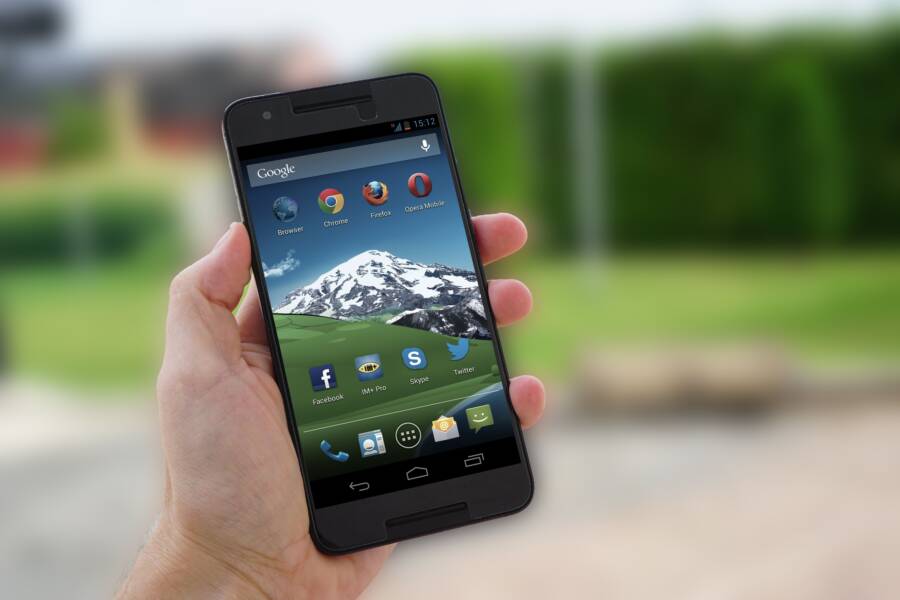
Why is your browser taking forever to load pages? When a smartphone struggles to open websites, the culprit is usually too much stored cache, outdated software, or too many open tabs dragging down system resources. You don’t need to replace your device or panic when pages crawl. You just need to clear out the digital clutter slowing your smartphone down.
Why Your Mobile Browser Suddenly Crawls
The Hidden Burden of Open Tabs and Background Processes
Leaving dozens of browser tabs open drains your smartphone memory and ruins page rendering speeds. Many mobile users keep fifty or more tabs active without realizing that modern smartphone browsers actively maintain state for those pages in the background. Because mobile RAM is far more limited than desktop memory, your smartphone constantly swaps active data to storage to keep those idle tabs alive. When you finally switch back or try to load a new page, the processor strains to reallocate resources. As a result, scrolling stutters and simple websites take extra seconds to render.
Closing unused tabs restores immediate performance by freeing up precious RAM for your current task. Most mobile browsers now include automated features to close tabs older than a week, or you can simply swipe them away manually. If your smartphone continues to lag, check for heavy background applications running alongside your browser. Streaming apps and social media platforms consume processing power that your browser needs to load graphics and scripts quickly.
How Temporary Data and Cache Bloat Slow Down Load Times
Your mobile browser builds a local cache of images, scripts, and styling files from every website you visit. This temporary data is designed to speed up future visits because the smartphone loads local files instead of downloading them again from the web. Over several months, this cache expands into a massive collection of outdated files. The browser must search through thousands of fragmented pieces of data every time you type a URL, which creates a noticeable bottleneck.
Clearing this accumulated cache eliminates corrupted files and forces the smartphone to fetch fresh, optimized content. You can clear this data through your browser settings menu by selecting privacy or storage options.
Open your browser settings and navigate to the privacy or history section.
Select the option to clear browsing data or cached images and files.
Choose a time range like all time to remove deep-seated bloat.
Restart your smartphone after clearing the data to let the system stabilize.
Regular maintenance prevents temporary files from choking your browser storage. Most modern mobile operating systems manage temporary storage decently, but manual intervention remains necessary after heavy web usage.
How to Fix a Phone That Cannot Keep the Browser from Loading Too Slowly
Fixing a slow smartphone browser requires targeted maintenance rather than a complete device reset. When websites crawl or time out completely, your mobile hardware is usually fighting against stored data bloat, rogue scripts, or outdated system code. You can restore fast browsing speeds by tackling these specific software bottlenecks one at a time.
Clearing Browser Cache, Cookies, and Site Data Safely
Your smartphone browser collects small files from every web page you visit to speed up future loading times. Over months of daily use, this stored data turns into a massive digital backlog that slows down search queries and page rendering. Clearing this clutter restores speed, but you must do it carefully to avoid deleting your saved bookmarks and autofill passwords.
Open your browser app and tap the menu icon (usually three dots or lines).
Go to settings, and then select privacy or browsing data.
Check the boxes for cached images, files, and cookies.
Leave bookmarks, site permissions, and saved passwords unchecked.
Choose the all-time time range and tap clear data.
Restarting your smartphone after clearing this data lets the system rebuild a clean index. Your favorite sites remain saved in your bookmarks folder while the underlying storage errors disappear.
Managing Extensions, Plugins, and Ad Blockers
Browser extensions and content blockers protect your privacy, but faulty plugins can trap scripts and cause infinite loading loops on your smartphone. When an ad blocker fails to communicate properly with a web page, the browser waits endlessly for missing elements to load. This conflict freezes the rendering engine and makes simple web pages time out.
To test whether plugins cause your slowdowns, open a private or incognito window. Private browsing automatically disables most third-party extensions by default. If websites load instantly in private mode, open your extension manager and turn off ad blockers or custom scripts one by one. Removing heavy plugins that you do not actually use permanently frees up processing power for your mobile hardware.
Updating Your Operating System and Browser App
Running outdated software creates performance gaps because older code often lacks fixes for known memory leaks. Software updates patch these bugs and optimize how your smartphone allocates processor power to heavy web applications.
Check for pending browser updates through your device app store immediately. After updating the browser app, open your phone system settings to check for an operating system update. Manufacturers frequently release patches that directly improve network handling and JavaScript execution speeds. Keeping your device software current ensures that your browser runs on stable, efficient code designed for modern web standards.
Comparing Popular Mobile Browsers for Speed and Performance
Choosing the right mobile browser changes how quickly your smartphone loads websites. Different apps handle memory allocation and JavaScript rendering in distinct ways, which directly impacts page load times. Safari and Chrome dominate market share, but alternative options often deliver superior speed on limited hardware. Evaluating browser performance helps you identify which app runs best on your specific smartphone.
Lightweight Alternative Browsers for Older Devices
Budget smartphones and older hardware often struggle to run resource-heavy applications like standard Chrome or Safari. Several lightweight browser apps are designed specifically to perform well on modest hardware by stripping away unnecessary background processes. These alternative browsers consume less RAM and require fewer processor cycles to render web pages.
Via Browser uses minimal storage space and blocks intrusive scripts by default to accelerate page loading on older phones.
Opera Mini compresses web pages on external servers before sending them to your smartphone, which dramatically reduces data usage and load times on slow connections.
Kiwi Browser offers fast Chromium-based performance while allowing users to install desktop extensions without heavy resource penalties.
Lightning Browser features an open-source design focused on speed, privacy, and low memory consumption for budget devices.
Switching to a lightweight browser relieves strain on your smartphone processor and eliminates frustrating lag during daily web browsing. Testing one of these streamlined apps often revives an older device that feels too slow for modern web standards.
Frequently Asked Questions About Mobile Browser Lag
When a smartphone slows down during web browsing, the same questions pop up repeatedly. You might wonder if private tabs speed things up or if a total phone wipe is necessary. Let’s clear up the confusion surrounding mobile performance issues.
Does Incognito Mode Improve Browsing Speed
Many people assume that private browsing makes web pages load faster because the window is clean. In reality, Incognito mode does not boost raw loading speeds or bypass a sluggish network connection. Your smartphone processor still has to fetch data, parse JavaScript, and render graphics at the exact same speed as a standard window.
The main advantage of private mode is that it stops the browser from saving history, cookies, and site data to your storage. This prevents long-term cache bloat, but it doesn’t give your hardware extra processing power. If your smartphone struggles to load a heavy webpage in a normal tab, it will struggle in a private tab too.
When Should You Factory Reset Your Phone
A factory reset is a drastic step, and you should only use it when browser lag points to a deeper operating system failure. If clearing your cache, updating your software, and closing background apps fail to fix the sluggishness, your system files might be corrupted.
Look for these warning signs that indicate your smartphone needs a fresh start:
Apps crash constantly across the entire device, not just inside your browser.
Freezing happens on the home screen and during basic system navigation.
Storage capacity shows as full even after you delete most of your photos and large files.
Back up your essential photos, contacts, and passwords before you wipe the device. A clean operating system installation restores factory performance, letting your browser run smoothly again.
Conclusion
Fixing a slow mobile browser relies on routine maintenance rather than drastic hardware changes. Clearing outdated cache files and managing background tabs will restore speed to your smartphone immediately.
Keep your applications updated regularly so your device continues to run efficiently. Try clearing your browser cache today to see how fast your favorite websites load.