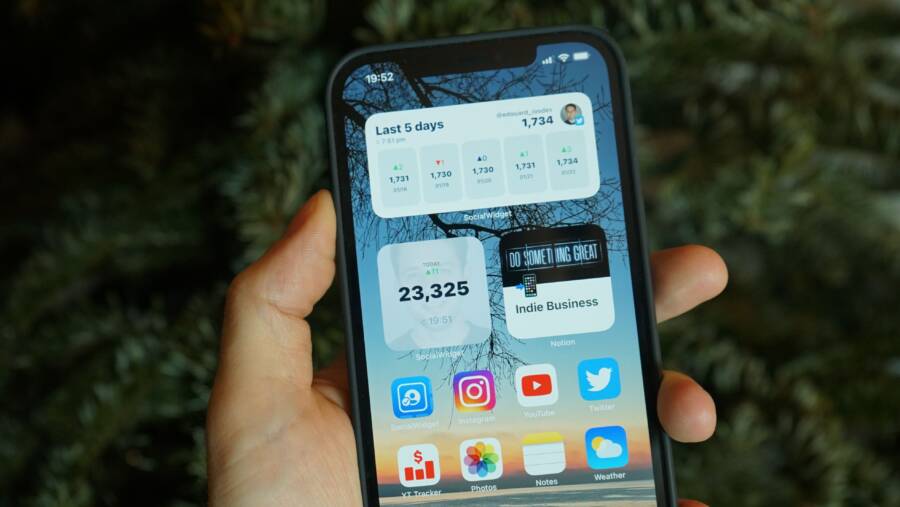
A phone that loses its app list after a restore usually has an incomplete cloud restore, a different account, disabled app-sync settings, limited storage, or a launcher and system issue. The apps may not be permanently lost, because your smartphone might still be reinstalling them, or it may have restored the data without the home-screen layout.
First, confirm that you’re using the correct Apple ID on an iPhone or Google account on an Android phone. Then connect the phone to reliable Wi-Fi and power, check available storage, and give the restore time to finish. If the app list still disappears, the platform-specific steps below can help identify whether the problem is account-related, caused by a launcher, or linked to system settings.
How to Fix a Phone That Cannot Keep the App List From Disappearing After Restore
An app list that vanishes after a restore is often caused by an incomplete download, the wrong backup account, or a home screen that has not refreshed. First, confirm that the phone is restoring from the correct account and that the apps are actually installed. Then fix stalled downloads or refresh the launcher before considering a reset.
Confirm the backup account, restore source, and app installation status
A restore can only recover content linked to the account used for the original backup. On Android, open Settings, tap Google, and check the signed-in Google account. Depending on your phone, open Settings > Google > Backup or the Google One app to review the backup details. Check the backup date, the device name, and the types of data included, such as apps, contacts, SMS messages, and device settings.
Google Play may reinstall apps gradually rather than all at once. Open the Google Play Store, tap your profile picture, and select Manage apps & device. Review both installed apps and pending updates or downloads. If an app appears in your library but isn’t installed, the restore process may still be working.
Some apps won’t return automatically. This includes apps removed from Google Play, sideloaded APKs, work-profile apps, and apps that don’t support cloud backup. Certain app data also depends on the app developer’s backup system, so you may need to sign in again.
On an iPhone, open Settings, tap your name, and confirm the correct Apple Account. Then select iCloud > iCloud Backup to check whether an appropriate backup exists and when it was created. Open the App Store, tap your profile picture, and select Apps or Purchased to view apps linked to that account. Check for downloads marked pending, paused, or failed.
A backup restores app records and supported data, but it doesn’t guarantee every app will return or preserve every login session. The restore source, app availability, account, and developer support all affect the result.
Refresh the home screen when apps exist but the app list is blank
Before assuming the apps are gone, search for one by name. On Android, swipe up from the bottom of the home screen to open the app drawer, then use its search field. If an app appears there, the restore worked and the problem is limited to the home-screen layout or launcher.
Check whether apps are hidden or disabled. Many Android phones include an option under Home screen settings or Launcher settings called Hide apps. You can also open Settings > Apps, select the missing app, and tap Enable if Android disabled it. A recently installed launcher may also have replaced the manufacturer’s default launcher, which changes how the app list appears.
To restore the normal interface, open Settings > Apps > Default apps > Home app and select the phone’s original launcher. Menu names vary by manufacturer. If the launcher looks frozen, open Settings > Apps, select the launcher, choose Force stop, and reopen the home screen. You can also select Storage & cache > Clear cache. Clear only the launcher cache, not its storage or app data, because those options can remove custom layouts and settings.
On an iPhone, swipe left past the final Home Screen page to open the App Library, then search for the app. An app may still be installed even if you removed it from the Home Screen. Touch and hold an empty area on the Home Screen, tap the page dots, and enable any hidden pages. You can also choose Settings > Home Screen & App Library and set new downloads to Add to Home Screen.
If the iPhone layout remains incomplete, touch and hold an empty Home Screen area, tap Edit, then Customize or add pages as needed. The Reset Home Screen Layout option under Settings > General > Transfer or Reset iPhone > Reset rebuilds the layout without deleting personal files, though it rearranges folders and icons.
If the app appears in the app drawer or App Library, don’t reinstall it or reset the phone. The app is present, but the shortcut or launcher view needs attention.
Restarting the phone can reload both the launcher and the restored app database. Avoid clearing app data or performing a factory reset at this stage unless you have verified that the backup contains the files you need.
Fix stalled downloads, storage limits, and system updates
A restore may pause when the smartphone loses Wi-Fi, the battery is low, or internal storage is nearly full. Background data restrictions, parental controls, an outdated operating system, or a temporary Google Play and App Store error can also stop app installation.
Connect the phone to a stable Wi-Fi network and place it on a charger. Wi-Fi is usually better than mobile data for a large app library, and a restore may take several hours when many apps are involved. Then open the Play Store or App Store and look for downloads marked pending, paused, or failed. Pause the queue, wait briefly, and resume it. If an individual app shows an error, cancel that download and start it again from the store.
Check storage before deleting anything. On Android, open Settings > Storage. On iPhone, open Settings > General > iPhone Storage. Remove large videos, duplicate files, and old downloads that you no longer need. Review each item first, and avoid deleting backup files, photos, or documents that haven’t been copied elsewhere.
Also check whether restrictions are blocking downloads. Turn off data-saving limits for the app store, review parental-control settings, and confirm that automatic date and time settings are enabled. On Android, update the operating system, Google Play services, and the Google Play Store when updates are available. Play Store updates may install through Settings > About > Play Store version. On iPhone, open Settings > General > Software Update, then install the available iOS update.
After updating, restart the phone and reopen the app store. If the restore queue remains stuck, sign out of the store only when you know the correct account password, then sign back in and restart the downloads. Keep the phone connected to Wi-Fi and power while the remaining apps return.
Restore App Icons and App Data on Android and iPhone
Restoring an app list involves two separate tasks: reinstalling the apps and rebuilding the icons, folders, widgets, and saved data. A backup may recover the app records without recreating the original home-screen layout, so check the app drawer or App Library before assuming anything was lost.
Use Google Backup and the Android launcher to rebuild the app list
Start by confirming which Google account and backup your Android phone is using. Open Settings > Google > Backup, although the wording and location can vary on Samsung, Pixel, Motorola, and other devices. You may see options under Settings > System > Backup, Settings > Accounts and backup, or the Google One app instead.
Review the backup date, device name, and included data. Look for app data, device settings, contacts, and SMS messages. If the backup is too old or belongs to another Google account, the missing apps may not be part of the restore source.
During initial Android setup, select the option to restore from the available Google backup. Choose the correct device backup, then allow Google Play to reinstall the apps. Keep the phone connected to Wi-Fi and power while the process runs. A large app library can take time to return, and some apps may appear gradually rather than all at once.
If setup has finished, open the Google Play Store, tap your profile picture, and choose Manage apps & device. Review the installed apps and any pending downloads. You can also check the account’s app library and reinstall missing apps manually when they still appear as previously downloaded.
Next, open the app drawer by swiping up on the home screen. Search for an app by name, then check the launcher’s hidden-app settings if it doesn’t appear. On many Android phones, you can find this under Home screen settings, Launcher settings, or a similar menu. Also open Settings > Apps and look for disabled apps. Select a missing app and tap Enable when that option is available.
Samsung phones may also have a separate restore source through Samsung Smart Switch. Smart Switch can restore content from a Galaxy phone, computer, or compatible storage device, but its backup contents may differ from a Google backup.
Before starting another restore, confirm whether the backup contains apps, app data, media, messages, and device settings. Mixing partial restores from Google Backup and Smart Switch can create duplicate or missing content if you don’t know what each source includes.
Even after all apps return, the launcher may not reproduce the previous arrangement. Folders, widgets, icon positions, and some home-screen preferences may need to be rebuilt manually. The app data may also depend on the app’s own cloud account, so open important apps and sign in again if required.
Use iCloud, App Library, and App Store history to recover iPhone apps
On an iPhone, open Settings, tap your name, and confirm that you’re signed in to the correct Apple Account. Then select iCloud > iCloud Backup and check the backup date and device associated with it. If you plan to restore an older backup, create a current backup first. Restoring an older copy can replace newer photos, messages, settings, and app data already on the phone.
The App Library can show whether an app is installed but missing from the Home Screen. Swipe left past the last Home Screen page, then search by app name or browse the categories. Touch and hold an app to add it back to the Home Screen.
Also check the App Store history. Open the App Store, tap your profile picture, and select Apps or Purchased, depending on the iOS version. Choose My Apps or search the account’s previous downloads, then tap the download icon beside a missing app. The app must still be available in the App Store, and you need the Apple Account originally used to obtain it.
An app can be present but hidden for several reasons. iOS may have offloaded it to save storage, placed it on a hidden Home Screen page, or restricted it through Screen Time. Check Settings > General > iPhone Storage for offloaded apps, then tap an app to reinstall it. Review Settings > Screen Time > Content & Privacy Restrictions if an app doesn’t appear in search or purchase history.
Finally, open Settings > [your name] > iCloud and confirm iCloud sync for apps that store data there. Reinstalling an app restores the application, but its documents and settings return only when the app supports iCloud or its own account-based backup. Home Screen pages, folders, and widgets may also require manual setup after the restore.
When the App List Keeps Disappearing After a Successful Restore
If the apps appear in Google Play, the App Store, the app drawer, or App Library, the restore probably succeeded. The remaining problem is usually a hidden profile, restriction, disabled app, or damaged launcher database. Check those causes before repeating a full restore, which can replace newer data with an older backup.
Check for corrupted launcher data, profiles, and user restrictions
Android can show a different app list when the phone opens a work profile, guest session, restricted user, or another user account. Open Settings > System > Multiple users, or search Settings for “users,” and switch back to the owner profile. On Samsung phones, check Settings > Accounts and backup > Users when that menu is available.
A work profile can also separate employer-managed apps from personal apps. Look for a briefcase symbol on app icons, a Work tab in the app drawer, or a work-profile switch under Settings > Passwords and accounts. Your organization may hide or block apps through a managed device policy. A child account can apply similar limits through Google Family Link.
Next, check the launcher settings for hidden apps. Depending on the manufacturer, open Home screen settings, Launcher settings, or App drawer settings, then review the hidden-app list. Also open Settings > Apps, select a missing app, and tap Enable if Android has disabled it. Guest mode and restricted users can make installed apps look absent even when the owner profile still contains them.
If the app drawer is empty, freezes, or changes after every restart, the launcher database may be corrupted. First use Settings > Apps > [your launcher] > Storage & cache > Clear cache. If that fails, save important layout details, including folder names, icon positions, widgets, and wallpaper settings. Clearing launcher storage or app data can rebuild the app list, but it may remove that arrangement.
On iPhone, review Settings > Screen Time > Content & Privacy Restrictions. App age limits, allowed-app settings, and purchase restrictions can prevent apps from appearing or downloading. Also check the App Library, hidden Home Screen pages, and the Hidden folder in App Library when your iOS version supports app hiding.
An app missing from the Home Screen is a layout problem. An app missing from the App Store history, backup account, and device storage points to an account or restore problem.
Know when another restore, a computer backup, or repair is needed
Use this decision path before erasing the smartphone again:
If the backup is recent and the app list is only incomplete, keep the phone on Wi-Fi and power. Finish pending downloads, then reinstall remaining apps manually through Google Play or the App Store.
If the backup is missing, damaged, or linked to another Google Account or Apple Account, recovery is limited. Check an older Google One, iCloud, Finder, or iTunes backup, and verify its date before restoring.
If apps disappear after a clean setup, suspect a wider fault. Storage failure, operating-system corruption, or device management may be affecting installation and app visibility. Contact the phone manufacturer or an authorized repair center.
Before any erase and restore, create a current backup of your photos, contacts, messages, and documents. Export or transfer authenticator codes and confirm access to recovery methods, because many authentication apps don’t restore their accounts automatically. A second restore cannot recover information that the original backup never contained.
Prevent Missing Apps the Next Time You Reset or Replace Your Phone
A short pre-restore check can prevent most app-list recovery problems. Before you erase or replace a smartphone, confirm that the backup is current, tied to the correct account, and supported by enough power, storage, and network access.
Create a simple pre-restore checklist for your smartphone
Complete these checks before starting a factory reset or device transfer:
Confirm that you know the correct Google Account for Android or Apple Account for iPhone. An app list linked to another account won’t appear during restoration.
Check the backup date and device name. Make sure the backup includes apps, contacts, photos, messages, and other data you need.
Charge the phone and keep it connected to power during the backup and restore process.
Use trusted, stable Wi-Fi. Large app libraries may not download reliably over a weak connection or restricted mobile network.
Check available storage under Settings > Storage on Android or Settings > General > iPhone Storage on iPhone. Free space before the reset if necessary.
Install available operating system updates before backing up. An outdated system can interrupt app downloads or create compatibility problems.
Export two-factor authentication data or transfer authenticator accounts. Many authentication apps require a separate transfer process.
Verify that photos and contacts have finished syncing to Google Photos, iCloud, Google Contacts, or another service you use.
Write down apps that require manual sign-in, including banking, work, password manager, and messaging apps.
These checks address the most common causes of a missing app list: the wrong account, an old backup, interrupted downloads, insufficient storage, and lost sign-in access. After completing them, create a fresh backup and wait for it to finish before resetting the phone.
Answers to Common Questions About Apps Disappearing After a Phone Restore
Apps that disappear after a restore are usually missing from the Home Screen, still waiting to download, or linked to a different account. Use the answers below to identify what happened before you erase the smartphone again.
Are my apps permanently deleted after a restore?
Usually, no. Check the Android app drawer or the iPhone App Library first. If an app appears there, it’s installed and only its Home Screen shortcut is missing.
If the app doesn’t appear on the phone, search for it in Google Play or the App Store. An app listed in your previous downloads can usually be installed again with the original Google Account or Apple Account. However, an app may not return if the developer removed it, the app no longer supports your device, or you installed it from outside the official store.
How long should app restoration take?
There is no fixed time. A small app library may return within minutes, while a large restore can take much longer on a slow Wi-Fi connection. The phone may also install apps in stages after the initial setup finishes.
Keep the phone connected to reliable Wi-Fi and power. Check Google Play’s pending downloads or the App Store’s paused downloads. If the queue doesn’t move for an extended period, restart the phone, confirm available storage, and resume the affected downloads.
Why did my apps return without their data or logins?
App installation and app-data recovery are separate processes. A backup may restore the app itself while leaving account credentials, local files, or settings behind.
Some apps store information in Google Drive, iCloud, or their own online account. Others keep data only on the old phone. Open the app and sign in with the same account you used before. For banking apps, password managers, and authenticator apps, follow each service’s transfer or recovery process.
Why are purchased apps missing from the restore?
Purchases are tied to the account that downloaded the app. On Android, check the Google Account used in Google Play. On iPhone, check the Apple Account shown under your name in Settings and in the App Store.
A family member’s account, a work account, or a newly created account won’t show the same purchase history. The app must also remain available in the relevant store and support the restored smartphone’s operating system.
Should I factory reset the phone and restore it again?
Repeat the restore only when you have verified that the backup contains the missing apps and data. A second restore won’t recover content that the original backup never saved, and it can overwrite newer information already on the phone.
Before erasing the device, create a current backup, confirm the backup date, record important account details, and transfer authentication codes. If apps still disappear after a clean setup and manual installation, contact the phone manufacturer or an authorized repair provider.
Conclusion
A phone that loses its app list after a restore usually needs account, download, or launcher troubleshooting rather than an immediate factory reset. Verify the Google Account or Apple Account and backup first, then check the Android app drawer or iPhone App Library to see whether the apps are installed but hidden.
Next, let pending downloads finish while the smartphone stays on reliable Wi-Fi and power. Free storage, refresh the launcher or Home Screen, and remember that a restored app list doesn’t guarantee restored app data, so some apps may need manual installation and sign-in again.
Only consider another restore or professional help after these checks fail. Never erase the phone again until you have a current, verified backup.