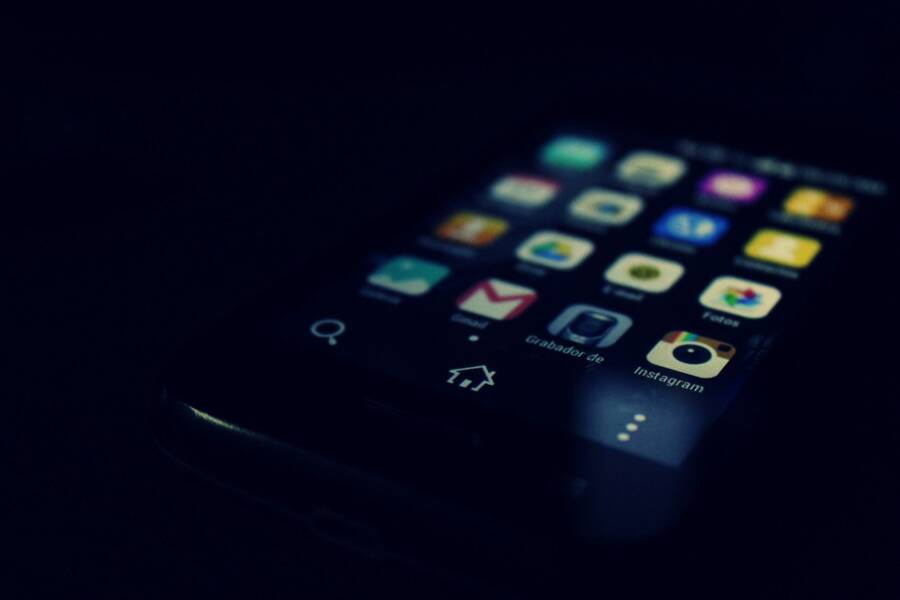
A blurry phone home screen is usually caused by a low-resolution or blurred wallpaper, incorrect display settings, a launcher or software glitch, or physical screen damage. Start by restarting your phone, then replace the wallpaper with a sharp image and install any available system updates.
Next, take a screenshot while the home screen looks blurry and view it on another device or send it to a computer. If the blur appears in the screenshot, the problem likely comes from the wallpaper, launcher, display settings, or another software issue; if the screenshot looks clear, the phone’s screen may be damaged or affected by a loose connection. This quick test helps separate software problems from hardware damage on any smartphone.
You can often restore a clear home screen by resetting display or launcher settings, clearing the launcher cache, or checking accessibility options such as magnification and display size. Start with the simple checks below before considering professional repair.
How to Fix a Phone That Cannot Keep the Home Screen From Looking Blurry
If your phone home screen keeps turning blurry, start by replacing the wallpaper and checking display settings. If the blur returns after a restart or wallpaper change, reset the launcher or check whether the screen itself is damaged.
Replace the wallpaper with a properly sized image
A low-resolution image can look sharp in the Photos or Gallery app but appear blurry when the phone enlarges it for the home screen. This often happens when you download a small image, crop it heavily, or use a picture sent through a messaging app.
Choose an original photo or a wallpaper made for your phone’s screen resolution. Then set it again through the phone’s wallpaper settings:
Open Settings and select Wallpaper or Wallpaper and style.
Choose a new image from your gallery or the phone’s built-in wallpaper collection.
Adjust the crop carefully so the image fills the screen without excessive zoom.
Apply it to the home screen, not only the lock screen.
Restart the phone and check whether the image remains clear.
Avoid using a blurred preview image from a wallpaper app. Download the full-resolution version when the app provides that option. Also disable wallpaper effects, depth effects, or automatic zoom if your phone offers those controls.
Reset display and accessibility settings
Display scaling can make icons, text, and wallpaper appear soft. On Android, check Settings > Display, then review Screen resolution, Screen size, Display size, and Font size. The exact names vary by manufacturer. Select the recommended resolution and return display size to its default level.
On an iPhone, open Settings > Accessibility > Zoom and make sure Zoom is off. Then check Settings > Display & Brightness > Display Zoom and select the standard view if the enlarged view makes the home screen look distorted.
Also review accessibility features that can affect the screen:
Turn off magnification or screen zoom.
Disable color filters if they change the appearance of images.
Check whether bold text or increased contrast affects icon edges.
Turn off motion or visual effects temporarily to test the launcher.
If app icons and text are blurry but the wallpaper looks clear, display scaling or a launcher problem is more likely than a damaged screen.
Reset the launcher without deleting your apps
A damaged launcher cache can cause blurry icons, incorrect wallpaper rendering, or a home screen that changes appearance after every restart. On most Android phones, open Settings > Apps, select your home app, and choose Storage and cache > Clear cache. The home app may be called Pixel Launcher, One UI Home, System Launcher, or another manufacturer-specific name.
If clearing the cache doesn’t help, use Clear storage or Clear data only after confirming that you can restore your home screen layout. This step may remove custom icon placement, widgets, and launcher preferences, although it normally doesn’t uninstall the apps themselves.
iPhone users can’t clear the Home Screen cache directly. Instead, restart the device, update iOS, and remove any third-party widget or customization app that changes icons or wallpaper. A standard Home Screen layout can also be restored through Settings > General > Transfer or Reset iPhone > Reset > Reset Home Screen Layout.
Check for software updates and physical screen damage
Install pending Android or iOS updates because a system bug can affect wallpaper rendering or the launcher. Update third-party launchers and wallpaper apps as well, especially if the problem began after installing one.
If a screenshot looks clear on another device while the actual smartphone display remains blurry, inspect the screen for cracks, pressure marks, moisture, or a loose screen protector. Remove the protector temporarily and clean the display with a dry microfiber cloth. When the blur affects every app, the lock screen, and the boot logo, contact the phone manufacturer or a qualified repair shop. A reset will not repair a failing display panel or damaged screen connection.
Find the Real Cause of a Blurry Phone Home Screen
The fastest fix depends on what looks blurry. A soft wallpaper points to an image or cropping problem, while fuzzy icons and text usually indicate display scaling, launcher errors, or a screen fault. Test the pattern before changing several settings at once.
Use the blur pattern to narrow down the problem
Check the home screen under normal brightness, then open a few unrelated apps. Compare the wallpaper, icons, text, and photos shown inside each app.
Only the wallpaper looks blurry: The image may have low resolution, excessive cropping, or a wallpaper effect that enlarges it.
Icons and text look blurry, but photos look sharp: Display size, screen resolution, font settings, or the launcher is the likely cause.
The entire screen looks blurry in every app: Inspect the display, screen protector, brightness settings, and possible hardware damage.
Blur affects only one section of the screen: A damaged display panel, pressure mark, or loose internal connection may be responsible.
The problem appears after unlocking or swiping: A launcher, widget, animation, or third-party customization app may be rendering the home screen incorrectly.
This comparison takes less than a minute and prevents you from resetting the wrong setting. For example, replacing a wallpaper won’t fix blurry app text, and clearing a launcher cache won’t repair a damaged display panel.
Compare a screenshot with the actual display
Take a screenshot while the home screen appears blurry. View that image on a computer or another phone instead of judging it on the same screen.
If the screenshot also looks blurry, the problem exists in the software-rendered image. Focus on the wallpaper file, display scaling, launcher settings, system updates, or visual accessibility features. If the screenshot looks sharp elsewhere, the phone’s display is producing the blur after the image is rendered.
A clear screenshot and a blurry physical screen are strong evidence of a display-side problem, not a wallpaper problem.
Remove a screen protector if it has bubbles, scratches, moisture, or a cloudy surface. Clean the display with a dry microfiber cloth, then check whether the blur remains at the boot logo or in the Settings app. When every screen stays blurry, a repair technician should inspect the panel and its connection.
Test for a third-party app or launcher conflict
A custom launcher, icon pack, widget, or wallpaper app can change how the home screen renders. Temporarily switch to the phone’s default launcher and apply a built-in wallpaper. On Android, Safe Mode can also help identify an app conflict because it starts the smartphone with downloaded apps disabled.
If the blur disappears in Safe Mode or with the default launcher, remove recently installed customization tools one at a time. If the blur remains, software is less likely to be the only cause, and the display test becomes more important.
Change Display, Wallpaper, and Launcher Settings on Android and iPhone
If your phone home screen is blurry, change one setting at a time and check the result after each adjustment. Start with the wallpaper, then review display scaling and launcher settings. This approach helps you identify the cause without losing your home screen layout.
Adjust display settings on Android
Android menus vary by manufacturer, but the key options usually appear under Settings > Display. Look for Screen resolution, Screen mode, Display size, and Font size.
Choose the phone’s recommended screen resolution if you changed it manually. Then move Display size and Font size back to their default positions. Oversized scaling can make icons, labels, and widgets look soft because the launcher has to enlarge them.
Also check Settings > Accessibility for features that magnify or modify the display. Turn off Magnification, Extra dim, and color filters temporarily. On Samsung Galaxy phones, review Settings > Accessibility > Visibility enhancements. Other Android phones may place similar controls under Display or Accessibility.
After making changes, lock and unlock the phone. If the icons become sharp but the wallpaper remains fuzzy, the display settings were not the main cause. Replace the wallpaper instead.
Set a sharper wallpaper on Android
Open Settings > Wallpaper and style, or press and hold an empty area of the home screen and select Wallpaper. Choose an original photo or a built-in wallpaper, then apply it to the home screen.
When cropping the image, avoid zooming in on a small section. Android may enlarge the selected area to fill the screen, which reduces sharpness. A photo that looks clear in Google Photos can still appear blurry after heavy cropping.
Disable wallpaper motion, depth effects, or automatic zoom if your phone includes those options. These features can reposition or enlarge the image when you swipe between home screen pages.
Check the launcher settings on Android
The launcher controls the home screen, app icons, widgets, and wallpaper placement. To check it, open Settings > Apps > See all apps, then search for the default home app. Common names include Pixel Launcher, One UI Home, and System Launcher.
Open Storage and cache and tap Clear cache. This removes temporary files without normally changing your home screen layout. Restart the phone and check the wallpaper and icons again.
If the blur continues, use Clear storage or Clear data only after recording your layout. This can remove icon positions, widgets, folders, and launcher preferences. It doesn’t normally uninstall your apps, but you may need to rebuild the home screen.
Change display and wallpaper settings on iPhone
On an iPhone, open Settings > Display & Brightness > Display Zoom and select Default. Enlarged Display Zoom can make home screen elements appear larger and less defined.
Next, open Settings > Accessibility > Zoom and turn Zoom off if you don’t need it. Check Settings > Accessibility > Display & Text Size as well, especially Bold Text, Larger Text, and Reduce Transparency. These options don’t usually blur a wallpaper by themselves, but changing them can help identify whether the problem affects text, icons, or the image.
To replace the wallpaper, open Settings > Wallpaper > Add New Wallpaper. Select a clear image, adjust its crop without excessive zoom, and choose Customize Home Screen. If the lock screen looks sharp but the home screen looks blurry, set a separate home screen image instead of using a heavily blurred color background.
iPhone doesn’t offer a direct Home Screen cache option. Restarting iOS, updating the system, and removing third-party customization apps are the closest software checks.
If the home screen still looks wrong, go to Settings > General > Transfer or Reset iPhone > Reset > Reset Home Screen Layout. This restores the standard icon arrangement, so use it only after trying the wallpaper and display adjustments.
Know When a Screen Protector, Display, or Repair Is the Problem
A blurry phone home screen can come from the accessory covering the display, the display panel itself, or a previous repair. The fastest way to identify the cause is to check whether the blur changes after removing the protector and whether it appears outside the home screen.
Check the screen protector before blaming the phone
A damaged or poorly installed screen protector can create a cloudy, soft, or uneven image. Look closely under bright light for bubbles, scratches, lifted edges, fingerprints, moisture, or dust trapped between the protector and display.
Some matte protectors also reduce sharpness by scattering light across the surface. This effect is normal for that type of protector, but it becomes more noticeable on small text and detailed wallpaper images.
Clean the screen with a dry microfiber cloth, then compare the home screen with the protector removed. If the icons and wallpaper become sharp immediately, replace the protector with a clear, high-quality model that matches your phone.
Do not press hard on a bubble or lifted area. Pressure can damage the display, and it won’t remove dust trapped underneath. If moisture entered around the edges, power off the smartphone and let the surface dry before testing it again.
Recognize signs of a damaged display
A failing display usually affects more than the home screen. Open Settings, a web page, and a photo, then look for the same blur in each app. Hardware damage becomes more likely when you notice:
A blurry strip, patch, or corner that stays in the same position.
Lines, flickering, discoloration, or dark marks near the affected area.
Blur that changes when you gently adjust the viewing angle.
A screen that stays unclear at the boot logo before Android or iOS loads.
Touches that register incorrectly near the blurry section.
Cracks and pressure damage can affect the display layers beneath the glass, even when the outer surface looks intact. A clear screenshot viewed on another device also supports a display-side diagnosis because the phone rendered the image correctly.
Consider a previous screen repair
If the blur began after a screen replacement, the repair may have caused it. A low-quality replacement panel, an incorrectly seated connector, or pressure during installation can produce soft images, uneven brightness, or touch problems.
Return to the repair shop if the issue started immediately after service. Describe when the blur appears and show photos of the display under normal brightness. Avoid opening the phone yourself, since that can damage seals and affect any repair warranty.
A technician should inspect the display assembly and internal connection when the blur affects every app, remains after removing the protector, or appears alongside flickering and touch problems. Software resets cannot restore clarity to a defective panel.
Answer Common Questions and Keep the Home Screen Sharp
The blur pattern usually identifies the cause. A wallpaper-only problem needs a better image, while fuzzy icons and text point to display settings, the launcher, or hardware. Use the checks below before making major changes to your smartphone.
Why is only the wallpaper blurry?
When apps, text, and menus look sharp, the wallpaper file is the most likely cause. A small image may look clear in the Gallery app but become soft when the phone enlarges it to fill the home screen. Heavy cropping, automatic zoom, motion effects, and image compression can also reduce detail.
Test the phone’s original default wallpaper first. Open the wallpaper settings, choose a built-in image, and apply it to the home screen without adding motion or depth effects. If the default wallpaper looks sharp, your original image needs replacing.
Choose an image with enough pixels for your display, then avoid zooming into a small section during setup. Download the original file instead of a compressed preview from a messaging app or wallpaper service. A clear source image gives the phone more detail to work with.
Can a factory reset fix a blurry home screen?
A factory reset can help when a corrupted launcher or system setting causes the home screen to render incorrectly. However, it can’t repair screen damage or improve a low-resolution wallpaper. Resetting the phone should be a last software step, not the first response to a blurry image.
Before considering a reset, work through these options:
Install available Android or iOS updates.
Change to the phone’s default wallpaper.
Return display size and screen resolution to their recommended settings.
Turn off magnification, zoom, or visual effects.
Clear the launcher cache where the phone supports that option.
If the problem continues, back up photos, contacts, messages, and other personal data. Confirm that you know your account passwords and can restore your backup before erasing the device.
Why do icons and text look fuzzy too?
Fuzzy icons and text suggest a wider display problem. Display scaling, a changed screen resolution, or accessibility zoom can make home screen elements look soft. A loose, scratched, cloudy, or poor-quality screen protector can also scatter light and reduce sharpness.
Open Settings and compare text in a menu with text on the home screen. If Settings text is also blurry, check display size, font size, resolution, and accessibility magnification. If only the home screen looks soft, the launcher or a customization app may be responsible.
The screenshot test narrows the cause further. View a home screen screenshot on another device. A blurry screenshot points to software, wallpaper, or scaling; a sharp screenshot with a blurry physical display points to the screen or protector.
When should I get professional phone repair?
Arrange professional repair when blur affects every app, remains after removing the screen protector, and continues after software settings change. Seek help sooner if the issue followed a drop or water exposure.
Repair is also appropriate when blur appears with flickering, lines, dead zones, discoloration, or touch failure. These symptoms can indicate panel or connection damage that a reset cannot fix.
Back up your data before handing over the phone, then check the manufacturer’s warranty or protection plan. If a recent screen replacement caused the blur, contact the original repair shop first and avoid opening the phone yourself.
Conclusion
Start by checking the screen protector and display, then use the screenshot test to separate a software-rendering problem from physical screen damage. If the screenshot is blurry, replace the wallpaper, restore display and launcher settings, and install pending phone updates.
If the entire display remains blurry across apps, menus, or the boot screen, seek professional repair. Software-related blur is often fixable at home, but physical screen damage needs a technician.