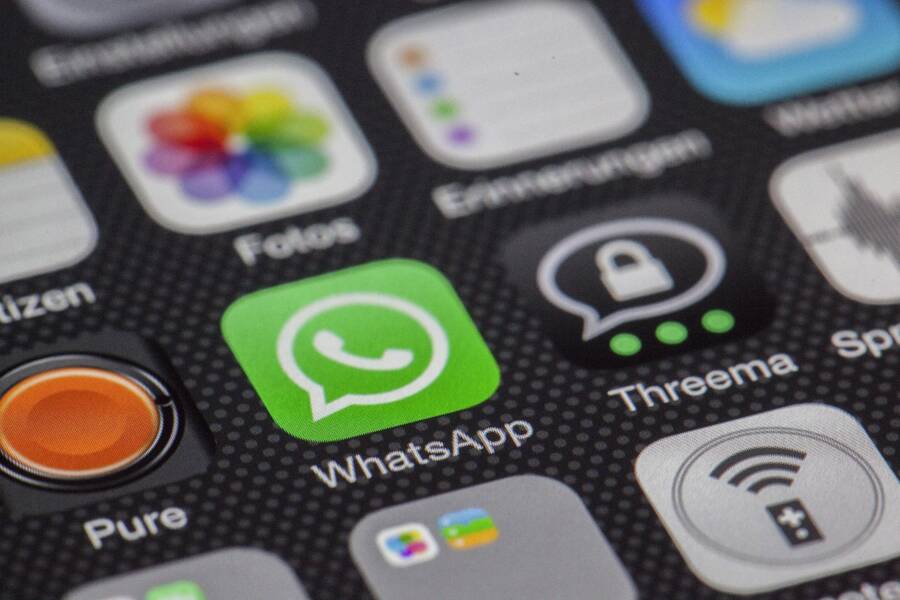
If you are tired of your smartphone displaying private message content on your lock screen for anyone to see, you can fix the issue by adjusting your system notification settings. This privacy concern is usually a simple configuration conflict rather than a hardware defect or a complex software glitch.
Taking control of your lock screen notifications is quick and straightforward, regardless of the smartphone brand you use. You don’t need technical skills to ensure your alerts remain private while your device stays locked.
Follow the instructions below to secure your incoming messages and protect your personal information from prying eyes.
Why Your Phone Shows Message Previews on the Lock Screen
Modern smartphones prioritize quick access to information, which is why your lock screen displays message previews by default. This design choice aims to provide convenience, allowing you to glance at incoming texts without unlocking your device. Manufacturers assume that most users prefer seeing the sender and the content of a notification immediately. However, this functionality creates privacy risks if your phone is visible to others. Understanding why this happens helps you decide if the trade-off between speed and security is worth maintaining.
Understanding Notification Privacy Defaults
Both iOS and Android platforms manage notification data with the assumption that your device remains in your possession. Apple and Google design their default settings to favor visibility, ensuring you do not miss important communications. When you set up a new smartphone, the system applies these factory presets, which almost always include showing message snippets on the lock screen.
System updates occasionally reset these preferences. When a phone undergoes a major operating system version change, the update process might revert various security settings to their original state to ensure compatibility with new features. If you previously disabled previews, a system upgrade might re-enable them without a specific prompt. Always verify your notification settings after installing a major update to confirm your privacy choices remain active. Android and iOS handle this differently, but both systems allow granular control through the settings menu. Apple tends to group these options under specific notification categories, while Android offers more flexibility in adjusting privacy levels per individual app.
When Software Glitches Prevent Changes from Saving
Sometimes a smartphone refuses to apply your privacy settings, even after you confirm the changes. Cached system files often trigger this issue. If your device holds onto outdated notification configurations in its temporary memory, the interface might reflect your new settings while the underlying system continues to operate on old instructions. A simple restart usually clears these cache fragments and allows the system to recognize your updated preferences.
Conflicting app permissions also cause saved settings to fail. Certain messaging apps contain their own internal notification configurations that might override the global settings of your smartphone. If you change the main lock screen settings but leave an app’s specific “show preview” toggle enabled, the app’s internal command takes priority. You should check the internal settings menu of your messaging applications if you notice that previews continue to appear despite your system-wide changes.
In rare cases, a corrupted system profile might block configuration updates. If you still see message previews after verifying both global and app-specific settings, toggling the notification permission off and back on for the specific app often refreshes the handshake between the software layers. This forces the device to re-register your privacy status within the system database.
Step-by-Step Fixes for iPhone Privacy Settings
Securing your notifications requires a quick trip into the iOS settings menu. You can easily hide the contents of your messages from the lock screen to prevent unauthorized people from reading them. Follow these steps to regain control over your privacy on your smartphone.
Adjusting Global Notification Settings
The primary control for message privacy lies within the main notification menu of your device. By modifying this setting, you change how every application behaves when your screen is locked.
Open the Settings app on your iPhone.
Tap on Notifications.
Select the option labeled Show Previews.
Choose When Unlocked or Never from the list.
Selecting When Unlocked hides the content of your notifications until you authenticate your identity using Face ID or Touch ID. This option provides a balance between convenience and security. Choosing Never hides the content entirely, even after you unlock the device, requiring you to open the message app manually to view your alerts. Pick the setting that aligns with your specific privacy needs.
Managing Individual App Permissions
Sometimes you want specific messaging apps to behave differently than the rest of your system. You might prefer your calendar to show details while keeping your private conversations hidden. iOS allows you to override global notification settings for individual apps like WhatsApp or iMessage.
Navigate to Settings and tap Notifications.
Scroll down the list of apps and select the messaging service you wish to modify.
Tap on Show Previews within the specific app settings menu.
Select When Unlocked or Never to finalize the change.
This granular approach is helpful if you use your smartphone for both work and personal communication. You can keep sensitive work alerts visible while masking personal chats. If the content still appears after these adjustments, restart your device to clear the cached notification data. This simple action often forces the system to apply your new privacy preferences correctly.
How to Hide Message Previews on Android Devices
Android offers significant control over how your smartphone handles sensitive information on the lock screen. You can prevent message content from appearing, ensuring that only you see the full text of your conversations. The process involves adjusting global system settings or modifying preferences for individual applications. These adjustments keep your digital communications private even when your device remains in view of others.
Configuring Lock Screen Security Options
Managing the visibility of alerts is a primary security step for any Android user. Your smartphone organizes these preferences within the central notification menu. By targeting the lock screen settings, you can mask the details of incoming messages while keeping the status bar icons active.
Open the Settings app on your smartphone.
Select Notifications from the menu list.
Tap on Lock screen notifications or Notifications on lock screen.
Choose the option labeled Hide sensitive content or Don’t show notifications at all.
When you select the option to hide sensitive content, the system still notifies you about a new message. However, the screen displays a generic alert, such as “Content hidden” or “New message,” instead of the actual text or sender name. This setting remains active until you unlock your device using your PIN, pattern, or biometric sensor. You can also disable lock screen notifications completely if you prefer total silence until you manually check your phone.
Using Advanced Notification Channels
Some applications go beyond the basic system settings by using internal notification channels. These channels categorize alerts by type, such as direct messages, group chats, or promotional updates. If you still see message previews after changing your global settings, one of these specific channels might be configured to override your privacy preferences.
You can modify these settings by navigating to the App info page for your messaging tool. Locate the Notifications menu within that specific app’s settings screen. Here, you will see a list of notification categories or channels. Tapping on a category name, such as “Direct Messages,” allows you to view detailed visibility options.
Many apps include an option to toggle specific alert behaviors on or off. If you set the lock screen visibility to “Hide sensitive content” for a specific channel, the smartphone treats those alerts differently than standard system notifications. Adjusting these settings provides a tailored privacy experience. It allows you to keep some alerts visible, like calendar reminders, while masking private conversations from your messaging apps. Check these individual channels periodically, as app updates occasionally reset these specialized configurations.
Troubleshooting Steps When Settings Fail to Stick
You changed your notification preferences, yet your smartphone still displays message previews on the lock screen. It is frustrating when your device ignores your commands, but this behavior usually points to a temporary software hiccup rather than a hardware failure. Before you assume a deeper issue, try these proven troubleshooting methods to force the system to respect your privacy settings.
Performing a Soft Reset to Clear Cache
A simple restart is often the most effective fix for misbehaving notification preferences. When your smartphone operates for extended periods, background processes accumulate temporary data in the system cache. Sometimes, these cached files contain outdated instructions that conflict with new settings you just applied.
Performing a soft reset clears this temporary memory without deleting your personal files or apps. Think of it as a clean slate for your operating system. Once the device reboots, it reloads all services from scratch, which forces the system to re-read your current notification preferences from the database.
Turn off your device completely using the physical power button or the power menu in your settings.
Wait about 30 seconds to ensure all volatile memory clears.
Power the smartphone back on and wait for it to fully load the home screen.
Verify your lock screen notification settings to see if the changes now apply correctly.
If the device still shows previews after a reboot, the system might need a more significant refresh or a software patch from the manufacturer.
Checking for System Software Updates
Manufacturers frequently release updates to fix bugs that interfere with system stability and user settings. If your notification preferences consistently fail to stick, a known software defect could be the culprit. Check your settings menu to confirm you have the latest version of your operating system installed.
Software updates often include patches for core system services that manage privacy and alerts. If your current firmware version contains a bug related to lock screen displays, installing the latest release usually resolves the issue.
You can check for available updates by following these steps:
Navigate to the Settings app on your smartphone.
Look for a menu labeled System, General, or Software Update.
Select Check for Updates to see if a newer version is available.
Install any pending updates and allow your device to restart.
Installing these updates provides more than just security patches. It often recalibrates how the system handles user-defined permissions across different apps. If the problem persists after an update, ensure that the individual messaging applications you use are also updated to their latest versions through the app store. Sometimes, an outdated app version fails to communicate properly with the latest operating system, which causes your privacy settings to revert or ignore your inputs.
Conclusion
You now have the tools to maintain your privacy by controlling how your smartphone alerts appear on the lock screen. Successfully hiding these previews prevents unauthorized people from reading your messages when your phone is sitting on a desk or table.
Check your notification settings periodically, especially after you install major system updates. These updates occasionally reset your preferences to default values, which might expose content you prefer to keep hidden. A secure device is a private one, and taking a few moments to verify these configurations gives you peace of mind.