Ever notice your media suddenly goes quiet the moment a notification arrives? You’re not alone. This issue pops up on both Android and iPhone, and the fix is usually one or two quick checks away. In this guide you’ll learn practical steps you can try today to stop a notification from pausing your music or videos.
We’ll cover both major platforms so you can follow along with the device you own. On Android mute when a notification arrives can happen for several reasons, from Do Not Disturb settings to app level controls. On iOS you might see a similar pause due to Focus modes, silent switches, or app notification settings. The good news is that most fixes are simple and don’t require any special tools.
Begin with quick tests you can run in minutes. First, check the sound sliders for Media and Notifications and test with a quick song or video. Then inspect Do Not Disturb or Focus modes and make sure exceptions are set for your media apps. If the problem persists, explore per app notification settings to ensure the app isn’t muting itself when alerts come in. In many cases a short restart or a software update resolves the issue.
This guide also shows how to route audio correctly so your media stays audible even when alerts arrive. You’ll see how per app notification settings play a big role, and you’ll learn which common settings to tweak for Android and iPhone. By the end, you’ll have a clear path to stop notification sounds from stealing your music, and you’ll be ready to test and confirm the fix on your own smartphone.
Understand why media mutes when a notification arrives
When a notification pops up, your media can drop to a whisper or pause altogether. This behavior keeps alerts audible so you notice them, but it can ruin a workout, commute, or movie. In this section we’ll break down the common triggers, what you’ll notice, and how to approach fixes across both Android and iPhone. Think of your smartphone as a smart helper that sometimes sacrifices media playback for a momentary ping. Understanding the controls helps you tailor behavior without losing important alerts.
What triggers the mute
- Do Not Disturb or Focus modes: These modes mute or limit notifications to reduce interruptions. They can be scheduled or toggled manually, and they can mute media briefly when an alert arrives.
- Per‑app notification settings: Some apps can mute or reduce media volume during alerts. You may have hidden rules set for certain apps, especially messaging or social apps.
- Pause media for notifications: A built‑in option on some devices pauses media whenever a notification plays, then resumes after the alert finishes.
- Audio routing to Bluetooth devices: When you’re connected to Bluetooth headphones or a car system, the system may duck or mute media to prioritize the notification sound, making it seem like the media paused.
- Quick examples to spot the pattern:
- A text message arrives while you’re listening to music and the track momentarily pauses.
- A navigation alert while you’re watching a video causes a brief media pause to ensure the sound stands out.
- An incoming call or app alert lowers the volume on your speaker or headphones during the notification.
For Android users, check how Do Not Disturb, Zones, or other interruption settings are configured and whether media apps have their own exceptions. On iPhone, Focus modes and per‑app notification controls play a similar role. If you want to dive deeper, see how Android’s interruption settings and iPhone Focus controls are managed in practice. You can also review how Bluetooth routing affects playback when headphones or car systems are connected. For Android specifics, you can start with the official guidance on limiting interruptions with Modes and Do Not Disturb. For iPhone guidance, Apple’s Focus settings page covers notification silencing and exceptions. Finally, Bluetooth audio behaviors are covered in general device support resources from major manufacturers.
- Related resources:
- Limit interruptions with Modes & Do Not Disturb on Android.
- Allow or silence notifications for a Focus on iPhone.
- Notification & interruption settings on Android Help.
- How to manage Bluetooth devices near your Android device.
Further reading and official steps can help you confirm whether your device is using a global mute, an app‑level mute, or a Bluetooth routing rule.
Common symptoms you can identify
- Music or video pauses briefly when a notification arrives, then resumes. This is the most common symptom and is often mistaken for a playback issue rather than a notification interaction.
- A call or message interrupts media with a momentary volume dip instead of a full pause. You’ll notice the media briefly ducks rather than stops completely.
- After an update or a settings change, all sounds may drop to very low levels or silence, affecting music, alerts, and system sounds.
- Changes in one app can affect others. For example, an app with aggressive notification controls might mute media even when other apps are playing audio.
- You hear notification tones more clearly than your media at the moment of alert, suggesting the system is prioritizing the notification channel.
If you notice these patterns, you’re likely dealing with a standard notification handling path. It’s not a hardware failure; it’s how the OS and apps route and prioritize audio. Verifying whether Focus or DND modes are active, and checking per‑app settings, will usually reveal the culprit.
How this affects listening and daily use
- Workouts and commutes: A paused playlist during a crucial moment can derail a run or train ride. You might miss a playlist cue or a podcast segment because the notification takes center stage.
- Focus sessions: When you’re trying to concentrate, even a short notification can break your flow if it pauses audio. This can be frustrating during study or deep work.
- Media playback in cars: If you connect your phone to a car system, notifications can duck audio or pause playback, making it hard to follow a podcast or audiobook.
- Social and family life: Messages, reminders, and app alerts are constant. If you frequently switch between apps, you’ll want consistent behavior so media playback isn’t unpredictably interrupted.
The good news is most fixes are simple: adjust a few toggles, allow exceptions, or update the app. You don’t usually need a deep tech overhaul. For practical steps, you can refer to the Android and iPhone guidance on notification control, and consider how Bluetooth routing might affect playback on your device. If you’re streaming music or watching videos in a shared Bluetooth setup, test with and without Bluetooth to see how the audio routing affects the issue. And if you’re a frequent traveler or commuter, you’ll appreciate how small tweaks can restore a seamless listening experience on the go.
External references that help with practical adjustments include official Android and iPhone support pages on notifications, as well as user guidance from device makers about Bluetooth audio behavior. For example, Android users can explore how to limit interruptions with Do Not Disturb and Modes, while iPhone users can examine Focus settings and app exemptions. You may also find it useful to see specific posts about stopping notifications from interrupting music on iPhone and guidance for Bluetooth device interactions. These resources provide concrete steps that you can apply quickly on your own phone.
- Android focus and DND basics: https://support.google.com/android/answer/9069335?hl=en
- iPhone Focus and notification controls: https://support.apple.com/guide/iphone/iph21d43af5b/ios
Smartphone users should approach fixes one setting at a time, testing playback after each change to confirm what resolves the issue. This method keeps things simple and avoids introducing new problems.
External links for quick reference
- Android help on notification and interruption settings.
- Apple’s guide to allowing or silencing Focus notifications on iPhone.
- A practical guide to preventing media interruptions on iPhone when texts arrive.
- A Samsung community thread about notification pausing music on Bluetooth devices.
If you’d like, I can tailor these steps to your exact device model and current OS version, then walk you through a personalized test plan.
Fast checks you can do in minutes
When media keeps muting as notifications arrive, you want fast, reliable checks you can perform in just a few minutes. This section walks you through quick, practical steps you can take on both Android and iPhone to restore uninterrupted audio. Each step is designed to be easy to follow, so you can test media playback after every change and confirm what fixes the issue for good. A quick, calm approach helps you keep using your smartphone without guesswork.
Turn off Do Not Disturb or Focus
Disabling Do Not Disturb on Android or Focus on iPhone is the fastest way to rule out a blocking rule. Here’s how to do it quickly and confirm results:
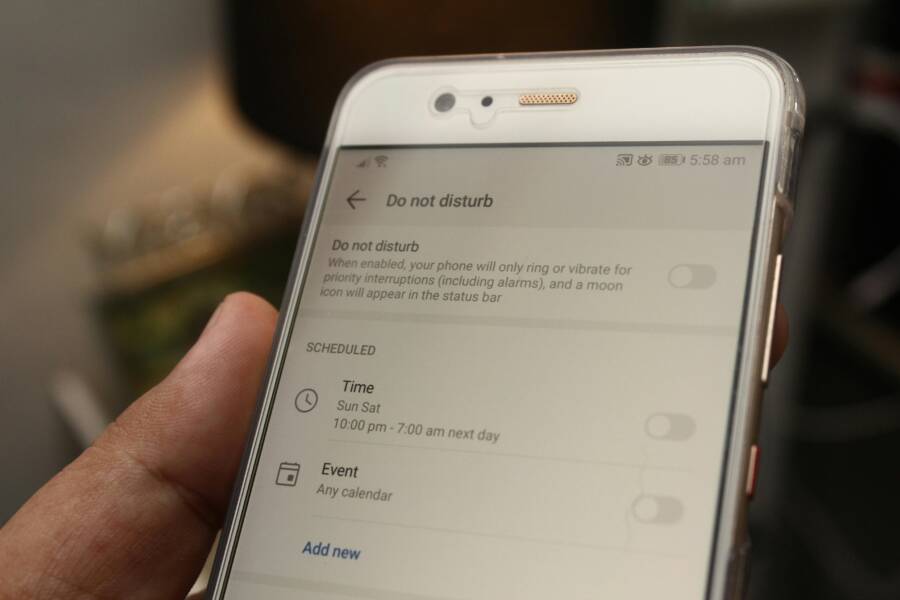
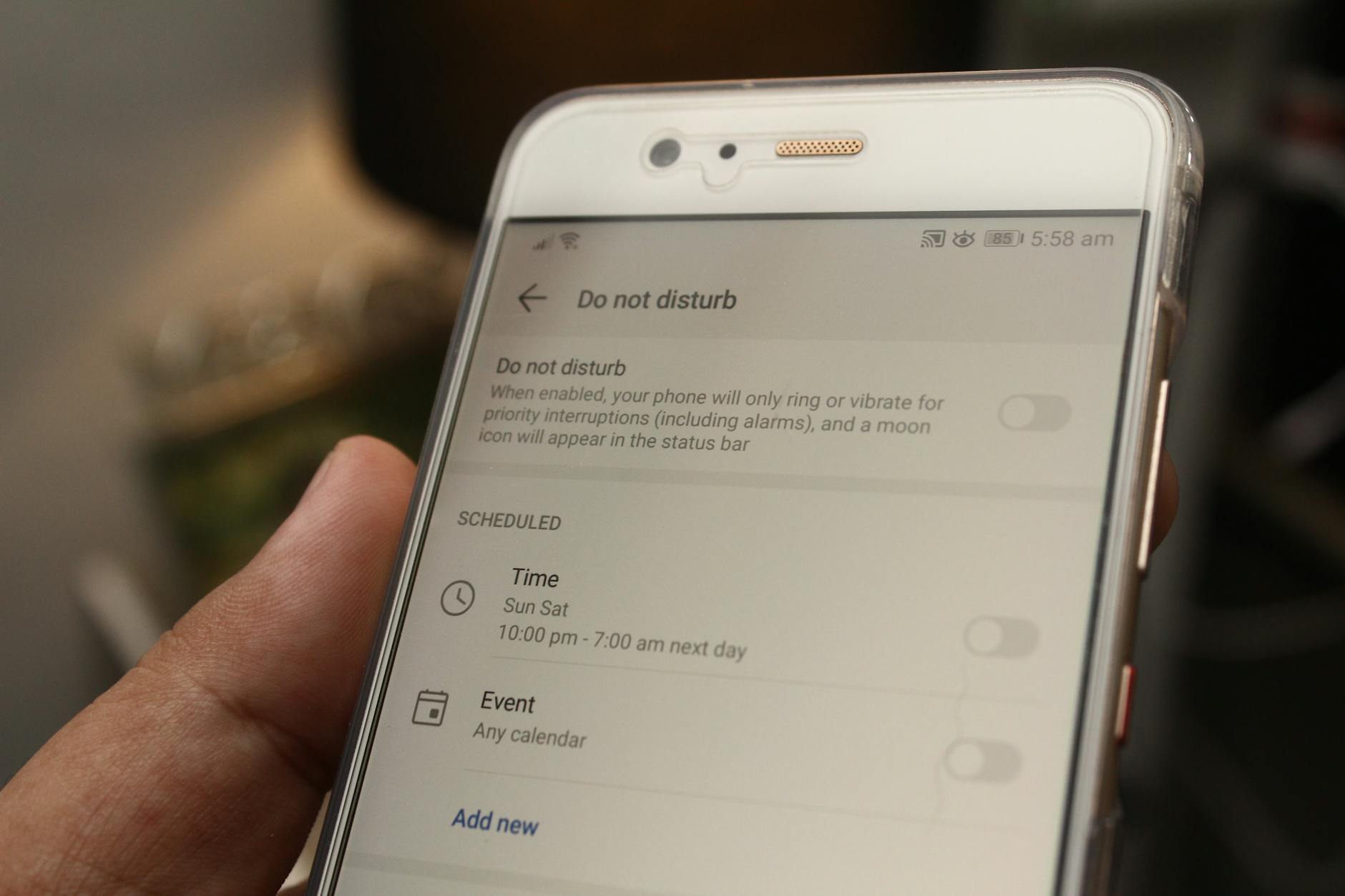
- Android: Swipe down to access Quick Settings, tap Do Not Disturb (or the DND icon) to toggle it off. If you see multiple modes, switch to “Off” or the standard interruption mode. After turning DND off, play some music or a video to confirm sound returns normally. If you want to keep DND handy but not disruptive, you can set a temporary exception for media apps in Modes.
- Quick tip: You can also ask your Android device to silence notifications via a voice command if your setup supports it.
- iPhone: Open Control Center and tap Focus to turn it off, or swipe into Settings > Focus and disable the active focus. After disabling, test playback with a quick track or video to ensure audio is flowing again.
- Quick tip: If you don’t want to turn Focus off entirely, adjust the allowed notifications so media apps remain unmuted during alerts.
Both platforms benefit from a quick test after you switch off DND or Focus. If media returns to normal, you’re done. If not, proceed to per app settings and audio routing checks. For deeper guidance on these controls, see Android’s guidance on Modes and Do Not Disturb and Apple’s Focus settings page.
Photo by Daniel Moises Magulado on Pexels
Check per app notification sounds and delivery
Per‑app controls can quietly mute or lower media when alerts arrive. Verifying these settings is fast and can fix stubborn issues without broad changes.
- Android per‑app channels and sounds:
- Go to Settings > Apps & notifications > See all apps > [Your App] > Notifications.
- Check that the app is allowed to make noise and that there are no “Deliver quietly” or silence rules for that app.
- Some apps use separate notification channels; ensure the important channel is set to alert with sound.
- If you notice a channel set to silent, switch it to sound or adjust importance to “Urgent” or “High.”
- Test playback after adjusting. If the app uses a special interstitial channel for alerts, ensure it doesn’t mute media by default.
- iPhone per‑app notification sounds:
- Open Settings > Notifications > [App]. Ensure that Allow Notifications is on and that the alert style includes sounds.
- If the app offers a “Deliver Quietly” option, disable it for that app so alerts play with sound in the foreground.
- Some apps require you to permit critical alerts or set exceptions in Focus; if so, enable those options for media continuity.
- Test with a short video or song to confirm the change.
Why this matters: some apps use their own rules for how alerts behave when media is playing. Fixing per‑app channels and delivery ensures alerts don’t steal the show from your audio. For reference, Android users can explore how to set custom notification sounds per app and how to manage different channels, while iPhone users can adjust per‑app sound settings directly in iOS.
- Android per‑app sounds and channels: https://support.google.com/pixelphone/thread/160616773/how-do-you-set-custom-notification-sounds-per-app?hl=en
- iPhone change notification settings on a per‑app basis: https://support.apple.com/guide/iphone/change-notification-settings-iph7c3d96bab/ios
- Focus Mode on iPhone: the complete guide: https://discussions.apple.com/thread/253962595
Verify audio routing and Bluetooth connections
Wrong audio routing can make it seem like media is muted when an alert sounds. A quick check of Bluetooth and output settings often fixes the issue.
- Check current output:
- On Android, if you’re using Bluetooth headphones or a car system, the audio path may duck the media for notification sounds. Disconnect Bluetooth briefly to see if media returns to the phone speaker, then reconnect and test again.
- On iPhone, swipe to the Control Center and confirm the audio output is set to iPhone or the desired wired/built‑in path rather than a Bluetooth device.
- Quick routing fix:
- Toggle Bluetooth off, then back on.
- Change audio output back to the phone or to the preferred device.
- Re-test with a short song or video to confirm the fix.
- Check for stray paired devices:
- Make a quick scan of the device list to see if any older or unused Bluetooth devices might grab audio in the background.
- If you find any, remove or forget them temporarily to ensure they aren’t competing with your current audio path.
Why this matters: Bluetooth devices sometimes grab the audio path for alerts, causing media to duck or mute when notifications arrive. Clearing stale pairings and confirming the active output path resolves most routing issues. For further reading on Bluetooth behavior, see the Android article on Bluetooth devices near your phone and Apple’s guidance on changing audio routing with Bluetooth devices.
- Android Bluetooth device management: https://support.google.com/android/thread/251626278/google-arbitrarily-mutes-notification-sounds-when-bluetooth-devices-are-connected?hl=en
- Apple Bluetooth audio behavior: https://discussions.apple.com/thread/253962595
Images to support this section:
- A smartphone showing Quick Settings with DND icon highlighted. Photo by Daniel Moises Magulado, source: Pexels
- Photo:
- Credit: Photo by Daniel Moises Magulado
- Photo:
External resources for quick reference
- Limit interruptions with Modes & Do Not Disturb on Android: https://support.google.com/android/answer/9069335?hl=en
- How to turn Do Not Disturb on or off on iPhone: https://support.apple.com/guide/iphone/turn-a-focus-on-or-off-iph5c3f5b77b/ios
- Change notification settings on iPhone: https://support.apple.com/guide/iphone/change-notification-settings-iph7c3d96bab/ios
What to do next
- Tackle one setting at a time.
- After each change, play a brief audio test to confirm whether the fix holds.
- If you still hear muted media after these checks, consider a quick restart or system update as a final sanity check.
External links for quick reference
- Android help on notification and interruption settings: https://support.google.com/android/thread/9069335
- Apple’s guide to Focus and notification controls on iPhone: https://support.apple.com/guide/iphone/iph21d43af5b/ios
- Bluetooth device interactions on Android: https://support.google.com/android/thread/251626278
- How to stop media interruptions on iPhone when texts arrive: https://www.idownloadblog.com/2025/06/16/stop-music-interruption-by-app-notifications-iphone/
If you want, I can tailor these steps to your exact device model and OS version, then walk you through a personalized test plan.
Section: Platform specific fixes for Android and iPhone
In this section, you’ll find practical, platform tailored fixes to stop media from muting when a notification arrives. The goal is to keep your audio playing smoothly while still receiving important alerts. Work through the steps one at a time, testing playback after each change. If you’re using a smartphone for workouts, commuting, or focus work, these fixes help maintain a seamless listening experience.
Android specific fixes
Android users often see media pause or drop in volume when a notification comes in. The fix is usually a combination of quick toggles and per‑app controls. Start with the simplest changes and move to more specific settings if needed.
- Turn off Do Not Disturb (DND) or switch to a less aggressive interruption mode. After turning DND off, test playback with a short track or video to confirm audio returns to normal. If you want occasional quiet periods, set DND with media exceptions in Modes.
- Review notification channels and app delivery. Some apps create separate channels for different alert types. For each app, ensure the main channel can play sound and that there isn’t a silent or quiet channel active during playback. If a channel is set to silent, switch it to sound or raise its importance.
- Check per‑app settings for media impact. Some apps mute or quiet alerts when playing audio. Verify that the app is allowed to make noise and that no “Deliver quietly” rule is in effect.
- Test audio routing alongside these tweaks. If you use Bluetooth headphones or a car system, the device may duck media to prioritize the notification. Disconnect and reconnect Bluetooth to confirm behavior, and consider testing with the phone’s speaker as a baseline.
- Reset options if needed. If the problem persists, you can reset app preferences or clear cache for the troubled apps. This step often clears stubborn rules without removing data.
- Quick references you can check later:
- Limit interruptions with Modes & Do Not Disturb on Android
- Notification & interruption settings on Android Help
- Do not disturb documentation from Android’s official docs
If you want a deeper dive, you can review how Android’s interruption controls work in practice and look for device‑specific quirks noted in recent OS patch notes. For direct reading, see Android’s official guide to Do Not Disturb and related settings. Also consider Bluetooth behavior notes from major manufacturers when audio routing changes.
External references you may consult later:
- https://support.google.com/android/answer/9069335?hl=en
- https://support.google.com/android/topic/7651002?hl=en&ref_topic=7651296
- https://source.android.com/docs/core/display/dnd
Pro tip: after each adjustment, perform a quick media test on your smartphone to confirm a fix before moving to the next setting.
iPhone specific fixes
iPhone users often encounter media pauses due to Focus modes, per‑app alerts, or Bluetooth routing. The fixes are straightforward and centered on Focus controls, sound settings, and testing with different audio paths.
- Disable Focus modes or adjust exceptions. Turn off Focus temporarily and test playback. If you prefer to keep Focus on, allow notifications for media apps so alerts don’t mute audio.
- Review per‑app notification settings. For each app, ensure Allow Notifications is on and that sounds are enabled. If an app offers Deliver Quietly, disable that option for media continuity. Some apps may require enabling critical alerts or Focus exceptions.
- Ensure sound is enabled. Confirm that the system sounds and media volume sliders are up and not muted. Some iPhone users find that bringing up Control Center and tweaking the volume helps verify which path is active.
- Test with and without Bluetooth. Bluetooth routing can cause media to duck when an alert fires. Test playback with Bluetooth off and then again with Bluetooth on to see how routing changes affect audio.
- Stay current with iOS updates. Apple sometimes addresses notification sound bugs in patches. Installing the latest update can be a simple yet effective fix.
- Quick references you can check later:
- Allow or silence notifications for a Focus on iPhone
- Change notification settings on iPhone
- How to stop media interruptions on iPhone when texts arrive
Supporting notes show that per‑app alerts and Focus settings can dramatically change how audio behaves during alerts. If you still hear muted media after these steps, a focused test plan with fresh installs and a careful review of Focus and per‑app settings often resolves the issue.
External references you may consult later:
- https://support.apple.com/guide/iphone/allow-or-silence-notifications-for-a-focus-iph21d43af5b/ios
- https://support.apple.com/guide/iphone/change-notification-settings-iph7c3d96bab/ios
- https://www.idownloadblog.com/2025/06/16/stop-music-interruption-by-app-notifications-iphone/
If you want, I can tailor these steps to your exact device model and current OS version, then walk you through a personalized test plan.
Advanced fixes and how to test
When the basic checks don’t resolve media muting during notifications, it’s time for advanced fixes. This section walks you through targeted steps you can take to reset fragile areas without losing data, and to know when it’s smarter to seek OS or device support. You’ll learn where to clear caches, how to reset app preferences safely, and how to recognize when an OS update or official support is needed. Think of these steps as fine tuning your device to keep audio and alerts in harmony.

Photo by Watford London Media
When to reset app settings and clear caches
Resetting app settings and clearing caches can fix stubborn quirks without erasing personal data. On Android and iPhone, caches store temporary assets that help apps load faster, but they can become stale or conflicting with notification behavior. Resetting app preferences or clearing cache often clears these hidden rules and allows the app to start fresh with its default behavior. This is a safe, minimal-change approach that many users report resolving odd notification mutes.
- Android: Clearing cached data and resetting app preferences typically does not remove user data like photos or messages. To proceed, you can:
- Clear cache for the problematic apps: Settings > Apps & notifications > See all apps > [App] > Storage > Clear cache.
- Reset app preferences: Settings > System > Reset options > Reset app preferences. This reverts background data handling, default app associations, and notification behavior to the system defaults, while keeping your personal data intact.
- After these steps, reopen the app and run a quick test with media playback and a notification to confirm if the issue is resolved.
- If you still see quirks, consider clearing cache for related system apps that handle notifications or audio routing.
- iPhone: You can clear app data indirectly by offloading unused apps or clearing certain caches when needed, but the primary safe move is to reset settings or adjust per-app controls without a full data wipe:
- Offload unused apps (Settings > General > iPhone Storage > Offload App) to reclaim cache-like data without deleting the app.
- Reset all settings (Settings > General > Transfer or Reset iPhone > Reset > Reset All Settings). This won’t erase your content but will reset network, location, privacy, and display settings, which can influence notification routing and audio behavior.
- After the reset or offload, re-test with a media playback scenario and an incoming notification to verify if audio now remains uninterrupted.
- Practical tip: If you’re concerned about data, perform a quick backup before making these changes. A backup ensures you can restore any unintended changes without stress.
Why this helps: caches and misapplied app preferences can create a feedback loop where alerts mute or duck audio unpredictably. A careful reset clears those hidden rules without touching your media or files. For reference, you can review Android’s guidance on clearing cache and cookies on mobile devices and Apple’s guidance on managing storage and offloading to reclaim space, which often correlates with reducing background noise conflicts.
- Android: How to Clear Cache and Cookies on Your Phone.
- Android: Clear Cache and Cookies on Android.
- iPhone: Manage storage on iPhone.
If you want deeper steps tailored to your device model, I can map out exact menus and options.
When to update OS and contact support
Software patches and official guidance are your long-term allies when the issue sits beyond quick fixes. OS updates often include fixes for audio routing, notification handling, and per-app behavior that can cause media to mute during alerts. If the problem persists after resets and per-app tweaks, it’s time to check updates and prepare to contact support with solid information.
- How to check for OS updates
- Android: Open Settings > System > Advanced > System update. Check for updates and install if available. Patches often address notification and audio issues, and they can restore expected behavior after aligning with the latest security and feature sets.
- iPhone: Open Settings > General > Software Update. Install any available update. Apple often bundles fixes for notification sound behavior and Focus interactions in these patches.
- Why patches matter
- Updates fix known bugs that cause unexpected audio muting during alerts.
- They improve compatibility with new apps and Bluetooth devices.
- They can adjust audio routing so media stays audible when notifications fire.
- When to contact support
- If you’ve applied all practical fixes and still see muted media during alerts, reach out to the device maker or carrier. Prepare a concise report that helps speed up the process.
- What to gather: your device model, current OS version, the exact app(s) involved, steps to reproduce, and a screen recording or logs if possible.
- For Android, contact the device maker or carrier support when you suspect a device-specific bug or a problem that mirrors across multiple apps.
- For iPhone, use Apple Support or your carrier’s help desk if the issue persists after updates and settings tweaks.
Tips to speed up help and set expectations
- Document the exact steps you took, the behavior you observed, and the times of the events.
- Include a short video or audio clip showing the mute during a notification. This can be more persuasive than words alone.
- Be ready to perform a clean test after each fix so the support team can reproduce the issue on a fresh device state.
External resources you can consult for update and support guidance
- Update iOS on iPhone – Apple Support
- Check & update your Android version – Android Help
- Contact Apple Support – Apple Support
- Android help on notification and interruption settings – Google Support
If you’d like, I can tailor the test plan to your exact device model and OS version, then walk you through a step-by-step checklist for your next support session.
Conclusion
Most cases are solved quickly by checking Do Not Disturb or Focus, reviewing per‑app sounds, and confirming audio routing. A quick test after each change ensures you know what fixed the issue and helps you avoid repeated tweaks. Keep in mind that a well configured smartphone with clear app exceptions usually stays audible when alerts arrive. If you’re willing, share your device model and OS version in the comments, and tell us what worked for you or any success stories.