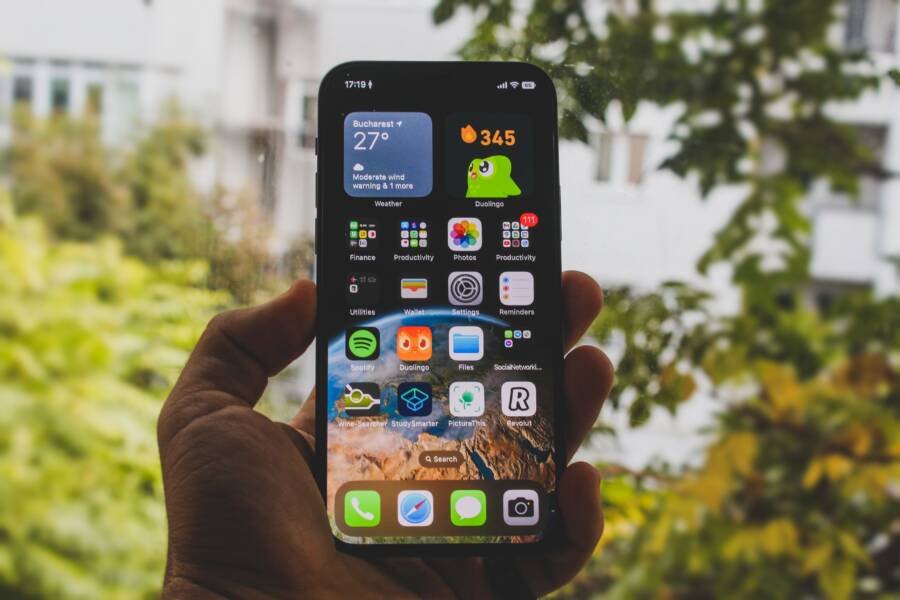
When your smartphone clock widget stops updating, it usually stems from aggressive power-saving settings or a minor software synchronization error. You likely notice the time remains stuck at the exact moment you last unlocked your screen, making the widget unreliable.
This behavior occurs because your device restricts background processes to save battery life. Most modern mobile operating systems pause widget refreshes when the battery level drops or when specific performance modes are active.
You can resolve this issue by adjusting your background activity permissions and battery optimization settings. The following sections explain the exact steps to restore accurate timekeeping on your home screen.
Why Your Smartphone Clock Widget Falls Behind
Your smartphone clock widget stops updating because the operating system prioritizes battery life over constant background activity. When your device enters a low-power state, it suspends non-essential tasks to preserve remaining charge. This restriction prevents the clock widget from pulling the current time from the system core. If the process remains frozen even after you wake your phone, the application likely crashed or hit a memory limit.
Power Management and Background Restrictions
Modern mobile operating systems utilize aggressive background process management to extend daily usage. When your battery percentage dips below a certain threshold, the system enforces a strict power-saving mode. This mode forces apps to stop periodic updates, including the visual refresh of your home screen widgets. Because the clock widget relies on these background triggers to redraw its display, it shows an outdated time until the system allows it to run again.
You can check if your device is currently in a power-saving state by looking for icons in the status bar. If you see a battery icon with a leaf or a yellow tint, your phone is limiting background tasks. In addition, some manufacturers apply these restrictions regardless of your battery level to keep the processor cool and responsive. This creates a conflict where the system protects itself but leaves your home screen information inaccurate.
Software Synchronization Errors
Sometimes the issue is not power management, but a failure in the internal communication between the system clock and the widget interface. Applications that provide custom clock widgets often run as separate services. If this service hangs or encounters a memory leak, it stops polling the system clock for the latest data. This leaves the widget stuck on the last time it successfully pulled from the operating system.
Temporary software glitches also interfere with time synchronization. If you recently updated your firmware or changed a system setting, the widget might have lost its authorization to access the current time. Clearing the app cache or restarting your device forces the operating system to reload these services. This simple reset usually clears the synchronization error and allows the clock to resume its normal function on your smartphone.
Assessing Widget Reliability
Not all clock widgets function with the same level of priority. System-provided widgets usually have deeper hooks into the OS, while third-party widgets depend on permissions that the system can revoke at any time. If you notice your chosen widget lags often, you might need to test a different one or check for updates from the developer.
Understanding how your smartphone manages these processes makes it easier to keep your display accurate. By identifying whether power modes or app-specific errors cause the lag, you can choose the right fix. Most users resolve these issues by adjusting battery settings or refreshing the widget connection.
Quick Fixes for a Clock That Cannot Keep Current
When your smartphone widget fails to update, you do not need to replace the device or perform a factory reset. Most issues with frozen time displays stem from power management software that prioritizes battery longevity over active home screen processes. By adjusting specific system settings and refreshing your widget connection, you can restore accuracy to your screen.
Adjusting Battery Optimization Settings
Modern operating systems on your smartphone automatically kill background tasks to save energy. When your battery level drops, the system restricts apps from polling the server for new data. This policy includes clock widgets, which effectively stop functioning until you unlock the screen or plug in a charger.
You can prevent this by adding your clock app or launcher to the battery exemption list. Follow these steps to adjust the settings:
Open the Settings menu on your smartphone.
Tap on Apps or Application Manager.
Select the specific clock or launcher app you currently use.
Locate the Battery or Power consumption section.
Choose the option labeled Unrestricted or Battery Optimization.
Select Don’t optimize to ensure the system allows the widget to run in the background.
Some devices group these under a specialized menu like Background Usage Limits. In this menu, add your clock app to the Never sleeping apps list. This change forces the operating system to keep the widget active regardless of your remaining power level.
Updating and Refreshing System Widgets
Sometimes the link between the system clock and your home screen widget breaks due to a minor software glitch. If your settings are correct but the time remains stuck, you should force a manual refresh. Removing and re-adding the widget clears any hanging cache files and restarts the communication process.
Start by long-pressing the frozen widget on your home screen and selecting Remove. Return to your widget gallery, select the clock widget again, and place it on your home screen. This process forces the OS to re-initialize the widget service from scratch.
If the problem persists, check for system updates. Smartphone manufacturers frequently release patches that fix bugs affecting time synchronization. Navigate to your System Update menu and install any pending firmware. These updates contain necessary code for internal clocks, which often resolves conflicts causing the widget to freeze. If you use a third-party app, visit the app store to confirm you have the latest version, as developers often push fixes for compatibility issues with new Android or iOS releases.
Troubleshooting Deeper Software Conflicts
When standard battery adjustments and widget refreshes fail, the issue often lies in deeper software conflicts. Your smartphone relies on complex interaction between system services and third-party apps. Sometimes, a configuration conflict prevents the clock widget from receiving the time signal it needs to display information.
Resolving Application Overlay Conflicts
Smartphone operating systems often allow specific apps to draw content over others. This feature, known as an overlay, sometimes interferes with widget refresh cycles. If a recent app update or a new installation uses this permission, it might block the clock widget from updating its display. You should check your app permissions to see if a culprit exists.
Navigate to your settings menu and search for “Display over other apps” or “Special access.” This screen lists every application with permission to draw over your interface. If you find a third-party app in this list that you do not trust or that you recently installed, toggle its permission off. Restart your phone to see if the clock widget begins updating again. Often, removing this conflict allows the system to prioritize the clock widget display.
Handling Corrupt Cache and Data
System services sometimes store temporary files that become corrupt over time. These files contain outdated instructions that stop the widget from communicating with the system clock. Clearing the cache and data for the specific clock app or the home screen launcher forces the device to build a fresh, error-free connection.
Follow these steps to clear the stored data:
Open your phone settings and find the Apps section.
Locate your clock app or home screen launcher in the list.
Tap on Storage or Storage and Cache.
Select Clear Cache first.
If the problem remains, select Clear Storage or Clear Data.
Note that clearing the data for your launcher app might reset your home screen layout to its default state. Ensure you back up your icon positions or widget configurations before performing this step on your smartphone. A clean slate usually resolves persistent synchronization loops that simple restarts cannot fix.
Investigating System-Level Memory Leaks
Persistent freezing sometimes stems from a memory leak within the smartphone operating system. A leak happens when an app consumes system memory but never releases it back to the core. Eventually, the system terminates the process to save resources, which causes your clock widget to hang indefinitely.
Check if your phone remains sluggish in other areas besides the home screen. Frequent app crashes or slow responsiveness indicate that a specific service is exhausting your device memory. Updating your operating system to the latest version often includes fixes for these memory management errors. If a recent update introduced the problem, check your manufacturer forum for reports from other users. Sometimes, rolling back to a previous version or waiting for a patch is the only way to resolve deep system conflicts.
Common Questions About Phone Time Accuracy
You likely wonder why your smartphone clock stays frozen while other apps update. Many users experience this delay, especially when the device manages power consumption to save battery. Below are answers to common questions about why your clock might show the wrong time and how to ensure it remains accurate.
Why does my clock update only when I unlock the screen?
Your smartphone suspends background tasks when the display is off to reduce battery usage. This process often pauses the clock widget refresh cycle. The system treats the widget as a non-essential service while the screen is dark. As soon as you wake the device, the system signals the widget to fetch the current time again. If this behavior persists while you are using the phone, the widget may have restricted background data permissions.
Do third-party clock widgets drain more battery than native ones?
Third-party widgets often request more frequent updates from the system than built-in versions. They rely on listeners to detect time changes, which keeps the processor active more often. While these widgets add personality to your home screen, they can conflict with aggressive battery optimization settings on your smartphone. If you notice high battery drain alongside a frozen clock, consider switching back to the default widget to test if the performance improves.
Can time zone settings affect my widget display?
Incorrect network time settings often lead to persistent display errors. If your smartphone is set to manual time rather than network-provided time, the widget might struggle to sync if your location changes. Check your system date and time settings to ensure the “Set time automatically” option is active. This allows the cellular network to send precise time updates, which prevents the internal clock from drifting or failing to update the home screen display.
How do I know if an app is blocking my clock widget?
Some security apps or task killers stop background services to free up memory. If you use software that claims to boost performance or clear RAM, it might be killing the clock widget process. You can verify this by temporarily disabling these tools to see if the widget starts updating consistently. If the clock stays accurate without these apps active, you should add your clock widget to the exclusion list within your optimization software settings.
Does a weak internet connection cause a frozen clock?
Your phone relies on a network signal to verify time consistency. If you are in a location with poor reception, the system might have trouble reaching the time server. While your smartphone has an internal quartz crystal to keep track of time, it still periodically validates this against the network. A stable connection ensures the system clock remains precise, which directly influences the data shown on your home screen widgets.
Conclusion
Fixing a stubborn clock widget on your smartphone requires balancing system performance with active display needs. Most issues vanish once you move the application to your battery optimization exclusion list or refresh the widget service. These adjustments tell your device to prioritize the clock over general power-saving restrictions.
If the problem persists, clearing your launcher cache or updating the operating system usually addresses deeper software conflicts. Keeping your firmware and apps updated prevents these synchronization issues from returning later. You now have the tools to manage your background settings and keep your home screen display accurate at all times.